

Automatically saving media on WhatsApp can save you time and effort, but it can also quickly become a headache. Firstly, it can take up all your storage space and clutter your device with unwanted photos and videos from chats and groups. Also, sensitive images you’ve received via WhatsApp will be stored in your gallery for others to access.

Fortunately, WhatsApp offers the option to prevent WhatsApp from saving photos to your gallery. This works on both Android and iPhone. In this guide, you’ll learn how to change the WhatsApp media download settings in the app and prevent WhatsApp from saving photos.
Table of Contents
How to Stop WhatsApp From Saving Photos
Stop WhatsApp Media Auto-Download on Android
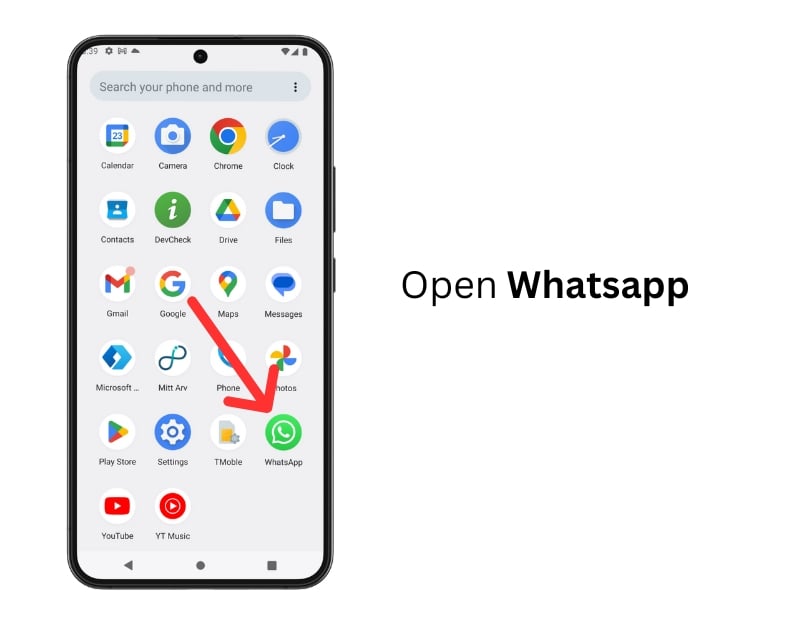
- Step 1: Open Whatsapp on your Android device.
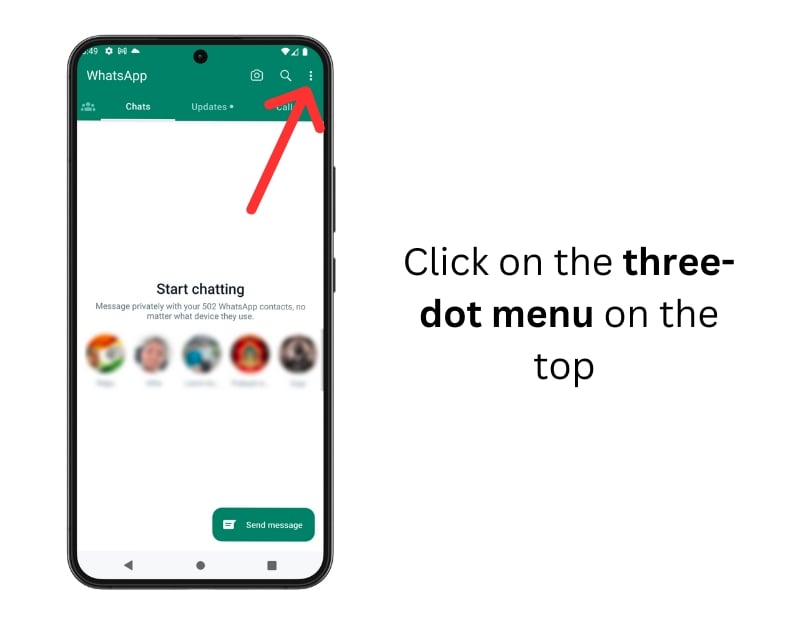
- Step 2: Go to the home screen and tap on the three dots in the top right corner to open the menu.
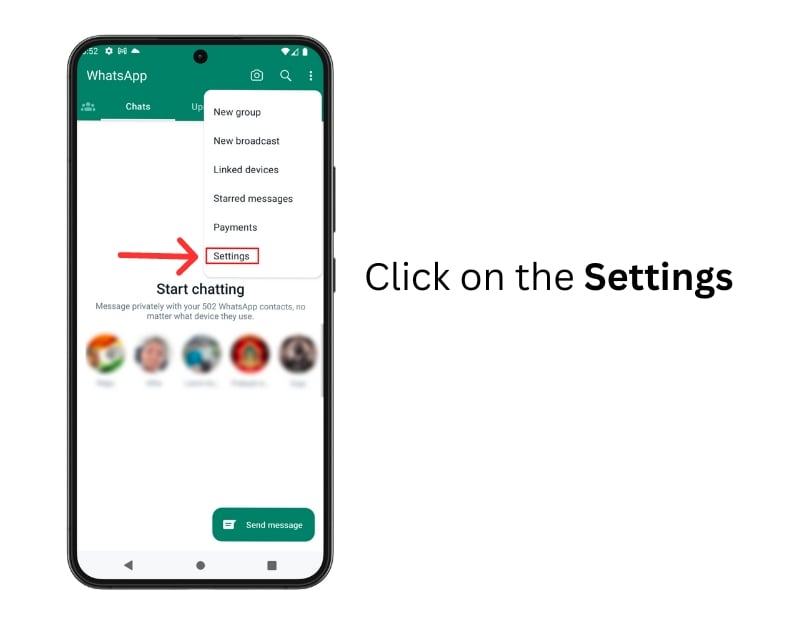
- Step 3: Select Settings from the menu.
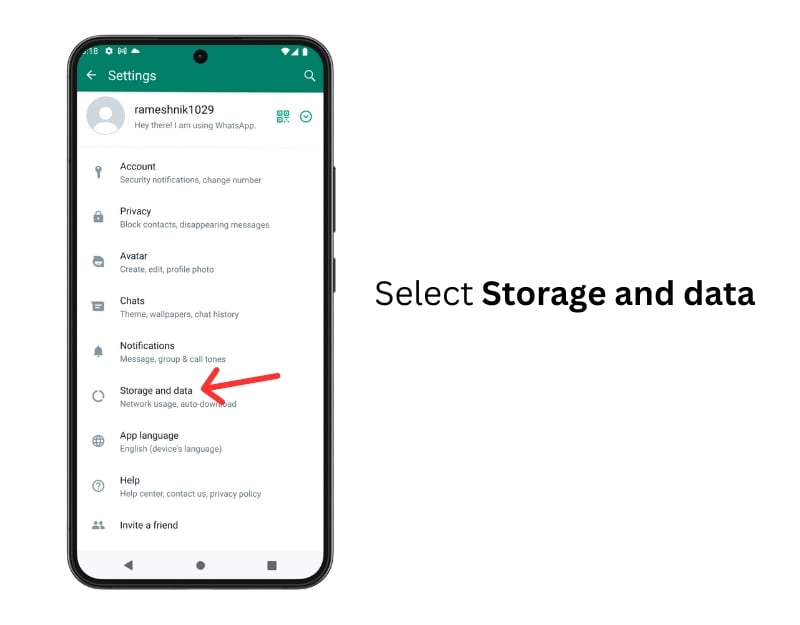
- Step 4: Tap on Storage and Data.
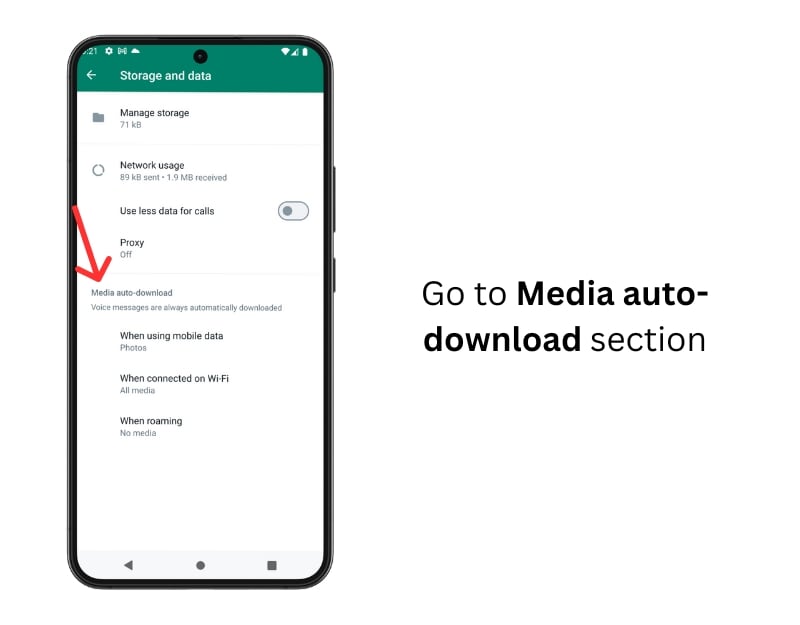
- Step 5: Go to the Media auto-download section
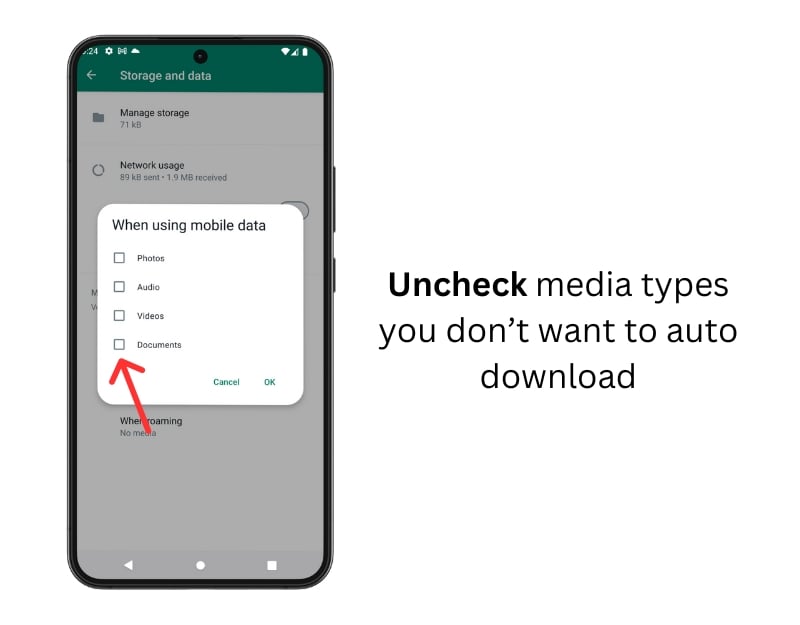
- Step 6: Click on When using mobile data and untick the media (Photos) you don’t want to auto-download. Similarly, click on When connected on Wifi and when roaming, untick the media you don’t want to download.
- Step 7: To stop WhatsApp photos from showing in the gallery, open WhatsApp Settings
- Step 8: Click on Chats

- Step 9: Turn off Media Visibility

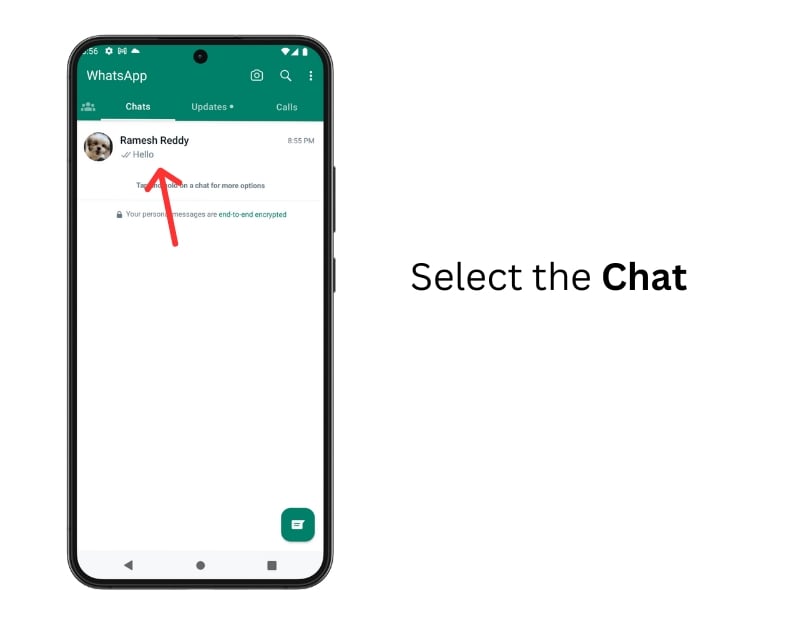
- Step 8: Stop Whatsapp from saving photos from individual chats. Select the Chat/Group for which you want to disable automatic media download.
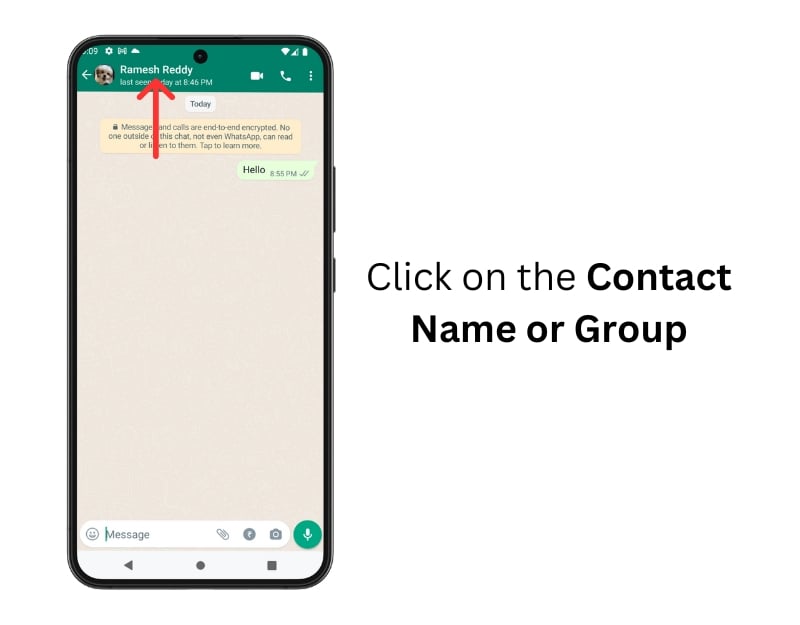
- Step 9: Click on the contact/group name.
- Step 10: Click on the Media visibility

- Step 11: Select No to prevent media from downloading automatically.

Stop WhatsApp Media Auto-Download on iPhone
- Step 1: Open WhatsApp on your iPhone

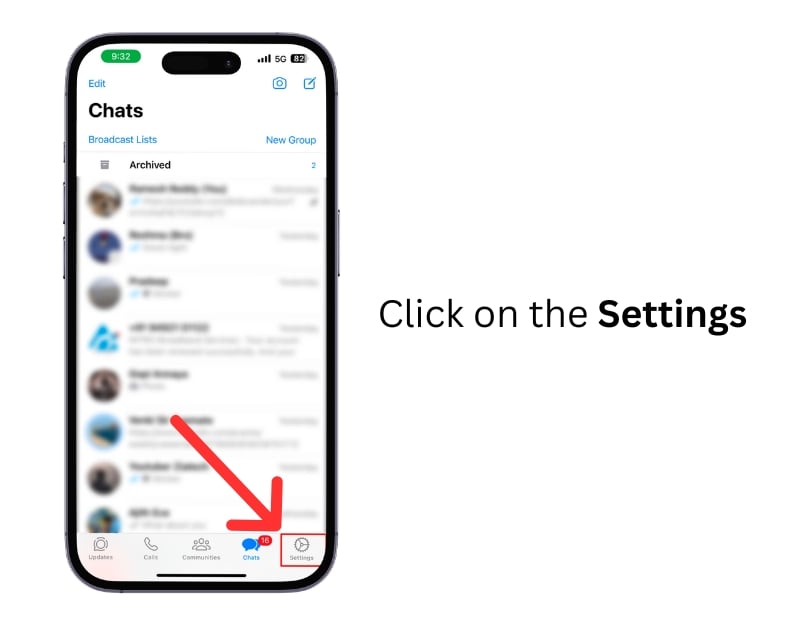
- Step 2: Click on the Settings gear icon.
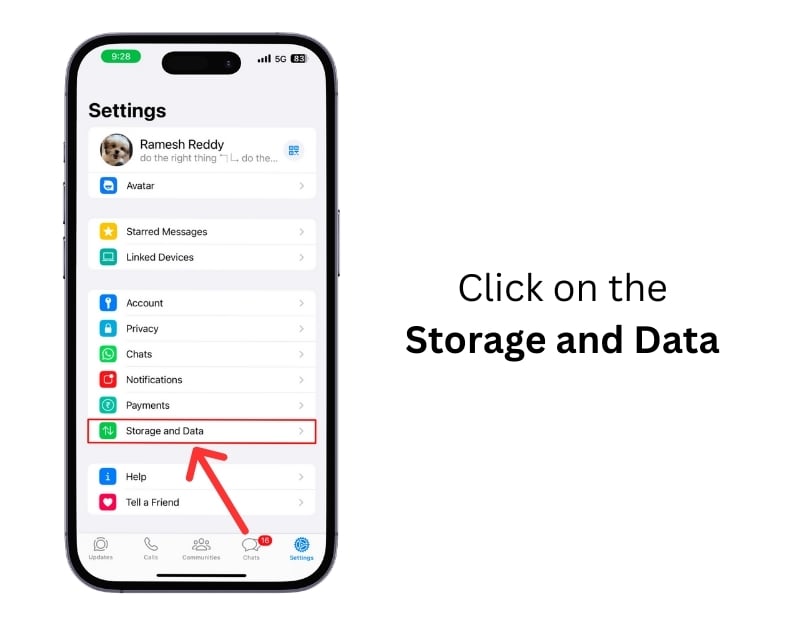
- Step 3: Tap on Storage and Data.
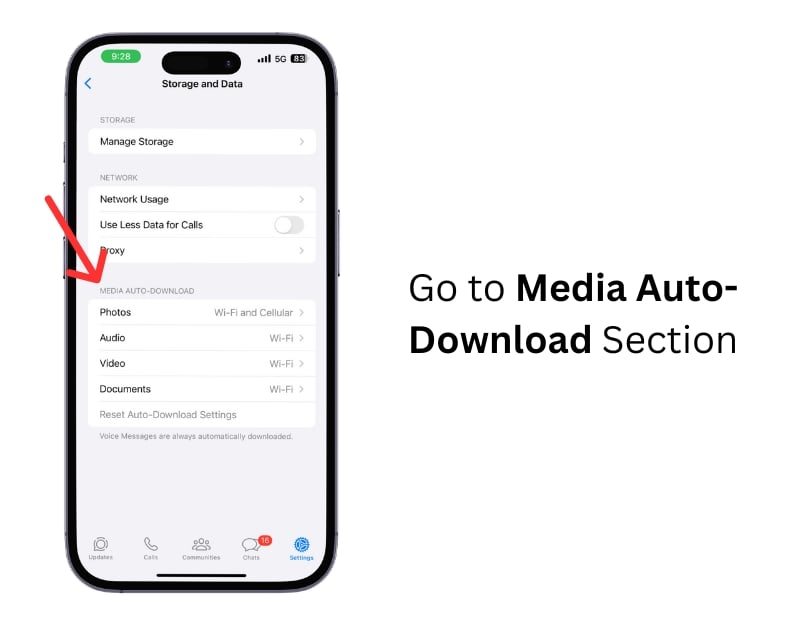
- Step 4: Go to the Media Auto download section
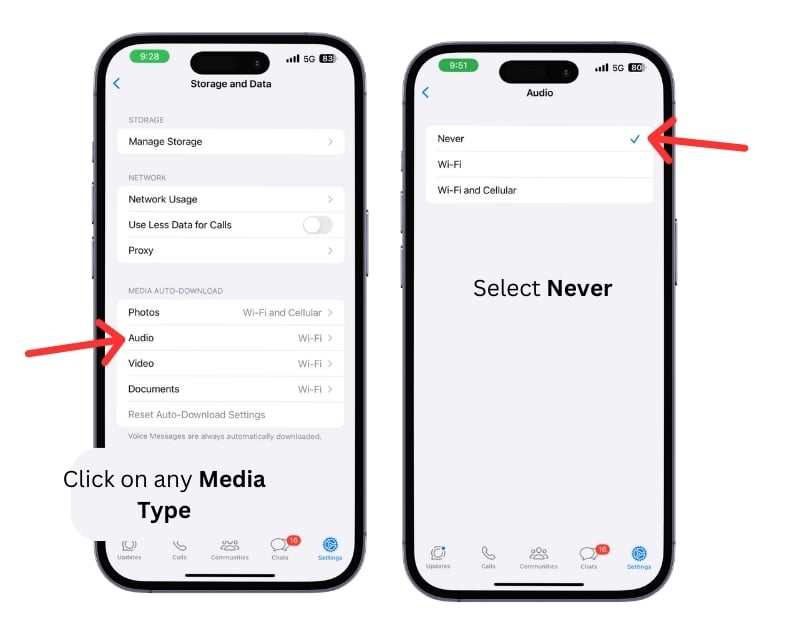
- Step 5: Now, select the Media file type (Photos) and click on the Never.
- Never: Disables auto download on both Wifi and cellular networks. Wifi: Downloads Media only when you are connected to the Wifi, Wifi, and Celluar: Auto downloads media when connected to the internet.
- Step 6: To stop WhatsApp images from showing in the gallery. Go to Whatsapp Settings
- Step 7: Click on Chats
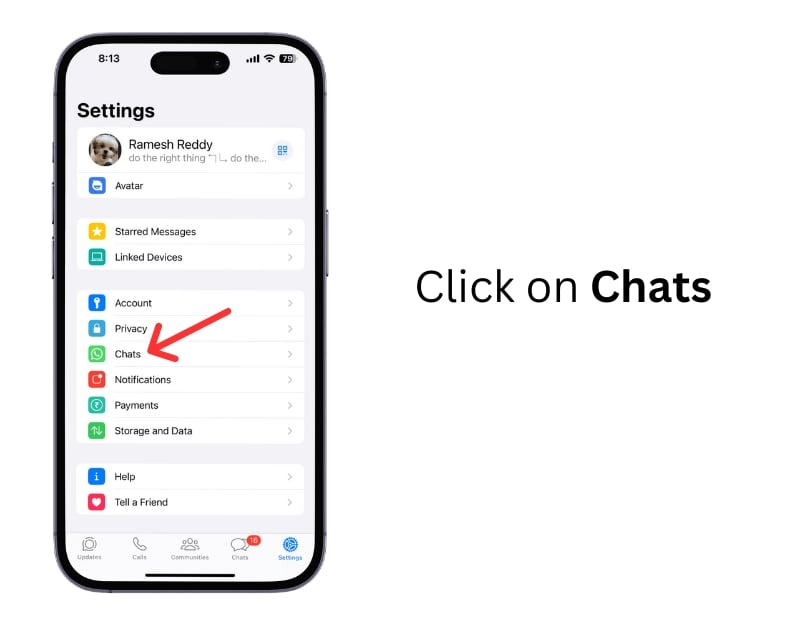
- Step 8: Turn off Save to Camera Roll

- Step 9: Stop WhatsApp saving media from specific contacts or groups. Step Select the Contact or Group you want to prevent Medoa from auto-downloading.
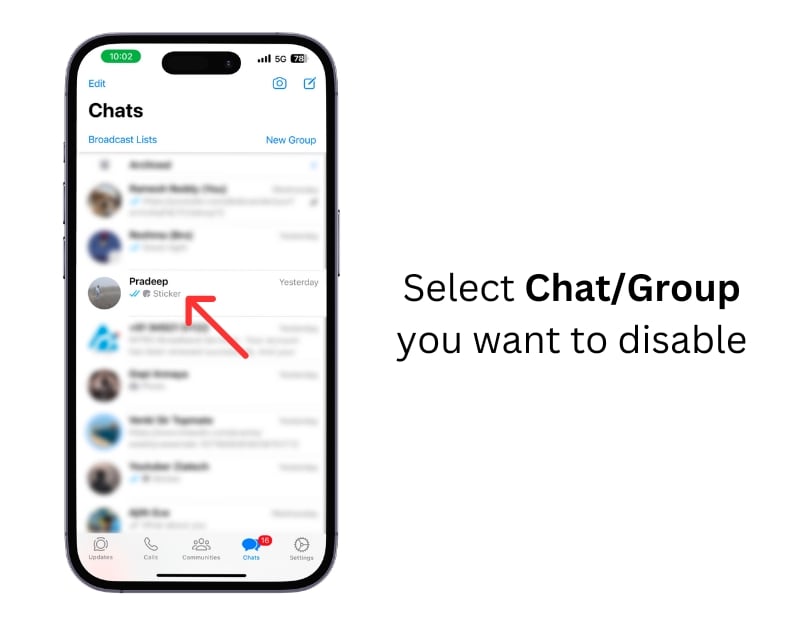
- Step 10: Tap on the Name of the user or the Group.
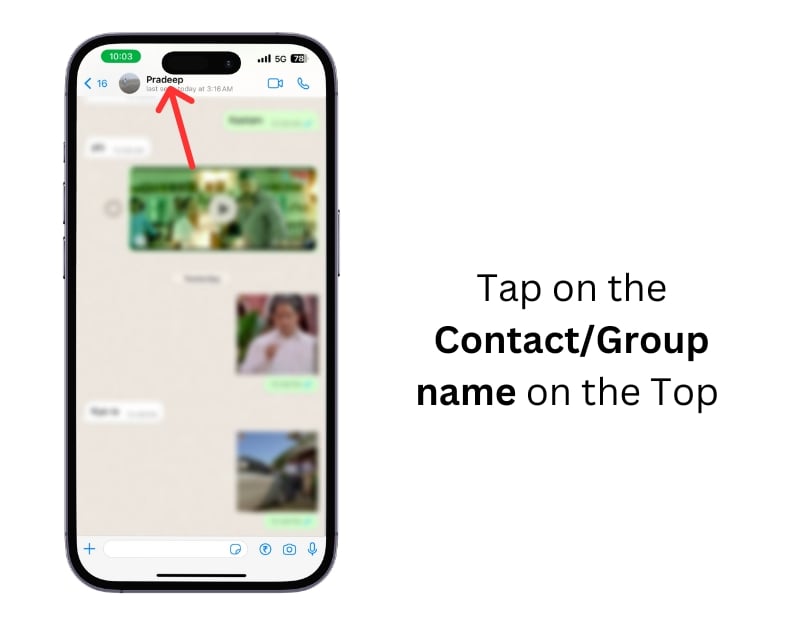
- Step 11: Scroll down and Tap on the Save to Camera Roll

- Step 12: Select Never

How To Stop WhatsApp Media From Saving on the Web
- Step 1: Open Whatsapp Web
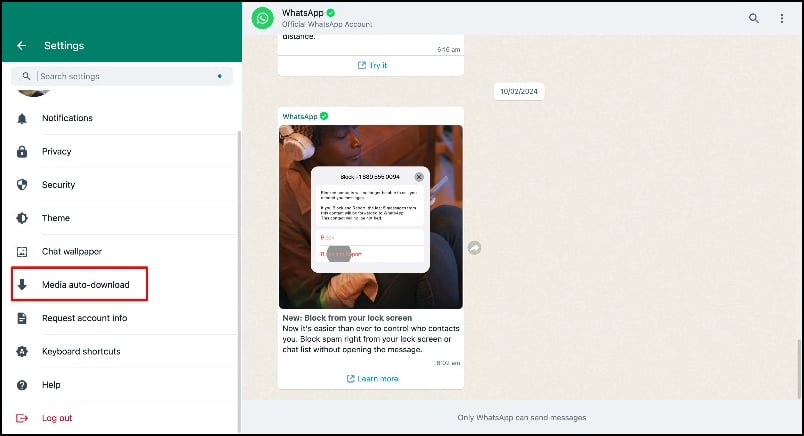
- Step 2: Click on the three-dot menu and select Settings
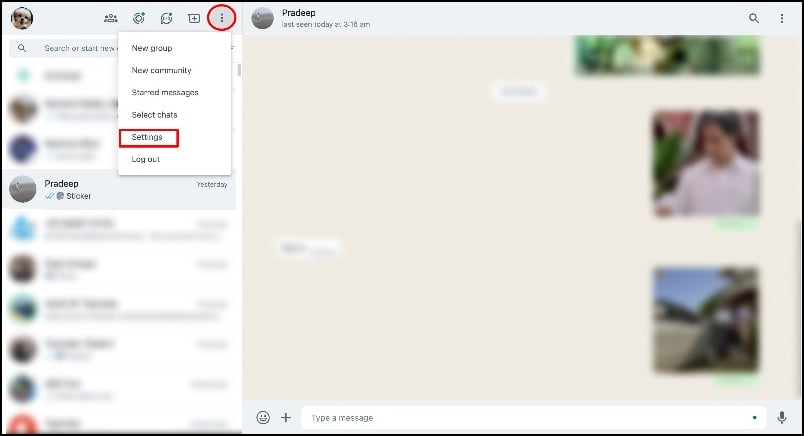
- Step 3: Click on the WhatsApp auto-download
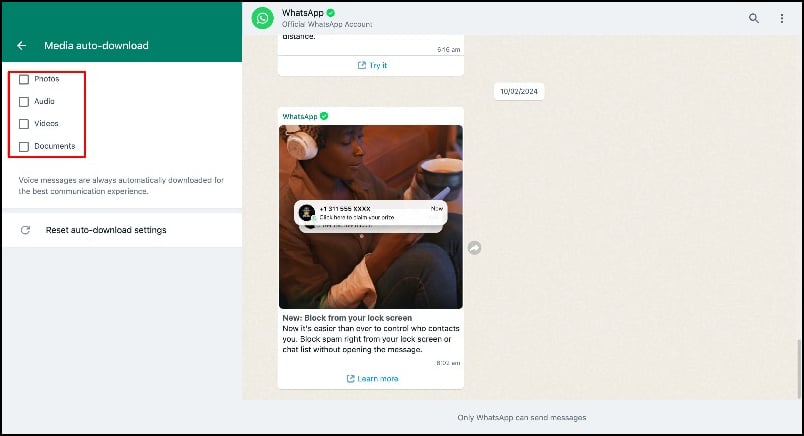
- Step 4: Now, Uncheck all the media files you want to download
Prevent WhatsApp from Automatically Downloading Photos
With these steps, you can prevent your device storage from quickly filling up with unwanted photos and videos from WhatsApp chats and groups, limit WhatsApp’s mobile data usage, and prevent sensitive information from showing up in your gallery. I hope you find this guide helpful.
FAQs on WhatsApp Saving Photos Automatically
1. Will changing the auto-download settings affect how I receive or view photos?
The way you receive photos will not change. Changing the auto-download settings will affect how you view photos. You can download the photo manually to view it and save it to your gallery.
2. Can I customize WhatsApp settings only to save photos manually?
Yes, you can customize WhatsApp settings and save photos manually to your device. You can follow the steps above to disable automatic photo saving in WhatsApp. To download images manually, go to the media you want to download and click download. If you’re saving images to the gallery, click the three-dot menu and tap Save to Gallery. A copy of the photo will be saved to your phone’s gallery.
3. How can I manually save a specific photo from WhatsApp?
To manually save a specific photo from WhatsApp, navigate to the photo you want to download and click download. When you save the image to the gallery, long press on the photo and click on Save photo to the gallery. A copy of the image will then be saved in your gallery.
4. How can I check how much storage WhatsApp media uses on my device?
You can go to the Whatsapp storage settings to check how much storage your Whatsapp media uses on your device. To do this on iPhone> Open Whatsapp> Click on the settings icon> Click on Storage and Data> Manage Storage and view your storage usage. On Android, Open WhatsApp> Click on the three-dot menu on the top and click on the settings>Storage and data> Manage Storage.
5. If I stop WhatsApp from saving photos automatically, will it also contain the auto-download of documents and voice messages?
You can adjust Whatsapp’s automatic download settings to specify which media should be downloaded. The media settings currently offer the option to stop or download photos, audio and video messages, and documents. If you do not want documents and voice messages to be affected, you can enable auto download for audio and documents in the settings.
6. Can I set WhatsApp to download media only when connected to Wi-Fi automatically, but not on mobile data?
Yes, You can set Whatsapp settings to download media only when connected to the Wifi automatically. To do this on iPhone, go to Whatsapp settings> Storage and data> Click on When connected to Wifi and select Allow. On Android, go to Settings, Storage, and Data>When connected to WiFi, select All Media.

