

Quick Answer
Claude CoWork can automate many routine tasks by acting as a digital coworker. It can create daily news or work briefs, draft email replies, detect unused subscriptions, manage to-do lists via tools like Notion, generate reports and presentations, organize messy files, assist with job searches, plan trips within a budget, analyze finances, and even hunt for online coupons.
When Claude introduced CoWork, the idea was simple: give AI the ability to act like a real coworker that can actually perform tasks on your computer. Instead of just generating text, it can read emails, organize files, analyze documents, and even interact with apps to help automate parts of your daily workflow.

To see how useful it really is, I put Claude CoWork through several real-world tasks that I deal with regularly. After using it for a few days across different workflows, here are 10 practical and popular ways you can use Claude CoWork to automate routine tasks and save time.
Table of Contents
10 Practical Ways Claude CoWork Can Automate Your Daily Tasks
Use Case | What It Does |
|---|---|
Daily Briefs | Summarizes news or get updates from news or your sources. |
Reply to Emails | Reads emails and reply to the emails. |
Find Subscriptions | Save money by removing subscriptions for unused services |
To-Do Assistant | Creates and manages your tasks automatically |
Create Reports and Presentations | Claude researches for you and creates a detailed report. |
Organize Files | Organize your messy files from any folder easily. |
Job Search | Finds jobs and auto-apply to the jobs and create personalized resumes. |
Travel Planning | Get Travel Plans Based on Your Budget |
Finance Insights | Analyzes spending and suggests savings. |
Find Coupons | Searches for working discount codes online. |
Get Your Daily Briefs
As a tech reviewer, I wake up every morning and start visiting different newsrooms to find the best news to post on our social media channels. This not only takes more effort but also takes time.
So, I decided to automate this with Claude CoWork by providing a list of popular news sources that I visit often to get the latest news and create a summarized brief every single morning.
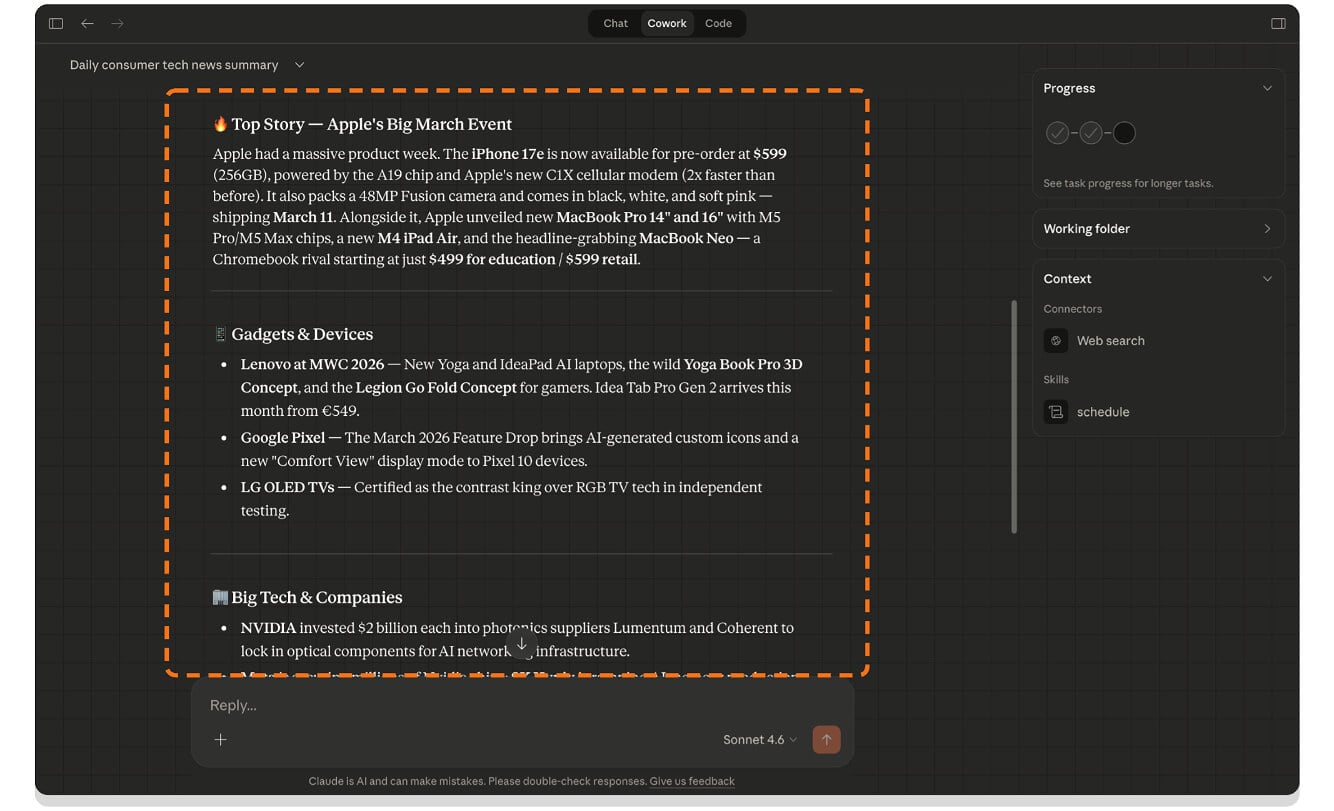
Claude did a pretty good job in most of the scenarios. However, since many websites are implementing hardwalls to prevent AI bots from scraping their content, Claude often misses some important details from news sources.
On the other hand, the majority of newsrooms do allow bots to scrape their content. So for most of the time, I get complete and high-quality informational briefs every single morning.
I have recently published a detailed guide using the Perplexity task feature to create this exact task, and I got very similar results to what Perplexity has offered me. Similar to Perplexity, you can just ask Claude to run this scheduled task every single day at specific time intervals, and it does it for you.
However, the only downside of using Claude CoWork is that it is currently limited to Mac and Windows, and there is no way to view the news on mobile.
However, if you primarily use a Mac/PC to consume news and daily briefs, this is a great option to try. Moreover, it is not just limited to the news; you can also ask Claude CoWork to offer daily briefs regarding your team meetings, Slack messages, your emails, Previous client communications, and more.
Related: Best Claude MCP Servers
Reply to Your Emails
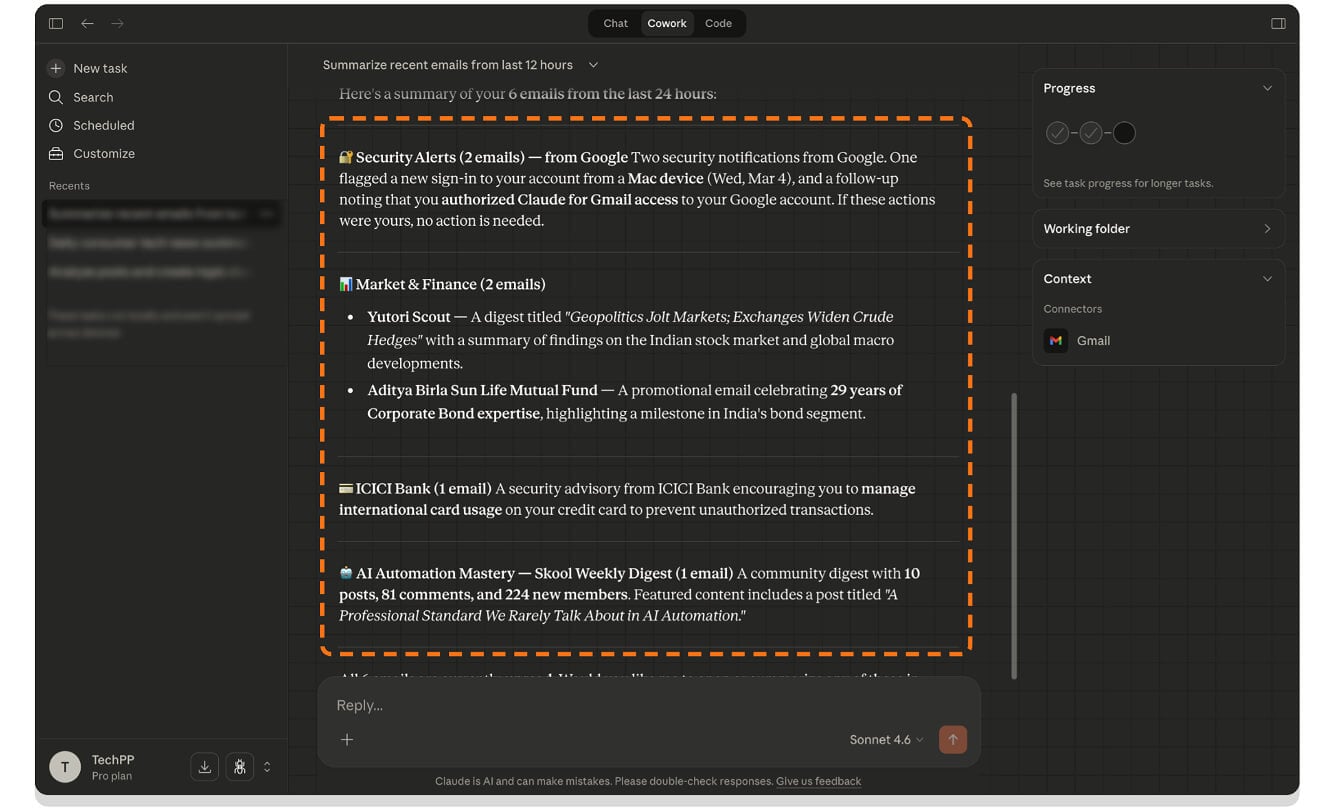
I don’t know about you, but I am that person who often has important emails that I need to respond to. If you are an employee working at an organization that mostly uses email as a primary means of communication, then Claude CoWork can be very helpful for you.
It not only provides daily briefs about all the previous communications, but it also replies to those emails without you writing a single word.
Of course, letting AI do everything isn’t the right thing, especially if you are having professional communication that requires human intervention. You don’t need to respond to all the emails quickly, but you can send an automated response to let other people know what you are up to and notify them that you will get back to them.
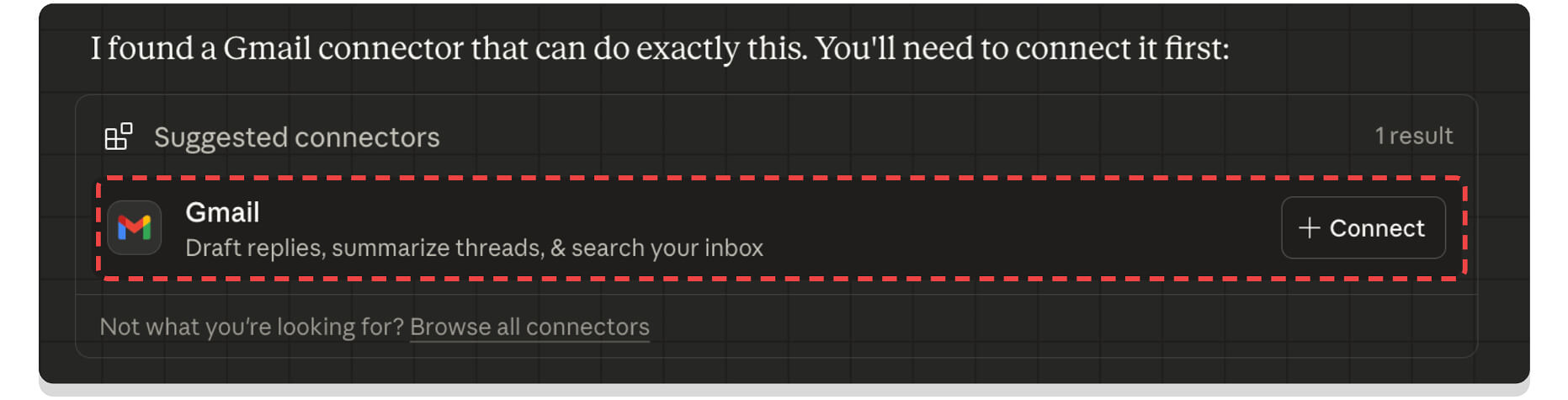
The best part is that you can control what you need to say. You need to give Claude permission to access your Gmail. You can simply sign in with your Gmail and grant the required permissions; then, Claude reads all your emails and replies to them if you want.
Find the Subscription That You Are Not Using but Are Still Paying for
In the latest Vergecast episode, David Pierce speaks with the creator of Claude code regarding how it works. It was a very good conversation if you love Claude and want to know how it works behind the scenes.

When David asked about the best use cases for Claude CoWork, Boris replied that Claude Code found a subscription he wasn’t using, so he used Claude CoWork to cancel the subscription and save money.
Most of the SaaS or subscription services today offer a free trial and then later auto-renew after the trial period. If you are busy and the kind of person who never keeps track of your subscriptions, maybe let Claude Co-work do it for you.
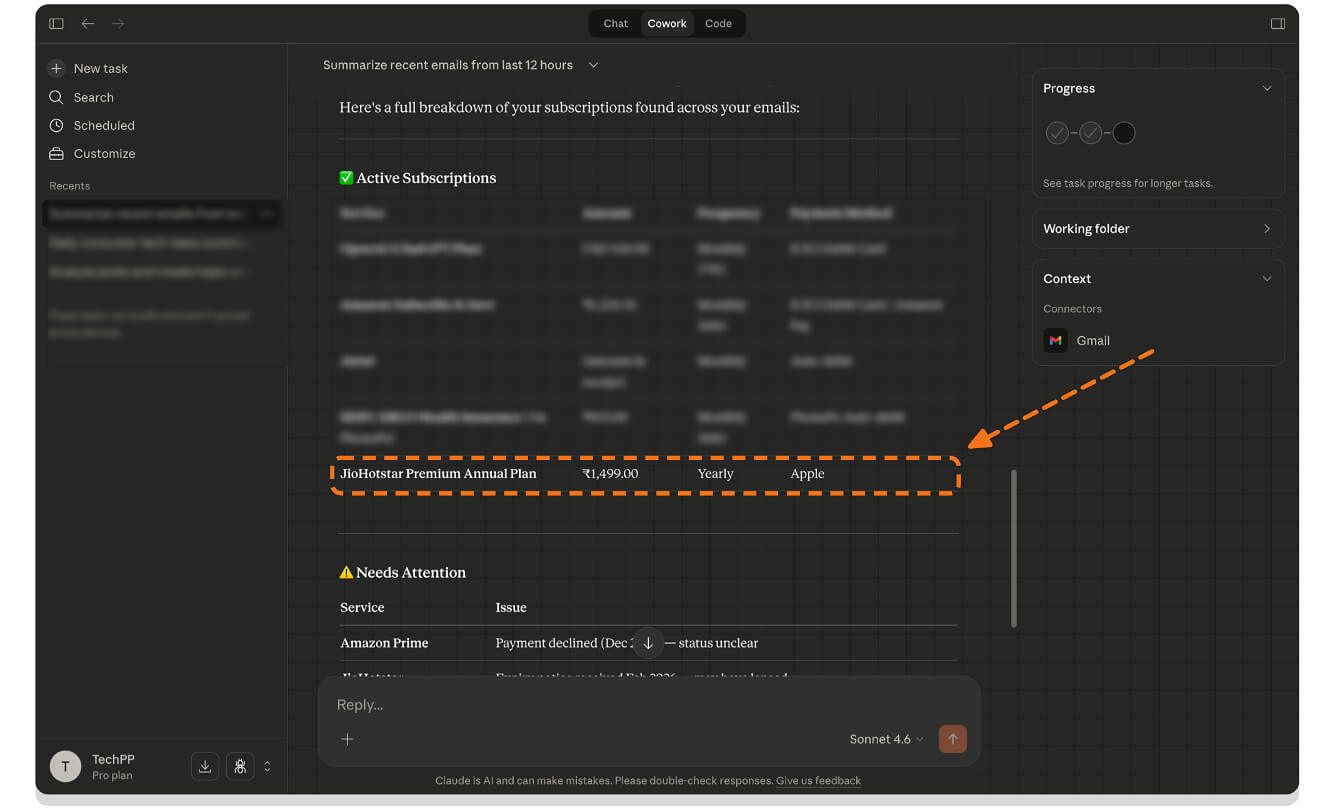
Claude doesn’t have direct access to all your apps and subscriptions; however, plenty of apps use your email to send notifications and payment reminders. You can use this data. You can let Claude Code find all your subscriptions. Once you have the detailed information, you can find the subscriptions that you weren’t using and cancel them to save money.
Claude has saved me from renewing JioHotstar Premium, which I no longer use. It analyzed all my emails and found the auto-renewal notification, so I quickly cancelled.
A Personal To-Do List Assistant
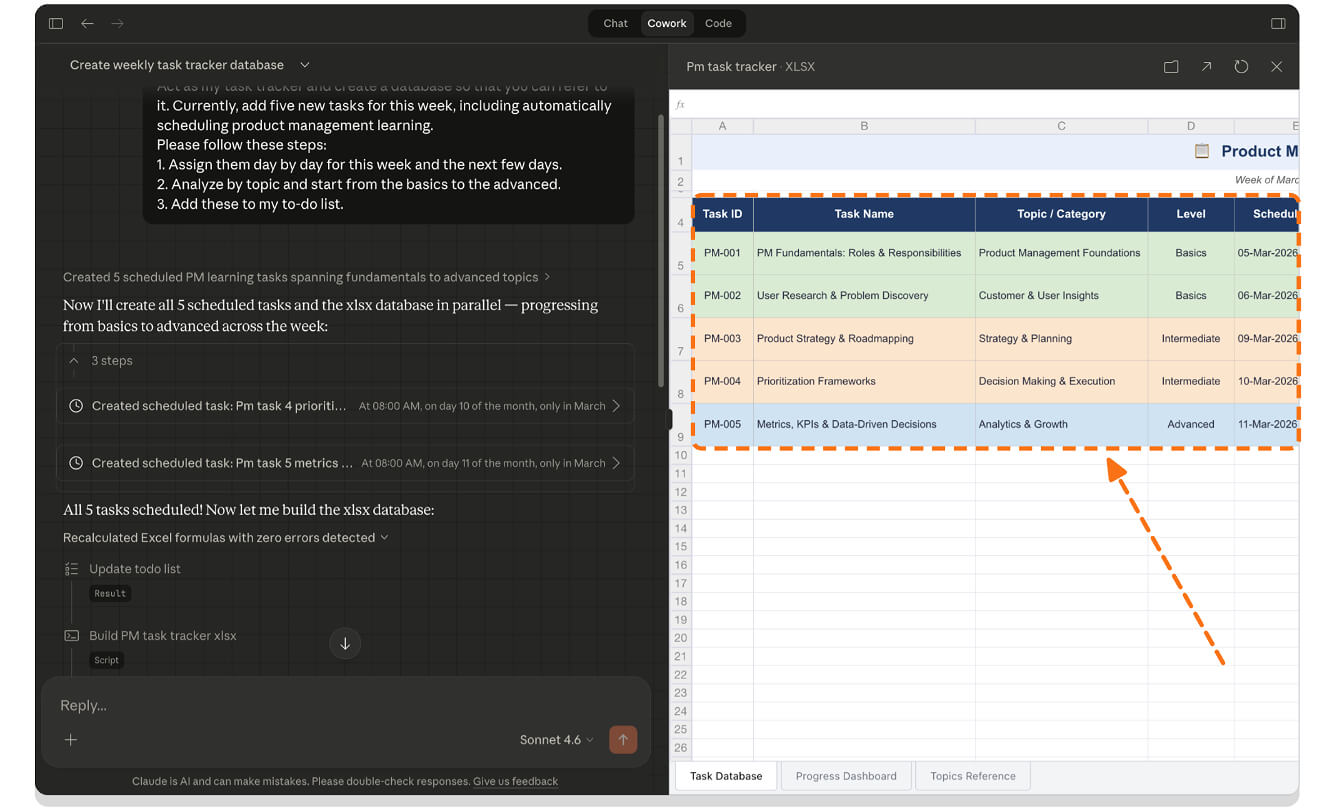
Ever since ChatGPT became mainstream, I have been using it as my to-do list assistant. I am not just asking it to create tasks and telling it to remind me; I am also using various to-do list principles to create highly actionable tasks. This includes using the most popular principles like the urgency matrix, the Pareto principle, and more to create actionable to-do list tasks.
If you often read my posts, you know how much I love Notion. Currently, my entire Notion acts as a second brain, and with Claude CoWork, it has further enhanced my productivity. Claude CoWork can now directly connect to your Notion accounts and perform tasks on your behalf. This includes creating a new database, changing the status of a current task, adding and deleting tasks, and more. If you don’t want to use external tools like Notion, you can also ask Claude Code to create a database to store all your tasks inside Claude.
Instead of manually going through every single task, you can simply ask Claude Code to create a task for you. The best part is that Claude can also connect with other services; for instance, if it sees an email with a task, you can ask Claude Code to create that task and add it to your Notion.
All this happens in the Claude Code interface itself, without you needing to manually open it every single time. Whether you want to: Create actionable tasks from your last meeting notes. Convert your emails into actionable tasks. Create a personal assistant to track and manage all your tasks.
Create High-Quality Presentations and Reports With Claude CoWork
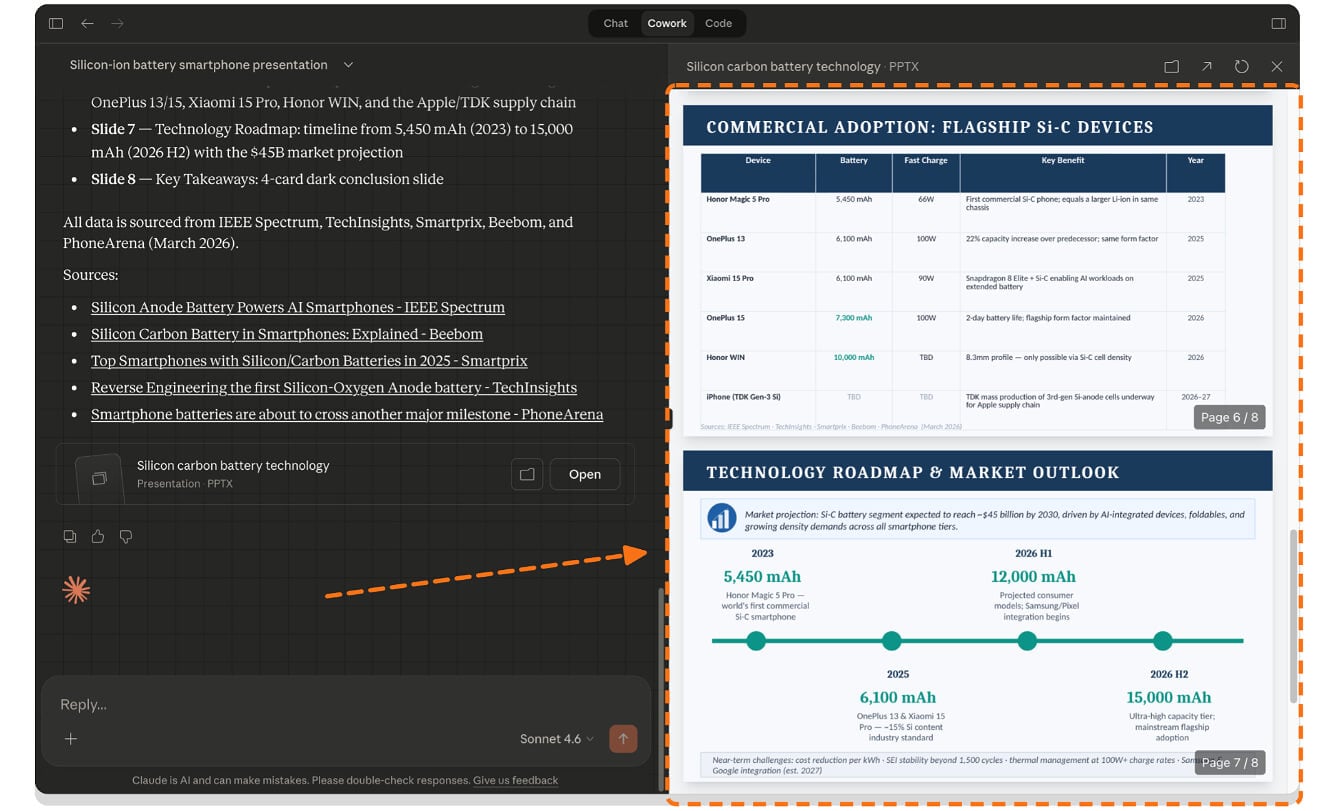
If you are an academic researcher, a business consultant, or a student preparing a report, Claude CoWork can do that work for you as a Coworker. Not only does it research the internet, but it also connects to your Microsoft Office or any other tool you have been using to create reports, and it automatically creates a detailed report for you.
The biggest surprise for me is that the report is very detailed and very insightful, even better than what a normal human would do without any marketing or analytical experience. In fact, it is even closer to what someone who does analytics and creates reports does.
For instance, I have used Claude CoWork to perform a competitor analysis, and I am very surprised that it has picked up many insightful points that I am not even aware of.
The biggest time saver for me is that you don’t need to manually visit every single website. You can create a task and do other work, and Claude does it for you with a detailed report.
However, as always, AI can make mistakes, so it is highly recommended to review these documents before publishing or showing them for any professional use cases.
Organize Messy Desktop Folders for You
One of the best and most useful use cases for Claude Cowork is organizing your desktop or files in any folder. If you are someone like me who has a messy desktop and files scattered across the screen, you can use Claude Cowork to organize them into different folders based on your preference.
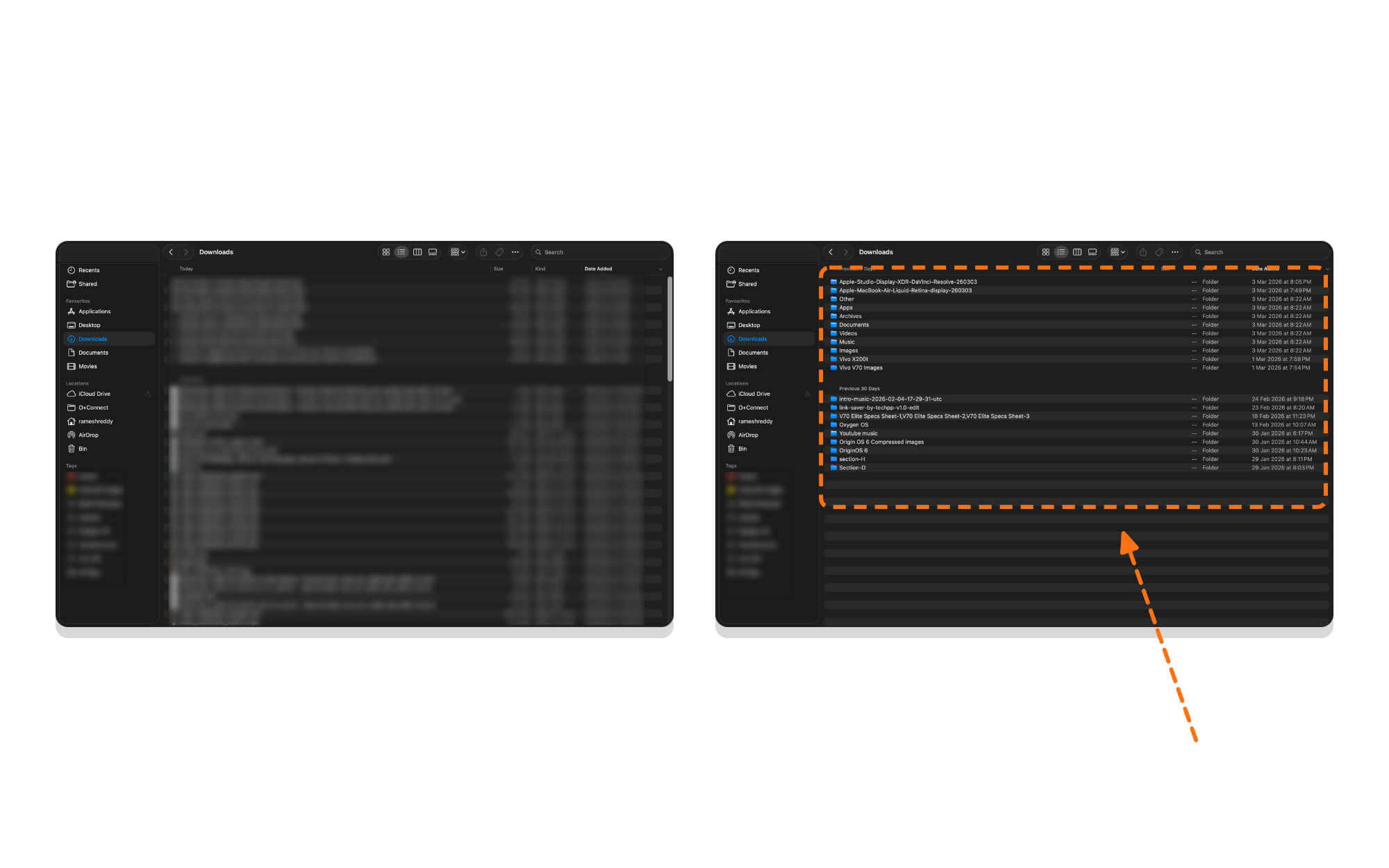
It does it for you. For instance, I asked Claude Code to organize my downloads folder, which was filled with plenty of unwanted screenshots, PDFs, and reports that I no longer needed. It did it instantly and organized my files into different folders.
However, when using Claude CoWork, be extra careful. It can delete your important files; while it does ask for permission to delete any specific file, you should instantly deny it permission to delete files.
Let AI CoWork Your Job Search

If you are a student or someone looking for employment, you know how hard it is to search for jobs and apply for them. I have always wished that job searching and applying could be as easy as following people on social media
Every platform uses a different approach, and you need to manually upload every single detail about yourself for every job description and for every application form.
Now, you can automate this task using Claude CoWork. You can just ask Claude CoWork to find the right jobs for you. You can upload your resume and provide your job preferences, including: the type of role you are looking for, your experience amd your location preference
Since Claude Cowork can automate almost all browser tasks, it can search the internet and find the right jobs for you. Not just that, you can even add your job postings to your Notion or to any other app you are using as a connector.
One more thing you can do is create a personalized resume for each job based on the job description.
Always review your resume created by CoWork before applying for a job. However, this solves the biggest pain point, especially if you are in the early stages of your career and finding the right job needs a lot of time and effort.
Create a Travel Plan Based on Your Budget
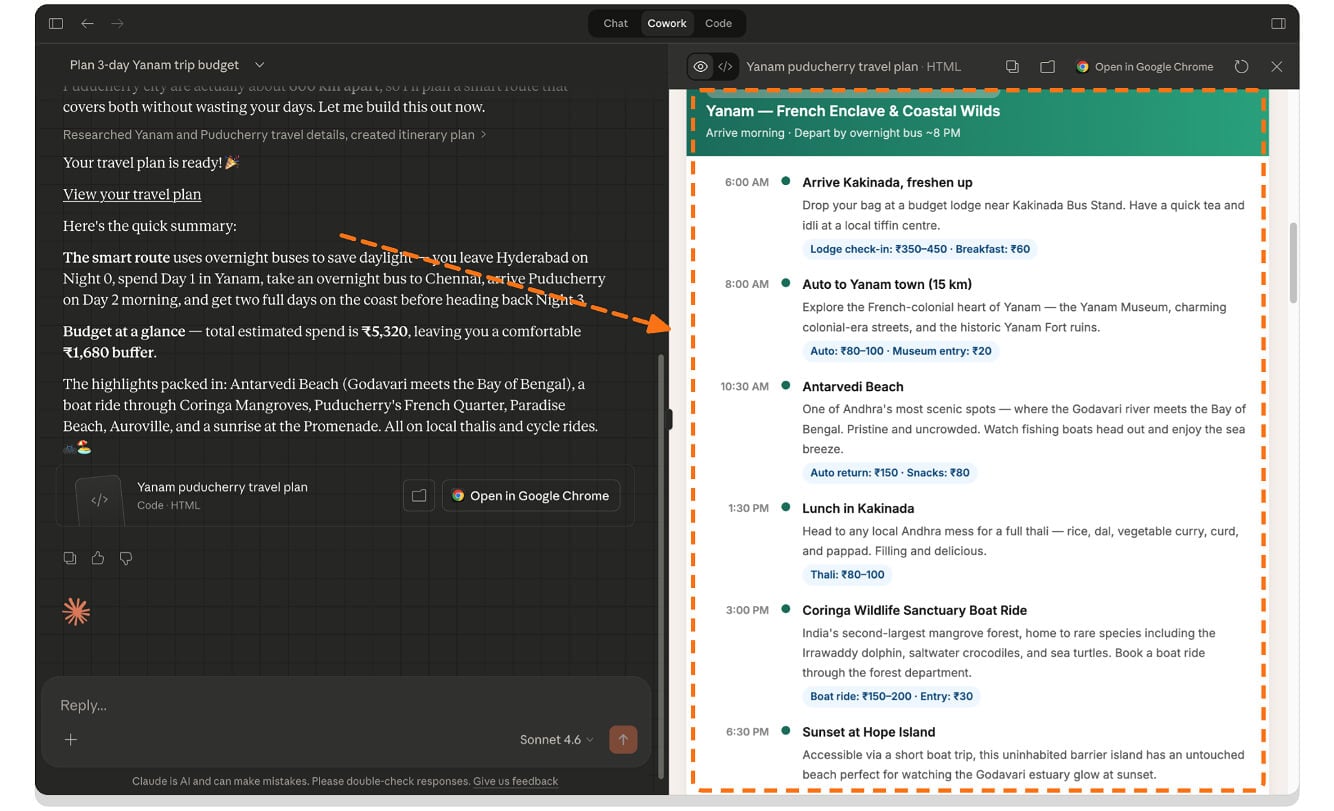
If you are a traveler or even a weekend traveler like me, traveling often requires a lot of research, especially to find the best place and the costs.
With Claude CoWork, you can ask Claude to research it for you. You can specify your budget or even connect it to your existing budget, and ask it to plan accordingly. For instance, if you are also using Claude CoWork for your personal budget and finance assistance, you can assign a specific amount and budget for your next travel plan and ask Claude CoWork to find the places that you can cover in that budget. It can even book a reservation for you on your behalf.
However, I wouldn’t recommend giving Claude CoWork access to your financial information since, at the end of the day, it’s AI. It can hallucinate sometimes, which is not good, especially when dealing with sensitive information like your financials.
However, with its research capabilities, Claude does a very good job. For instance, I live in Yanam, which is one of the popular tourist places in Andhra Pradesh, India. I mostly know the places around here. I asked Claude to create a two-day plan for my location, and he did a very good job. It recommended important places to visit, the average cost of the hotels located, and a perfect budget plan based on the two-day time limit.
Beyond just planning, you can also gamify your travel experience. You can ask Claude Cowork to select a random place for you. Simply add a wishlist of all the places you want to visit and ask Claude CoWork to pick a random destination every week based on the allocated budget.
A Virtual Personal Financial Assistant
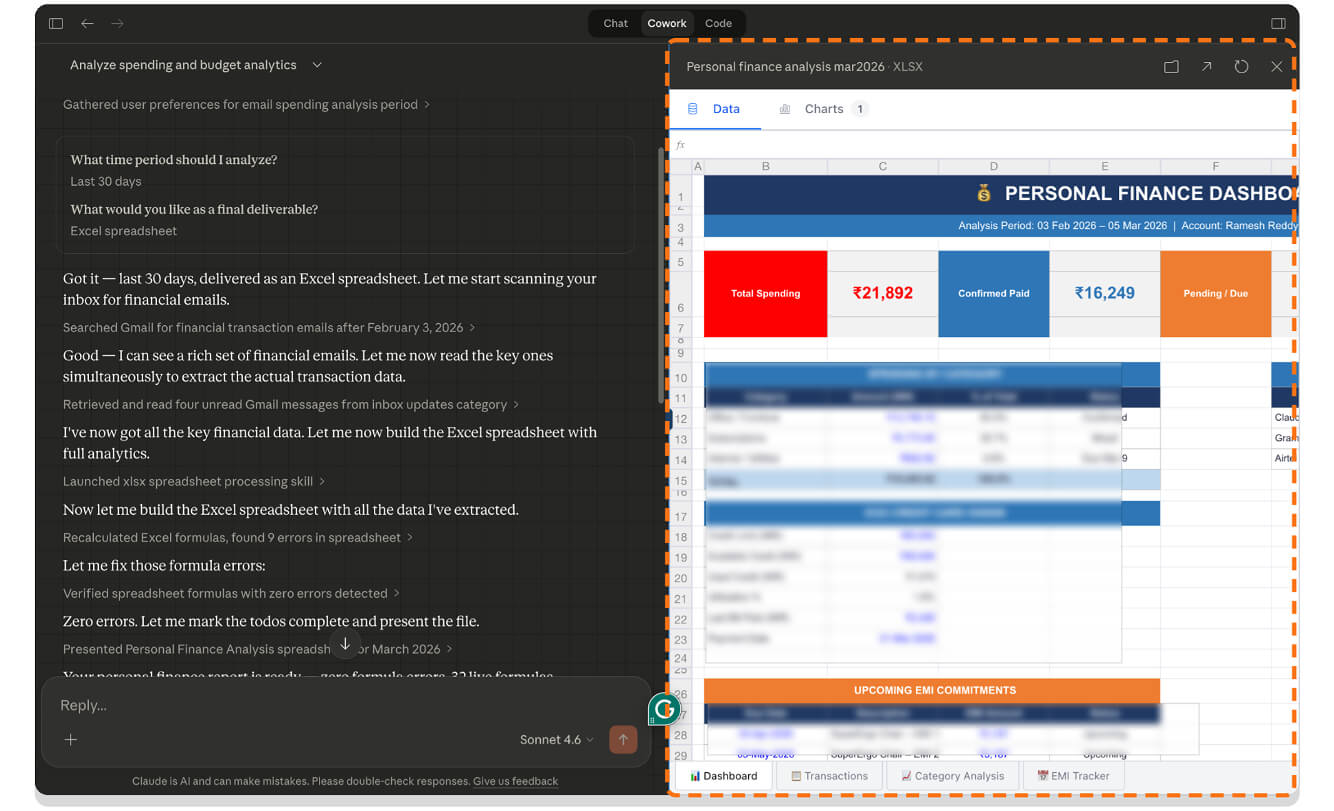
Tracking my income and expenses is the best decision I have ever made. It not only provides a detailed analysis of my spending, but also helps me find hidden expenses and unnecessary costs.
There are plenty of apps like Flow and others that already do that by automatically scanning your emails and my bank statements. However, using Claude CoWork has its own benefits.
For instance, along with the detailed analysis, you can also use Claude CoWork to ask follow-up questions and use its knowledge to create a new plan for you that can automatically save money on your future purchases.
Since it has a complete context of where your money is being spent, you can also use Claude CoWork to create your new financial goals. For instance, if you are planning to buy a new bike, you can ask Claude CoWork for a savings plan for you.
With the full context of your spending, Claude can give you a detailed report on where you should save and where your money should go.
And again, Claude doesn’t have access to your direct statements. You can use your emails to get insights about your spending, but you can also upload your monthly statements to Claude CoWork to get the most accurate analysis. If you use Excel for financial tracking, you can also ask Claude Cowork to create a financial tracker on your Excel sheet, or even create a mini version of a web app to track all your income, spending, and expenses.
Find Coupons That Help You Save Money
I used to use the Honey extension, which was one of the most popular tools for finding the best coupon codes. However, ever since the Honey scandal, the extension has lost its popularity and no longer finds the best codes.
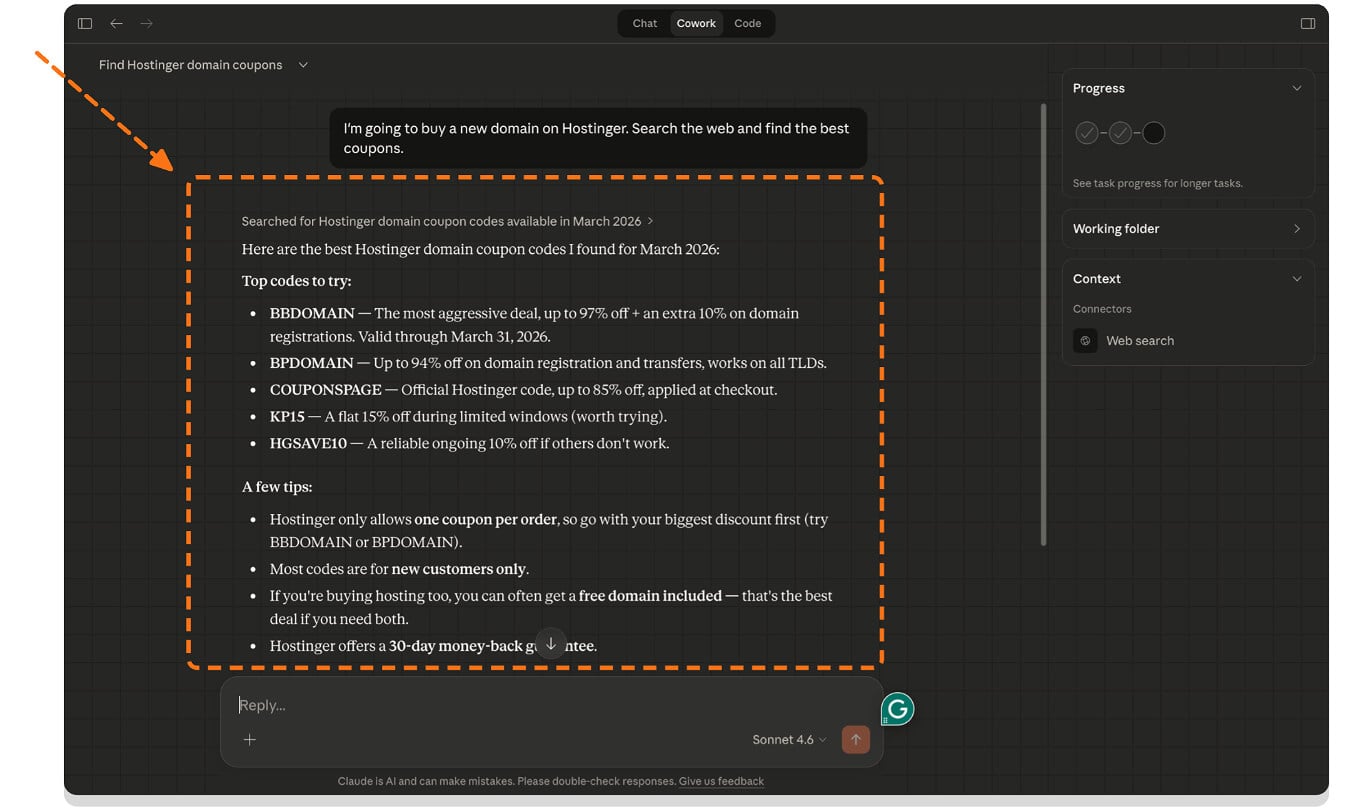
Later, I used Perplexity’s browser Comet, which was one of the best at finding discounts and coupon codes. Now, with Claude Cowork, I am getting similar results. You can ask Claude Cowork to find the best coupons for the purchases you are making online. Whether you are buying a new T-shirt or something as simple as grocery shopping, you can simply ask Claude Cowork to find working coupons.
It scouts the internet for you, and in the majority of cases, it has found the working coupon that saved me some money. Since you don’t need to manually visit every single page, you can automate this task with Claude Cowork if you really want to save some money.
So those are the ten best use cases for Claude. While Claude Cowork has unlimited possibilities, these ten use cases are helpful for the majority of people and address the most frequently faced problems. I will dig deeper to find even more best use cases for Claude Code and update you in a coming post. For now, you can use these Claude Cowork workflow features to enhance your productivity. automate your daily tasks and much more.
As you can see, I haven’t included any prompts for the workflows because Claude Cowork is very good at understanding your natural language. You can simply have simple conversations and let Claude Cowork do the work for you.
However, once you have connected external connectors (like Gmail and other external apps) to Claude Cowork, ensure that you effectively manage Claude Cowork permissions so that it won’t accidentally do things it was not intended to do.
How to Manage Connectors Permissions in Claude
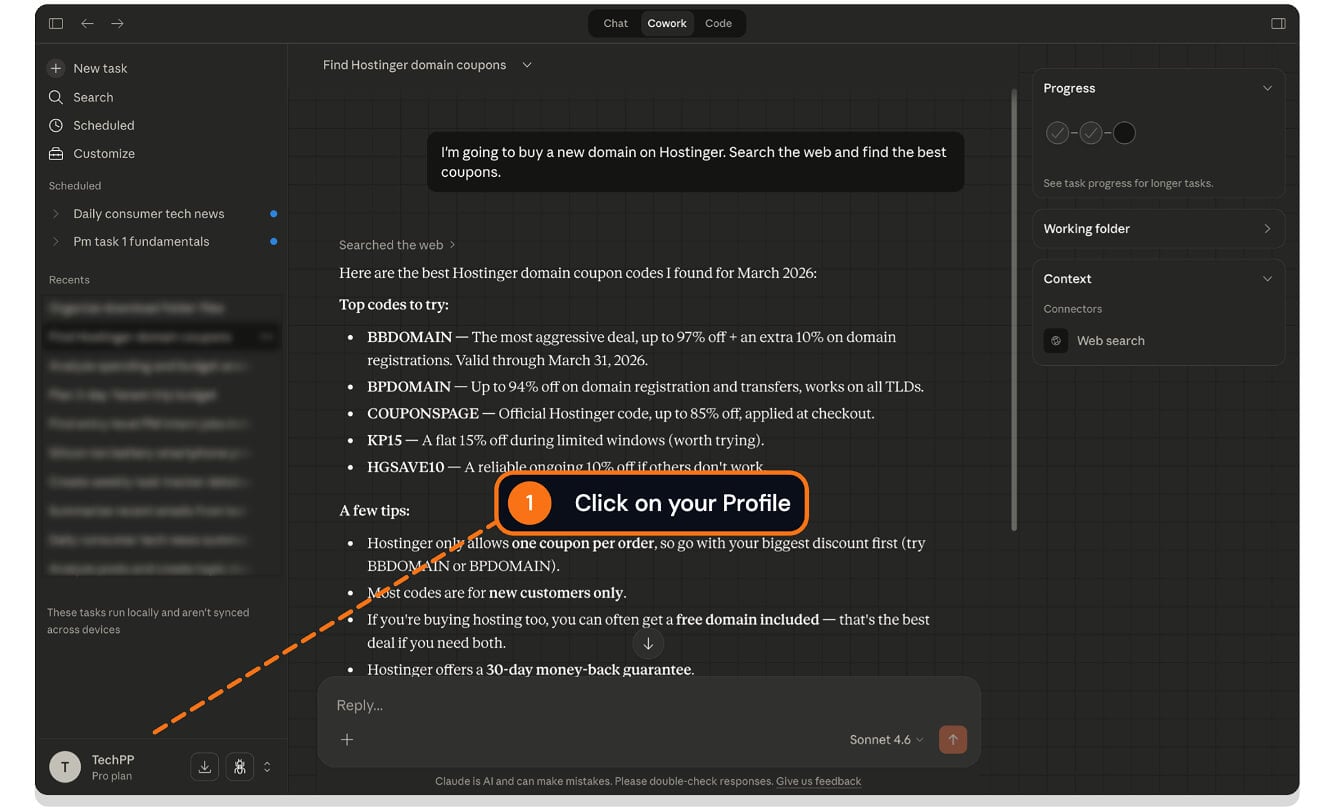
Step 1: Open the Claude app on your Mac or desktop and click on your profile picture from the home screen.
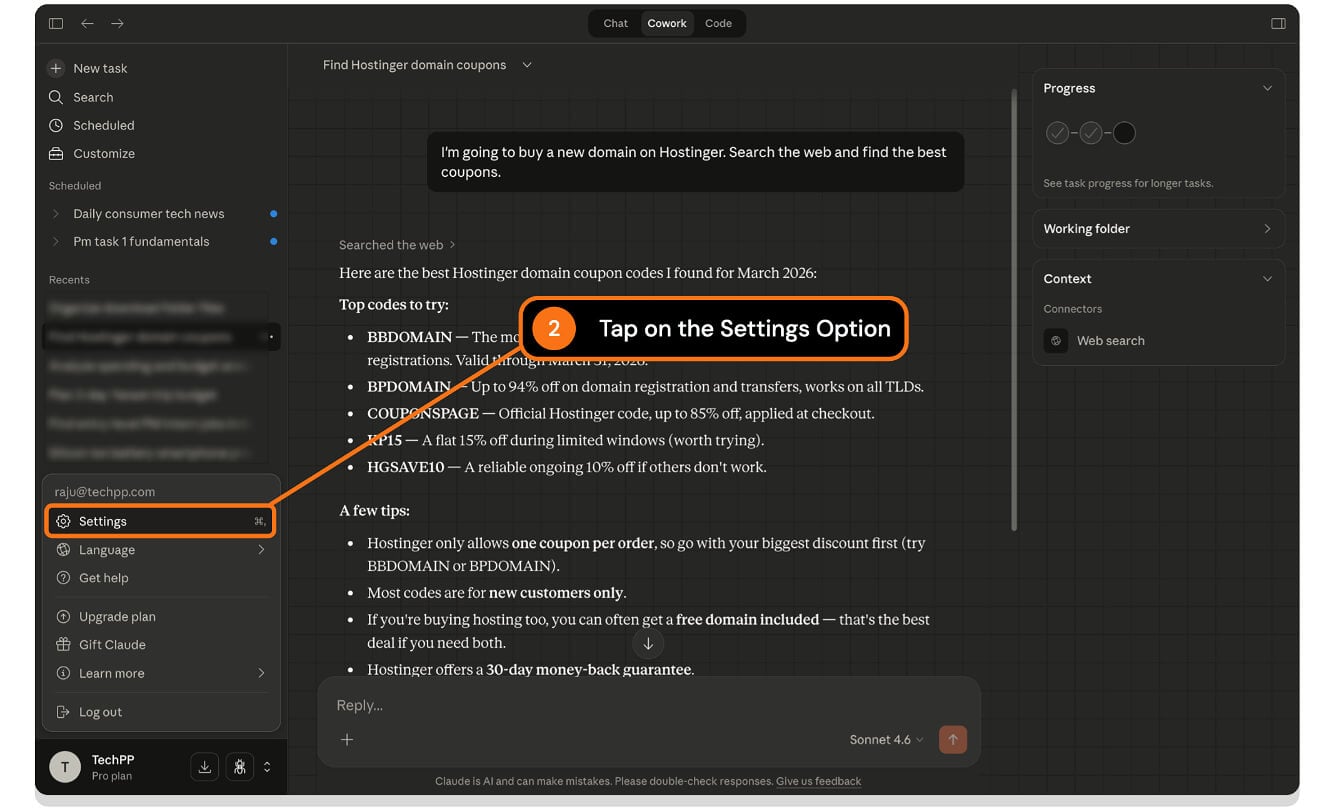
Step 2: Now tap on the Settings option.
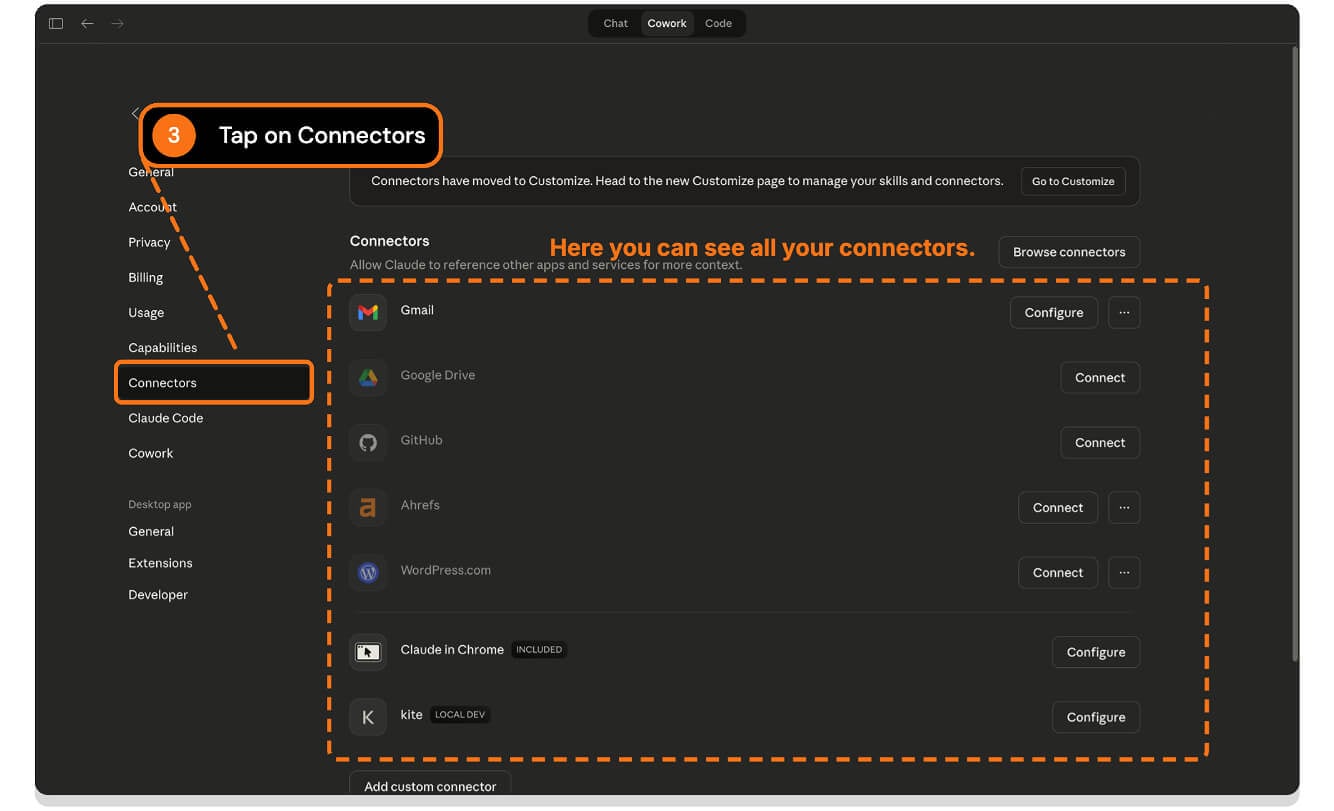
Step 3: Tap on the Connectors. Here you can see all your connectors connected to your Claude Cowork.
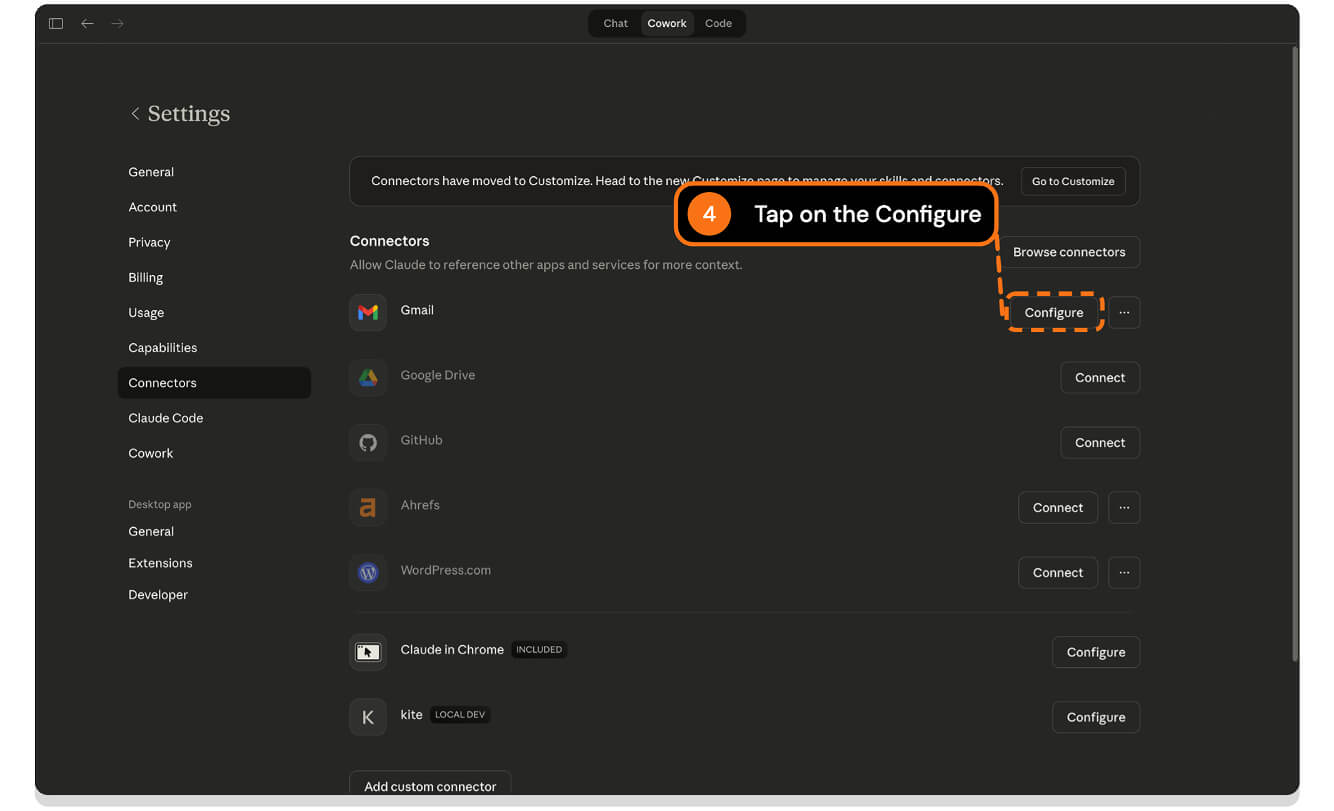
Step 4: Now select any connector and tap on the configure option.
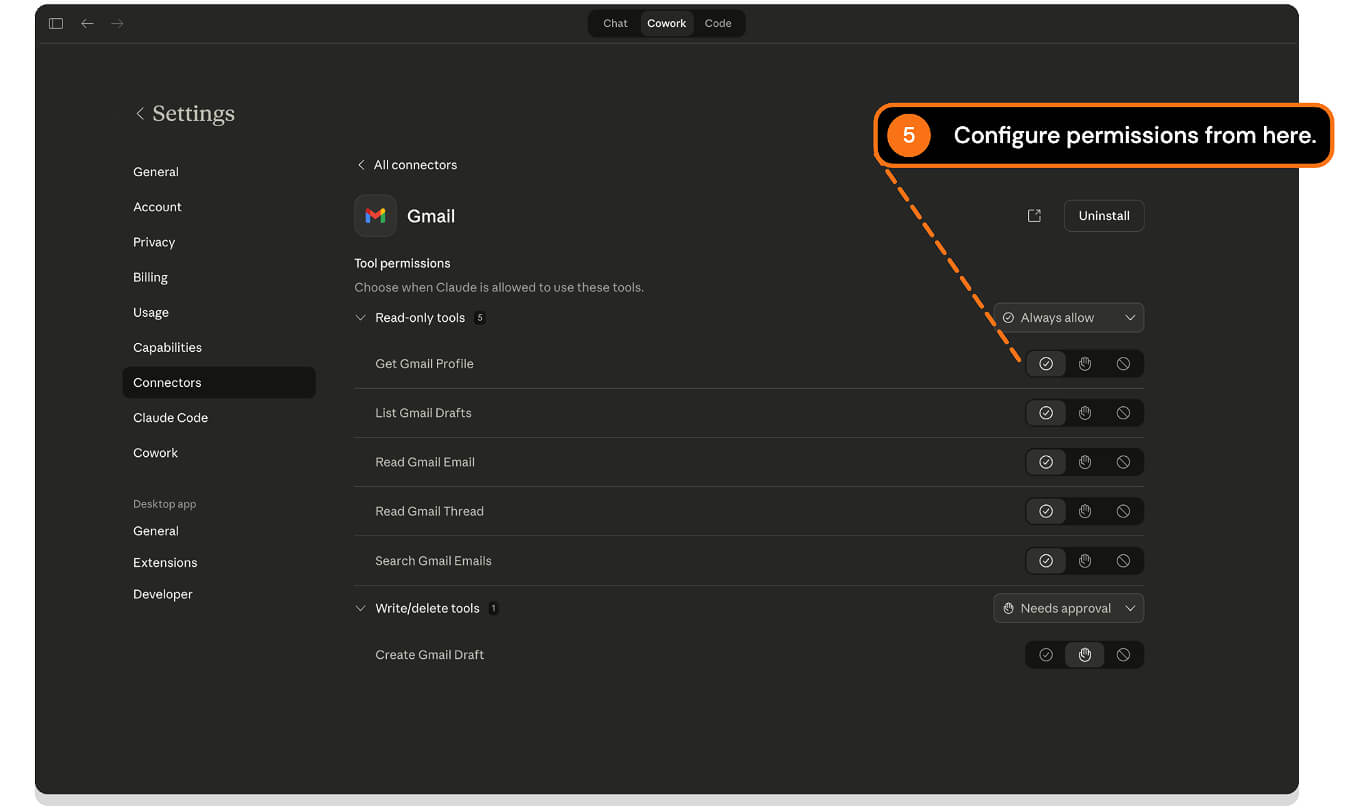
Step 5: From here, you can manage all the permissions. You can allow Claude to perform actions, deny them, or ask permission before it does.
Claude CoWork Use Case: Automate Your Routine Tasks
This is how you can use Claude Cowork to automate your daily routine tasks. I wouldn’t say Claude has replaced my entire work and automated my routine tasks, YET!!. However, there are plenty of use cases that people have discovered using Claude Cowork that are genuinely helpful.
Even though Claude Co-work was launched two months ago, I only bought the Claude subscription very recently (since Claude CoWork is currently only available for paid users).
Ever since I bought the subscription, I have been using Claude Cowork for organizing my messy folders on my Mac and using it as a personal assistant to track my to-do list tasks.
For those who are unaware, Claude CoWork is a sub-product from Anthropic, which is designed for regular users to automate computer tasks, especially designed for non-developers. It can perform tasks such as reading your emails, replying to them, analyzing your file contents, creating Excel sheets, and much more.
You can simply install the Claude app using this link and install it on your device. Please keep in mind that Claude CoWork requires a subscription, which costs $20 per month.
You can switch to the CoWork tab at the top to begin using Claude Cowork. I hope you find this guide helpful. If you have any suggestions, you can comment below.

