

Short-form videos have gained tremendous traction on all social media platforms, while long-form videos have lost popularity. Short-format videos are popular because they entertain or inform us in a short amount of time, while long-form videos require you to spend time extracting information from the content. That’s why all social media platforms now have the option to share short videos, such as YouTube Shorts, Instagram Reels, and so on. But did you know that many YouTube Shorts channels automate their videos?

If you are a content creator, then you know well that a YouTube Shorts channel will give your channel more exposure and help you grow faster than a regular channel where you post long-form videos. YouTube Shorts is also a faster way to make money with YouTube. But you need to be consistent and create quality videos that cater to a niche to gain the traction that will flush money into your bank account.
In this guide, we’ll show you how to create and automate multiple YouTube short videos with just two tools. You can post these videos to your YouTube channel and be on your way to making money. By multiple YouTube shorts, we mean you can create hundreds of shorts in just a few minutes. Let’s get started right away.
Table of Contents
Which tools are we going to use, and are they free to use?
To automate YouTube Shorts and show you the process, we’ll use the popular AI conversational tool ChatGPT and the popular photo and video creation and editing tool Canva. Although paid versions are available for both platforms, we’ll need Canva Pro to automate YouTube shorts. You can use the free version of ChatGPT for content, but to create multiple YouTube shorts, you’ll need the Pro version of Canva.
Are the Shorts created by this method copyright-free?
That’s right. We’re not showing you how to copy someone else’s content and post it on your channel for free. These videos will be copyright-free, and if they hit the mark, they can help you monetize your YouTube account.
How to automate YouTube Shorts?

We will divide this guide into two parts. The first part is about how you can use ChatGPT to create the content for your YouTube Shorts. You can, of course, leave out ChatGPT if you have your own ideas, but be sure to follow the steps on how to attach your content to Canva. Anyway, let’s take a look at the steps you can use to create content for YouTube shorts with ChatGPT.
Create content with ChatGPT
- Visit https://chat.openai.com/ on your favorite web browser.
- If you are using it for the first time, you will need to register with ChatGPT and log in with your credentials.
- Now comes the important part. Ask ChatGPT to create any number of facts and follow the guidelines below:
- Format the facts in a table, with one column being the topic, column 2 being part 1, and column 2 being part 2.
- Make sure the facts are not repetitive.
- Define a niche. For example, psychology facts, crush facts, men/women facts, love facts, etc.
- Make sure the facts are appealing, polarizing, and relatable to anyone in any situation.
- Set the reading grade.

- After you have entered your description, press the Enter key and wait for ChatGPT to show you the results.
- You will see that your content is generated in a table, as shown in the screenshot below.

- Select all the content inside the table and copy it.


This section ends here. Now, we’ll move on to our next tool, which will allow you to automate YouTube Shorts and create hundreds of videos.
Create videos with Canva
- After copying the contents of ChatGPT as shown in the section above, visit the Canva website in your browser.
- As mentioned above, you need a Pro account to use this method. If you don’t have one, ask your school, college, or a friend to give you access to their Pro account. Then log in with your credentials.
- Click on the search bar and type YouTube Shorts. Select the YouTube Shorts videos search result to open the format.

- Click on Create blank.

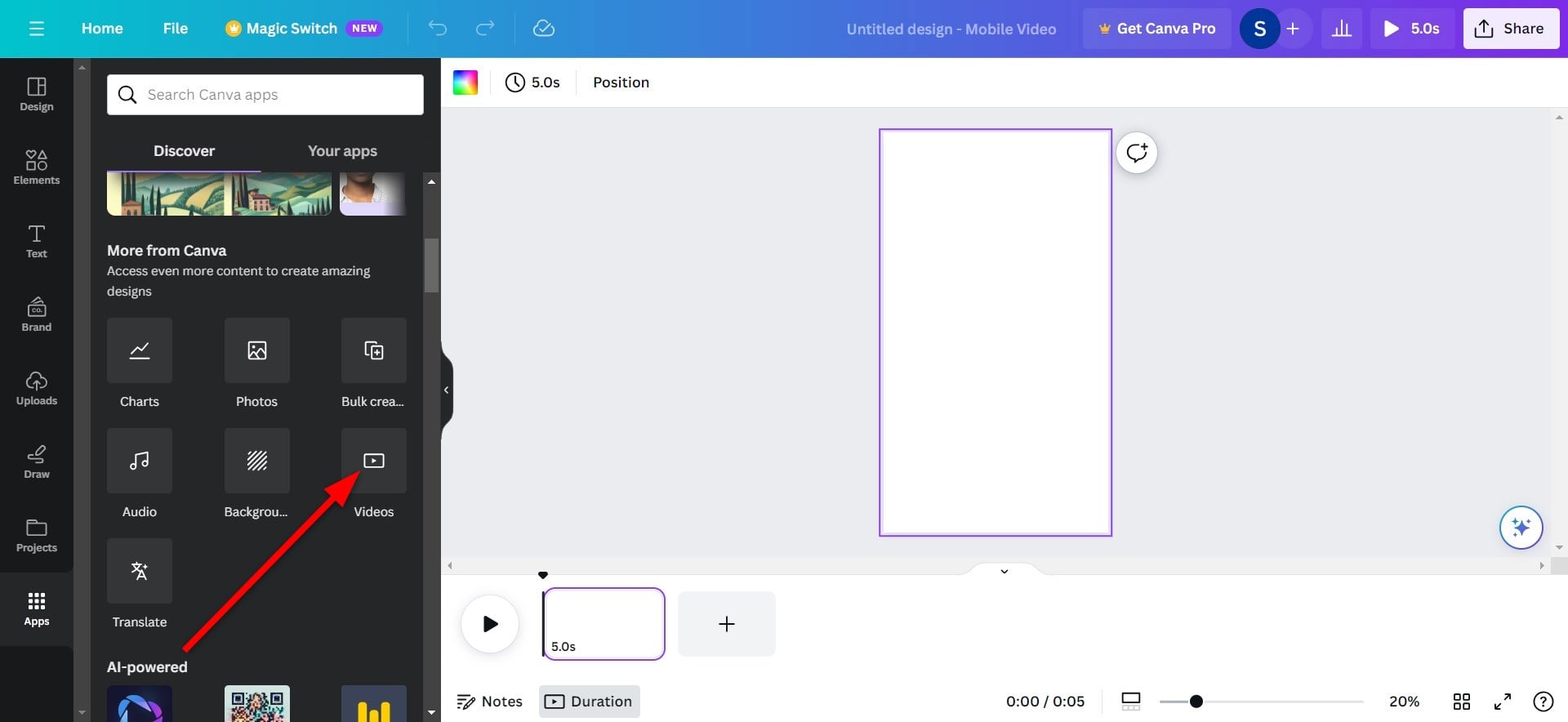
- Now, in the blank template that appears, you need to add a background that will be visible in all of our YouTube Shorts. For that, click on Apps from the left pane.

- Scroll down and click on Videos.
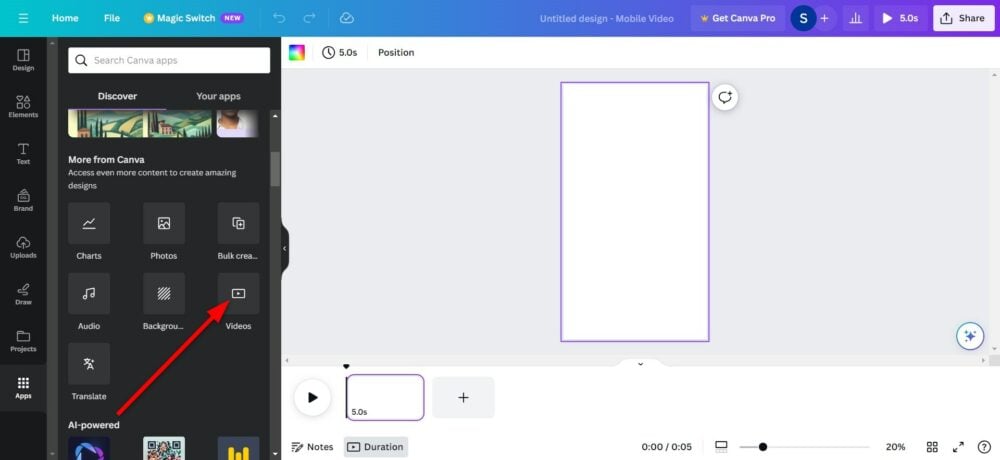
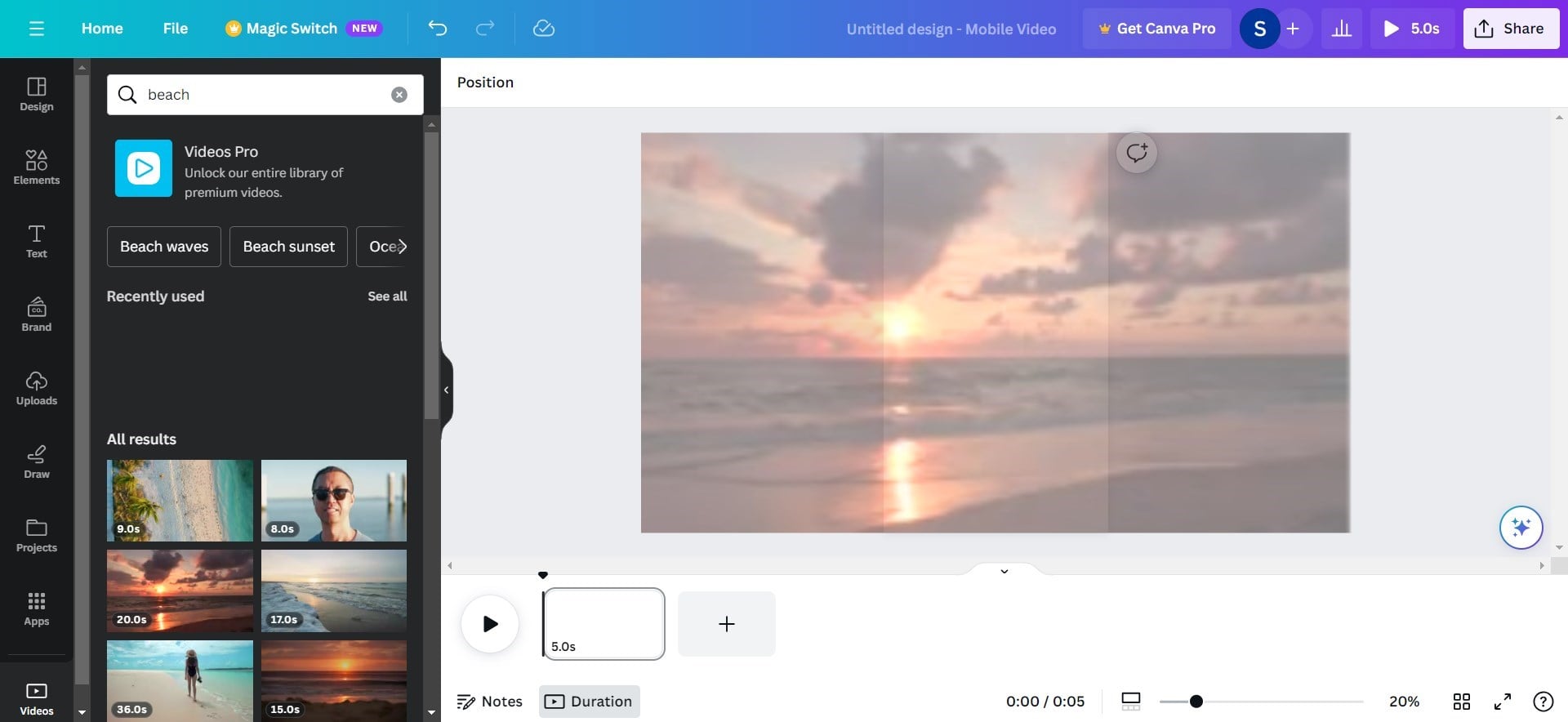
- In the search bar, you can type anything, basically what you want as a background. For example, you can type beach, and it will give you background videos of the beach.
- Choose any of the videos and drag and drop them to add it to your template. Try dropping in the location as shown in the video to fill the entire template.

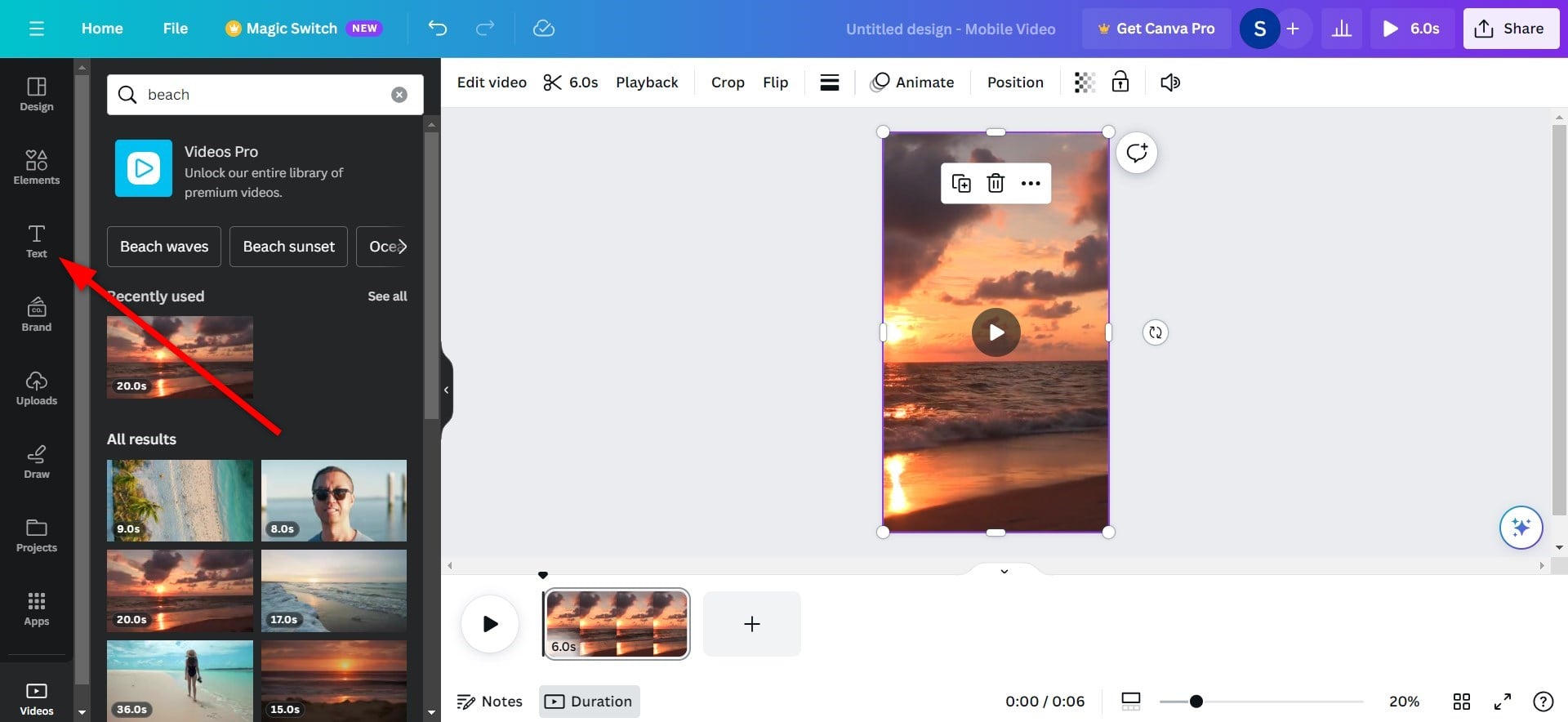
- Click on the scissor icon at the top menu bar over the video to cut it. The video length is dependent on the content you are creating. In our case, we will be cutting the video to 6 seconds and hit the Done button.
- To import the data from ChatGPT to Canva, click on Text on the left pane.
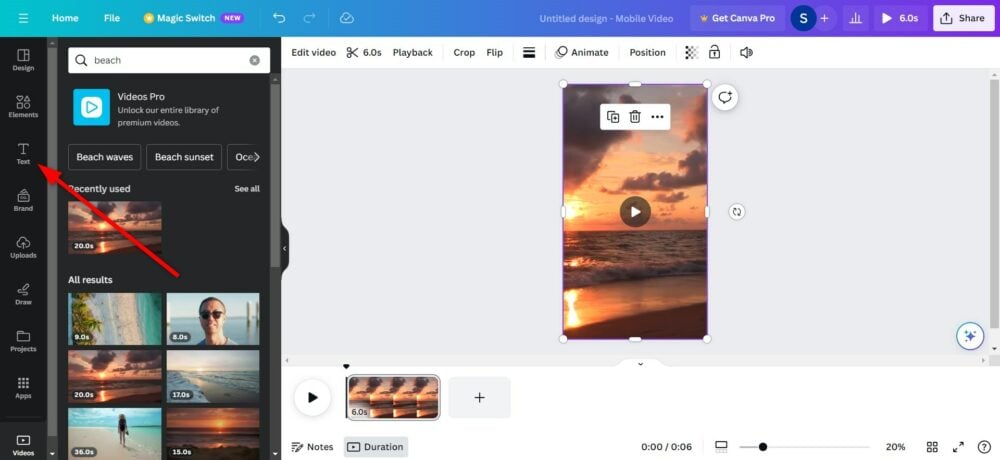
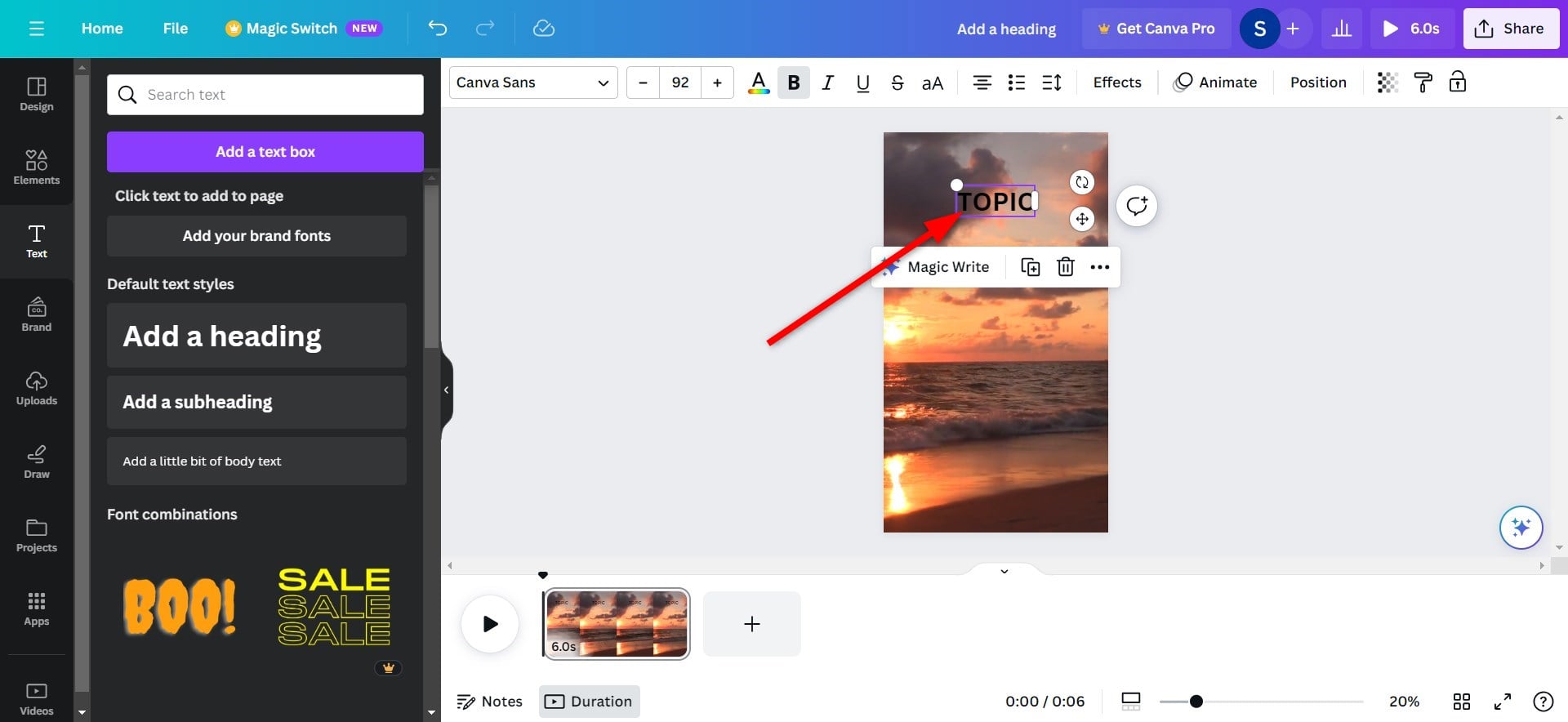
- Select Add a heading.
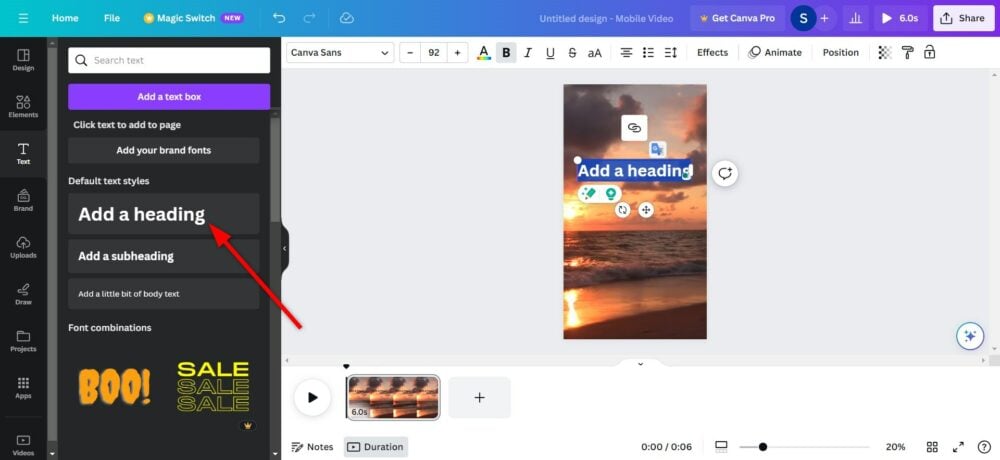
- Adjust the text box where you would like the text to appear on your video.
- Change the text inside the heading box to Topic.
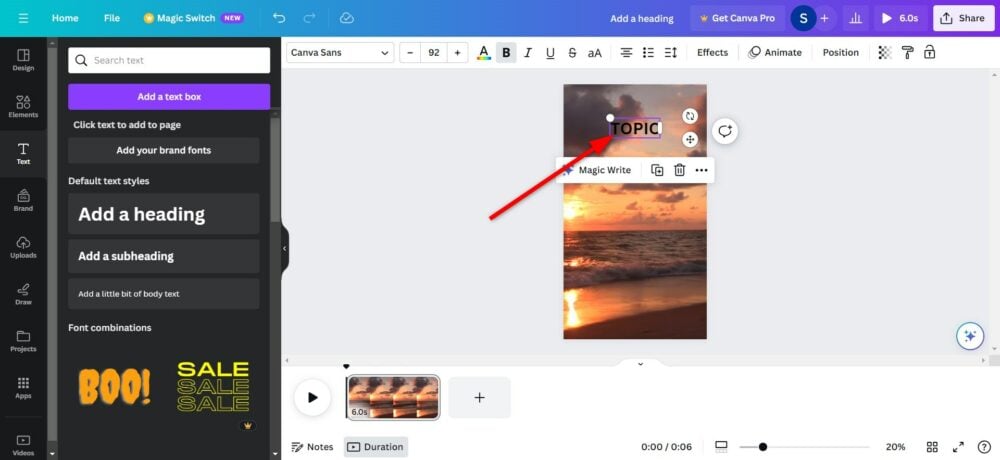
- Format the text with text color, background color, etc.
- Duplicate the same text box two times for Part 1 and Part 2 data.

- You can right-click on the Part 1 box and select the Show timing option to adjust the time the Part 1 box appears in your video.
- Adjust the same timings for the Part 2 box.
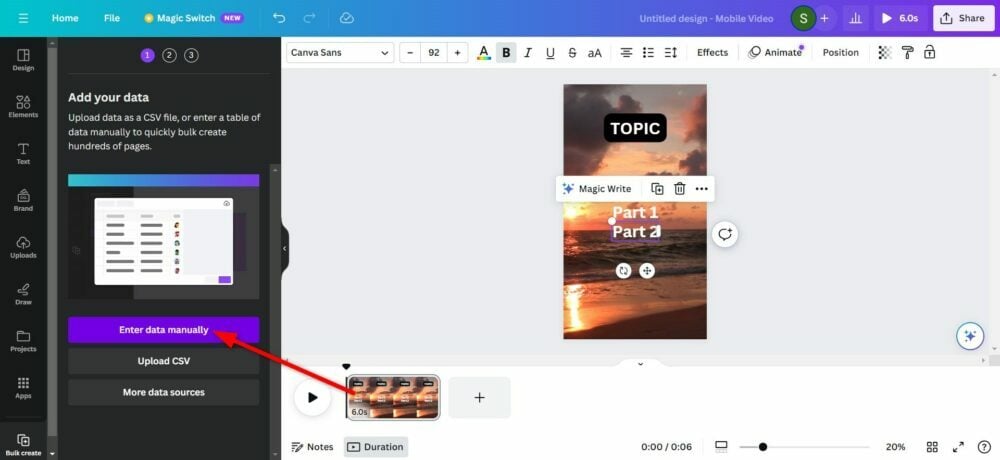
- Now, to add the data, click on Apps from the left pane and select the Bulk Create option.

- Select Enter data manually.
- Click on the first column that says Name and right-click and paste the data you copied from ChatGPT.
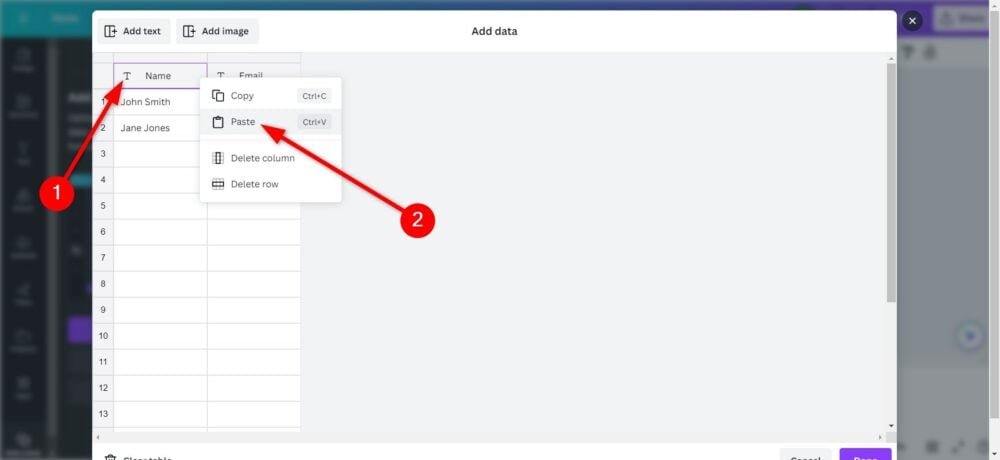
- You will see something like this when the data is copied. All the data will be properly formatted, with the topic under its own column and the facts under the Part 1 and Part 2 columns.

- Click Done.
- Right-click on the Topic box and select Connect data.
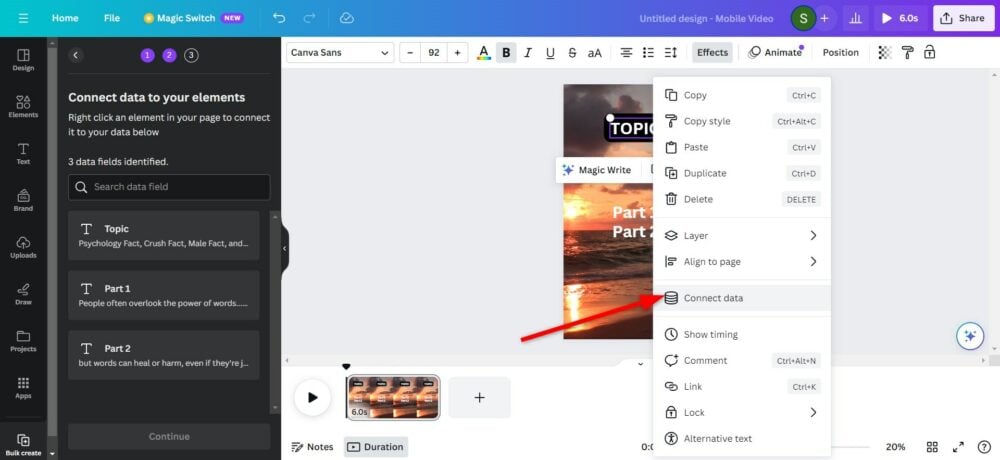
- Select Topic. You will see that the Topic box will have curly brackets confirming that the data has been attached. Do the same for Part 1 and Part 2 boxes.
- Click Continue from the left pane.

- Click Generate (56) pages. The number will be different depending on the amount of data you have connected.
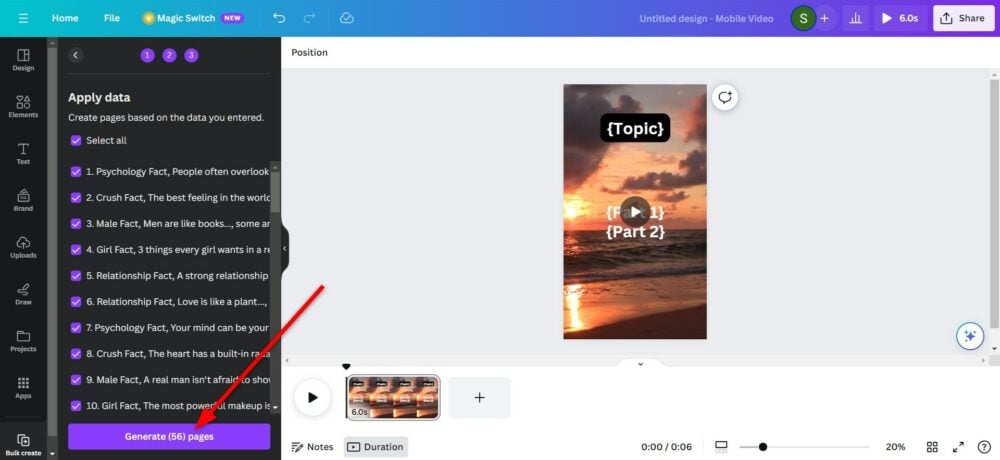





Voila! You’ve just created 56 videos with ChatGPT and Canva. Now, all you have to do is export the video, share it on your YouTube channel, and hopefully monetize your page to make a few bucks.
Related Read: Best AI Tools to Launch and Run a YouTube Channel
Create YouTube Shorts in Bulk by Automating
That’s all you need to automate YouTube Shorts and publish multiple videos to your YouTube channel. This works if you’re targeting an audience that’s more inclined to text-based videos. Not many like YouTube Shorts. No, we’re not talking about the format; we’re talking about the content that YouTube Shorts are filled with (yes, the off-putting content). For those users, we’ve created a special guide explaining how you can disable YouTube Shorts.

