

Quick Answer
This open-source Chrome extension auto-adjusts YouTube playback speed based on how fast a speaker talks, keeping a consistent listening pace. Set a target rate with min and max limits, and it dynamically speeds up or slows down speech, saving you from manual adjustments during long tutorials.
YouTube is the best free learning resource for learning anything online. Whether you want to learn guitar or complex physics concepts, you will almost find anything on YouTube.
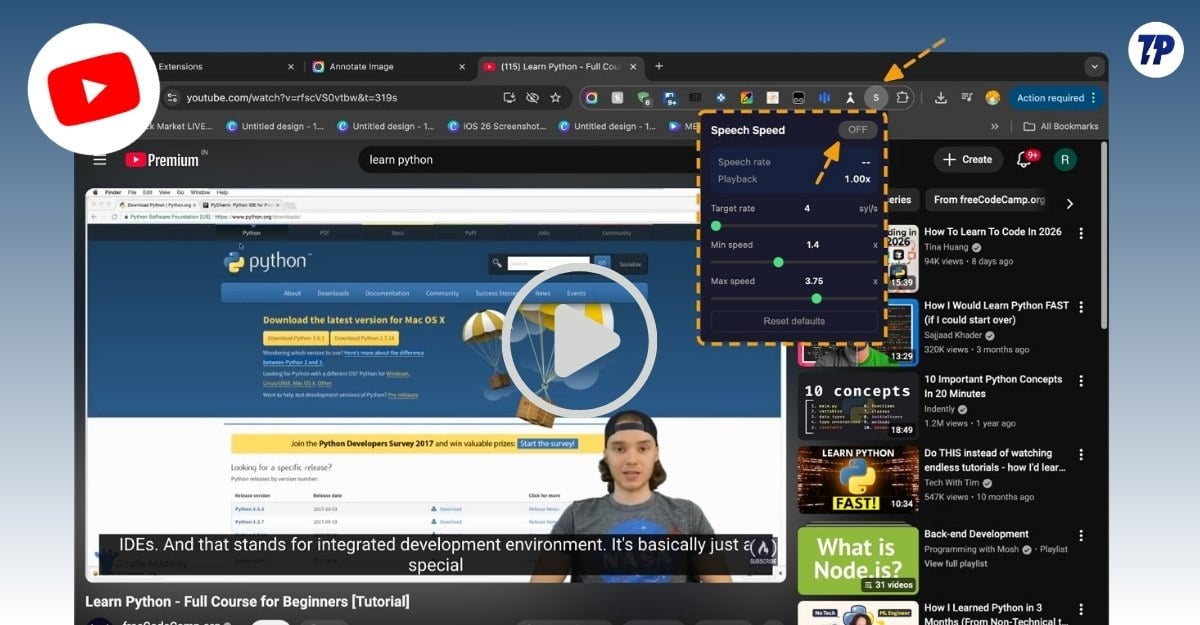
Since YouTube tutorials are sometimes long and some lectures feel really slow, I used to bump up the speed of the video to 1.5-2x to finish it as fast as possible. While this has no issues, the only concern is that YouTube video playback speeds are fixed, and these settings are applied globally.
Once you change the pace, it applies to the entire video, even if the speaker speaks faster in the middle. You have to go to playback settings again and adjust it.
However, recently I found a new Chrome extension by ywong137 (open-source on GitHub) that dynamically adjusts YouTube video playback speed to match the speaker’s speaking pace. Instead of using the default 1x, 1.5x, or 2x, you can specify the target pace you want to listen to, and the extension automatically adjusts the pace.
So if you are a student or someone who frequently adjusts the pace of a YouTube video, this can be a timesaver for you. Although it has limitations, when I tested it, it worked really well by detecting speech accurately and adjusting the audio accordingly.
Table of Contents
How It Works (Simple Explanation)
If you are confused, here is the simple explanation. For example, if you are watching a YouTube video (such as a Python tutorial) and you increase the playback speed to 2x. YouTube applies the 2x to the entire video. Even if the speaker in the video increases his space, YouTube still applies 2x speed, which sometimes becomes hard to understand. You need to manually go to playback settings and adjust the speed.
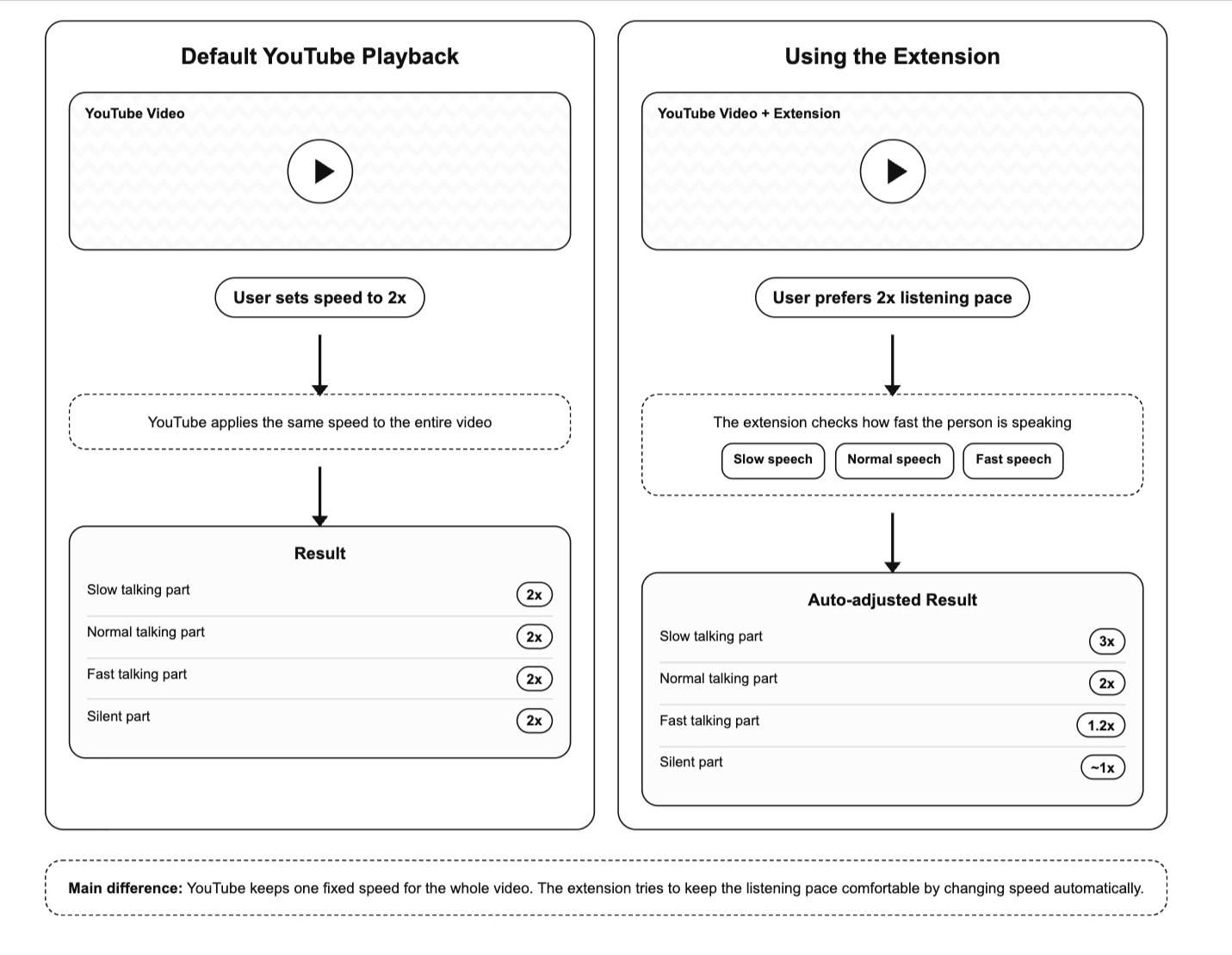
On the other hand, using this extension, you set a specific playback speed along with minimum and maximum playback speeds.
Based on how fast or slow the speaker is speaking, it automatically adjusts the playback speed to the target speed you have set. For example, if you set a target speed of 2x, the extension automatically adjusts the pace of the video. So, if the user increases their pace in the middle of the video, it reduces the speed back to 2x, and if the user is speaking slowly, it increases the pace to match the 2x speed.
How to Install the Extension
Even though the extension is not directly available on the Google Chrome Web Store, it is simple and straightforward to install. You can follow the simple guide below:
Step 1: Go to this GitHub repo page, click on the download, and save the folder locally on your device.
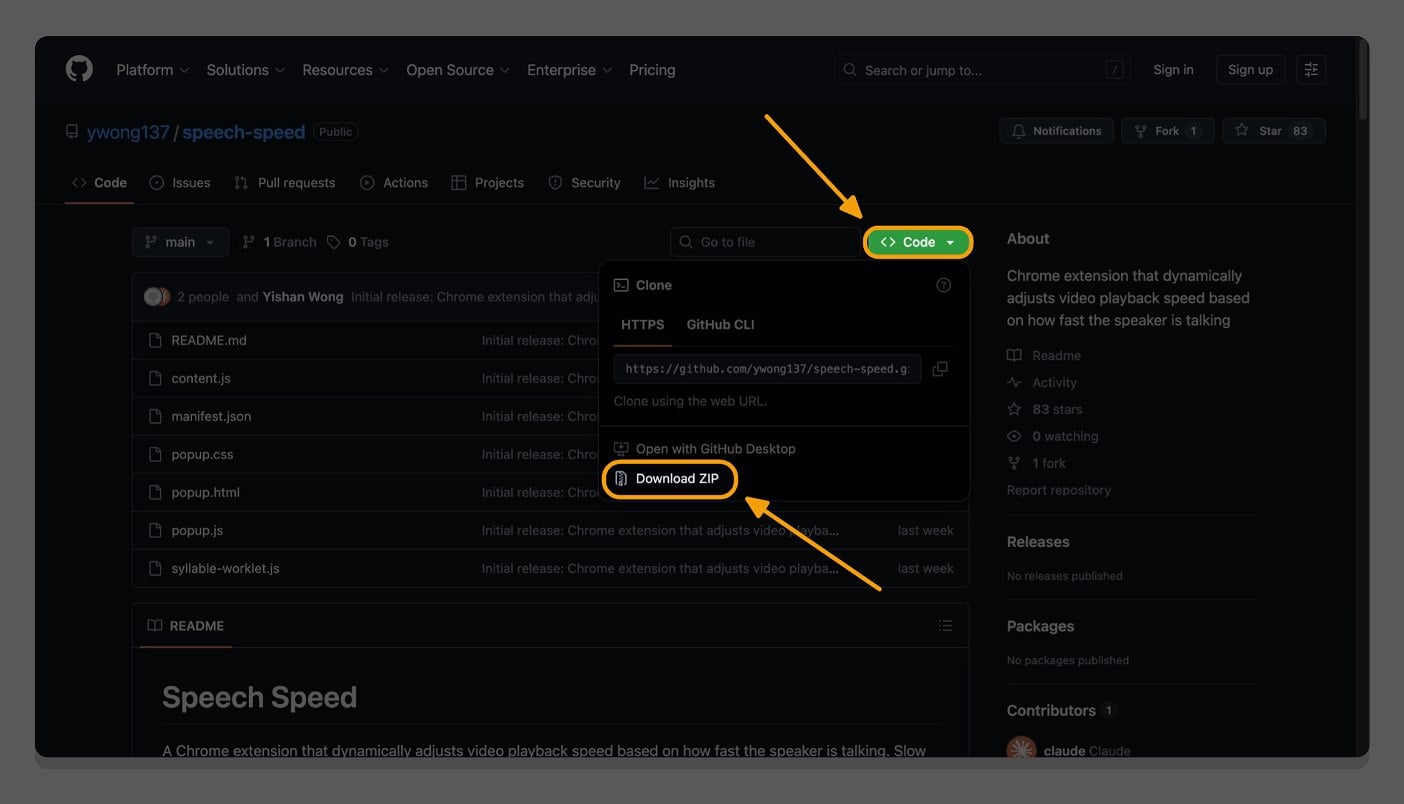
Step 2: It will be downloaded as a zip file. Double-tap on it to extract the file.
Step 3: Now open the Google Chrome browser and tap on the extension icon, then tap on Manage Extensions.
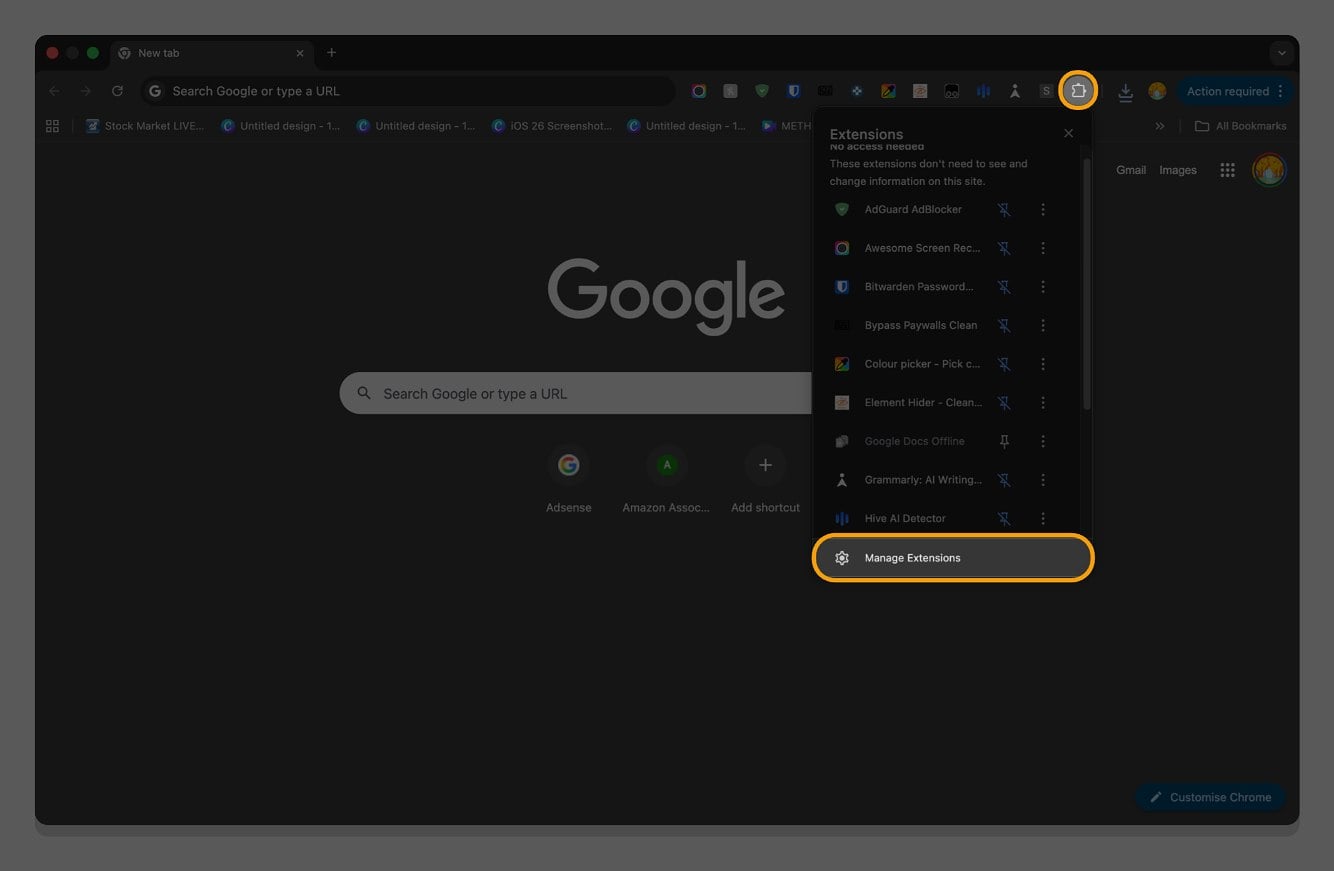
Step 4: From here, at the top, enable developer options.
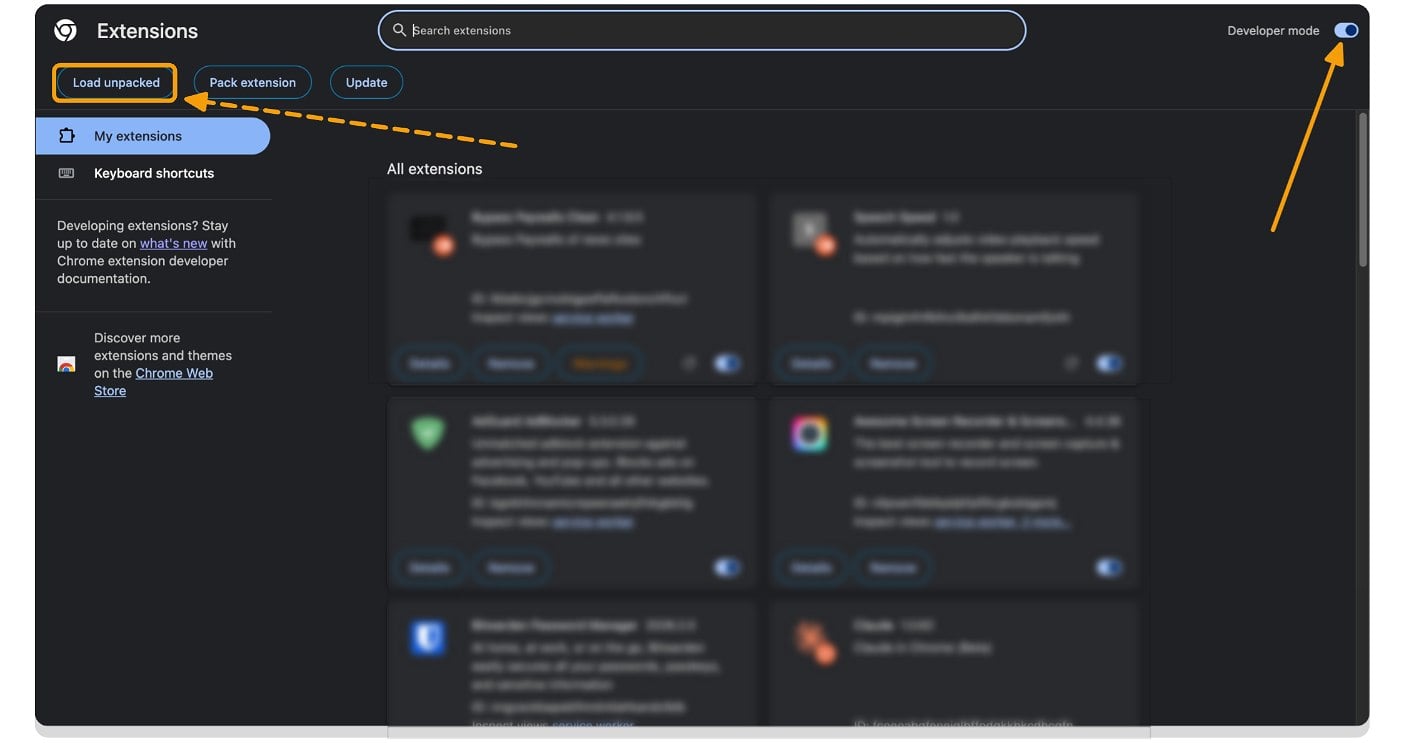
Step 5: Once you enable developer options, you will see three options on the left tab. Click on “Load unpacked.”
Step 6: Now select the folder.
Step 7: That’s it. The extension is added to your Chrome extensions.

How to Use It on YouTube
Step 1: Open YouTube or any other website with videos.
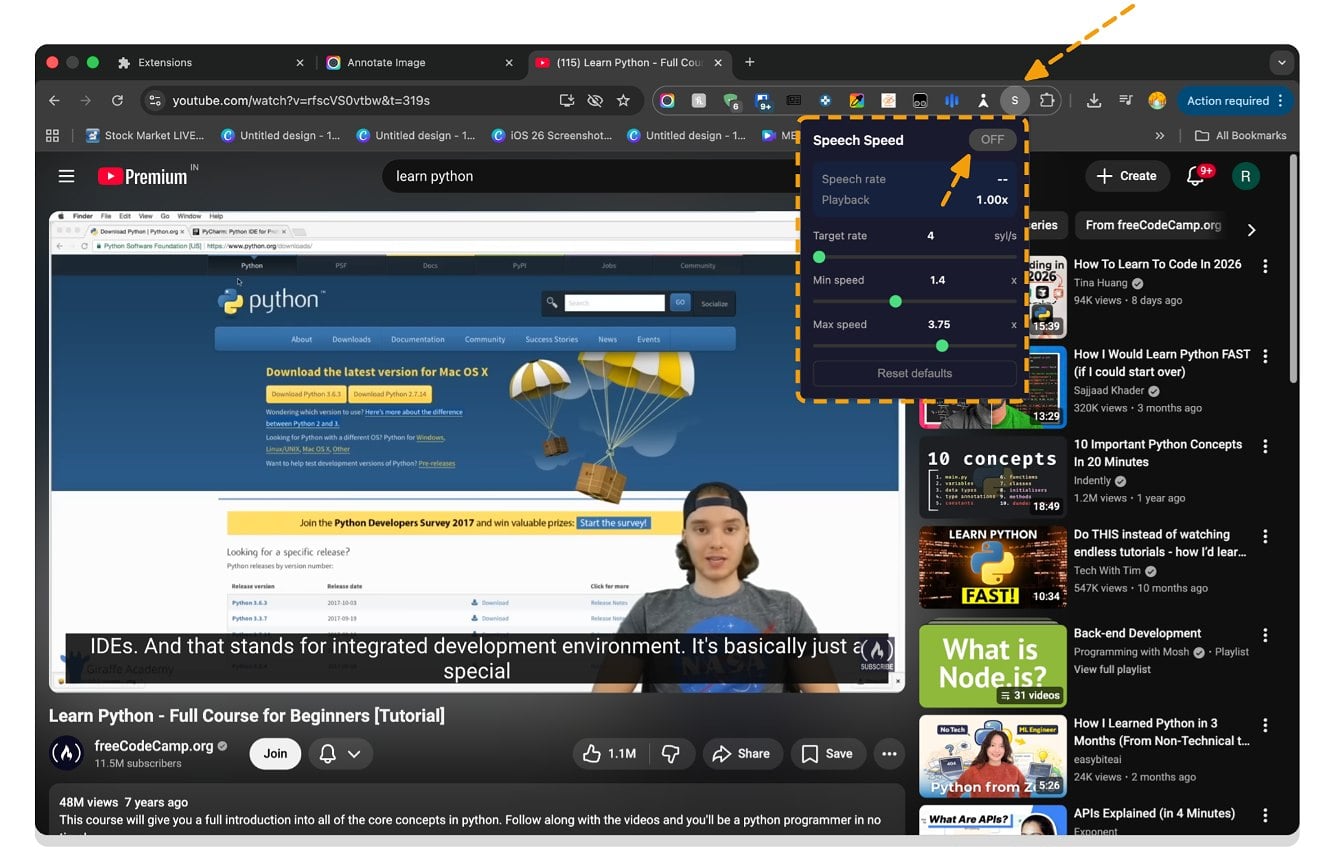
Step 2: Once you enable the extension, you will get three options. Target rate, Max Speed, and Min Speed. Target Rate defines how fast you want the video to sound. It is measured in syllables per second. Next, Min Speed is the minimum playback speed you want to allow, and Max Speed is the maximum playback speed the speaker is allowed to reach. With these settings, you can add limitations so that the extension adjusts the voice dynamically without going too slow or too fast. You can adjust these values based on your preference.
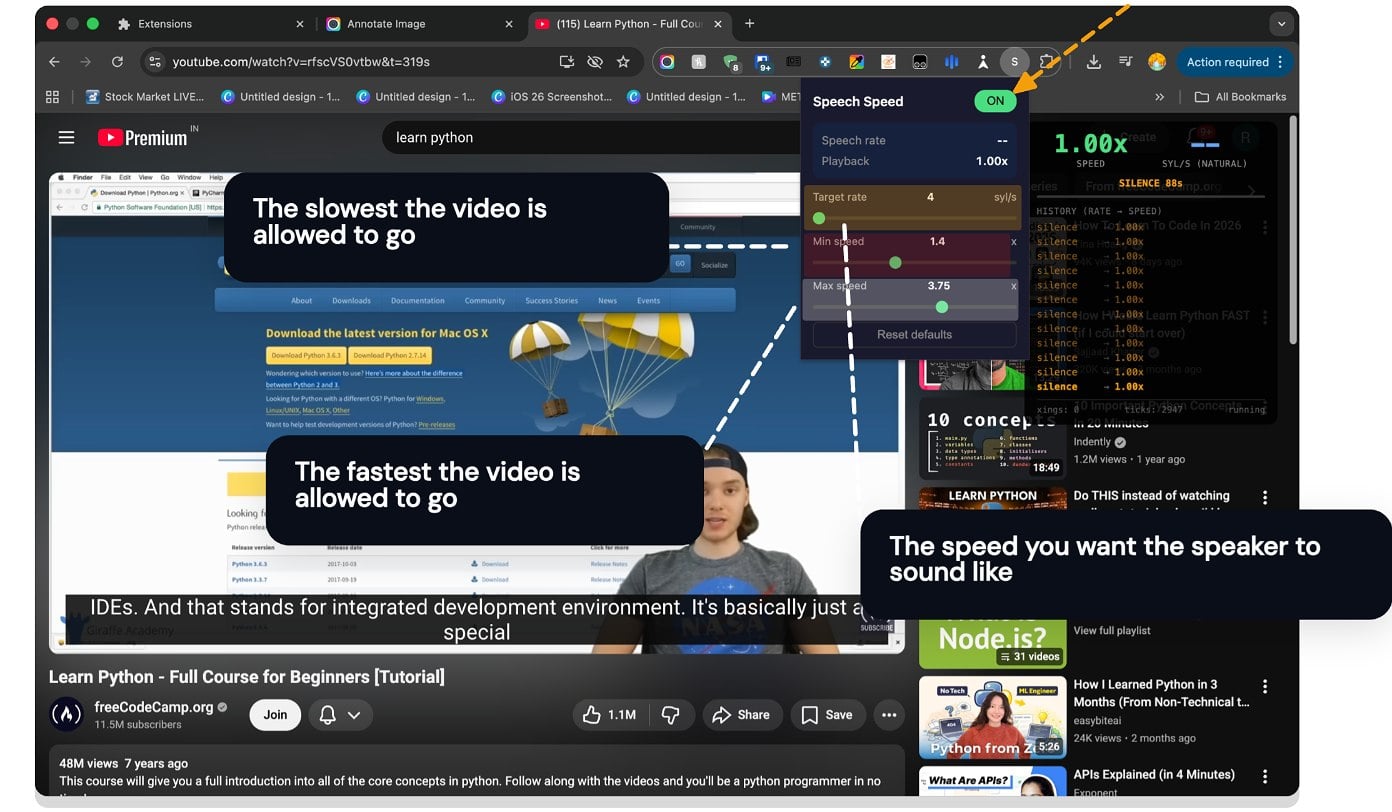
Step 3: One issue that I have noticed is that it stops working when picking up the video’s voice. To fix it, you need to stop the extension and restart it.
Limitations You Should Know
The limitations of this tool are pretty clear. First, it doesn’t work for any streaming platforms that block audio, since it uses the audio directly to determine the speed. Since it is an extension, it can often become confused if the platform has multiple videos playing simultaneously. It can also get confused if there are multiple speakers in the same video.
Apart from this, in my experience, the extension works great without any issues. It automatically detects the audio accurately and adjusts the speed as per my needs.
FAQs on Using Speech Speed Extension
1. What are the best settings (Target Rate, Min Speed, Max Speed) for my use case?
For the best settings, I would suggest: Target rate: 4, Minimum speed: 1.5, and Maximum speed: 3. These would be the ideal settings for any tutorial video, or you can adjust the preference based on your video pace.
2. Does this extension work on all browsers or only on Chrome?
It is primarily designed to work on Chrome, but you can use it on any other Chromium-supported browser, such as Chrome, Microsoft Edge, Firefox, or Brave. However, it does not work on non-Chromium browsers like Safari.
3. Will this affect video or audio quality?
No, it won’t affect video quality. However, since it requires processing the audio, your browser might consume more resources.
4. Does it work on all YouTube videos?
Yes, it works in almost all videos except those with music featuring heavy bass or videos with less audio clarity.
5. Is it safe to use since it requires developer mode?
Yes, it is completely safe to use. I even tested it with free online security tools and found no issues. If you want to be more secure, scan the downloaded ZIP file before extracting it on your device.

