

Quick Answer
Google Chrome’s new Skills feature lets you save your best AI prompts as reusable shortcuts in the Gemini sidebar. Instead of retyping the same instructions, you can trigger saved prompts with a simple “/” command to summarize pages, polish emails, extract tasks, and more, making AI workflows much faster.
If you spend a significant amount of time working on a computer, then you would know how deeply artificial intelligence has integrated into our daily routine. Throughout the day, we use AI to untangle messy emails and drafts, summarize lengthy reports, and even explain complex concepts in simple terms. AI is also utilized for research purposes, though a cross-check is still required. But if you are a frequent AI user, you are likely to run into a specific and annoying problem: repetition.
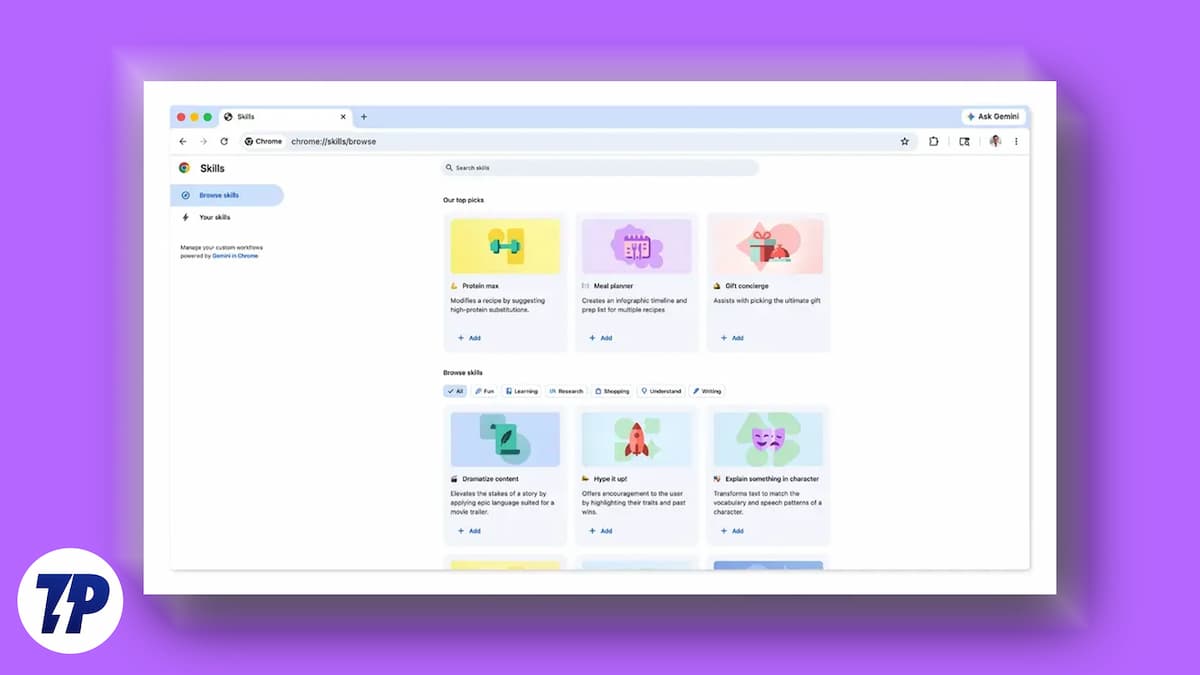
Think about how many times you typed “Summarize this article into three bullet points” or “Rewrite this text to make it sound more professional.” These are just a few examples, but the idea here is that you have to retype these same instructions dozens of times a week. Not anymore, because Google Chrome has a built-in feature called “Skills” that allows you to save your most-used prompts directly in the browser. Here’s how to use it.
What is the Google Chrome Skills feature?
Google Chrome introduced the Skills feature in April. You can think of “Skills” as a smart, reusable template for your favorite AI tasks. If you already use the Gemini side panel in Chrome, you know how handy it is to have an AI assistant right next to your open tabs. However, repeating a specific task, like asking AI to change the tone of the email or asking it to draft a professional email, meant retyping those same instructions, over and over again.
The Google Chrome Skills feature eliminates this repetition. It lets you save your most-used prompts and turn them into one-click workflows. When you write a brilliant prompt and get the best result, you know you will be using it in the future. Now, you can save it as a Skill directly from your chat history. The next time you need it, you don’t have to retype it or go through the hassle of finding it in your chat history and then copying and pasting. You just type and press a couple of keystrokes to trigger your saved Skill.
Imagine reading a long, dense article. Instead of copying the text and opening a new tab, loading an AI website, pasting the text, and typing out your instructions, you can simply open the Chrome side panel, trigger your saved “Summarize” Skill, and let Gemini do the heavy lifting. And since it operates in the side panel, your instructions contextually get applied based on the page you are currently viewing.
The best part is that you can apply these Skills not only to the page you are currently viewing, but also to other tabs as well. This is quite handy, especially when you are doing a side-by-side comparison when shopping across multiple websites.
How to get started using the Google Chrome Skills feature?
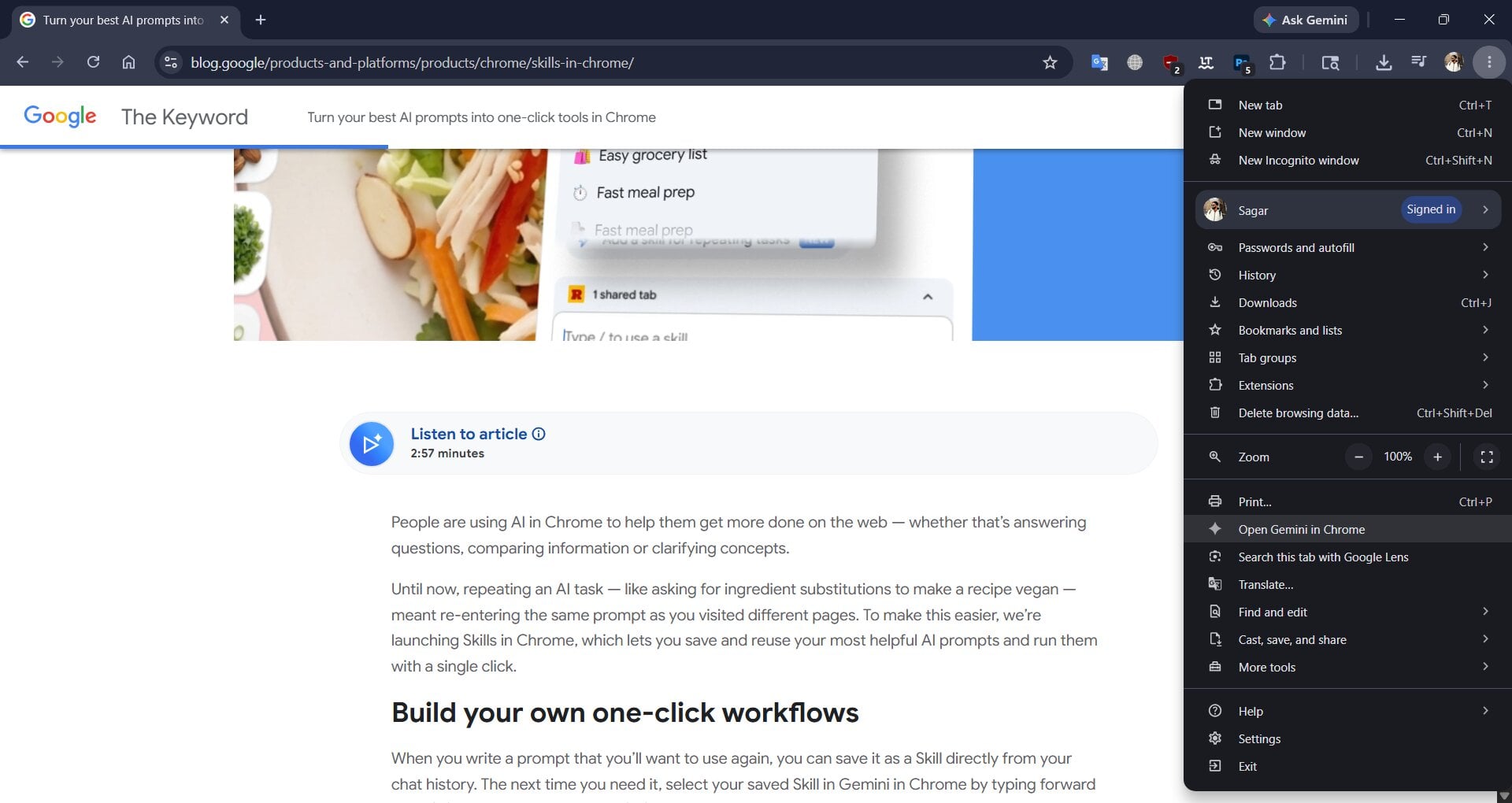
For many, the Google Chrome Gemini sidebar is enabled by default. If it is not enabled for you, then you can head over to the three-dot menu > Settings > AI innovations > and toggle on the Show Gemini in Chrome option. After ensuring you can access Gemini in the sidebar, here’s what you need to do:
- Open the Gemini side panel in Google Chrome.
- Enter the instructions that you want to save. For instance, “Read the current webpage and give me the 5 most important facts in bullet points.”

- Press Enter and let Gemini process the prompt.
- Once the response is generated, move your mouse cursor over to the prompt you typed, and you will see a small lightning bolt icon appear next to your text.
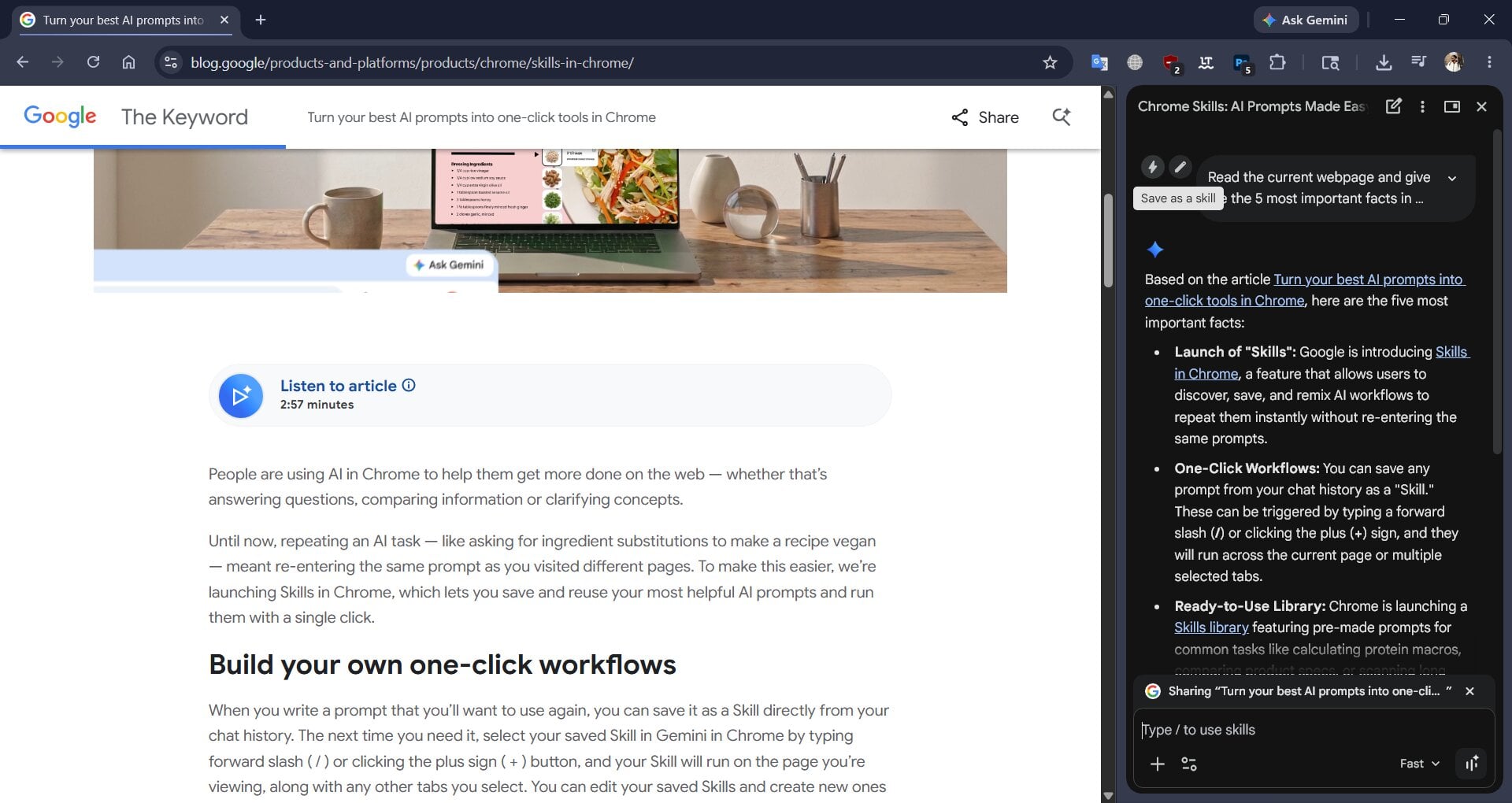
- Tap on the lightning bolt icon, and Chrome will ask you to name this specific skill. You also have the option to add more details to the instructions you want to save.
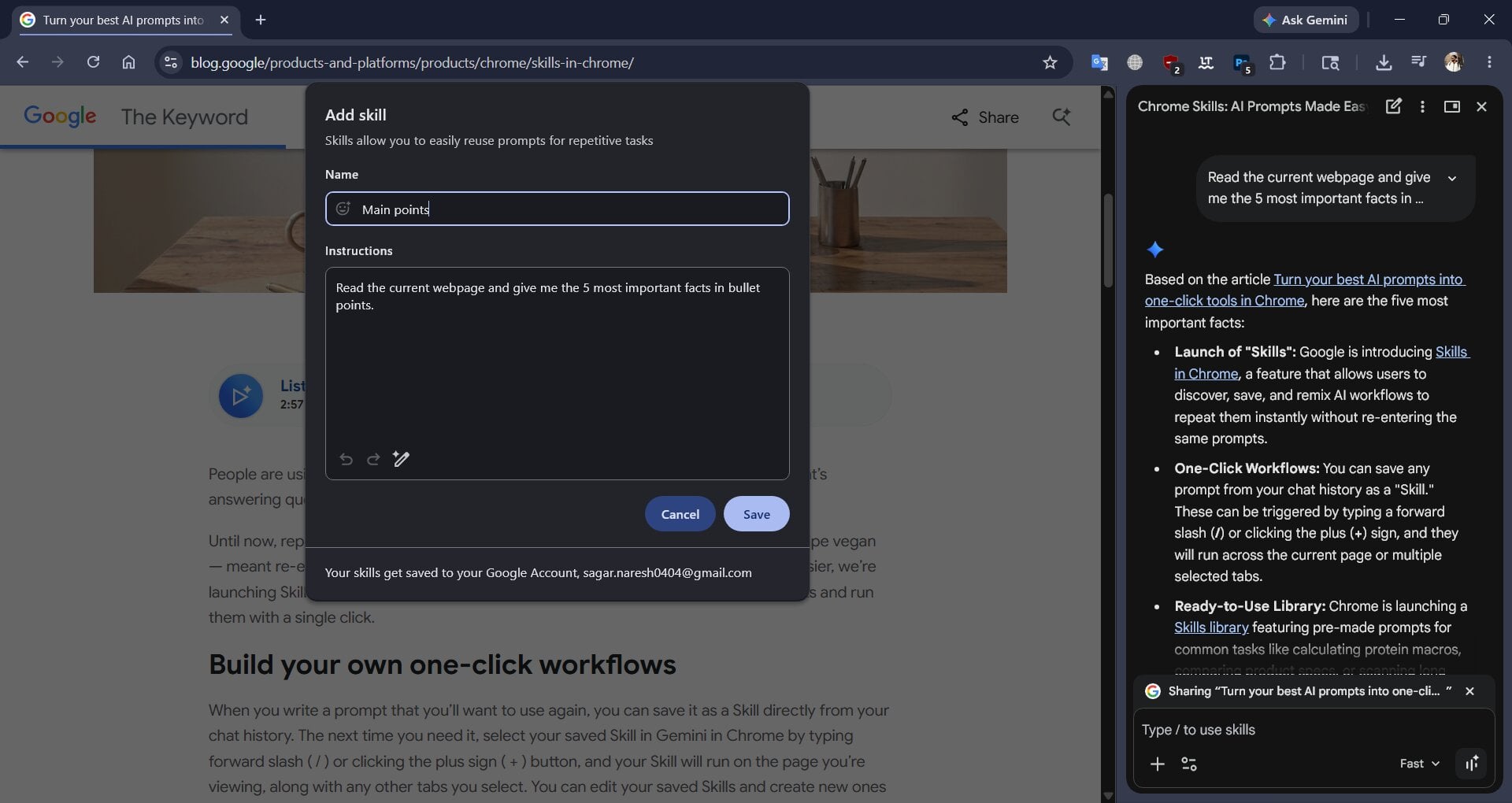
- Once you are done, click Save.
- To use the skill, simply visit any website and open the Google Chrome Gemini side panel. In the text field, type a forward slash (/), and you will see all of your skills pop up. Click on the one you want to use, and that is it. You also get the option to add a skill or browse all of your saved skills.
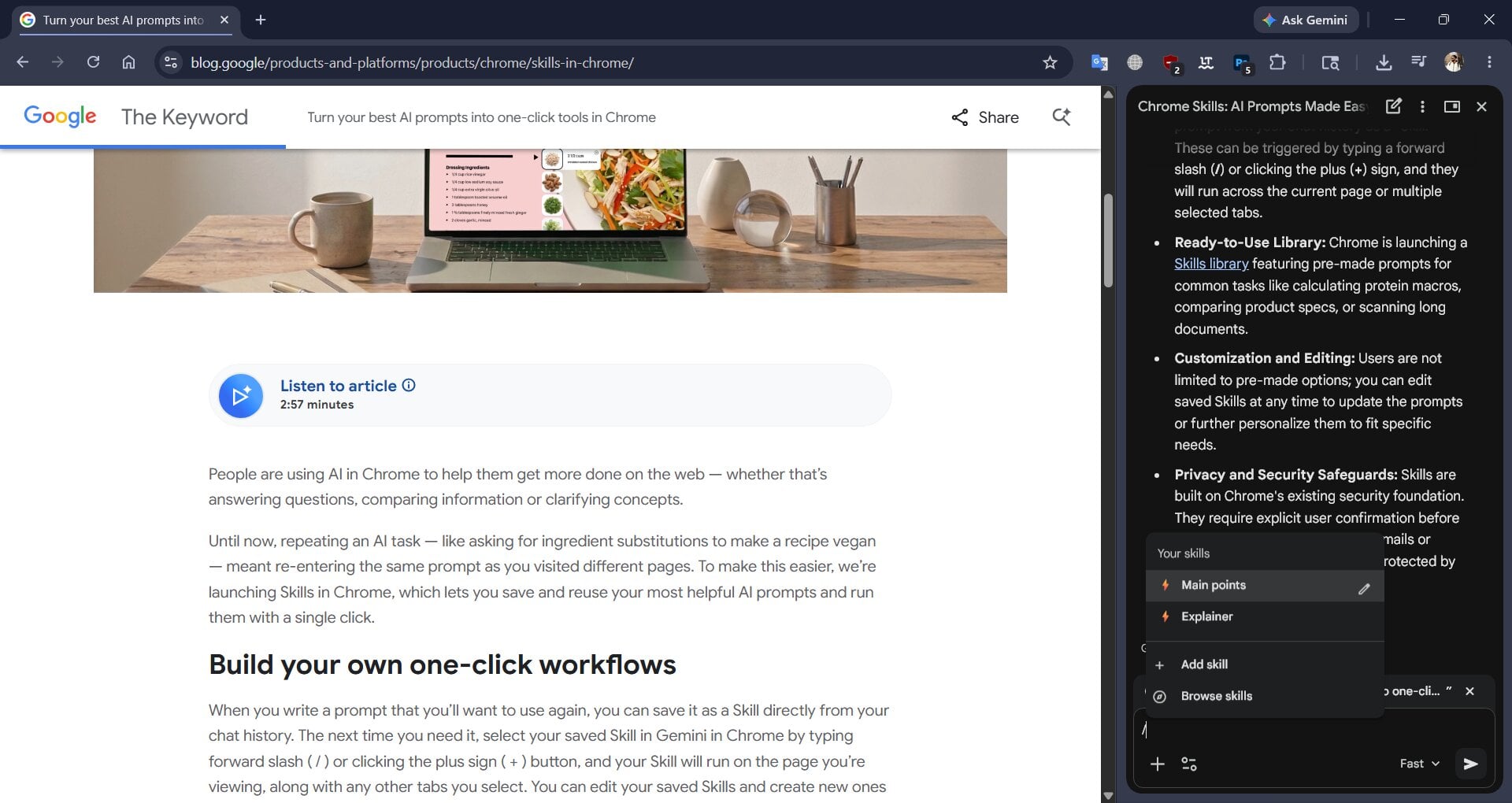
There are a few things that you need to keep in mind in order for the Skills feature to work or even show for you in Chrome.
- You need to make sure that you have installed the latest version of Google Chrome.
- You need to enable Gemini in Google Chrome before this can work.
- The language for Google Chrome must be set to English (U.S); otherwise, the feature won’t work, and you will not see the lightning bolt icon.
- Your skills get saved in the account that you are currently using with Google Chrome. So make sure to use the account that you will be using for your work.
But if you don’t know what to save and where to start, check out the next section to learn about some of the must-have skills that you should save.
Must-have Skills to supercharge your workflow
You can utilize this feature in whichever way it fits your workflow. You can save different types of skills related to emails if you have to deal with a lot of emails, or you can have multiple skills saved to craft a brilliant article for your college submission. Here are a few of the must-have skills that are a fit for almost everyone.
- Summarizer
- Prompt: Summarize the main argument of this webpage in one short paragraph, followed by three key takeaways in bullet points. Strip away all marketing fluff and focus only on the core facts.
- Why: This is a perfect prompt to understand long articles, press releases, or dense web pages when you have a limited time to spare.
- Polished email
- Prompt: Check the text I just pasted. Fix any grammatical errors, improve the flow, and rewrite it in a professional, polite, but direct tone. Do not use overly complex corporate jargon.
- Why: Instead of putting pressure on your brain to find the best reply, you can use a rough draft and let the Skill instantly clean it up for you.
- Extract important stuff
- Prompt: Read this document and identify all the actionable tasks, deadlines, and responsibilities mentioned. Present them in a clear, easy-to-read checklist.
- Why: If you are looking at a document or a project brief, using this Skill instantly tells you the most important things you need to do without needing to read everything again.
- Simple explanation
- Prompt: Explain this webpage in the simplest terms possible. Use everyday analogies and avoid all technical jargon and industry-specific keywords.
- Why: This is great when you stumble across something that is just too complex or involves too much technical jargon that you do not understand.
- Change the tone
- Prompt: Rewrite the information on this page so that it is easily understandable by a beginner. Breakdown complex sentences into shorter ones in an encouraging tone.
- Why: Good if you want to translate complex industry news into a digestible format for clients.
Remove friction while using AI
The Google Chrome Skills feature is a great one to have, especially for those who use AI in their daily lives. This way, they are not only saving time by avoiding typing the same prompts multiple times but are also automating things by clicking shortcuts. There are a few caveats, though. Firstly, it is tied to the Google Chrome browser and Gemini. If you use a different AI agent like Claude, ChatGPT, etc., then the Skills feature won’t work there. Also, everything is tied to your Google account, and not to forget how buried this feature is. It is a small change, but it brings a big difference when used wisely.

