

Quick Answer
In order to enable Google Chrome Link Preview, open Chrome and type chrome://flags/ in the address bar, and press Enter. Search for Link Preview to find the flag and enable it. Relaunch the browser for the link preview to start working.
Google continuously works on new features for the Chrome browser that are meant to elevate the user experience. However, not all features are rolled out in the stable version directly, and they go through the experimental phase, where they are buried in the Google Chrome browser as a flag. Google has been working on a new feature called Link Preview, which makes it easier for you to decide if the webpage is worth opening or not. Previously, Google Chrome showed link previews when you hovered your mouse over the tab.

But now, the new iteration of the Google Chrome Link Preview feature gives you more information, negating the need to leave the active tab. In this guide, we will help you enable the Google Chrome Link Preview feature in the browser and will also show how the feature works. Let’s jump right in.
What is the Google Chrome Link Preview?
Google Chrome Link Preview is a new feature, or, well, an updated version of the already existing feature. It shows the webpage or linked page in a small window without opening that link or within the same tab. The best part is that you can scroll and interact with the links on the webpage or linked pages in a separate window. Moreover, the Google Chrome Link Preview feature works in both normal and incognito modes.
The preview window that the Link Preview feature opens will stay on top even if you are using another tab or a different app or program. Google has put great thought behind this feature, and what makes it more interesting is the fact that you can open multiple preview windows from separate tabs, and they will all appear on top. There is a limitation, though, as you can open only one preview window per tab.
You can move the preview window around your screen, scroll the page in the preview window, and also open links on it. Moving the page works by clicking on the header and dragging it on the screen. Another important thing to note here is that this feature is only available on the desktop version of Google Chrome. The Link Preview feature doesn’t work on the Google Chrome Android or iOS apps.
How can I enable and use the Link Preview feature?
Enable Link Preview in Google Chrome
The Link Preview feature isn’t ready yet and is still in the testing phase. This is why the feature is still not available as a general feature but available as a flag. Here are the steps that you need to enable the Link Preview feature:
- Open the Google Chrome browser.
- In the address bar, type chrome://flags/ and press Enter.
- In the Chrome search box, type Link Preview and you will get the flag.
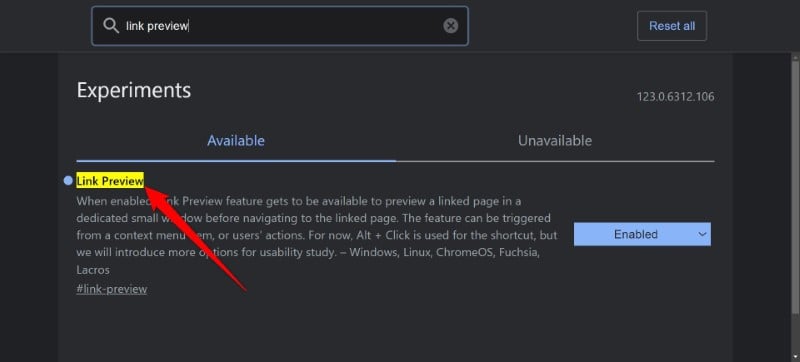
- For Link Preview, tap the down arrow in the box for the flag, and select Enabled.
- Tap the blue color Relaunch button in the bottom-right as your browser needs to relaunch for the feature to work.

Related Read: 13 Ways to Make Google Chrome Faster on PC and Mobile
Use Link Preview in Chrome
Now, let us understand how you can access the Link Preview option on any webpage or link in the Google Chrome browser. Here are the steps you need to follow:
- After Chrome relaunches, search for any website or open any link in the browser.
- Right-click on the linked page or the link. You will see a new option Preview Link in the right-click menu. Choose the Preview Link option.

- A preview window of the web page will open separately. Note that you should avoid clicking anywhere on your screen otherwise the preview window will close automatically. Then you would need to perform steps 1 to 3 again to view the preview window.

- Alternatively, press the Alt + left mouse button on a link to open a preview window.
- You can move the preview window anywhere on the screen. Just click on the header of the preview window and move it anywhere you like.
You can interact with the preview window, open links within the preview window, and use other interactive elements. However, note that you cannot change the window size, and if you click outside of the preview window, it will close automatically. You can perform the same steps on multiple tabs in the Chrome browser.
Related Read: 10 Simple Ways to Fix Link Previews Not Loading on WhatsApp
FAQs about Google Chrome Link Preview feature
Are videos playable in the preview window?
While you open links and interact with some elements in the preview window, you cannot play videos in it. That's the restriction that Google has put on the preview window. Moreover, you cannot play games in the preview window.
How can I disable the link preview feature?
If you don't want the link preview feature in Google Chrome browser then you need to follow the same steps as mentioned for how you enable the feature. The only thing you need to do is you need to select Disabled in place of Enabled for Link Preview in Chrome flags and relaunch your browser.

