

Quick Answer
Google Maps’ Ask Maps feature uses Google Gemini to turn navigation into a conversation, letting you ask detailed, personalized queries instead of basic searches. It analyzes reviews, photos, and context to suggest ideal places and routes, making navigation smarter, faster, and tailored to your needs.
Google Maps is the go-to navigation app for billions around the world. Although there are several other Google Maps alternatives available, the ease with which we use Google Maps makes it our preferred choice. It single-handedly saves us from getting hopelessly lost in the city. It even helps you to get on the public transport of a new city in a different country, which sounds pretty daunting at first. However, as technology advances, so do our favorite apps.
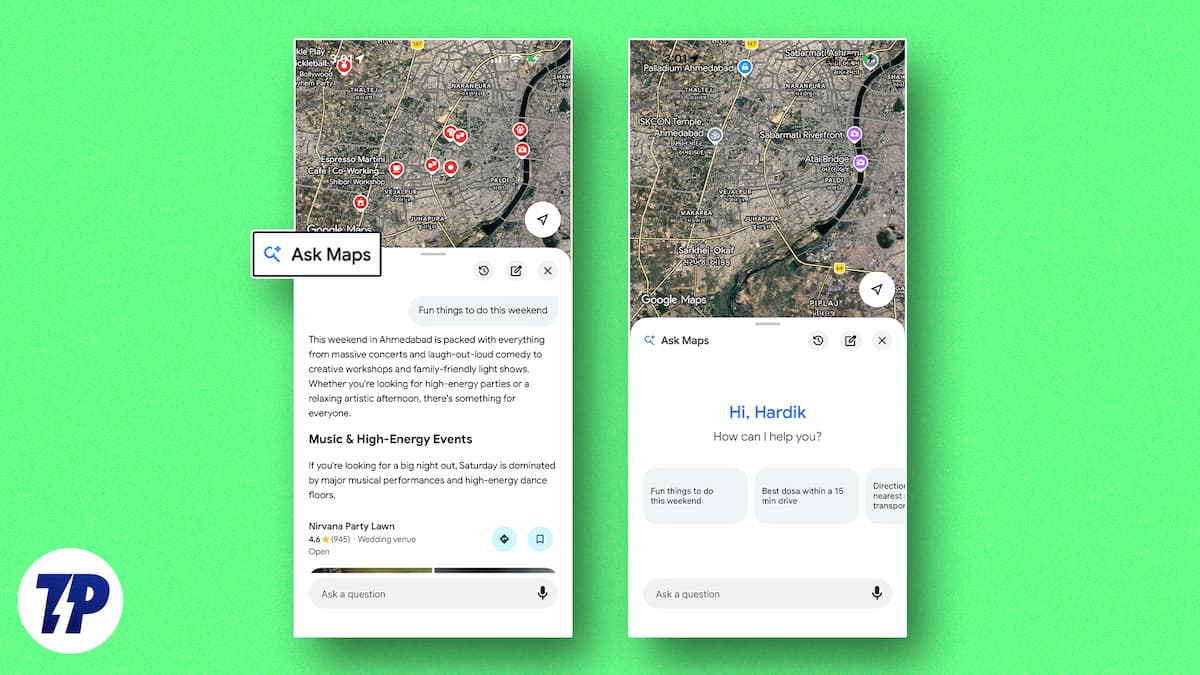
The core experience of navigation apps has largely remained the same. Still, with the introduction of Gemini-powered conversational navigation through the Ask Maps feature inside Google Maps, Google has changed the way you navigate. This feature completely transforms the way you find places and navigate to them. If you have been hearing a lot about this or haven’t heard about it at all, then let us check out what the Google Maps Ask Maps feature is and how to use it.
Table of Contents
What exactly is Google Maps Ask Maps feature?
Before this feature, if you were hungry and looking for restaurents nearby to your location, you would search for “Italian restaurants near me” in the search bar. The app would show you a list of restaurants near you, and you would tap on the one you like and head to it. With Ask Maps, the dynamics change a bit. Instead of typing rigid words, you can now converse with Google Maps, exactly the way you would ask Gemini or a knowledgeable person.
You don’t just ask for a category; you can now ask a complex and highly specific question. Under the hood, Ask Maps uses Google Gemini (Google’s artificial intelligence model), and it analyzes billions of data points from user reviews and uploaded photos, synthesizing all records to give you the best possible answer.
The scale behind Ask Maps is genuinely impressive. Google Maps indexes over 300 million places worldwide and draws on more than 500 million user-contributed reviews and photos to power its responses. According to Google, this depth of real-world data is precisely what makes Ask Maps responses feel accurate and grounded, rather than generic. It is not just pulling a list from a database; it is synthesizing lived human experience at a massive scale.
Ask Maps vs. Classic Google Maps Search
Feature | Classic Google Maps Search | Google Maps Ask Maps |
|---|---|---|
Query style | Keyword-based ("coffee near me") | Natural language ("quiet coffee spot with no long queue") |
AI model | None | Google Gemini |
Result format | List of places | Conversational response + map pin |
Context understanding | Limited to search term | Analyzes reviews, photos, busyness data, and preferences |
Personalization | Basic (location-based) | Deep (saved places, search history, stated vibe) |
Inline restaurant booking | No | Yes |
Share results with friends | No | Yes |
Best suited for | Quick, simple lookups | Complex, multi-condition queries |
Ask Maps acts like a local guide
Let us just understand this with an example. You are out exploring the city, but see that your phone’s battery is about 5%, and you also need a coffee. But you are in a rush, so you absolutely cannot stand in a 20-minute line at a crowded cafe. In the old way, you would search for “coffee shops near me,” check the popular times to see if it is busy, and then scroll through the reviews, hoping someone randomly mentioned the timings for less rush. It is too lengthy and frustrating, considering the 5% battery situation.
With the Ask Maps feature, you simply tap the Ask Maps button and literally ask: “My phone is dying, where can I charge it without having to wait in a long line for coffee?” Google Maps will analyze different data points, understand the context for your entire sentence, cross-reference coffee shops near your exact location, check their busyness data, and provide you with the best possible result. It presents you with a conversational response and also a map to the exact location. This is the kind of AI-powered local guidance that Google Maps Ask Maps brings to the table, and it is a genuine step up from anything a standard search bar could offer.
You can add your personal requirements to the mix
The best part is that not just standard queries, you can also add your personal requirements to the mix, and Gemini would understand them. You can filter your query by adding specific data like the look, feel, and vibe. For instance, you can ask for “find me a coffee shop, with a retro feel, and a cozy vibe.”
On top of this, if you really dig reading reviews, because that is the best way to learn about a place, you can feed the Ask Maps feature, “Choose me 5 reviews that explain the food quality at this restaurant.”
Because the system is so deeply integrated with your preferences and search history, it understands what you mean by “cozy vibe” based on the places you have saved and liked. You get tailored, personalized map recommendations based on your geography, so that it is the perfect option for you. And if you are planning a multi-day trip, you can even ask Ask Maps to help you build a day-by-day itinerary for a city, pulling in places that match your interests along the way.
How to Use Ask Maps on Google Maps
Now that you know what Ask Maps can do, here is how to get it running on your phone. The feature is currently available on both Android and iOS in the United States and India, with more regions rolling out gradually.
Here is how to use it once your app is ready:
- Open Google Maps on your Android phone or iPhone.
- Tap the search bar at the top of the screen. You will see an “Ask Maps” button appear alongside the usual search options.
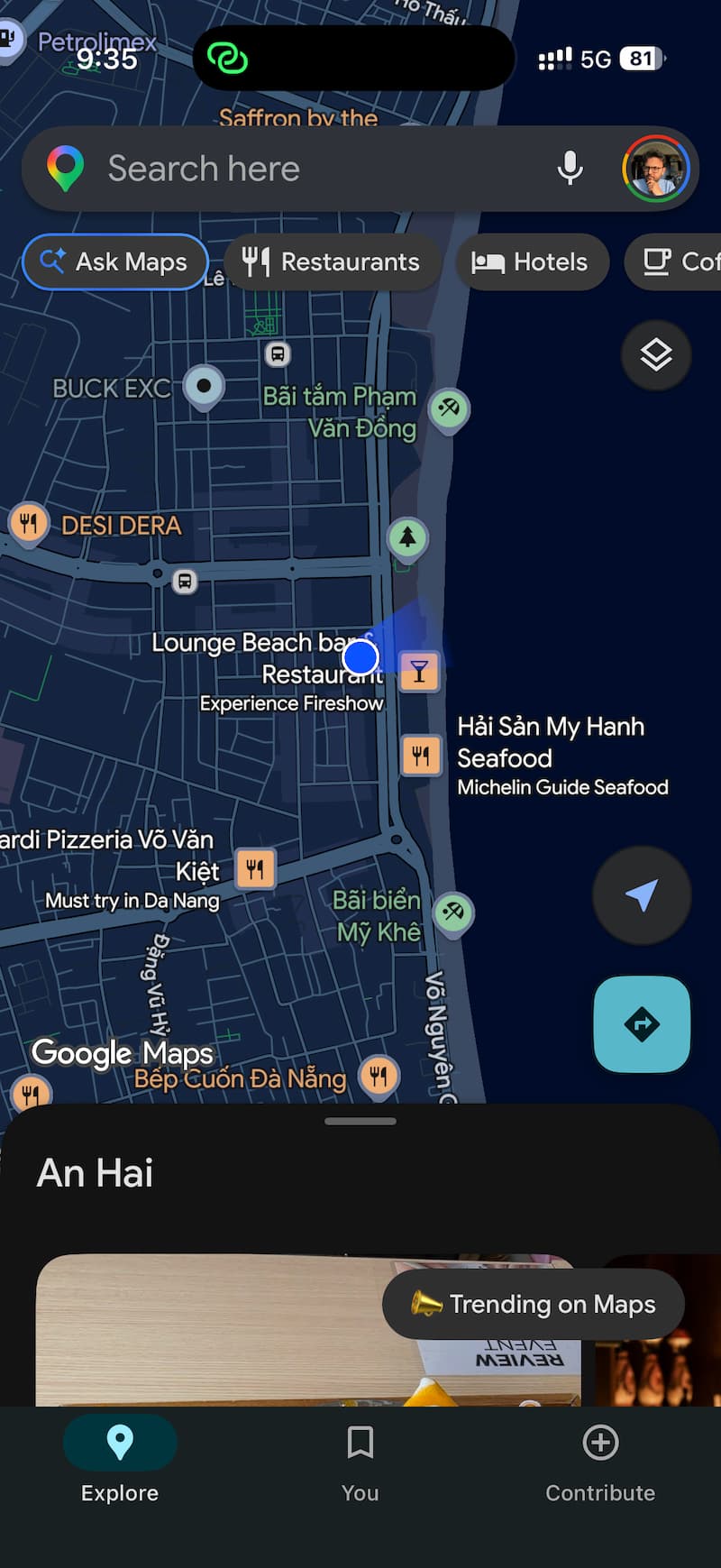
- Tap “Ask Maps” to open the conversational interface.
- Type or speak your query in plain, natural language. You do not need to use keywords; just ask the way you would ask a friend.
- Browse the response. Ask Maps will show a conversational answer along with a list of relevant places pinned on the map.
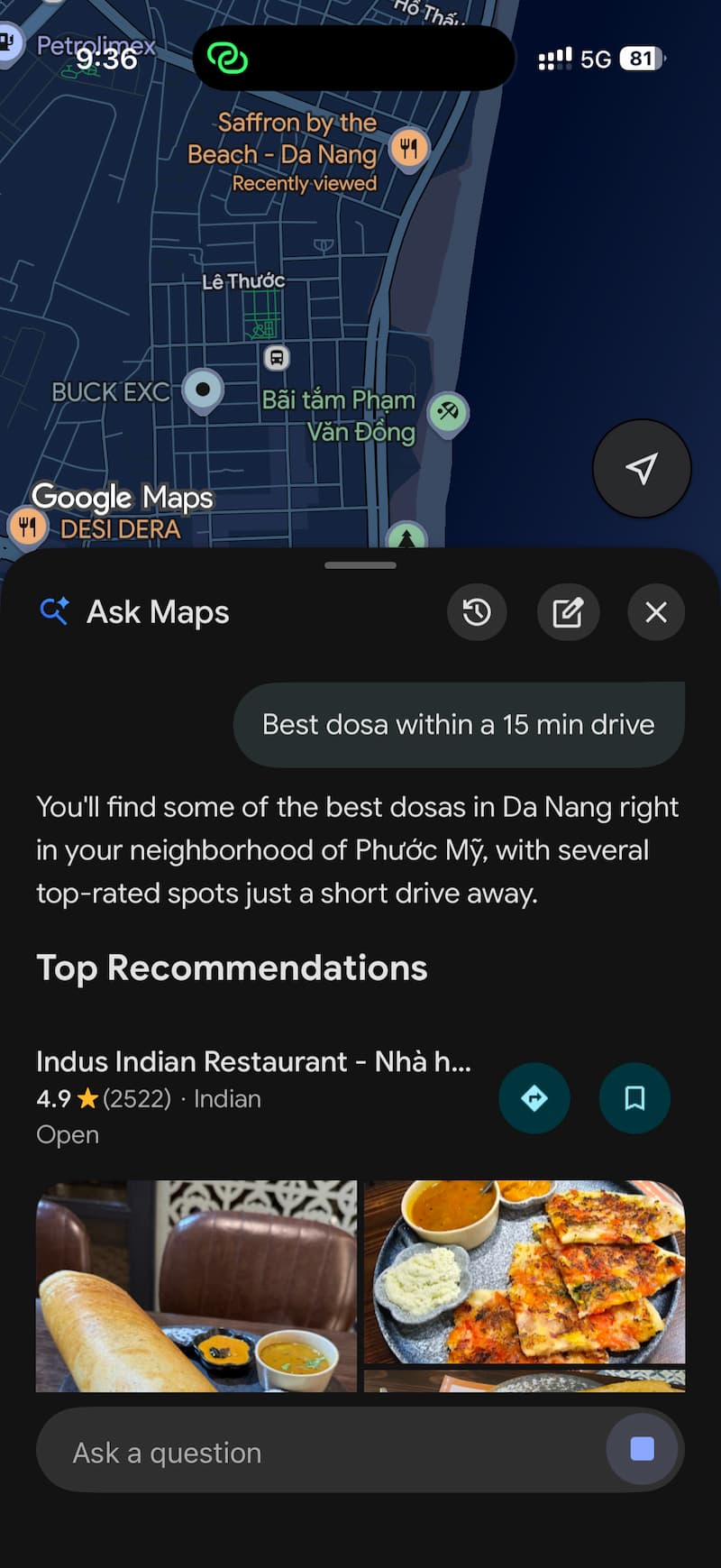
- Tap any result to get directions, read reviews, or book a table directly from within the response.
- Share the results with a friend or travel companion using the share option inside the response card.
Immersive Navigation is another update
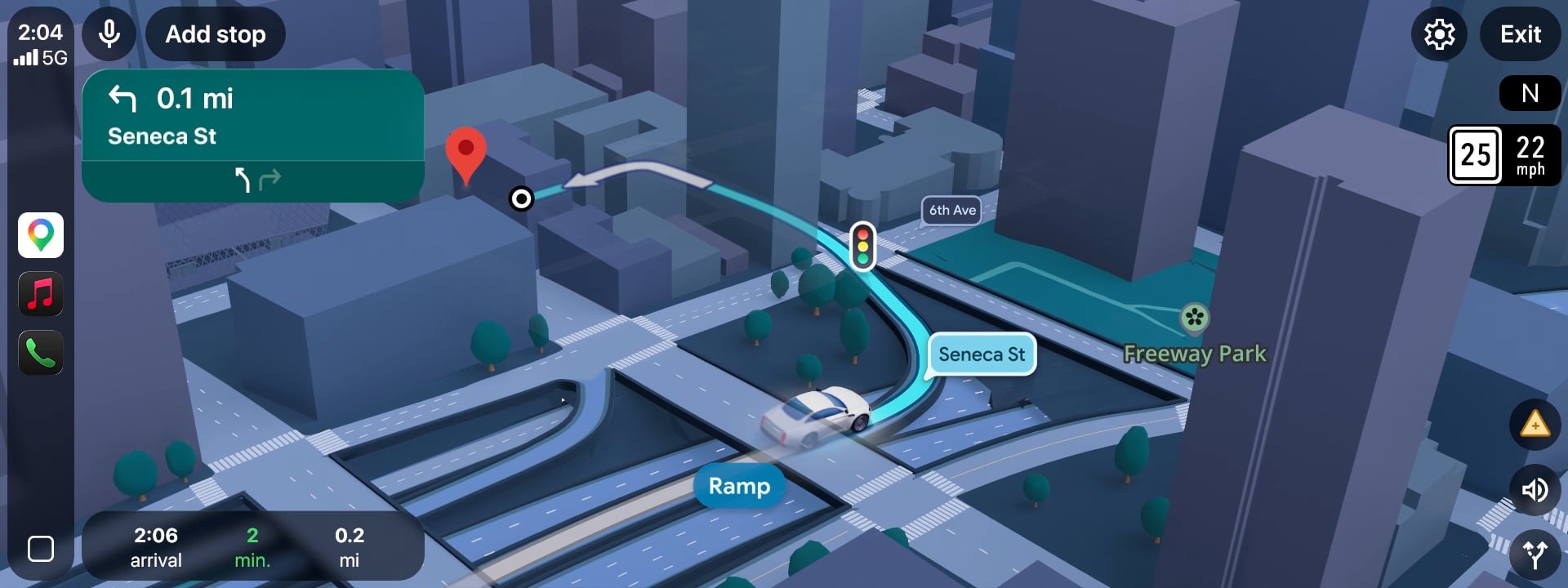
Finding the right place based on your requirements is just half the battle. Getting them safely and without stress is another challenge. This is where Google Maps’ Immersive Navigation comes into the picture. I travel a lot and usually prefer getting around in my own rented car. But there is always this confusion of parking and how to get to a place, and more importantly, changing lanes. Until now, the driving map has been mostly a flat and two-dimensional experience. Immersive Navigation changes that.
It makes use of Gemini models to analyze fresh, real-world imagery from Street View and aerial photos. The map reflects the actual world around you. According to Google, “your map comes to life with a vivid 3D view that reflects the buildings, overpasses, and terrain around you. Maps will highlight critical road details like lanes, crosswalks, traffic lights, and stop signs to help you make that turn or merge confidently.”
Maps now also adjusts your view. Using features like “Smart Zooms” and rendering buildings as partially transparent, you know what’s coming next. You get a broader view of your route and prepare yourself for the next tricky turn, which you often miss, especially when driving in a new city. Google has also updated voice guidance, and it now sounds more like a friend sitting in the passenger seat navigating with you. It now uses landmark cues alongside the voice prompt for a better understanding.
Google Maps will also now help you in the final stretch of your drive. In the old days, Google Maps would stop when you arrived at your location. However, with the new update, it guides you to the nearest entrance, exit, and also recommends places for parking. Between Ask Maps for finding the right place and Immersive Navigation for getting you there confidently, Google Maps has become a genuinely capable AI travel companion for the modern commuter.
Don’t settle for generic navigation
Thanks to this massive update and introduction of Google Maps Ask Maps and Immersive Navigation, Google Maps is now more equipped than ever. Google Maps is now capable of understanding and providing you with the best possible navigation. It understands context, nuance, and the very real stress of driving in unfamiliar territory. If you are traveling to a new country, getting Google Maps in offline mode is the best option to navigate stress-free. Google Maps is no longer just pointing the way; it is now helping you reach the best spot, as per your liking. And if you want to go deeper into how Gemini is powering Google’s ecosystem, check out our breakdown of Google Gemini icons and what they mean.

