

Quick Answer
Bitwarden Password Manager is one of the top recommended free password manager apps. After using Dashlane for over two years, I recently switched to the free version of the Bitwarden password manager. It was a reliable password manager but needs a lot of improvements in the key areas. I will share my experience using it for over three months and compare it to paid password managers like Dashlane, as well as its pros, cons, and more.
I love password managers, not just for securely storing passwords but also for the convenience they provide. Modern password managers save time by filling in login credentials automatically, securing your credit cards and files, and even using them as your secondary authentication app, including storing your passkeys.

I have used Dashlane password manager (Premium version) for the last two years. For some reason, folks at Dashlane have decided to increase the Dashlane premium price to a whopping nearly 600% per year. This is a big deal, especially after paying affordable prices for the last two years. I love password managers, but not at the cost of paying a high price, especially when plenty of free alternatives exist and also paying low for two years.
I had no other option but to switch to another password manager that offered reliable pricing and fit my budget, but none of them did, especially for India; all the password managers had high premium costs and were unaffordable for me.
Then, I decided to try a free password manager. I tried checking Apple’s password manager app since I am an Apple user. After using the Dashlane password manager, Apple Password is a bare minimum password manager that works for me, and it is also the same case with the Google password manager; it is only restricted to desktops and Chrome and feels very basic.
After researching, I found that Bitwarden offers a free password manager app. So, my Dashlane subscription ended a few weeks ago. To ensure everything works fine, I ditched Dashlane a month before the month ended and started using the Bitwarden password manager.
So here is my experience: While Bitwarden saved me money and is great for first-time users, I still miss Dashlane and sometimes get frustrated with its UI inconsistencies. I will stick with Bitwarden unless a better free password manager comes along. So, if you want to ditch paid software or use Bitwarden password manager for the first time, or someone who wants to use the password manager for the first time and looking for an alternative Bitwarden might be the best option. Here is everything you should know about it.
Table of Contents
Why Bitwarden?

As someone who uses a password manager, no matter whether it’s a free or paid password manager, I value security as my number one important factor. And this is one of the reasons I chose Bitwarden over other password managers.
You should see whether the password managers you are considering have any data breach history, which is essential. As of now, no data breach has been reported for the Bitwarden password manager.
Popular password managers like Dashlane and 1Password have been affected by a 2023 autofill vulnerability. Security researchers have discovered a vulnerability in the Android autofill function that has led to potential password leaks.
LastPass has been affected by a couple of data breaches. In a 2015 security breach, data from LastPass and 2023 LastPass security development environments were compromised and accessed over time, which led to unauthorized access to customer data, including encrypted password vaults.
So, considering all these, Bitwarden has no history of any data breaches, which has become my number one factor for shifting to Bitwarden from Dashlane.
Next, the most important thing, especially for a free password manager, is the number of passwords you can store and the device syncing. Bitwarden, in the free version, offers unlimited storage and allows you to sync the vault with multiple devices, whereas, in Dashlane, you are allowed to store only 25 passwords in the free plan and sync up to one device and sync multiple devices.
LastPass allows you to store unlimited passwords. Still, it is limited to one device, which can be a deal breaker if you want to use it and share passwords across multiple devices, logging in and signing in with your accounts.
Finally, 1Password has recently shifted from its free plan to a fully paid subscription, so if you are looking for a free version, 1Password no longer offers any free version. So, considering all these factors, I have opted for Bitwarden as my free password manager.
My Experience Using Bitwarden for the Past 2 Months
I miss Dashlane so much, but I can still manage with Bitwarden. Sounds complicated? Let me explain. So, the biggest drawback of Bitwarden is inconsistent user experience. It’s not optimized as seamlessly as Dashlane would, and that’s a tradeoff you have to make if you want a free and secure password manager without spending even a single penny.
Dashlane has been excellent in terms of user experience; they have optimized every step to enhance your experience, from creating passwords to logging into your account on pages and accessing your vault.
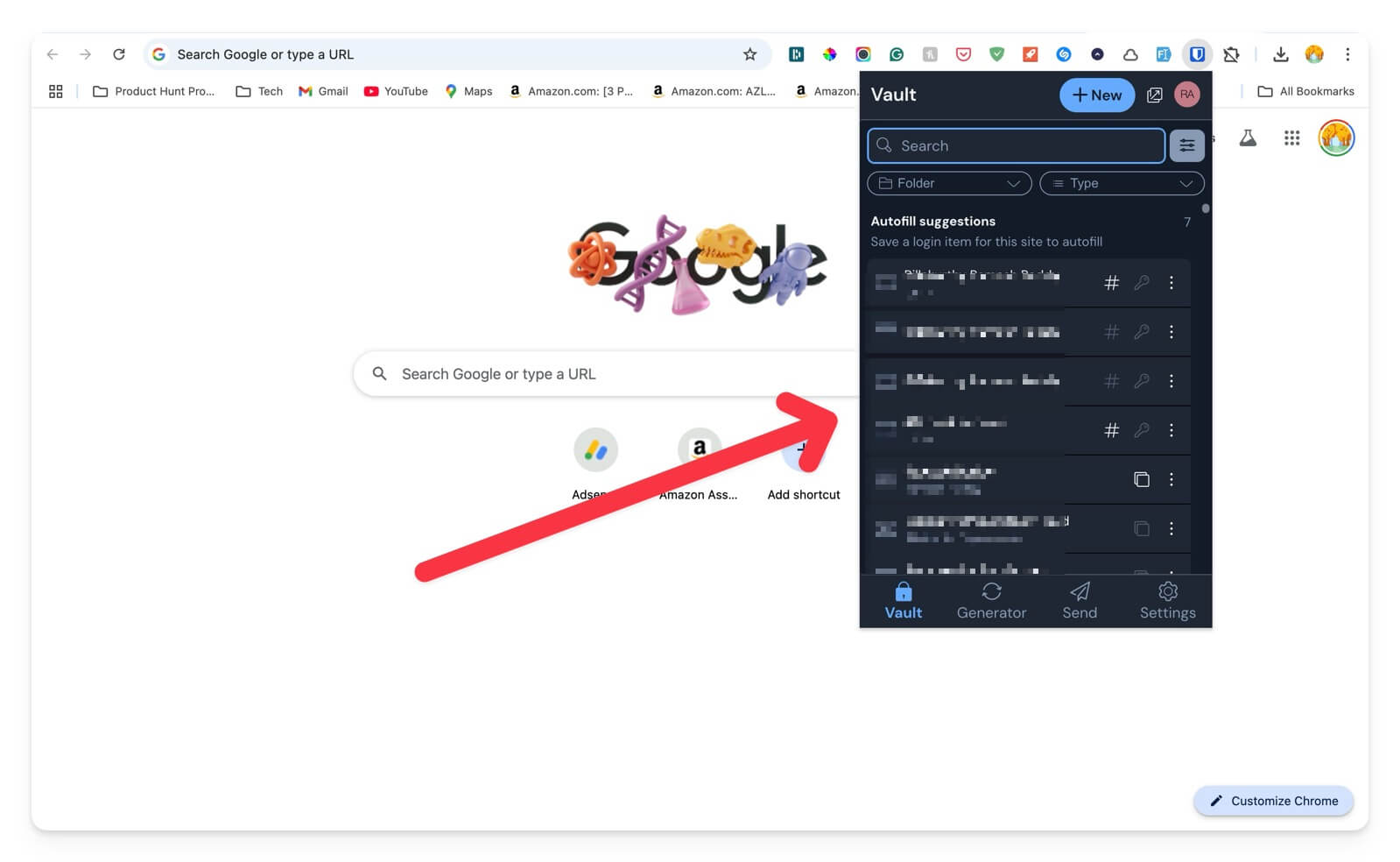
Everything was so seamless, which is sometimes a real hurdle with Bitwarden. Sometimes, It doesn’t store the password like you would expect it to and doesn’t suggest the account details for logging in. Bitwarden opens the password completely on a new page to view your password manually, which ruins the experience instead of showing it in a flow.
Not just that, many bugs, like even the password auto-filling features, don’t work sometimes. In many cases, Bitwarden asked me to update the wrong password, which might result in storing and updating the login credentials if you are unaware. There is a chance you might lose your earlier password.
With Bitwarden, you have to keep an eye on what’s happening, while with Dashlane or any other password manager, you can use it without any issues throughout the entire process. Let’s compare the main pillars of Bitwarden password manager with Dashlane and see which wins.
Bitwarden vs Dashlane Security
Feature | Dashlane | Bitwarden |
|---|---|---|
Encryption | Uses AES-256-bit encryption, zero-knowledge architecture | AES-256-bit encryption, zero-knowledge architecture (open-source verified) |
Open Source | No | Yes |
Data Breach History | No known breaches (up to 2025) | No known breaches (No major data breaches but had autofill vulnerability) |
Dark Web Monitoring | Yes, alerts for leaked credentials (paid) | Yes, alerts for leaked credentials ( but paid) |
2FA & Biometrics | Supports 2FA, biometric login | Supports 2FA, biometric login |
Both Bitwarden and Dashlane are highly secure password managers that support AES-256-bit encryption and zero-knowledge architecture to store and secure your passwords. However, Bitwarden is open source, so security experts can easily audit its security features and warn about potential security flaws.
Bitwarden password manager has no major history of major data breaches. However, in 2023, Dashlane suffered from an autofill password vulnerability issue that might allow hackers to access passwords using the Android autofill, which also affected other password managers, including 1Password, LastPass, Enpass, Keeper, and Keepass2Android.
However, Bitwarden was later criticized for the same vulnerability in their browser extension. After that, Bitwarden introduced the inline autofill, which fixed the issue. The open-source nature and lack of history of major password data breaches make Bitwarden more trustworthy.
Moreover, both of the password managers also support two-factor authentication, which adds extra security to your account even if their primary password were compromised in case of any data breach, overall making them both secure to use, with Bitwarden having an advantage of no history of data breaches and also an open-source.
Plus, for better security, you can even self-host Bitwarden, which allows you to host Bitwarden on your local server instead of relying on Bitwarden servers. This gives you complete control over your passwords and security, and since it isn’t connected to the servers, there is also less chance of a data breach unless your system is compromised. However, this requires technical knowledge to set up. Here is the guide you can follow if you want to host it on your server for better security and privacy.

Winner: Both Bitwarden and Dashlane offer strong security, but Bitwarden has an edge due to its open-source nature and lack of major data breaches.
User experience
Bitwarden user experience is one of its primary drawbacks. Especially if you came from a paid feature like 1Password or Dashlane, you might not be happy about what you are getting, but it is a tradeoff you choose if you want the free vs paid version. It works, but you must be extra careful and alert.
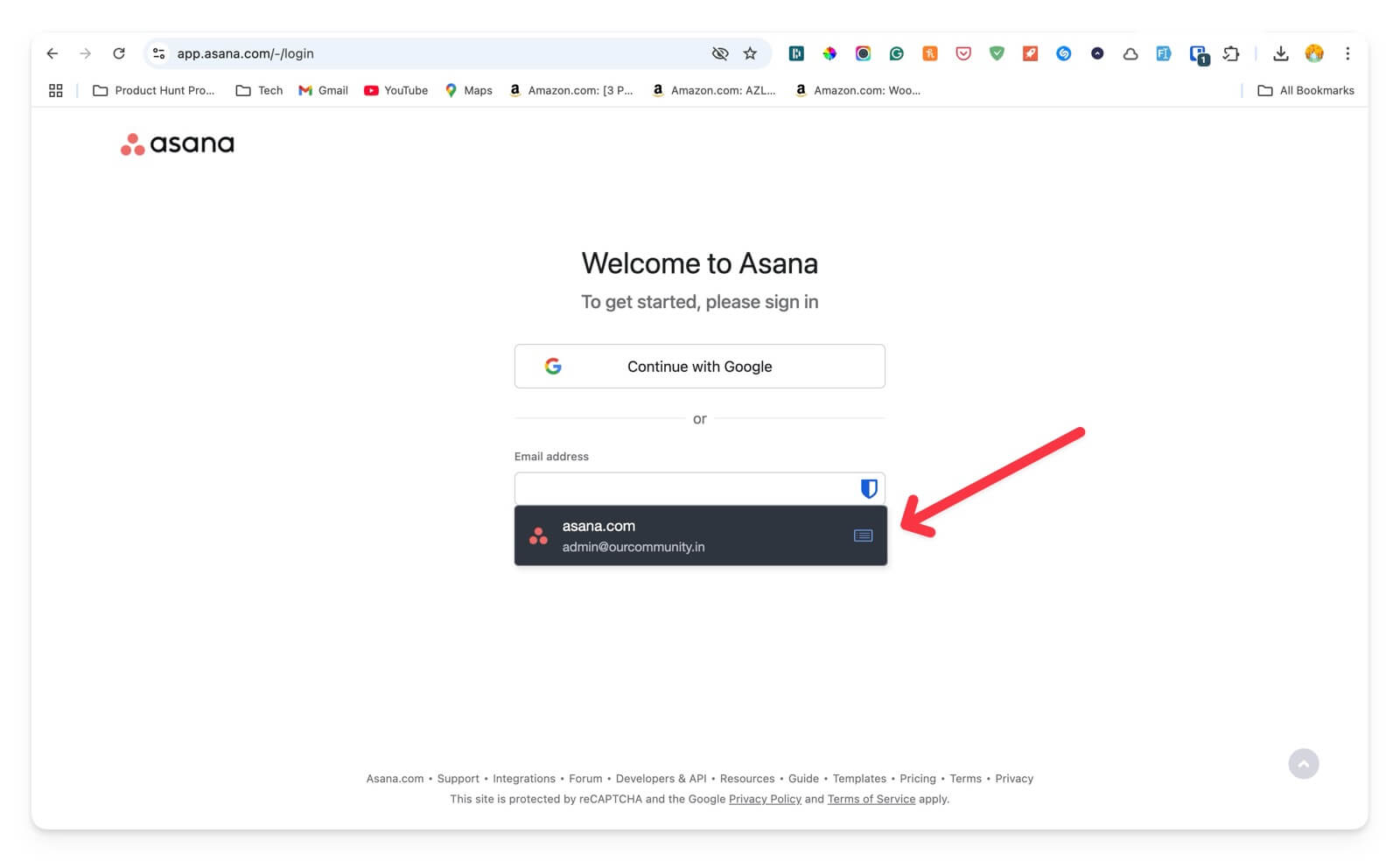
There are some nuisances, like the autofill not working as expected and some instances where it suggests updating the password even if it was wrong. Sometimes, it doesn’t even ask you whether to store the password.
Feature | Dashlane | Bitwarden |
|---|---|---|
User Interface | Offers Modern Interface | Functional but more technical |
Setup & Onboarding | Very smooth with guided setup | Slightly technical but straightforward |
Autofill Performance | Excellent autofill accuracy | Reliable but can be inconsistent |
Password Generator | Simple and built-in | Simple and built-in |
Desktop & Mobile Experience | Smooth across devices | Goo but not as good as Dashlane |
If you like the simple user interface without hassle, Bitwarden might not be the best choice for you right now because of its inconsistencies.
Winner: Dashlane
Cross-Platform Compatibility & Syncing
Both password managers are available on all major platforms, including Windows, Mac, Android, and iOS. Also, they can be accessed using a Google Chrome extension, so you need not worry about the compatibility of these apps and can sync passwords across all these platforms.
However, for Dashlane, the Password syncing feature is limited to one device, and this is also the case with other free password managers, where the majority of them were limited to a single device, which can be a big deal breaker for many who use multiple devices. For instance, syncing your password between your mobile and PC is impossible using the Dashlane free version.
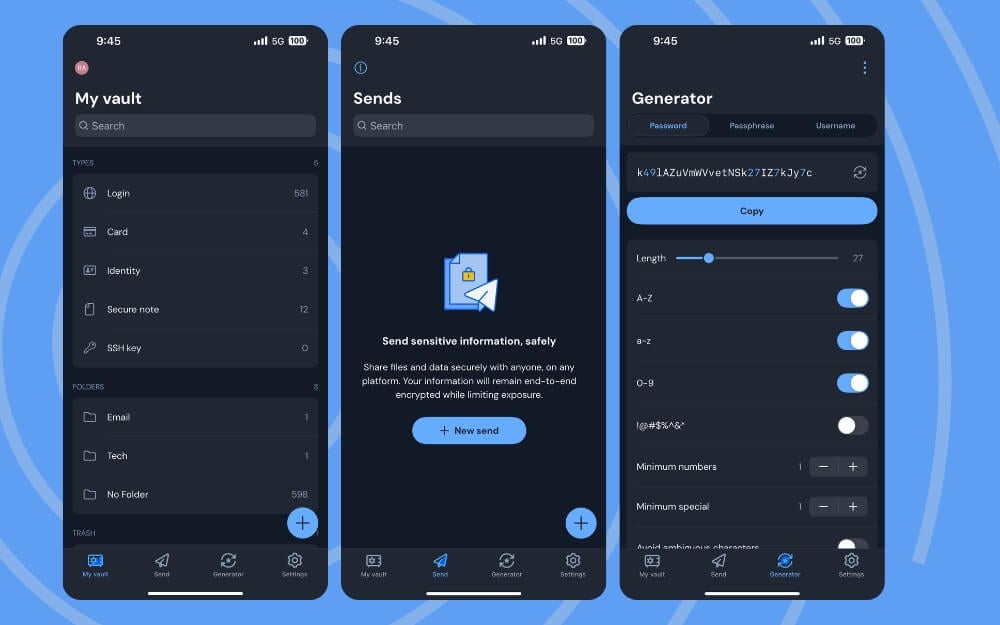
Thankfully, this is not the case with Bitwarden. Bitwarden supports storing unlimited passwords and lets your sync password in different devices sync for free. You can connect or install the app on multiple devices and sync seamlessly without any issues. Sometimes, issues can be resolved if you are connected to the network. If you change your mind, Bitwarden also allows you to export the passwords to any password manager format you want. It also supports imports if you switch from Dashlane or any other password manager.
Feature | Dashlane | Bitwarden |
|---|---|---|
Device Support | Windows, macOS, iOS, Android, browser extensions | Windows, macOS, Linux, iOS, Android, browser extensions |
Sync Across Devices | Yes, but only in Premium | Yes, even in the free plan |
Browser Extensions | Chrome, Firefox, Edge, Safari | Chrome, Firefox, Edge, Safari, Opera, Brave |
Offline Access | Limited offline access | Full offline access |
Import/Export Passwords | Yes | Yes |
Winner: BitWarden
Extra Features
These are extra features that most password managers offer, including the free Bitwarden, to enhance your security, and sometimes they are limited to the premium plan.
Both password managers offer two-factor authentication, allowing you to set up extra multi-step authentication for a better experience. Next is password sharing, where the site allows you to share the password with others; there is also a useful dark web monitoring which searches for any leaked data breaches if your credentials are found in any data breaches, which comes in handy to take action if your account details are leaked online quickly. Dashlane also supports VPN, which was included in the paid plan and lets you encrypt your network if you have the paid plan for Dashlane. Both Dashlane and Bitwarden also allow you to store files securely in the vault. However, they are limited to paid plans.
Feature | Dashlane | Bitwarden |
|---|---|---|
Password Sharing | Secure sharing with paid plans | Free sharing with one person, more in paid plan |
Dark Web Monitoring | Yes, included in paid plans | Yes, but only in Premium |
Built-in VPN | Yes (Hotspot Shield VPN) | No |
Self-Hosting Option | No | Yes (for advanced users) |
Secure File Storage | Yes, encrypted storage | Yes, encrypted storage |
Winner: Dashlane and Bitwarden
Migration Process from Dashlane or any other password manager to Bitwarden
If you are planning to switch to Bitwarden or from any other password manager, you can start importing all your passwords for free into Bitwarden. Here is a list of all password managers and the export data formats they support. Export data in encrypted format if possible since it might contain sensitive data.
Password Manager | Import Formats | Export Formats |
|---|---|---|
Dashlane | CSV, JSON | CSV, JSON |
1Password | 1PIF, CSV, .1pux | 1PIF, CSV, .1pux |
Bitwarden | 1PIF, CSV, JSON, .1pux, and more | CSV, JSON |
Keeper | CSV | CSV |
NordPass | CSV | CSV |
LastPass | CSV | CSV |
KeePass | CSV, XML | CSV, XML |
KeePassXC | CSV, XML | CSV, XML |
Password Safe | TXT, XML | TXT, XML |
RoboForm | CSV | CSV |
Enpass | CSV, JSON | CSV, JSON |
Microsoft Autofill | CSV | CSV |
ESET Password Manager | CSV, JSON | CSV, JSON |
Kaspersky Password Manager | CSV, TXT | CSV, TXT |
Once you are done, open Bitwarden password manager, create your vault, and log in with your account. Go to settings, vault, import, and select the file. It might take a couple of minutes to sync your passwords. Once done, you will be able to view all your passwords and view them using the Bitwarden password manager app.
Settings You Need To Change on Bitwarden
If you have opted for Bitwarden, here are the settings you must change. I changed a few settings to get the best Bitwarden password manager experience.
First, Enable unlock with PIN option: Since the vault stores all your passwords and sensitive information, protecting it with a strong password is recommended. You can use your password manager to generate strong passwords. Once you have set it, remember that since it is not easy to remember and enter the password every time, you can unlock the vault using the PIN or biometrics if your device supports it. To do this. Go to Open Bitwarden password manager, go to account settings >unlock options, and enable this option.
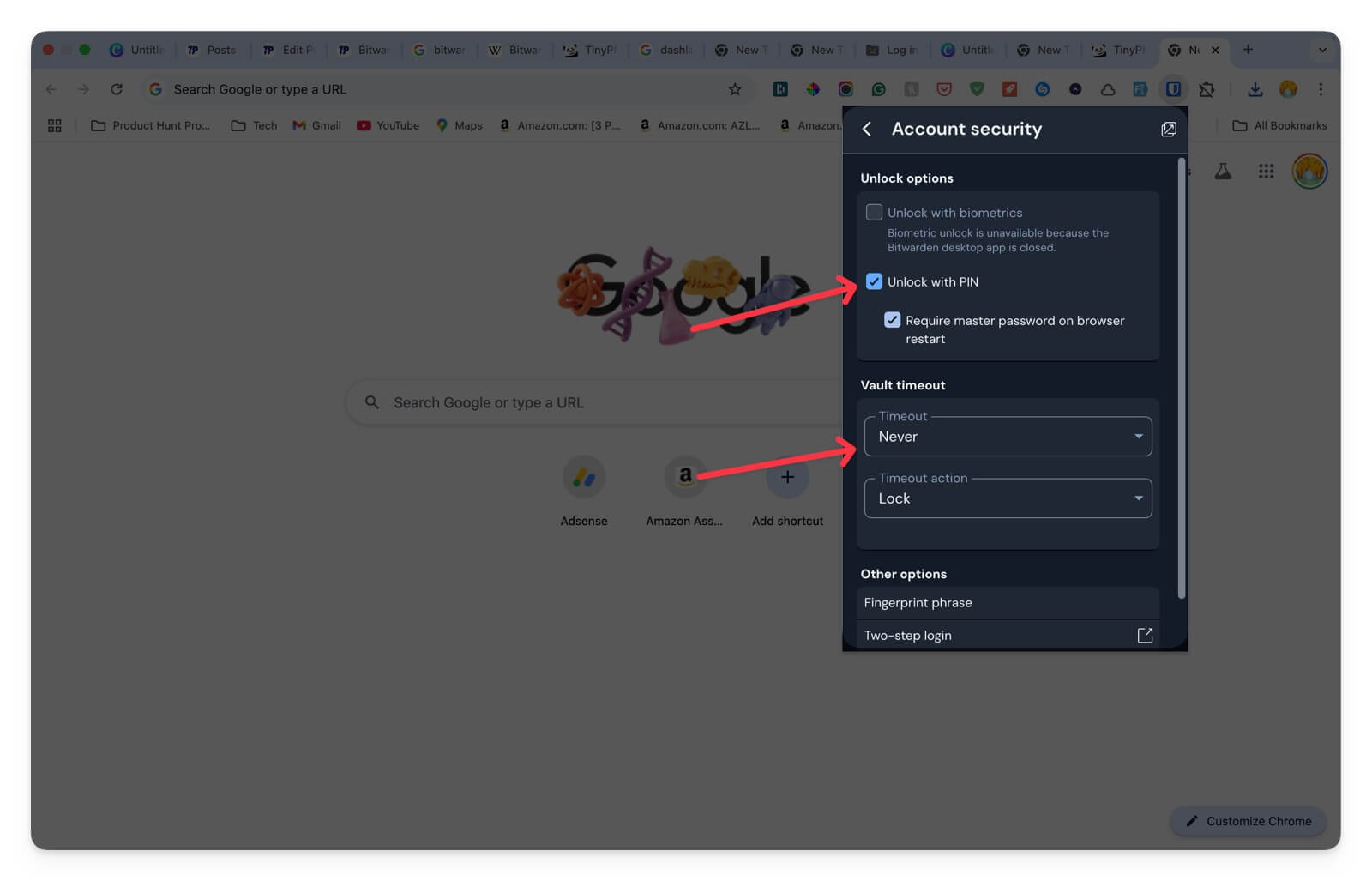
Next, increase the vault timeout account: Bitwarden is very aggressive in closing the vault within a limited time, and you have to unlock the vault every time before you want to access all your passwords and account details. Since it is not easy to do this every time, even if you set the PIN or biometrics, you can increase the vault timeout to 4 hours or go into system lock mode, which locks your vault if you lock your system. You can go to settings, account security, and vault timeout options to do this.
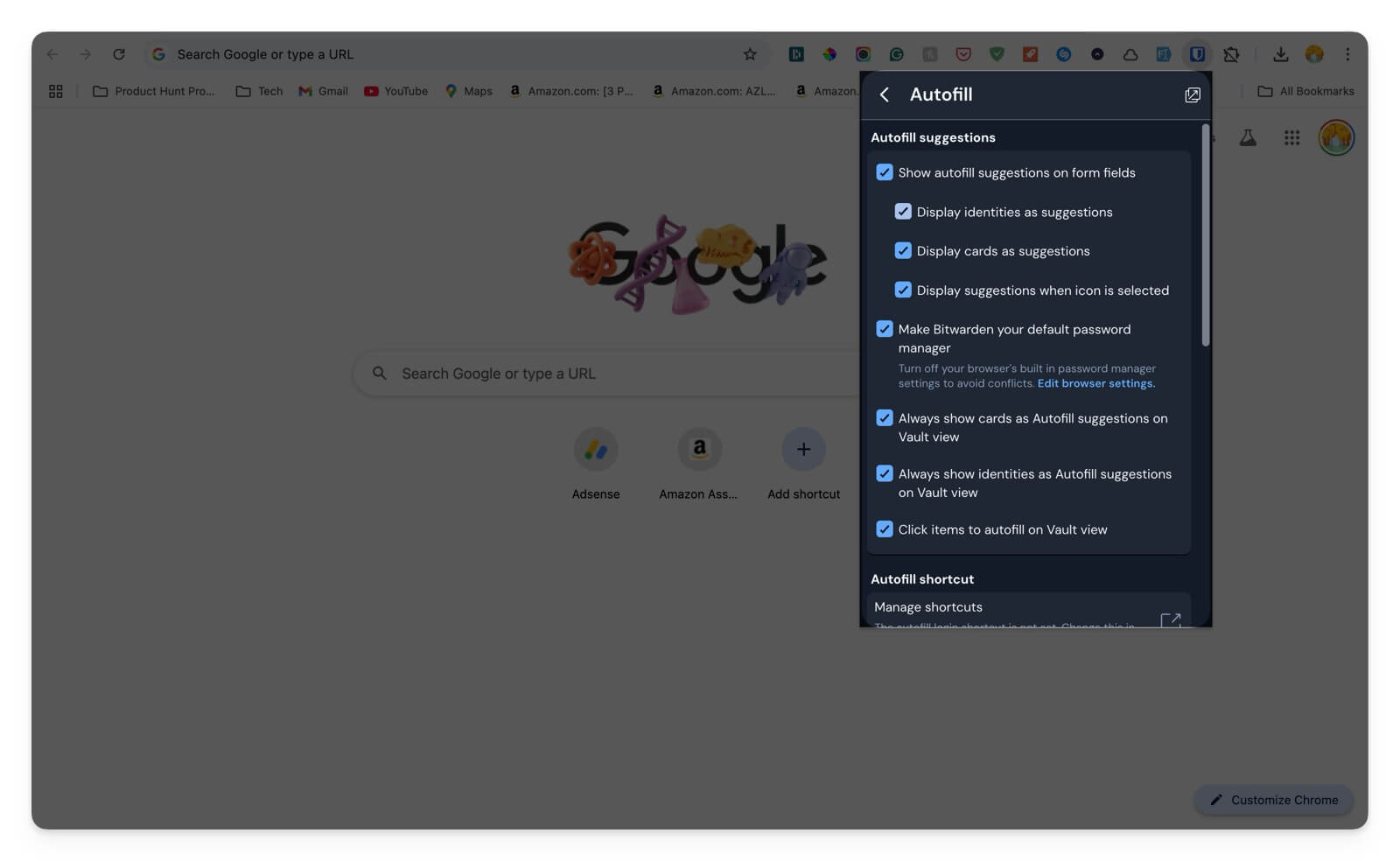
To give more control over saving passwords, make Bitwarden your default password manager. Enabling this feature lets the Bitwarden password manager store all your passwords without missing anything and retrieve them easily and details when trying to authenticate.
Next, create folders to organize all your passwords. One of the best features of the Bitwarden password manager is folder support, where you can create folders and organize all your passwords into folders to easily access and find them. To do this, go to settings, vault, create a folder, and organize all of them in a single place.
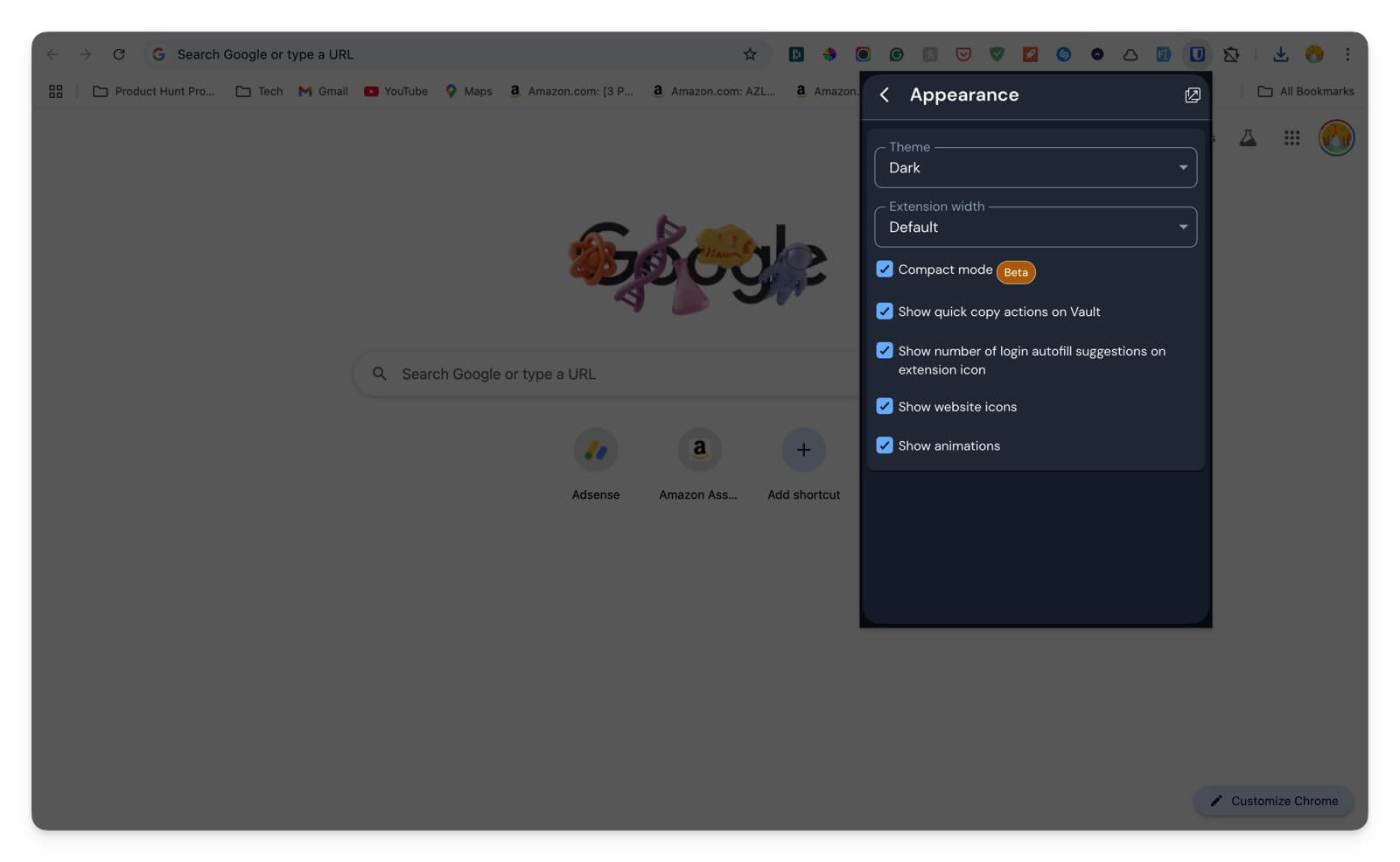
Next, go to appearance. If you want, you can change appearance settings, but ensure you enable compact mode, which makes everything compact for smaller screens, and also enable the feature that shows quick copy action on the vault to show quick action to copy the password or the account username easily.
Thats it. You have successfully set your Bitwarden password manager and changed your settings for a better experience.
Conclusion: Bitwarden Password Manager Review Verdict
Bitwarden is the most reliable option if you want a free version. If you can afford it, you can opt for any paid password tool with the best user experience. Here is a detailed comparison of the best password managers with free plans
Feature | Bitwarden Free | Dashlane Free | LastPass Free | 1Password |
|---|---|---|---|---|
Password Storage | Unlimited | Up to 25 passwords | Unlimited | No free plan |
Device Syncing | Yes | No | One device | No free plan |
Two-Factor Authentication (2FA) | Yes | Yes | Yes | No free plan |
Password Generator | Yes | Yes | Yes | No free plan |
Secure Notes | Yes | Yes | Yes | No free plan |
Password Sharing | Yes (1 user) | No | Yes (1 user) | No free plan |
Cross-Platform Support | Yes | Yes | Yes | No free plan |
Browser Extensions | Yes | Yes | Yes | No free plan |
Mobile Apps | iOS, Android | iOS, Android | iOS, Android | No free plan |
Security Audits | Yes | Yes | Yes | No free plan |
Open Source | Yes | No | No | No free plan |
FAQs on Bitwarden Password Manager
1. Is Bitwardens free plan enough for everyday users, or must I upgrade to Premium?
For most users, Bitwarden’s free plan is enough for more users; it allows you to store unlimited passwords and sync across your devices.
2. How difficult is the migration process from Dashlane to Bitwarden, and can I do it without losing passwords?
The migration process is easy. Dashlane allows you to export passwords in many formats, including JSON. You can export your passwords in JSON format and easily import them to the Bitwarden password manager. This also moves passwords, secure notes, bank details, and more.
3. Does Bitwarden support biometric logins (Face ID, fingerprint) on all devices?
You can enable automatic logins for native apps. However, the Chrome extension doesn’t support biometric login at the moment.
4. Can I use Bitwarden offline, or does it always require an internet connection?
It also works offline, but to sync passwords, the app or the extension needs to be connected to the internet.
5. Is the Bitwarden mobile app as feature-rich as the desktop version?
It is not as feature-rich as other password managers, but it has all the necessary features that you can rely on to store and use your passwords securely.
- Open Source
- The free version allows unlimited password storage across unlimited devices.
- Share passwords in the free version
- Folders make it easy to organize your passwords
- You can also self-host for better security
- Inconsistent user experience
- Slow performance
| Security & Encryption |
|
| Ease of Use |
|
| Cross-Platform Compatibility |
|
| Performance |
|
| Price |
|
|
SUMMARY
Bitwarden is the most reliable option if you want a free version. If you can afford, you can opt for any paid password tool with the best user experience. |
4.1
|

