

In Summary
- Private Space is an Android 15 feature available on Pixel phones.
- Using it, you can keep your private apps, personal photos, and other sensitive documents isolated from the rest of your phone.
- Private Space is configurable, so you can configure some of its aspects per your preference.
Locking private apps and securing personal files on Pixel phones has required using third-party apps for the longest time. However, this changes with Android 15, which brings a native solution, Private Space, to protect sensitive apps and files on your device.

What exactly is Private Space, how does it work, and when should you use it? Follow along as we explore the feature in detail and see how to set it up on a Pixel phone.
Table of Contents
What is Private Space in Android 15?
Private Space is a secure environment where you can keep your private apps, personal photos, and other sensitive documents isolated from the rest of your phone. This space can be locked using the same lock you unlock your phone with or a different one to prevent others from accessing it. If required, you can even hide the Private Space for enhanced privacy.
Private Space is kind of similar to the Secure Folder feature on Samsung devices in terms of what you can do with it. However, they differ significantly when it comes to implementation and functionality.
Things You Need to Know About Using Private Space On a Pixel Phone
Before you jump in and set up the Private Space on your Google Pixel, here are a few things you need to know about the feature:
- You can set up your Private Space using your existing Google account (the same account you’re logged into on your phone) or create a separate one for more privacy. The latter option is suitable for those who want to stop data from Private Space from appearing outside it.
- Private Space works like a separate profile on your Pixel phone, so anything you put into it is isolated from the rest of your phone. This means you can only access the Private Space’s contents once you’re inside it. Likewise, you won’t be able to access things outside the Private Space when you’re inside it.
- You can’t move an existing app into the Private Space as of writing this. You’ll have to install the app separately in the space. The installed app will only be visible and accessible in the Private Space.
- When you put an app into your Private Space and lock the space, the app gets paused. This means there’s no background activity, and you won’t get any notifications.
- Apps added to Private Space won’t appear in other places on the phone, like the main app drawer, recent apps view, or the Settings app when the space is locked.
- Similarly, you can’t move documents in an app outside the Private Space to an app within the space. You can, however, use cloud storage services, where you upload content on your computer and download it for access in the mobile app inside and outside the space.
- Private Space can’t be migrated when switching devices. So, you’ll have to set up the Private Space on your new device again when you make the switch.
How to Set Up Private Space on a Pixel Phone
Private Space is disabled by default on Pixel phones, so you’ll have to enable and set it up manually. Here’s what that looks like:
- Open Settings and go to Security & Privacy.
- Scroll to the Privacy section and tap on Private Space.

- When prompted, authenticate yourself using your biometrics or passcode.
- You’ll now see the Private Space page with details about the feature and instructions on how to set it up. Scroll down and tap the Set Up button to begin.

- Next, hit Got It and sign in to your Google account.
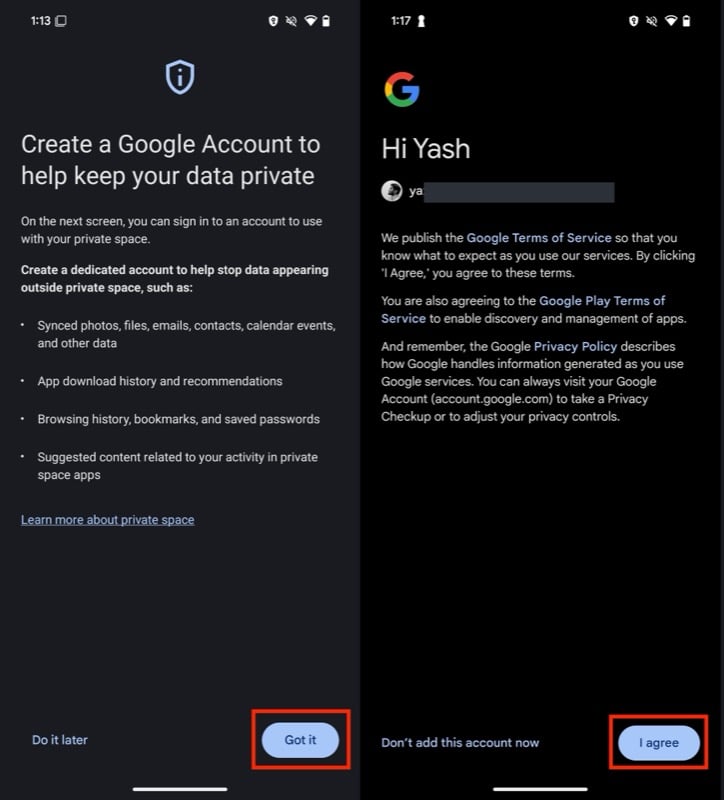
- Alternatively, tap Dot It Later if you want to use Private Space without an account and set up a lock for the space.
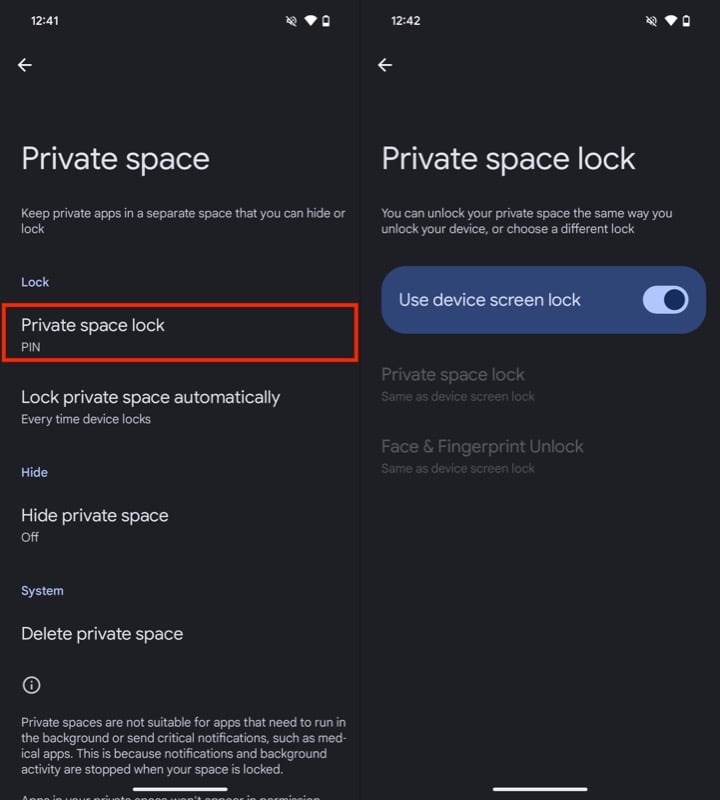
- Irrespective of whether you add a Google account or not, you’ll be prompted to set up a lock. Tap Use Screen Lock or Choose New Lock to use the existing screen lock or create a new lock per your preference and set it up.

With the setup done, your Private Space is ready to use. You’ll find it in the app drawer of the Pixel Launcher, and you can unlock and access it like this:
- Scroll down to the bottom of the app drawer.
- Tap the bar that reads Private and authenticate yourself using your biometrics or PIN.
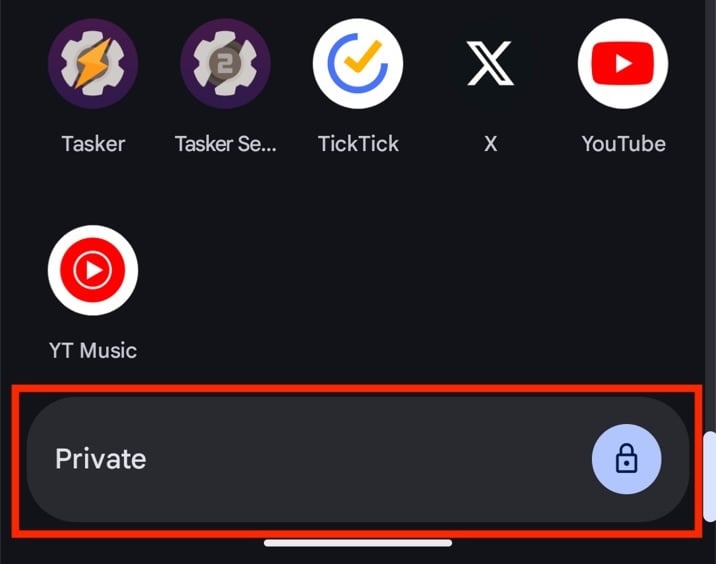
This will unlock your Private Space. Here, you can tap the Lock button to lock the space again. Hit the gear icon to access and configure Private Space. Or tap the Install button to add new apps to the space.
How to Add Apps to Private Space
As already mentioned, Google only lets you install apps to your Private Space. This means if you have an app already installed on your phone, accessing it in Private Space means you’ll have to install a fresh instance of it from the Play Store.
Here’s how to install an app to your Private Space:
- From the app drawer, tap Private and unlock it using your biometrics or PIN.
- Tap the Install button, and it’ll take you to the Play Store. You’ll be logged in to the Play Store with the same Google account you’ve used to set up your Private Space.
- From here, tap the Search tab at the bottom, look up the app you want to install, and hit the Install button to start downloading.
Once the installation finishes, you’ll see the app in your Private Space. All your installed apps appear in the top half of the Private Space card.

How to Configure Private Space
As mentioned already, Google lets you configure some of the Private Space settings per your preference. This includes changing the Private Space lock and configuring auto-lock duration. In addition, it also lets you hide the Private Space or delete it if it’s no longer needed.
Change Private Space Lock
If you decide to change the existing Private Space lock, you can do so like this:
- Unlock the Private Space.
- Tap the settings button (with the gear icon).
- Tap Private Space Lock under Lock and choose your preferred option.
Configure Auto-Lock to Lock Sooner
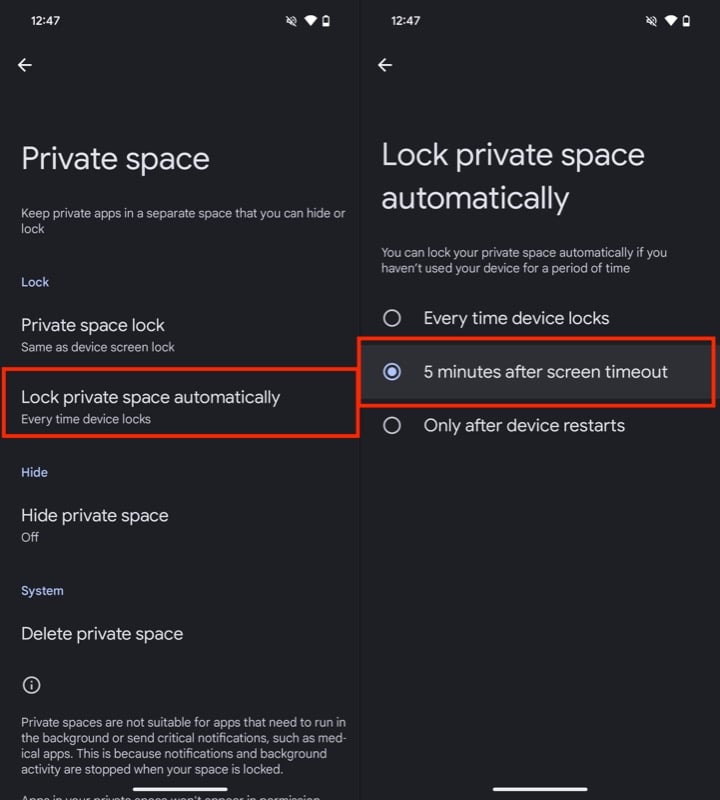
By default, your Private Space is configured to lock every time you lock your phone. Although this is fine, if you want to enhance protection, you can configure your Private Space to lock automatically if it’s unused for a specific period. Here’s how:
- After unlocking the Private Space, tap the settings button to access its settings.
- Tap on Lock Private Space Automatically under Lock and select 5 minutes after screen timeout.
Hide Private Space For More Privacy
While locking helps prevent unauthorized access, you can also hide your Private Space for more privacy. This will hide Private Space from the app drawer when it’s locked, so if someone accesses your phone, they won’t know you’ve got Private Space enabled on your device.
- Go to your Private Space’s settings.
- Tap Hide Private Space and toggle on the Hide Private Space When It’s Locked option.
- Hit Got It on the prompt to confirm the action.
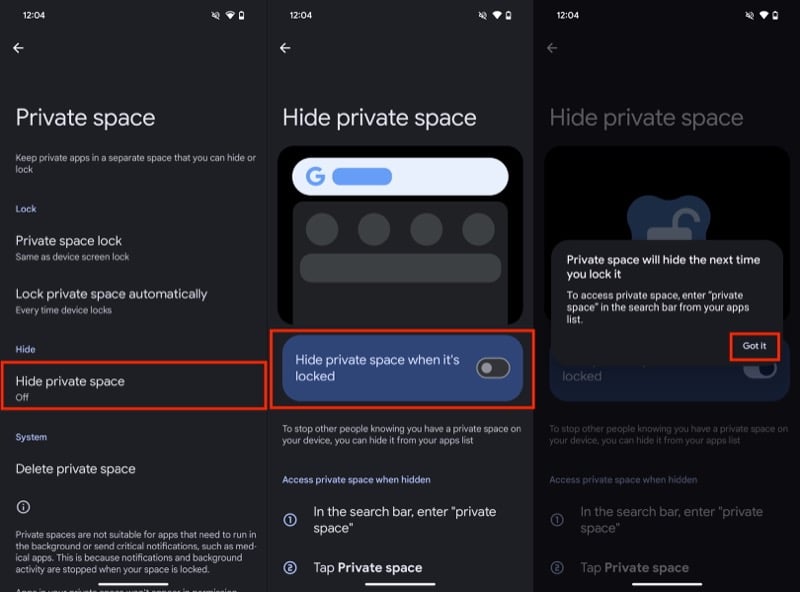
Now, once your Private Space is locked, you won’t see it in the app drawer. To access it, bring up the app drawer, tap the search bar at the top, and look up Private Space. Then, tap the Private Space tab at the top and authenticate using biometrics or PIN to access the space.

Your Private Space will continue to appear as long as it’s unlocked. Once you’re done using the space, tap the Lock button to lock and hide it again.
How to Remove Apps From Private Space
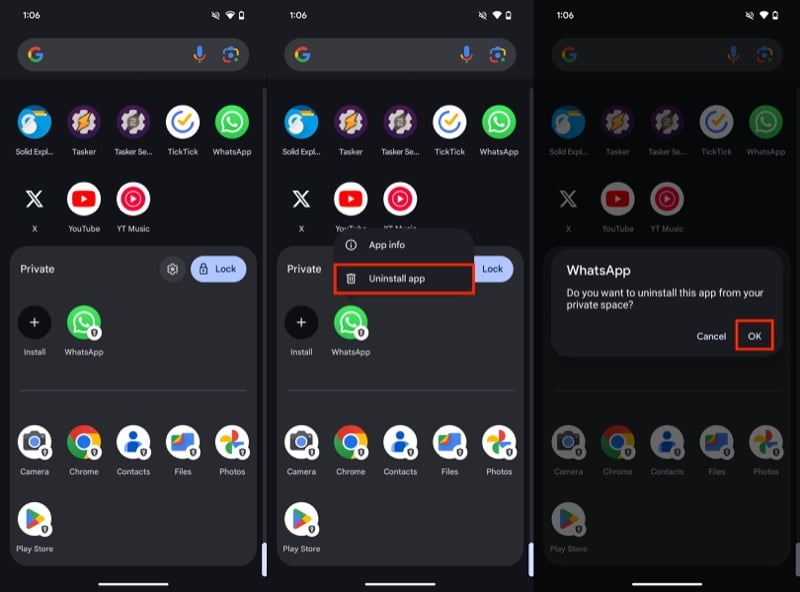
At any point, if you want to remove an app from your Private Space, you can do it as shown below:
- Access the app drawer and unlock the Private Space.
- Long-press on the app you want to remove and select the Uninstall App option from the menu.
- Tap OK on the confirmation prompt to uninstall the app from the space.
How to Delete Private Space
Lastly, when you no longer need the Private Space, you can delete it to remove all its content (apps, files, and other documents). Before you do so, be sure to backup or copy all the important files and documents you may need later.
- Unlock your Private Space and go to its settings.
- Tap Delete Private Space under System and hit the Delete button on the following screen.
- Enter your Private Space PIN, and it’ll begin deleting the space.

A Robust Solution For Enhancing Privacy On Pixel Phones
Private Space is a robust solution for safeguarding and keeping your personal documents and sensitive apps private on Pixel devices. While it may seem a little complicated to comprehend at first because of how it works, you’ll feel right at home once you use it for a while. So go ahead, set up Private Space, and enhance your privacy on your device.

