

Quick Answer
If you dropped your iPhone in water (or some other liquid), first quickly wipe your iPhone with a dry cloth. Turn off your iPhone and remove the SIM card tray. Hold your iPhone horizontally and gently tap on it to make the water droplets fall out. Do this until you don’t see any more water droplets in the ports. Now, let it air dry completely.
iPhone water damage is a common problem. And when it happens, more often than not, people find themselves wondering what exactly should be their subsequent move – one that does not further damage their iPhone and instead turns things around in their favor. If you have had a first-hand experience with a similar situation, where you accidentally dropped your iPhone in water, you can relate to the uncertainty in action it imposes at that instant.
Table of Contents
How To Get Water out of an iPhone
Depending on what iPhone model you own, how much water (or liquid) has been ingressed into it, and the extent of exposure, there are different steps to fix your wet iPhone. If your iPhone is in a case, water might have gotten trapped when you dropped it. Remove the case and other accessories from your phone, including your screen protector.
Step 1 – Pat-Dry Your Phone

If you have had a near-unavoidable encounter with water, one of the things to fix your water-damaged iPhone is to pick it up and shake it. Doing so will get rid of water on the surface and ports. If you have a case on your phone, remove it and thoroughly dry the device with a soft, dry cloth.
Make sure you do not use any fan or heater to dry the outside of your iPhone, as this can damage many of its sensitive components.
Step 2 – Switch Off Your iPhone
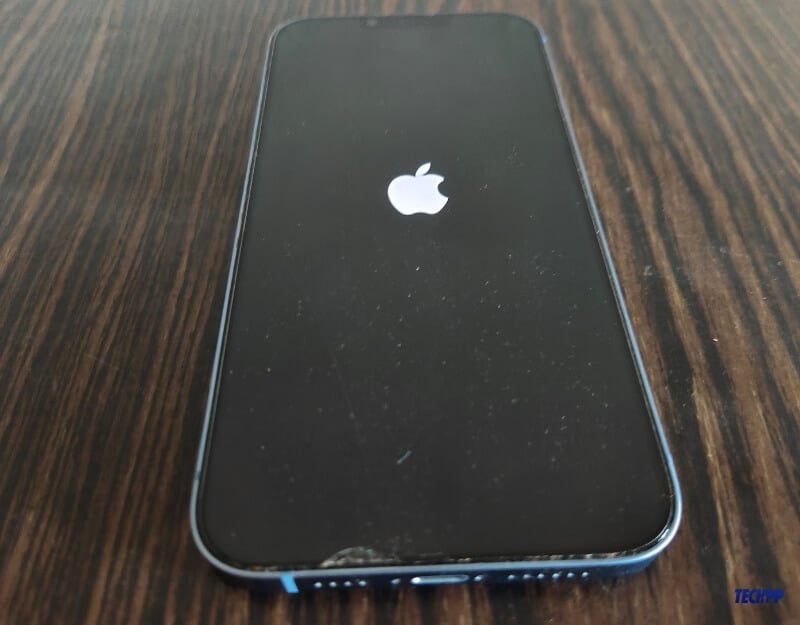
As we mentioned initially, whether you should switch off the iPhone or keep it as it is is a dilemma that strikes you the moment you drop your phone into the water. However, the consensus turns out to be that turning your phone off is a far better approach than leaving it on. Because when you switch off the phone, you minimize the chances of incoming notifications (or other factors) causing a short circuit and damaging the internal circuitry.
So, once you give a vigorous shake to your iPhone and pat-dry it, power it down. While you do it, try to be quick and take as few steps as possible.
Step 3 – Remove the SIM Card
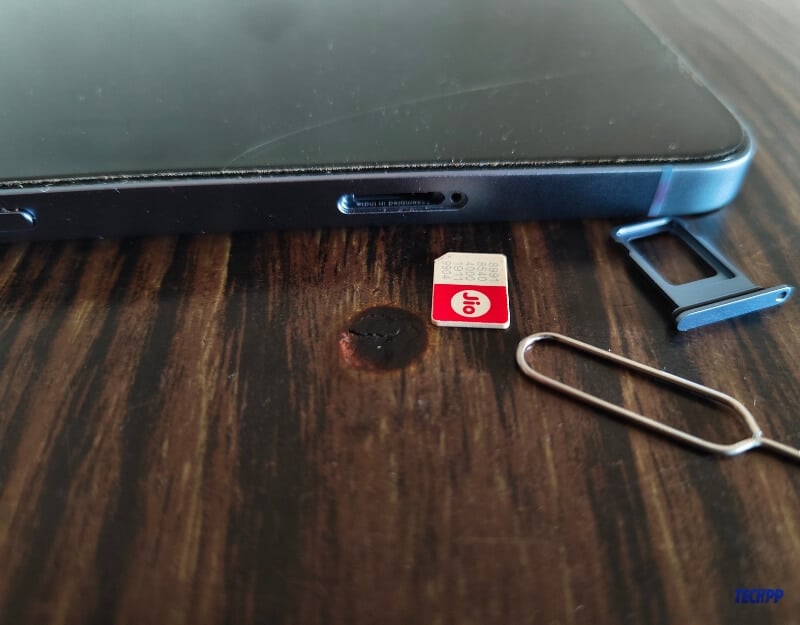
After pat-drying and switching off your phone, you should remove the SIM card and the SIM tray. Next, carefully dry out both and check if the water has ingressed into the SIM slot. If it has, use a soft cloth or earbud to dry it and gently remove any moisture. Again, avoid using a hairdryer or fan to dry the SIM tray.
Step 4 – Gently Tap on the iPhone To Remove Water Particles
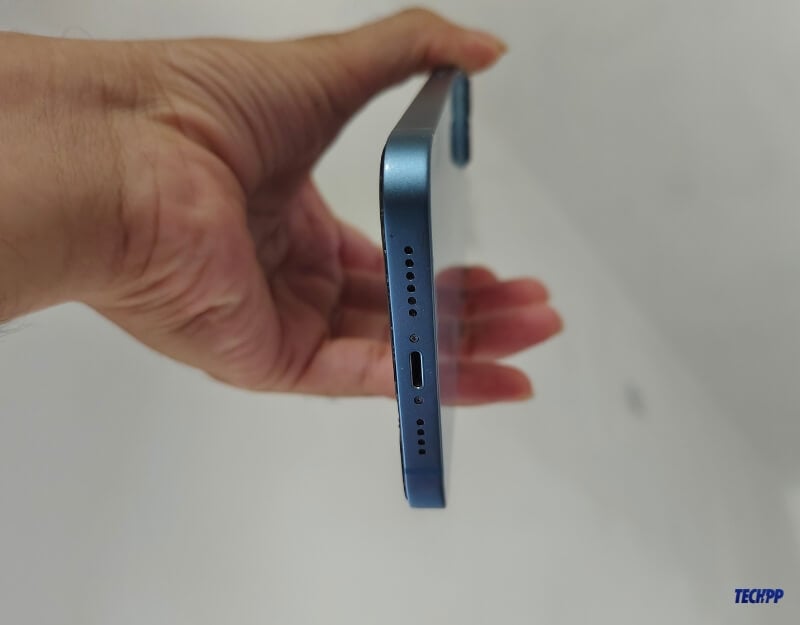
Hold your iPhone horizontally and gently tap on the phone to make the water particles fall out. Remember, don’t excessively wiggle the phone; give it a gentle tap to remove excess water.
Step 5 – Leave Your iPhone To Dry Air
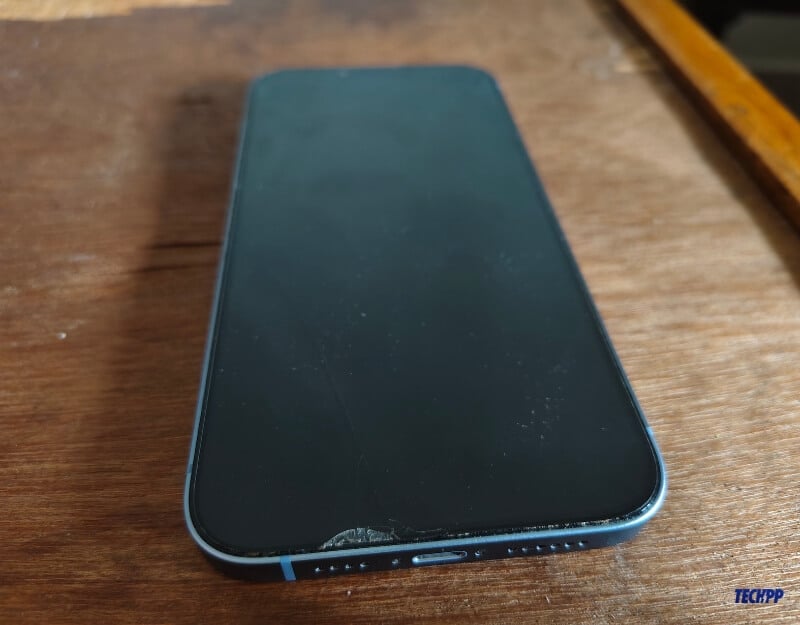
Leave your phone to air dry and let the water particles dry based on the air and room temperature. Many follow traditional methods like putting the iPhone in a bag of uncooked rice.
However, according to Apple, this might worsen the situation as particles can enter the iPhone and worsen things. Place a fan next to the iPhone to speed up the drying process. Remember to use a regular fan, not a heat blower, as heat can damage the electronic parts of the iPhone. You can use the silica gel in place of Rice, which can speed up the drying process of your iPhone.
Drying iPhone with silica gel
Silica gel is a hygroscopic substance that induces dryness in its vicinity by absorbing moisture. You have probably already seen it in packaging for electronics, clothes, or other materials that need to be kept away from moisture. It can eliminate dampness in the air, making it an ideal desiccant for storing products prone to mold or mildew. However, you can also use it to dry out a wet iPhone. Silica gel is great for absorbing moisture from the inside and outside of anything.
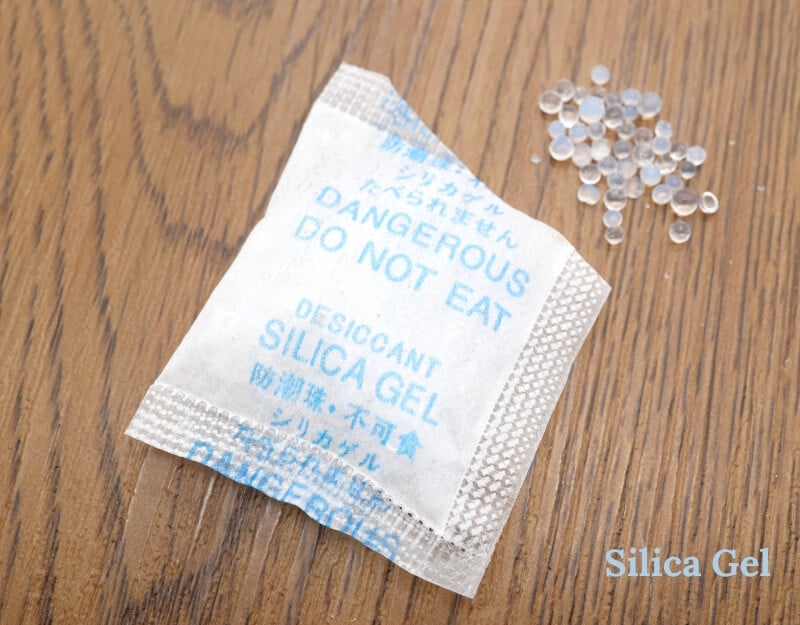
Considering you have turned off your phone, as we mentioned in the previous step, you are ready to proceed with this step. First, take a bag/pouch and put some silica gel packets into it. Now, take your pat-dried iPhone and carefully put it into the bag. If you can’t manage a bag or a pouch, you can use a plastic container, fill it with silica gel packets/sachets, and put your iPhone in it. Once everything’s set, put aside this bag/pouch/container for 48 to 72 hours.
Step 6 – Switch On Your iPhone

After you’ve put your iPhone in a container filled with silica gel or uncooked rice for at least 48 hours, take it out and clean it with a soft, dry cloth. Turn on your iPhone and use this Siri Water Eject shortcut that pushes the water out using low-frequency sounds.
Now, put back the SIM card into its tray and put the tray back into the iPhone. Once done, make sure everything is installed properly and back in place. Finally, press and hold the power button to turn on the phone.
Dos and Don’ts of Fixing Wet iPhone
A lot of the time, when you accidentally drop your iPhone into the water, or it comes in contact with some liquid, you panic out of anxiety and get into the zone of performing involuntary actions to check if your phone is alright. However, while you do that, little do you realize that such actions might cause more harm to your phone than they do any good. Therefore, to help you keep your device in good health, here are some Dos and Don’ts you should remember.
Dos
1. Turn off your phone when you get it out of the water (or some other liquid).
2. Always use a soft, lint-free cloth to pat dry the device.
3. Only use soft earbuds to absorb water from the SIM slot when necessary.
4. Always use dry and moisture-free containers/packets to soak water out of the iPhone using rice or silica gel.
5. Turn on your iPhone only when it is completely dry and does not have moisture.
Don’ts
1. Avoid using your wet phone.
2. Never plug a charger into your wet iPhone.
3. Do not insert a sharp, foreign object in your phone’s port or speakers in an attempt to get rid of water or moisture.
4. Do not attempt to blow-dry the device using a hair dryer.
5. Do not disassemble the iPhone unless you have experience doing it, as that might damage the device further and render it irrevocable.
Apple’s Solution to Fixing Wet iPhone
Apple recommends its way of fixing your wet iPhone if you drop it into water or some other liquid. As we mentioned in the previous section, if you own any of the iPhone models listed above and it came in contact with a liquid (other than water), you should rinse the affected area and wipe it off with a clean, dry cloth.
Apple recommends putting this device in an open and dry area with good airflow to let it dry independently. Alternatively, it recommends placing the device in front of a (cool) fan to dry off excess water and moisture on the surface.
Of course, these steps also apply to the other scenario where your device came in contact with water. In this case, you can first pat dry the device to remove water on its surface and ports and then leave it in a dry and open space with good airflow to let it dry itself.
If you followed all the steps until now, things might turn in your favor, and your phone should boot up fine. If it does, congrats, you’ve managed to fix your phone. However, if it doesn’t, you might need to head to an Apple service provider and have them fix it. You can book the Apple Genius bar appointment or visit the nearest Apple store for an inspection.
Frequently Asked Questions (FAQs)
1. How do you determine your iPhone’s degree of water damage?
Most Apple products come equipped with liquid contact indicators (LCI) or water-damage indicators that make it easy to identify the degree of liquid exposure your device has been subject to. With iPhones, you get the same indicator, which helps Apple determine if your device is liquid damaged. In this case, it isn’t covered by their one-year limited warranty. You can locate the indicator on the iPhone under the SIM card tray. Ideally, the LCI should be silver or white. But when it is activated (i.e., it comes in contact with liquid), its color changes to red.

2. How does Apple know if I dropped my iPhone in water?
When you take your device to the Genius Bar for repair, they can determine if it has been water-damaged. They do this by looking for several different signs. As mentioned earlier, the LCI inside the SIM tray or headphone port will turn red when it gets wet. But the Apple guys can open the phone to see moisture, liquid residue, or corrosion, which indicates water damage.
3. How to get water out of speakers?
Getting water out of the lightning port and speakers can be difficult. Although a gentle shake should get the most out, speakers sometimes still hold on to some liquid. If your iPhone accidentally comes in contact with water (or other liquid) for a brief stint that only exposes the speakers, there are a couple of ways to go about this situation and get water out of your iPhone speakers. You can use the Water Eject shortcut [Guide to using Shortcuts] to generate different frequency sound waves and propel water out of the speakers. Alternatively, you can use the Sonic app to generate sound waves in different frequencies at your will and get rid of water from the speakers.
If your iPhone has been subject to extended exposure to water, and you performed all the earlier steps to fix it, but the speakers still sound muffled, these two solutions should help you eject the remaining liquid out of the speakers.
4. Do rice and silica methods work?
Both uncooked rice and silica are desiccant, meaning they can absorb moisture from their vicinity. However, when stacked against each other, silica gel is better at absorbing moisture than rice, so we recommend putting your wet phone in silica gel to absorb all the moisture.
5. Can I attempt a DIY water damage repair?
While we certainly don’t recommend this method to fix water-damaged iPhones, we know some daredevil folks would want to attempt fixing it themselves. The good folks at iFixit have written an in-depth guide if you choose to attempt a DIY repair. In addition to buying a few specialist tools, you must get 90% isopropyl alcohol to soak your damaged parts.
6. How can you retrieve data from your water-damaged iPhone?
First, follow the steps mentioned in the article above to save the iPhone from water damage. It is still possible to recover iPhone data even if the device is dead. Even if you’ve tried everything and think your device is beyond repair, there’s still hope. If you have an iTunes or iCloud backup, you can restore data from that backup.
For that, you need access to another iPhone. iTunes can restore your data to a new phone using the backup. What if you don’t have another phone to restore the data to? You should try one of those iPhone data recovery software and use the existing iTunes backup to scan for lost data manually.
(g) Will your iPhone be covered under warranty if its LCI is still white?
Liquid Contact Indicator (LCI) is hidden in the device’s headphone jack and charging port and alerts users of excessive water exposure. If Apple determined that the LCI is white, it indicates that the paper was not exposed to water; therefore, your warranty remains intact. If it’s pink, however, your warranty is void, and you’re faced with an expensive repair bill.
7. How to fix the damaged screen of the iPhone?
If your phone accidentally falls into water or liquid, water may enter the display screen. Follow these steps to fix a water-damaged iPhone screen:
- Fill half of a bowl with uncooked rice.
- Place your device screen facing down in the bowl.
- Cover it up with plenty of uncooked rice.
- Let the phone stay covered overnight with rice.
- The rice will remove moisture from your phone’s display screen.
8. Can I Sell A Water-Damaged iPhone?
Some companies will buy water-damaged iPhones from you so they can be recycled responsibly or parts salvaged. It’s not likely you’ll get much to start, but that money could be put toward purchasing a new phone. Start by investigating your insurance coverage and then proceed to check the repair cost. The last option is selling it to a phone recycling company.

