

Quick Answer
Create iOS shortcuts using AI by installing Federico Viticci’s open-source Shortcuts Playground plugin with Anthropic’s Claude Code or OpenAI’s Codex on a Mac. Just describe the shortcut in natural language, and the AI generates a ready-to-use .shortcut file for Apple’s Shortcuts app.
Shortcuts on Apple devices are underrated. Except for power users, I haven’t seen many casual users using shortcuts. Possible reasons are that most people are not aware of how useful shortcuts can be in automating routine daily tasks.

For example, you can create a shortcut that sends live location to family members with a simple tap, open current app settings from control center without navigating through a complex process, resize screenshots, save text directly to notes, and much more. Another possible reason is that creating shortcuts requires technical knowledge. Users have to deal with various elements to create automation.
That is going to change in the upcoming iOS 27. Apple is reportedly adding plenty of AI features in iOS 27. One of the most exciting updates is that you may create any shortcuts using natural language. It wasn’t surprising at all, considering how AI is making it easier to build things. Recently at Google I/O, Google announced Google AI Studio with Android app integration that can build any Android app in under 5 minutes.
You can describe in simple, plain text what you want, and Apple will build a shortcut tailored for you. You don’t need to go through a complex shortcut setup with various actions, variables, loops, and conditional statements. But this functionality is still rumored and only expected in iOS 27. Moreover, since it relies on Apple Intelligence, you need a supported iPhone to access this feature.
Fortunately, you don’t need to wait for iOS 27 or have a supported iPhone to get that feature. Federico Viticci at MacStories created a shortcut playground that allows you to create any shortcut using Claude Code or Codex using natural language. You can describe what shortcut you want, and these tools can build it for you. Because it’s not natively offered on iOS, you need to go through some setup and some requirements to create shortcuts and use it on your Apple devices.
In this guide, I am going to explain everything about this new Shortcut Playground, including its requirements, what you need to build it, and a step-by-step guide on how to build it in simple steps.
Table of Contents
What is Shortcut Playground?
Shortcuts Playground is open-source and a free-to-use plugin for Claude Code and Codex to build shortcuts using simple natural commands. It is built by Federico Viticci from MacStories and is also the original creator of Workflow, which was later acquired by Apple and renamed Shortcuts. Here is the announcement from him.
“Today, I’m pleased to introduce something I have been working on for the past six months: Shortcuts Playground, a plugin for Claude Code and Codex that can create any shortcut for Apple’s Shortcuts app using natural language. With Shortcuts Playground, you can simply prompt Claude Code or Codex with a sentence requesting a shortcut of any kind; a few minutes later, you’ll end up with a real shortcut in Finder, ready to be imported into the Shortcuts app.”
In simple terms, using Shortcuts Playground, you can create fully functional shortcuts that you can use on your Apple devices. You can do whatever you want in a prompt, and the plugin creates a working shortcut file. It is also a sign that it is the built-in shortcuts command line tool on macOS. Once done, you can double-click and add the shortcuts to your shortcuts app and also share them with others.
By now, you have a pretty good idea of what a shortcut playground is and how you can create it. However, there are some limitations and requirements to create shortcuts using Shortcuts Playground. You will need the following:
- Mac (You can also create shortcuts on Windows, but you need a Mac to create/sign the final .shortcut file)
- Python 3.10+
- Claude code or Codex
- Claude Code subscription or Codex if you want to get started for free. Federico recommends using Claude Code for a nicer experience.
- Apple Shortcuts app
How to Create Shortcuts Using Claude Code or Codex
You can use Anthropic’s Claude Code or OpenAI’s Codex on Mac to create shortcuts using Shortcut Playground. Anthropic’s Claude Code is not free. Claude Code is Claude’s paid Pro or Max plans. You can opt for the Claude basic plan for $20 per month, more than enough to create tens of shortcuts.
On the other hand, OpenAI Codex offers a free version. You can sign up for it using your free ChatGPT account. The free version offers decent rate limits.
Both methods work equally well. In my experience, Claude Code offers a more unified approach, whereas OpenAI Codex sometimes struggles to only create RAW XML files and deals with generating .shortcut files. You need to explicitly mention. However, if you want to get started for free, OpenAI’s Codex is the only option.
How to Create Shortcuts Using Claude Code
Requirements
- Mac
- Node.js – Node Download
- $20 Claude subscription. You can get from here.
- Claude Code Mac app – Download here
- Python 3.10 or newer
- Shortcuts Playground plugin – I will guide you on installing it on your Mac
- Apple Shortcuts app – Download from here
Step 1: Install Claude Code on your Mac. To do this, open Terminal and check the Node version. If Node is not installed on your Mac, follow the steps below to install it.
Steps to Install Node.js on your Mac:
- Open your browser and go to https://nodejs.org/en/download
- Click the LTS download button.
- Open the downloaded .pkg file.
- Click Continue > Continue > Install.
- Open Terminal.
- Type this and press Enter:
node –version
- Type this and press Enter:
npm –version
- If both show version numbers, Node.js is installed successfully.
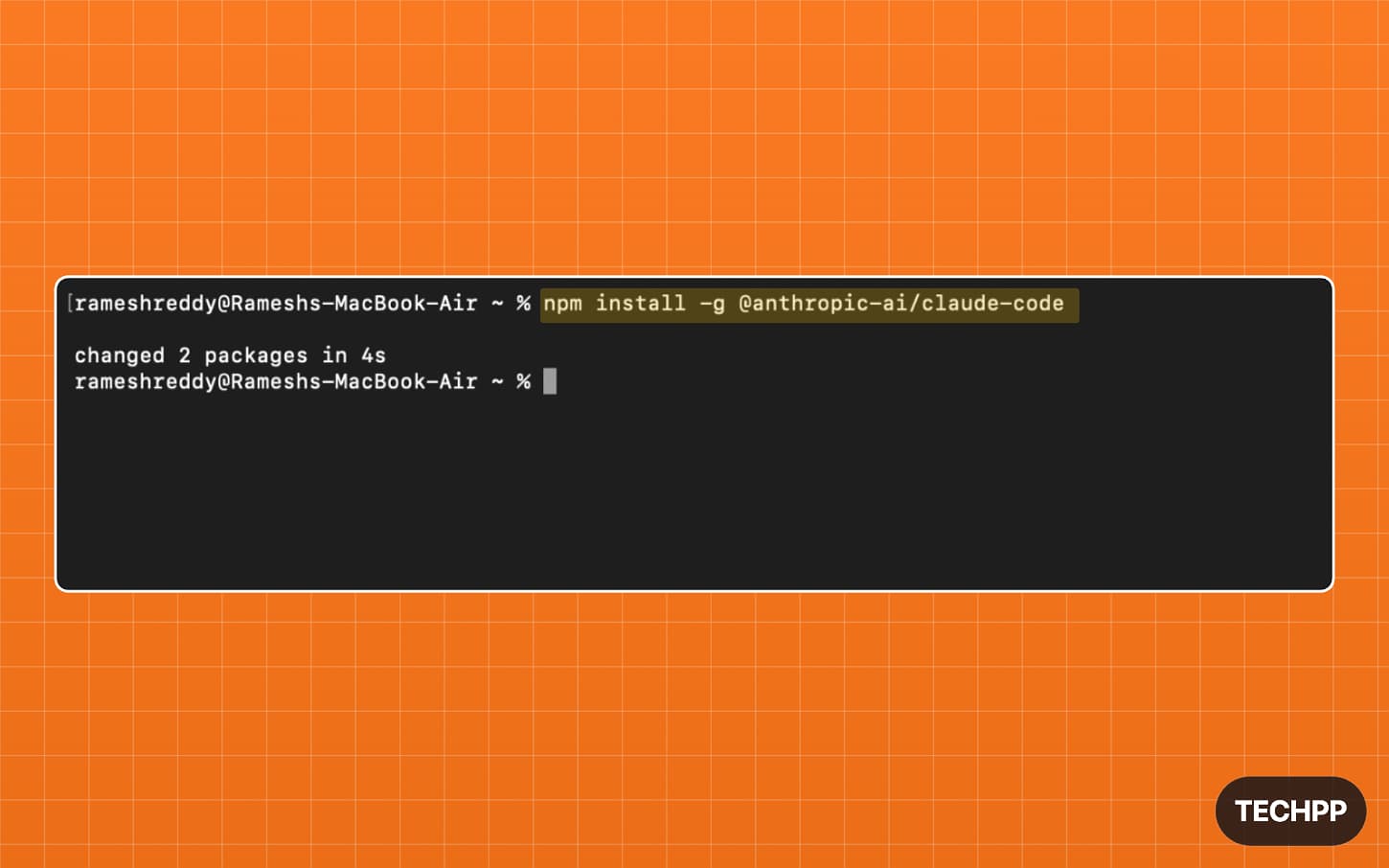
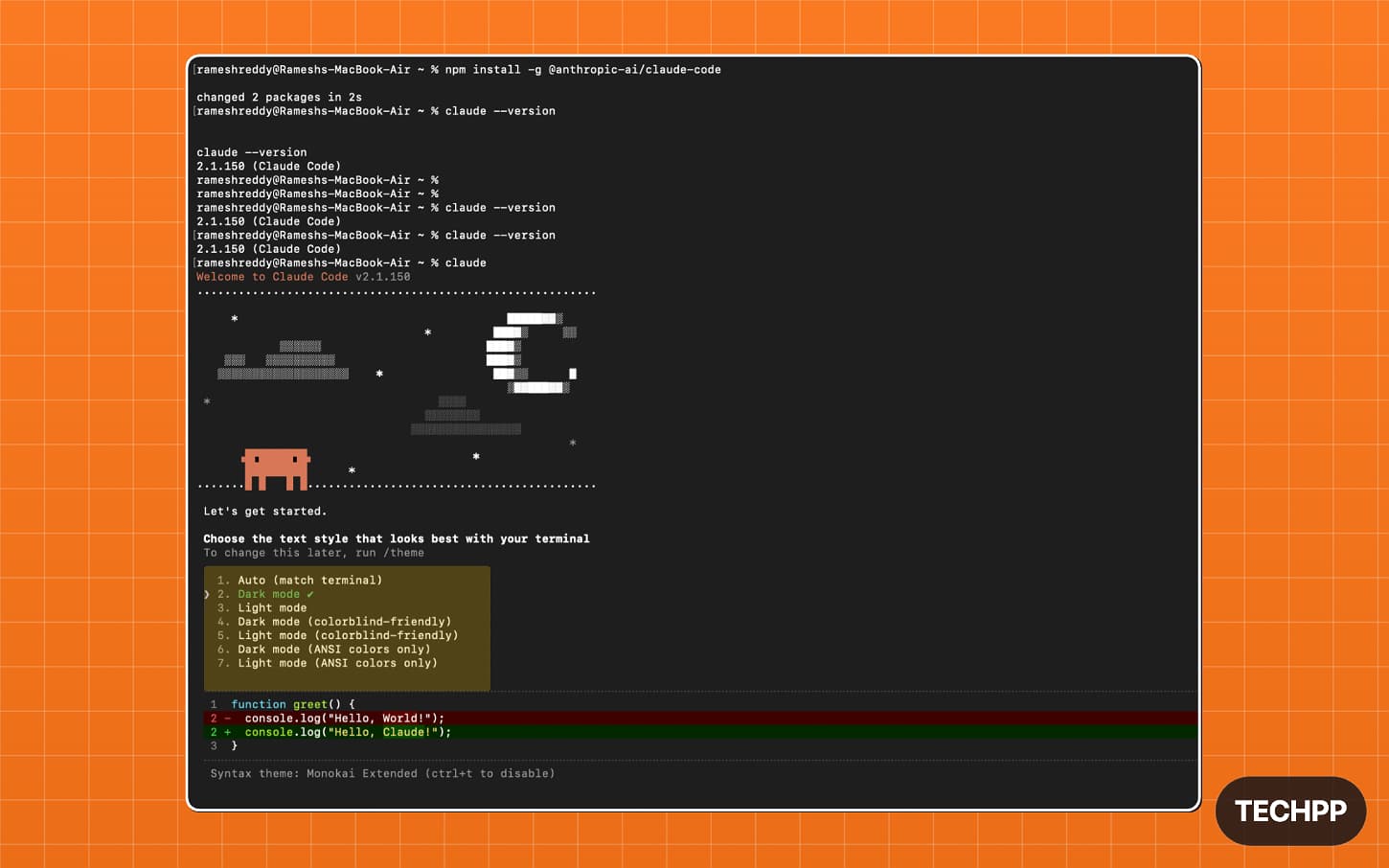
Step 2: Once the node is installed, Open Terminal and paste this command: npm install -g @anthropic-ai/claude-code and press Enter. This will install the Claude Code on your Mac.
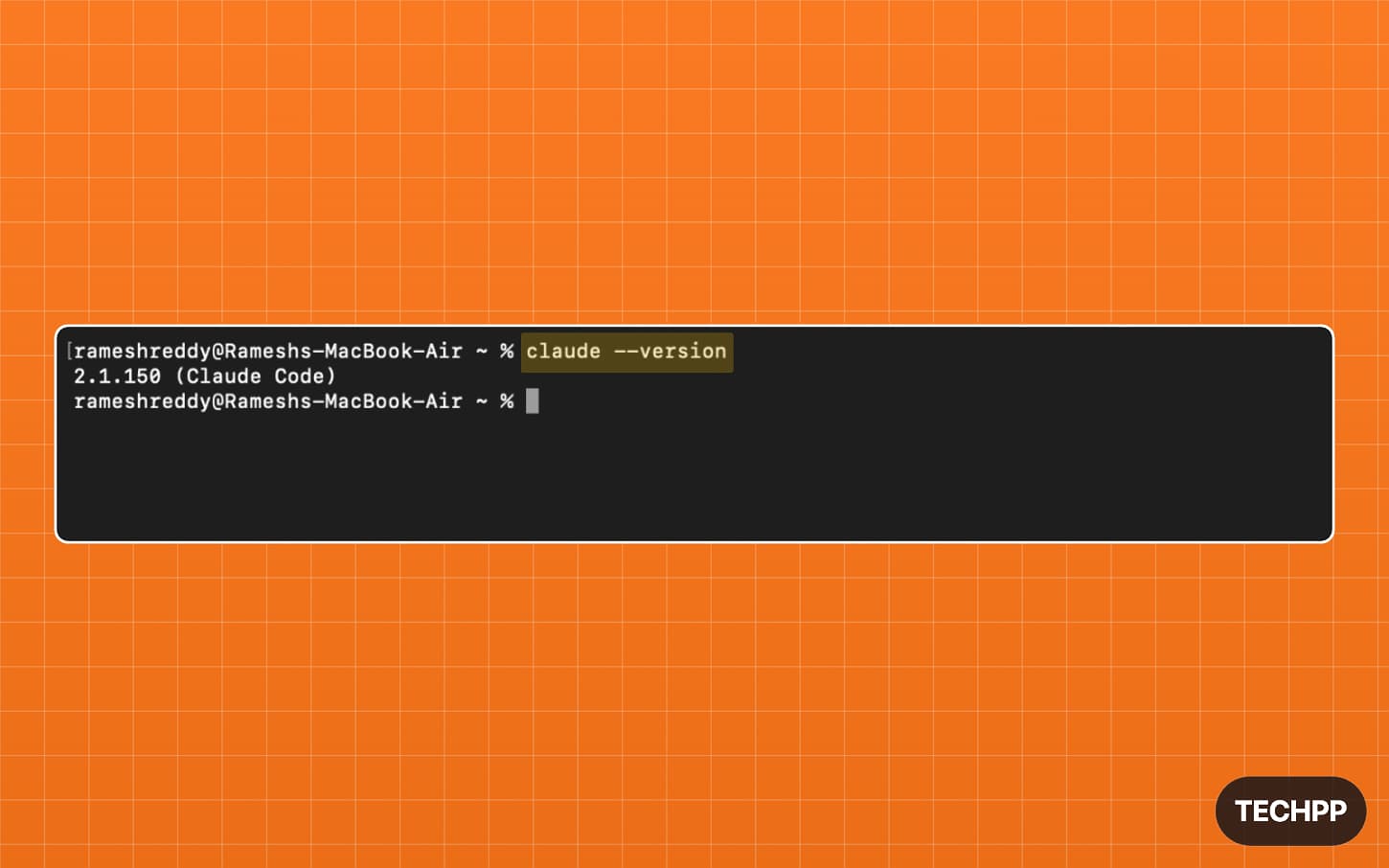
Step 3: Once installed, use this command: claude –version, and press enter. If it shows the Claude version, that means Claude Code is successfully installed on your Mac.
Step 4: If it asks you to sign in, you can sign in with your Claude account. Select the Claude account with a subscription option for the login method and tap on Enter. You will be redirected to the browser where you need to authorize with your Google account. Ensure you signed in with your Claude account on your browser.
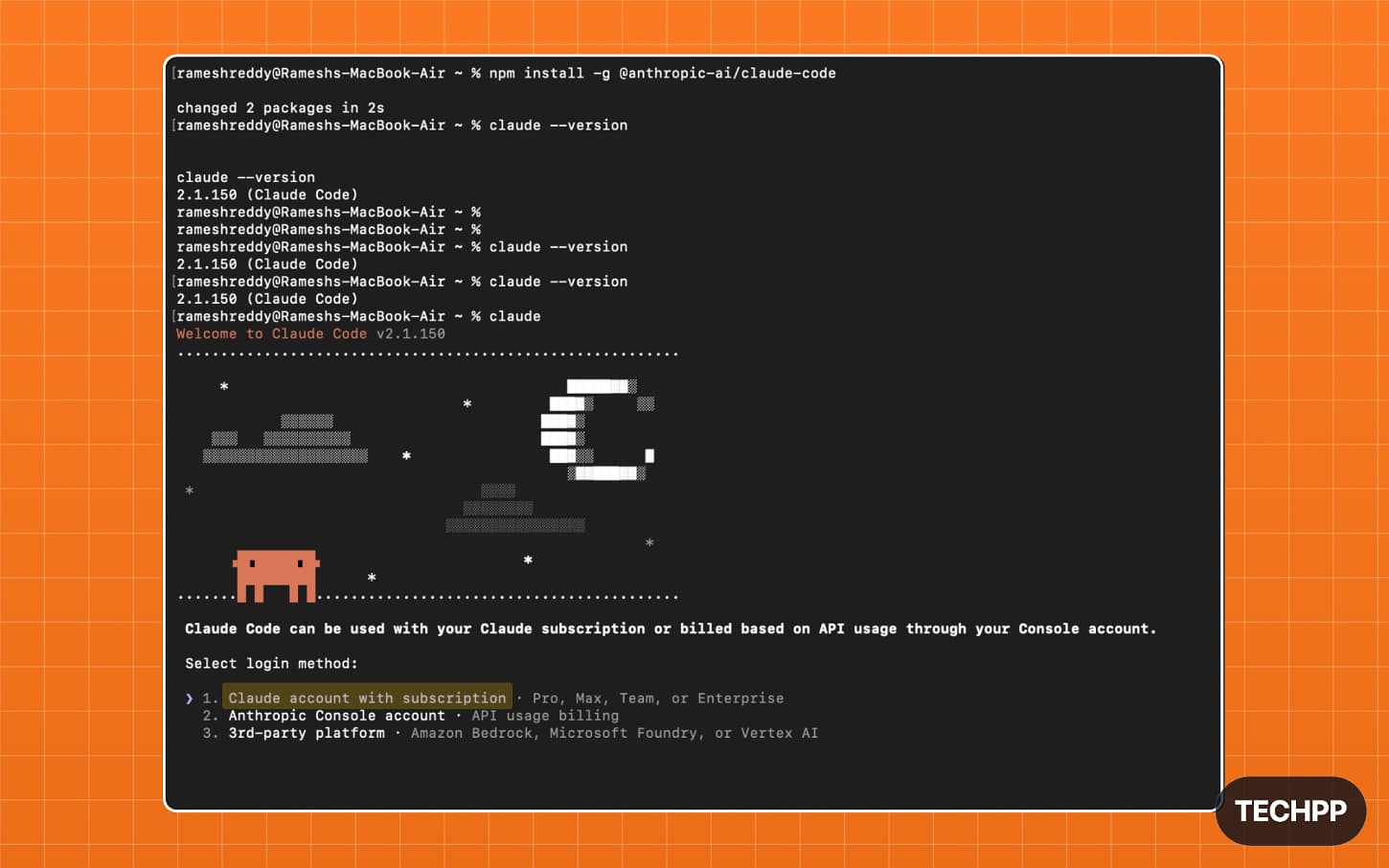
Step 5: Go through the setup process, you can choose text style and look, and then finish the setup. You can navigate options using the top and bottom arrows on your keyboard.
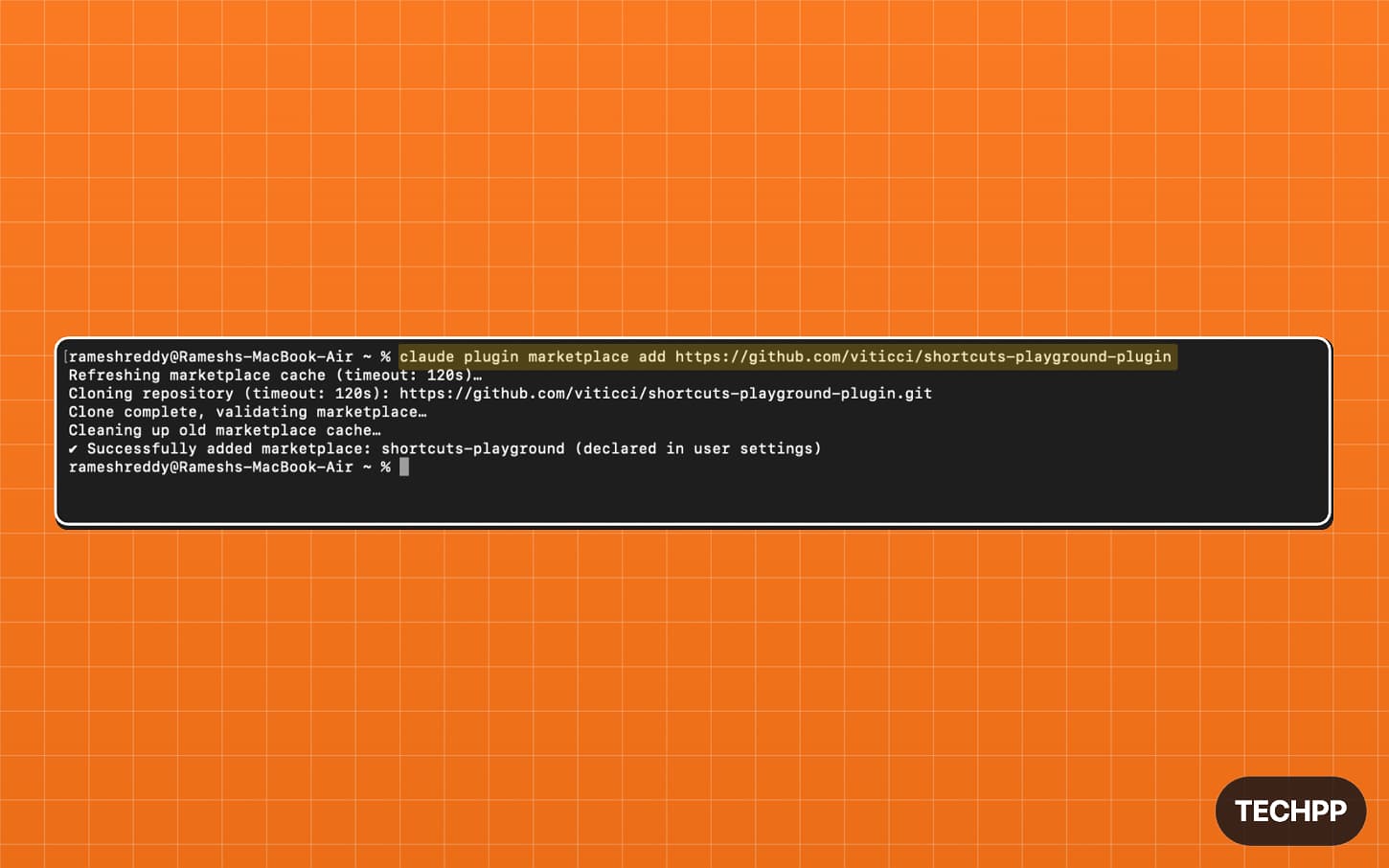
Step 6: Open Terminal again and paste this command: claude plugin marketplace add https://github.com/viticci/shortcuts-playground-plugin to install the Shortcuts Playground plugin.
Step 7: Now use this command to install it: claude plugin install shortcuts-playground@shortcuts-playground, paste this command and press enter.
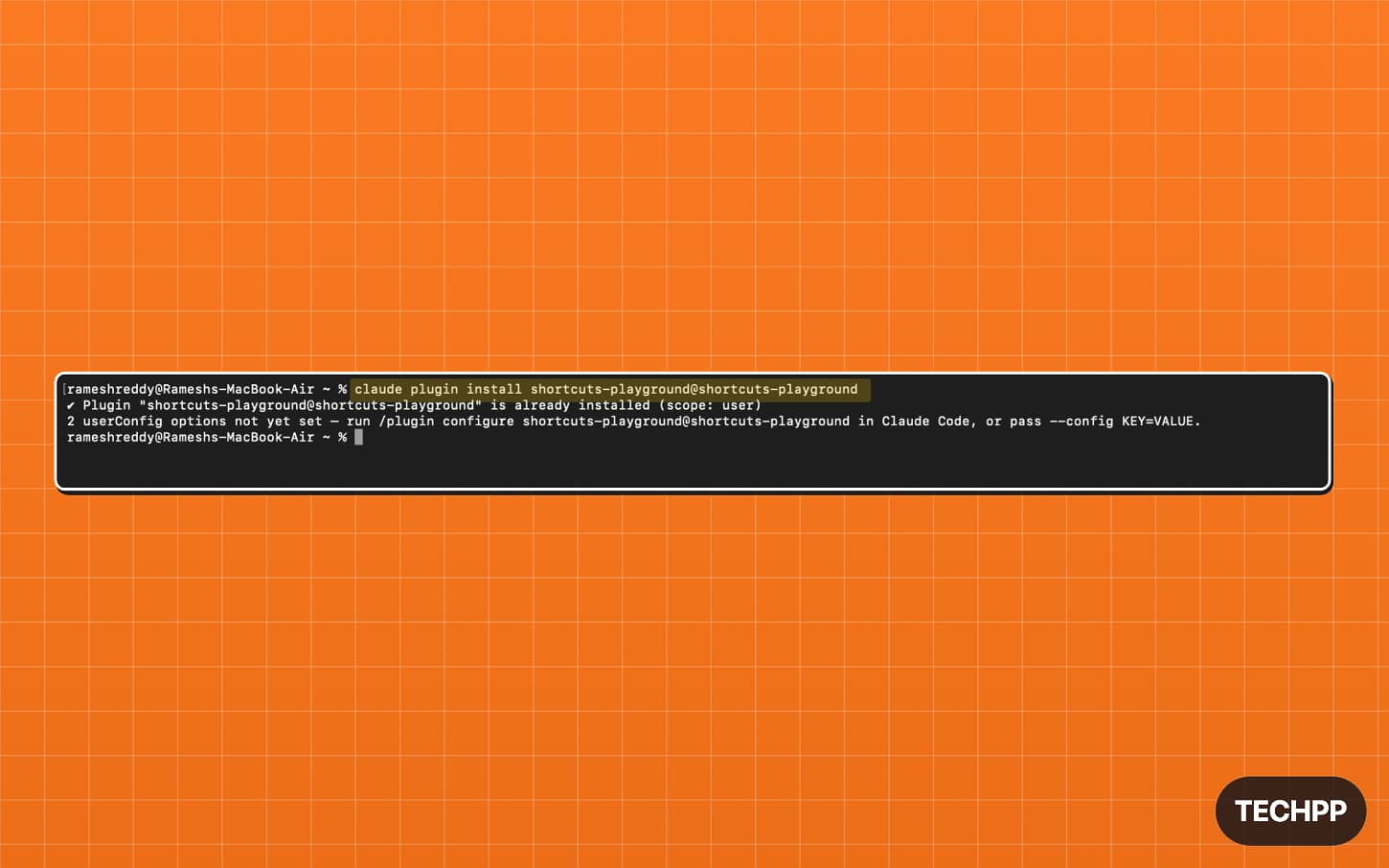
Step 8: That’s it, now the plugin is officially installed. Now it’s time to create shortcuts.
Step 9: Open the Claude code app on your Mac
Step 10: Go to the code tab.
Step 11: Click on the new session.
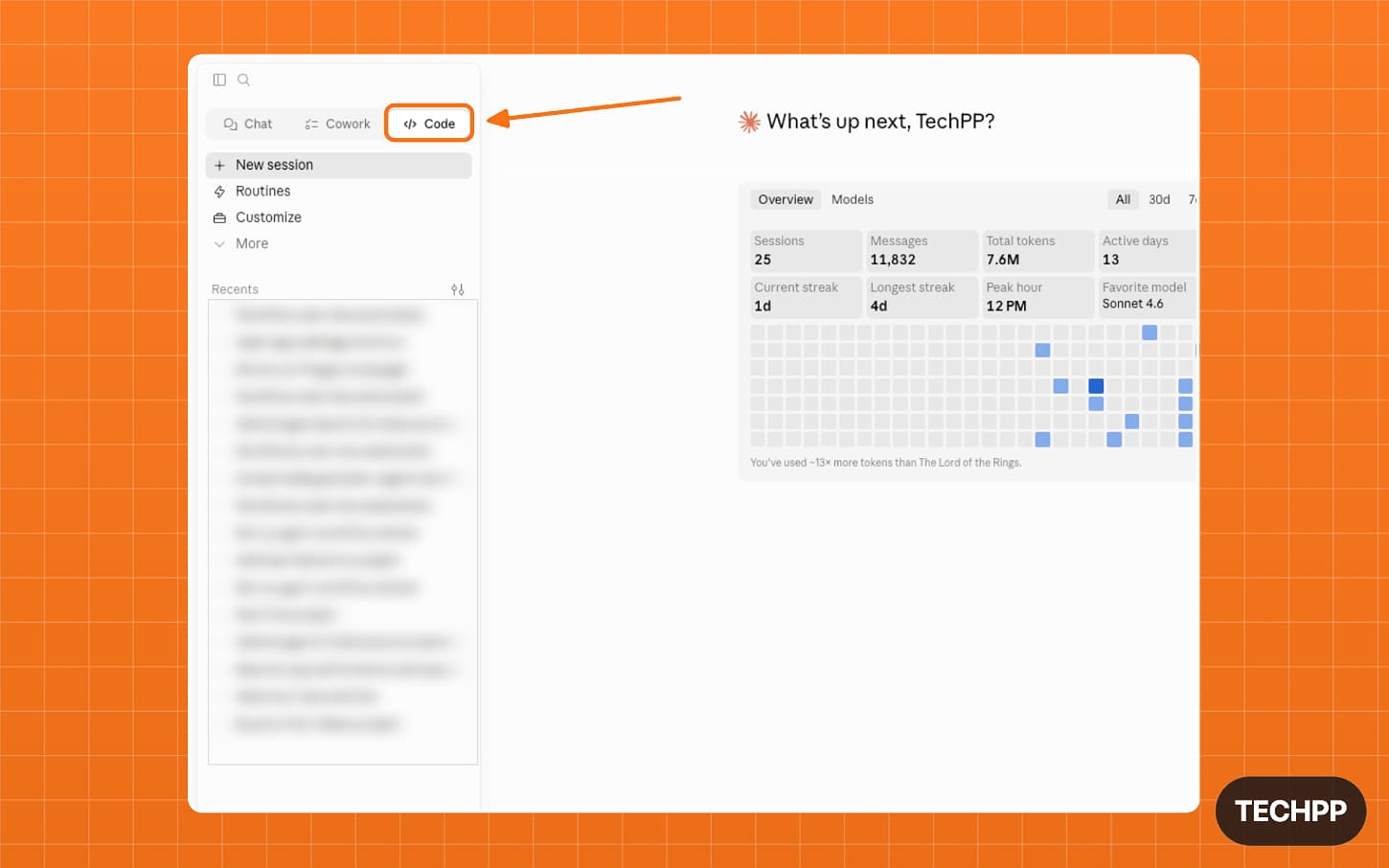
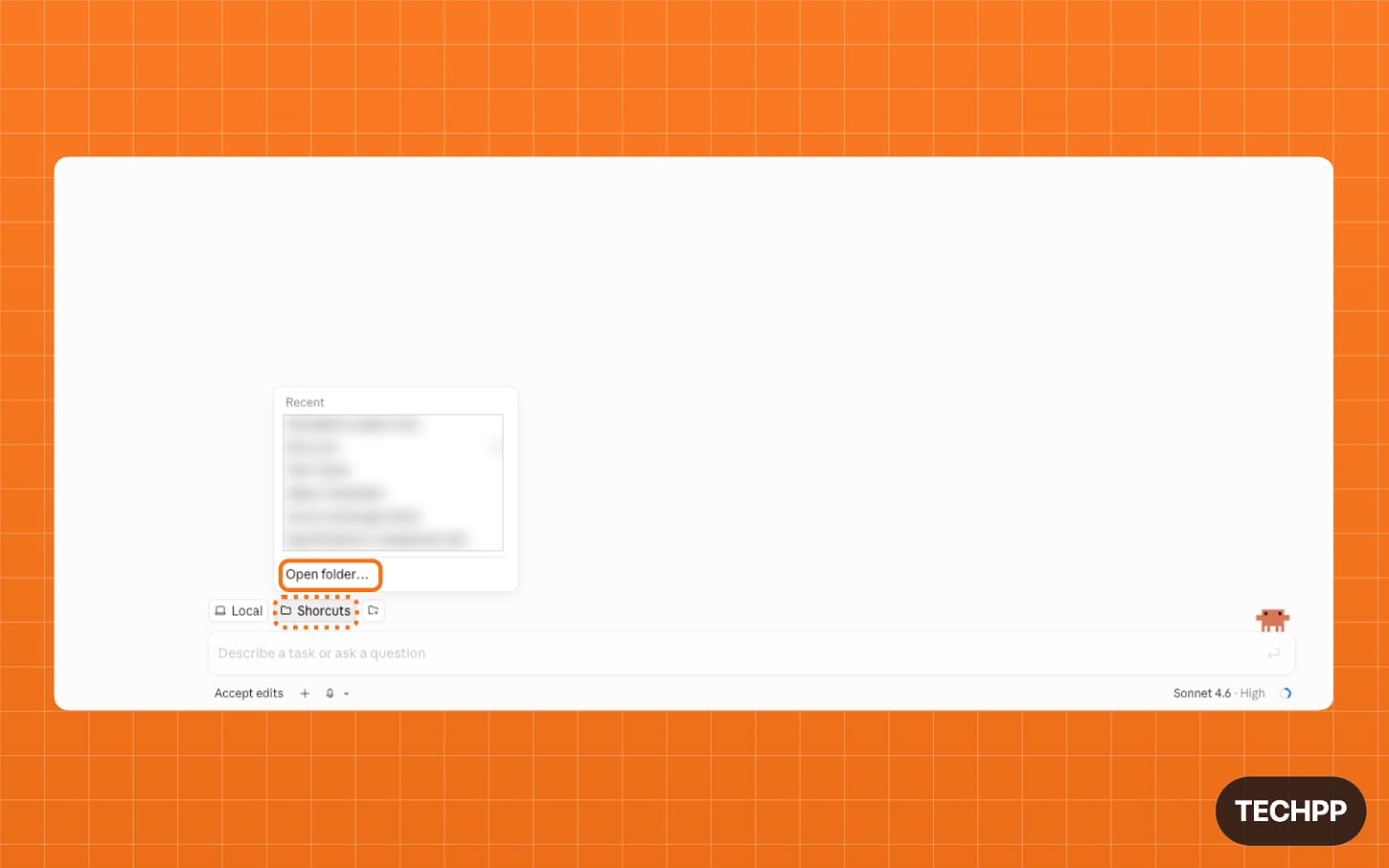
Step 12: Tap on the folder and tap on Open Folder. From here, you can create a new folder.
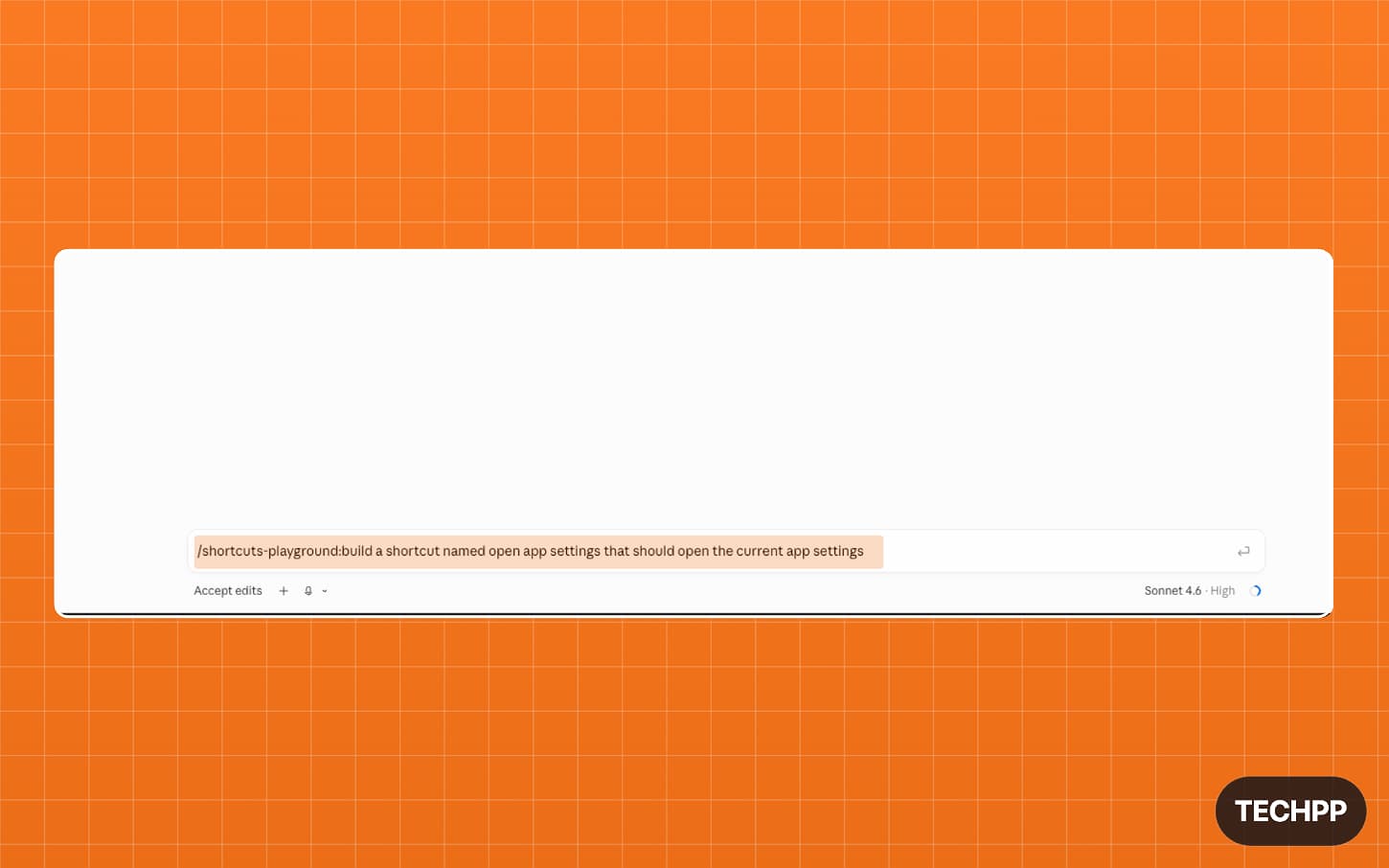
Step 13: Now, enter the prompt to create a new shortcut. Ensure you mention the Claude Shortcuts Playground plugin every time you create a new shortcut. Example: /shortcuts-playground:build a shortcut named Hello Test that shows an alert saying “It works” . Wait a moment, and it will create a shortcut for you.
Install Shortcut
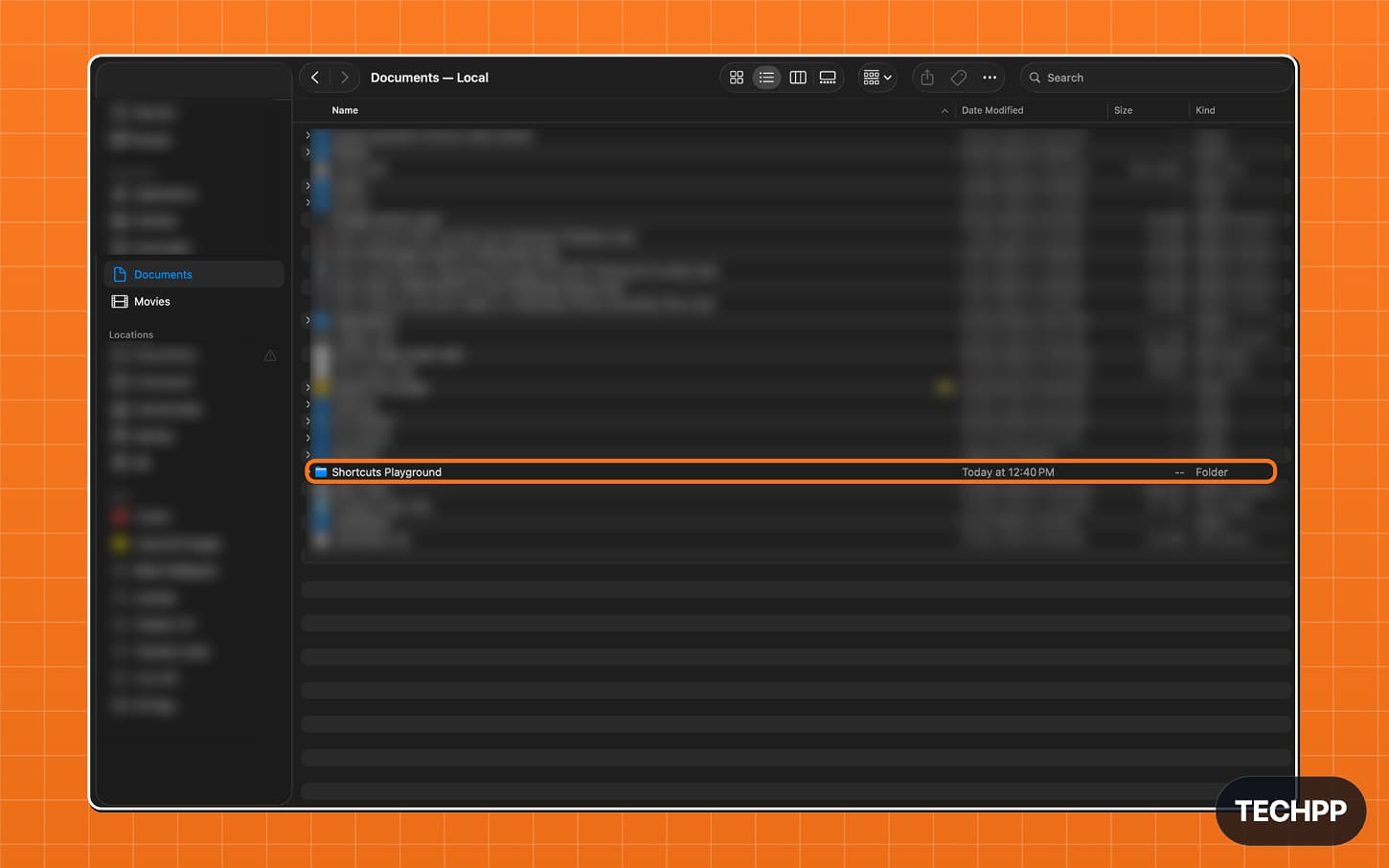
Step 14: The new shortcut is now saved directly to your Documents folder.
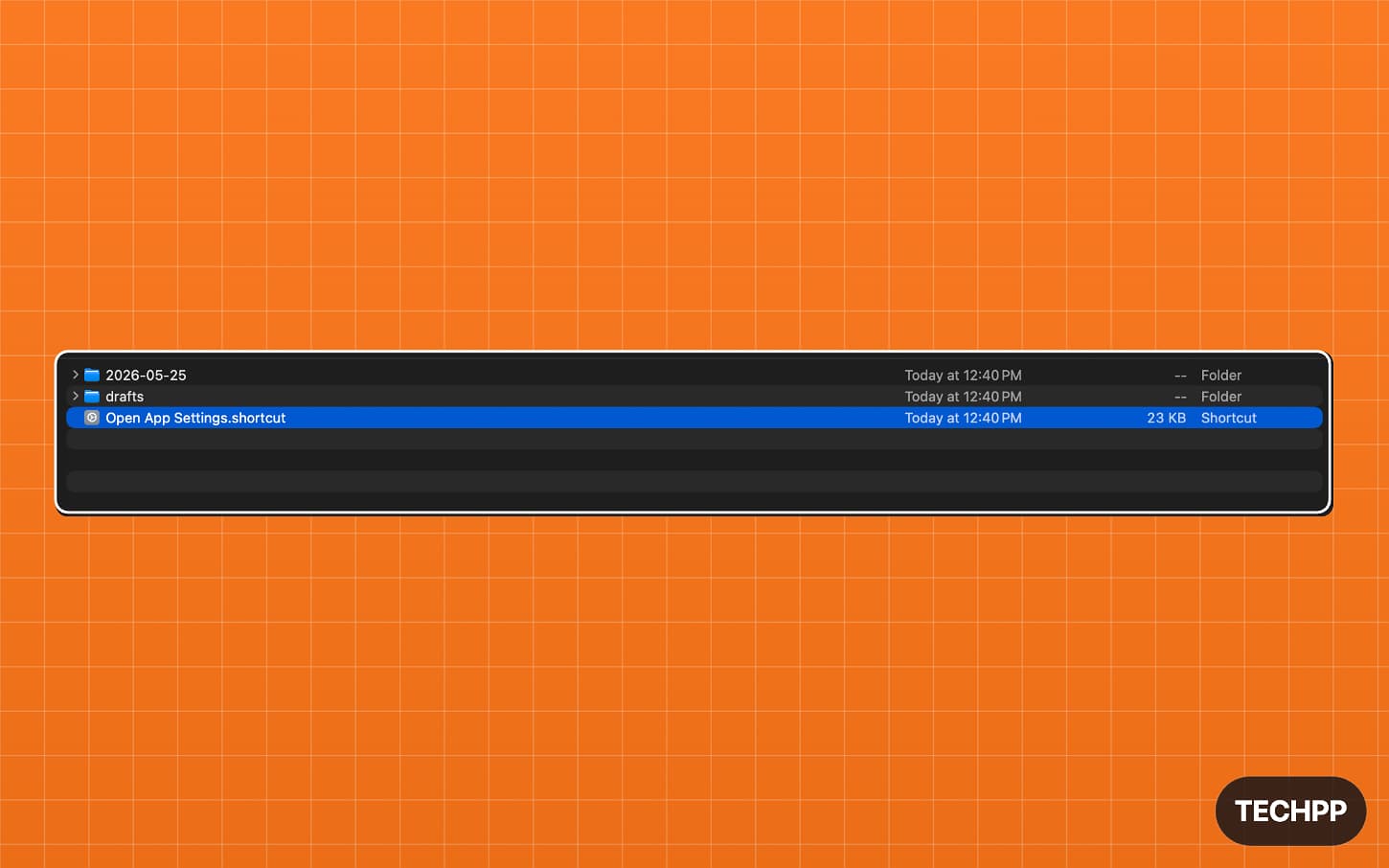
Step 15: On your Mac, Open Finder and go to the Documents folder and then Shortcuts. Here, you can see all the shortcuts created.
Step 16: Double-tap on the shortcut to add it to your Shortcuts app.
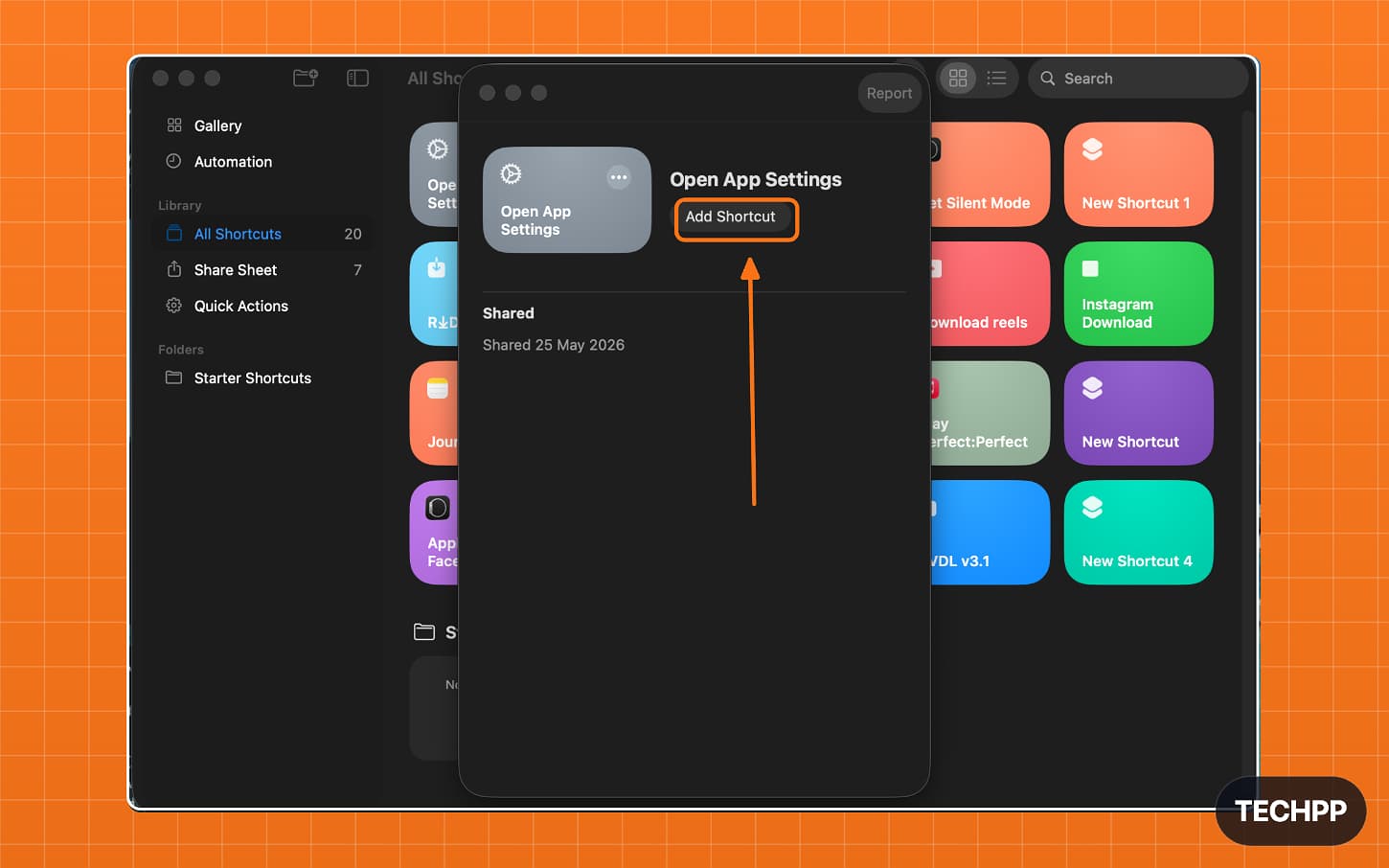
Step 17: That’s it, now you can use the shortcut on your Mac.
Common error and fix:
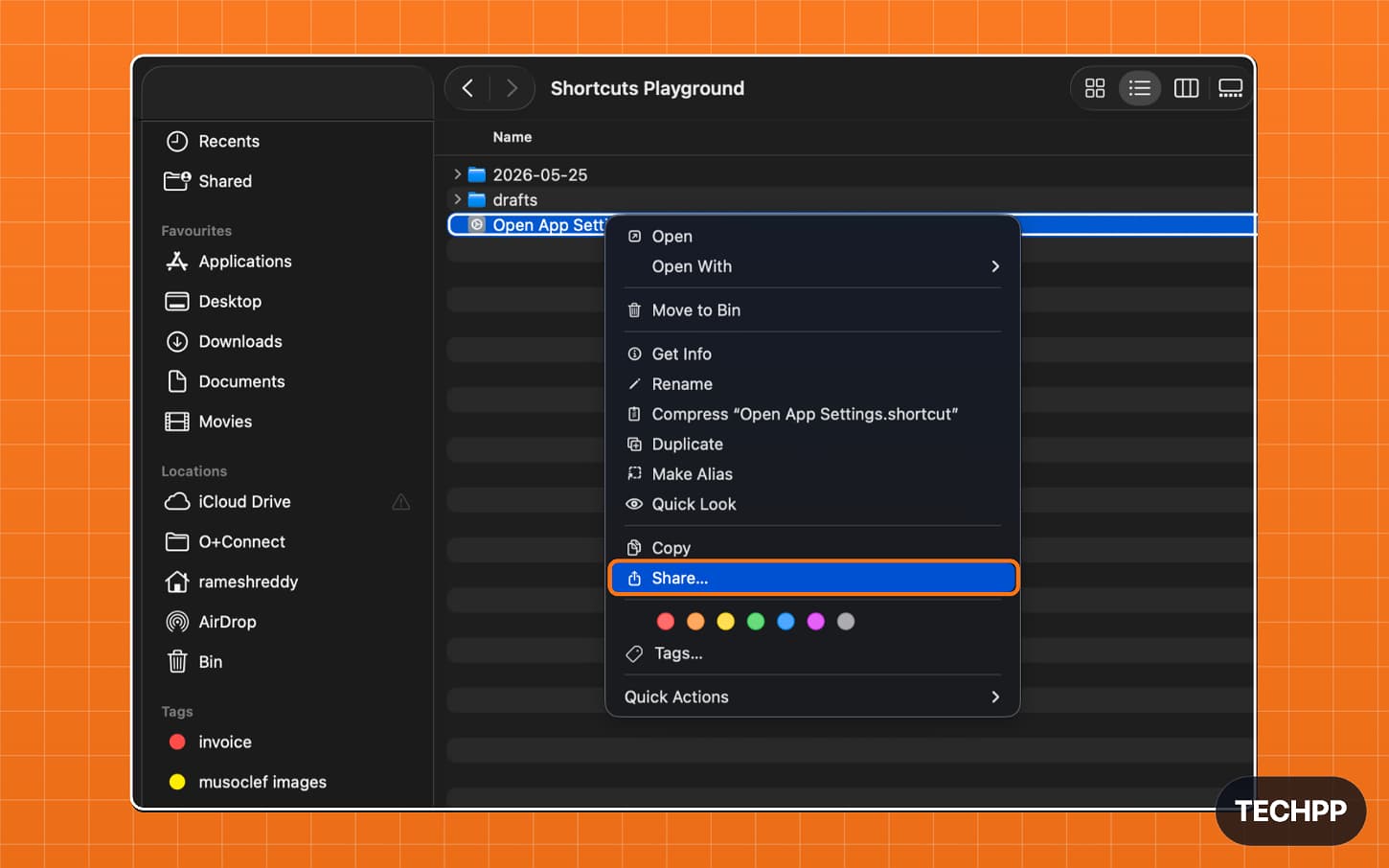
Step 18: If you want to share the shortcut to your iPhone, right-click on it, tap on Share, tap on AirDrop, and then share it to the iPhone or other Apple devices.
How to Create iOS Shortcuts Using OpenAI’s Codex
Requiremetns
- Mac (You can also use Windows to create, but for the final Apple-signed shortcut file, you need a Mac.
- Node.js – Download
- Free ChatGPT account – You can sign up here
- Codex Code Mac app – Download here
- Python 3.10 or newer
- Shortcuts Playground plugin – I will guide you on installing it on your Mac
- Apple Shortcuts app – Download
Unlike Claude, OpenAI offers a free version. So, for those who are not willing to pay up front, you can use Codex to create shortcuts. Although Federico recommends Claude, in my experience, Codex is also very powerful and equally good at creating shortcuts.
Step 1: Install the Codex on your Mac. You can use brew to install it. If you don’t have Brew, you can install Brew by following this method.
- Open Terminal on your Mac.
- Paste this command and press Enter:
/bin/bash -c “$(curl -fsSL https://raw.githubusercontent.com/Homebrew/install/HEAD/install.sh)”
- Enter your Mac password if Terminal asks for it.
- Press Enter again when the installer asks to continue.
- After installation, copy the Next steps command shown in Terminal and run it.
- Check if Homebrew is installed:
brew –version
- If you see a version number, Homebrew is installed successfully.
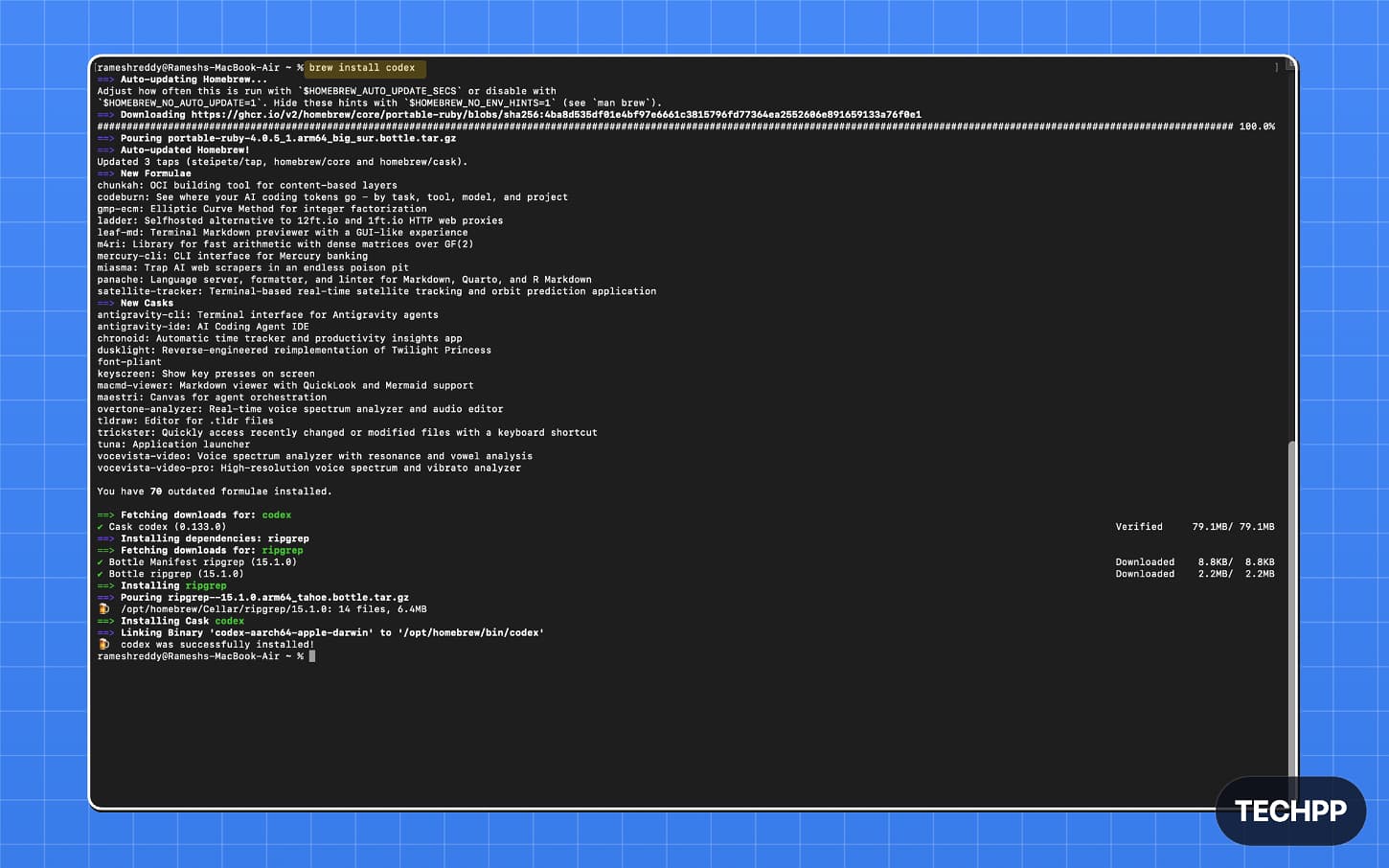
Step 2: Open Terminal and paste this command: brew install codex and press enter to install Codex on your Mac
Step 3: Now open the Codex once, use this command: codex. Now you need to sign in with your AI account. Click on the sign-in option.
Common issue and fix:
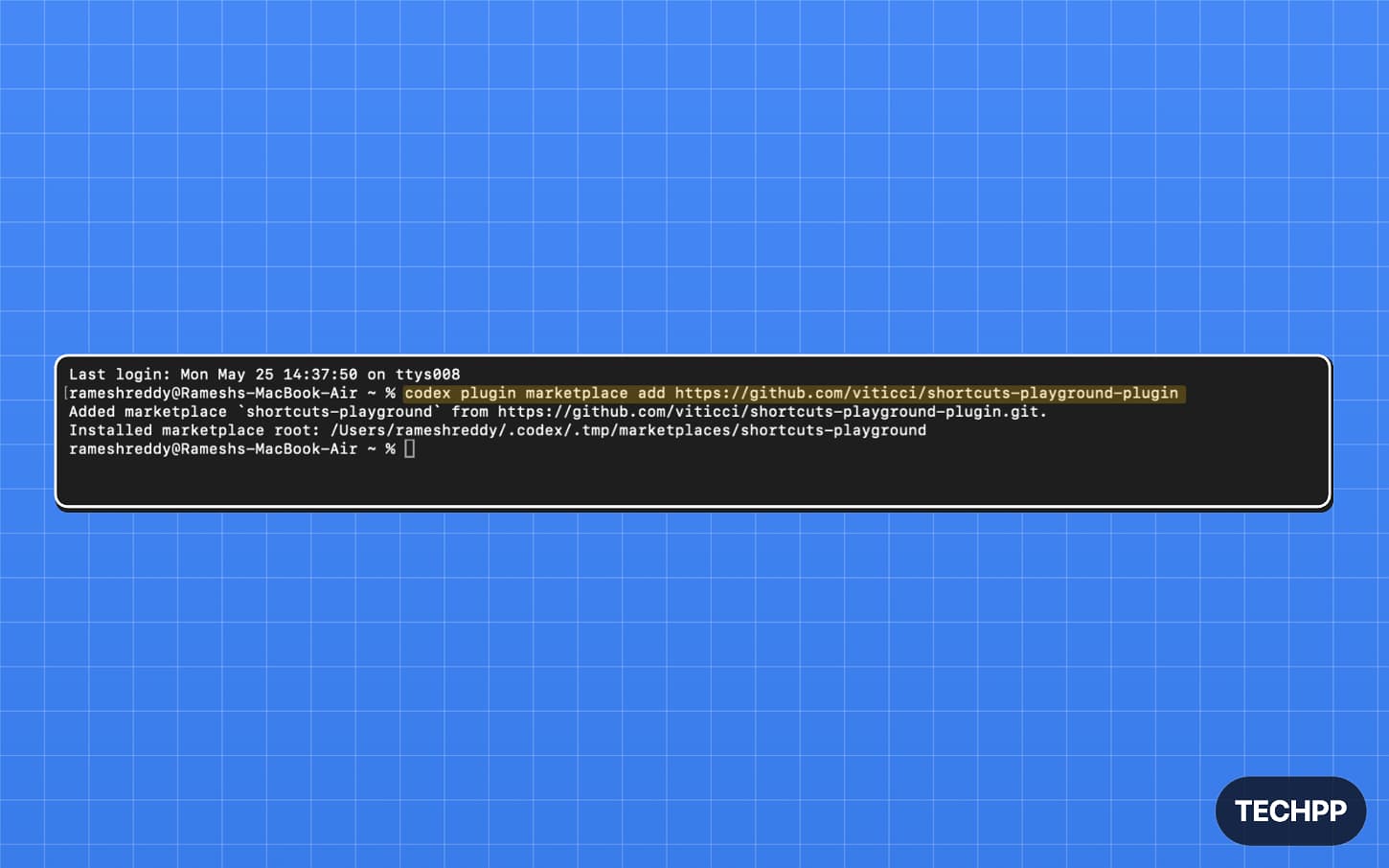
Step 4: Once Codex is installed, open a terminal and enter this command: codex plugin marketplace add https://github.com/viticci/shortcuts-playground-plugin, then press Enter. This will install the Codex plugin on your Mac.
Step 5: Now, open the Codex app on your Mac.
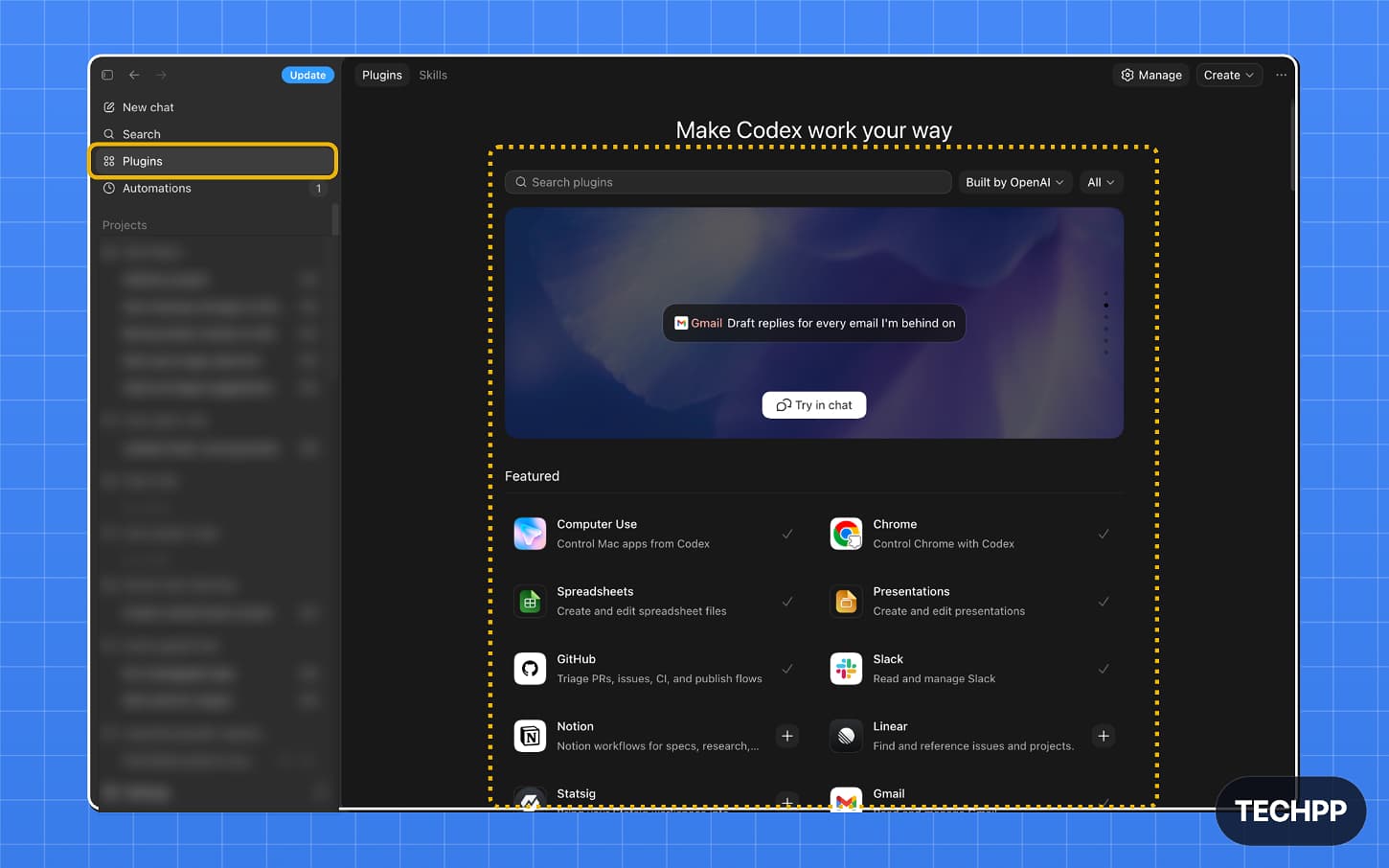
Step 6: Go to Plugins
Step 7: Search for the Shortcuts Playground plugin and tap on the install button. Step 8: Tap on the “Built by OpenAI” drop-down; from there, select Shortcuts Playground.
Common error and fix:
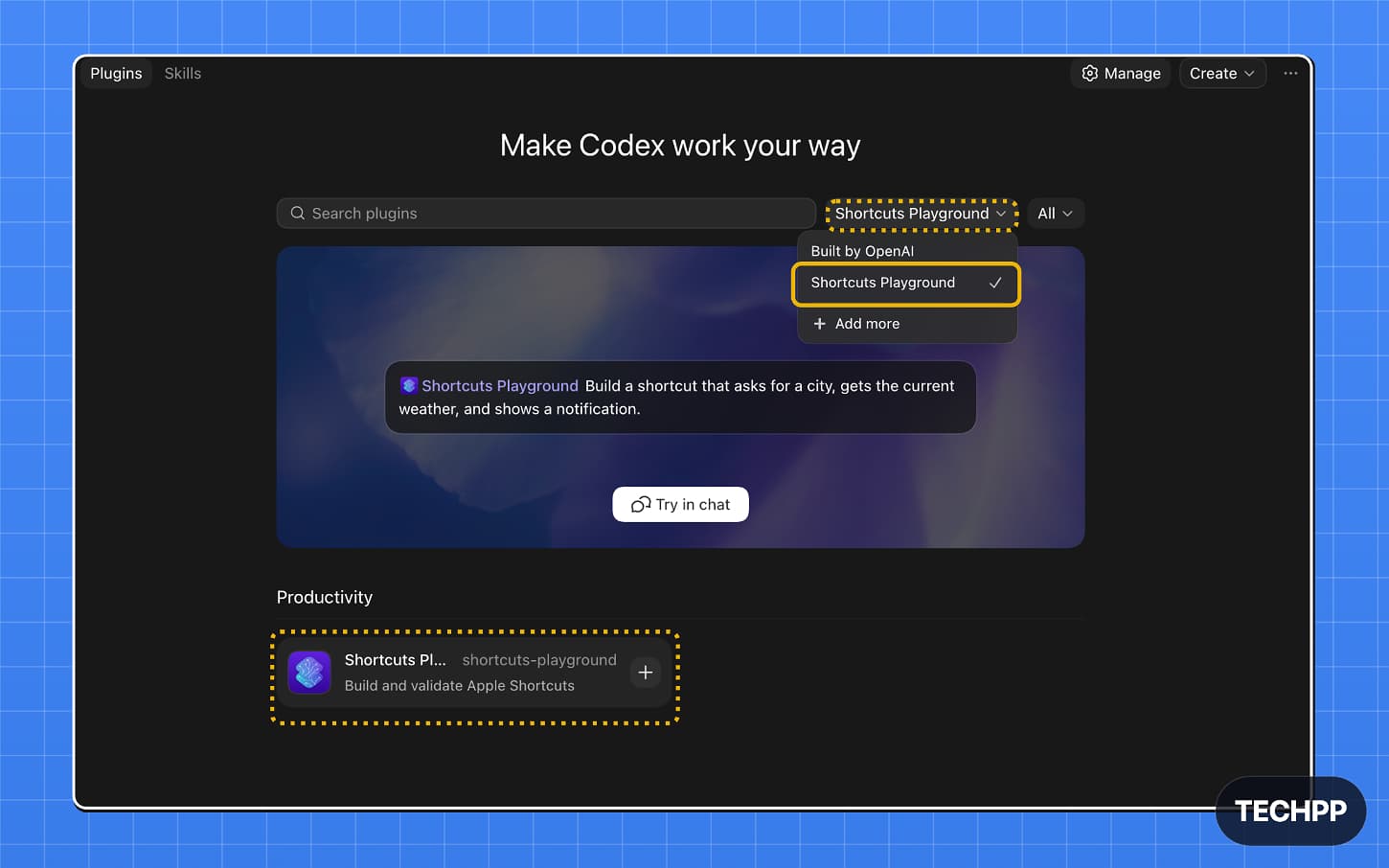
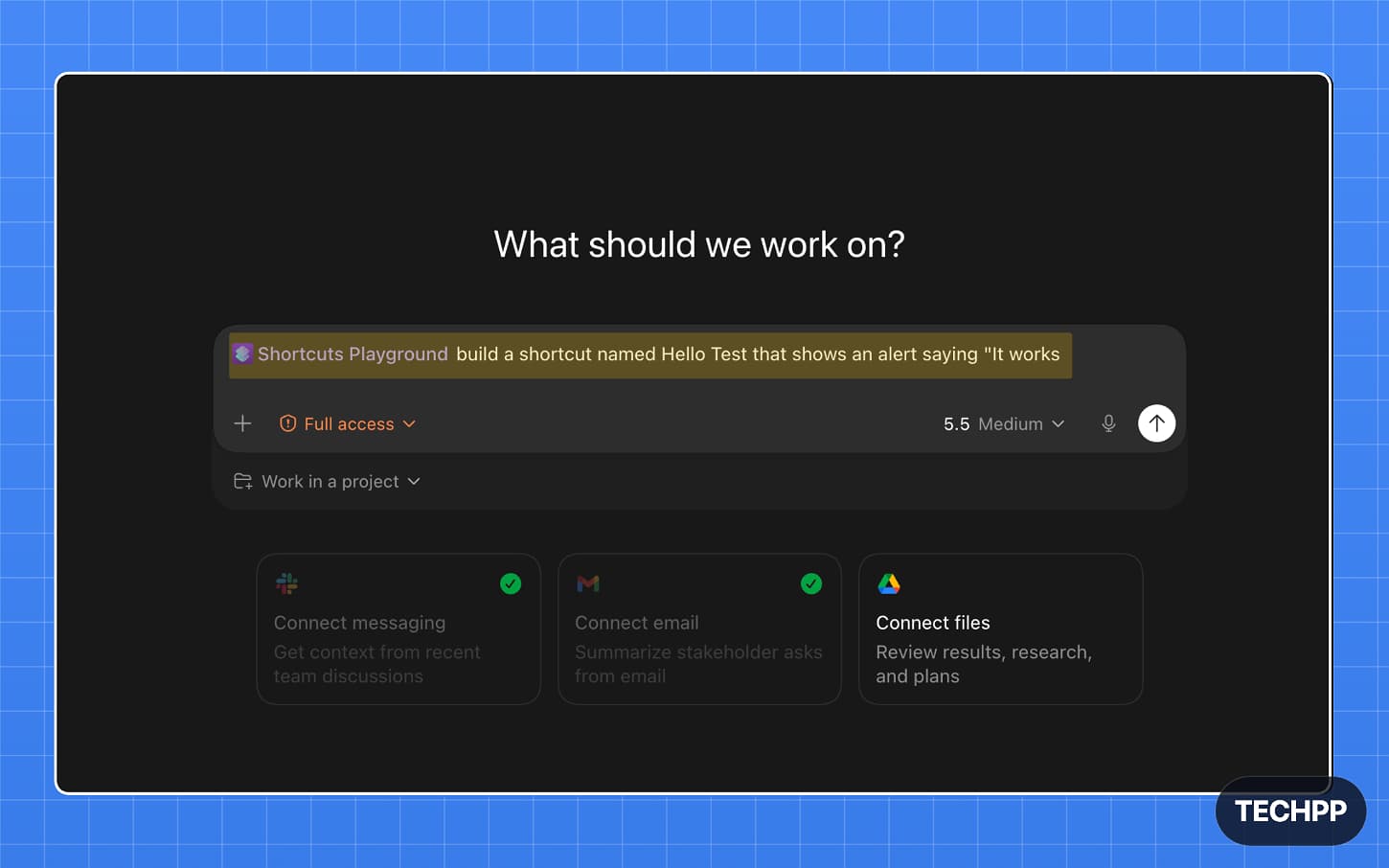
Step 8: To create a New Shortcut, use @ the Shortcuts Playground plugin, and then enter the shortcut prompt you want to use to build your shortcut.

Step 9: Enter a detailed and comprehensive shortcut, and explicitly mention in the codex, creating a shortcut file
Step 10: Open Finder and go to the Documents folder, where you can find the new Codex Folder, and here you can find the shortcut files created. You can also hover over shortcut files created by Codex to find their destination.
Common error and fix:
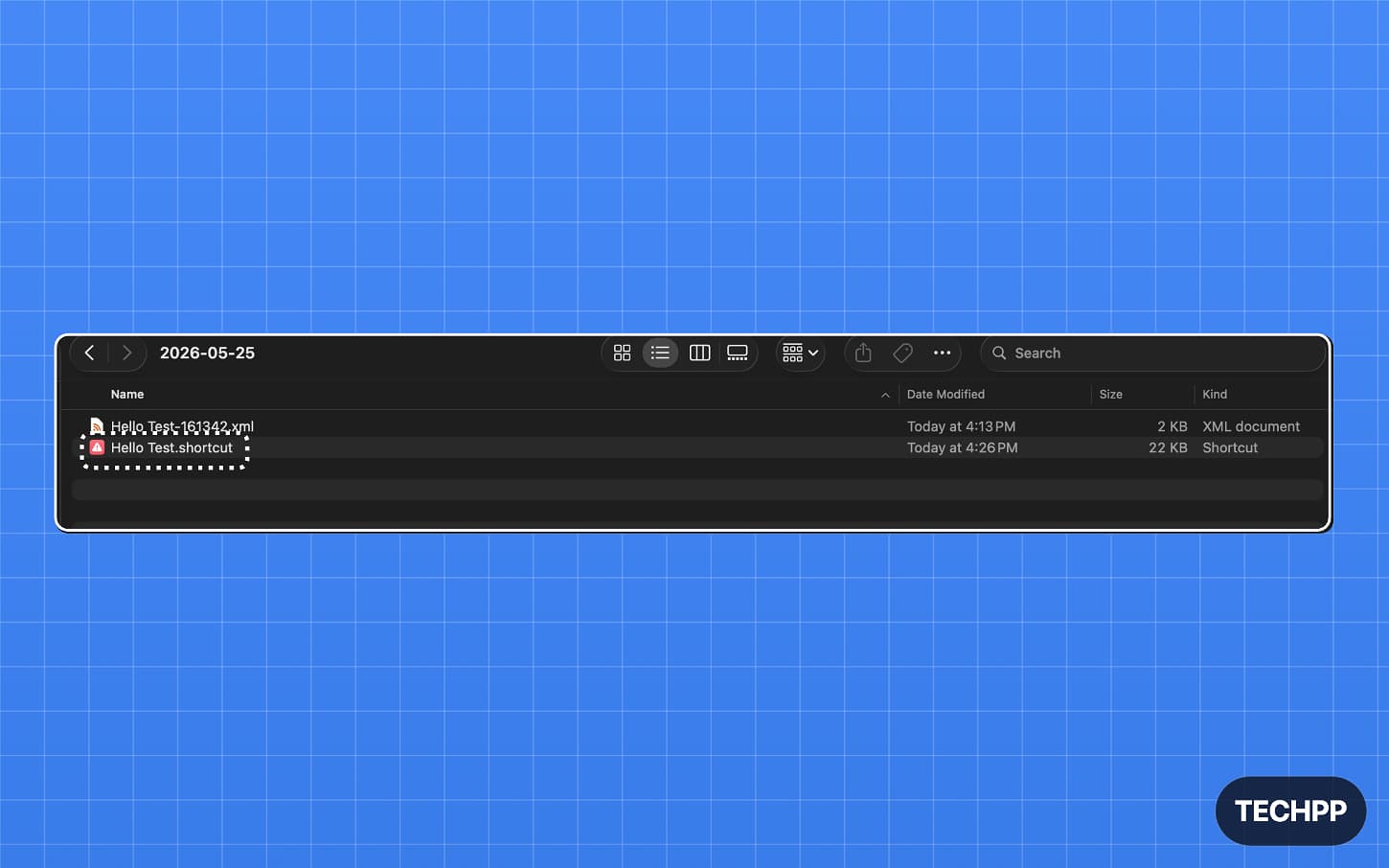
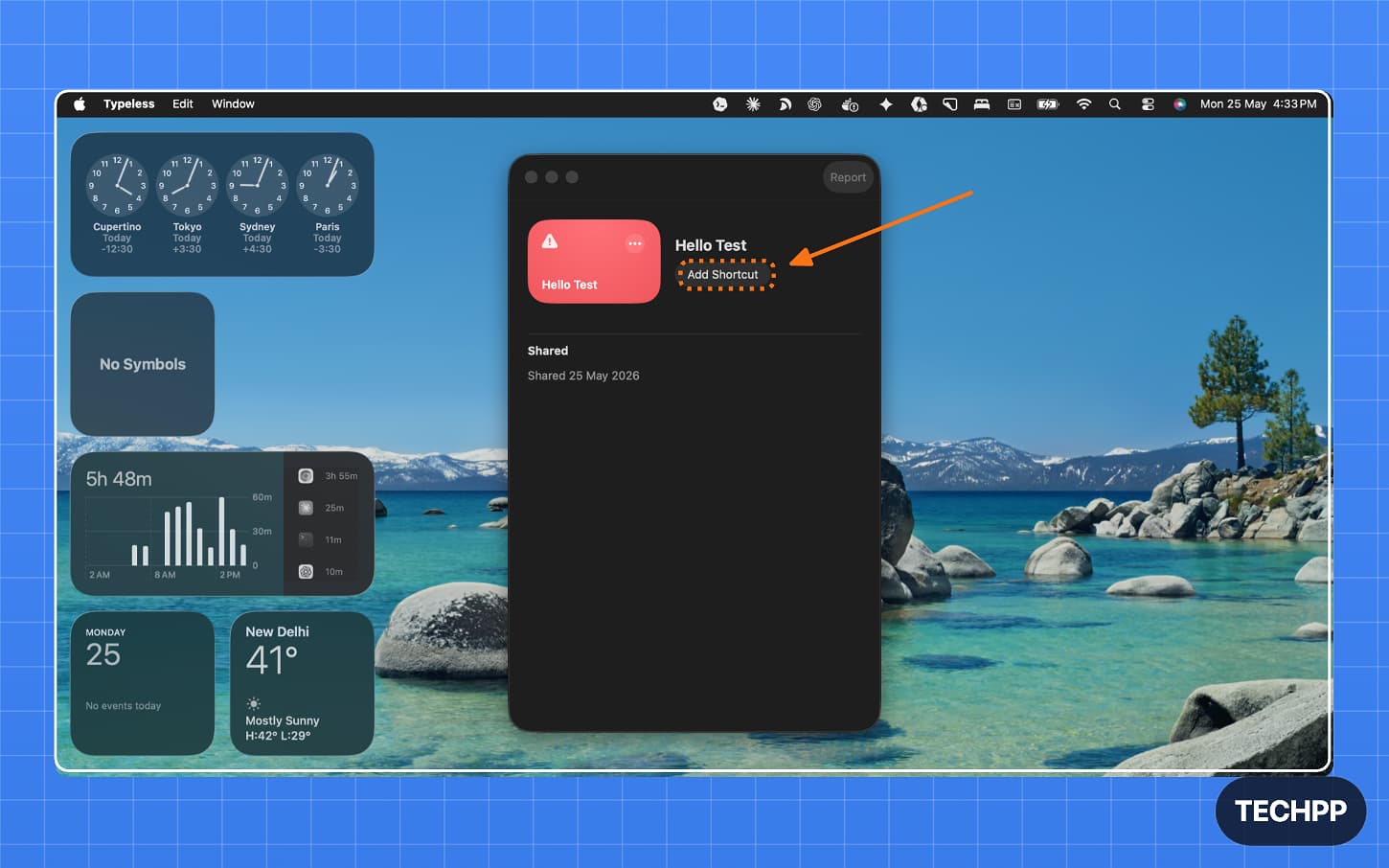
Step 11: Find the shortcut file and double-tap on it. Now tap on the Add Shortcut option. The shortcut will be installed on your Mac.
Tips to create a high-quality shortcut
Depending on the complexity, both Claude Code and CodeX might struggle to create 100% working shortcuts. Apple’s device limitations and context are part of the reason, although the Shortcuts Playground is exactly designed to solve those needs. I faced a few issues where shortcuts failed to execute perfectly for certain actions. But here are the tips that you can follow to create 100% high-quality working shortcuts.
First, use any other LLM to create high-quality prompts. This can be useful if you are a beginner. The Apple Shortcuts app uses a variety of elements, and for better output, you need to explicitly mention what you need and the exact actions Shortcuts is going to take. ChatGPT is the best option for brainstorming ideas. You can ask it to generate a detailed, comprehensive prompt to build the shortcuts.
Once created, use Claude Code. As mentioned, Claude Code definitely works better; Codex, in my experience, misses the final .shortcut file, and it only generates raw XML files. You can explicitly mention to create.
If you are creating a complex shortcut, ensure you mention every flow in a detailed way so that these AI models can understand and build perfectly working shortcuts.
Fortunately, even after creating a shortcut, you can edit and remove unwanted steps and fix the steps that are not working. Here is how to edit shortcuts once created.
How to Edit Shortcuts Once Created
You can use the Shortcuts app on Mac, iPhone, or iPad to edit shortcuts. Ensure you first need to import it into the Shortcuts app.
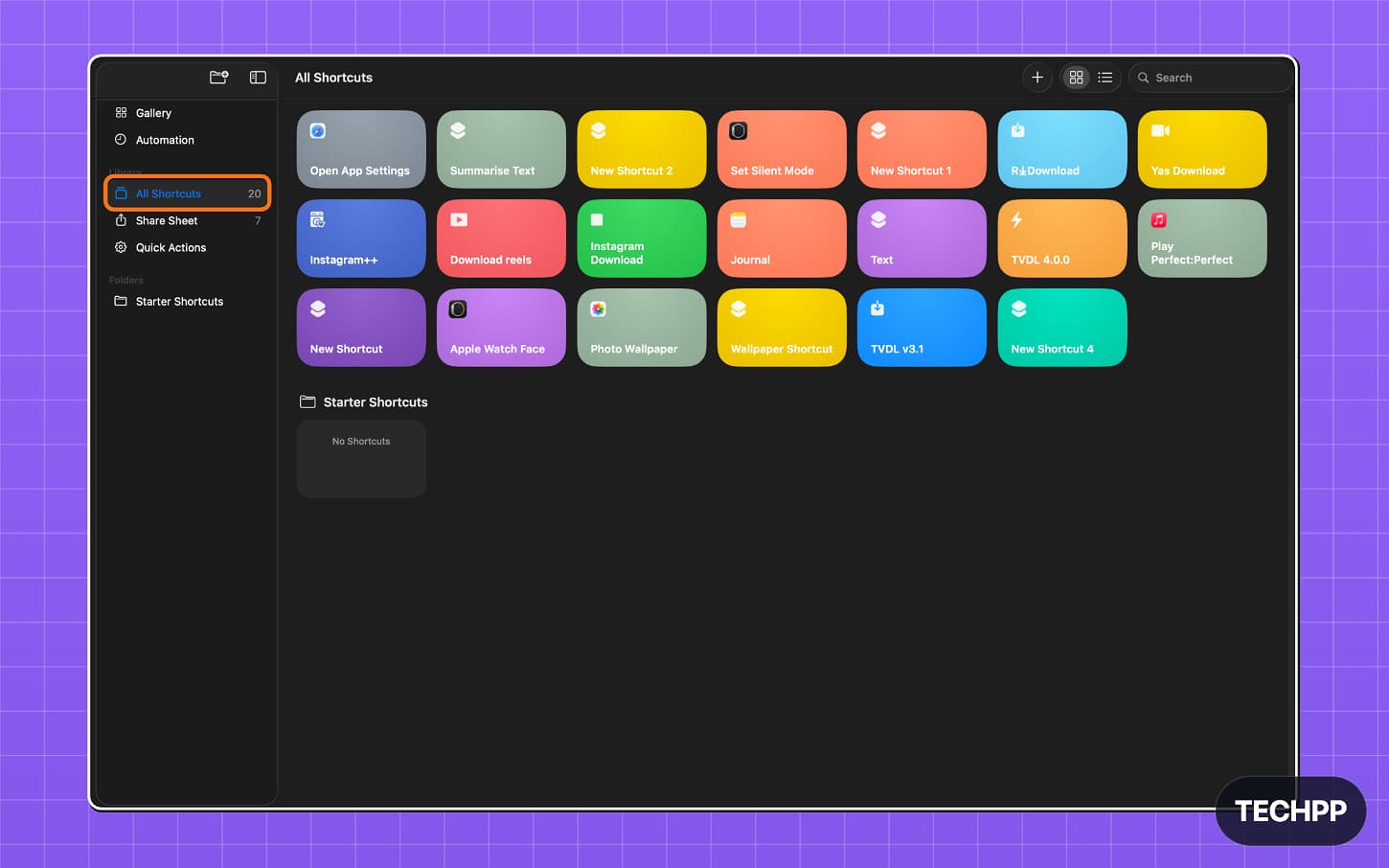
Step 1: Open Shortcut on any device (in this case, I am using a Mac). Once the shortcut is added, you can see all the shortcuts under the My Shortcuts tab.
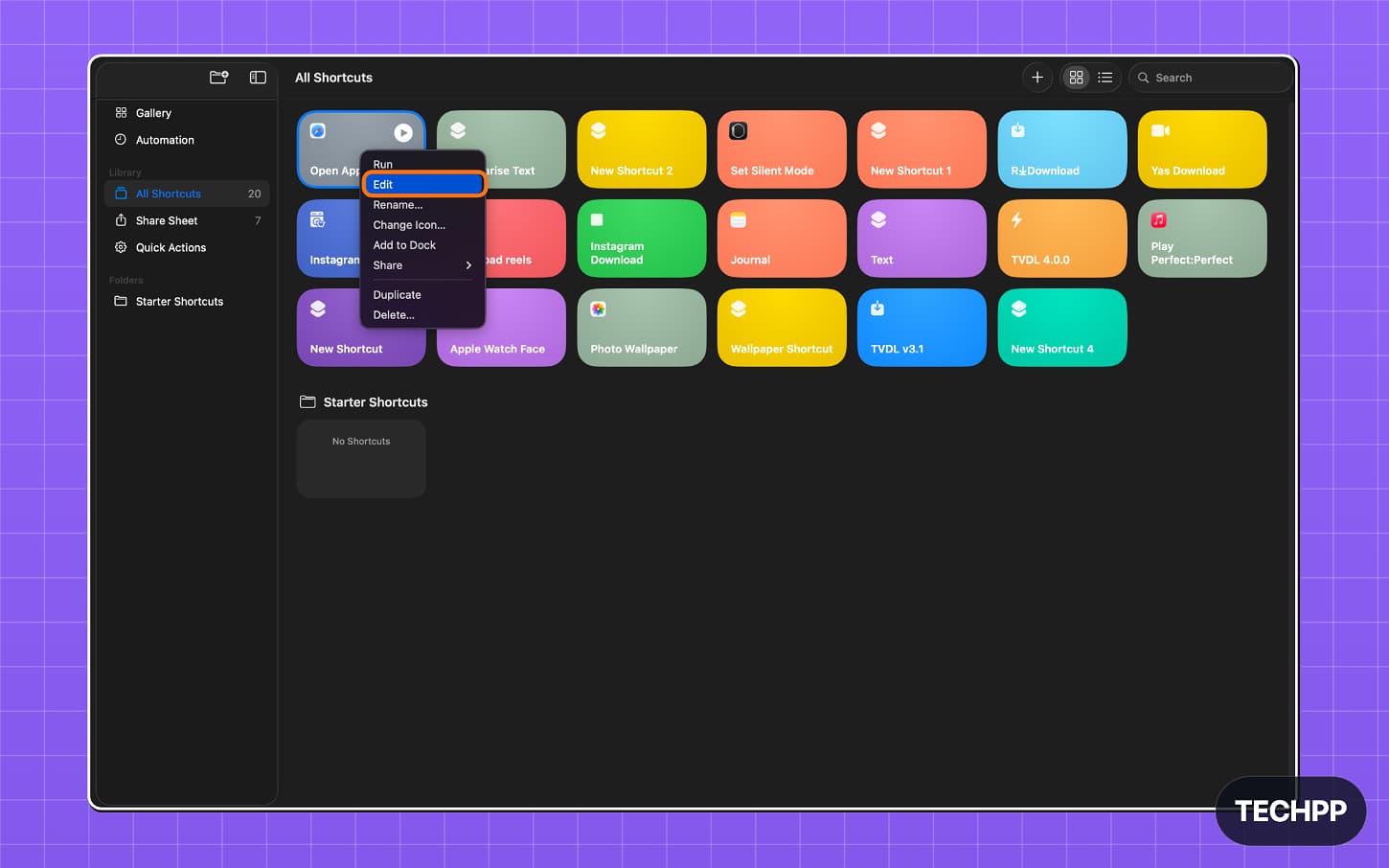
Step 2: On Mac, right-click on the shortcut and tap on Edit. On iPhone or iPad, open the Shortcuts app and tap the three-dot button on the shortcut card to edit it.
Step 3: Here, you can see the full flows created by AI models. You can tap on each element and edit.
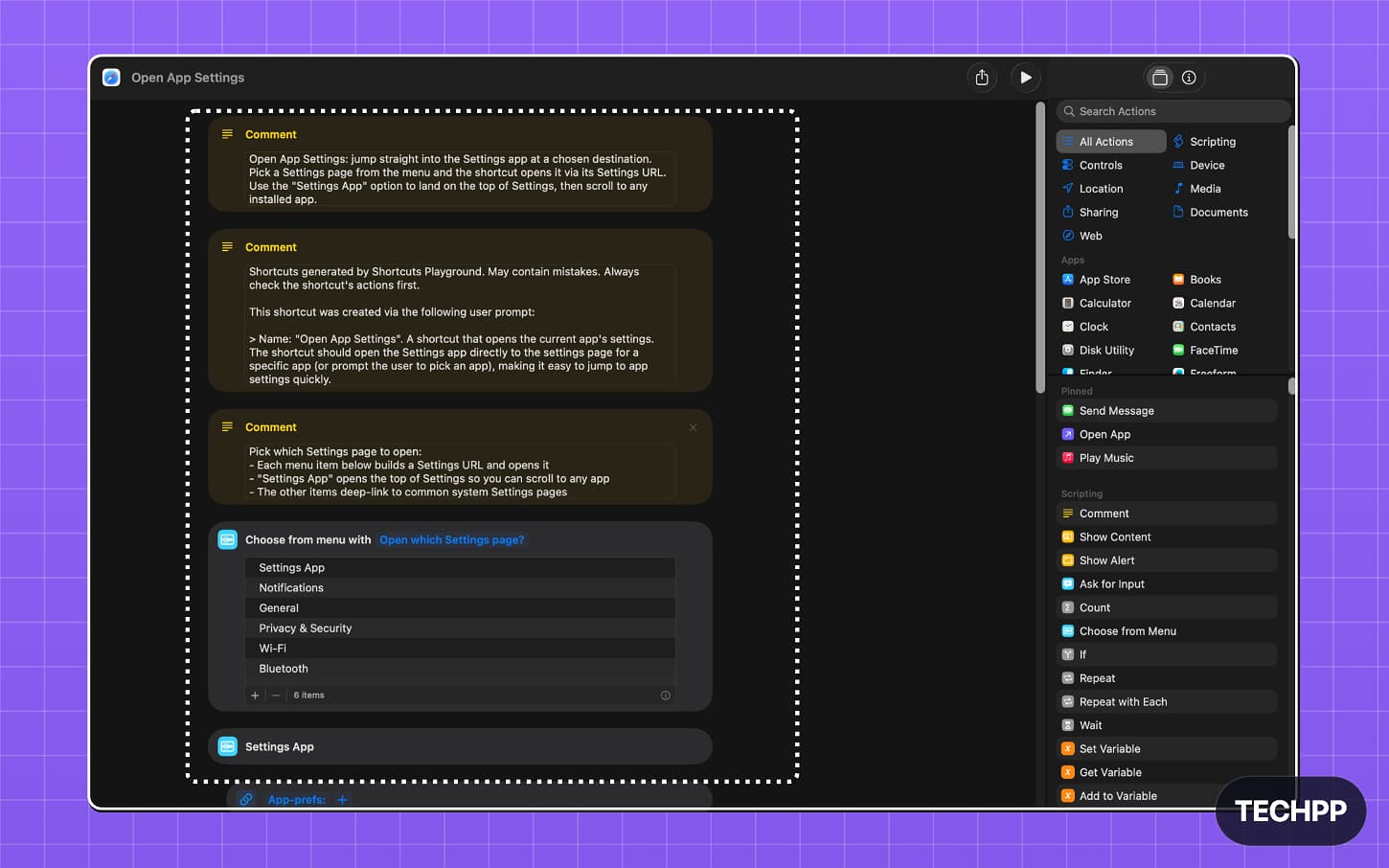
Step 4: If you are a beginner, you might be overwhelmed, but you can break down and analyze individual steps to fix any issues.
Shortcuts Playground Makes Apple Shortcuts Easier
This is how you can create and edit shortcuts easily. Fred is also the original Shortcut creator (which was later acquired by Apple), and his latest project, Shortcuts Playground, is incredibly useful for creating shortcuts using natural prompts. Coincidentally, Apple is going to bring the same feature natively in the upcoming iOS 27. Following the tips and editing the faulty flows can help you create 100% working shortcuts.
FAQs on Building Shortcuts using Claude and Codex
1. Is it safe to run a shortcut created by AI?
It depends on the type of shortcut you created. For instance, if your shortcut uses core Apple features and APIs from other applications and third-party services that you don’t want to run on your device, then it can be harmful. But mostly, since shortcuts are in your control, there won’t be any issues unless we explicitly design them to be unsafe. I still advise you to review the shortcut before adding it to your shortcuts. You can ask Claude or Codex to review it and give any harmful effects of it.
2. Why does the shortcut ask for so many permissions?
Again, it depends on the type of shortcuts and permissions they need.
3. Why does a shortcut work on Mac but not on iPhone?
The shortcut might only be designed to work on Mac features. For instance, file paths and shell commands only work on the Mac. They aren’t available on the iPhone.
4. How can I share the generated shortcut with someone else?
Once you have added the shortcuts to your Shortcuts app, you can right-click on it, tap Share, and copy the iCloud link. Then you can share the link with others, and they can install it on their devices.
5. Will the shortcut automatically appear on my iPhone after I add it to my Mac?
In most cases, adding the shortcut on your Mac will cause it to appear on your other devices as well. But there is a chance that if it is specifically designed for the Mac, it won’t appear on your iPhone.

