

It’s time for Nvidia to address and optimize its software situation. In the past, many users have always jumped back and forth between two Nvidia apps to adjust their screen settings, optimize games, and even download drivers – the GeForce Experience and the Nvidia Control Panel. Since both apps are important to the overall functionality of an Nvidia GPU, Nvidia has finally announced the Nvidia App, which combines the features of Nvidia Control Panel and GeForce Experience, providing users with a new, unified user interface. We believe this is a very welcome change.

This blog is about
- how to install the Nvidia app,
- what the new features and changes are,
- how to use it on your laptop or PC,
- whether you should use the Nvidia app at all or stick with the traditional combination of GeForce Experience and Control Panel.
We will explain everything to you. Let’s start with the installation part of the Nvidia app.
Table of Contents
How to install the Nvidia App
Before we go into the installation, it is important to know that the Nvidia app is currently in public beta. Although our installation doesn’t contain any bugs, you might encounter some of them. The good thing is that the public beta of the Nvidia app contains some very impressive features, all of which worked flawlessly in our tests.
Installing the App
The installation part is very straightforward, let’s take a look:
- Download the Nvidia app from Nvidia’s website: Nvidia App
- Here, click on the Download Beta button. It should start downloading the exe file for the app.

- Double-click on the exe file and install the app. You need to agree to some terms and conditions.
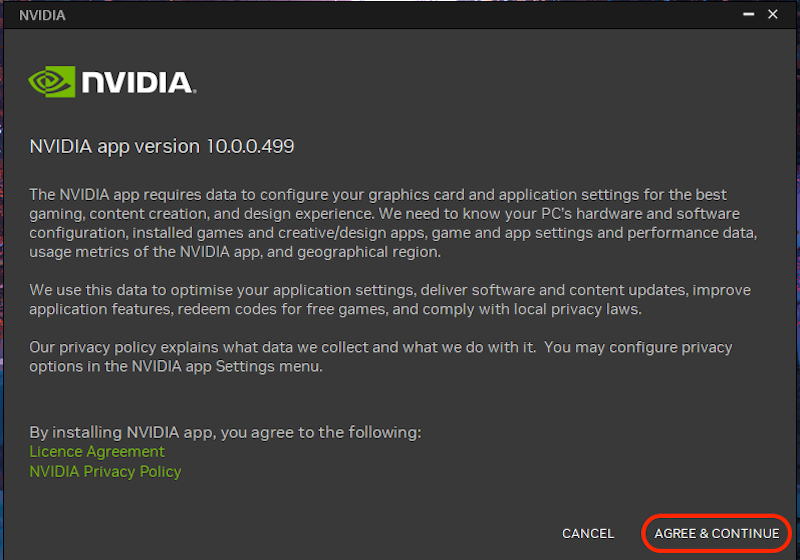
- The app will prompt you to upgrade to the Nvidia app. Click on the UPGRADE button, and you should be at the driver installation page in no time.

- On the driver installation page, the app will prompt you to install the preferred driver. Select the driver you want to install, and click on the NEXT button.

- Now, enable the Optimise games and creative application, and click on the NEXT button.
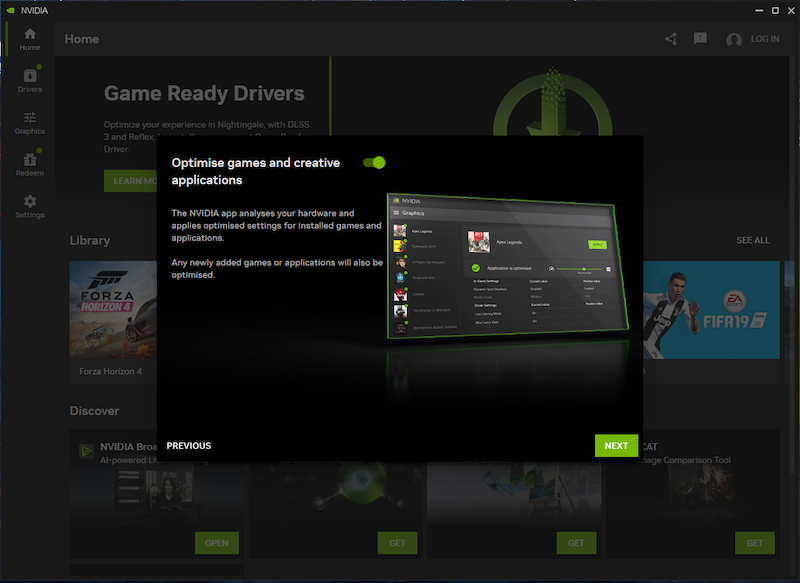
- You can also enable Nvidia Overlay if you want to.
Once you have installed the app, you will notice that you can only access the Nvidia Control Panel and the Nvidia GeForce Experience, as the GeForce Experience is now part of the app.
Now, let’s look at the app’s new features.
Log In is Optional
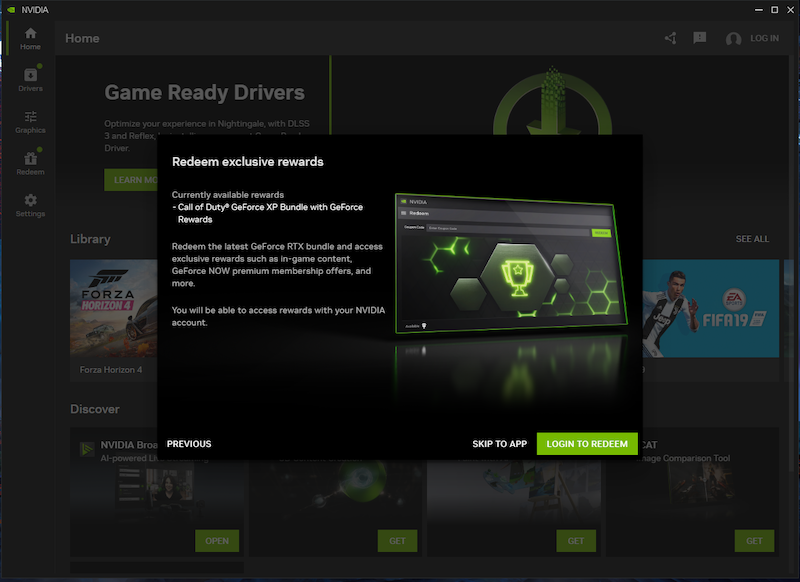
All Nvidia users know the pain of installing GeForce Experience and having to log in every time they use the app. This can quickly become frustrating. To improve the situation, Nvidia only asks you to sign in to the app once to redeem the in-game gifts/rewards. We believe this is a better approach because instead of wasting time with 2-factor authentication, players just want to play.
Easy to use and Informatize UI

In contrast to the Nvidia GeForce Experience and Control Panel, the new Nvidia app looks modern and combines the old apps’ functions. Nvidia has taken a very minimalist approach to the redesign of the app. The app retains the old color theme, but everything is categorized in the left pane. On the home screen, you will find your games and app library, and below that, the Discover feed.
Enhanced Driver Information

The new driver page provides all the necessary information about the latest driver available for installation and about the driver currently installed in the system. Unlike the GeForce experience, where you are only asked about the driver update and not much information is visible, the new Nvidia app has improved the overall experience: now users can find out about the latest drivers, see all the specific changes, and then decide whether it is worth installing or not. Most Game Ready drivers are released whenever there is a new title, and most of the time, people simply don’t have the game installed on their system, so installing the driver just isn’t worth it.
Another great thing is that you can now choose between the Nvidia Game Ready driver and the Studio Ready driver directly in the driver section – this may seem like a small change, but it makes the switch much easier.
Unified Graphics Settings

In our opinion, this is a very welcome change. It is now easier than ever to change the graphics settings of an app or game on a per-game or even global basis. In addition, users no longer have to navigate to different graphics options in the Nvidia Control Panel to change the graphics settings of games and apps globally. Customizing everything from game settings to driver settings that can be applied globally is very easy, and the updated user interface makes it even better.
There are also separate tabs for program settings and global settings, making it a breeze to apply settings such as AI Upscaling and Dynamic Vibrance to all games to enhance the gaming experience.
Better In-Game Overlay

Overlay gets a makeover. If you use OBS to record or stream your gameplay footage, this might not be big news to you, but if you’re a casual gamer who just wants to show your friends that epic headshot or the moment you led the whole squad to victory, the Nvidia GeForce Experience might be the tool for you.
The new Overlay has been greatly improved. The user interface is now tidier. You can apply new filters to the game, and additional microphone settings, and the statistics monitoring has also been given a visual overhaul. You can now choose which information you want to display and which not. The accuracy of the stats has also improved somewhat. There is a new font, and more importantly, recording in 4k 120FPS is now possible. In our opinion, this is a very welcome change.
Enhanced Game Visuals
Nvidia has also added 2 new features in the Nvidia app that utilize AI (mainly your GPU) to deliver better in-game graphics. Again, these features are still in beta but work very well in the games we’ve tried. With RTX HDR and RTX Dynamic Vibrnace, you can enjoy your gaming experience with even better colors. If you have a true HDR gaming monitor, these are perhaps 2 of the best features Nvidia has to offer at once.
RTX HDR
RTX HDR is a filter in the new Nvidia app that seamlessly switches the game to HDR. It also works in games that do not come with HDR. Since it is a filter that is overlaid on top of your game and not an in-game feature, it could easily work as a global setting for most titles. We already got some details about it in the previous drivers, but now it’s available for everyone.
It also allows you to adjust everything from peak brightness to saturation to your liking, but we haven’t tested it and can’t show it to you here.
RTX Dynamic Vibrance
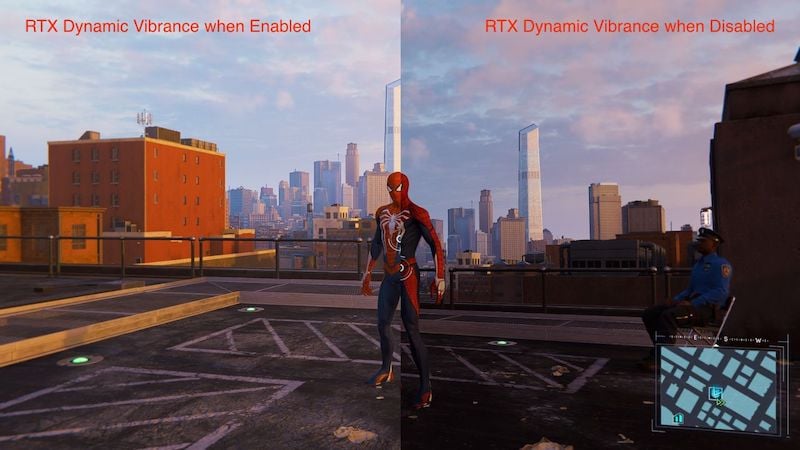
RTX Dynamic Vibrance is probably the best feature we’ve used in the app. It makes everything shine. It’s an AI filter that makes the elements of the game more recognizable to the players and makes the game look very appealing. According to Nvidia, they’ve balanced the feature so that you shouldn’t have any problems with the colors.
To better understand how great the games look, you should first play your favorite games without enabling this feature and then enable it globally in the Nvidia app. You’ll notice that by enabling it, you’ll be able to see more details in the game that you didn’t see before. It also improves the brightness, luminance, and saturation of the scene.
Revamped app with many improvements
The Nvidia app is still in public beta, but we haven’t noticed any major crashes or issues. However, we think you should still try it out and use it if you like the app. There are so many improvements, from the user interface to the combination of both very useful apps on a single screen. You may not be able to use every single feature of the app, and it’s also missing some basic video and display settings that can still be found in the Nvidia Control Panel. But this is just the first step towards unifying the entire user experience.
Nvidia has also promised to include all missing features in upcoming versions of the app and also to integrate some overclocking features into the software. For now, the Nvidia app is a step in the right direction.

