

Quick Answer
CleanShot X is the best option for professionals, paid but worth it; Shottr is great for those who prefer a fast, free tool with essential features like OCR; and Snagit offers comprehensive features. If simplicity and cost are your priority, LightShot provides a free, straightforward option. Droplr is great for team collaborations, and Markup Hero offers advanced annotation features, ScreenToLayers with its PSD support, and Xnapper with its styling options great for designers. Every tool stands out with its unique features, continue reading to pick the right tool.
Screenshots are a handy way of capturing the contents on the screen to record steps for helping someone troubleshoot, capture error messages, and save a snippet of what’s displayed on the screen when there’s no download option.
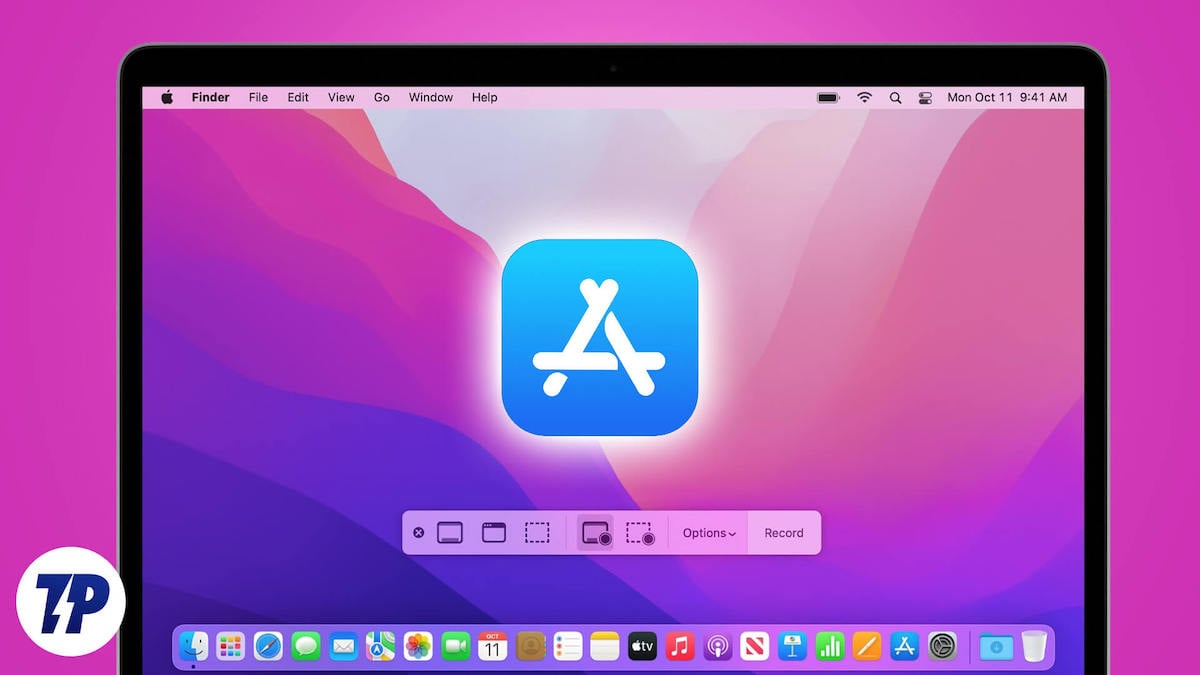
Depending on your computer platform, there are different ways to take screenshots. If you’re on a Mac, you can do this differently, thanks to Apple’s built-in screenshot utility. [Check out our guide on how to take screenshots on Mac using the native screenshot utility.]
While these methods work well and get the job done, they are limited in functionality, so there’s only so much you can do with them. On the other hand, a dedicated third-party screenshot app or tool offers several additional features and can help you take better screenshots.
Table of Contents
Best Screenshot Apps for Mac
Sl No. | Tool Name | Who is it for? |
|---|---|---|
1 | CleanShot X | Perfect for professionals with all the necessary features. Paid. |
2 | Shottr | Best for creative professionals, Shottr is fast, light, and packed with features like a magnifier and OCR for text extraction. |
3 | Snagit | Ideal for professionals who need to capture screens and record videos, Offers extensive editing and annotation tools for creating detailed tutorials. |
4 | LightShot | Great for casual users, Quickly capture and share screenshots with minimal setup. |
5 | Droplr | Best for business users who need quick screen capture and sharing across apps like Slack and Gmail, it supports both screenshots and video. |
6 | Markup Hero | Excellent for collaboration, integrates smoothly with Google Drive and Slack for easy annotation and sharing. |
7 | ScreenToLayers | Perfect for graphic designers, captures screenshots directly into PSD format for detailed editing in Photoshop. |
8 | Xnapper | Best for designers and developers with easy editing and customization options. |
CleanShot X

Highlights
- Price: Paid, $29 for a license with one year of updates included.
- Capture Modes: Full screen, selected window, specific region, scrolling capture, self-timer.
- Annotation Tools: Add arrows, text, shapes, and highlights.
- Edit Screenshots: Crop, annotate, highlight, blur, resize, add text, background, and more.
- Keyboard Shortcuts: Set customizable shortcuts.
- Storage and Organization: Save, name, and tag screenshots; supports cloud storage.
- Additional Features: Text recognition (OCR), pin screenshots, hide desktop icons, quick access overlay for edits and sharing
CleanShot X is a powerful snapshot tool that’s a worthy replacement for the built-in macOS screenshot utility. It requires a subscription and offers many features you probably won’t find in other screenshot tools.
Starting with capturing screenshots, CleanShot X lets you grab full-screen, windowed, timed, and scrolling screenshots. Plus, you can choose the background type and adjust padding and shadow. If you want more control over screenshots, you also get crosshair and magnifier options, which let you capture screenshots more precisely.
Similarly, CleanShot X’s screen recording functionality also offers several capture modes. It lets you control different aspects of your video recordings, like the frame rate, quality, and output format. Of course, you can also include your webcam feed while recording the screen.
When it comes to editing, CleanShot X has a pretty extensive set of tools (crop, highlight, pixelate, counter, etc.), which allow you to annotate and edit your screenshots and screen recordings to your will.
Talking about advanced features, the tool allows you to combine multiple images into one with just a few clicks, capture non-selectable text from any media using OCR, and keep a reference of the captured content by pinning the screenshot to the screen so that it’s always on top of other windows.
Shottr
Highlights
- Price: Free
- Capture Modes: Full screen, selected window, specific region, scrolling capture.
- Annotation Tools: Add arrows, text, shapes, and highlights.
- Edit Screenshots: Crop, annotate, highlight, blur, resize, add text, and more.
- Keyboard Shortcuts: Customizable shortcuts for quick captures.
- Storage and Organization: Save, name, and tag screenshots for easy organization.
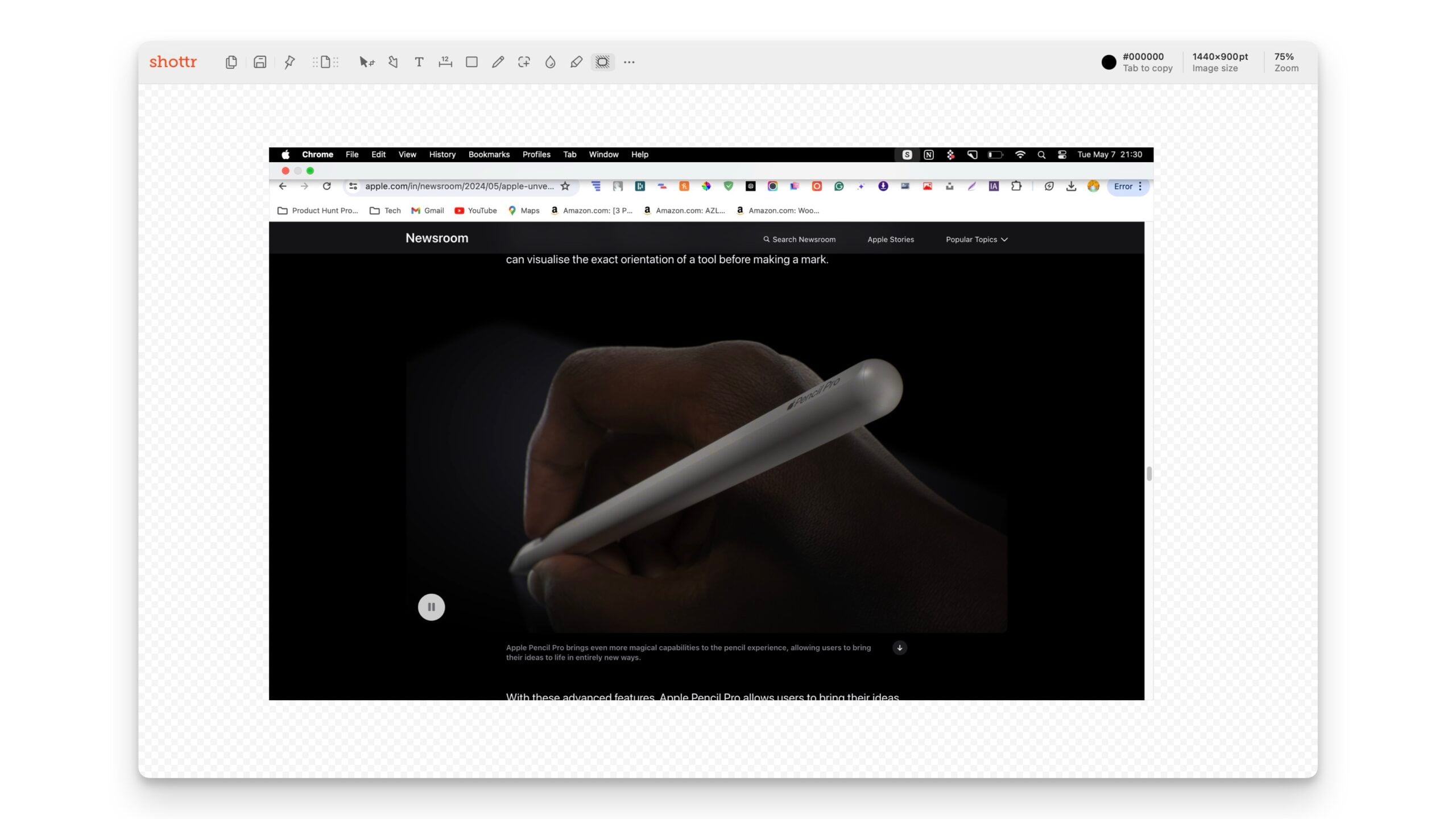
- Additional Features: Magnifier for pixel-perfect precision, OCR support to convert text in screenshots to editable text, lossless compression to maintain image quality, and more.
Shottr is a relatively new screenshot app for Mac that quickly became a people’s favorite. It is also called “The GOAT of Screenshot Tools.” The tool is designed to cater to the needs of creative professionals. It’s lightweight, fast, and relies on many hotkeys to simplify screen capturing.
With Shottr, you can take full-screen screenshots and capture a predefined area, just like most screenshot utilities. You can also take scrolling and delayed screenshots and capture the active window, which can sometimes be useful. You can use its powerful editing tool to edit screenshots inside the app when required.
Shottr also includes built-in OCR functionality, which lets you copy text from images. It allows you to set your capture hotkeys, choose a screenshot background, and set capture format, enabling you to customize its settings.
Snagit
Highlights
- Price: Paid, $62.99 for a standard license, with a free trial available.
- Capture Modes: Full screen, selected window, specific region, scrolling capture.
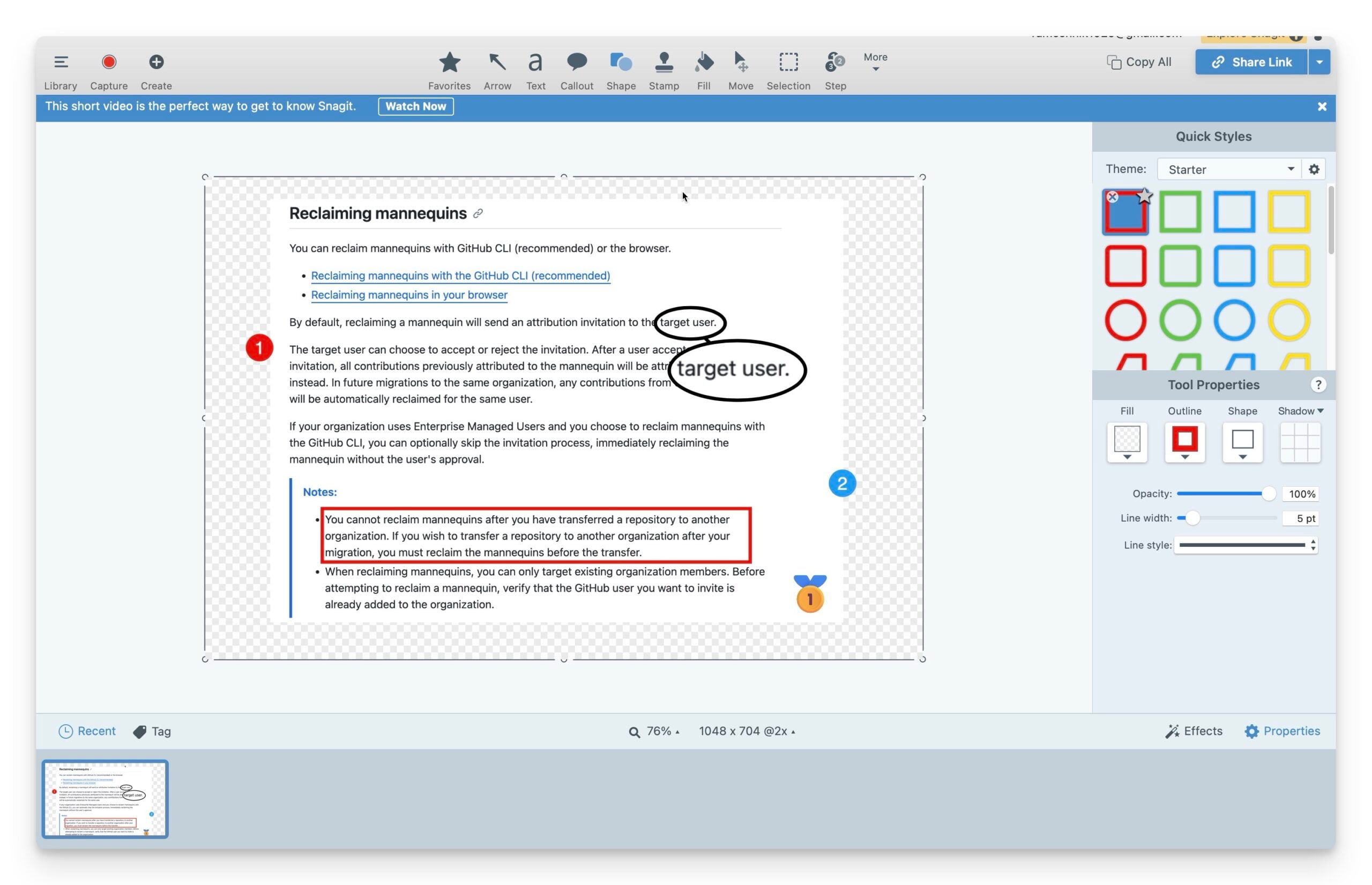
- Annotation Tools: Add arrows, text, shapes, and highlights.
- Edit Screenshots: Crop, annotate, highlight, blur, resize, replace elements, and more.
- Keyboard Shortcuts: Set customizable shortcuts.
- Storage and Organization: Automatically organizes captures in a library.
- Additional Features: It integrates with Microsoft Teams, Google Drive, and more and offers webcam capture, time-lapse recording, and editable annotations.
Snagit is a powerful snipping tool for Mac and Windows. What separates it from most screenshot apps is that, in addition to taking screenshots, you can also record the contents of the screen as videos to assist someone with troubleshooting or performing some operations better.
With Snagit, you can capture screenshots of the entire desktop, a specific region on the desktop, or a single window. Not just that, you can screenshot content that scrolls horizontally and vertically, extract content from a screen, and paste it into another app effortlessly.
Similarly, Snagit allows you to record the webcam feed alongside screen recording, so you can record yourself walking through the steps. Once recorded, you can use built-in tools to annotate screenshots, convert them into GIFs for sharing on social platforms, and trim screen captures to remove unwanted sections.
Lastly, Snagit supports an extensive array of sharing options, which allow you to upload and share screenshots or video clips directly to YouTube, Word, Excel, PowerPoint, Google Drive, and other platforms.
LightShot

Highlights
- Price: Free
- Capture Modes: Capture full screen or selected area.
- Annotation Tools: Add text, arrows, shapes, and other annotations.
- Edit Screenshots: Crop, annotate, add text and shapes.
- Keyboard Shortcuts: Set customized hotkeys.
- Storage and Organization: Save locally or upload screenshots to the cloud.
- Additional Features: Share your screenshots quickly to social media platforms and generate links for screenshots. Searching similar images online.
LightShot is the fastest and simplest screen capture tool on this list for Mac. It’s free and has a simple interface that makes it easy to use. With it, you can capture the entire screen or a screengrab of a particular area.
Captured screenshots are saved to your Mac’s local storage, and you can share them on Twitter or Facebook using the share option. Like other snipping tools, LightShot also includes a barebone editor that lets you add lines, arrows, and text to your screenshots to highlight important elements and convey your message better.
Regarding additional features, LightShot comes with a (sort of) reverse image search feature that lets you search the Internet for visually similar images—like your captured screenshots. You also get an option to generate a shareable link for your captured screenshot using LightShot’s prints tool.
Droplr
Highlights
- Price: Starts at $6/month, with a free trial available.
- Capture Modes: Full screen, a selected window, a specific region, or even a full webpage.
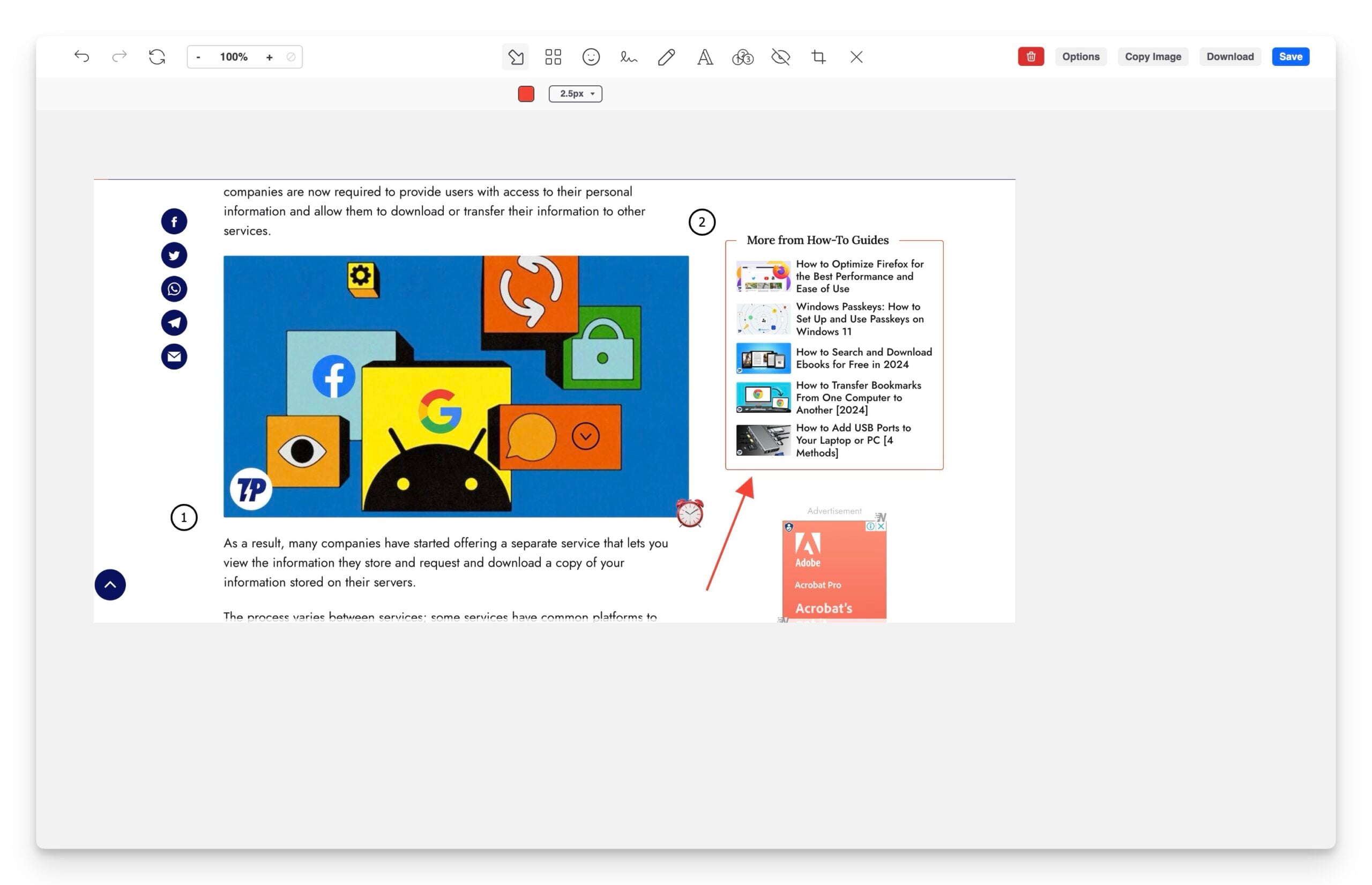
- Annotation Tools: Add arrows, text, shapes, and highlights to your screenshots.
- Edit Screenshots: Crop, annotate, highlight, blur, resize, add text, and more
- Keyboard Shortcuts: Set up customizable shortcuts to speed up your capturing process.
- Storage and Organization: All your captures are automatically saved to the cloud, and you can organize them.
- Additional Features: Share your captures directly via a link. Integrates with apps like Slack and Gmail. Plus, a handy URL shortener.
Droplr is another combo tool that lets you take screenshots and record screens on your Mac. It’s mostly a paid tool, but you get a 3-day free trial to see what it offers. Using it is also fairly easy, and you can take a screen grab of the entire screen or a part of it.
When recording the screen, you have options like GIF and HD video recording—both in full-screen or partial-screen capturing mode. You can add your webcam feed for a more personalized touch if necessary.
Once captured or recorded, Droplr lets you edit your screengrabs and recordings using its built-in editor, which offers the usual slate of screenshot editing and annotation tools. When you’re done, your screenshots or screen recordings get saved automatically to your personal Droplr cloud account, from where you can save them to your device locally or share them with others over email or Slack.
Markup Hero
Highlights
- Price: Free basic plan, paid plans start at $4/month.
- Capture Modes: Full screen, selected window, specific region.
- Annotation Tools: Add arrows, text, shapes, and highlights.
- Edit Screenshots: Annotate, highlight, add text and shapes, resize, and more.
- Keyboard Shortcuts: Customizable shortcuts for quick captures.
- Storage and Organization: Cloud-based storage.
- Additional Features: Integrations with Slack Google Drive; editable annotations; Chrome extension.
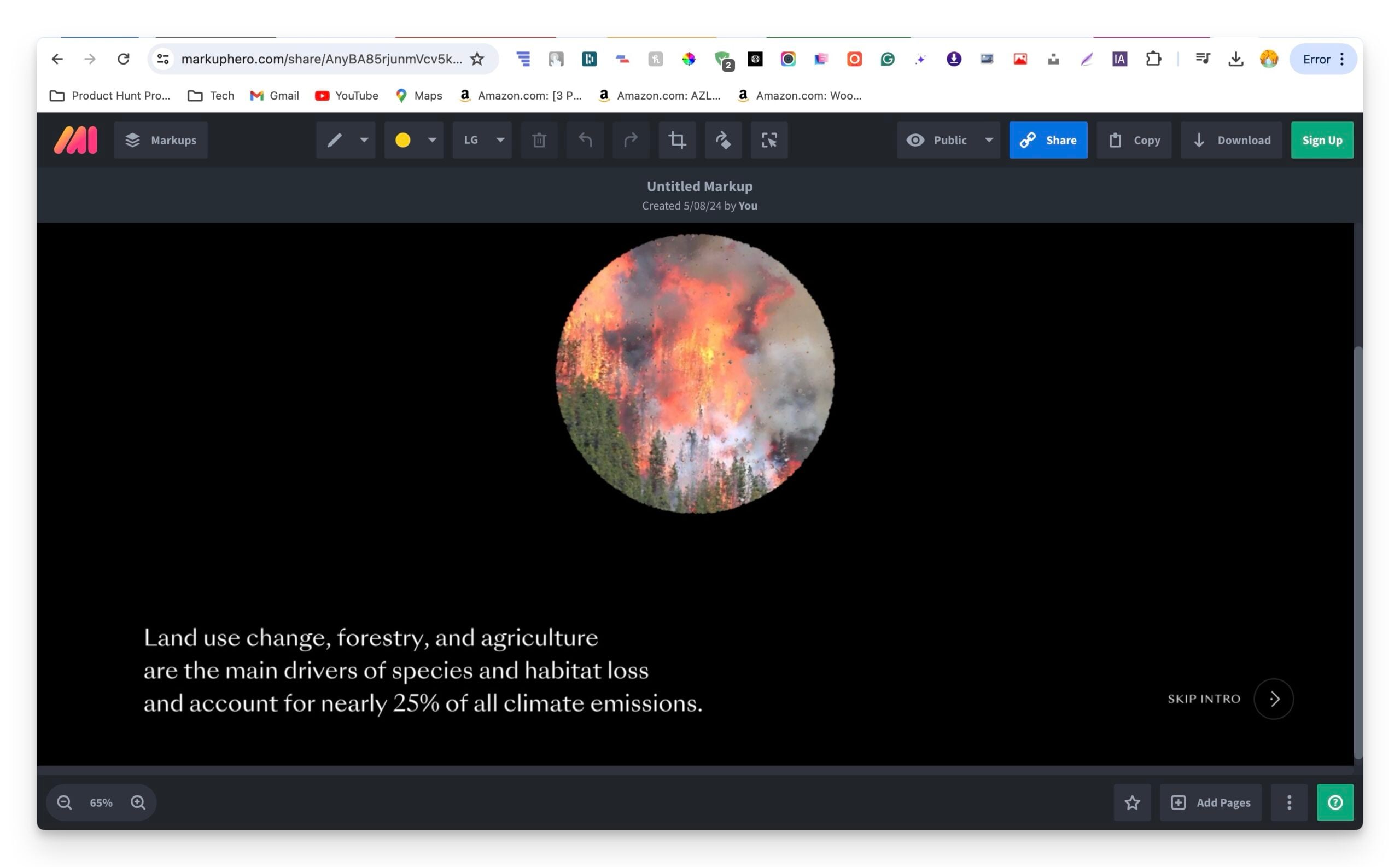
Markup Hero is another screenshot and annotation tool for Mac. It’s free to use for the most part and offers an array of advanced features that you usually get to see on paid apps. With it, you can capture, edit, and share ideas with anyone, all within one app. And, if required, use its Chrome extension to capture scrolling screenshots of any tab on the go.
Annotations are immensely helpful in making your points clear. To help you with this, Markup Hero offers you all the necessary tools, such as text, arrows, lines, shapes, blurs, pens, and highlighters, to use on your screenshots. Moreover, you can also adjust the colors of your annotation or flip/rotate an image. And, of course, you can always add extra pages or crop content as needed.
Lastly, Markup Hero supports integration for the most popular tools to step things up a notch. You can integrate it with your Google Drive (or other Google tools like Docs, Sheets, etc.) and annotate documents without jumping back and forth between apps/browser tabs.
In addition to Google’s app suite, you can integrate Markup Hero into Slack for quick annotation access inside channels or your web app using the annotation API to offer markup and annotation features.
ScreenToLayers
Highlights
- Price: Paid, $9.99.
- Capture Modes: Captures full screen, specific applications, and individual graphic elements.
- Annotation Tools: Use in Photoshop due to direct PSD export.
- Edit Screenshots: Edit in Photoshop
- Keyboard Shortcuts: Capture quick screenshots through customizable shortcuts.
- Storage and Organization: Save, organize, and layered PSD files.
- Additional Features: Supports multiple screens and export screenshots as single or multiple PSD files.
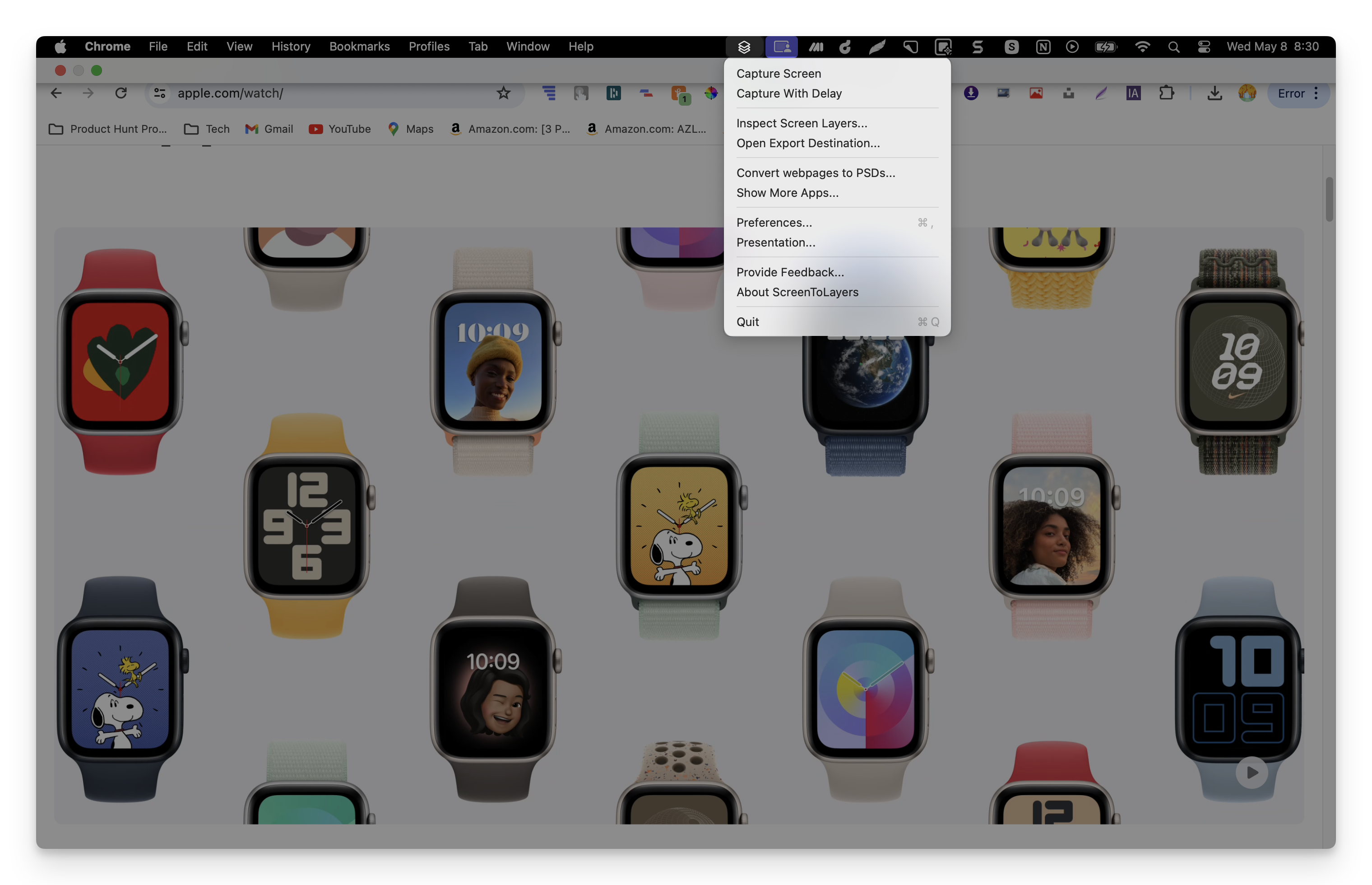
ScreenToLayers is a screenshot utility for Mac that’s slightly different from some of the other screenshot apps on this list. The idea is to let you capture screenshots in the PSD format, where each element is a separate layer, so you can edit them in Photoshop with greater control.
Similarly, ScreenToLayers also offers a menu bar icon, which lets you perform most operations quickly and efficiently. As for screenshotting capabilities, the tool lets you capture the entire screen or a particular area/element and even delay the capture of screenshots. Moreover, there are also options to enable shadow and framing for better presentation.
Moving onto post-processing, ScreenToLayers works with all major editing platforms, including Pixelmator, GIMP, Photoshop, and Acorn. So you can easily import them to any of these and edit your screenshots more effectively.
Xnapper
Highlights
- Price: Free, with a paid option to remove watermarks.
- Capture Modes: Full screen, selected window, specific region.
- Annotation Tools: Add arrows, text, shapes, and blur.
- Edit Screenshot: Background adjustments, Annotate, highlight, blur, resize, add text, Unable to crop
- Keyboard Shortcuts: Quick capture using simple shortcuts.
- Storage and Organization: Screenshot history and potential cloud storage integration.
- Additional Features: Automatic background color adjustment, fast on-device text recognition, and redaction of sensitive information.
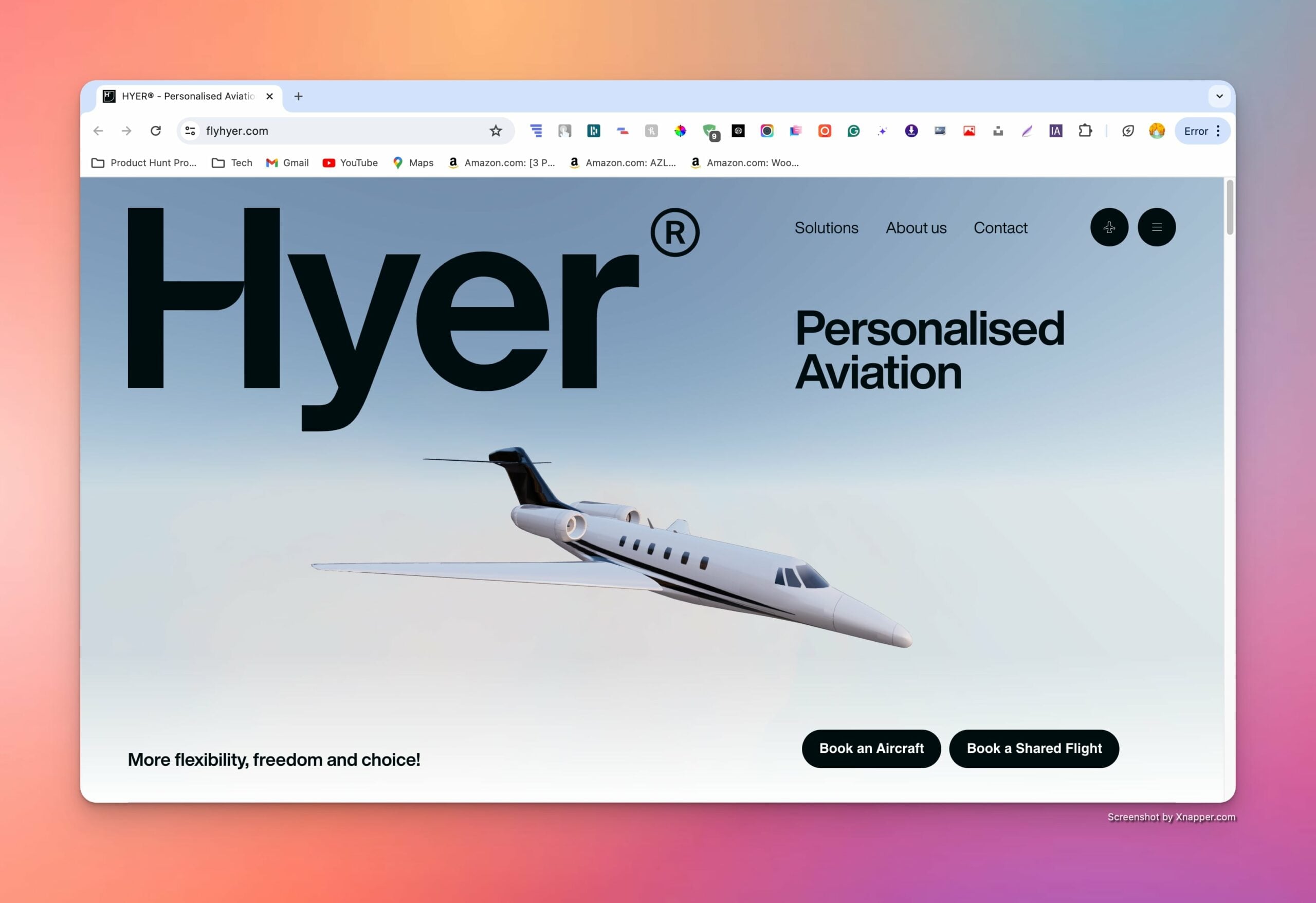
Xnapper is the best screenshot tool to make your screenshots look good. The tool primarily focuses on making your screenshots look good using various styles. You can select the background of the screenshots and add padding, radius to the edges, and other elements to make the screenshot look good. It also has different annotation tools, automatic background color adjustments, and the ability to edit local files.
Similar to Cleanshot, preset features allow you to set custom styles for your screenshots and apply them instantly for every new screenshot without manually editing them from scratch. Xnapper is free to use but adds a watermark to the screenshots. You need to upgrade to the premium to remove the watermark.
However, a few minor issues need to be fixed. First, the interface looks very similar to the Cleanshotx; the elements overflow from the screen when editing in the mini windows, and there is no option to crop the captured screenshot. I also encountered a few bugs while using the tool.
Honorable Mentions
1. Xnip
Xnip is a handy and minimal screenshot tool for Mac that lets you capture the screen in different modes: full-screen, windowed, multi-app, and scrolling. It has a neat menu bar icon makes accessing different app operations easy and offers quick access. Plus, you can pin images as an always-on-top floating window on your screen.
2. Airsketch
Airsketch offers one of the fastest screenshot-capture experiences on Mac. Its simple interface and menu bar icon make taking screenshots quick and easy. In addition, Airsketch offers various annotation options and the ability to share them with others over different mediums. You may need a premium subscription to access some of the app’s features.
3. Screenie
Screenie is a screenshot manager for Mac with a tonne of features. With it, not only can you take screenshots but also manage your captured screenshots with ease. Similarly, you can choose where to save screenshots, preview screenshots right from the menu bar, and search text inside captured screenshots using OCR.
Ultimate Comparison to Choose the Best Screenshot Tool for Mac
Feature | CleanShot X | Shottr | Snagit | LightShot | Droplr | Markup Hero | ScreenToLayers | Xnapper |
|---|---|---|---|---|---|---|---|---|
Price | Paid, $29/license/$8 per user for teams. | Free | Paid, $62.99/license | Free | Starts at $6/month | Free basic, from $4/month | Paid, $9.99 | Free, paid to remove watermark |
Capture Modes | Full, window, region, scroll | Full, window, region, scroll | Full, window, region, scroll | Full screen, selected area | Full, window, region, webpage | Full, window, region | Full-screen, specific apps | Full, window, region |
Annotation Tools | Extensive | Basic | Comprehensive | Basic | Moderate | Moderate | Limited to Photoshop | Basic |
Editing Features | Crop, annotate, highlight, blur, resize, add text, background | Crop, annotate, highlight, blur, resize, add text, and more | Crop, annotate, highlight, blur, resize, replace elements, and more. | Crop, annotate, and add text and shapes. | Crop, annotate, highlight, blur, resize, add text, and more | Annotate, highlight, add text and shapes, resize, and more. | PSD editing | Style background, Annotate, highlight, blur, resize, add text, Unable to crop |
Storage Options | Local and cloud | Local and cloud | Library, local, and cloud | Local and cloud | Cloud | Cloud | Local | Local and potential cloud |
Additional Features | OCR, pin, hide icons | Magnifier, OCR | Video capture, time-lapse | Share, image search | URL shortener, integrations | Chrome extension, editable annotations | Multi-screen, export PSD | Background adjustment, text recognition |
Taking Screenshots on Mac Simplified
With the screen capture apps on this list, you can take screenshots or recordings of your Mac’s screen with greater control and accuracy than the native screenshot tool. Similarly, you can annotate and edit your captured screengrabs much better with these tools and get your idea across more clearly.
While several other screenshot tools for Mac can take screenshots and screen recordings, we feel the ones on this list do the job well and should suffice your requirements.

