

Quick Answer
WindowSill adds a customizable command bar above the taskbar, bringing tools like clipboard history, media controls, conversions, and file utilities into one place, with a standout AI writing assistant that edits, rewrites, and translates text across apps instantly for smoother productivity.
I have been a Windows user all my life, and the brief time I switched over to a MacBook, I quickly came back to my base. The reason, Windows offers the flexibility that is etched into my memory and massive software compatibility. However, the one thing I like about a MacBook is how seamlessly it is integrated into the Apple ecosystem and how everything feels within reach. There is always some tool, some shortcut, some little bar that does something useful without making you leave what you are doing. Windows users had to either live without it until now.
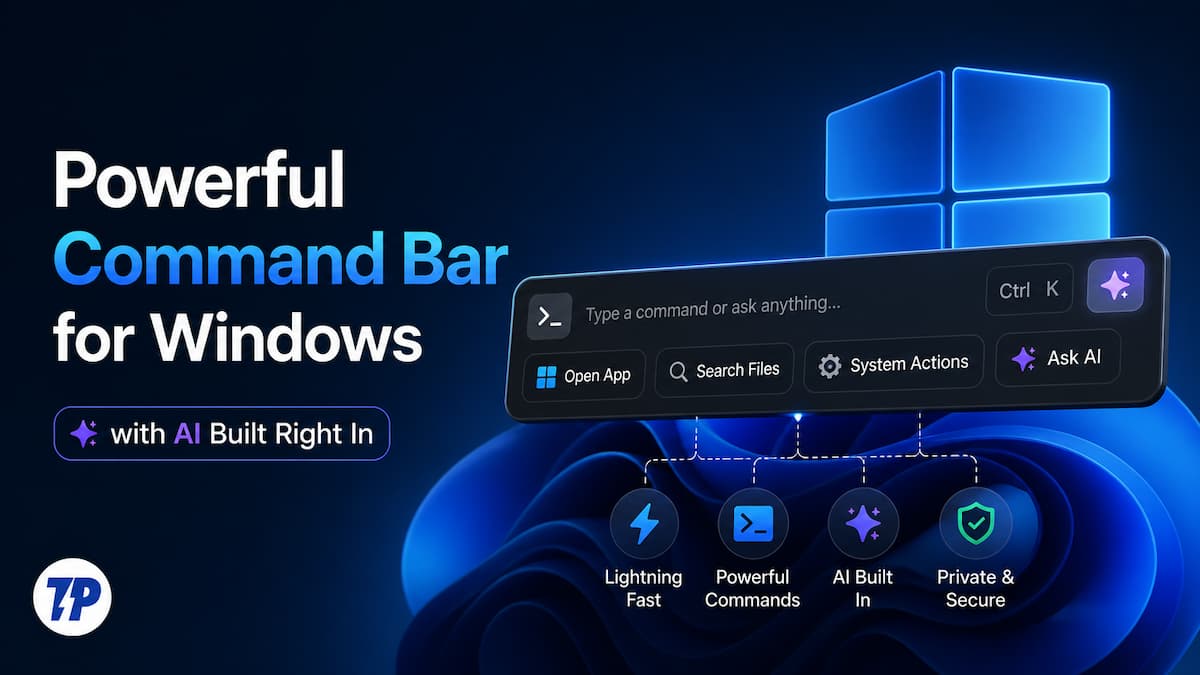
In my hunt for productivity tools for Windows, I recently stumbled upon this free app called WindowSill. It adds a visible command bar to your desktop, above your taskbar. It is packed with tools that matter and makes your everyday tasks easier. WindowSill appears to be a MacBook Touch Bar for Windows OS. Let us check this tool out.
Table of Contents
What is WindowSill?
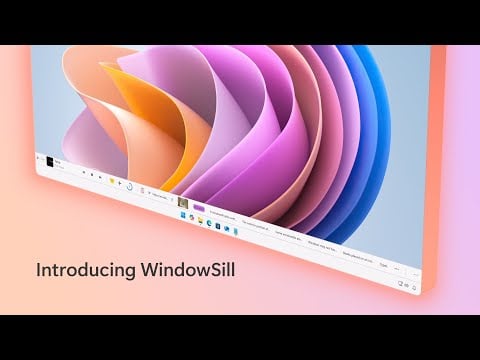
WindowSill is a software that acts just like its name. If you know, a window sill is the small area at the bottom of a window where you can keep your things close at hand. WindowSill, the app, does the same thing for your desktop. It is a thin horizontal bar that lives on the top of the taskbar, holding a bunch of useful tools so you don’t have to go on a hunt through the search menu just to use them. WindowSill works on Windows 10 and 11 and is available for free from the Microsoft Store. There is a paid tier of the app that unlocks more features for the app, but the free tier is also generous enough that you can use it if you can work with a few missing options.
Microsoft does not allow you to drag the Taskbar anywhere you want. You can place it on either side or on top or bottom of the screen. But WindowSill brings a customizable experience to the desktop. However, customization isn’t the only perk you get with WindowSill. Its goal is to allow users to have easy access to the important tools they use.
WindowSill Features that actually make a difference
It’s the features that make WindowSill talk louder. The list is much longer than you would expect:
Clipboard history
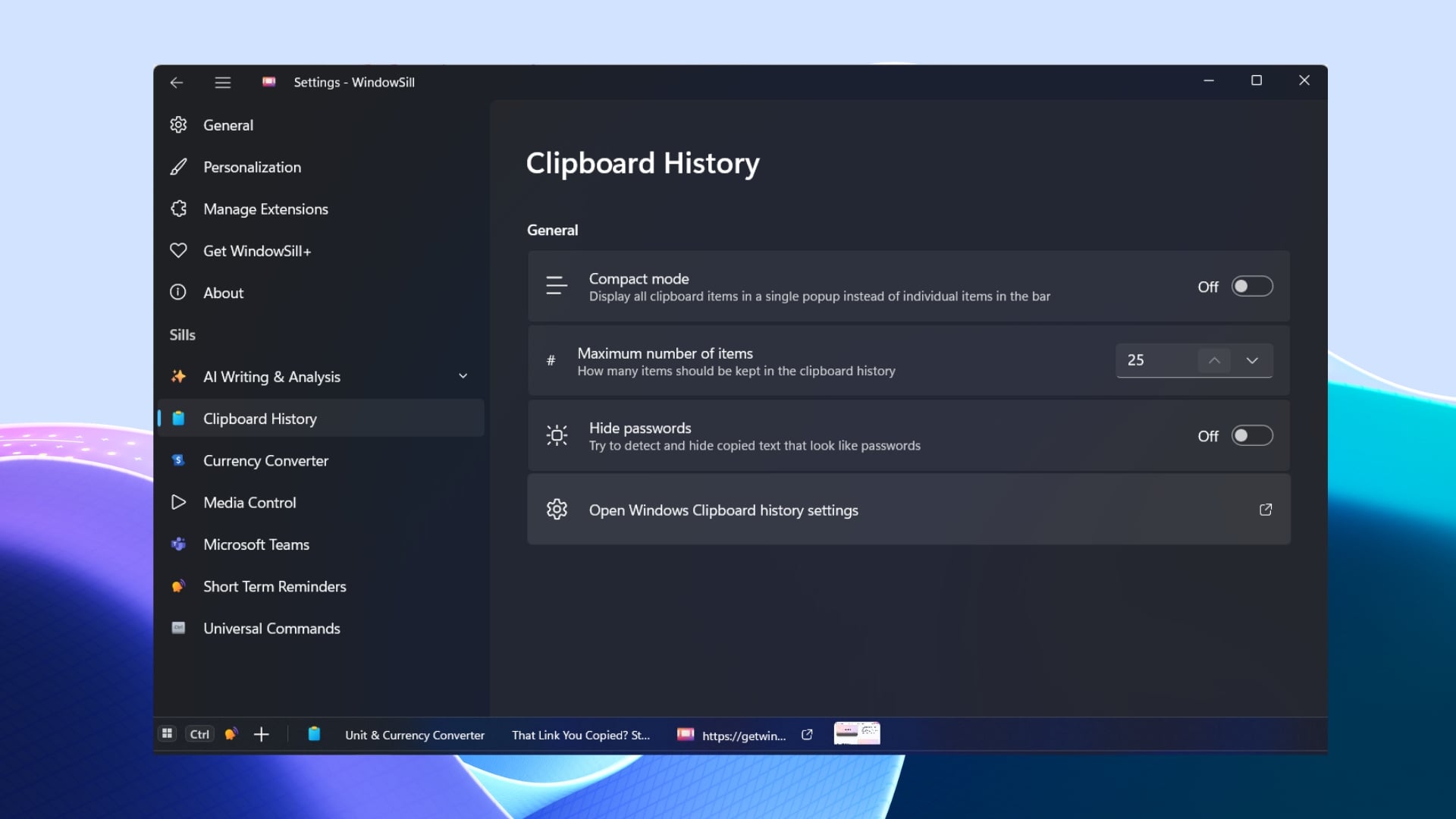
Windows has a built-in clipboard history. However, the worst part about it is that it is absolutely clunky, most of the time doesn’t remember stuff, and is easy to forget, as it is not easily accessible. WindowSill does it in a much better way. Everything you copy, be it text, images, URLs, colors, etc., is saved and accessible with a single click from the bar above the Taskbar.
You don’t need to press a keyboard shortcut or look around the Start menu. It is just there, whenever you need it. The developer has also given a thoughtful privacy touch to it. If you are recording your screen, then WindowSill will automatically hide your clipboard contents. No need to blur contents later. Passwords are auto-hidden, so they don’t show up in the list at all.
Media controls
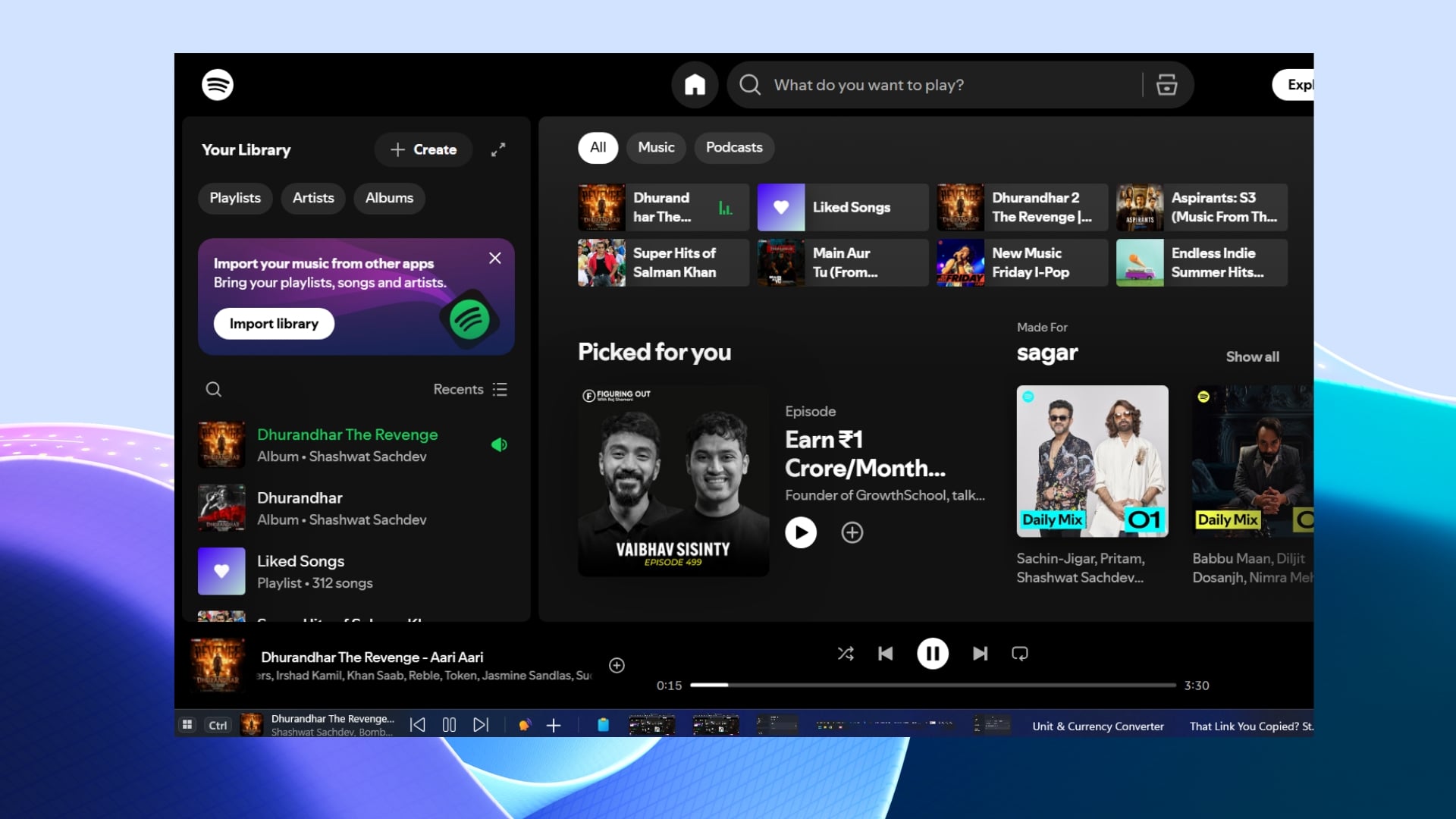
I love playing some lo-fi music while I work. It somehow gives me the attention and the mind to focus on the task at hand. But there are so many times when I have been deep in a document, and just to change the song, I had to stop what I was doing, switch to the music player, change it, and then get back to what I was doing. It may appear like a small thing, but when you are working as a technical writer, it is quite annoying.
WindowSill puts the media controls right in the horizontal bar at the bottom. Skip, pause, adjust the volume, or change tracks, everything without touching or switching to your media app. The best part is that it works with all popular music streaming apps, such as Spotify, YouTube, Apple Music, Deezer, and pretty much all media players running on the system.
Unit and currency conversion
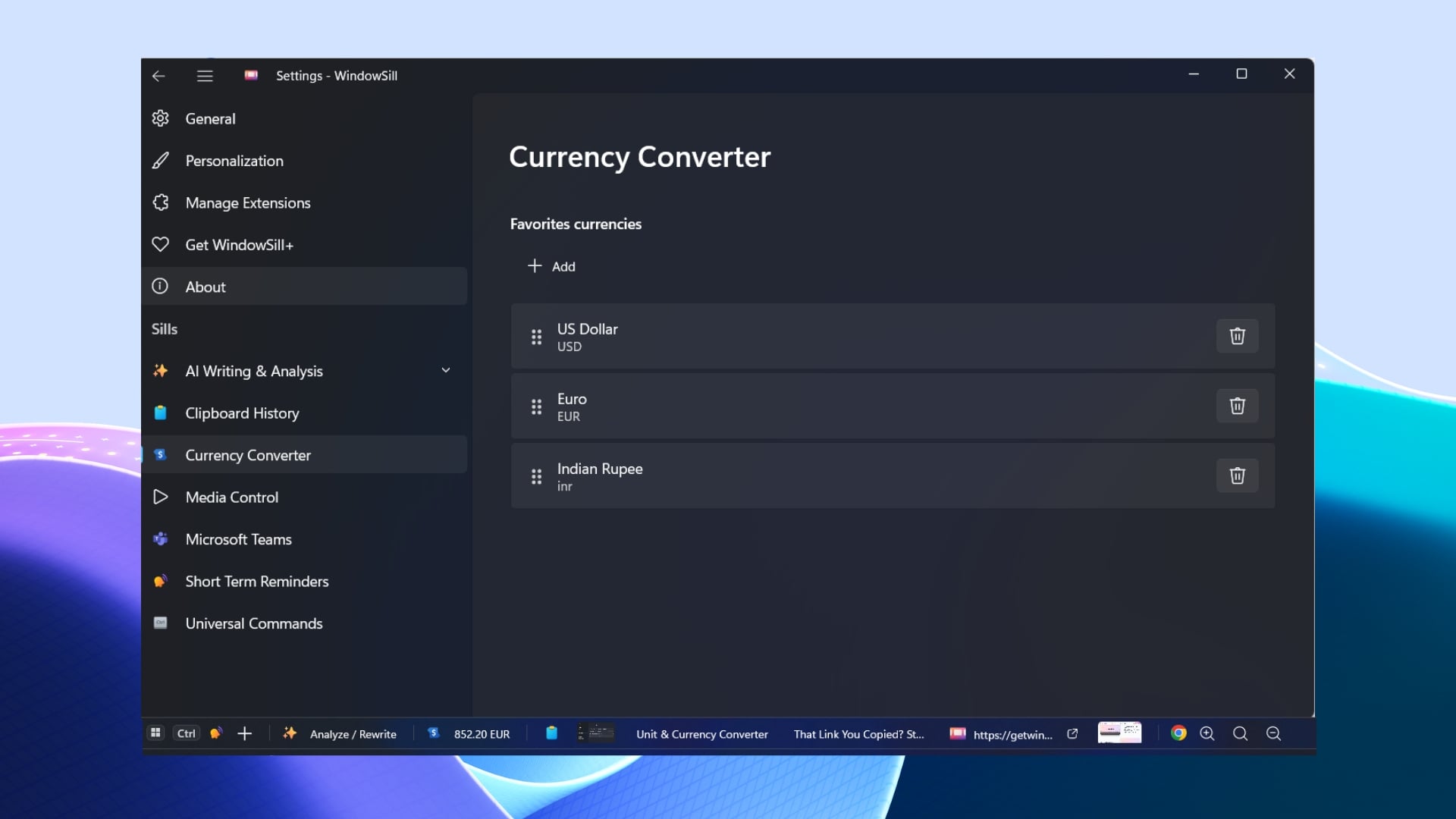
When you are reading something, and you are not familiar with the unit, for instance, “5 miles,” “$100 USD,” or you just want a quick conversion. Normally, you need to open your favorite web browser, type in or paste the unit, and ask for a conversion. This is a lengthy process, and you would understand it after you have tried unit and currency conversion with WindowSill.
With WindowSill, you just highlight the text in any app, and the converted value appears right away. No need to copy and paste or go through a web browser. It can handle miles-to-km conversions, Fahrenheit-to-Celsius conversions, USD, EUR, and more. The best part is that currency rates update daily, so you always get the real-time conversion rates.
Reminders
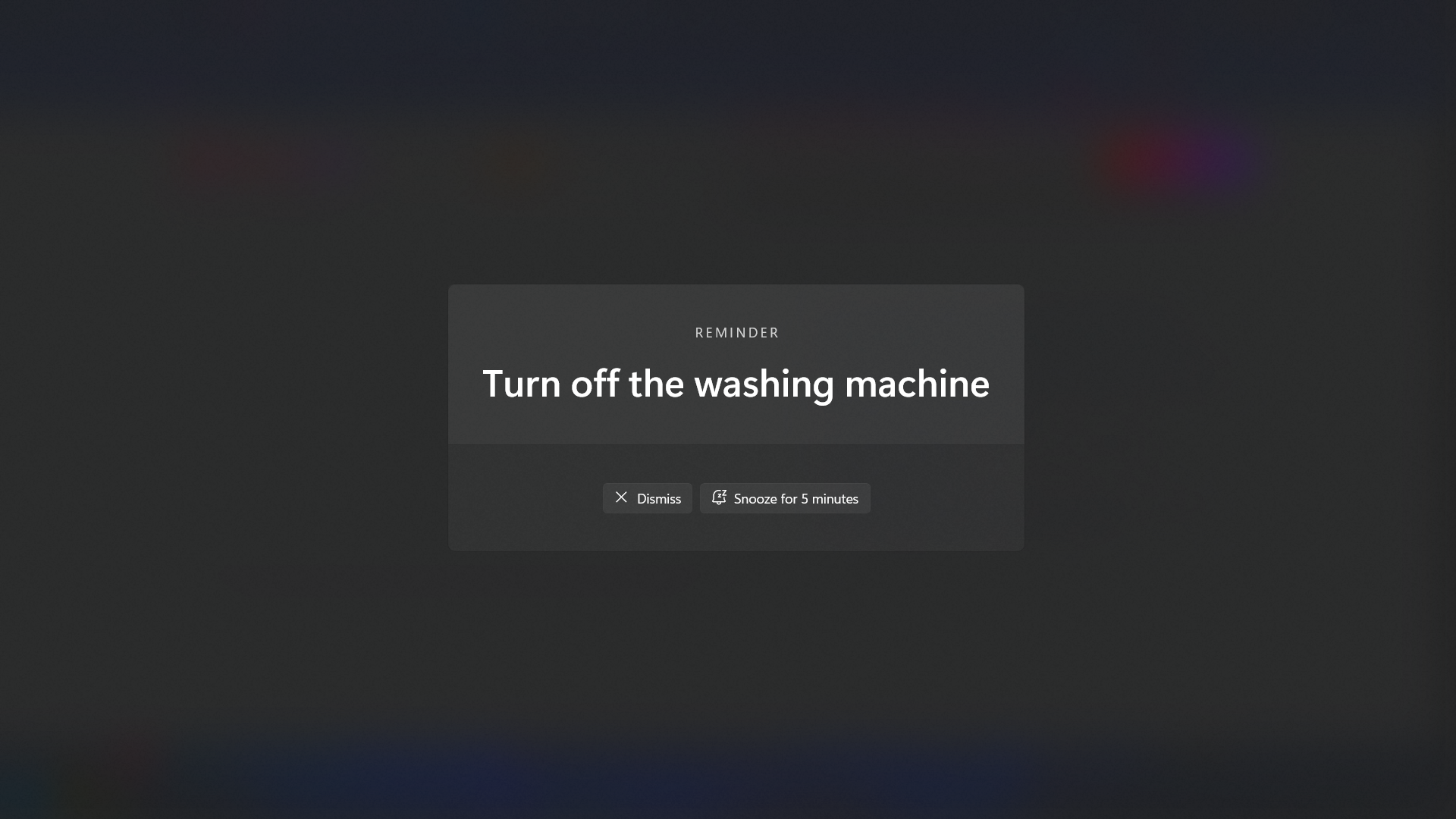
When Windows throws me a notification, it either gets dismissed or ignored by me. There will be many that would resonate with this. Besides, they pop in the corner and don’t really ask for your attention. Good for those who don’t want to get distracted, but for those who want to be aware of everything that is happening, Windows reminders are a bit lackluster.
WindowSill handles reminders differently. When a notification arrives, it shows a full-screen alert, demanding your attention. You will see it, and there is no way around. The developers have made reminders in this way because they wanted to make this helpful for people with ADHD. However, if you still prefer the silent nudge, then you can always revert to toast notifications.
Video call controls
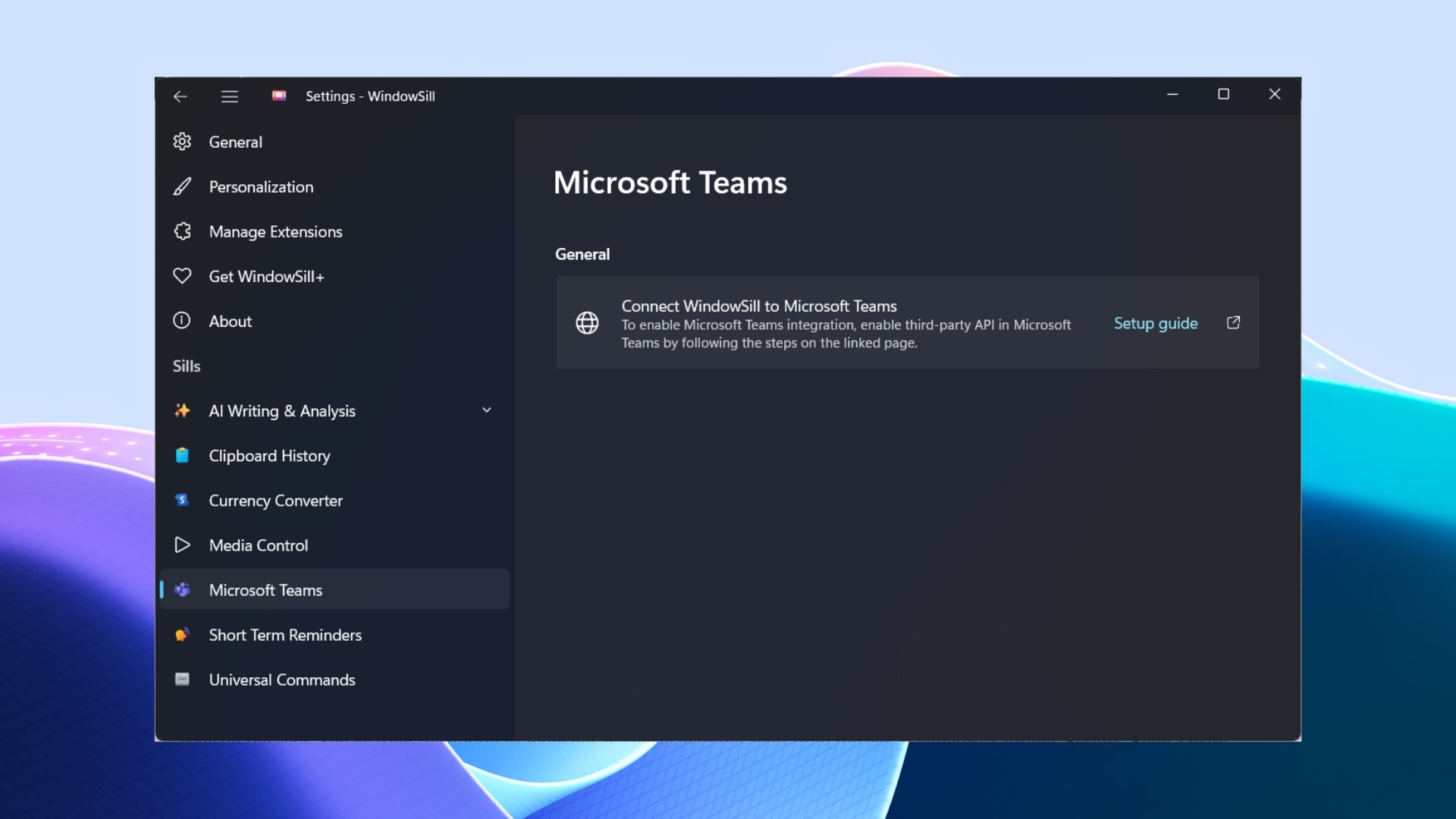
If you happen to make or receive a lot of video calls through popular video conferencing apps, you would know the pain of fumbling through controls when someone suddenly talks to you, and you need to unmute fast. WindowSill adds mute, unmute, react, and other controls directly in the bar. These controls are available even if the meeting app is minimized. For now, the controls are available for Microsoft Teams, with support for more apps coming soon.
Useful tools
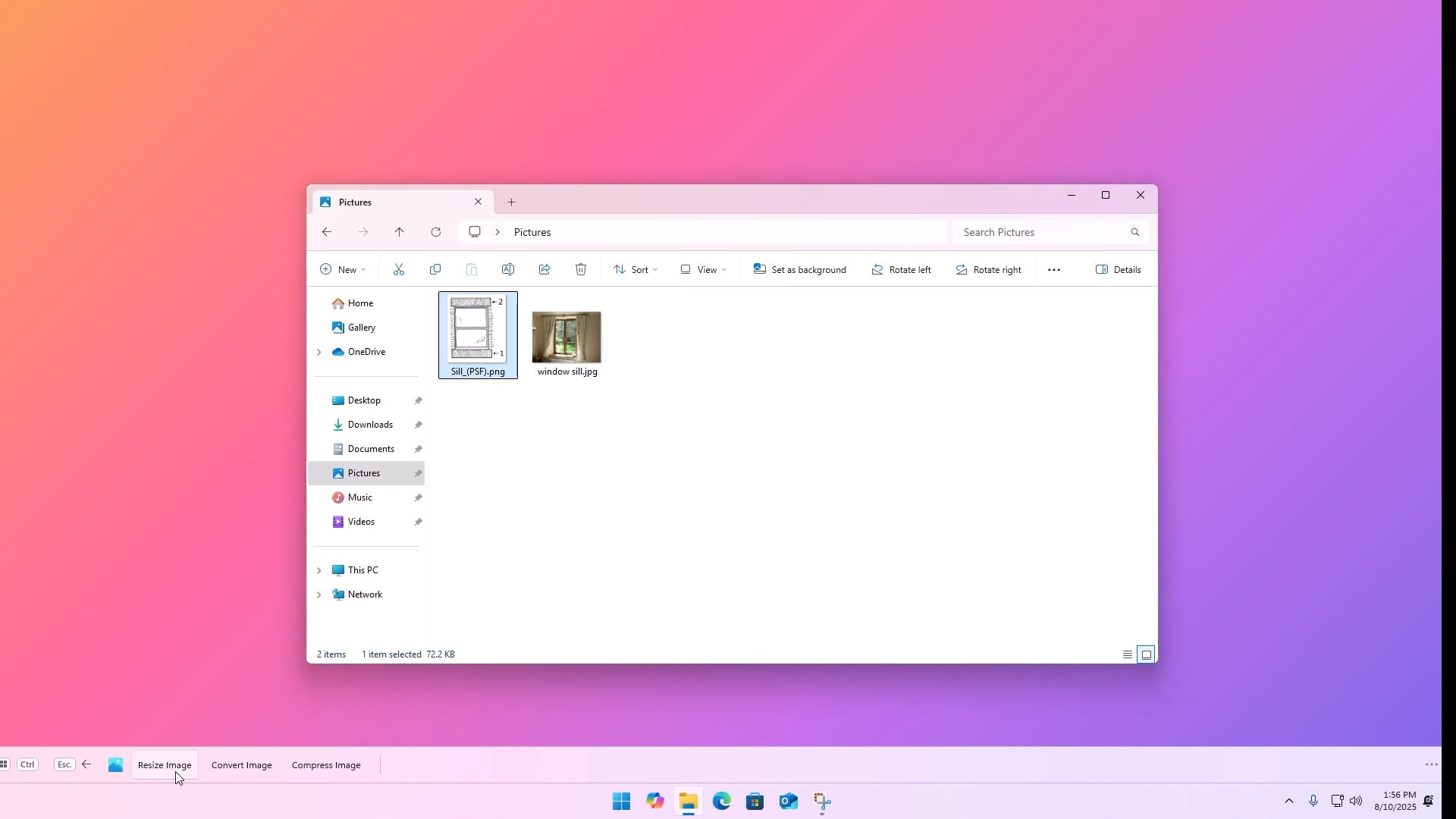
Need to resize an image? Compress a video? Convert a file? If you were to go around doing these things normally, then it would mean opening a separate app or using different browser tabs to get the job done. WindowSill cuts through all of that and brings all the useful tools right in the bar above the Taskbar.
Select the file from the File Explorer, and the tools appear in the bar. You can choose the fate of the file (over dramatic) and go ahead to process one file or batch-convert a dozen at once. You also get a URL shortener for sharing clean links, or you can convert them into a QR code on the spot. You also get the option to zoom any webpage in or out right from the bar. It supports Chrome, Firefox, Edge, Opera, Vivaldi, Brave, and Zen browser.
The AI writing tool is brilliant
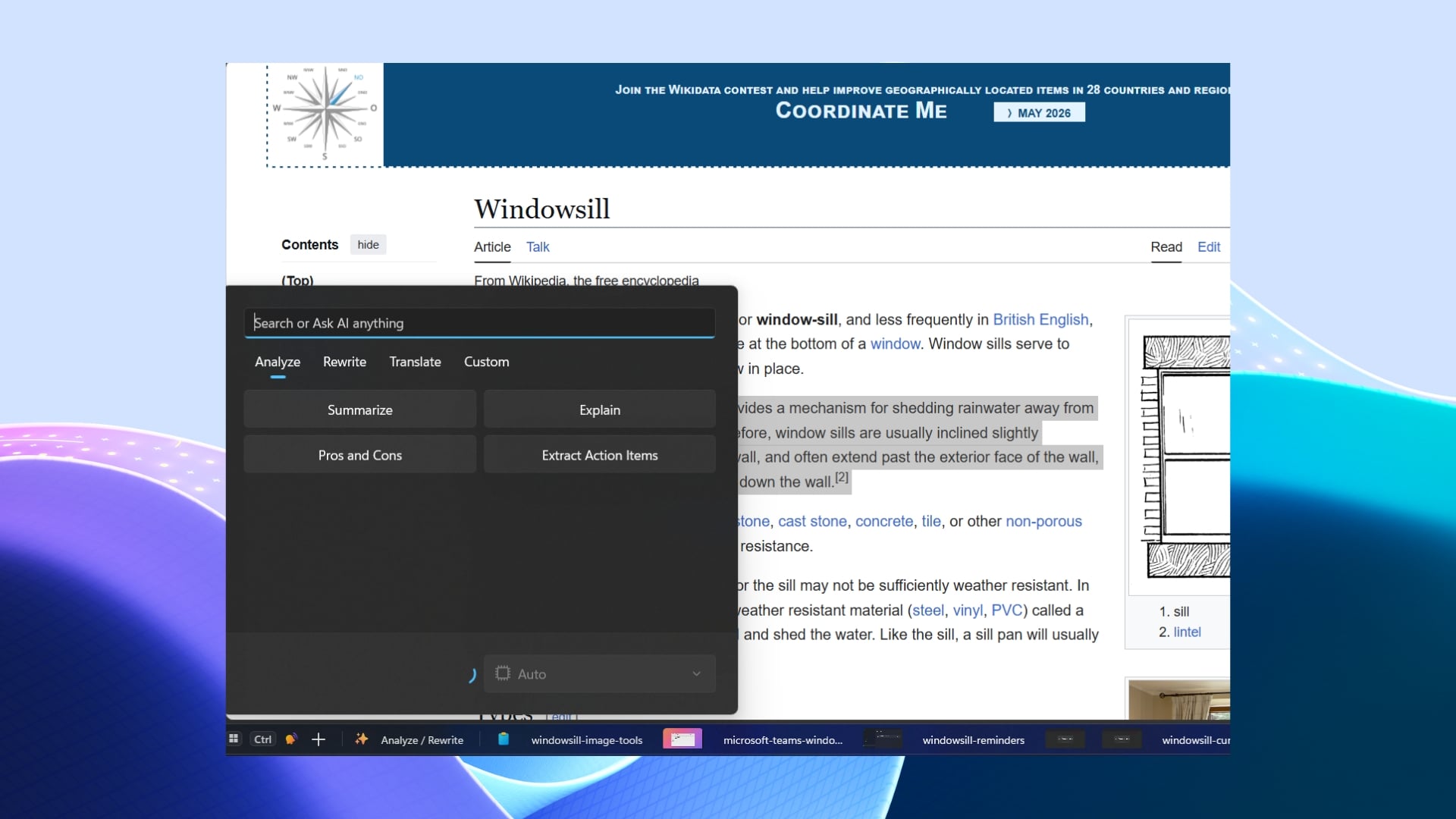
WindowSill is impressive. With all the features it packs, it acts as a command center for easy access to useful tools. However, what makes it more impressive is its AI writing tool, which WindowSill has built right in. The best part is that it works across every app on your system, not just within WindowSill itself.
All you need to do is select the text anywhere, be it in your email, a document, a chat message, a tweet, or anything, and you can fix the grammar or change the tone to match the situation (professional, casual, softer, or punchier). On top of this, WindowSill also offers you the option to translate the text into 35+ languages without opening a new tab or running custom prompts. For AI, you can connect it to cloud services like OpenAI or Anthropic for increased power or run a local model on your machine.
A bar that deserves a place on your desktop
WindowSill doesn’t try to reinvent how to use your computer. Rather, it brings the most useful tools right at your disposal, on the home screen. If you want to bring more tools to your arsenal, then you can download various extensions for WindowSill and expand its features. You no longer have to go through multiple settings or do searches just to access a simple tool like a magnifier or clipboard. The AI features and all the other perks that you get definitely make it worth a try. But in order to get the AI features, which are sadly not available in the free version, you have to get either the WindowSill+ or WindowSill Pro version, which costs $4/month and $6/user/month, respectively.

