

Quick Answer
- Choose Windows Snipping Tool or LightShot for capturing basic screenshots. For advanced annotation features, go for Greenshot or ShareX.
- For instant sharing, Opt for Gyazo or Droplr. Choose DuckShot for a simple screenshot tool.
- For multi-purpose editing choose PicPick or for professionals. Choose Snagit is great. For unique features opt Snipaste is unique in this feature.
- For team Collaboration, Droplr offers excellent team features.
Nowadays, taking screenshots is an integral part of our professional lives. A few years back, taking screenshots was not so common, but now that you need to capture screenshots for professional reasons, you need software and tools for Windows and other operating systems.

We know how frustrating it is not to be able to grab a screenshot on your device easily. That’s why we have come up with this list of the best screenshot apps for Windows 10/11. This article will discuss everything you need to know about this software, including its pros and cons, features, and price.
Table of Contents
Best screenshot apps for Windows
App Name | Best For | Free/Paid | Key Features |
|---|---|---|---|
Snipping Tool | Basic screen captures | Free | Capture full screen, Window, Region, Free-form, Basic annotation, Export |
Greenshot | Advanced annotation | Free | Capture full screen, Window, Region, Scrolling, Extensive annotation, Export |
Gyazo | Instant sharing | Paid ($3.99/mo) | Capture full screen, Window, Region, Scrolling, OCR (Pro), Auto-upload |
DuckShot | Simplicity and speed | Free | Capture full screen, Window, Region, Scrolling, Auto naming, Hotkeys |
LightShot | Ease of use | Free | Capture full screen, Region, Basic annotation, Instant sharing, Multi-platform |
ShareX | Power users | Free | Capture full screen, Window, Region, Scrolling, Video/GIF, OCR, Advanced editing |
Snipaste | Pinning screenshots | Free | Capture full screen, Window, Region, and pin as floating windows, OCR |
PicPick | Multi-purpose editing | Free/Paid | Capture full screen, Window, Region, Scrolling, Extensive editing, Export |
Snagit | Professional use | Paid | Capture full screen, Region, Scrolling, Video recording, Advanced editing, Templates, Cloud storage |
Droplr | Team collaboration | Paid | Capture full screen, Region, Scrolling, Video/GIF, Instant sharing, Analytics |
Microsoft’s Screenshot Snipping Tool – Basic Screen Capture Tool for Windows
Key Features:
- Capture Modes: Full screen, Specific windows, Selected regions, Free-form
- Annotation Capabilities: Pen, Highlighter, Eraser
- Editing Functions: Crop, Resize, Add ink color
- Export Options: PNG, JPEG, GIF, HTML formats, Export to OneDrive
- Additional Features: Delay capture for timed screenshots, Use Print Screen shortcut, Easily share via email or other apps

The built-in Windows Snipping Tool provides a simple, free screenshot tool with more features than the “print screen” command. The tool’s functionality is essential, but it allows you to select a specific screen area for the screenshot or take a snapshot of the entire screen. One of the best features is the ability to design your shape before taking a picture. The four main snapshot types are Freeform, Rectangle, Window, and Full Screen.
The program also allows you to edit screen snaps using Paint 3D or the Pen and Mark tool. When you have finished editing your screenshot, you have two options: Save it to your computer in a file format. jpg,. png, or. gif, or delete it.
Pros:
- Simple and free
- Multiple capture modes
- Basic editing tools
Cons:
- Limited advanced features
- No scrolling capture
- Basic annotation tools
Greenshot – Best Screenshot App for Windows
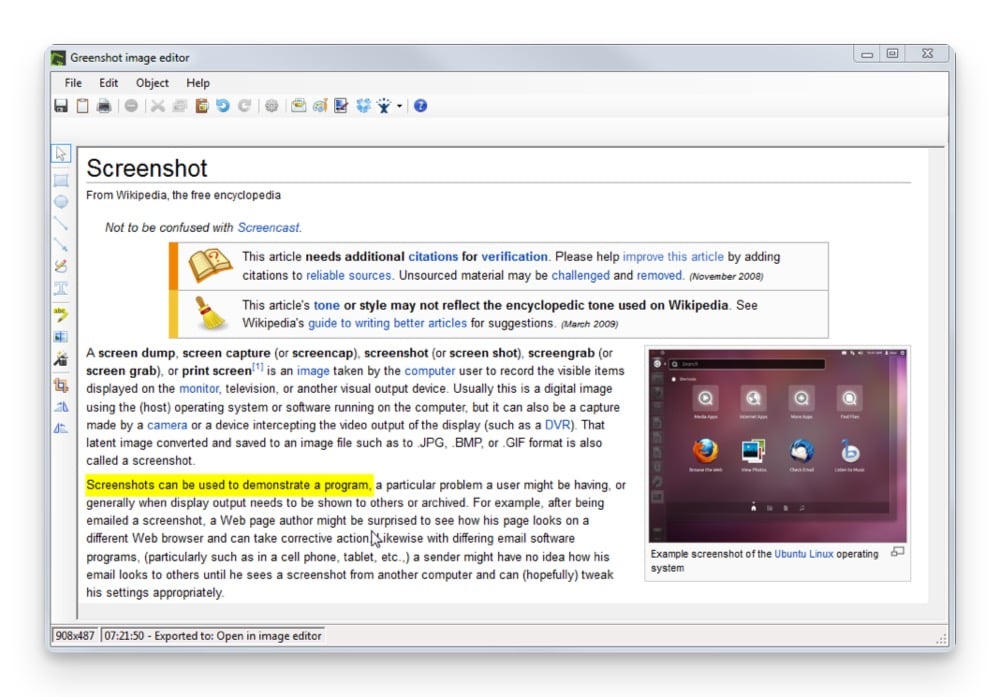
Key features:
- Capture Modes: Full screen, Specific windows, Selected regions, Scrolling web pages
- Annotation Capabilities: Shapes, Text, Highlights, Freehand drawing
- Editing Functions: Crop, Resize, Add effects (drop shadow, invert colors, border)
- Export Options: PNG, JPEG, BMP, TIFF formats, Export to cloud services (Dropbox, Imgur)
- Additional Features: Automatically back up your work, Sync files across devices seamlessly, Use OCR to extract text from images, Capture scrolling windows or full web pages.
Greenshot is a straightforward application for taking screenshots. It is designed to facilitate using the Print Screen (PrtSc) button to capture a screenshot and save them for later use. Your screenshots can be saved, opened in an image editor, copied to the clipboard, printed, edited with MS Paint, or uploaded directly to any media hosting website like Imgur.
While you browse web pages, Greenshot can capture full-screen and window images. You can also mark up and annotate screenshots, then save them in various formats for later editing. Like Windows Snipping Tool, Greenshot is a free application offering better markups and customization features.
Pros:
- User-friendly interface
- Extensive annotation tools
- Free with robust features
Cons:
- No video recording
- Limited advanced image editing
Snagit – for Professional Use
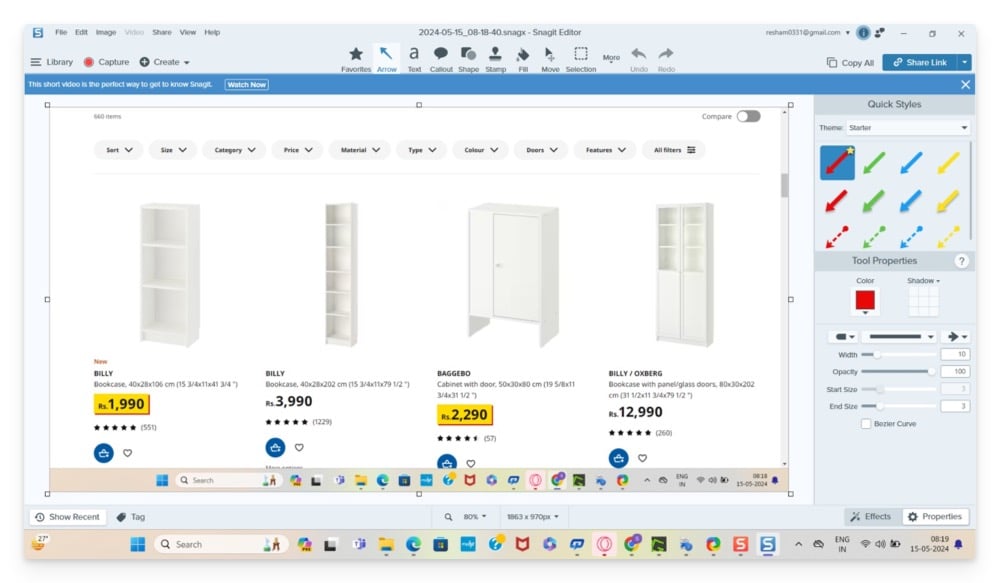
Key features:
- Capture Modes: Full screen, Selected regions, Scrolling capture, Video recording
- Annotation Capabilities: Shapes, Text, Arrows, Highlights, Callouts
- Editing Functions: Crop, Resize, Advanced effects, Templates
- Export Options: PNG, JPEG, MP4 formats, Export to cloud services
- Additional Features: Cloud storage, Library management, Customizable hotkeys
Snagit is a complete professional screenshot tool with comprehensive features. It allows you to capture screenshots in a wide variety of formats, record videos, annotate with multiple elements, and export them. It also has a dedicated screenshot editor to edit captured screenshots. You can export screenshots in various formats or send them back to the tool.
Plenty of useful features can come in handy while working with screenshots. One helpful feature that helped me is the preset, where you can set predefined settings and quickly apply them to new screenshots. Presets can be very handy for maintaining consistent design for all screenshots and saving time. Opt for the free trial and use the screenshot tool before paying upfront directly.
Pros:
- Professional-grade features
- Advanced editing tools
- Cloud storage and management
Cons:
- Paid software
- May be overkill for casual users
Gyazo – Best Paid Screen Capture Program for Windows
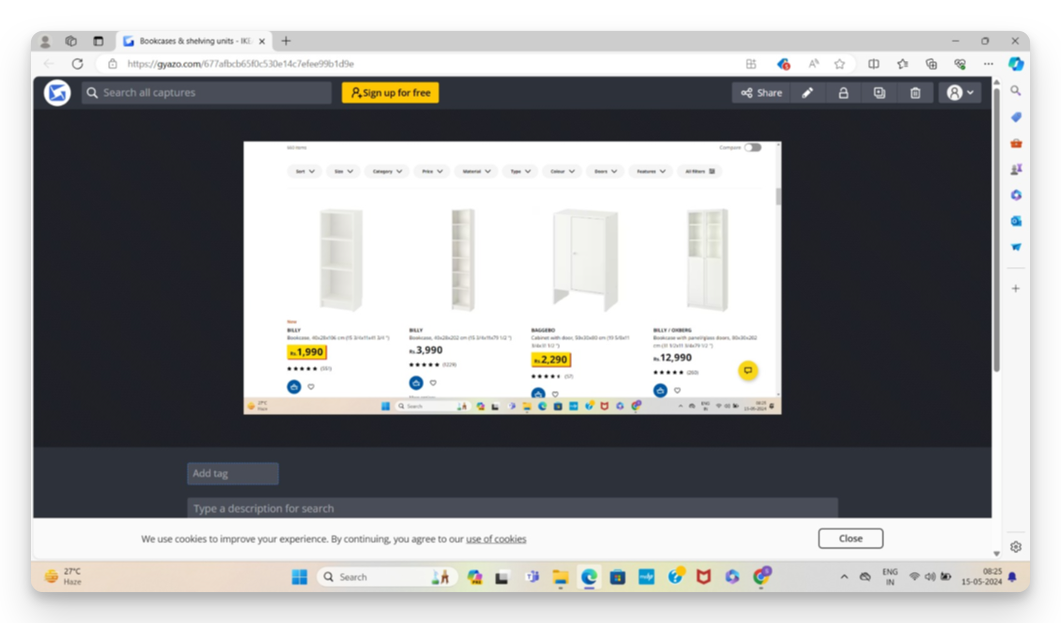
Key features:
- Capture Modes: Full screen, Specific windows, Selected regions, Scrolling web pages
- Annotation Capabilities: Shapes, Text, Highlights, Arrows
- Editing Functions: Crop, Resize, Add effects (filters, annotations)
- Export Options: PNG, JPEG formats, Export to cloud services (Gyazo, Dropbox)
- Additional Features: Instantly share with unique links, OCR for text recognition in images (Pro version), Automatic upload and backup, Easy search by app name, page title, and date
Gyazo is an online photo manager and a tool for taking screenshots. The screenshots you take are immediately published on the Gyazo website with a unique link you can share with others. The free version of Gyazo helps you take screenshots and post them online quickly.
The app also promotes a paid version, Gyazo Pro ($3.99/month), which is required if you want to manage everything online and have unlimited access to your saved screenshots and editing tools. The Pro subscription also allows online management of recorded videos and game replays.
Pros:
- Instant sharing with unique links
- OCR for text recognition (Pro)
- Easy search functionality
Cons:
- The basic version lacks advanced features
- Paid Pro version required for full functionality
Also See: 10 Best Screen-Sharing Apps for Windows
DuckShot – Screenshots Made Easy
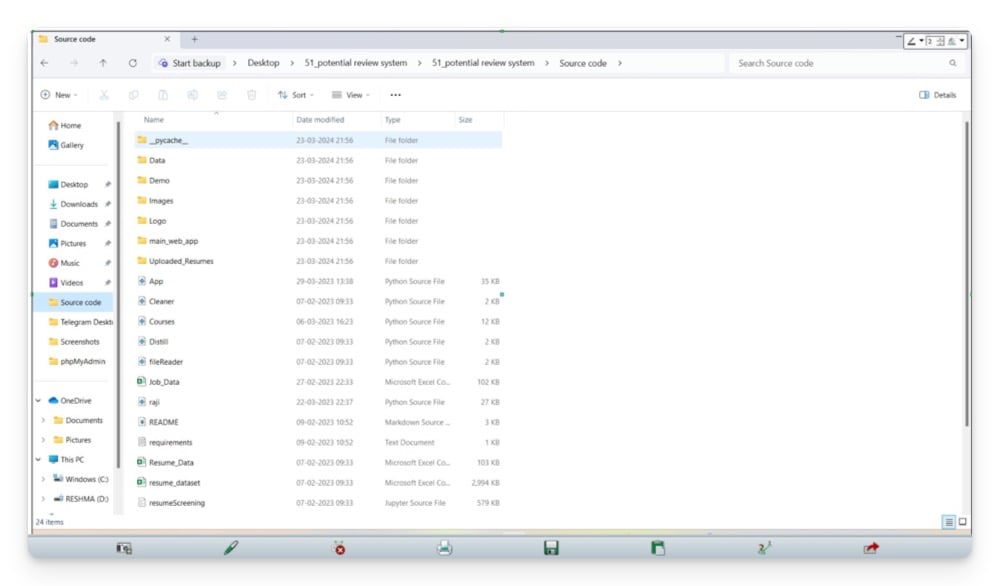
Key features:
- Capture Modes: Full screen, Specific windows, Selected regions, Scrolling windows
- Annotation Capabilities: No built-in annotation tools
- Editing Functions: No built-in editing features
- Export Options: PNG, JPEG, BMP formats, Save to local storage
- Additional Features: Set automatic naming conventions, Configure hotkeys for different capture types, Auto-update and auto-run on Windows startup, Lightweight and easy to use
Duckshot is a relatively new product but very polished and extremely easy to use. You always have what you need at your fingertips with the all-in-one toolbar. With DuckShot, you can snip specific regions, make layered annotations, and resize canvas directly from your screen.
It supports on-screen snipping, full-screen, multi-screen, window, delayed, and scrolling captures. Besides drawing tools, it also provides dynamic HSB color control and a magnified color picker. In addition to capturing images, you can also capture videos and GIFs.
DuckShot used to cost $17.99 per license but is now available for free, making it a great option for those looking for a free screenshot app for Windows.
Pros:
- Lightweight and easy to use
- Automatic naming and hotkeys
- Free
Cons:
- No annotation or editing tools
- Basic export options
LightShot – Easy-to-Use Screenshot App
Key features:
- Capture Modes: Full screen, Selected regions
- Annotation Capabilities: Shapes, Text, Arrows, Freehand drawing
- Editing Functions: Crop, Resize, Add effects (basic adjustments)
- Export Options: PNG, JPEG formats, Export to cloud services (Lightshot server)
- Additional Features: Instantly share with a short link, Search for similar images, Lightweight and easy-to-use interface, Available for multiple platforms (Windows, Mac, Chrome, Firefox)
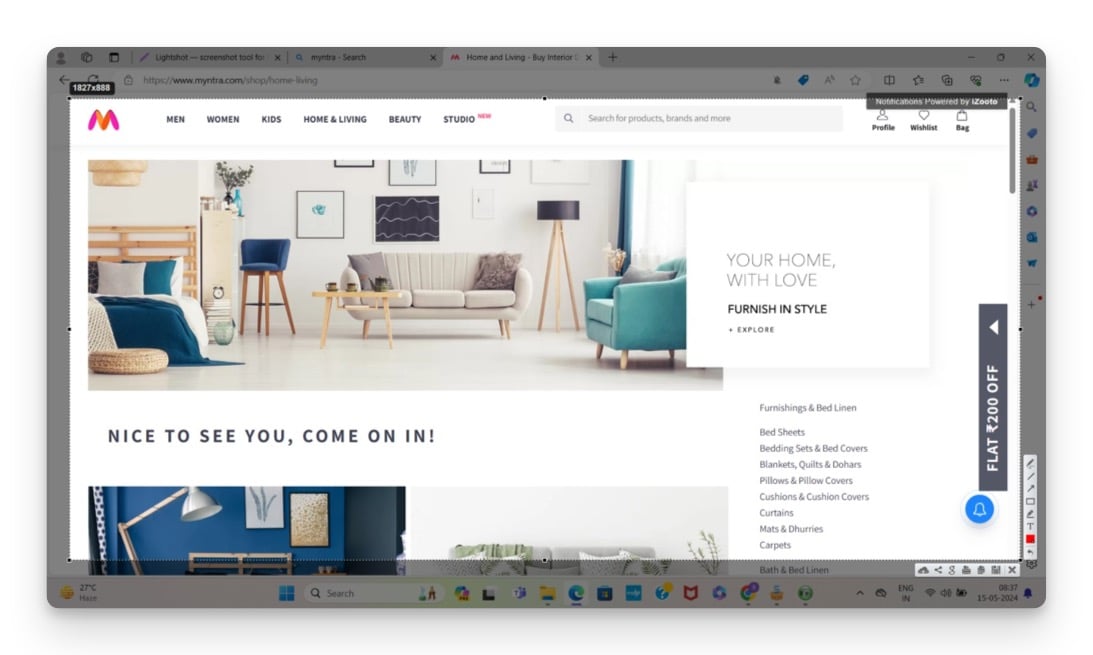
An easy-to-use free screen capture application, Lightshot allows users to edit their captured images (including annotations). The captured images or screenshots can be easily moved and resized. Students or employees who need to save important information from their screens should also use this software.
Lightshot allows you to edit your screenshot when you press the Print Screen (PrtSc) key on your keyboard. When you press the key in the Lightshot app, the cropping tools and screen are covered by a transparent overlay. The app is free and one of our best recommendations for Windows 10.
Pros:
- Easy-to-use interface
- Instant sharing
- Multi-platform
Cons:
- Limited capture modes
- Basic editing tools
ShareX – Best Free Screenshot App for Windows
Key features:
- Capture Modes: Full screen, Active window, Active monitor, Region, Scrolling capture, Screen recording (video/GIF)
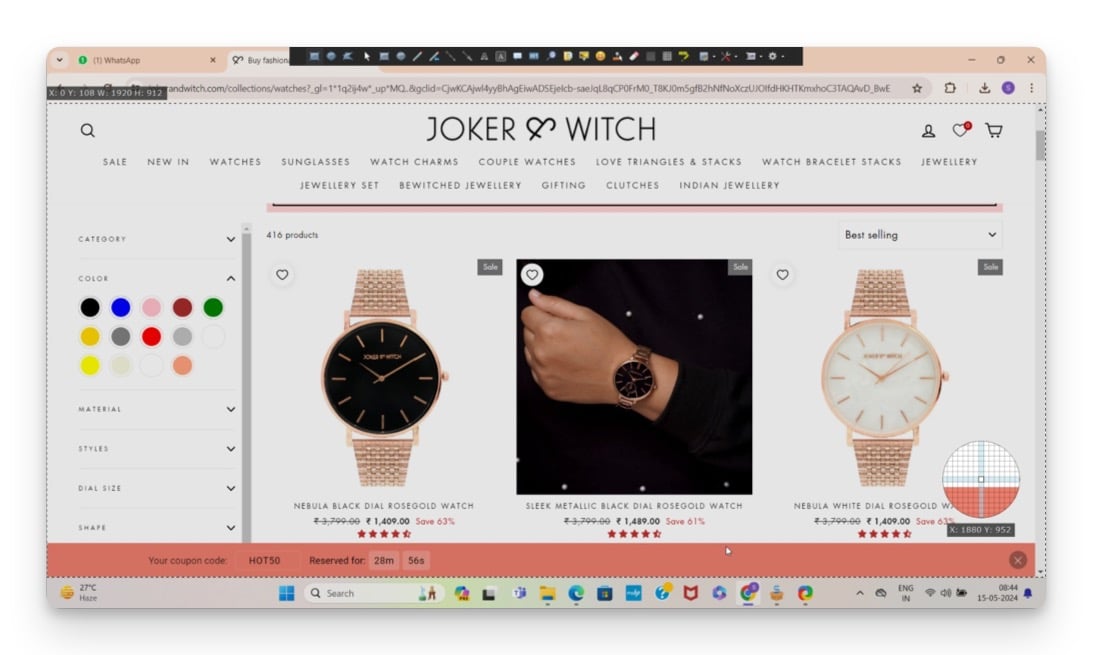
- Annotation Capabilities: Rectangle, Ellipse, Line, Arrow, Text, Speech balloon, Blur, Pixelate, Highlight
- Editing Functions: Crop, Resize, Add effects (filters, annotations), Beautify image
- Export Options: PNG, JPEG, BMP, GIF formats, Export to cloud services (Google Drive, Dropbox, OneDrive)
- Additional Features: OCR for text recognition, Customizable workflows, URL shortening, Instant sharing, Extensive productivity tools (color picker, ruler, image combiner, QR code generator)
ShareX is a free screenshot tool that is beneficial for sharing screenshots on various websites, and the online tool also acts as a file manager. The online tool also acts as a file manager. Scroll Capture and Webpage Capture are both included in the native app.
You can upload screenshots to many different online services right from ShareX’s interface, and you can manage your accounts from the same interface. For easy sharing, you can also get shareable short links.
The app is beneficial if you take a screenshot and need sophisticated features. The app also includes several programs that can be helpful if you need a simple screenshot or want to fine-tune the image and make it more appealing. The app is completely free to use.
Pros:
- Extensive capture modes
- Advanced editing tools
- Completely free
Cons:
- Overwhelming for beginners
- Complex interface
Snipaste – Most Effective Snipping Tool
Key features:
- Capture Modes: Full screen, Selected regions, Window, Freeform
- Annotation Capabilities: Rectangle, Ellipse, Arrow, Pencil, Text, Marker pen
- Editing Functions: Crop, Resize, Add effects (mosaic, blur)
- Export Options: PNG, JPEG, BMP, TIFF, ICO formats, Save to local storage
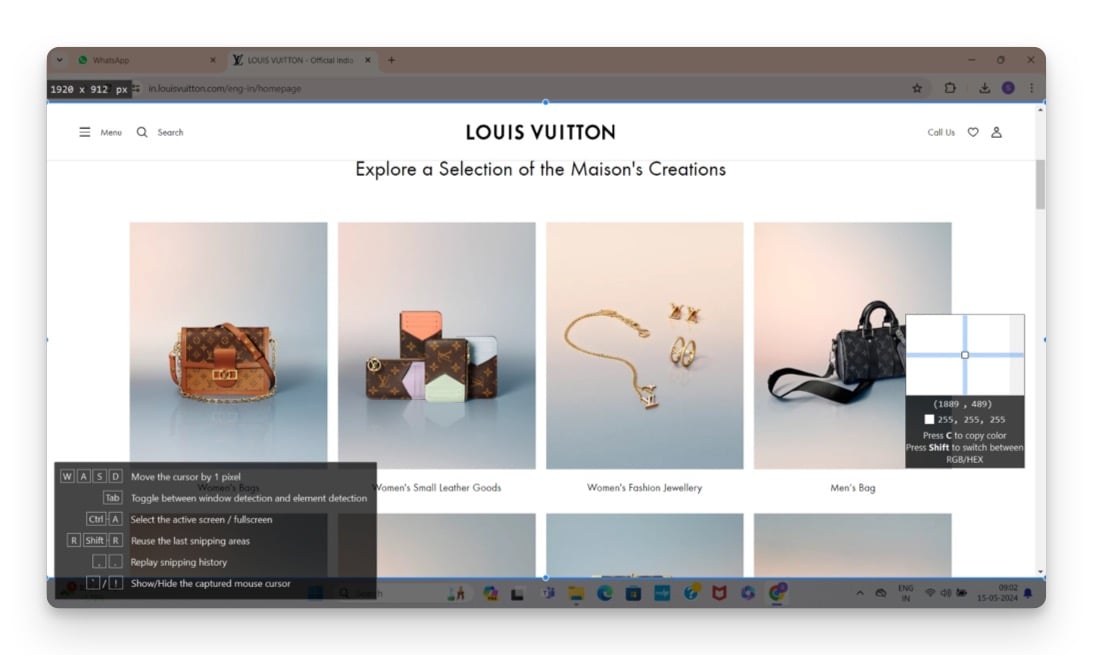
- Additional Features: Pin screenshots as floating windows, Color picker, OCR for text recognition, Customizable hotkeys, Multi-screen support, Auto backup and restore, Zoom, Rotate, Flip, Set transparency, Thumbnail mode, Drag and drop
Snipaste is a simple but effective snipping tool that also lets you pin the snapshot back to the screen. By pressing F1, you can take a screenshot in the app and then paste it as a floating window by pressing F3.
You can also create a floating image window with text or color information from the clipboard. These windows can be zoomed, rotated, mirrored, transparent, and clickable! You’ll be surprised at how much this app can speed up your work if you’re a programmer, designer, or someone who spends a lot of time in front of a computer. The app comes without premium subscriptions and is intuitive.
Pros:
- Unique pinning feature
- OCR support
- No premium subscriptions
Cons:
- Limited export options
- Basic editing tools
PicPick – Multi-Screenshot Capturing Tool

Key features:
- Capture Modes: Full screen, Active window, Scrolling window, Selected region
- Annotation Capabilities: Text, Arrows, Shapes, Highlights
- Editing Functions: Crop, Resize, Add effects (drop shadows, frames, watermarks, mosaic, motion blur, brightness control)
- Export Options: PNG, JPEG, BMP, PDF formats, Export to cloud services (Dropbox, Google Drive, OneDrive, Box, Evernote), Social media (Facebook, Twitter)
- Additional Features: Color picker, Color palette, Pixel ruler, Protractor, Crosshair, Magnifier, Whiteboard, Customizable hotkeys, Advanced file naming and image quality settings
PicPick is a unique screenshot tool that allows you to take many screenshots simultaneously with a ribbon and a modern Windows interface. Although PicPick has an elegant layout, its editing interface sets it apart from other applications. You can also split your screenshots and add stamps such as numbers and arrows.
PicPick also lets you resize, crop, apply effects, and add text to any captured image. PicPick’sPicPicktab lets you post files directly to sites like Facebook, Twitter, and others. For personal use, PicPick is free, but for business use, app subscriptions cost up to $25.
Pros:
- Advanced editing tools
- Multiple export options
- Free for personal use
Cons:
- Paid for business use
- Overwhelming for casual users
Droplr– for Team Collaboration

Key features:
- Capture Modes: Full screen, Selected regions, Scrolling capture, Video/GIF recording
- Annotation Capabilities: Shapes, Text, Arrows, Highlights
- Editing Functions: Crop, Resize, Basic effects
- Export Options: PNG, JPEG, GIF formats, Export to cloud services
- Additional Features: Instant sharing with unique links, Analytics, and Team collaboration features
Droplr is best for teams. Alongside comprehensive screenshot-taking abilities, Droplr offers additional tools for team collaboration. You can create collaborative environments, share folders, and specific links, and integrate the tool with Slack and Trello to directly share captured screenshots. It also comes with analytics to track views and interactions with the shared content.
You can capture screenshots in multiple modes, and it quickly shifts to video recording whenever needed. Droplr offers a dedicated screenshot editor where you can use advanced image editing and annotation tools to edit the screenshot. You can export screenshots in multiple formats, including PNG, JPEG, and GIF.
Pros:
- Excellent for team collaboration
- Instant sharing with unique links
- Includes analytics
Cons:
- Paid software
- Maybe more than needed for individual use
Which Windows Screenshot App is Best for Me?
When it comes to taking screenshots, there is no one “best app” that works for everyone. Some apps may be better suited to your specific needs than others, offering different features than others. The following considerations should be taken into account when choosing the best app for you:
- How easy is it to use the app?
- Does the app offer enough functionality?
- What types of customization options does the app offer?
- What additional features, such as sharing to other websites or the ability to create gifs, are available?
This way, you can try out different apps that meet your specific needs. All of the above apps are easy to use and offer many resources to meet your needs.
Are you looking for built-in tools to take screenshots? Here are 6 Ways to Take Screenshots in Windows 11.
FAQs about Windows Screenshot Apps

Is the Gyazo Windows screenshot program free to use?
The Gyazo app is free if you want to take screenshots and save them to your storage device. The app only requires a Pro subscription if you're going to capture more than 7 seconds of video and keep the saved files in the app's file manager.
Does Windows have a native screenshot tool?
Windows OS doesn't have a built-in screen capture tool, but you can use the Paint app in the Windows app, which allows us to edit or save screenshots.
What’s the best screen recorder for Windows?
For those who want to capture and record a screen, Movavi Screen Recorder is one of the best choices. Besides being able to capture footage from individual portions of your screen, Movavi also comes with an editor that allows you to trim and alter the footage.
What is the best screenshot app for Windows?
Here are the seven best screenshot apps for Windows:
- Screenshot snipping tool
- Greenshot
- Gyazo
- Lightshot
- ShareX
- Snipaste
- PicPick
Is there a screenshot app for Windows 10?
There is no built-in screenshot app for Windows 10, but if you want to customize, annotate, or share your screenshots on Windows 10, Snip & Sketch is the best way to do so. Use the keyboard shortcut Windows Key + Shift + S to activate Snip & Sketch.
Can I use any of these screenshot apps on Android?
Apps like Gyazo and LightShot are available on Android cell phones or tablets but probably do not offer the same features as in the Windows ecosystem. However, in the Android ecosystem, you can easily capture screenshots of all visible content on your screen by pressing the volume up and power buttons at the same time.
What is the best free screenshot app for Windows?
There are several free screenshot apps for Windows like Snipping Tool, Lightshot, Snipaste, and others. But from our tests, ShareX is the best free screenshot app for Windows. It comes with both scroll capture and web capture features and also acts as a file manager for your screenshots.

