

Quick Answer
You can easily disable Windows 11 widgets from the taskbar, Windows settings, or using the Registry Editor. You can also permanently remove widgets by uninstalling the Windows widget package using the winget uninstall “Windows web experience pack” command in the terminal.
Alongside packing Windows with all the greatest changes and features and keeping the Windows feel intact, Microsoft added support for widgets on Windows 11. Now, users can glance at their stock watchlist, weather updates, news feeds, and more from the widgets panel.

While Microsoft allows users to tweak the widgets menu, some might find the new widgets menu cluttered and unappealing. Fortunately, Microsoft has made disabling the new widgets menu on Windows 11 pretty easy. Here’s a guide detailing the steps you need to follow to disable widgets on Windows 11.
Table of Contents
What is the Widgets Menu in Windows 11?
Android has had widgets for quite a while now, and Apple followed suit a few years back and introduced widgets to iOS. Now, the latest tech giant to add a widget menu to its operating system—Windows 11—is Microsoft.
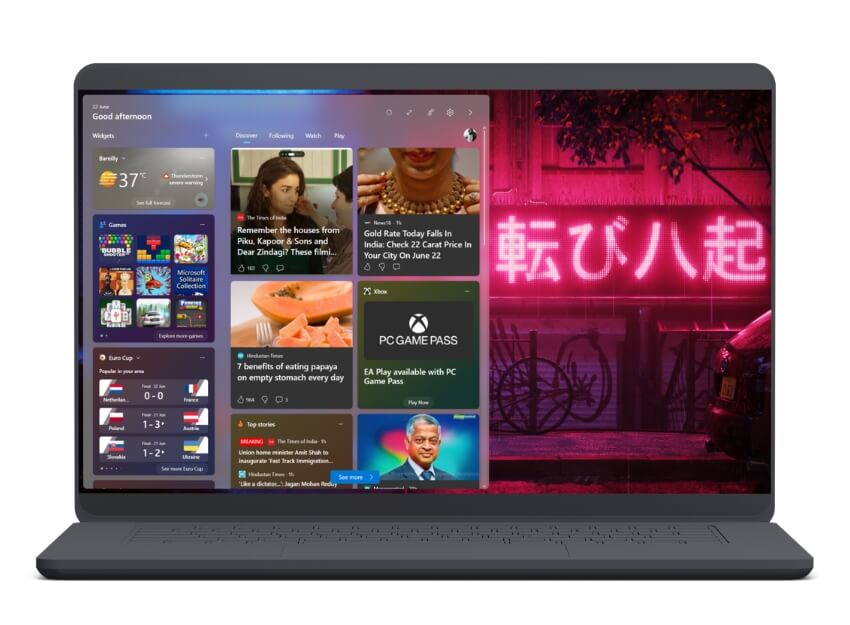
Widgets are a collection of different sets of information that the user can simply glance at on the desktop. They help improve overall functionality and save time by eliminating the need to open apps for small tasks, like checking the weather forecast.
Accessing the widgets menu on Windows 11 is not a fuss either. You can access the menu by clicking the widget icon next to the search icon in the taskbar. In addition, you can also access the Widgets menu using the Windows+W keyboard shortcut.
How to Disable Widgets on Windows 11
There are a few different ways to disable widgets in Windows 11. You can either go the easy route and disable widgets from the taskbar or Windows settings or head to the Windows Registry and modify the key with the necessary changes to do it.
S.No | Method | Steps Summary |
|---|---|---|
1 | Disable Widgets from the Taskbar | Right-click taskbar > Taskbar settings > Turn off Widgets |
2 | Disable Widgets from Windows Settings | Settings > Personalization > Taskbar > Turn off Widgets |
3 | Disable Widgets Using Registry Editor | Open regedit > Navigate to path > Change value to "0" |
4 | Remove Widgets Using PowerShell | Open Terminal as Admin > Run winget uninstall "windows web experience pack" |
Disable Widgets From the Taskbar (Quick and Easy Solution)
A simple way to disable the widgets menu in Windows 11 is to do it from the taskbar. Here’s how to do this:
- Hover the mouse cursor over the taskbar on the desktop and right-click.
- Here, click on Taskbar settings.

- A new window will pop up. You will be greeted with many different settings, Widgets being one of them.
- Turn off the toggle next to Widgets to disable it.
Disable Widgets From Windows Settings (User-Friendly Solution)
You can also disable the widgets on Windows 11 from the Windows settings. To do this, follow the steps below:
- Launch the Start menu, and search for Settings.
- Now hit enter and look for the Personalization tab from the left-hand pane.

- Select Personalization and scroll down until you see Taskbar.

- Click on Taskbar, and in the Taskbar menu, turn off the toggle for Widgets.
Related Read: How to Disable Startup Programs in Windows 11
Disable Widgets Using Registry Editor (Advanced)
While the above two methods work well, you can also disable the Widgets menu on Windows 11 using the Windows Registry. That said, we suggest you proceed with this method only if you’re comfortable working with the Registry Editor, as misconfiguring a key can sometimes cause problems and render your computer unusable.
Follow the steps below to disable widgets via Windows Registry:
- Open the Start menu and type regedit in the search menu.
- Launch the Registry Editor, paste the following command in the address bar, and hit enter:
HKEY_CURRENT_USER\Software\Microsoft\Windows\CurrentVersion\Explorer\Advanced - Now, from the list of entries, look for TaskbarDa and double-click on it.

- When a new pop-up window appears, change the default value from “1” to “0” and hit Enter.

- Restart your PC.
The widget menu should not be disabled on your PC. If you want to enable it again, just change the value to “1” and restart your PC.
Removing Widgets Using CMD (Permanent Solution)
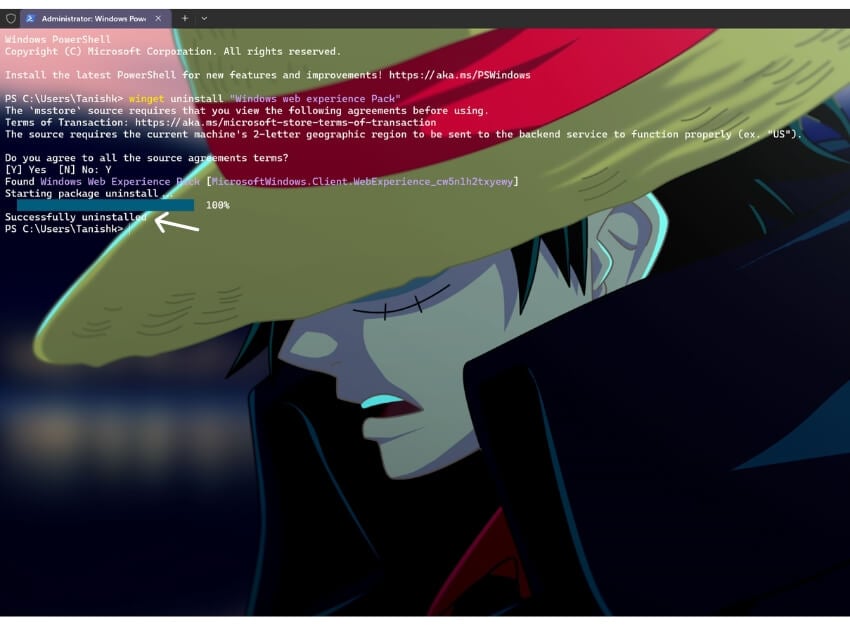
If you want to get rid of widgets on Windows 11 completely, you can use PowerShell or Terminal commands to uninstall the widgets package and remove widgets permanently in Windows 11. However, this process might be complex for some users. You can reinstall the widgets package anytime using the Microsoft Store or a PowerShell command.
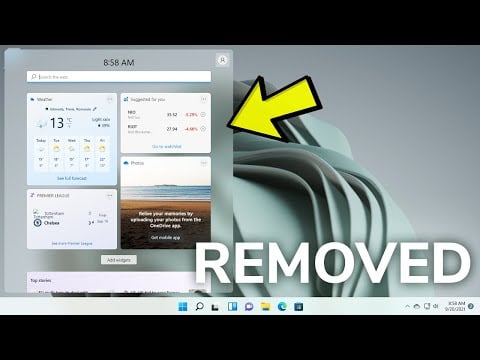
Follow the steps to remove widgets using the command line:
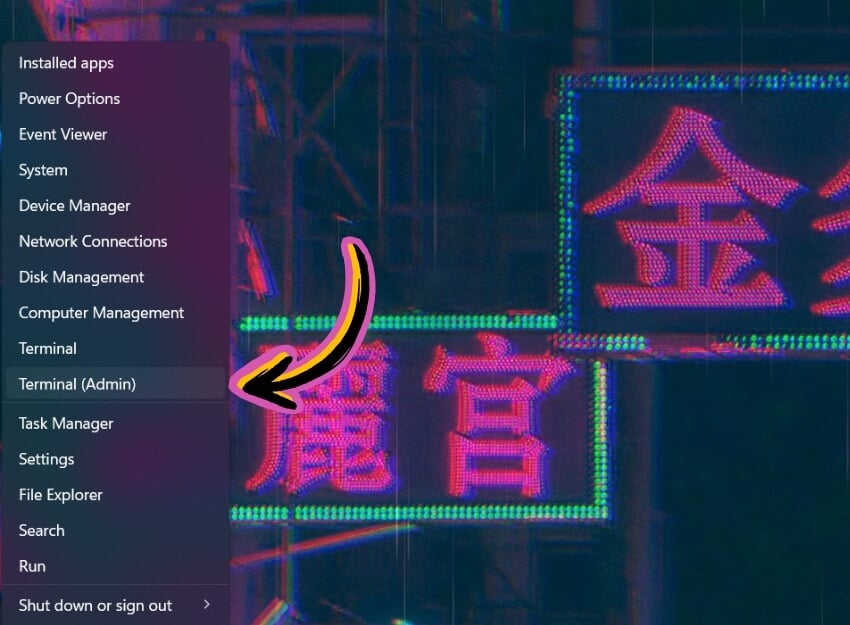
- Open Terminal as Admin. You can also use the Powershell.
- Now use the following command: winget uninstall “windows web experience pack”
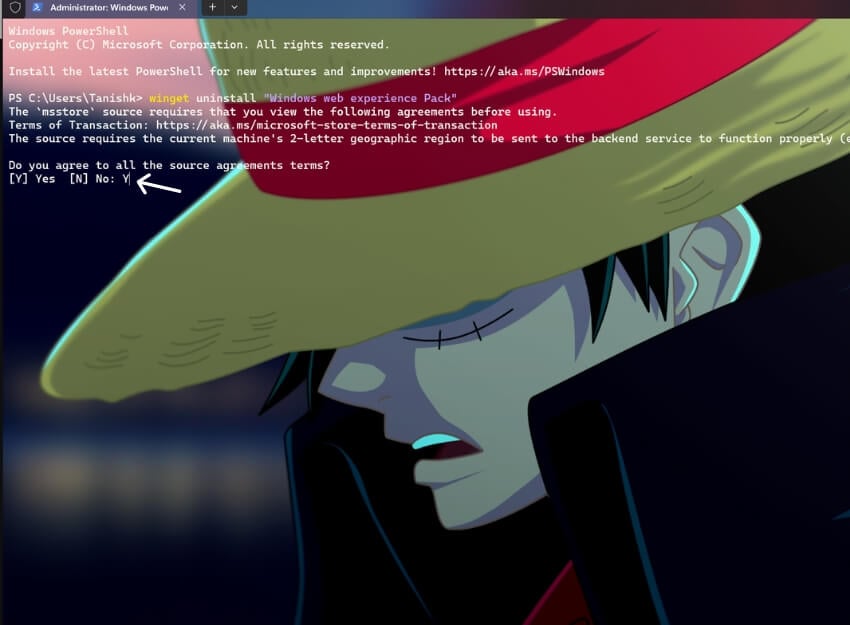
- If prompted click, Enter Y to agree to all the source agreement terms.
- Wait for a few seconds, The windows widget package will be uninstalled, and remove widgets from your Windows.
Disable Windows 11 Widgets to Clear Up the Taskbar
As you just saw, disabling the widgets menu in Windows 11 is pretty straightforward. So, if you don’t like the cluttered feel of the widgets menu on your taskbar, you can follow any of the methods above to remove widgets from your PC easily and clear up your taskbar.
Let us know in the comments below if you found this article helpful and if you could successfully disable the widgets menu on Windows 11.

