

Meta keeps updating WhatsApp to add new features and make the platform even more valuable to its users.
As part of its latest effort towards this, the company has announced Channels. Channels are a new way for people and organizations to share updates with their followers on WhatsApp. Anyone can set up their Channel on WhatsApp or follow other Channels of their interests.

Here’s everything you need to know about WhatsApp Channels, including how to join and create a WhatsApp Channel.
Table of Contents
What Is a WhatsApp Channel?
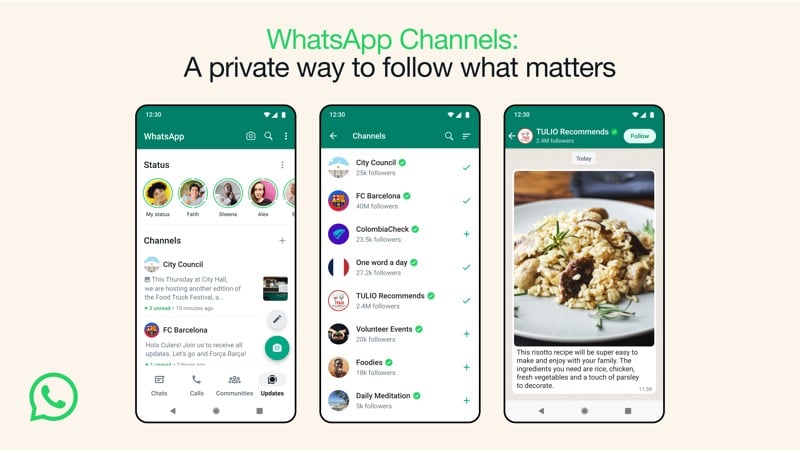
A WhatsApp Channel is a place for people to get the latest information or updates from people or organizations they follow. Anyone can set up their Channel on WhatsApp or follow ones from their favorite people or organizations. This can include news portals, sports teams, politicians, or even individual organizations.
Channels allow for one-way communication, so admins can choose to broadcast the latest updates or share new information with their followers using text or media (photos, videos, stickers, etc.). Or, if they need to understand their audience’s preferences or get their opinion on something, take polls.
WhatsApp Channels are private, meaning when you join a Channel, your phone number isn’t revealed to its admin or other followers. Likewise, the phone number of the admin also remains hidden from a Channel’s members.
Channels are available under the Updates (previously Status) tab. From here, you can join new Channels or create your own Channel. You can also access the Status feature under this tab. Meta says Channel updates are stored on its servers for up to 30 days.
How to Get Channels on WhatsApp?
Channels is a new feature and available as part of the latest WhatsApp update. So, if you you want to get the feature, update WhatsApp on your Android or iPhone to the latest version.
Open Play Store (on Android) or App Store (on iPhone) and go to the Updates section. Here, look for pending WhatsApp updates. If one’s available, install it, and you should have the feature on your WhatsApp.
How to Join a WhatsApp Channel?
After you update WhatsApp on your phone, open it and head into the Updates tab. Here, you’ll see a list of suggestions from WhatsApp of the different Channels you can follow. These Channels are of celebrities and organizations (news, sports, media, etc.) that are popular in your region.
Similarly, WhatsApp also has a searchable directory of Channels. Thanks to this, you can find Channels of people or organizations you find interesting on WhatsApp and follow them.
Here’s how you go about both these approaches:
- Make sure you’re on the Updates tab on WhatsApp.
- Scroll down to the Channels section—it’s below Status.
- Tap on the Find Channels button, and you’ll see a list of Channel recommendations on the next page. You can tap on the filters at the top of the list to filter the Channels. There’s also an option to change the country, which you can use to find channels in another region.

- Tap on a Channel name to see the kind of content it broadcasts. Here, you can tap on the Channel name at the for more Channel information. You also get options like Forward and Share on this page, which you can use to share the Channel with others.
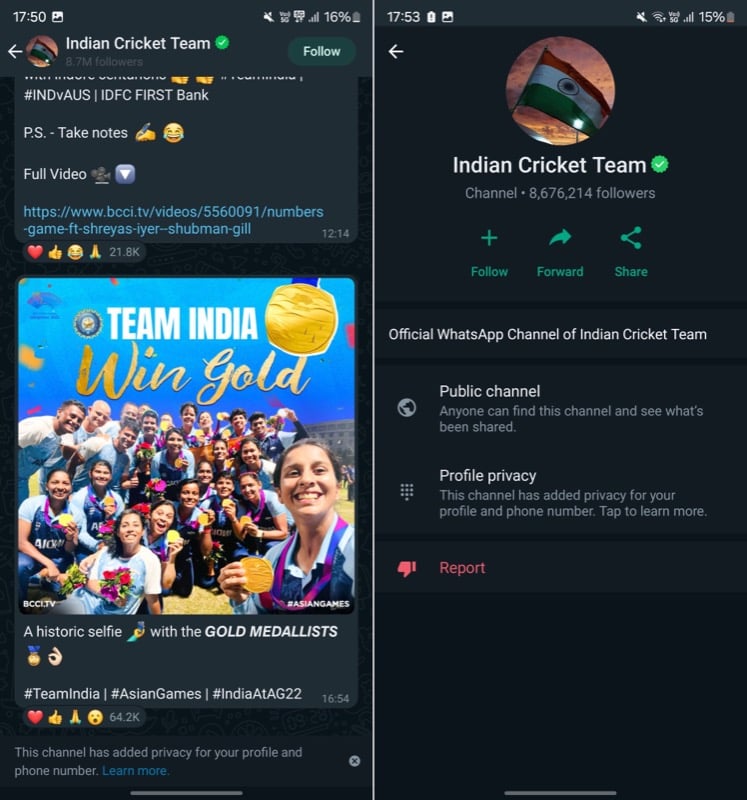
- If, after exploring a Channel, you like its content and wish to subscribe for future updates, hit the Follow button in the top-right corner. Alternatively, you can also join a Channel by hitting the plus (+) button next to a Channel name in the suggested list.

- Notifications from the Channels you join are muted by default, so you need to check on the Channels manually to see the latest updates. If you wish to unmute notifications, hit the bell icon to the left of the three-dot menu in the top-right corner. Or, tap the Channel name at the top and toggle off the switch for Muted.

Once you follow a bunch of Channels, all the Status updates appear horizontally at the top on the Updates page. The Channels section appears below this section with a list of all the Channels you follow.
How to Create a WhatsApp Channel?
WhatsApp allows anyone to create a Channel. So, if you have a following and wish to create a space to share important information or the latest updates, you can create your own WhatsApp Channel.
Here are the steps to create a Channel in WhatsApp:
- Open WhatsApp and go to the Updates tab.
- Tap the plus (+) button next to Channels and select Create channel.
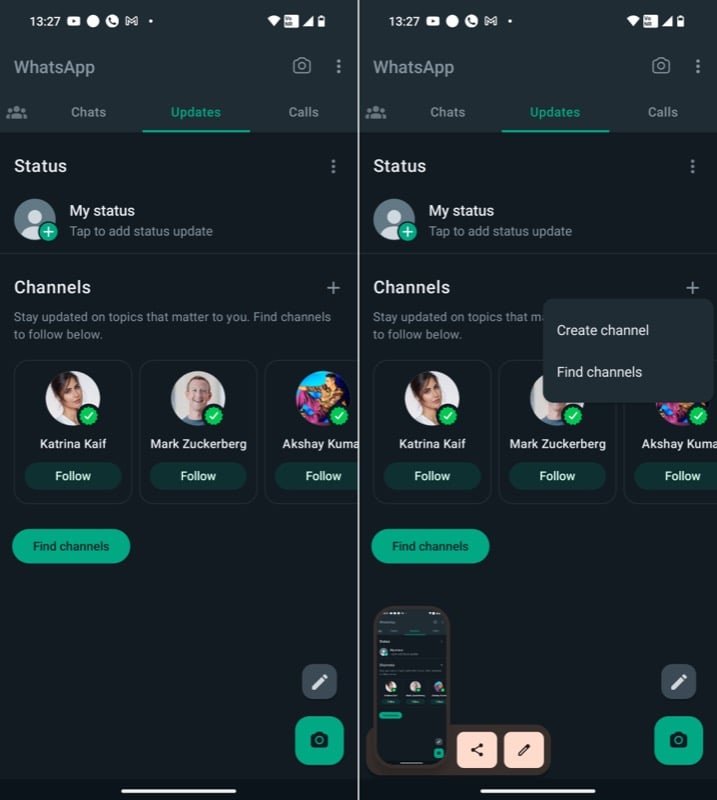
- Hit Continue.

- Now, give a name to your Channel. And below it, write down a description to give new followers an idea about what the Channel is about.

- Similarly, tap on the profile icon and select a Channel icon to help people find your Channel faster.
- Finally, hit the Create channel button to create the Channel.

Once you’ve created your WhatsApp Channel, you can start posting messages on it. In addition, you can also share the link to the Channel with your followers. Simply hit the Channel Link button in the top-right corner and select the contacts you want to share it with. Alternatively, you can email the link or send it through some other messaging app.
Channel followers can’t reply to the updates in the Channel, nor can they send a direct message to the admin. What they can only do, though, is react to the updates using emojis or vote in the Channel polls.
WhatsApp shows you your own Channel under the Channels section in the Updates tab, where you can also find all the Channels you follow.
Related Read: How to Hide WhatsApp Channels on Android and iPhone
How to Delete a WhatsApp Channel
If, for some reason, you decide to delete your WhatsApp Channel, WhatsApp gives you the ability to do so. All you need for this is the mobile number linked to the WhatsApp Channel you want to delete, after which the Channel deletion process involves these steps:
- Go to the Updates tab and open your Channel.
- Tap on the Channel name at the top.

- Hit the Delete channel button at the bottom and tap on Delete again to confirm deletion on the next page.

- Now, WhatsApp will ask you to enter the country code and the mobile number (linked to the Channel). Enter it and hit Delete to delete the Channel.

After you delete your WhatsApp Channel, it will be deleted permanently—and you won’t be able to recover it. Your followers will still be able to access the past activity / Channel updates on your Channel.
Related Read: Fix WhatsApp Images Not Showing in Gallery
Get Updates That Matter to You Right Within WhatsApp
Meta’s introduction of Channels on WhatsApp is a move in the right direction. The feature enables you to get updates or the latest information from people or organizations that matter the most right within WhatsApp; the idea here is to reduce your dependence on other social media platforms.
At the same time, for media personalities and organizations, Channels works as a medium to broadcast their latest updates and expand their reach. Not only that, but going forward, Meta also plans on bringing new features to Channels to give admins more control over their Channels.
For example, going forward, Meta plans on offering Channel admins the ability to block screenshots and forwards from their Channel. Similarly, it says admins will also be able to decide who can follow their Channels and control their discoverability in its Channel directory.

