

Apple’s macOS comes with several useful features. Text Replacement (also referred to as text expansion) is one such macOS feature that helps you type faster on your Mac.

For the uninitiated, the feature essentially allows you to create shortcuts for long phrases or your most commonly used text phrases. After this, when you type in the shortcut, the operating system automatically expands it to the full text.
Sadly, if you’re a Windows user, there’s no such feature built into the operating system that you can use out of the box on your PC. But fret not, as Windows supports many text replacement apps that we can use to achieve the same.
aText is one such app, and in this guide, we’ll show you how to use aText to get macOS’ text expansion feature on your Windows 10 or Windows 11 PC.
What is the aText App?
aText is a text expansion tool for Windows that gives you macOS-like text replacement functionality on your PC. It’s available to download for free, but there’s also a paid version, which unlocks access to a few additional features.
Using aText, you can set up text shortcuts (also referred to as abbreviations or snippets) for long phrases or text that you need to type in frequently to save yourself the trouble of typing them manually. Not only does this save you effort, but it also saves you time, so you can write more in the same period while being more efficient and productive.
How to Get macOS’ Text Replacement Feature on Windows Using the aText App
aText is available for both Windows 10 and Windows 11. Simply visit the link below and download aText on your Windows PC.
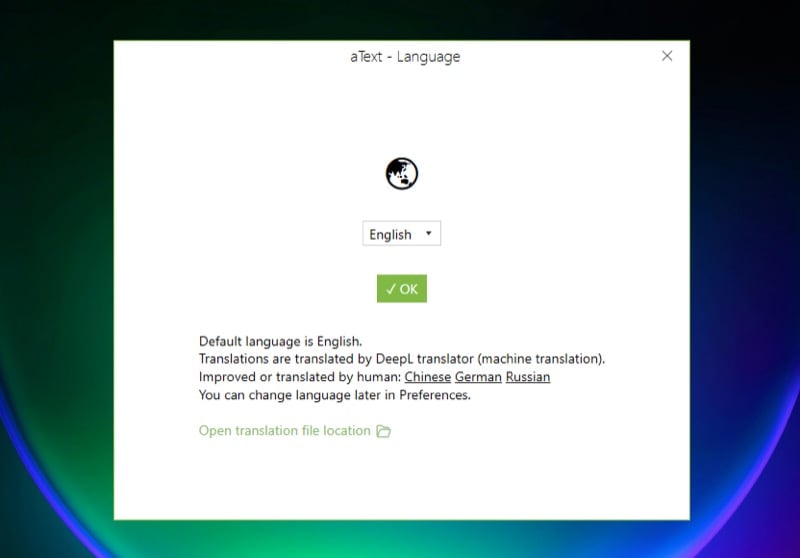
After you’ve finished downloading and installing aText on your computer, launch it. Select your preferred language and hit OK.
Now, you can click on Examples & Guide to learn how to use aText and create your own snippets.

Or you can follow our simplified instructions below to do the same. Before we begin, note that aText stores all new snippets under the Default Group. But if you want, you can create a new group to save your snippets under it. Here’s how:
- Click the New Group button in the left side bar.

- Enter a name for this folder in the box under Name.

- Click the New Snippet button in the left menu bar.
- On the window to the right, enter an abbreviation for the text for which you want to create the shortcut. It should be simple and something you can remember easily.

- Abbreviations are case-sensitive by default. If you wish to change this, hit the Aa icon in the Abbreviation box to bring up a dropdown box, and select the Ignore case option.

- Now, enter the full text that you want the abbreviation to expand into when you enter it in the box below the Abbreviation box. You can also choose to open a picture when you type a text shortcut.
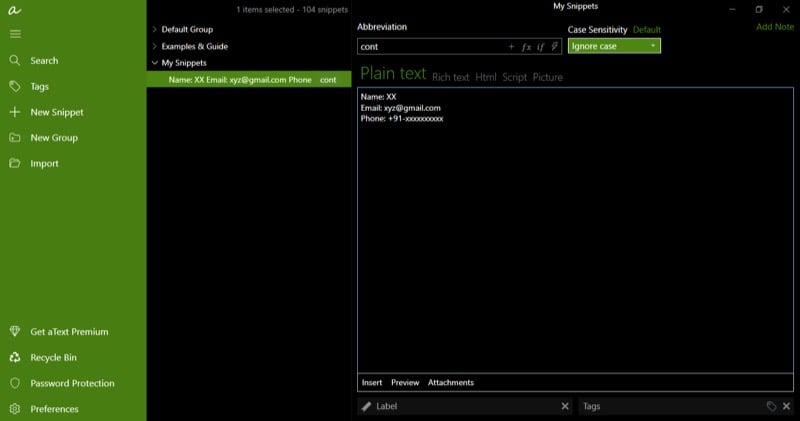
- Make sure to select the right content type here. Available options include plain text, rich text, HTML, script, and picture.
Once you do this, aText will save the snippet to your library, and it will be active and ready to use. To check if the snippet works, open any text editor and type the shortcut. aText should automatically expand it to the assigned full text or picture you’ve configured it to open.
Keep in mind that for aText to identify your shortcuts and abbreviate them, you need the app running in the background. It’s a good thing that clicking the close button doesn’t close the app, so unless you’re terminating it from the Task Manager, you should be fine.
aText also gives you a few additional options when creating snippets. For instance, it lets you add notes to your snippets for extra information. Similarly, you can add labels or tags to your snippets to better organize them.
Likewise, you also have the option to set a hotkey for an abbreviation. Although this doesn’t qualify as text expansion or text replacement, it’s a useful feature for those who need it.
Some aText Options and Settings You Should Know
aText offers a bunch of options and settings that you should know about. These can help you get more out of the app and customize its behavior for different scenarios and use cases.
1. Expand Abbreviation: This is one of the most important aText options. It tells the computer when to expand an abbreviation.
By default, it’s set to the After typing abbreviation option, which means the snippet expands into full text as soon as you type it in. Although it’s convenient, it can be a little problematic at times and lead to false triggers.
Thankfully, you can change this behavior. Simply select your snippet group to see all its options on the right. From here, click the dropdown button under Expand abbreviation and select the After typing abbreviation and delimiter (keep delimiter) or the After typing abbreviation and delimiter (discard delimiter) option.

Next, click Configure delimiters and delete all the characters except the one you want to use. We’ll choose space since it makes the most sense. Hit OK.

Once done, every time you type the abbreviation now, you’ll need to press the Space bar key as well for aText to expand the snippet into full text.
2. Enable or Disable aText for Specific Apps: With this aText option, you can select which apps work with aText and which ones don’t. If you plan on using hotkeys, this can be a very useful option.
Click on Preferences in the left sidebar. Here, select Applications, and from the dropdown for Enabled in, select an appropriate option based on your requirements. You can either set aText to work with all apps except for a few selected ones. Or you can make it work only on a few select apps.

Alternatively, you can do this for individual snippets, too. For this, select the snippet you want to configure and scroll down to the Override parent group’s setting or group Application setting option. Tick the checkbox next to it. Hit the dropdown button below Enabled in and select an appropriate option from the list.

Now, click on Select Applications and choose the apps accordingly. You can even enable or disable aText for specific windows within an app.

3. Auto Start on Login: If you’ve got a lot of snippets on aText and can’t do without the app, it makes sense to set it to automatically start at the time of login. That way, it already starts in the background and is ready to use before.
Open Preferences. Select General and toggle on the Start aText automatically on login option.

4. Capital Correction: When using snippets, there will be scenarios where aText expands the abbreviation and you end up with double capital letters in the sentence. Or worse, a sentence that starts with a lowercase letter. This option can save you the time and effort of having to delete or edit expanded text.
Go to the Preferences window. Select Capital Correction and toggle on the Capitalize new sentences and Correct double capitals options.

We’ve barely scratched the surface of what’s possible with the aText app here. The app provides several other valuable options like scripting, backup, sync, and a bunch more, which you can use to personalize its behavior down to the core. Many of these features are paid and require an aText Premium subscription, which costs $4.99 in the US and Rs 2,174 in India.
What Are Some Good Ways to Use aText
aText is a very powerful app that you can use for a wide range of applications. A few use-cases where the app can save you time and be more productive include writing:
- Contact information: If you often need to enter your email or phone number, you can set up an abbreviation like ‘cont’ to do it more efficiently.
- Address: Similar to filling up contact information, if you also need to share your address very often, creating and using a snippet like ‘adr’ to expand and fill out your address can be a lifesaver.
- Web address: Entering web addresses can be stressful for some people. With aText, you can create abbreviations, like ‘ytb’, for instance, to input www.youtube.com in the address bar in your browser.
- Text templates: If you frequently use a particular email or message template, you can take advantage of the aText app to set up a snippet for the same and save yourself a lot of effort and time having to type it manually or copy-paste it between apps.
- Code snippets: For those who code—and don’t use an IDE—aText can serve as a valuable tool. It can help expand tiny snippets into long boilerplate code and quickly get you going.
- Complex symbols: Typing an em dash on Windows can be challenging. But with aText, you can set any unused key or key combo to enter an em dash with ease.
- Adding an image: Besides writing text, aText can also help you insert pictures. Simply set up a trigger phrase for the image you want to insert. After this, aText will automatically replace the phrase with the image when you type it.
Save Time and Type Faster on Your Windows PC With aText
aText brings macOS’ Text Expansion feature to Windows 10 and Windows 11. It’s free—for the most part—and easy to set up and use. Plus, you get a bunch of additional options for customizing the app’s appearance and behavior to your liking.
So if you’ve experienced the text replacement feature on a Mac at some point and always wanted something similar on your Windows PC, or you switched from Mac to Windows lately and are missing the feature dearly, with aText, you can now create snippets for your frequently typed text and phrases, among other things, to input them faster and with minimum typing.

