

Quick Answer
To get macOS’ Quick Look on Windows, install the free QuickLook app from the Microsoft Store. Once running, press Spacebar in File Explorer to preview files instantly. It supports various formats, including images, documents, compressed files, and more. You can also install plugins from QuickLook’s GitHub to preview additional file types.
Quick Look is a nifty macOS feature that lets you quickly preview files within Finder without opening them in a dedicated app. Thus saving you a few extra clicks and, in turn, speeding up your work process.

However, it baffles me that Microsoft doesn’t have a similar feature on Windows. As someone who uses both operating systems, I find the absence of the Quick Look feature on Windows quite inconvenient.
Fortunately, I stumbled upon the Quick Look app a while back, which brings the Quick Look feature from Macs to Windows. If you, too, have switched from a Mac to a Windows PC recently or use both quite actively, here’s how you can get the macOS Quick Look feature on your Windows PC.
What Is QuickLook? And Why Do You Need It?
Windows doesn’t have a Quick Look-equivalent feature, but it does let you preview files without opening them in a dedicated app. This is possible via File Explorer’s Preview pane, which you need to enable manually from the View options before you can use it.
However, there’s a problem. Although the Preview pane offers a quick way to preview files, it only works with a limited number of file types. For example, it can’t show previews for vector graphics (SVG), compressed files, and markdown files, among others, which limits its scope of use.
This is where QuickLook comes in. QuickLook is a free Windows app that adds Apple’s Quick Look feature on Macs to your Windows PC, unlocking a faster way to preview files within File Explorer.
Plus, unlike File Explorer’s Preview pane, the QuickLook app supports various formats, including compressed files. The support for compressed files itself is a nifty addition since it lets you preview the contents of a ZIP, RAR, 7z, or any other such file without uncompressing it, saving you time and avoiding clutter in your folders.
You can check out all the file formats QuickLook supports on its GitHub. But to give you a gist, the app lets you preview almost all kinds of image formats, compressed archives, documents, markdown, and audio and video files you’ll most likely have to deal with or use. Plus, you can add support for specific formats (if available) using plugins.
A plugin is essentially an add-on you install from QuickLook’s GitHub page to get QuickLook to preview more kinds of files. For example, you can install the OfficeViewer plugin to enable support for Microsoft Office files within the QuickLook window. We’ll see how to install a QuickLook plugin later in the guide.
How to Install and Use QuickLook on a Windows PC
QuickLook is easy to install and use. Head over to QuickLook’s page on the Microsoft Store and hit the Install button to begin installing the app on your PC.
Once installed, launch QuickLook. The app will now start running in the background; you won’t see any QuickLook window on your screen. You can verify if it’s running, though, by clicking the upward-pointing arrow icon in the Taskbar at the bottom and looking for a QuickLook icon.
With QuickLook, previewing files is easy. Open the File Explorer app and navigate to the folder with the files you want to preview. Click on a file or use the up or down arrow keys to select it and hit the Spacebar key on your keyboard. QuickLook will now open a preview window displaying the file.
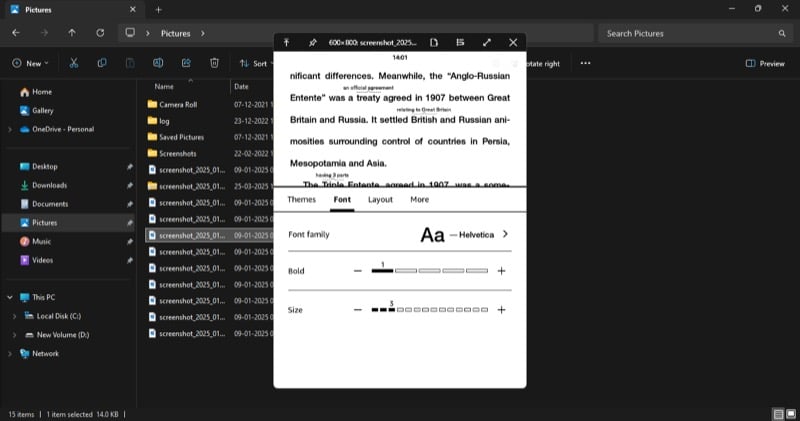
Use the up or down arrow keys on your keyboard to preview the previous or next file.
When you want to zoom in or out into a picture, use the pinch-in or pinch-out gesture on the touchpad respectively. If you’re using a mouse, scroll the mouse wheel up or down instead. In the case of PDF files, press the Ctrl key while scrolling the mouse wheel.
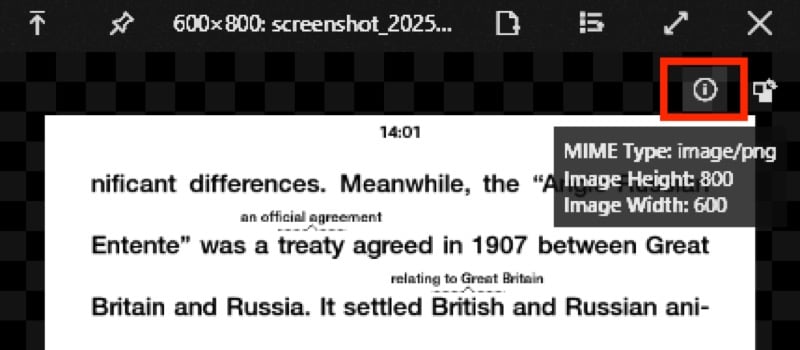
Now, depending on what kind of file you’ve previewed, the options you see in the QuickLook window may be different. For example, if it’s an image, you’ll see an i button in the upper-right corner. Clicking this button will show you details about the image, like its height, width, and format.
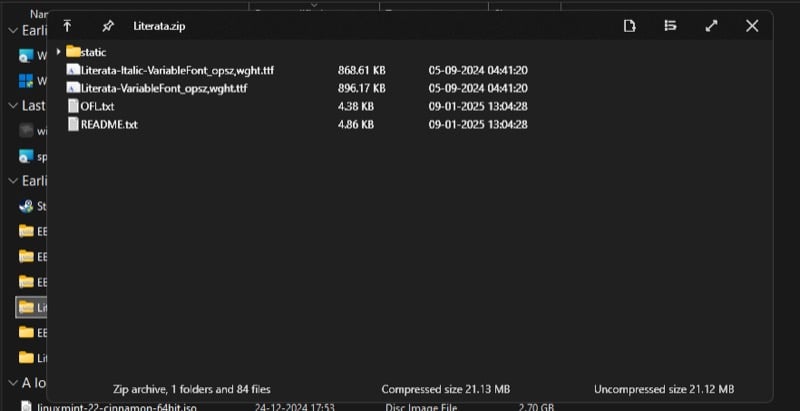
If it’s a compressed file, the QuickLook window will display details, such as its size and the number of files and folders it contains, at the bottom. You can click the arrow next to the folder names to expand their content.
Besides files, QuickLook can also preview folders. However, it isn’t as effective in this case, as it only shows details about the folder, such as the size, files, and folders it contains, and the last modified date—most of which you can already see based on your File Explorer’s view settings.

Once you’re done previewing a file, press the Esc key or click the x button in the top-right corner of the preview window to close it.
A good thing about QuickLook is that you can directly open or execute a file right from the preview window. All you have to do is press the Enter key, and QuickLook will close the preview window and open the file in its default app.
How to Install a QuickLook Plugin to Preview More File Types
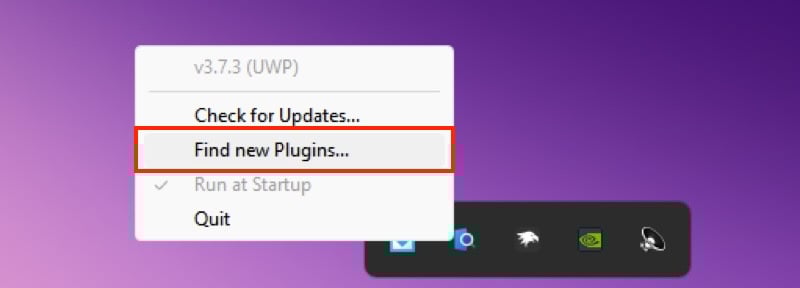
When there’s a file that QuickLook can’t preview natively, you can check out QuickLook’s plugins page on GitHub to look for a plugin that adds support for such files. If you find one, click it, and you’ll be redirected to its details page. Alternatively, you can access this page by right-clicking the QuickLook icon in the system tray and selecting the Find New Plugins option.
On the QuickLook plugins page, you’ll see a list of all the available plugins with their description next to them. Click on a plugin name to learn more about it. From here, scroll down to the Download & Installation section and click Release Page to find all the releases for that plugin. Look for the latest version, expand the Assets tab, and click the file that ends with .qlplugin extension to download it.
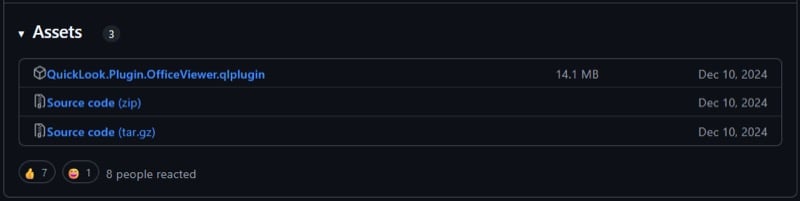
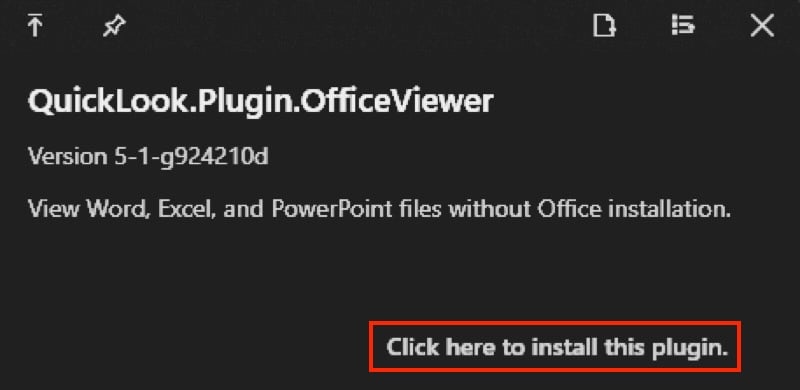
Once the download is complete, go to Downloads or any other folder where you prefer to save your downloads. Select the plugin file you just downloaded and hit the Spacebar key. This will open the QuickLook window. In this window, click the text that says Click Here to Install this Plugin, and it’ll begin installing the plugin.
Once installed, it’ll prompt you to restart QuickLook. Click the system tray, right-click the QuickLook icon, and select Quit.

Launch QuickLook again. Head to the folder containing the file you want to preview, select it, and hit the Spacebar key. QuickLook should now open it in a preview window.

Windows Needs Quick Look-Like Functionality Natively
A lack of Quick Look-like feature on Windows means users are either stuck with the default preview experience—the Preview pane, which isn’t very intuitive and supports very few file types—or have to rely on third-party solutions, like QuickLook, to enable the feature on their PCs.
Sure, QuickLook is a great app. It’s simple, fast, and, best of all, completely free to use. But it’s high time that Microsoft adds its version of Quick Look to Windows natively, perhaps with enhanced features, like basic markup or OCR, for example. That way, it can offer users a more consistent experience—with a cohesive look and feel—and eliminate the need to download an additional app.

