

Instagram is the place where you share your thoughts, photos, videos, reels, etc. and build a community of like-minded people. You can interact with others, like their pictures, send them DMs, and more. It’s a social community that has both its positive and negative sides. Here are some of the best tips and tricks for Instagram that you should know. But if you’re done with Instagram and have decided that it’s not for you, then you shouldn’t just unsubscribe. Rather, you should delete your Instagram posts.

By deleting all of your posts on Instagram, you’ll ensure that none of your posts are misused or republished elsewhere. While it’s possible to delete one post at a time, that can take forever if you have thousands of posts on your Instagram profile. In this guide, we’ll show you how to mass delete all Instagram posts on your desktop and Android or iOS devices.
Table of Contents
What will happen if you mass delete all Instagram posts?
If you delete all your Instagram posts, your friends and family will ask certain questions. Apart from these questions, you will also have to deal with some things when you mass delete all your Instagram posts.
- Your followers will decrease: When you delete all your Instagram posts, the first thing you will notice is that the number of your followers will decrease. Some of your followers will turn away from you and stop following you when they stop seeing posts on your account.
- You will lose your brand identity: If you’re an influencer, this could affect your brand identity as brands may no longer want to be associated with you because you don’t have posts on your Instagram account.
- Inconsistent profile: If you’ve been following a certain theme with your posts on Instagram, deleting all of your Instagram posts may mess up that theme. You may have to follow the same pattern again when you publish new posts on your profile.
- You will lose the memory forever: Many people use Instagram to save their memories. If you delete all your Instagram posts, you’ll lose that special memory, and if there’s no backup, then you could lose that memory forever.
- Your engagement metrics take a toll: If a business account or an account used for promotional purposes deletes all posts, the engagement metrics, including followers, likes, comments, shares, etc., suffer because your profile looks like a face or a duplicate of the original.
How to delete all Instagram posts?
If you don’t have any problems with the above points and are still determined to quit Instagram, then follow the steps below to delete all your Instagram posts.
Delete posts from PC
- Visit the Instagram website.
- Log in with your credentials.
- Click the hamburger icon that says “More” in the lower left corner of the page.

- Select the Your activity option.

- Select Photos and Videos.
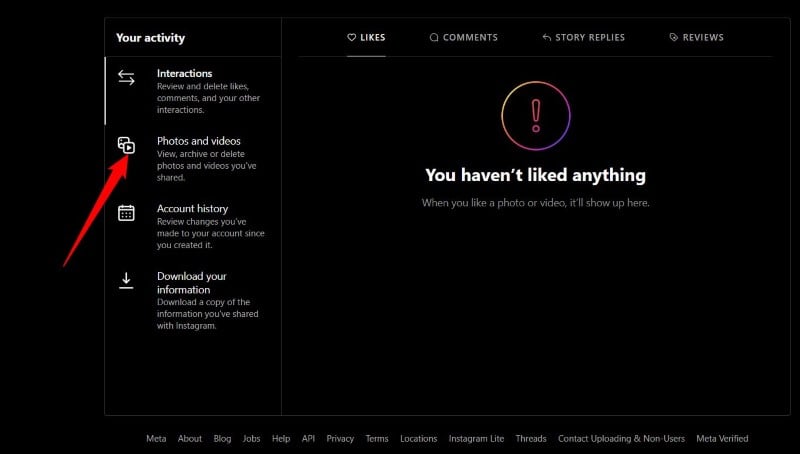
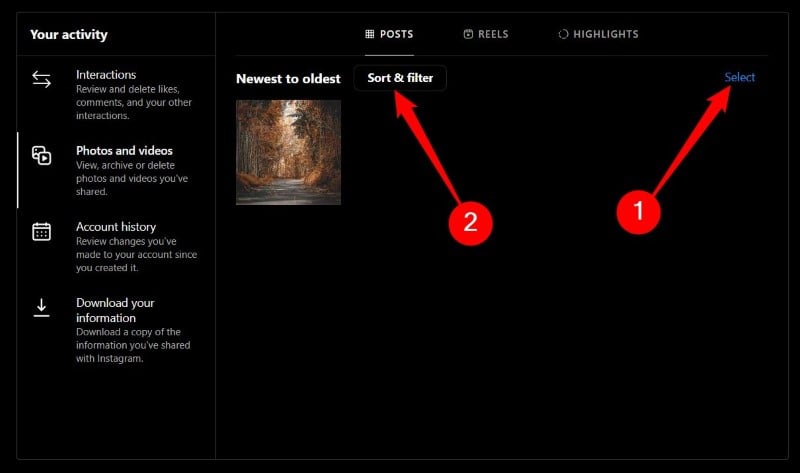
- Click the Select button in the top right corner of the screen grid.
- Select the photos and videos you want to delete. You can also use the Sort & Filter option to sort the media from oldest to newest or vice versa. You also have the option to select a specific date range.
- After you select the photo, click the Delete button in the bottom right corner.

- Choose the Delete option again to confirm your choice.

That’s it You’ve successfully deleted your posts from Instagram. Note that you need to manually select each image you want to delete or bulk delete on Instagram. We don’t recommend using a third-party app because of the risk of compromising your profile.
Delete from an Android device
You can also use your Android smartphone to delete all Instagram posts. It’s more convenient because almost everyone uses Instagram on their smartphone. Here are the steps to delete your posts in the Instagram Android app.
- Launch the Instagram app on your phone.
- Tap on the profile icon at the bottom-right corner.
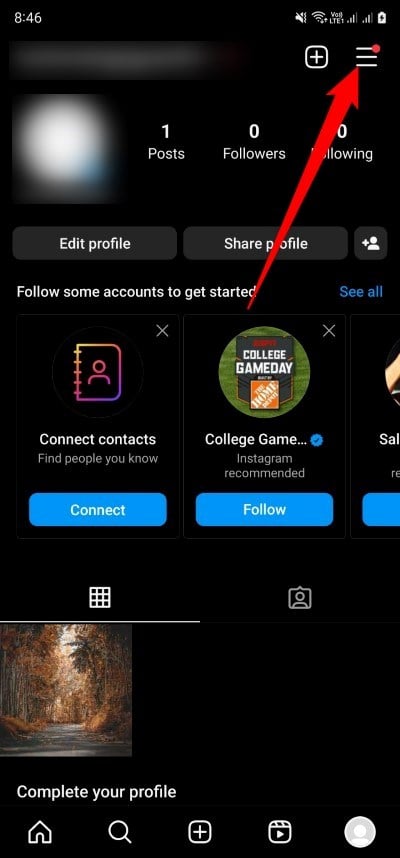
- Tap the hamburger menu icon in the upper right corner.
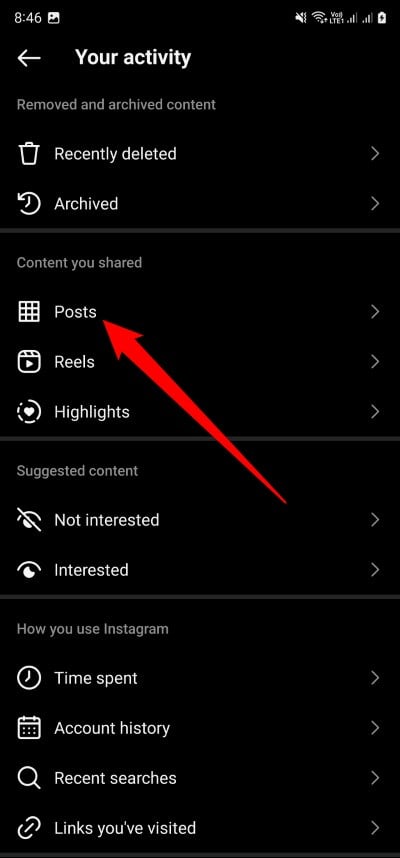
- Select Posts.
- Tap the Select button in the top right corner, and then select the pictures you want to delete.
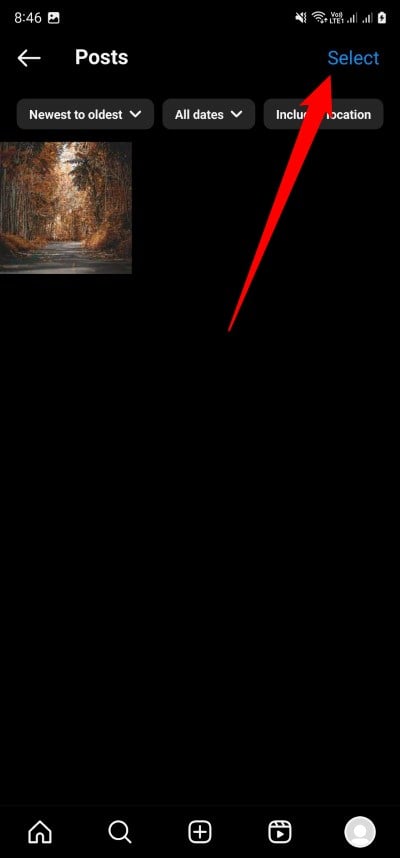
- Select the Delete button at the bottom and tap on Delete again to confirm your action.


- You can also filter the posts from oldest to newest, and filter posts by a specific date range or location.

Delete Instagram posts from an iOS device
- Open the Instagram iOS app.
- Click the hamburger menu icon at the top.
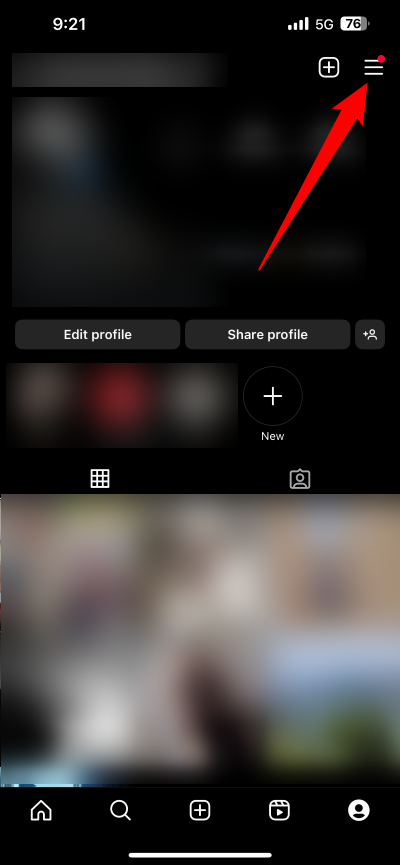
- Choose Your activity from the list of options that appear.
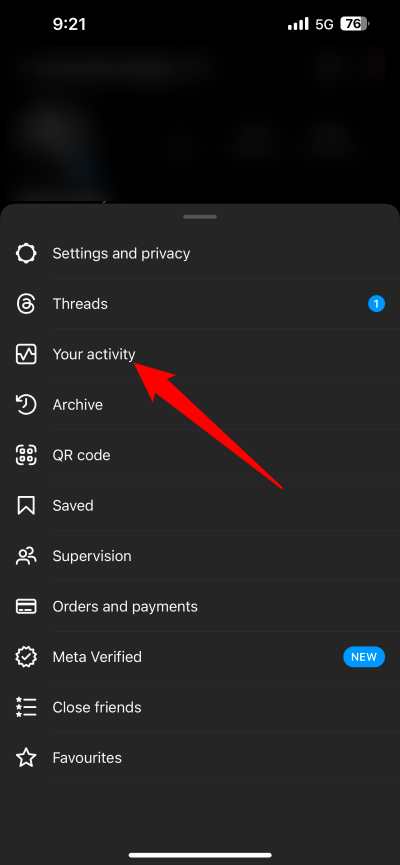
- Tap Posts.

- Tap Select at the top-right and choose the images that you wish to delete.
- Tap the Delete button at the bottom and confirm it again to delete your posts.

You can also archive your posts or hide them from your Instagram profile, but that’s a topic for another discussion. With the above options, you can delete all your posts on Instagram.
Related Read: How to Delete Instagram Account Permanently or Temporarily
How can you delete a single post on Instagram?
Not only can you delete multiple posts from your Instagram account, but you can also delete a single post. The steps are slightly different, which we have discussed in the following sections.
Delete using PC
- Visit the official Instagram website on any browser.
- Log in to your Instagram account.
- Tap Profile.

- Open the post you want to delete.
- Click the 3-dot icon in the top-right corner of your post.

- Select Delete.

- Click Delete to confirm your action.
Delete using an Android phone
- Launch the Instagram app on your phone.
- Go to your profile.
- Tap the post you want to delete.
- Click the 3-dot icon at the top-right of your post.

- Select Delete.

- Choose the Delete option again to confirm your action.

Delete using an iOS device
- Launch the Instagram app.
- Go to your profile.
- Select the post that you wish to delete.
- Click on the 3-dot icon at the top-right of your post.
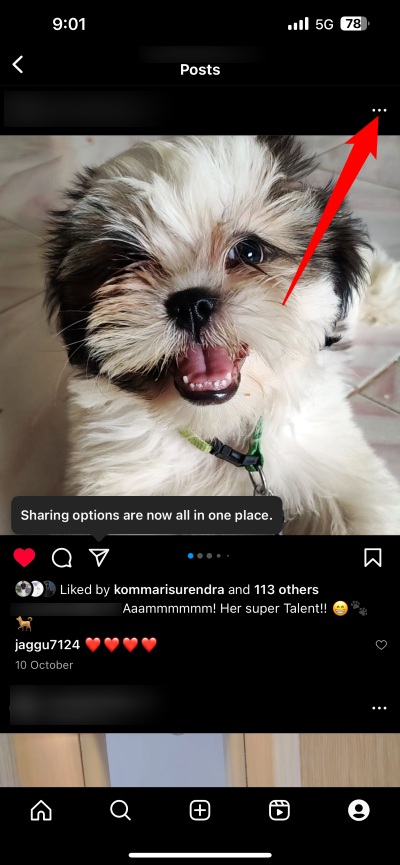
- Select the Delete option from the list.

- Confirm your action by hitting Delete again.

Wrapping up
So this is how you delete all your posts on Instagram. The above steps do require you to tap on each individual post to perform a mass deletion, but that’s the only way to delete your posts from Instagram. Also, if you want to get rid of all your posts on Instagram and leave no trace, you can also consider deleting your account. When you delete your account, all your photos, videos, reels, likes, followers, comments, and everything in between will disappear.
Instead of deleting your account, you can also opt for the option to hide your Instagram account so that no one can find you on the platform. Check out our guide to learn how to hide your Instagram account. If Instagram doesn’t work for you, you can check out our guide that explains various solutions to the problem.

