Ever feel like your iPhone can’t even last a full day? If you use it all day, it drains too quickly, and you have to rush to the charger several times a day to keep it going. An iPhone’s battery is always supposed to be decent, but don’t worry, we’ll tell you exactly why your iPhone’s battery drains so quickly and, most importantly, what you can do about it.

Let’s improve your iPhone battery performance from mediocre to excellent.
Table of Contents
Why Is My iPhone Battery Draining So Fast?
Unlike an Android smartphone, your iPhone has everything turned on already, such as maximum brightness, location services, NFC, etc., so it’s ready to use right out of the box without you having to set or adjust everything painstakingly. If you use your iPhone in this way without reviewing some settings, your iPhone’s battery will surely run out soon. Here are some things you need to turn off to get the most out of your iPhone battery. Let’s start.
12 Tips to Fix iPhone Battery Draining Issue
Switch to ‘Dark Appearance’
It’s no wonder that switching your iPhone to its dark appearance saves a lot of battery. The newer iPhone models are equipped with AMOLED displays, so the dark appearance is your iPhone’s best friend when it comes to lasting longer than usual.
Here are the steps you need to follow:
- Open your iPhone’s Settings and tap “Display & Brightness.”
- Tap and select the Dark appearance.

Disable ‘Always On Display’ on Newer Models
While we’re on the Display & Brightness page, let’s quickly change one more setting that will help you get more control over your iPhone’s battery: Always On Display on iPhone 14 Pro, 14 Pro Max, and all iPhone 15 models.
Let’s take a look at the steps you can take to disable the Always On Display feature on your iPhone:
- Go to Settings > Display & Brightness > Always On Display > Turn off Always On Display.
Turn off ‘Location Services’ for Notorious Apps
If there is something that consumes large portions of your battery in the background, it is GPS, also known as Location Services.
Let’s turn that off, and here are the simple steps you need to take:
- Open your iPhone’s Settings and tap Privacy & Security.
- Now tap on Location Services.
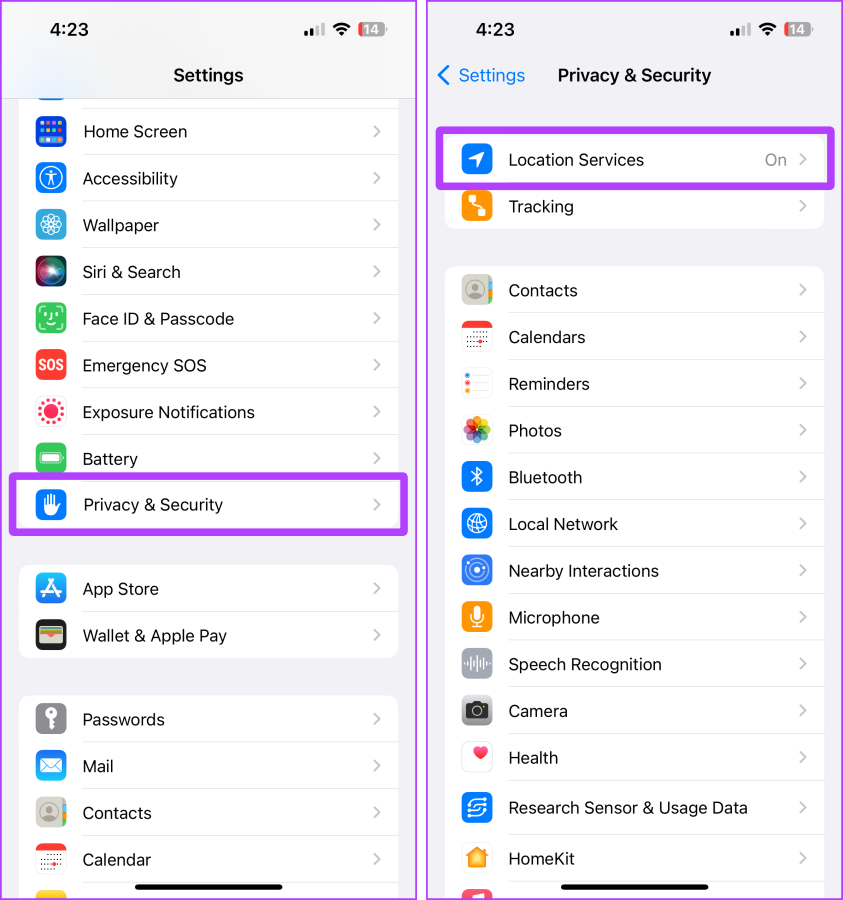
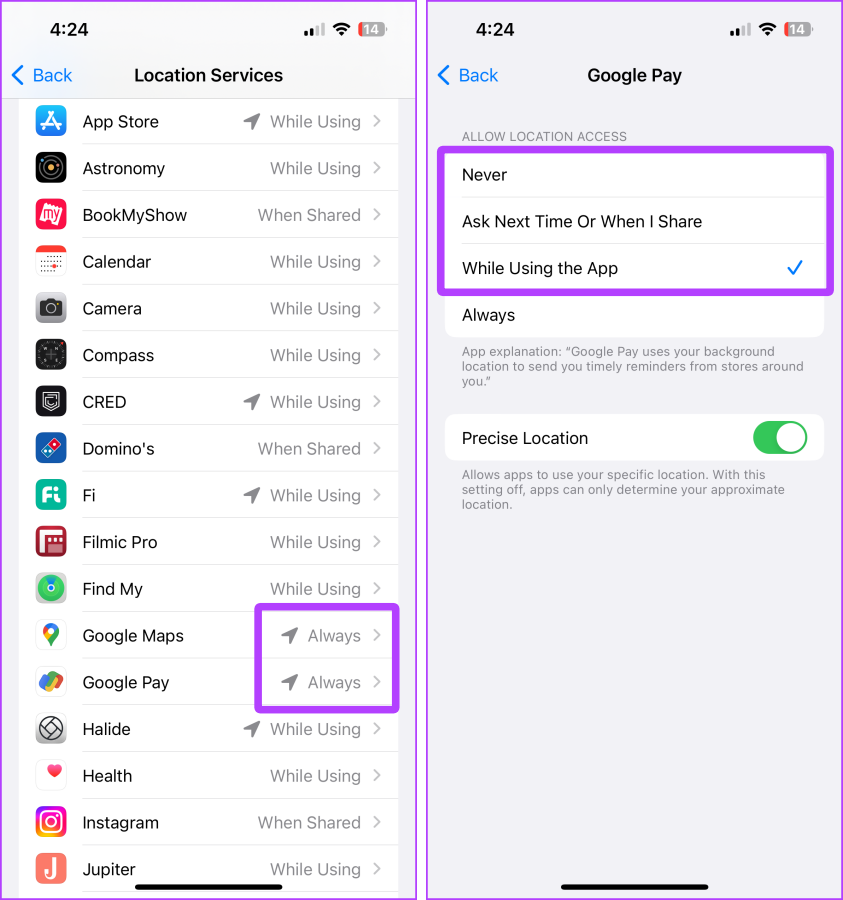
- Scroll down and look for apps and services that say “Always“; tap on them.
- Now select “While Using the App“, “Ask Next Time,” or “Never” as per your requirements.
Related Read: 16 Comprehensive Ways to Fix iPad Battery Drain Issues.
Turn off ‘Analytics and Improvement’ and ‘Research Sensor and Usage Data’
Your iPhone collects a lot of data in the background and sends it to Apple’s server so Apple can improve its products like iPhones and their apps. These things running in the background can affect your mobile data and battery. Turning them off and making other settings mentioned here can make a big difference.
Let’s take a look at the steps involved:
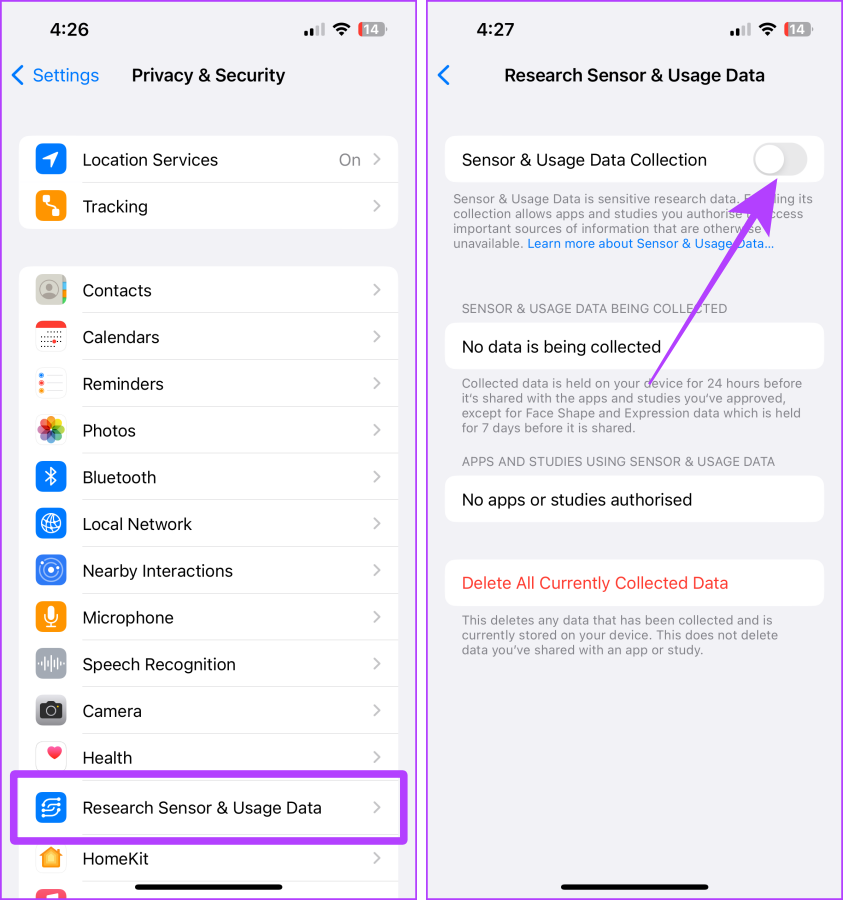
- On your iPhone, go to Settings > Privacy & Security.
- Tap ‘Research Sensor & Usage Data‘.
- Turn off the toggle saying Sensor & Usage Data Collection.
- Now, go back to Privacy & Security. Tap Analytics & Improvements.
- Uncheck all the toggles on the page.

Limit ‘Background App Refresh’
Did you know that your iPhone has a switch that lets you limit background app updates? If not, let’s take a closer look at this feature and find out how you can use it to save your iPhone’s battery.
Here are the simple steps you need to take:
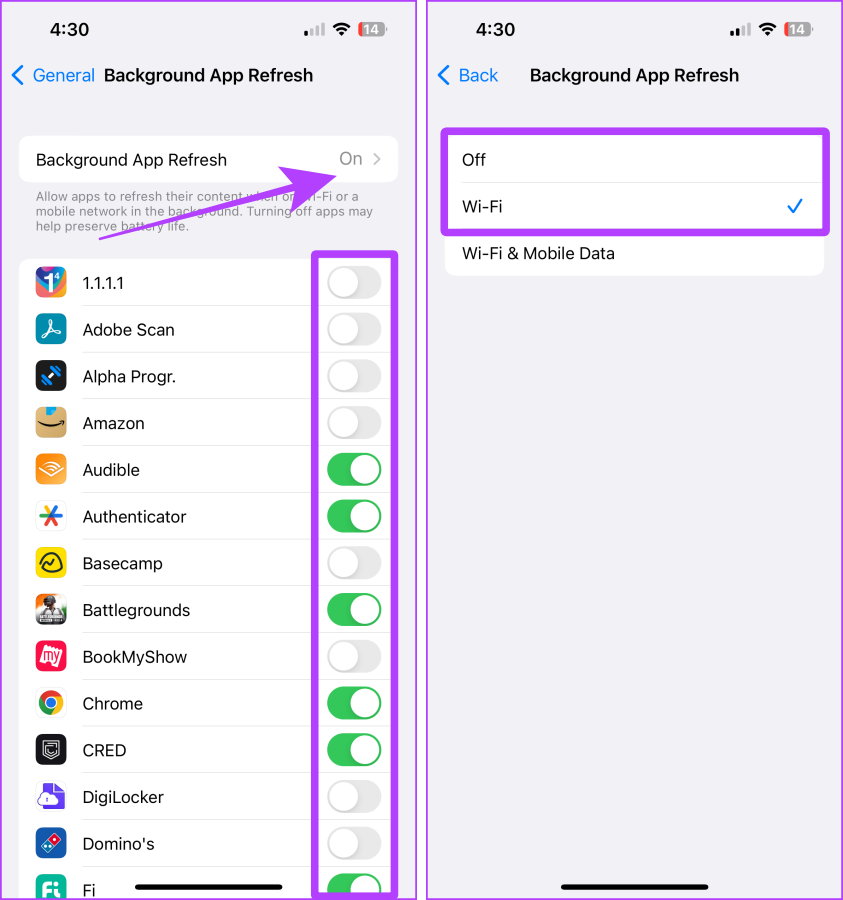
- Open Settings and tap on General.
- Now, tap Background App Refresh.

- Turn off the toggles for the apps that you don’t want to use resources in the background. Furthermore, tap Background App Refresh.
- Select Off or Wi-Fi depending upon your preference.
Related Read: 20 Ways to Fix MacBook Battery Draining in Sleep Mode
Change the ‘Mail Push/Fetch Frequency’
Another hidden setting that is enabled with the iPhone is the push settings in the Mail app. When enabled, your iPhone maintains a connection with the server and constantly asks if there is a new mail, which is problematic for your battery. Turning this feature off and adjusting the frequency of mail retrieval will directly affect your iPhone’s battery performance.
Here are the steps to do so:
-
- Launch Settings on your iPhone and tap Mail.
- Tap Accounts.
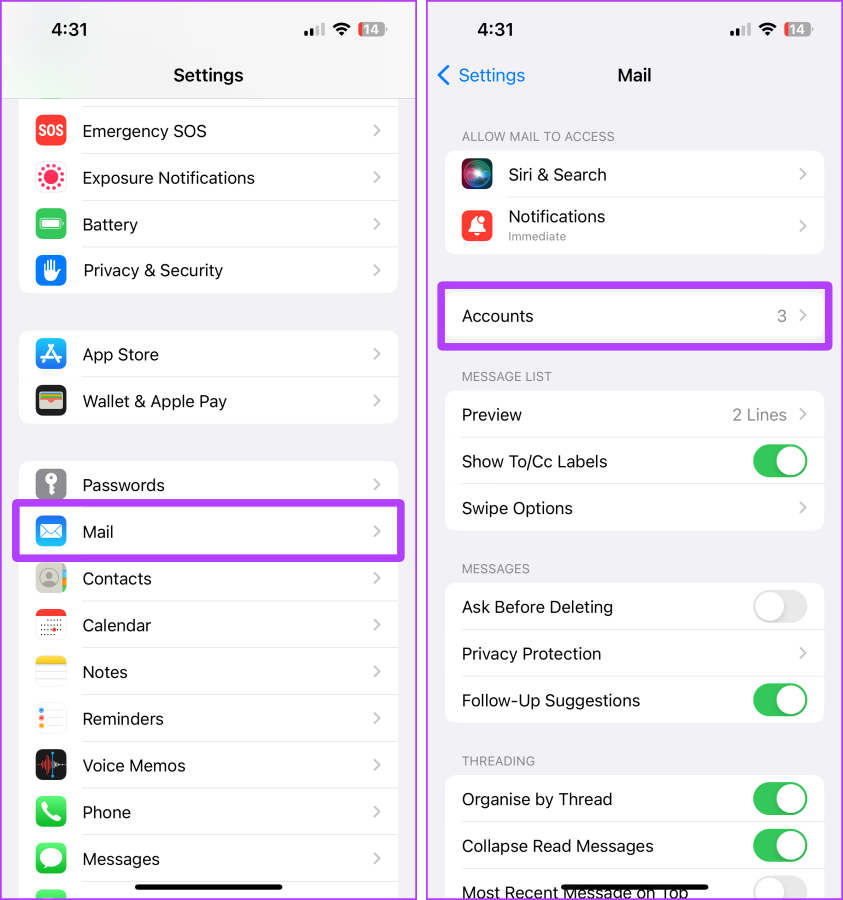
- On the accounts page, tap Fetch New Data.
- Uncheck the “Push” box and select “Manually” or “Hourly,” whichever you prefer to save battery.

‘Reduce Motion’ on iPhone
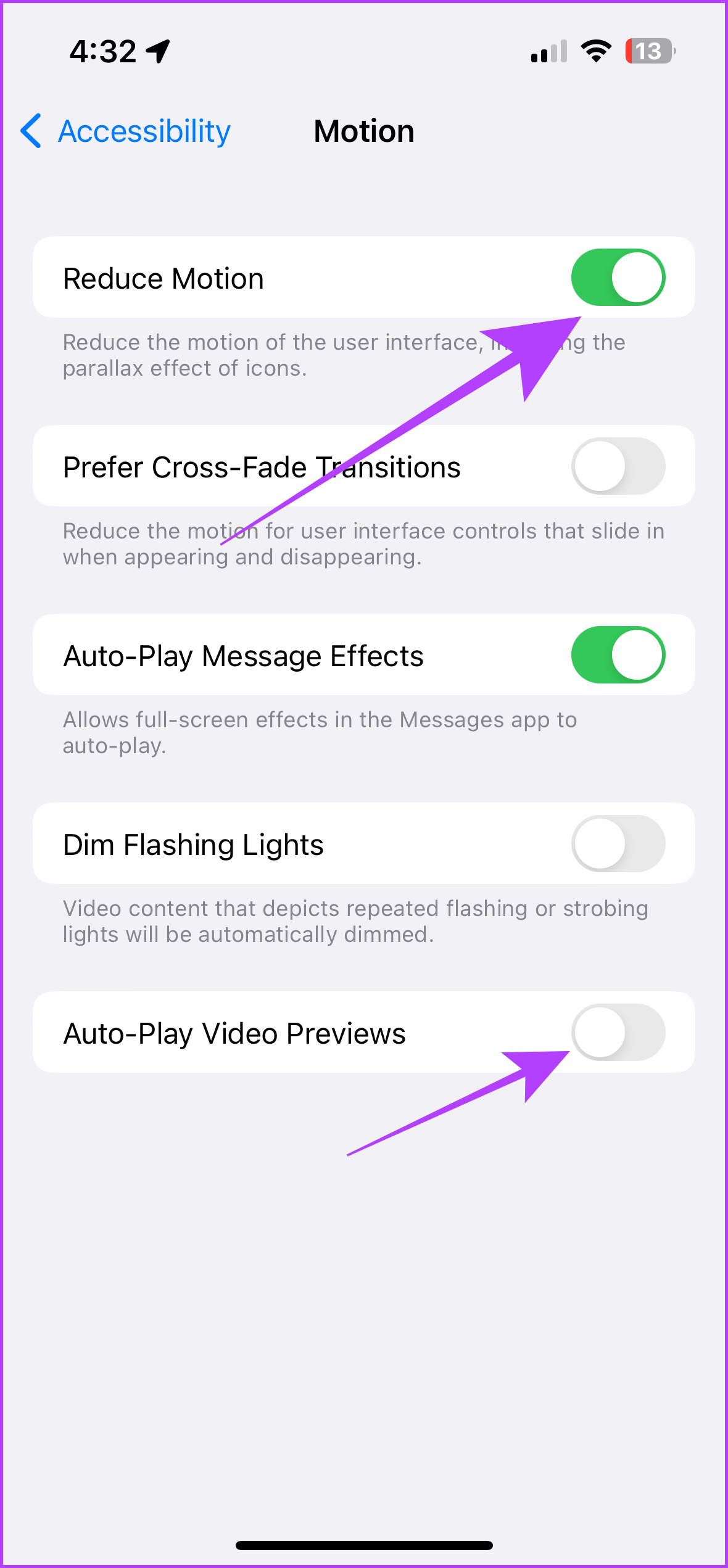
Another option that saves your battery is “Reduce Motion.” When you enable it, it turns off all iOS animations on your iPhone, saving a significant amount of battery at the end of the day.
Let’s take a look at the steps to take:
- Open Settings and tap Accessibility.
- Tap Motion.
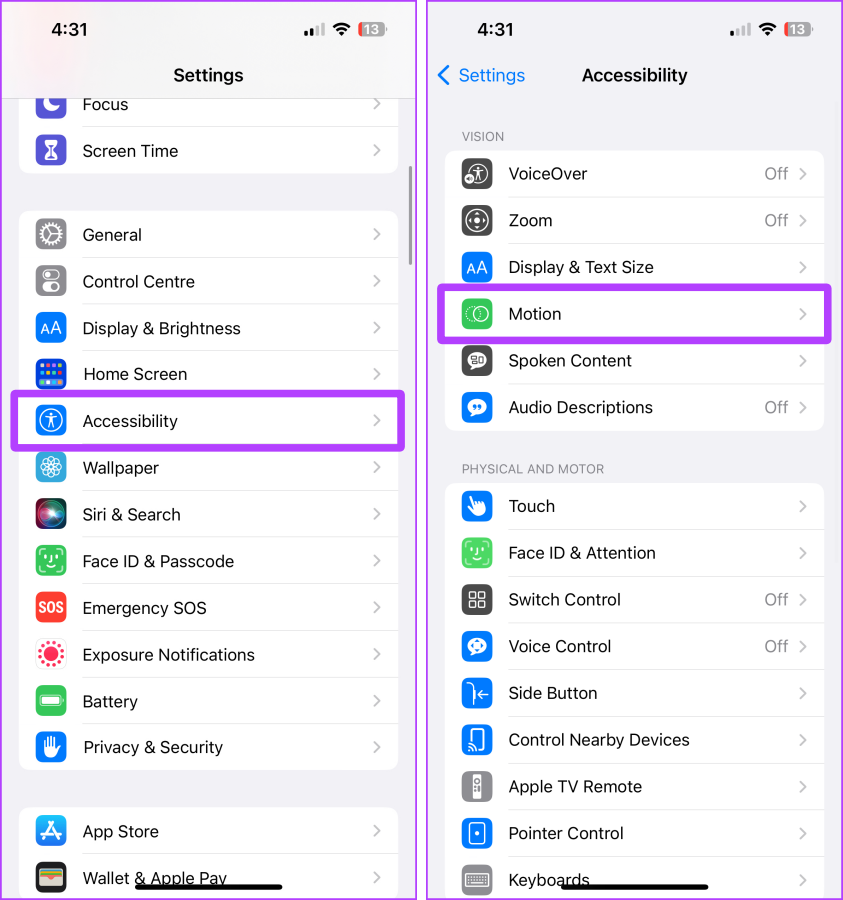
- Uncheck the Reduce motion checkbox.
‘Limit Frame Rate’ on iPhone 15 Pro, 14 Pro, 13 Pro Models
Since we are on the Reduce Motion settings page, and if you’re using an iPhone 13 Pro (or Max), 14 Pro (or Max), or 15 Pro (or Max), you can limit the frame rate to save extra battery. These two iPhone models are equipped with Pro Motion, which is a 120 Hz refresh rate that uses more battery than the normal 60 Hz.
Here are the steps to limit the frame rate on your iPhone:
- Open Settings and go to Accessibility > Motion > Limit Frame Rate.
Turn off ‘Haptics’ (Vibrations)
The iPhone’s haptics are fun, but they put a significant drain on your iPhone’s battery. Apple’s support website states, “Turning on keyboard haptics can affect your iPhone’s battery life.”
Let’s take a look at the simple steps to follow:
- Open Settings and tap on Sound & Haptics.
- Now turn off all the toggles, saying Haptics. Furthermore, tap Keyboard Feedback.
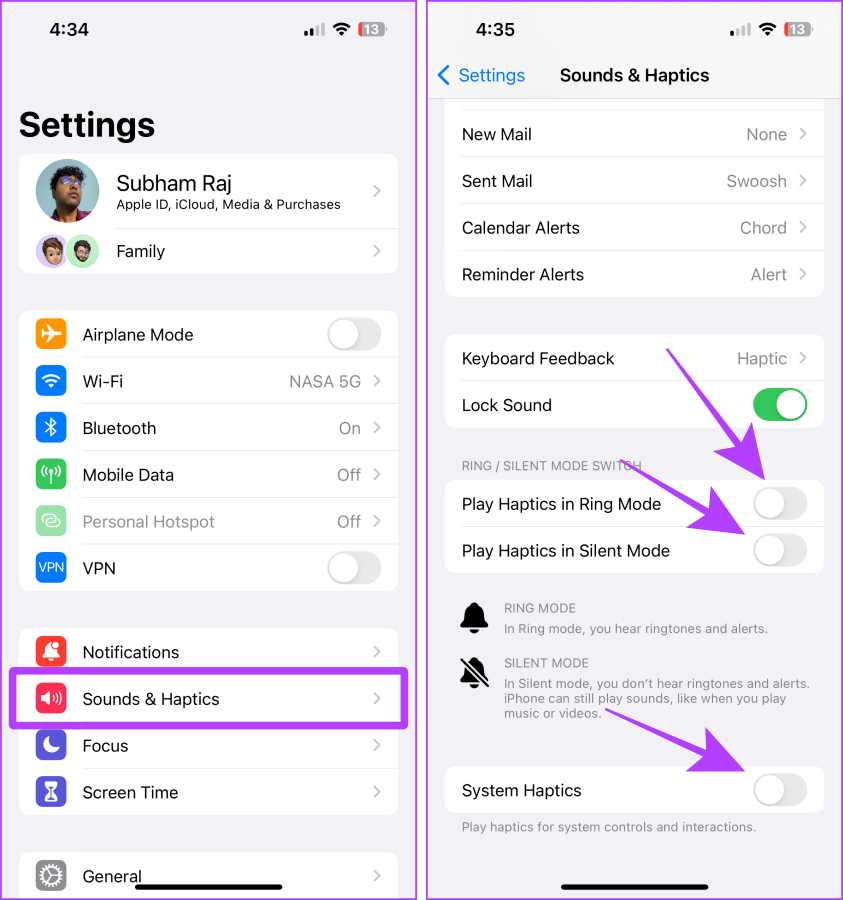
- Now turn off the Haptics for the keyboard.

Switch to 4G
5G coverage has yet to improve, as does 4G coverage; therefore, constantly switching to 5G on your iPhone may also result in faster battery consumption. If you switch to 4G in this case, you can save some juice for the rest of the day.
Here are the steps to take:
- Launch Settings on your iPhone and tap Mobile Data.
- Now, tap on the SIM card whose setting you wish to change.

- Tap on Voice & Data.
- Tap LTE to select 4G.

Turn off ‘Share My Location’
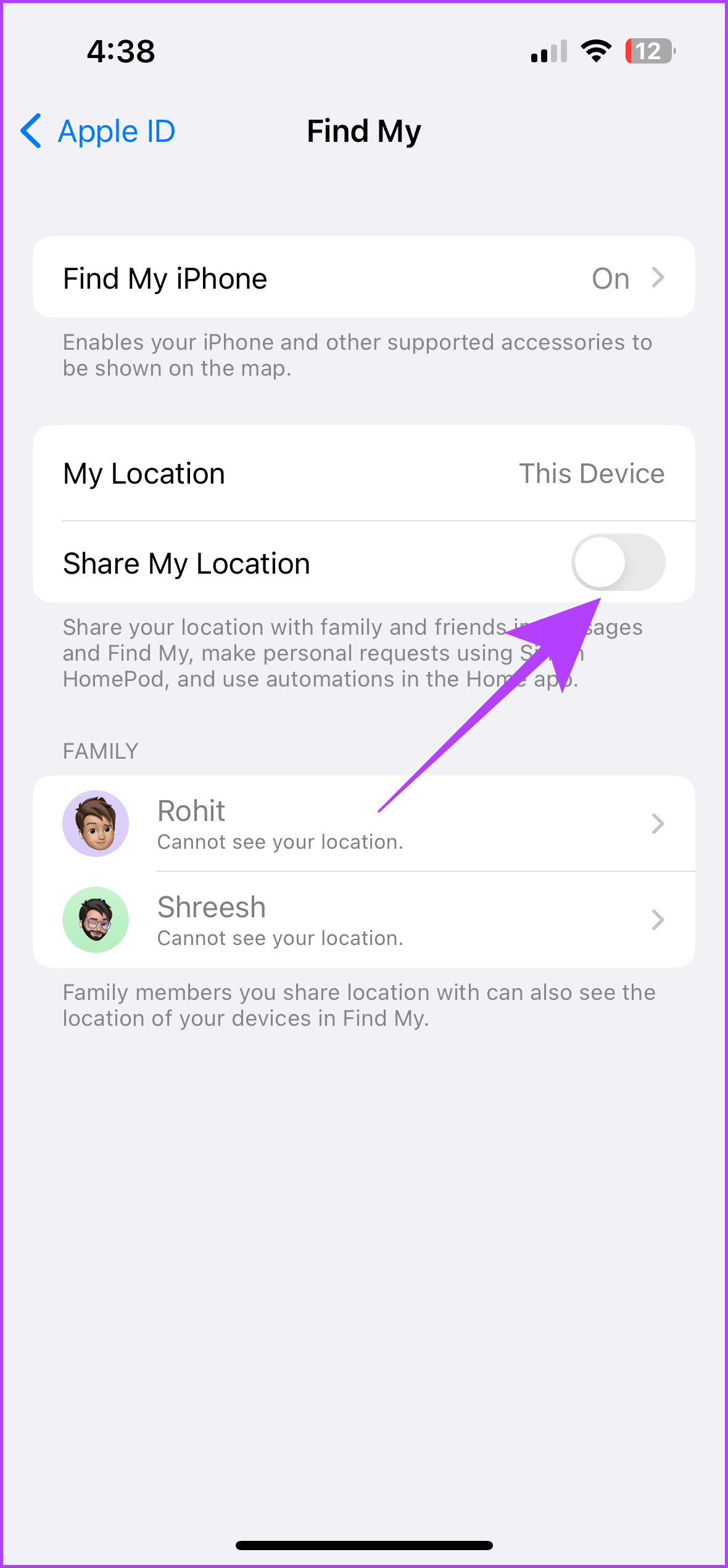
The seamless location sharing of ” Find My” with your loved ones is a great feature on iPhone. But we often forget to turn it off after a while, which can lead to faster battery drain in the background.
Let’s take a look at the steps to disable this feature:
- Open Settings and tap on your Name/Apple ID.
- Tap Find My.
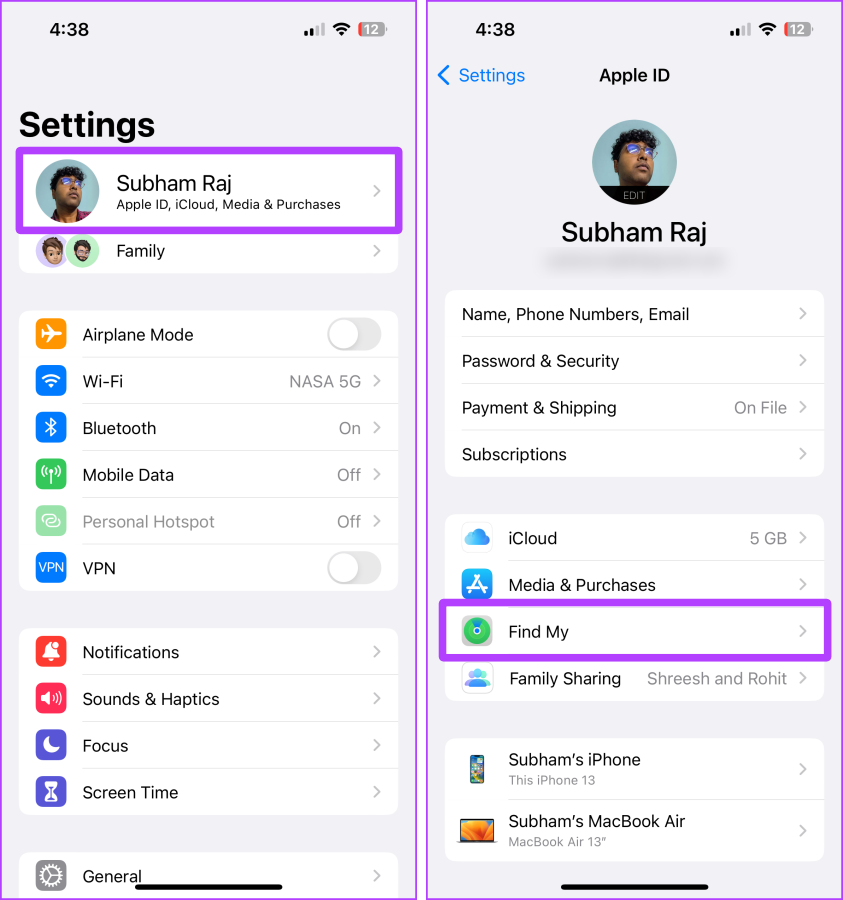
- Turn off the toggle saying Share My Location.
Keep ‘Auto-Brightness’ On
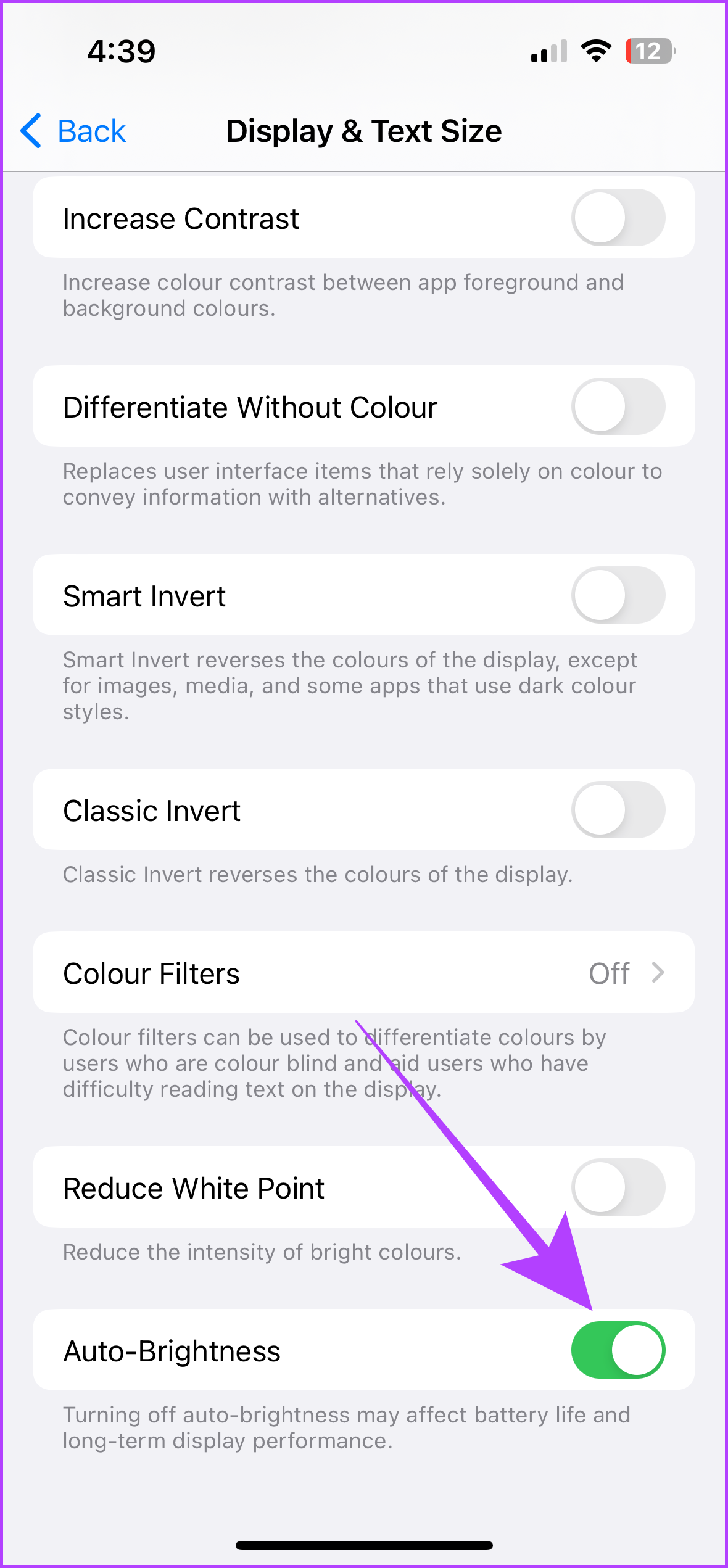
As with location sharing, it’s also likely that you set your iPhone’s automatic brightness setting to the maximum and forget to lower it throughout the day. Keeping your iPhone at maximum brightness all the time is a major factor in faster battery consumption.
Here are the steps to solve this problem:
- Open Settings and tap Accessibility.
- On the Accessibility settings page, tap Display & Text Size.
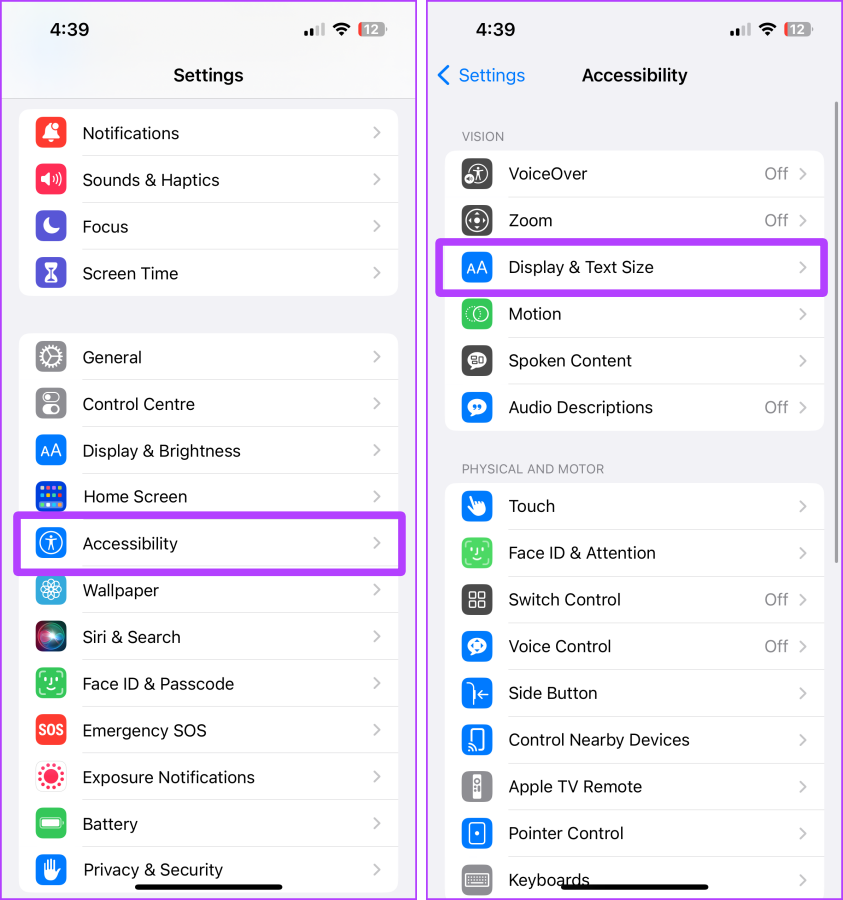
- Now turn on the toggle for Auto-Brightness.
Do More With Your iPhone Battery
In short, your iPhone is only bad when the battery is insufficient; otherwise, it’s the hidden settings and buttons. By making all these settings and adjustments to your iPhone, you can significantly improve your iPhone’s battery performance.