

Quick Answer
Some of the most popular free and public DNS servers are Google, Cloudflare, Control D, CleanBrowsing, and Quad 9. While most of them do a great job with DNS, some of them have additional features (for free as well as paid) like malware blocking, blocking adult content, blocking ads, etc.
DNS, or Domain Name System, is a protocol that takes the domain name or the text that you enter in a browser window to reach a particular website and converts it into IP addresses to help you access the particular website. Whenever you go online, your ISP or Internet Service Provider assigns you a DNS server, but it is not always the best choice of DNS. The DNS that you are assigned could be slow, resulting in slowed browsing speeds, and sometimes, you won’t be able to access the websites.

Thankfully, you can switch over to the best free and public DNS servers available and, based on your preference, use them to get better speeds and security when you are online. However, not all DNS services are good or better compared to the ones assigned by your ISP. In this guide, we will share with you some of the best and most public DNS servers that you can opt for, with each having its own advantage.
Table of Contents
Best free and public DNS servers
To get you started, here are the best free and public DNS servers:
Public DNS Provider | Description | Primary / Secondary DNS |
|---|---|---|
Cloudflare | Impressive reliability | 1.1.1.1 / 1.0.0.1 |
Google DNS | Best for speed | 8.8.8.8 / 8.8.4.4 |
CleanBrowsing | Impressive security and privacy | 185.228.168.9 / 185.228.169.9 |
AdGuard DNS | Security and privacy at its core | 94.140.14.14 / 94.140.15.15 |
Alternate DNS | Prioritizes internet security, privacy, and performance | 76.76.19.19 / 76.223.122.150 |
OpenDNS | Fast and reliable internet | 208.67.222.222 / 208.67.220.220 |
Quad9 | Fast and secure | 9.9.9.9 / 149.112.112.112 |
Control D | Customizable DNS service | 76.76.2.0 / 76.76.10.0 |
Cloudflare – Impressive reliability
Cloudflare 1.1.1.1 is one of the best free and public DNS servers that is popular for offering great speed, even better than Google DNS, as per independent DNS testing website DNSPerf. I believe it has strong fundamentals in privacy with features such as a no-log policy, not utilizing user data for advertisements, support for strong encryption, and annual audits by KPMG for its privacy practices, which are enough for it to be a speed and privacy champion.

For mobile users, there is a dedicated 1.1.1.1 app that offers a WARP feature that secures the phone’s outgoing traffic. I did not come across any difficulties setting up Cloudflare because the website gives tutorials for Windows, Mac, Android, iOS, Linux, and even routers. For enhanced privacy, Cloudflare DNS supports DNS over TLS (DoT) and DNS over HTTPS (DoH), preventing eavesdropping and unnecessary surveillance.
I did not like the fact that Cloudflare has content filtering for malware and adult content with their 1.1.1.2/1.0.0.2 and 1.1.1.3/1.0.0.3 services, respectively, which is something a user has to choose manually rather than being applied automatically.
Pros:
- Performance and speed
- Advanced privacy measures
- Security practices such as query name minimization
Cons:
- No Adblock
- Optional content filtering
Google DNS – Best for speed
With its main focus on speed, security, and reliability, Google DNS is one of the best free and public DNS servers that you can opt for. I like the speed that Google DNS offers, thanks to its data centers present in multiple countries, though it may lag behind the likes of Cloudflare on testing. Protection against data cache poisoning, DNS spoofing, and hijacking, and support for DNSSEC (Domain Name System Security Extensions), which help prevent DNS-based attacks and provide security for DNS data, are some of the standout security features of Google DNS.
Google DNS offers DNS over HTTPS (DoH) and TLS (DoT) over traditional DNS over UDP/TCP. Through continuous monitoring and analysis of DNS traffic, Google DNS quickly mitigates potential risks by enhancing online security. Google also offers a set of APIs for developers to integrate Google public DNS into their apps and services.
The setup process was a breeze, and all I needed to do was enter the DNS addresses 8.8.8.8 and 8.8.4.4, and my device was connected to the Google DNS servers. I experienced fewer timeouts and errors with Google DNS during the time of my testing.
Pros:
- Faster DNS lookups
- Speed is amazingly fast
- Less timeout and errors
- Easy to configure
Cons:
- Google’s data collection practices may raise privacy concerns
- Limited DNS setting customizations
CleanBrowsing – Impressive security and privacy
If you would rather go for security and privacy and don’t mind sacrificing a bit of speed, then a CleanBrowsing DNS server could be a good option for you. CleanBrowsing offers three DNS servers to choose from, i.e., Security filter, Adult filter, and Family filter. The flexibility that allows me to filter content as per my needs is great about CleanBrowsing.
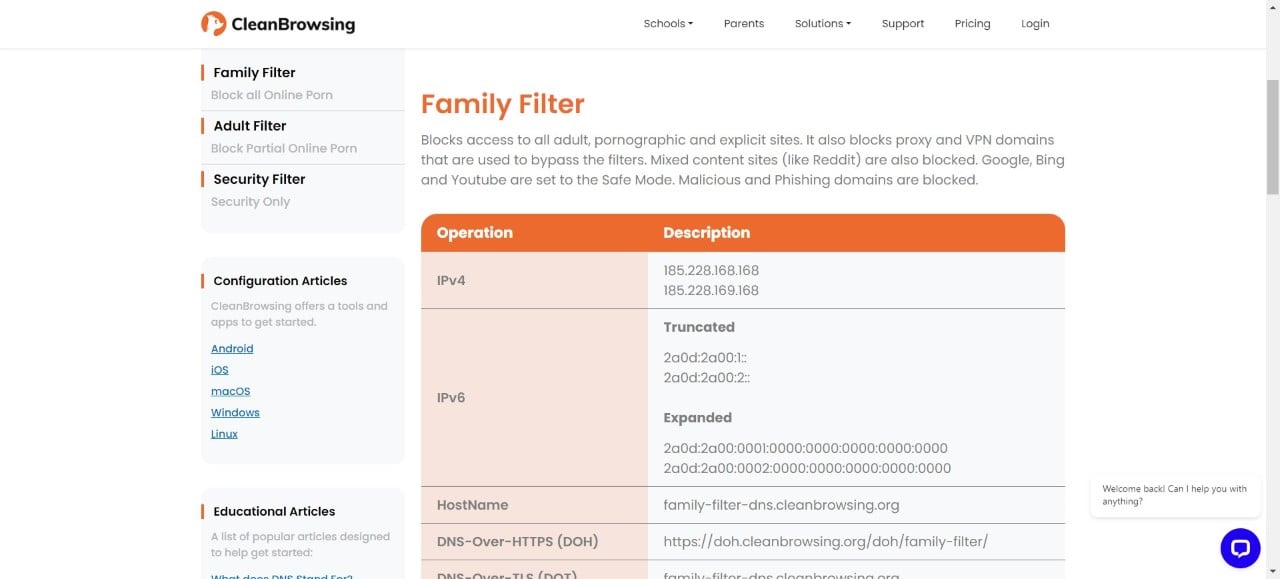
Using the adult filter (185.228.168.10), I was able to block adult domains; the family filter (185.228.168.168) blocked gambling and other inappropriate material, presenting a family-friendly browsing experience; and the security filter (185.228.168.9) helped block phishing, spam, malware, and malicious domains. In my testing, I did find my internet speed to decrease with CleanBrowsing, especially during peak usage hours, as compared to Google DNS or Cloudflare, but it wasn’t that bad.
While the basic filtering option may be sufficient, power users looking for a more granular DNS setting may be disappointed as this doesn’t offer many customization controls. Also, a few times, the CleanBrowsing DNS blocked certain legitimate websites accidentally. For more features, you can subscribe to the CleanBrowsing premium plans. The details can be found here.
Pros:
- Different filtering options catering to specific needs
- Security that blocks harmful and malicious content
- Easy to set up
Cons:
- DNS customization options are limited
- The server can sometimes be a bit slow
AdGuard DNS – Security and privacy at its core
AdGuard DNS is a great DNS server that is best for an ad-free browsing experience. One of the first things that I experienced using AdGuard DNS servers was the reduction of intrusive ads and trackers while browsing the internet. The ad-blocking feature works well and doesn’t miss out on any.

The website guides you in setting AdGuard DNS either manually or by using the dedicated app for Android, iOS, Windows, MacOS, or Linux. You get access to two types of DNS servers apart from the default servers. The Non-filtering servers (94.140.14.140 and 94.140.14.141) don’t block ads, trackers, or any other DNS requests, while the Family protection servers (94.140.14.15 and 94.140.15.16) will block ads, trackers, adult content, and gives the safest possible environment for web browsing.
It offers DNS-over-HTTPS (DoH), DNS-over-TLS (DoT), and DNS-over-QUIC, apart from the traditional DNS encryption and plain DNS protocols. AdGuard DNS also offers additional features such as malware protection, parental controls, and customized filtering options.
Pros:
- Effectively blocks ads and trackers
- Customization options are on offer
- AdGuard DNS is compatible with almost all devices
Cons:
- Occasional delay in DNS resolution
- Sometimes blocks legitimate websites
- The free tier has limitations
Alternate DNS – Prioritizes internet security, privacy, and performance
With adblocking and privacy features, Alternate DNS offers a combination of speed and a secure internet browsing experience. It encrypted DNS resolution and filtering capabilities blocked all the ads during the time of testing this DNS server. The adblocker works well, and the anti-tracking features prevent tracking by third-party entities.
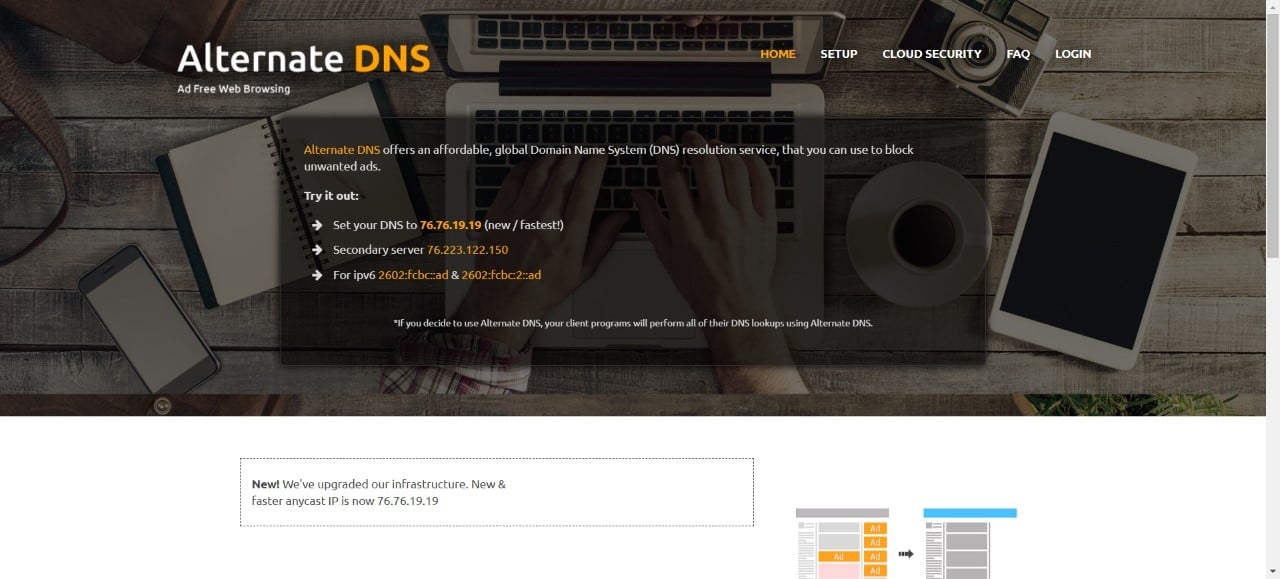
Since the adblocking and tracking features work at the DNS level, you can enjoy a safe and ad-free browsing experience across all the devices on which you are using Alternate DNS. Setting up Alternate DNS on any of your devices is a breeze, and for any help, you can refer to the official website.
You can also set Alternate DNS to be your secondary DNS server along with a different primary DNS server. You can also set up a Family filter with Alternate DNS that will help block adult content, malware domains, etc.
Pros:
- Protects you from phishing and malware content
- Gives you a good browsing speed
- Comes with a Family filter to block adulterated content and malware domains
- Compatible with all types of devices
Cons:
- Concerns about its reliability
OpenDNS – Fast and reliable internet with 100% uptime
OpenDNS claims to have servers with 100% uptime, meaning no hiccups while you browse the internet, which is what I experienced during my time testing OpenDNS. Owned by Cisco, OpenDNS has a large user base and offers over 50 customizable filtering categories. Parents can keep control of the websites that they want their children to access.
You will find all the essential features in the free version. The free version retains logs for two weeks and offers the OpenDNS Family Shield for free, which comes with filters to block adult content without any manual tweaking. OpenDNS works great at blocking ads and malicious websites that could potentially harm your PC or steal your login information, etc.
You can set up OpenDNS on any device, and the setup process is pretty easy. All you need to do is follow the steps on this website for your device, and the free version also has email support.
Pros:
- DNS servers with 100% uptime
- Available for all devices
- Phishing sites and malware domains are blocked by default
- Multiple options for web filtering
Cons:
- Collects your browsing data
- No DNSSEC support
Quad9 – Fast and secure
You can use Quad9 DNS servers for a fast, reliable, and robust performance network. It offers a Threat Blocking feature that blocks malicious websites from connecting to any of your devices. When you use the internet with Quad9 DNS, it checks the integrity of the website with its different threat intelligence partners, and based on the results, it lets you access or block the website.
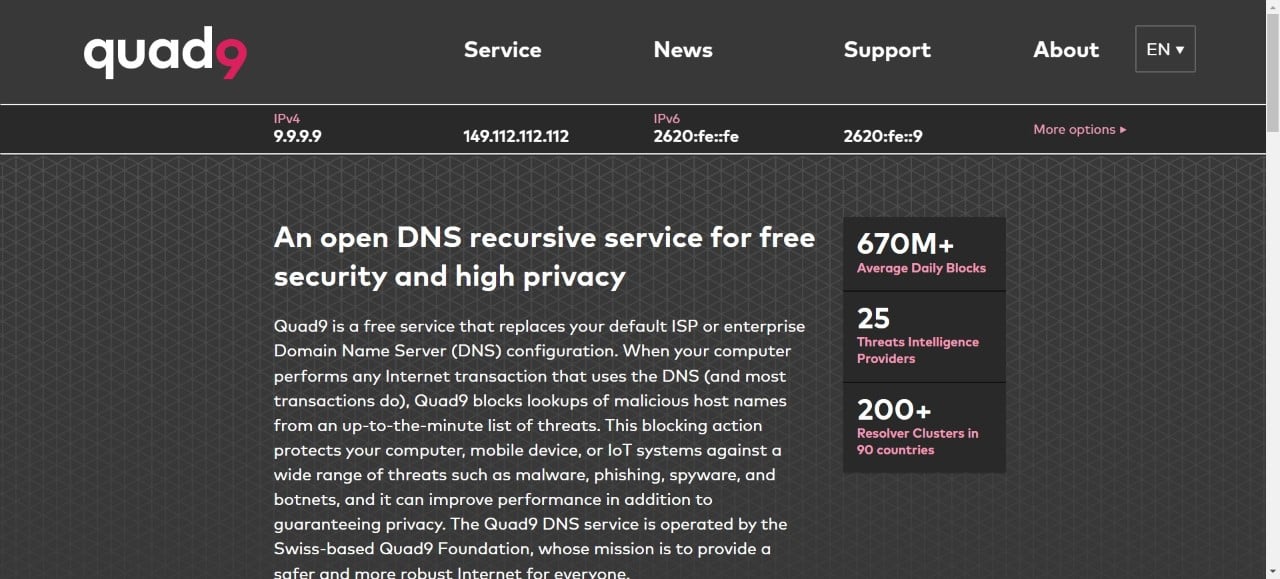
Quad9 doesn’t retain any personal data, and you don’t need to sign up or sign a contract to use Quad9 DNS services. With Quad9 systems spread worldwide in over 183 locations, the DNS resolution times are minimal. Unfortunately, Quad9 doesn’t filter content; it only allows for phishing and malware domain blocking.
I found the setup guides to be outdated, such as for Windows. There is a guide available for Windows 10 and 8. Then there is game console advice for PS4, even though PS5 has been out for years. The good thing, the setup isn’t difficult to do.
Pros:
- Speedy performance
- Robust security and privacy mechanisms
- DNS resolution times are minimal
Cons:
- No adult content filtering option
- Limited help in terms of setup in the latest devices
Control D – Customizable DNS service
One of the unique DNS servers that offers customization options lets you choose among multiple DNS servers. Apart from legacy DNS, Control D offers DNS-over-HTTPS/3, DNS-over-TLS, and DNS-over-QUIC. It supports setup on all devices, all browsers, and most routers. With features such as malware blocking, web filtering, adblocking, phishing domain blocking, etc., you can create your own unique filter.

It is one of the best DNS services that offers granular control over a domain. You can choose to block certain websites or block ads, trackers, or adult content. The flexibility that it offers in setting custom configuration is something that I like, and you can also look at the stats to check how many queries were bypassed, redirected, or blocked.
Control D supports cutting-edge modern DNS protocols, such as DNS-over-HTTPS (DoH), DNS-over-TLS (DoT), and DNS-over-QUIC, to ensure a secure and private internet browsing experience.
Pros:
- Gives you granular control over filters
- Powerful adblocking and tracker-blocking
- Lets you block a specific service
Cons:
- Efficacy in terms of gaming is debatable
- Sometimes throws false positives
FAQs about DNS servers
1. How to know the fastest DNS service?
You can try out the DNS servers mentioned in this guide or else use tools such as DNS Jumper that test multiple public DNS services, and based on the results, you can decide which DNS server is best for you.
2. How can I find my current DNS?
You can use the Command Prompt and enter the command IPCONFIG/ALL to know about your DNS, or else you can use the DNSLeakTest website and hit the Standard Test button to learn about your DNS server, hostnames, and the name of your ISP.

