

Quick Answer
If your MacBook is overheating, draining battery fast, or making loud fan noise, simple fixes like quitting unused apps, checking Activity Monitor, updating macOS, enabling Low Power Mode, managing browser tabs, improving ventilation, checking battery health, and reducing background processes can restore performance and extend your Mac’s lifespan.
If there’s one thing Macs are best known for, it’s stability. Be it the entry-level Mac mini, the MacBook Air, or the iMac, all Macs deliver consistent, stable, and dependable performance year after year. However, Macs, like other electronic devices, slow down and start showing issues related to battery drain and overheating. Your Mac may also encounter problems related to fan noises, if it has one. All of them are unavoidable and occur mainly due to the aging of electronics, battery degradation, storage accumulation, and more. Thankfully, the problem usually occurs after a few years of usage, so you need not worry if your Mac is new.
However, if you are facing the aforementioned issues on your Mac, it’s crucial to fix them to prevchaent further damage and ensure your Mac lasts longer. If you use an older Mac that’s rocking the M2 chip or earlier, including Intel chips, you might face the issues sooner or later, considering they were released nearly half a decade ago. This article outlines 10 effective ways to fix overheating, battery drain, and fan noise issues on Macs. Let’s get going!
Table of Contents
Fixes for MacBook Overheating, Battery Draining Fast, or Fan Noise Issues
Quit Unwanted Apps
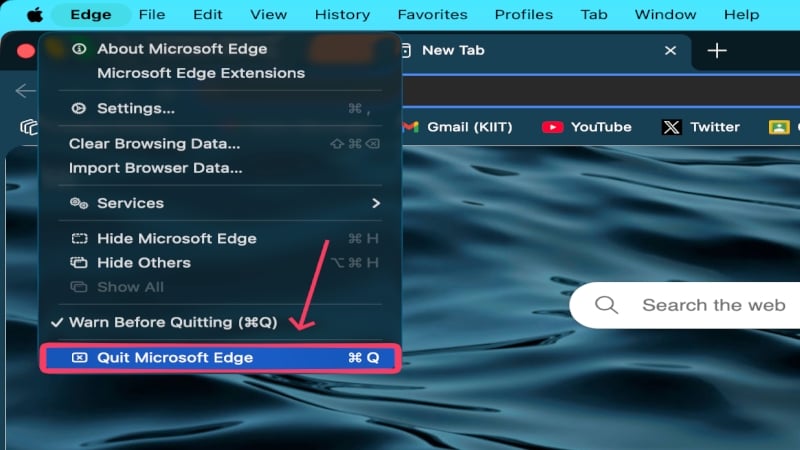
Because quitting apps on macOS isn’t as straightforward as on other operating systems, such as Windows, Mac users often leave apps running. Doing so for a few apps is fine, but it’s easy to fill up the RAM without realizing it, which is when problems start to arise. Since your Mac has to kill apps to make space for new ones and keep others running, this can result in slowdowns, overheating, higher-than-usual battery drain, increased fan usage, and more. Instead, you could bypass all that by quitting unwanted apps yourself using the keyboard shortcut command + Q.
Check Activity Monitor
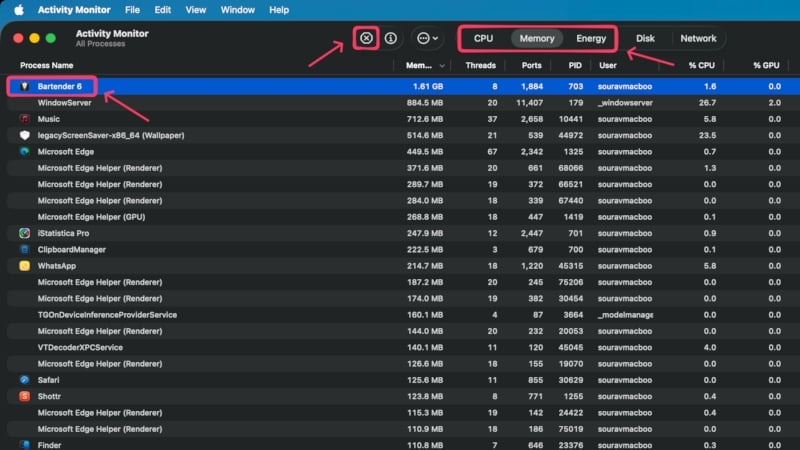
When you are unsure which apps are likely causing the problems, it’s best to check the Activity Monitor on your Mac. It’s an application that shows the status of all the apps running on your Mac, along with their usage details. You can track their CPU, memory usage, and energy stats in Activity Monitor, and identify and quit troublesome apps directly from there. To do so, select the required app in Activity Monitor under the respective categories (CPU, Memory, and Energy), then click the cross icon in the toolbar, followed by Force Quit. Doing so will certainly free up your system effectively.
Update Your Mac
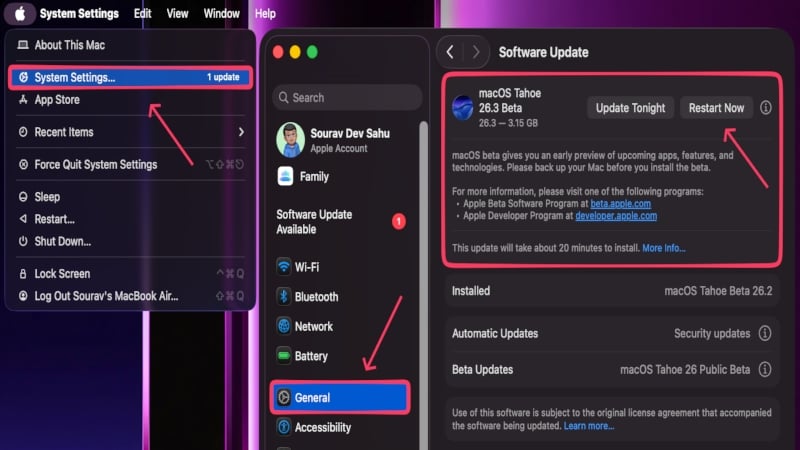
If you’re still rocking an older version of macOS, chances are that the issues are likely caused by it. Older versions often experience security issues, compatibility problems, and reduced performance, leading to system slowdowns, faster battery drain, overheating, and more. The apps on your Mac will also feel sluggish over time due to stability issues caused by an older version, or, in some cases, due to incompatibility caused by a mismatch between the app and the software versions. You can update your Mac by following the steps below:
- Click on the Apple logo () in the top-left corner of your Mac.
- Go to System Settings.
- Enter Software Update within General settings.
- Check for available system updates and update your Mac.
Enable Low Power Mode
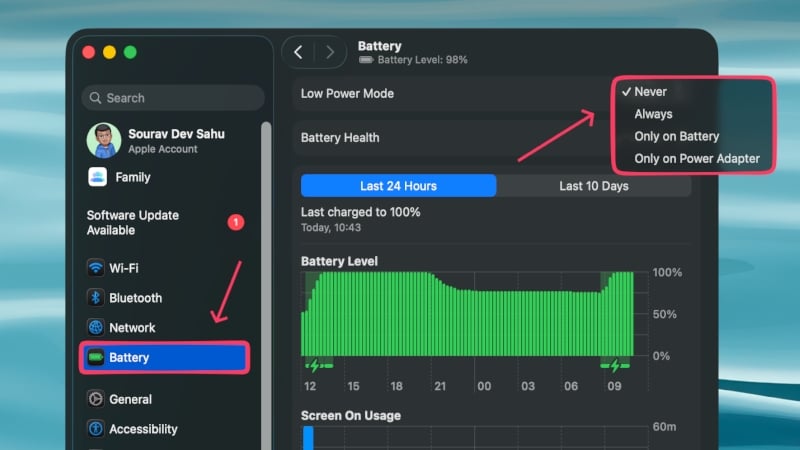
Low power mode can prove to be a great asset in situations where your Mac is overheating or draining the battery quickly. Enabling this allows your Mac to limit its processes and performance to keep battery drain in check, which, in turn, reduces heat. However, you may notice a noticeable loss of power and reduced brightness. There are instances when the low-power mode can be enabled automatically; you can set them using the procedure mentioned below:
- Click on the Apple logo () in the top-left corner of your Mac.
- Go to System Settings.
- Open the dropdown menu next to Low Power Mode within Battery settings.
- Choose from the given options as per your preference.
Avoid Working in Places With High Ambient Temperature
More than what you’re doing on your Mac or to what extreme it is being pushed, having an ideal ambience matters more to a Mac’s working state. A higher-than-average ambient temperature negatively impacts your Mac’s performance and battery usage, so much so that you can certainly notice a significant difference. It simply has to do with the battery and chipset inside your Mac, which like to work within a defined temperature range, preferably at ideal room temperatures. Thus, if you’re working in a hot environment, such as outdoors on a sunny day or in front of a window facing the sun, consider moving to a cooler location to improve performance and reduce battery drain.
Check Your Mac’s Battery Health
Since the battery could be primarily the cause of the problems we are talking about here, it’s recommended to check whether your MacBook’s battery is holding up well. In other words, we are referring to your MacBook’s battery health here, which, when depleted below the recommended value of 80%, starts showing critical signs. They include sudden battery drops, overheating, faster battery rundown, and more. The only solution to this problem is to get the battery pack replaced at an authorized service center. If your MacBook’s AppleCare coverage is still valid, the replacement won’t cost you a penny in most cases. Follow the steps below to check your Mac’s battery health:
- Click on the Apple logo () in the top-left corner of your Mac.
- Go to System Settings.
- Select the i icon next to Battery Health in Battery settings to view your Mac’s battery health.

Use a Laptop Cooling Stand
MacBooks, particularly the latest ones featuring Apple’s M-series chipsets, are famously known for being dead silent in most working conditions. However, they do get hot from their bottom panels, because that’s where the main components lie. This means that if you use your machine on a flat or cushioned surface that restricts heat dissipation, your MacBook will slowly start to overheat, drain its battery faster, and experience reduced performance. If you can’t change its position, we recommend getting a laptop stand, preferably with a cooling fan to aid heat dissipation. Cooling pads are effective in bringing down the working temperature by a good few degrees. Plus, they improve ergonomics by bringing the screen closer to ideal eye level, thereby reducing eye, neck, and back strain.
Keep Your Browser in Check
Since most of us use browsers regularly, it’s essential to keep our browser usage in check. Browser tabs are the biggest culprit in this regard, as some tabs, such as web apps or those running active processes like video playback or streaming, often take a much greater toll than actual apps. It also depends on the browser, so avoid using one that sips battery like water. Furthermore, it is recommended to remove unwanted browser extensions to reduce system load. You can remove extensions in most Chromium-based browsers, including Google Chrome, Microsoft Edge, Brave, and more, by visiting chrome://extensions. For Safari, you can do so by navigating through your Mac’s menu bar.
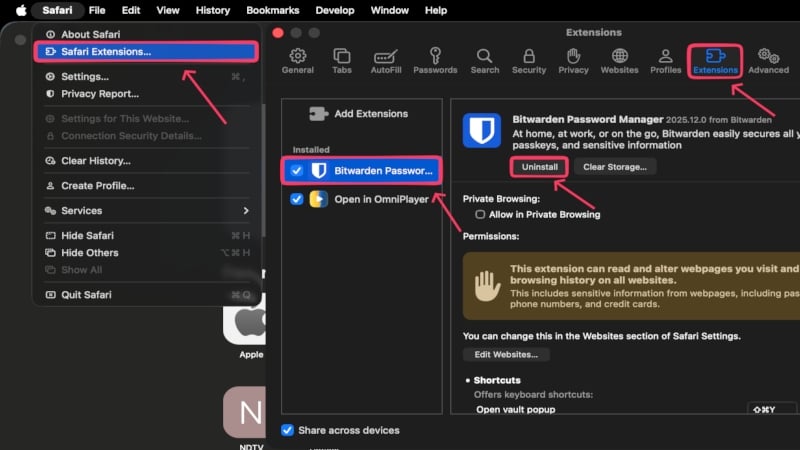
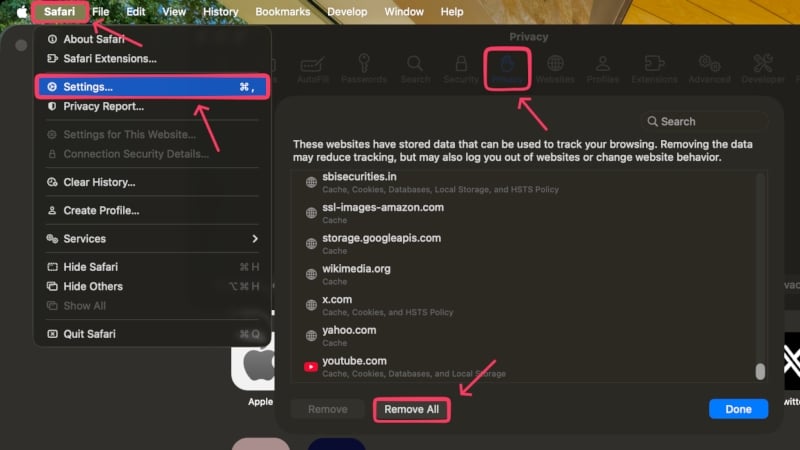
Browser cache also builds up with time and slows down your system, so you must clear it by visiting chrome://settings/privacy/clearBrowsingData and selecting the appropriate time range. If you use Safari, follow the steps below:
- Open Safari.
- Click on the Safari option in your Mac’s menu bar and open Settings. You can also use the keyboard shortcut command + , to do the same.
- Head to the Privacy section in the top panel and select the Manage Website Data setting beside the Website data option.
- Click on Remove All followed by Remove Now, to clear Safari’s entire cache.
Remove Login Items and Background Processes
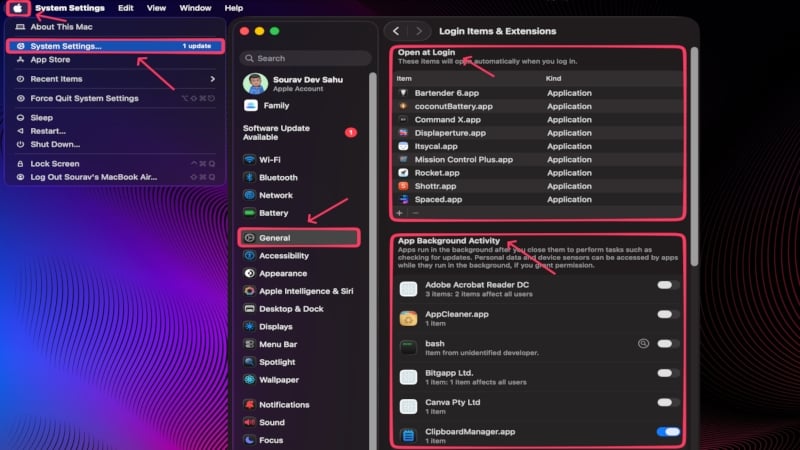
Background processes and login items are highly likely to be the silent culprits causing the issues. Login items are apps that are allowed to run as soon as you log in to your Mac, whereas background processes are those apps that are allowed to run in the background even after you close them. These are textbook definitions of system slowdowns, overheating, and fan-related issues. While you would certainly want to keep some crucial apps on your allow list, most of the others will only cause the problems mentioned. To remove such apps and processes:
- Click on the Apple logo () in the top-left corner of your Mac.
- Go to System Settings.
- Enter Login Items & Extensions within General settings.
- For apps under Open at Login, select the required one and click the minus (-) icon at the bottom of the list to remove it.
- For apps under App Background Activity, disabling the toggle next to the required app prevents it from running in the background.
Manually Clean the Internal Fans
Electronics, especially moving parts like internal fans, are bound to attract dust and debris over time. It is usually accompanied by reduced system performance, heating issues, and obvious fan-related issues. Cleaning the internal fans is best done by professionals, but it’s not something you can’t do yourself. If you have a MacBook with a fan inside, all you need to do is unscrew the bottom lid and clean the fan. Also, ensure that the exhaust vents aren’t blocked by debris. Some other Macs, including the Mac mini, are glued shut, so you will have to take them to a service center. We strongly recommend watching YouTube tutorials or repair guides before proceeding with this step.
Disconnect Peripherals
Connected peripherals like mice, keyboards, webcams, external storage devices, gaming controllers, and more, draw power directly from your Mac, even if you’re not using them. They are essentially parasites when not in use, though they won’t drain your Mac’s battery entirely. However, it’s still a good practice to avoid connecting many devices at once or leaving them connected when not in use. Your Mac can also heat up if a connected device, such as an iPhone, iPad, or external storage device, is performing an intensive task, like transferring files or being used as a secondary display. Bluetooth connections and devices connected to your Mac’s hotspot also contribute to the issue.
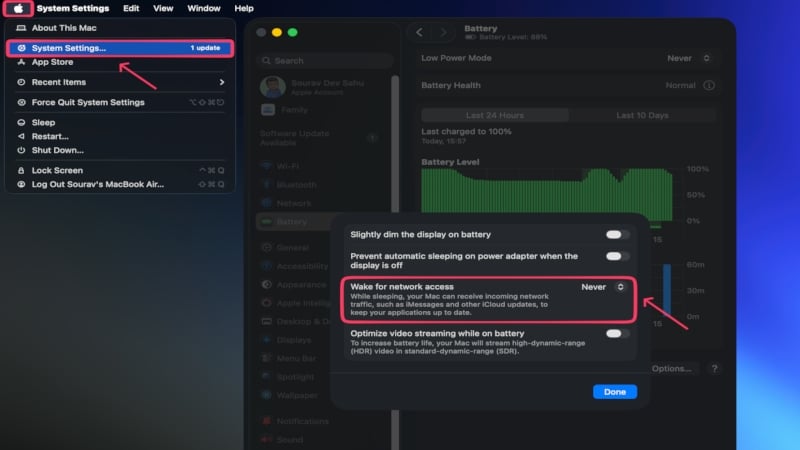
Disable Waking for Network Access
Macs have a feature that wakes them from sleep mode periodically to receive incoming traffic, such as iCloud updates or iMessage notifications. This ensures that your Mac’s applications stay up to date when not in use, which adds to the convenience. However, it means that your Mac will sip a little more battery than usual, even when it’s sleeping, just to keep your apps and notifications in sync. Follow the steps below to disable the feature:
- Click on the Apple logo () in the top-left corner of your Mac.
- Go to System Settings.
- Select Options within Battery settings.
- Open the dropdown menu beside Wake for network access and select Never or Only on Power Adapter, as per your preference.
Replace Thermal Paste
Thermal paste is a heat-conducting compound that is essential for dissipating heat from the processor via the cooling unit (heat sink). If your Mac is old, there’s a high chance that its thermal paste has dried out. In that case, the thermal paste is as good as nothing, which is harmful as your Mac won’t be able to manage its thermals as well as it used to. Although not an expensive repair, it isn’t something you can do yourself on a fine afternoon. It’s a highly technical job, and unless you’re an expert, we strongly suggest taking it to a service center to get it done. Even if you’re one, don’t forget to refer to repair guides and YouTube tutorials before proceeding. Once done, your Mac’s overheating issues should be significantly reduced.
Perform a Virus Scan
Viruses and malware are often referred to as the silent killers of devices, as they continue to cause harm without you, the host, knowing. While no one knowingly onboards a virus or malware, they can get into your system through a plethora of ways, including infected downloaded files, malicious emails, pirated apps and software, unofficial browser extensions, or more. They run in the background without information, thereby slowing down your system, draining the battery faster than usual, and causing thermal management issues. Since no one can be sure whether their system is infected with a virus, the least you can do is run a virus scan. Many third-party apps can help you with it, such as CleanMyMac and Cleaner One Pro.
Configure Your Mac Using Third-Party Apps
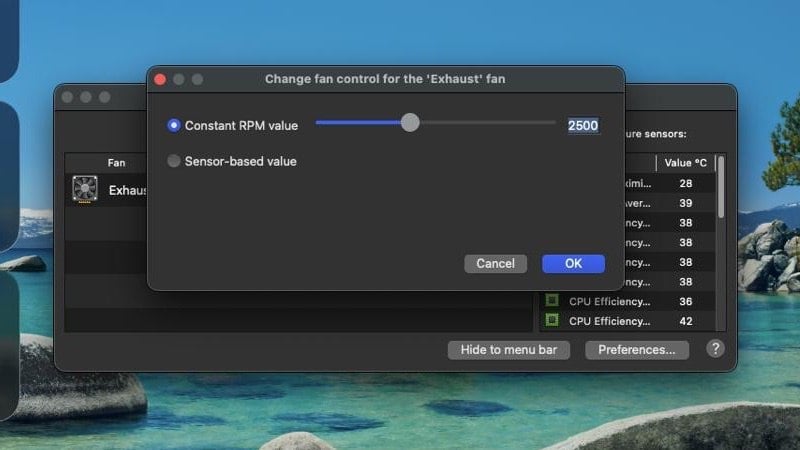
If you didn’t know, there exist apps that can control your Mac’s internals, which is otherwise difficult to achieve natively. We are referring to the fan speed and turbo boost settings in particular, which are directly related to the problems we are dealing with here. Macs Fan Control is a free app that lets you control your Mac’s fan speed (if it has one), improving heat dissipation and stabilizing performance. It allows you to set the fan’s RPM manually or have it change automatically based on temperature values.
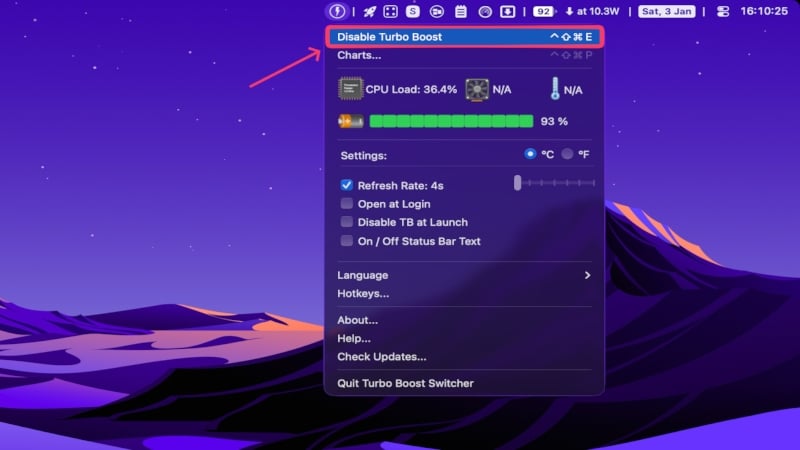
If you have an Intel-based Mac, you might be familiar with Turbo Boost, which basically allows overclocking to achieve greater performance. Since it’s all handled by your Mac, it can sometimes enable Turbo Boost when it’s not really needed, which can heat it more and drain the battery quickly. Turbo Boost Switcher is a free app that gives you control, so you can enable or disable Turbo Boost on demand with keyboard shortcuts, making it intuitive.
Reset Your Mac’s SMC (System Management Controller)
Your Mac’s SMC, or the system management controller, is responsible for managing the hardware and power-related tasks. In simpler terms, it affects your Mac’s fan usage, battery performance, sensors, and more. If, for some reason, the SMC malfunctions, your Mac will suffer from issues, such as overheating, battery drain, and abnormal fan behavior. Thankfully, resetting the SMC is a proven fix that has worked for many users, and it’s pretty easy to do so. If you have a Mac powered by an Apple M-series chipset (M1, M2, M3, M4, and more), all you need to do is shut down your Mac, wait for a minute, and turn it back on, which resets the SMC.
For post-2018 Intel MacBooks having the T2 chip inside, follow the steps below:
- Shut down your MacBook by clicking the Apple logo () in the top-left corner and navigating through the menu.
- Press and hold the left option, left control, and right shift keys together for 7 seconds.
- While still holding the keys, press and hold the power button in addition for another 7 seconds, then release all four together.
- If your MacBook turned itself off during the process, press the power button again and turn it on as usual.
For all Intel desktop Macs, such as the Mac mini, iMac, and Mac Pro, all you need to do is shut down the Mac, unplug the power cord, wait 15 seconds before plugging it back in, and turn it on using the power button 5 seconds after plugging it back in. For pre-2018 Intel MacBooks without the T2 chip inside, follow the steps below:
- Shut down your MacBook by clicking the Apple logo () in the top-left corner and navigating through the menu.
- Press and hold the left option, left control, and left shift keys together.
- While holding them, press and hold the power button as well. Keep all four keys pressed for 10 seconds.
- Release the keys and start your Mac as usual. This should reset its SMC.
For more information, consider going through Apple Support’s guide to resetting your Mac’s SMC.
Visit a Service Center
Albeit not something anyone wants to happen, consider this the final step if nothing works. Whether your Mac requires a battery replacement, a thorough cleanup, or a part replacement, it’s best handled by the professionals at service centers. Apple’s repair process is among the best in the industry and largely pretty seamless, so it shouldn’t cause much of a hassle. It’s highly recommended if your Mac is under warranty or you have Apple Care, as you won’t usually be charged a single penny in either case.
Give Your Mac a Fresh Start
No one likes getting their work interrupted by random unpleasant occurrences, like slowdowns, overheating, or random battery drains. Thankfully, most of the fixes are pretty straightforward. We recommend starting with the basics: quitting unwanted apps, disconnecting peripherals, checking your Mac’s Activity Monitor, restarting your Mac, enabling low power mode, checking your browser usage, and changing your location for better ventilation. We also suggest investing in a good laptop cooling fan if you often experience this issue in your workflow.
If the problem persists, consider updating your Mac, disabling login items and background processes, cleaning the internal fans manually, replacing the thermal paste, running a system-wide scan for abnormalities, configuring the internals using third-party apps, and resetting the system management controller (SMC). If nothing works, we strongly recommend visiting an Apple service center to get your device checked. In most cases, your Mac needs a battery replacement or a thorough cleanup.
Related Read:
- How to Keep Your Mac Safe and Recover a Lost MacBook
- 8 Ways to Fix MacBook Not Charging
- 20 Ways to Fix MacBook Battery Draining in Sleep Mode

