

One of the biggest advantages of the MacBook over other laptops is its incredible battery life. For many MacBook owners, battery drain in sleep mode is no longer an issue, thanks to the unparalleled efficiency of the latest Apple chipsets.

Sleep mode is a nifty little feature that allows you to conserve your MacBook’s battery when you’re not using it for long periods of time, such as weekends or overnight. While the majority praise Apple, many users on forums like Reddit and Apple Discussions complain about unhealthy percentages of overnight charge drops and battery drain in sleep mode. So, if your MacBook is also reporting alarmingly high battery drain in sleep mode, follow these troubleshooting tips.
Table of Contents
MacBook Battery Draining in Sleep Mode? Let’s Troubleshoot
Check Your MacBook’s Present Battery Health
The most obvious thing you should do is check the current state of your Mac’s battery health and report any anomalies. A typical Apple feature is the ability to check the battery health, an effective indicator of potential problems with your MacBook’s battery. You can check the battery status of your MacBook as follows,
- Open System Settings.
- Select Battery from the left pane.

- Click on the ⓘ button next to Battery Health and check for Maximum Capacity.
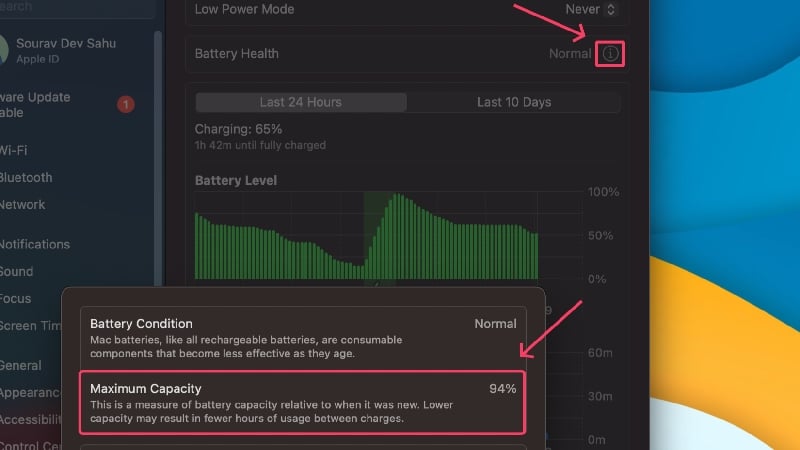
According to Apple, having battery health over 80% is ideal for the normal functioning of a MacBook. If the number goes below that, you might experience sudden battery drops, excessive battery drain in sleep mode, and reduced charge retention. Replacing your MacBook’s battery once its maximum capacity drops below the recommended capacity is recommended. In fact, Apple offers free battery replacement if your MacBook’s battery health goes below 80% while it’s still under warranty.
While the above statistics are simple, you can find out even more about your Mac’s battery. Here’s how you can do it,
- Click on the Apple logo () in the top-left corner.
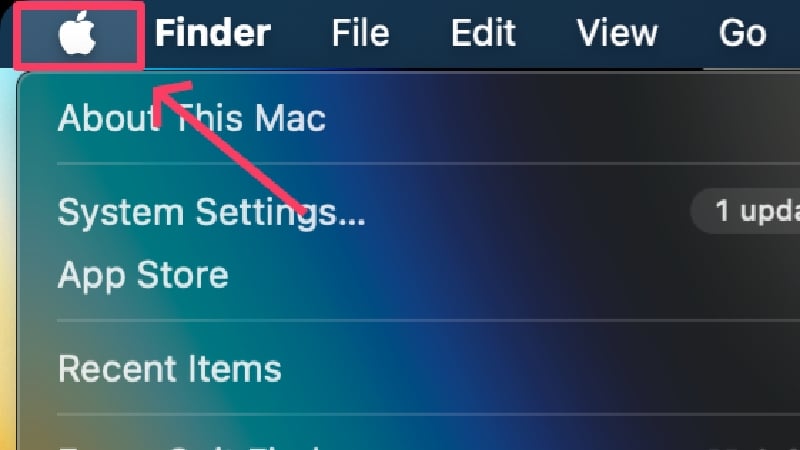
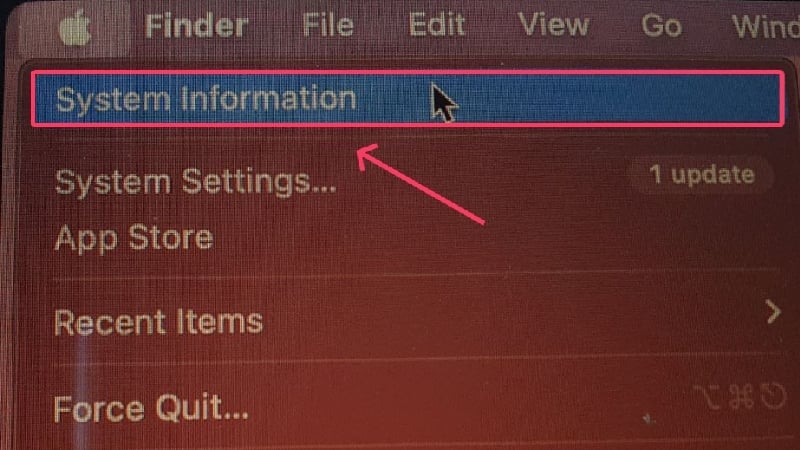
- Press and hold the option key. The About This Mac option should change to System Information. Select it.
- Enter the Power subsection from the left pane.
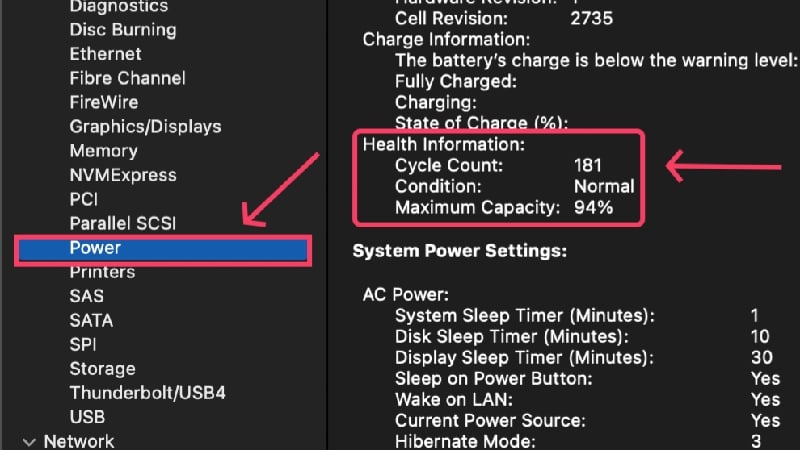
This section displays advanced battery statistics, including charge cycle count, which is crucial data to check for. A charge cycle is attained when the battery is fully discharged from 100%. In simple terms, if the battery is draining from 100% to 0%, this corresponds to one charge cycle. If the battery is drained from 50% to 0 %, this corresponds to half a cycle.
If your MacBook’s cycle count exceeds the stated number, the battery is considered consumed, which is when the battery needs to be replaced for ideal functioning. You can check your MacBook’s stated cycle count by visiting here. If you have crossed the number, consider getting your MacBook’s battery replaced.
Restart Your MacBook
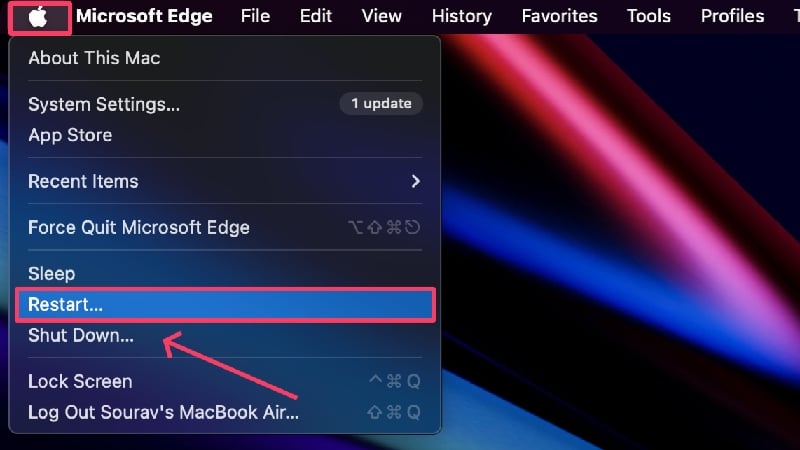
Performing a simple restart is an effective workaround to solve common issues that may have been caused out of the blue. Perform a restart by clicking the Apple logo() in the top-left corner > Restart. If you haven’t restarted your MacBook in a long time, this will help recalibrate your MacBook and potentially fix the battery drain issue in sleep mode.
Enable Low Power Mode
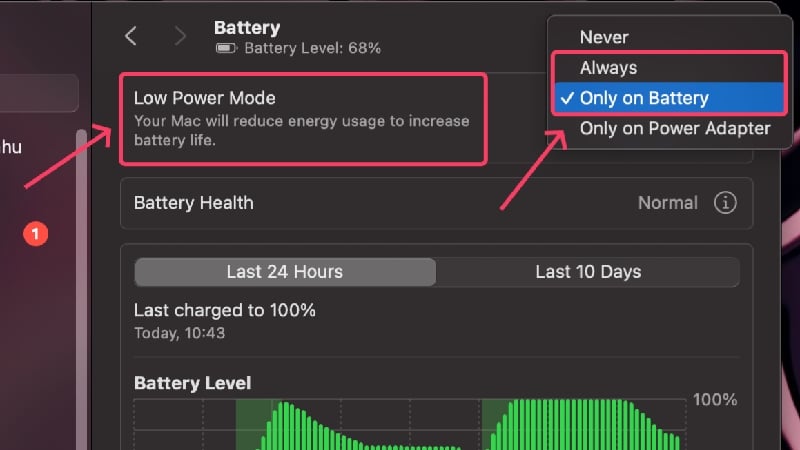
This one’s pretty obvious – low power mode not only limits background processes and apps but also slows down your MacBook to conserve precious battery life. The difference isn’t hugely noticeable, especially not when your MacBook enters sleep mode. To enable it,
- Open System Settings.
- Select Battery from the left pane.
- Choose Always or Only on Battery from the dropdown menu beside Low Power Node, depending on your preference.
Unplug I/O Accessories
A probable cause for your MacBook draining its battery in sleep mode more than it should be the presence of connected accessories. External accessories, especially those without their own battery, use your MacBook’s battery to function. If left plugged in for long periods of time, they can drain your MacBook’s battery. It’s, therefore, best to remove connected accessories immediately after use.
Related Read: Why is My iPhone Battery Draining So Fast and What to Do
Switch to First-Party Apps
Even though it’s unlikely that a third-party app will cause problems of this caliber, it’s still recommended to stick to first-party apps instead of third-party apps. Apple optimizes first-party apps like Safari, Final Cut Pro, Mail, etc., to use as little battery as possible. Third-party apps aren’t optimized with this level of precision in comparison.
Disable Notifications Before Putting Your MacBook to Sleep
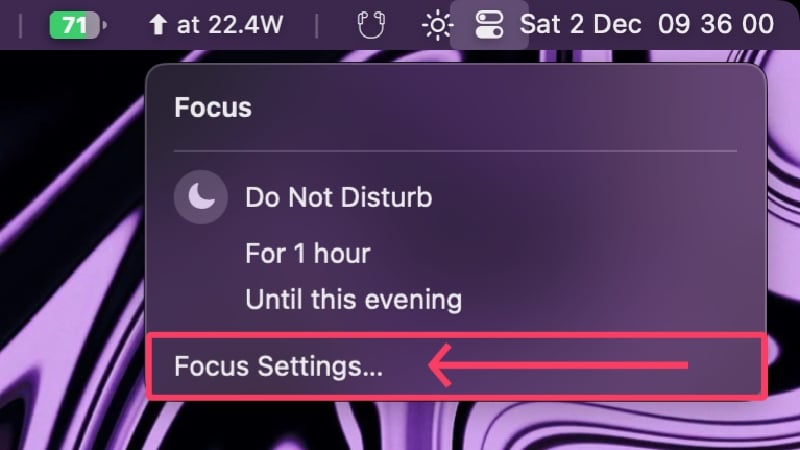
Notifications can be just as annoying for your MacBook as they are for you in the middle of your sleep. Notifications consume system resources even when your Mac is asleep, and getting a lot of them is a real nightmare for your MacBook. To tackle this, you can enable Do Not Disturb or DND mode or schedule it for your preferred intervals.
- Click on the Settings icon in the status bar.
- Select Focus. You can choose to set DND from here itself.

- Click on Focus Settings for additional settings.
- Open Do Not Disturb.

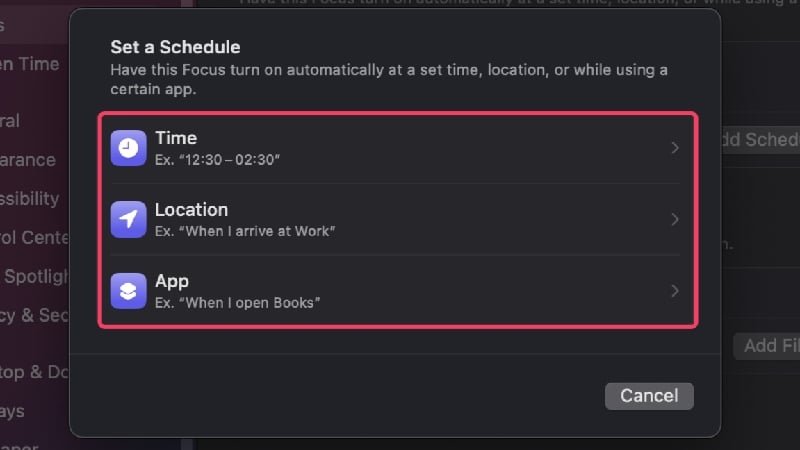
- You can edit the notification preferences from here and schedule DND by selecting Add Schedule.

- Apart from setting time-based schedules, you can also add schedules based on other parameters, like location, or while using a specific app.
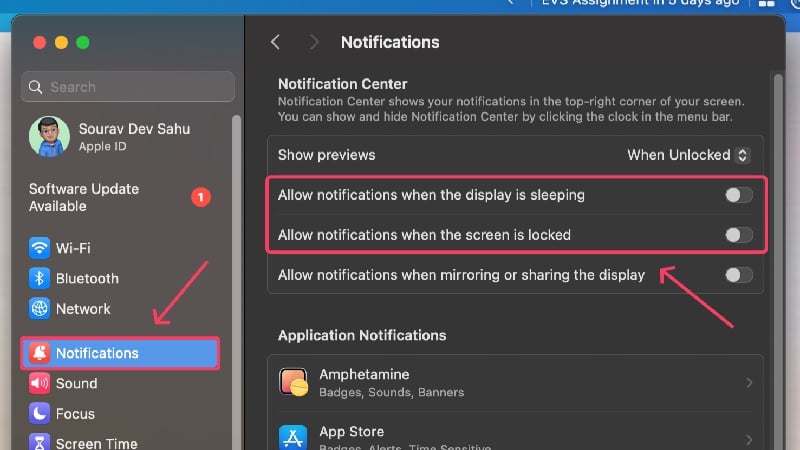
If you want to disable notifications when your screen is locked, or your MacBook’s display enters sleep mode, here’s how –
- Open System Settings.
- Select Notifications from the left pane.
- Turn off Allow notifications when the display is sleeping and Allow notifications when the screen is locked.
Pause or Cancel Ongoing Downloads
Of course, you should pause or cancel ongoing downloads before putting your Mac into sleep mode, as downloading files significantly affects battery life. While downloads, especially those of the browser, are automatically paused as soon as you close the lid of your MacBook, others may not behave in quite the same way. It is, therefore, recommended that you pause or cancel ongoing downloads manually.
Turn Off Key Settings
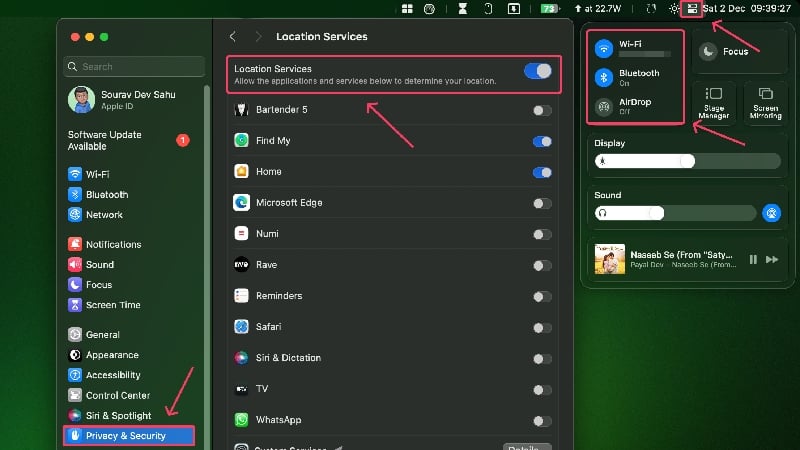
It’s normal to forget to turn off basic but important settings like Wi-Fi, Bluetooth, AirDrop, and location services. But if you want to get the best battery life for your MacBook and minimize battery drain in sleep mode, you should turn off the above settings. You can disable Wi-Fi, Bluetooth, and AirDrop directly in the status bar. To turn off location services, head to System Settings > Privacy & Security > Location Services > Turn off the toggle.
Switch Off Power Nap/Wake for Network Access
If you have an Intel-based MacBook that uses an SSD, your MacBook has a Power Nap feature that allows it to update information while in sleep mode. This includes checking for new emails, calendar events, and other iCloud events, which drains your MacBook’s battery. This feature is enabled by default unless it is turned off.
Since newer Apple silicon processors are based on “always-on” technology, this feature is built right into the chipset. Nevertheless, the MacBooks with Apple silicon processors have a feature called “Wake for network access” instead of “Power Nap,” but the function is more or less the same.
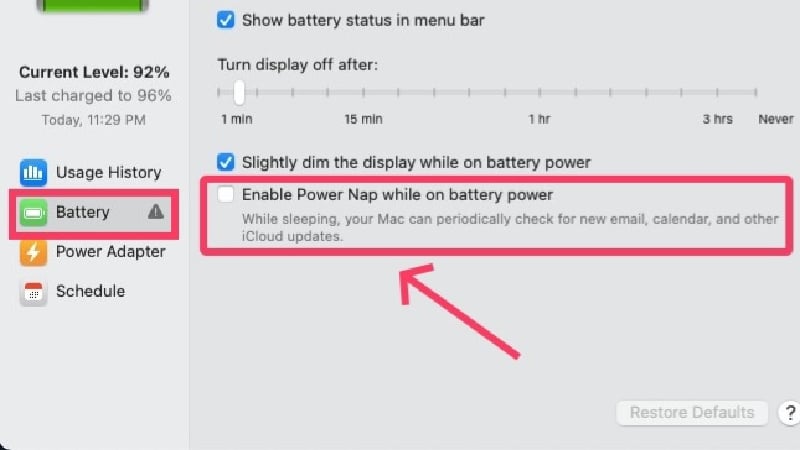
For Intel-based MacBooks
- Open System Settings.
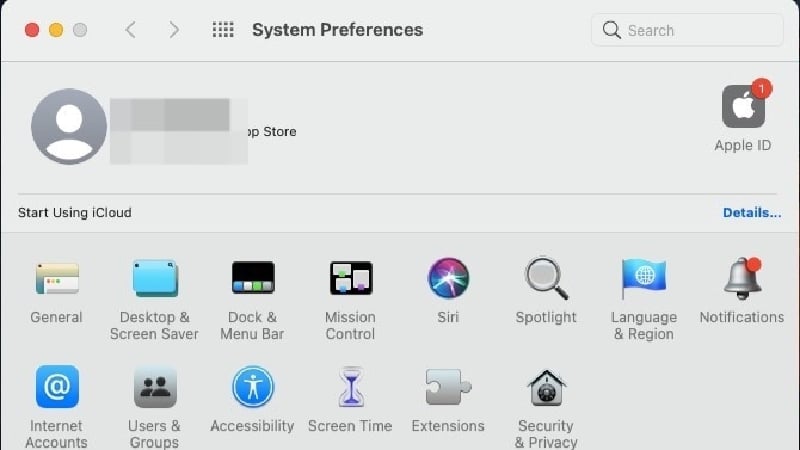
- Click on Battery settings.
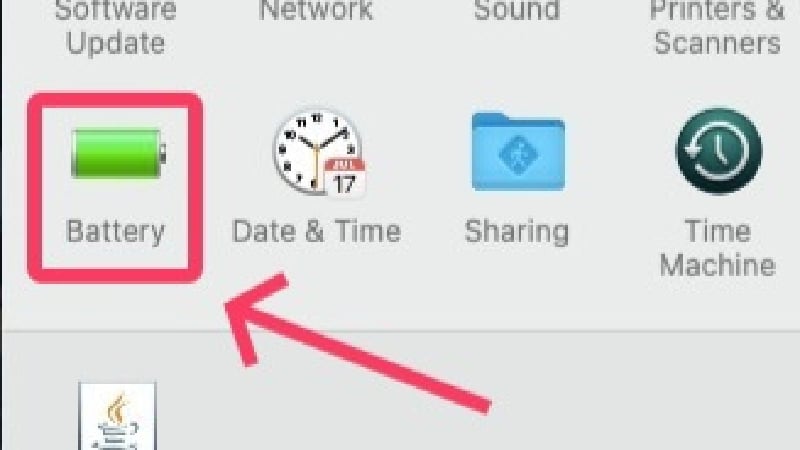
- Disable Enable Power Nap while on battery power.
For Apple Silicon-based MacBooks
- Open System Settings.
- Click on Battery from the left pane.
- Select Options.

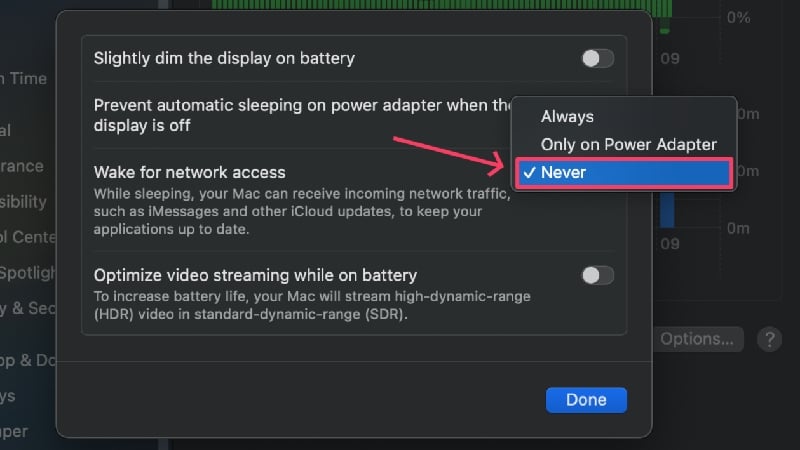
- Click on the dropdown menu beside Wake for network access.
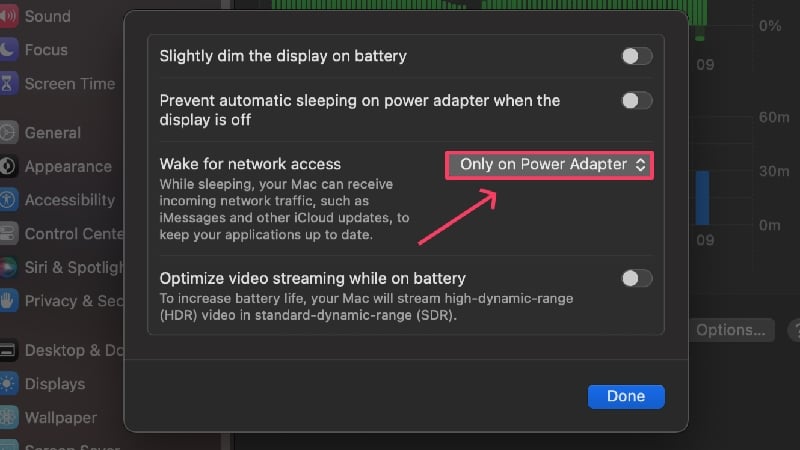
- Click on Disable or Only on Power Adapter.
Update Apps and Your MacBook
Apps running on older versions tend to consume more battery life as they aren’t as optimized as their newer versions. Although this isn’t a significant contributor to the issue, you should keep your apps updated regardless. The same goes for your Mac – keeping it updated to the newest version ensures it runs in its best state and with the latest efficiency enhancements.
To Check for Software Updates
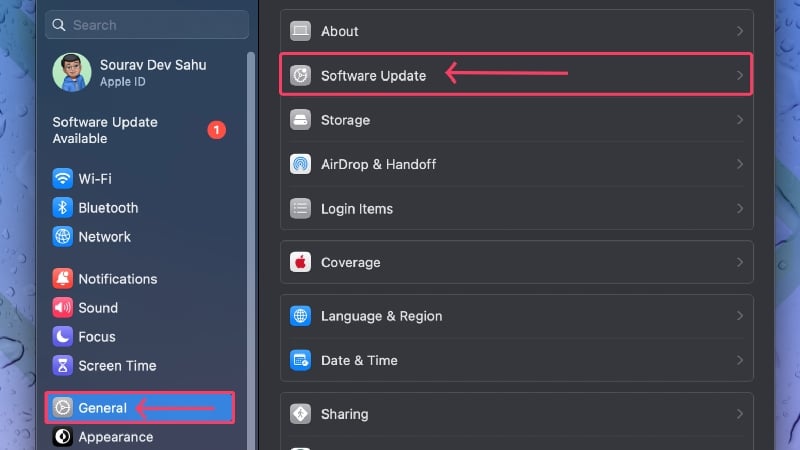
- Open System Settings.
- Head to General from the left pane.
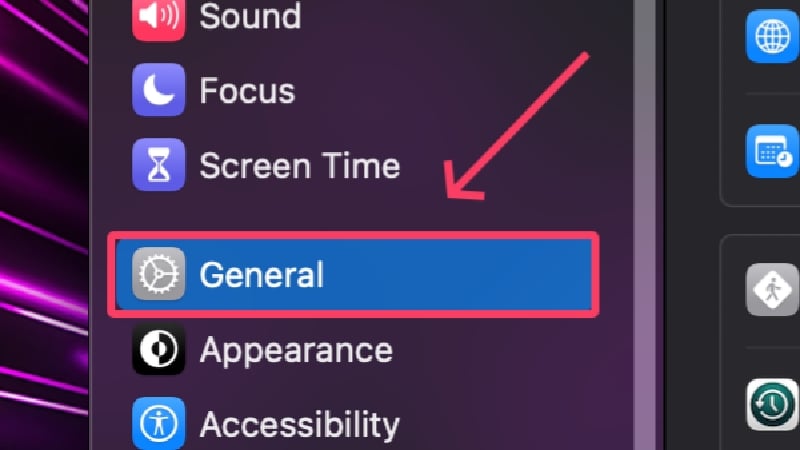
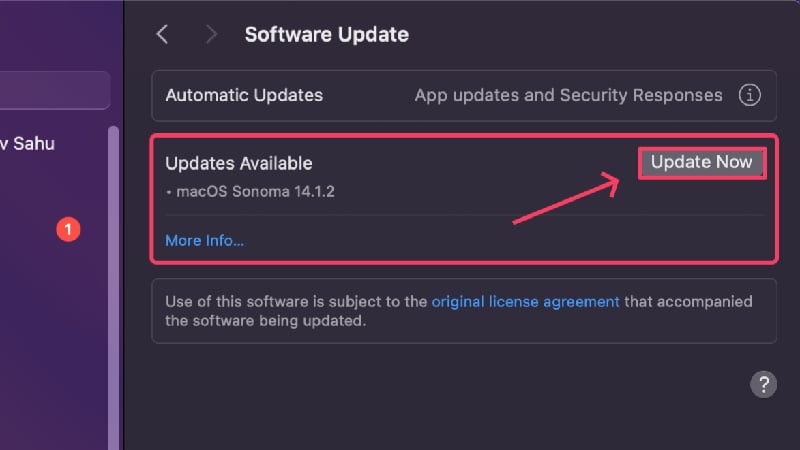
- Select Software Update.
- Ensure your MacBook is connected to the internet and check for software updates, if any.
To Check for App Updates
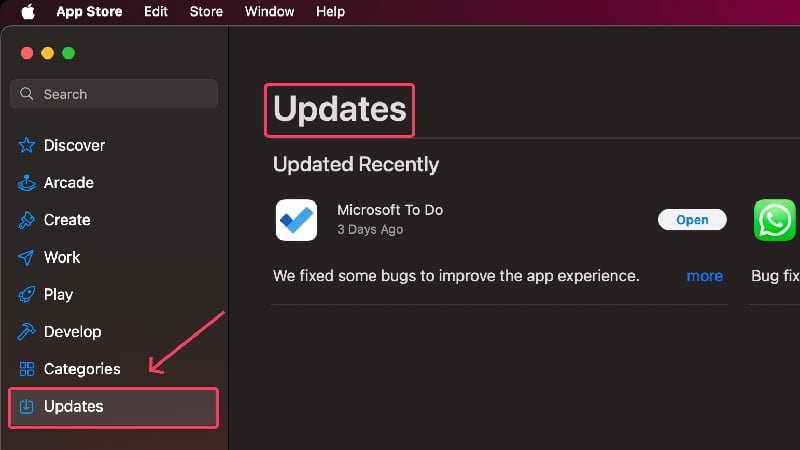
- Open the App Store.
- Select Updates from the left pane and check for updates, if any.
Quit Apps Preventing Sleep
You may not know it, but certain apps can prevent your MacBook from going into sleep mode. If you don’t want the app to run in the background, you should close such apps immediately to save valuable battery life. You can do this with the Activity Monitor and the following steps,
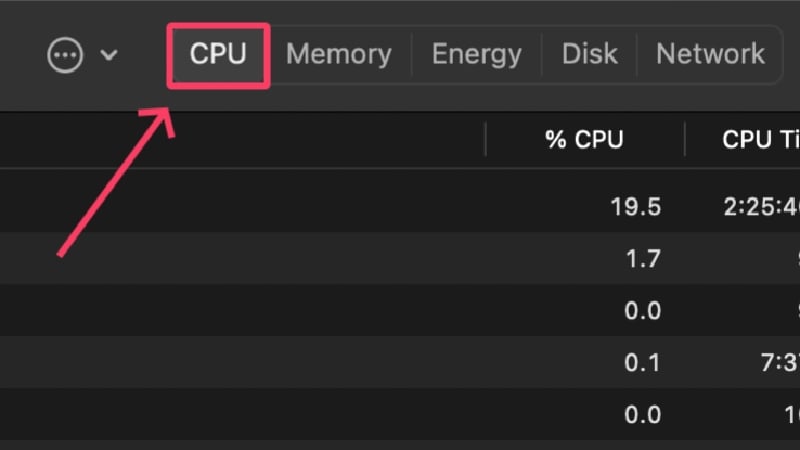
- Open Activity Monitor using Spotlight Search (keyboard shortcut: command + space) or from the Launchpad.
- Switch to the CPU tab from the top toolbar.
- Select View from the status bar of your MacBook.
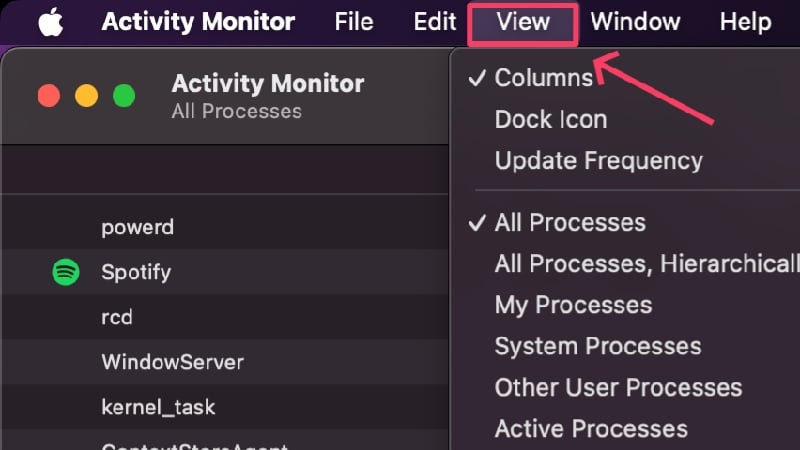
- Hover the cursor over Columns and turn on Preventing Sleep.

- A new column should appear named Preventing Sleep. Click the icon to rearrange the processes in the said order.
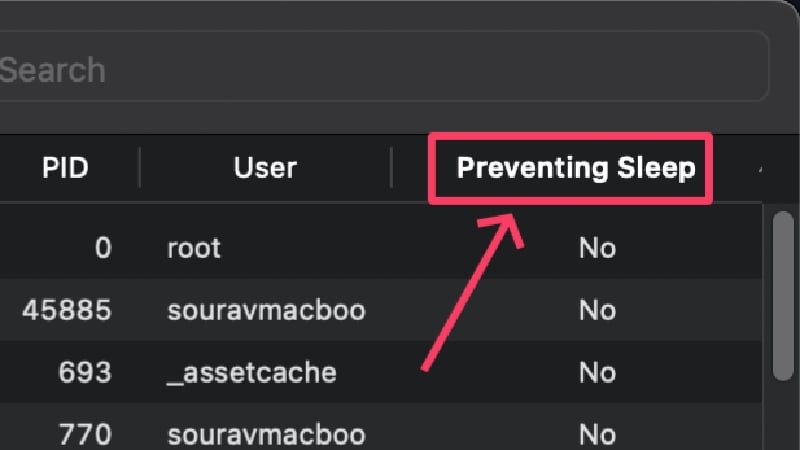
- Find the processes that prevent your Mac from falling asleep and select them. You can select multiple processes by pressing the Shift key.
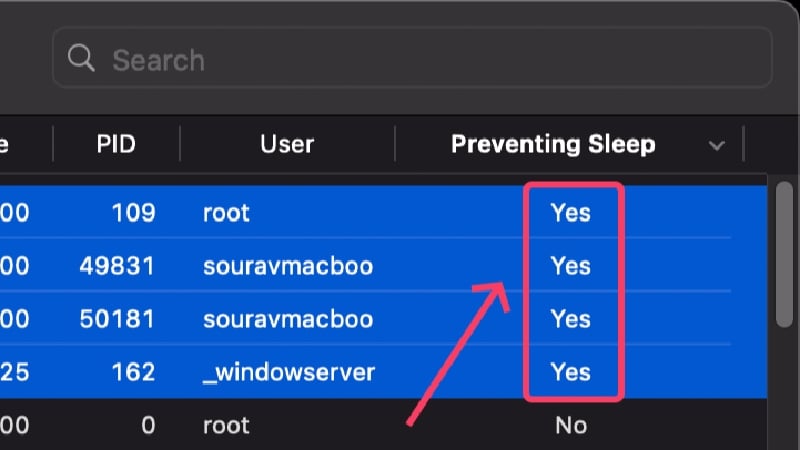
- Click on the cross icon in the top section.

- Select Force Quit to close the application.

Disable Unwanted Login Items
If you have a lot of login items or apps running immediately after you turn on your MacBook, this can cause it to drain a lot of battery even when it’s in sleep mode. Your MacBook needs a lot of processing power to meet the demands of the login items, so you should disable the unwanted programs. Here’s how,
- Open System Settings.
- Select General from the left pane.
- Click on Login Items.
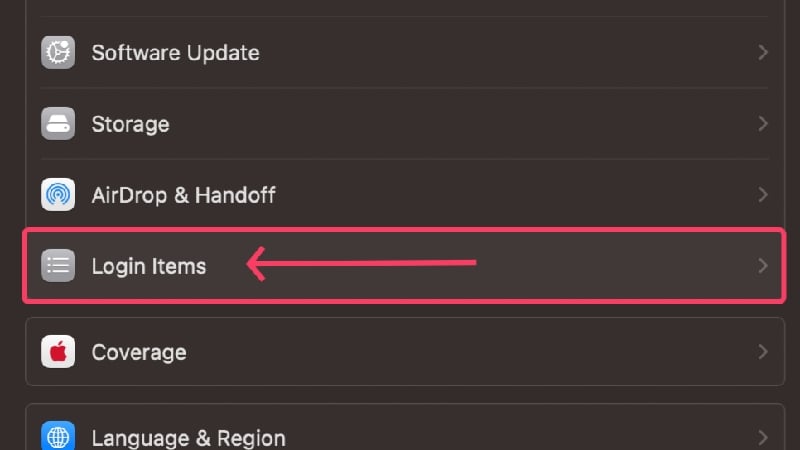
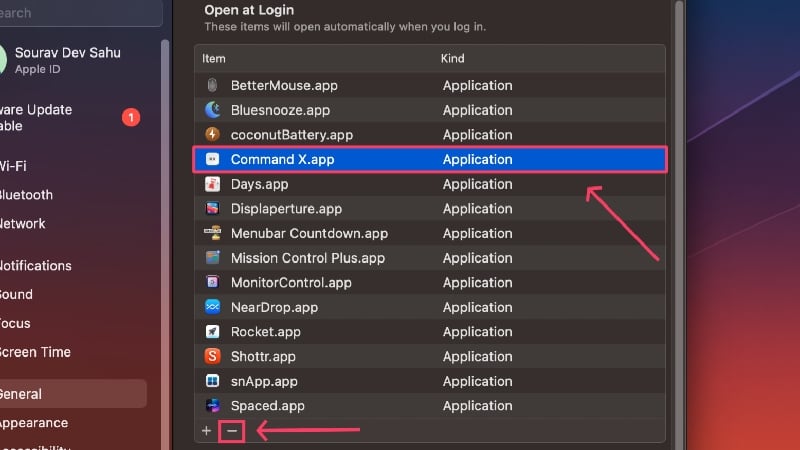
- Under Open at Login, select the login item you want to remove and click on the minus icon at the bottom of the box.
Disable Background Processes
Just like the login items, the background processes also significantly affect the battery life of your MacBook. After being allowed to run in the background, these apps can run their processes continuously, consuming your MacBook’s resources. Follow the steps below to disable such apps,
- Open System Settings.
- Select General from the left pane.
- Click on Login Items.
- Under Allow in the Background, turn off the toggle of the background process you want to remove.

Check For Malware
Malware shows no mercy to the system it infects, and an obvious indicator of this is absurdly high battery performance. Malware programs initiate background processes that drain the battery faster and also cause various other problems, such as excessive heating, system slowdowns, and more. The best way to remove malware programs is to use cleaning programs such as CleanMyMac X, Cleaner One Pro, and Mac Keeper.
Reset System Management Controller on Intel-based MacBooks
The System Management Controller (SMC) manages and coordinates the hardware and software of your MacBook. It also determines how the battery of your MacBook behaves. Resetting the SMC should, therefore, help to solve the problem. Don’t worry. Apple recommends this method for Intel-based MacBooks for complex problems that cannot be solved with conventional methods. Silicon-based MacBooks from Apple don’t have SMC in the first place, so there’s no point in resetting it.
- Shut down your Mac by clicking the Apple logo () in the top-left corner > Shut down.
- Wait a moment, and press your MacBook’s power key by holding the Shift, Control, and Option keys for at least 10 seconds.
- Start your Mac by pressing the power key again.
If an error occurs, unplug your Mac and wait for 15 seconds. Plug your MacBook back in and restart it as usual after 5 seconds.
Turn Off Screen Time
If Reddit is to be believed, turning off screen time can significantly reduce battery consumption in sleep mode. One Reddit user, u/zivac, solved the battery drain issue on their MacBook Pro by simply turning off Screen Time, which apparently consumed a lot of battery life in sleep mode. You can do so by following the procedure below,
- Open System Settings.
- Select Screen Time from the left pane.

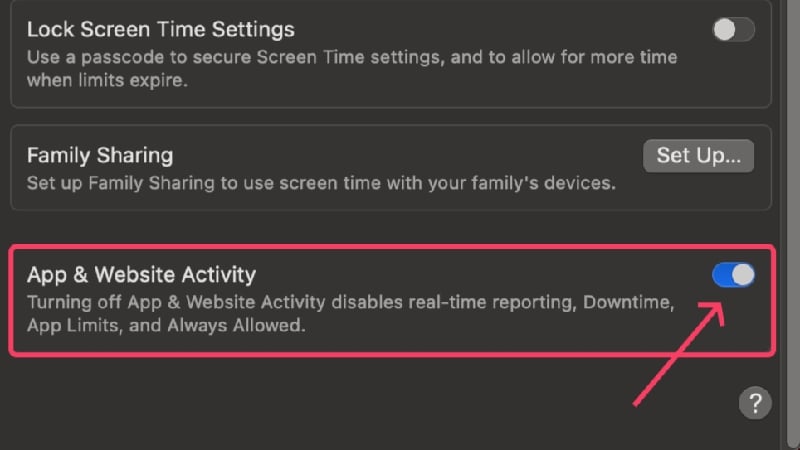
- Scroll down and turn off App & Website Activity.
Disable “Hey Siri” in Lock Mode
If you use Siri regularly on your MacBook, there is a good chance that you have activated voice wake in lock mode. This allows Siri to constantly search for voice input even when your MacBook is locked, which has a negative impact on your MacBook’s battery life. Find out how to disable this feature here,
- Open System Settings.
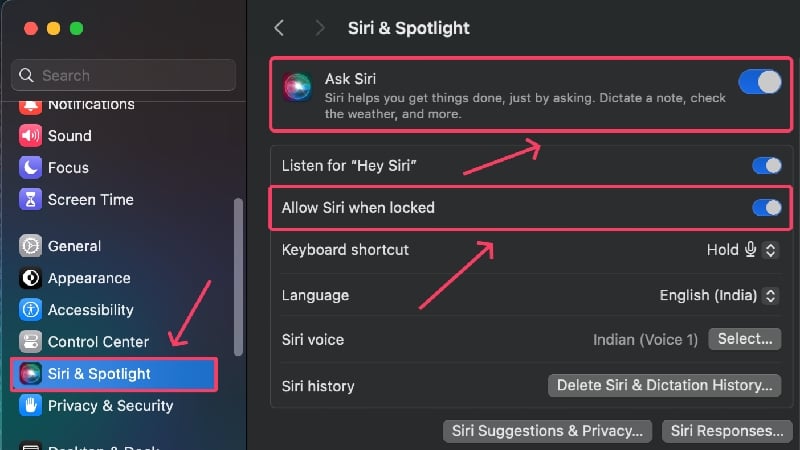
- Select Siri & Spotlight from the left pane.
- If you want to disable Siri altogether, turn off the toggle beside Ask Siri. Otherwise, you can specifically disable the toggle beside Allow Siri when locked. Note that the latter option is visible only if you had set up Siri earlier.
Turn Off Contacts Sync
Your MacBook can synchronize your contacts with iCloud in the background. This means it can save the changes you’ve made on other devices, such as your iPhone or iPad, in real-time. While this sounds great, syncing consumes battery, which could be the reason why your Mac’s battery drains faster when it’s in sleep mode. Here’s how to turn it off,
- Open System Settings.
- Click on your profile icon from the left pane.

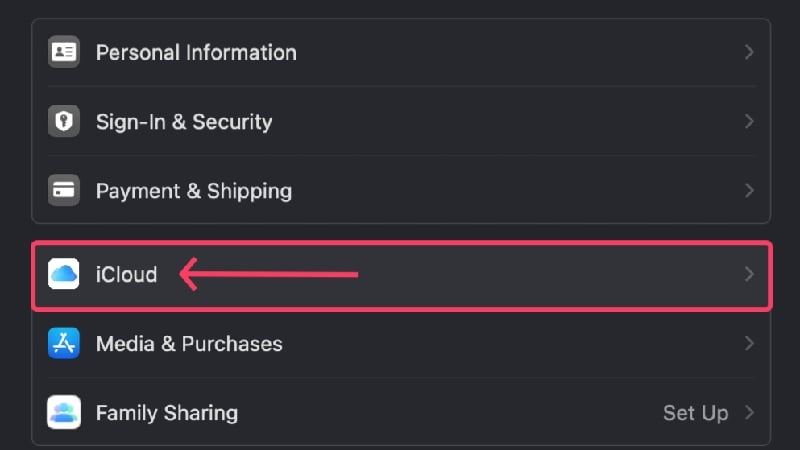
- Select iCloud.
- Click on Show More Apps.
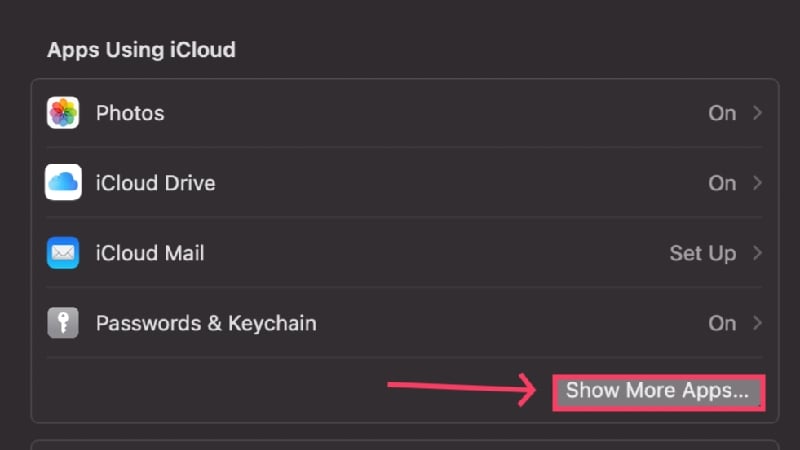
- Disable the toggle beside Contacts.

Disable Checking for Emails Automatically
Just as synchronizing contacts on your MacBook drains your battery, the automatic search for new emails does the same harm to your Mac. The Mail app has to constantly search for incoming emails, which in turn drains your MacBook’s battery. Here’s how to disable it,
- Open the Mail app.
- Click on Mail from the status bar.

- Open Settings.

- Switch to the General tab.

- Open the dropdown menu beside Check for new messages and select Manually.

Plug-In Your Mac Before Putting It to Sleep
If none of the above methods work for you, or if you really don’t want your Mac to lose its charge after going to sleep, you can have it charged to be on the safe side. If you’re worried about overcharging, don’t worry because MacBooks can optimize battery charging. This means your MacBook is smart enough to recognize your usage patterns and stop charging at 80%. Before you start working, your MacBook will charge up to 100% – and it’ll all happen seamlessly. Normally, this feature is enabled by default, but here’s how to enable Optimized Battery Charging,
- Open System Settings.
- Select Battery from the left pane.
- Click on the ⓘ button beside Battery Health.
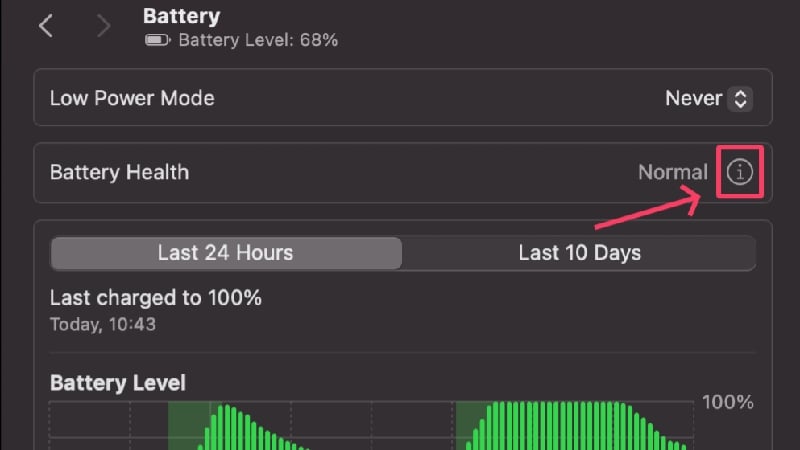
- Turn on Optimized Battery Charging.
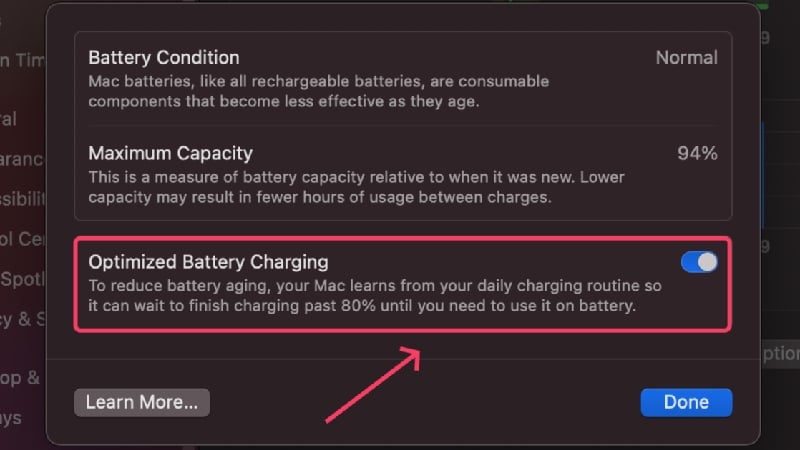
The trickle charge function also prevents your MacBook from overheating by reducing the charging speed in the final stages, usually between 80% and 100%.
Prevent Your MacBook From Losing Battery in Sleep Mode
If the battery drains in sleep mode, this is a common problem that can be solved just as easily. Although it’s equally easy to find the cause, the solutions are universally applicable and work regardless of the problem. Disabling all forms of background processes is the most effective way to extend your Mac’s battery life.
If the problem persists, you should visit an Apple specialist or have your MacBook’s battery serviced at an authorized service center.
FAQs about MacBook Battery Draining in Sleep Mode
1. Why does my Mac’s battery drain so much in sleep mode?
Various causes could be behind the problem, making it difficult to point at one. For instance, the issue may have been caused by malware, poor battery health, or even an outdated app. Numerous login items and background processes also contribute to the same, so they could be the cause, too. If you own an Intel-based MacBook, a faulty system management controller (SMC) or having the Power Nap feature turned on might be causing the issue. All in all, more than one thing could be causing the problem.
2. Is it safe to leave my MacBook plugged in overnight?
Yes, absolutely. Modern lithium-ion batteries are powerful enough to withstand overcharging. Thanks to sophisticated software controls and battery management systems, it’s unlikely that you’ll overcharge your MacBook’s battery, especially overnight.
In addition, MacBooks, like iPhones, have an optimized battery charging function. This makes it possible to interrupt the charging process at 80% and thus prevent overcharging. Don’t worry. Your MacBook monitors your usage behavior and resumes charging at the right time so that your MacBook is fully charged before you start working. It all happens in the background, brilliantly and seamlessly.
3. What is battery health indicative of?
Apple devices have a nifty feature that indicates whether your battery is in a healthy state or not. It shows the battery capacity in the form of a percentage, so you get a good idea of whether your MacBook’s battery is in optimal condition or not.
Your battery is in the safe range if the percentage is above 80%. Otherwise, Apple recommends replacing the battery when it drops below 80%. Such a battery is prone to sudden discharges, reduced charge retention, and more.
Head to System Settings > Battery > Battery Health to check your MacBook’s battery health. Click on the ⓘ button beside Battery Health to know your MacBook’s current battery capacity.
4. What is a charge cycle, and how is it related?
To put it in simple terms, the charge cycle is a count of the number of times your MacBook’s battery has undergone a complete discharge from full. So, if you drain your MacBook’s battery from 100% to a complete standstill, it accounts for one charge cycle. It need not be done all in one go – discharging your battery from a full charge to 70%, charging it again the next day, and discharging it again to 30% also accounts for one charge cycle. As per Apple, replacing your battery once the count exceeds 1000 is recommended.
5. What does low power mode do?
Low power mode helps conserve your MacBoo’s battery by limiting background processes, dimming screen brightness, and restricting other battery-consuming features. It can be enabled by heading to System Settings > Battery > Low Power Mode.

