

Paint (or MS Paint) is a popular Windows app that lets you create, edit, and manipulate images on your PC. Although Microsoft has been updating the app fairly regularly, the lack of a background removal tool has been a major missing for users, who have had to use third-party tools to remove undesired backgrounds from their pictures.

However, this is finally changing with the Windows 11 23H2 update. The update adds some useful AI-powered tools, including a background remover, to the Paint app to make it your new creative partner.
Here’s how to use Paint’s background removal tool to remove unwanted backgrounds from your images.
How to Use Paint to Remove Background From an Image in Windows 11
Microsoft’s AI-powered background removal tool on the Paint app is a part of the Windows 11 23H2 update. To get it, update your PC to the latest available version.
Although updating Windows should also update the Paint app, in case it doesn’t, you’ll have to update the app manually. Go to the Microsoft Store, look for any pending Paint update, and install it. You need to be on Paint (version 11.2306.30.0 or above) to get the tool.
Once the update is installed, here’s how to use the background removal tool in Paint to remove the background from an image:
- Click Start and search for the Paint app.
- Launch Paint.
- Click on File and select Open.
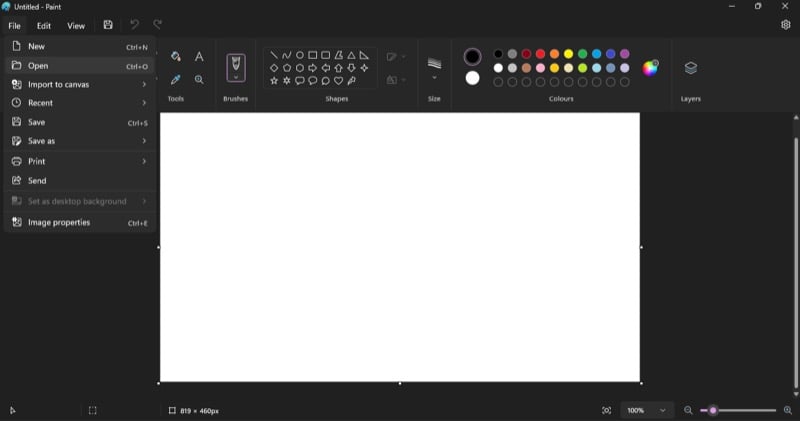
- When this brings up the File Explorer, go to the folder containing the image whose background you want to remove, select it, and hit Open.

- Once Paint loads the image, click the Remove background button. It’s one of the Image tools located on the right of the Selection column in the top toolbar.
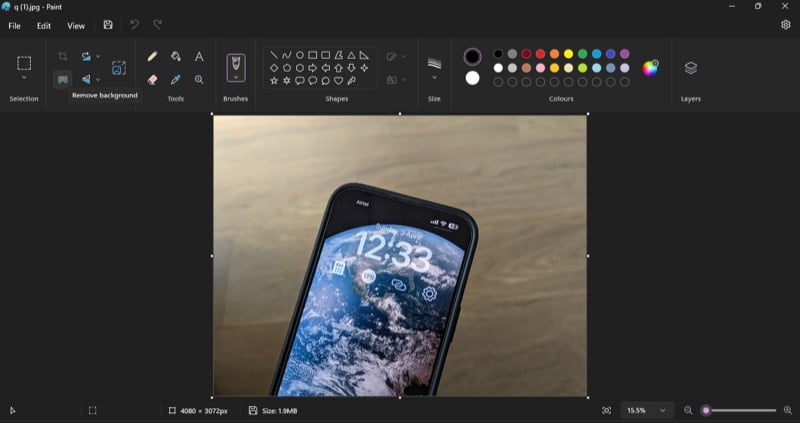
- Wait for Paint to automatically recognize the background and remove it. Once it’s done, you’ll have an image with a transparent background.
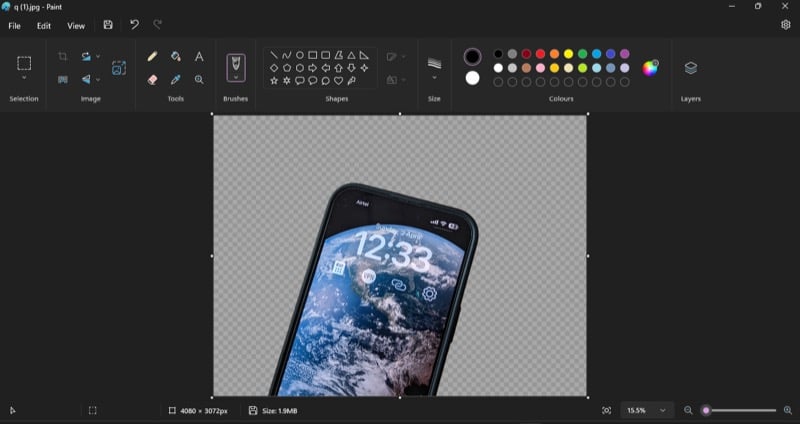
- If you’re satisfied with how the image turned out, save it. Click on File > Save or hit the Ctrl + S keyboard shortcut to save and replace the original image. Or you can also use the Save as option.
- Alternatively, if you want to preserve the transparent background, click on File > Save as and choose the PNG picture option.

Ideally, you’d want to use Paint’s background removal tool to remove the background from the entire image, but there could be instances where you may want to remove the background from just a specific part of the picture.
Microsoft gives you the ability to do this in Paint. For this, open the image, tap on the downward-pointing arrow in the Selection column, and pick the Rectangle option. Use the Rectangle selection tool to select the part of the image from where you want to remove the background. Then, click the Remove background button and wait for Paint to analyze and remove the background from the selected area.
Removing the Background From a Photo Is Easier Than Ever on Windows 11
With the inclusion of a one-click background removal tool in Paint, Microsoft has turned Paint into a more capable photo editor and, in the process, made it easier than ever to get rid of undesired backgrounds from images on a Windows 11 PC.
Aside from the fact that Paint’s background remover is pretty simple to use, what’s also nice about the tool is that it’s equally fast and accurate. We used it to remove backgrounds from several images and were impressed with how cleanly and accurately it managed to remove image backgrounds.
We’d say the Paint AI tool is good enough to ditch online photo background removal tools, which require an internet connection and aren’t ideal for those concerned about privacy.

