

Quick Answer
WhatsApp doesn’t let you directly save profile pictures, but you can still do it using six methods: screenshots of group icons, another device’s camera, Android’s WhatsApp Profile Photos folder, the WhatsApp desktop app, WhatsApp Web, or online DP downloader tools. Always respect privacy and get permission before using someone’s photo.
WhatsApp is unquestionably the most popular messaging app, so much so that it has become a staple app on most phones. Before you start typing your message, viewing the receiver’s profile picture or DP (display picture) is almost customary, provided they don’t have it hidden. The same also holds true when someone updates their profile picture. After all, that’s what people keep profile pictures for!
We have had enough instances where we wish to save someone’s profile picture, and we’re sure you must have felt the urge to do so, too. Unfortunately, WhatsApp doesn’t allow saving profile pictures due to obvious privacy concerns. But fret not; there are enough ways to save someone’s WhatsApp profile picture without notifying the other party. Read along to know more about it.
Table of Contents
Misusing Someone’s Pictures Without Consent Is Illegal
Before we proceed any further, you must know that WhatsApp restricts saving someone’s profile picture for a reason. You can check it for yourself by clicking a screenshot of someone’s profile picture, after which you’ll be shown a “Screenshots restricted for privacy and copyright” message. It’s unethical to save someone’s profile picture, but it’s not illegal since they have publicly posted it online. Again, we request that it be checked at your local jurisdiction since we are not legal professionals.
However, it’s straight-up illegal to misuse it and deny taking it down even after their request. All in all, your intentions shouldn’t be to harm the other party in any way, so we request that you get their permission prior to saving their WhatsApp profile picture. That said, let’s get on to the six effective ways of saving someone’s WhatsApp profile picture.

WhatsApp Group Profile Pictures
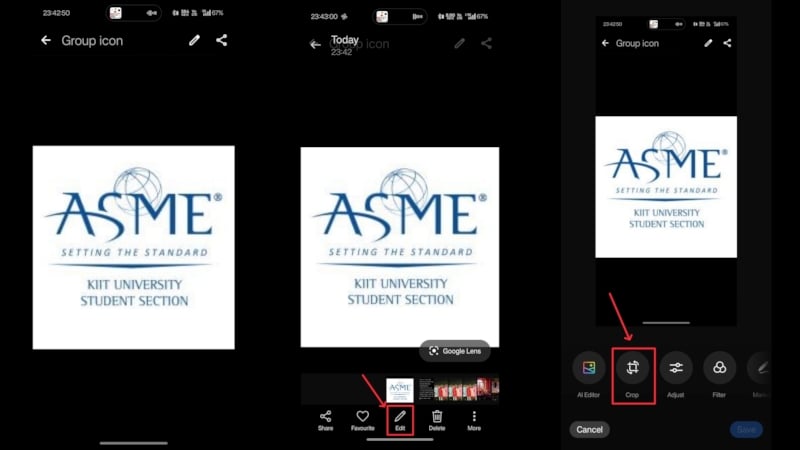
WhatsApp may have imposed restrictions on clicking screenshots of profile pictures of individual accounts; you certainly can do so for group icons. It’s as easy as opening the group profile icon, clicking a screenshot, and cropping it to adjust the picture. However, note that if the group profile icon contains faces, it’s recommended that the required person’s permission be taken without using the image in any way. Follow the steps below for the how-to.
- Open WhatsApp on your smartphone.
- Click on the group icon of the group you wish to save the picture of.
- Tap on the picture again to open the full image.
- Click a screenshot by holding the power and volume down keys together. Doing so will allow you to click a screenshot of the group icon and save it to your phone’s gallery. Do note that the process of clicking a screenshot may vary for your device.
- Open your phone’s Gallery and locate the screenshot you took.
- Click on the edit option and use the crop tool to cut out the unnecessary portion around the top and bottom edges.
Use Another Device to Click a Picture
The most obvious option to save someone’s profile picture would be to click a snap from some other device. For instance, if you have another phone or a friend’s, open the WhatsApp profile picture on one phone and click a photo of it using the other device.
Otherwise, if you have a laptop with WhatsApp logged in, open the profile picture on your laptop and click a photo of it using your smartphone. Sure, the quality won’t be as good, and in fact, it’s far worse than that of a screenshot, but it’s the quickest and the only straightforward way to save a WhatsApp profile picture.
WhatsApp Profile Photos Folder on Android
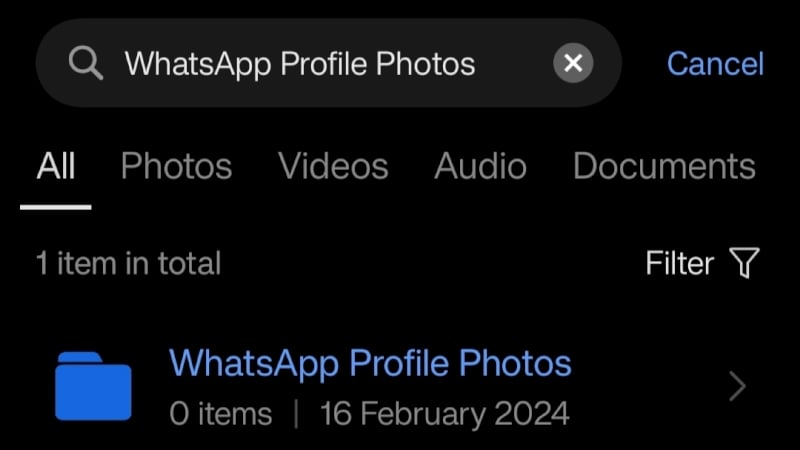
If you are using an Android phone, your phone’s file manager could prove to be a lifesaver in this case. By default, your phone’s file manager creates a separate folder for WhatsApp, and within that, a separate folder is created for profile photos. If luck is in your favor, previously viewed profile pictures might have been saved in the folder. Although it’s improbable to find something relevant, there’s no harm in trying it.
- Open your phone’s file manager.
- Search for “WhatsApp Profile Photos” in the search bar.
- Open the folder and access the required profile photo, if available.
WhatsApp PC App
You might know this already, but the WhatsApp app is available across several platforms, including PC, for both Windows and Mac. If you are wondering how that helps since there’s already an app for Android and iOS devices, you would be intrigued to know that PC has no screenshot restrictions. So, it’s basically a free road to the destination, as you can easily click a screenshot without any hindrance. To do so –
- If you haven’t already, install the WhatsApp app on your Windows or Mac devices and log in to your account using the on-screen instructions.
- Open the profile picture of the contact you wish to save.
- If you are using a Windows PC, click a screenshot using the keyboard shortcut Win + Shift + S. For a Mac, use the keyboard shortcut Shift + Command + 3 to click a screenshot.
- Crop the picture as required to have an uninterrupted event at the end.

WhatsApp Web
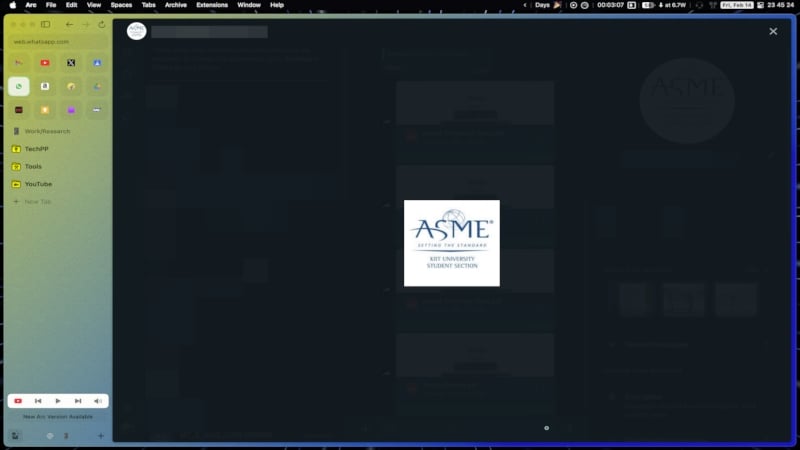
If installing a separate app to take a screenshot sounds too much for you to do, you can do the same thing using WhatsApp Web. WhatsApp Web is similar to the WhatsApp PC app, except it misses out on video and voice calling capabilities. Regardless, it doesn’t restrict the ability to take screenshots on PC platforms, so you do so just like you would on the WhatsApp PC app. For that –
- If you haven’t already used WhatsApp Web, visit this website and log in to your WhatsApp account using the on-screen instructions.
- Open the profile picture of the contact you wish to save.
- If you are using a Windows PC, click a screenshot using the keyboard shortcut Win + Shift + S. For a Mac, use the keyboard shortcut Shift + Command + 3 to click a screenshot.
- Crop the picture as required to have an uninterrupted event at the end.
Online Tools to Save WhatsApp Profile Picture
Although it should only be used as a last resort since it involves privacy concerns, you can get ample websites on the internet that can help you download profile pictures directly. As another prerequisite for this method, you must ensure that the number you wish to save the WhatsApp profile picture of is publicly available. This means that the account shouldn’t have its profile picture hidden.
While there is no direct way of checking if the account is public or not, you can check if the account profile picture is still visible after deleting the number from your device. If yes, it means their profile picture isn’t hidden, and you are good to go. Otherwise, this method won’t work. To do so –
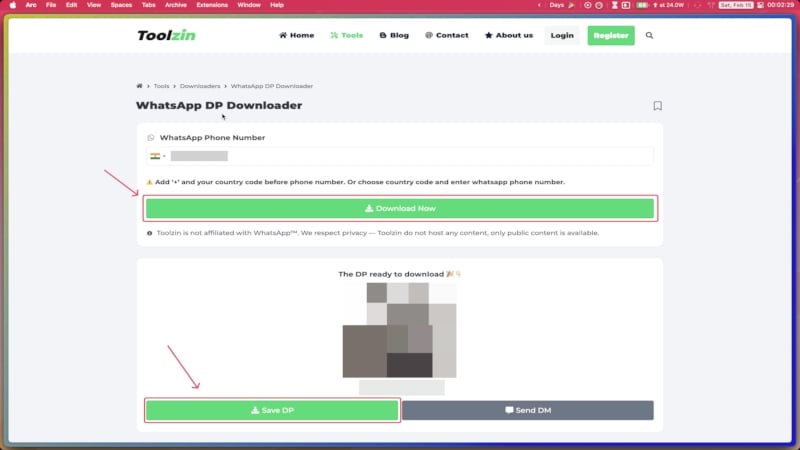
- Visit an online WhatsApp profile picture downloader. Our recommendation would be Toolzin’s WhatsApp profile picture downloader.
- Enter the mobile number of the required WhatsApp account. Since it involves sharing the other party’s phone number, think twice before attempting it.
- Click on Download Now and wait for the image to load.
- Select Save DP to save the profile picture to your device.
The Easiest Ways to Save WhatsApp Profile Picture
While WhatsApp doesn’t allow saving profile pictures for obvious reasons, there are enough methods to do it without breaking a sweat. However, we must warn you of potential troubles you may get into if you misuse someone’s pictures without their consent. Hence, the best step would be to ask for the profile directly or at least the other party’s consent before using the image.
The easiest method remains the old-school way of clicking a picture using another device, but it’s not always feasible. The next best option would be to log into WhatsApp web or PC app and capture a screenshot directly. Unless it’s really necessary, we wouldn’t recommend the otherwise fail-proof way to extract someone’s profile picture using online tools since they involve risks related to privacy.

