

Quick Answer
To factory reset Android without losing messages and call logs, enable Google backup first by turning on “Back up other device data” in Settings > Google > Backup. After reset, restore data during setup by signing into the same Google account and selecting SMS and call history on the restore screen.
I recently wanted to factory reset my Android phone. I carefully backed up all the data, including SMS and call logs. But when I set up the phone again using the same Google account, the call logs and SMS data were gone. A small mistake I made while setting up my phone cost me that data.
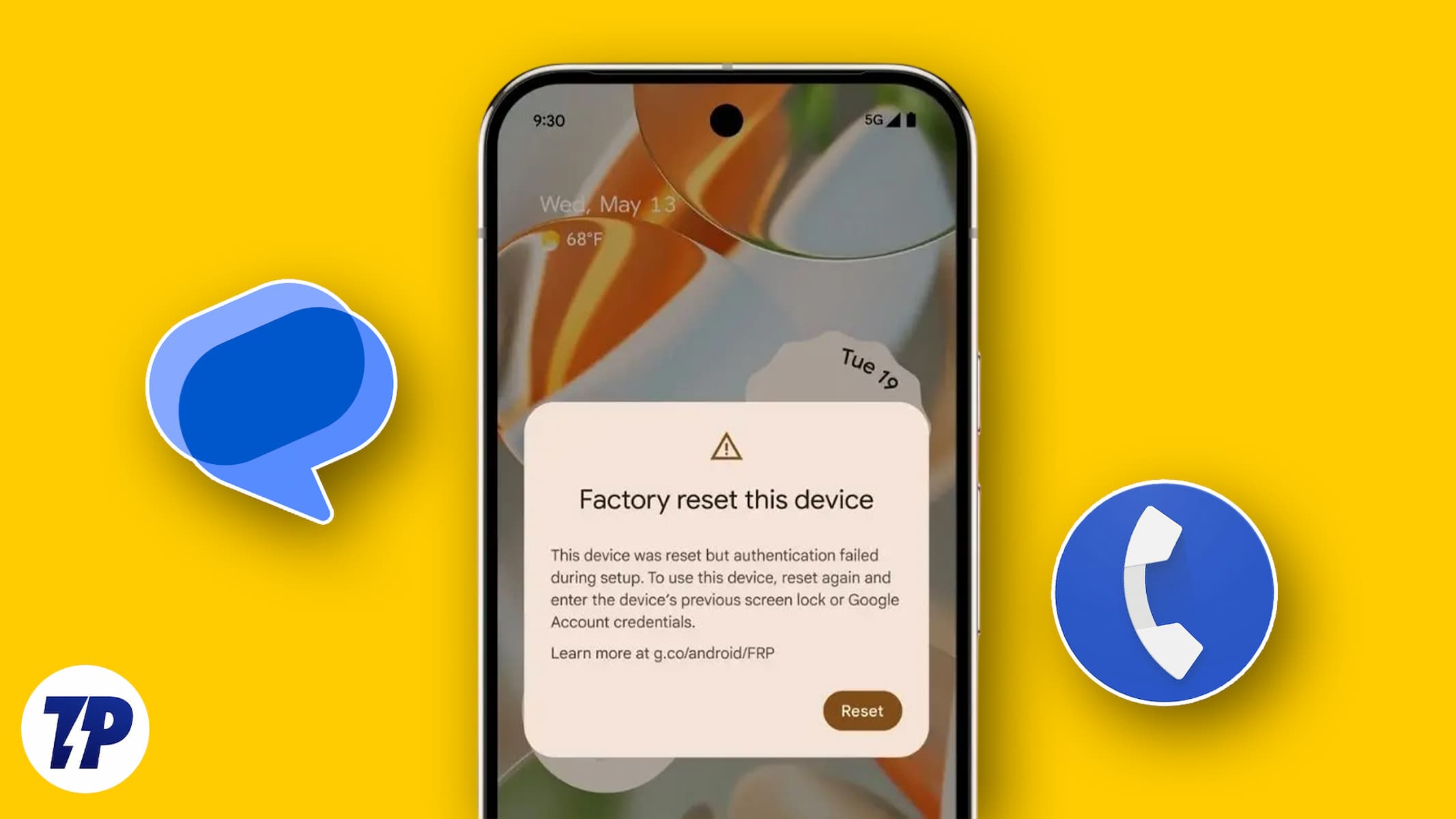
If you want to factory reset Android without losing messages and call logs, you need to follow a few steps carefully before hitting that reset button. Photos, videos, and files can be backed up to a cloud drive or a PC, and you can get them back anytime. SMS and call log data do not work that way. We need to use the options provided by Google carefully. If you want to make sure nothing else is at risk, you can also check out our guide on how to retrieve deleted text messages on Android in case something goes wrong.
If you are looking to reset your Android phone but want to get back all data, including messages and call logs, follow this guide.
Table of Contents
How to Back Up Call Logs and SMS on Android
Google provides an option to back up everything on an Android phone, including SMS messages, MMS messages, and call history. We need to turn backup on to make sure all our data is stored for retrieval. This is especially important before a factory reset, as Android erases all data on the device during the process.
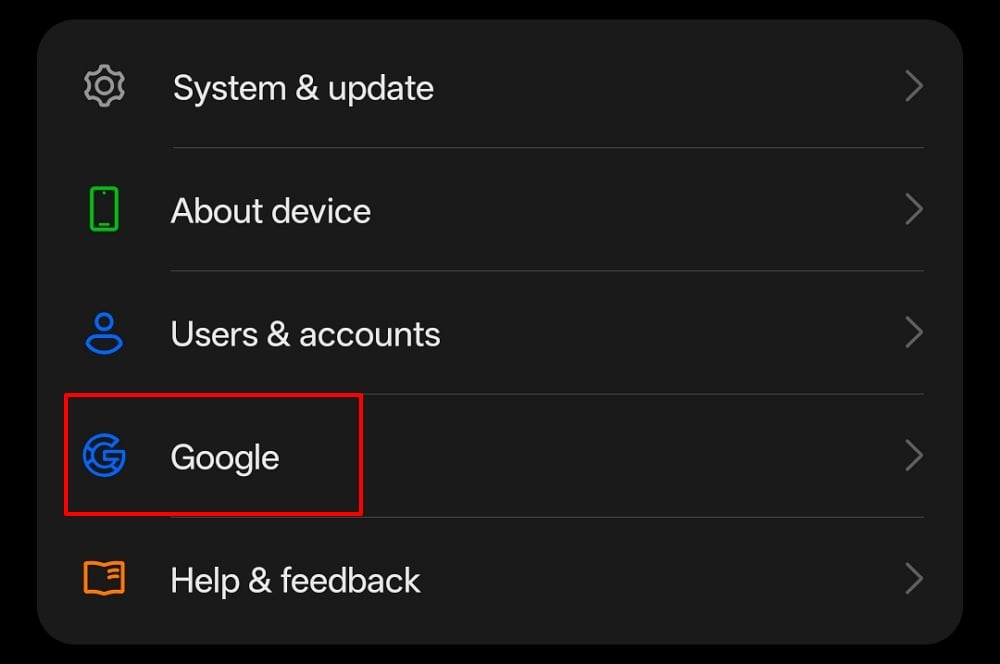
To get started, open the Settings app on your phone. Go to Google.
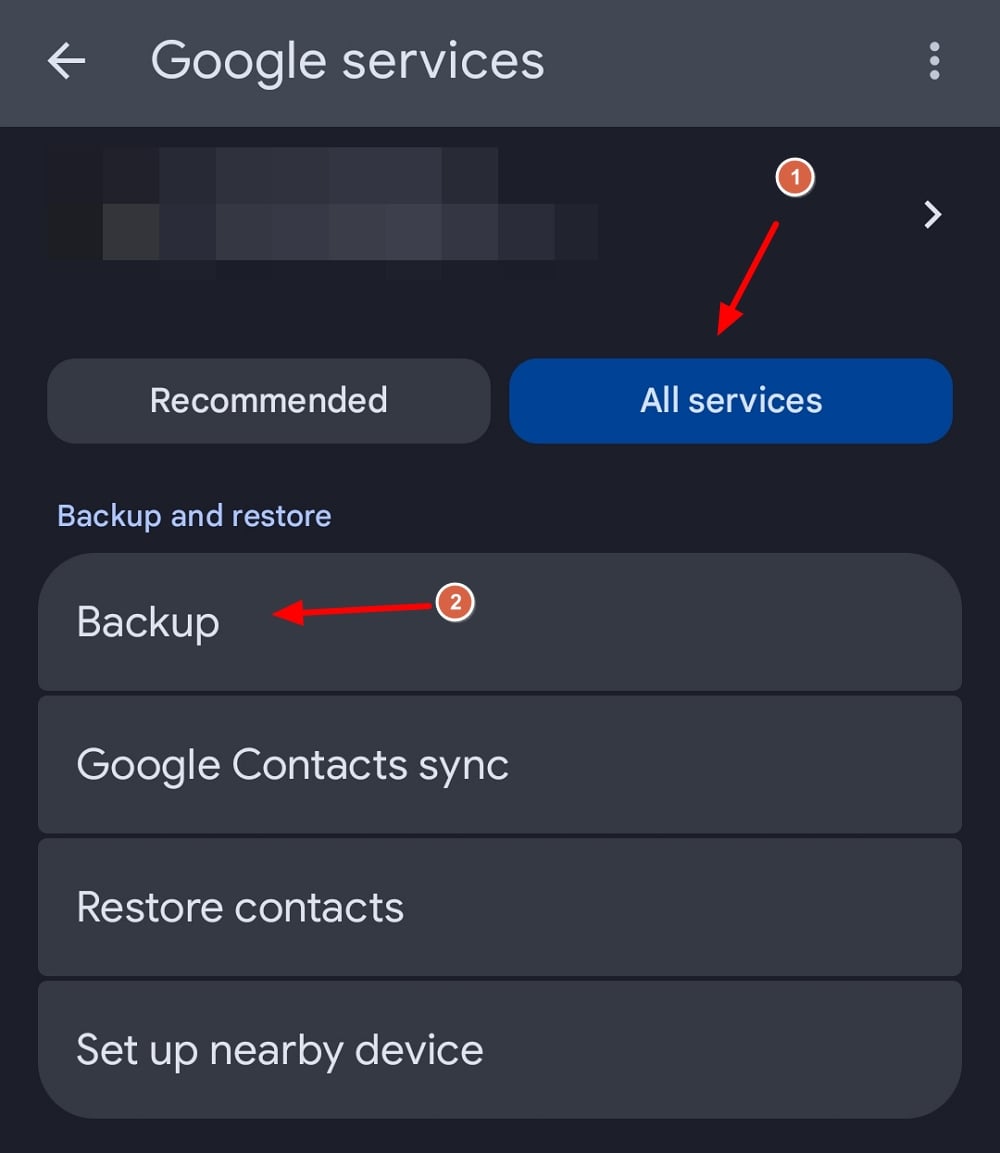
It will open the Google Services settings page. Tap All services at the top. Then, go to Backup under Backup and restore options.
On the Backup page, tap Other device data. The other device data includes contacts, call history, device settings, apps and app data, SMS and MMS messages, and SIMs to your Google Account. Toggle the button beside Back up other device data to back up your phone data.
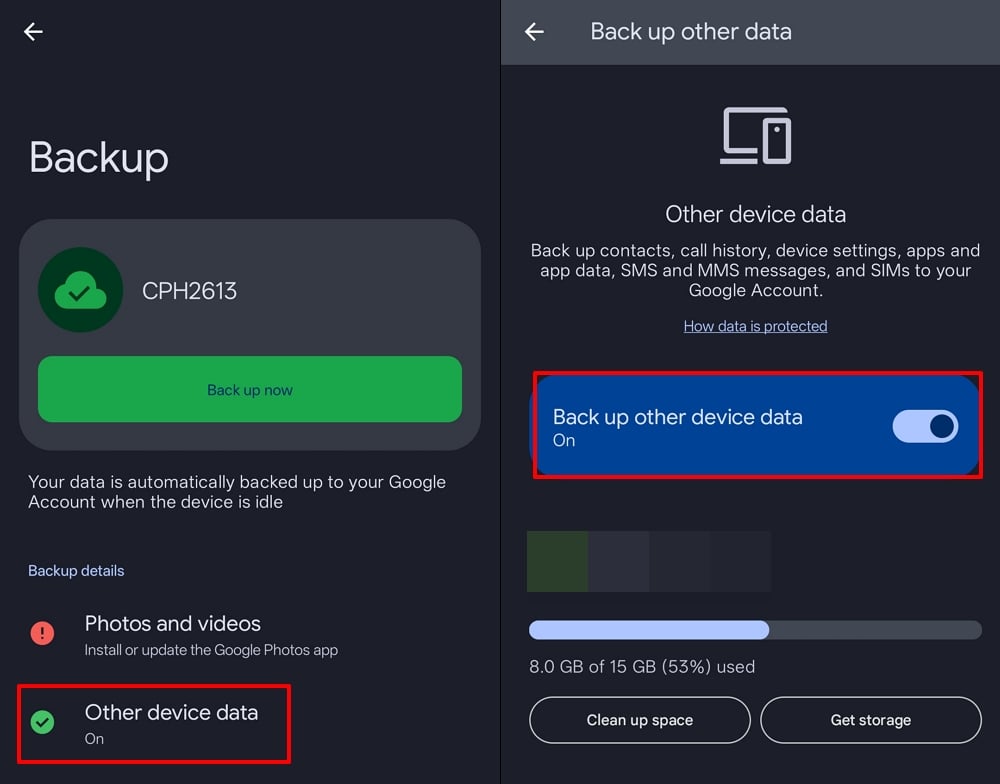
Make sure your phone is connected to Wi-Fi and has enough battery before the backup starts. The data is stored on your Google account (Google explains what is included in each backup category on its Android backup help page.). You cannot directly access it. It can only be accessed while setting up your device. After backing up the data, you can proceed to reset your Android phone. If you also want to move files to your computer before the reset, here is how to transfer files from Android to Windows PC.
What Else to Back Up Before a Factory Reset
SMS and call logs are the trickiest data to back up. But there are a few other things you should take care of before you reset your phone.
Photos and videos: These are automatically backed up to Google Photos if you have it enabled. Open the Google Photos app, go to your profile, and tap Photos settings > Backup to make sure backup is turned on.
WhatsApp chats: WhatsApp does not use Google’s backup system. You need to back up your chats separately. Open WhatsApp, go to Settings > Chats > Chat backup, and tap Back Up Now. This saves your chats to Google Drive. You can read more about this on WhatsApp’s official backup guide.
Contacts: If your contacts are synced with your Google account, they are automatically backed up. Go to Settings > Google > Backup and check that contacts are included.
Authenticator apps: If you use Google Authenticator or any two-factor authentication app, transfer your accounts to a new device before resetting. Google Authenticator supports account transfers via a QR code from the app itself.
Files and documents: Any files stored locally on your phone are not backed up automatically. Copy them to Google Drive or transfer them to your PC before the reset. You can check out our guide on
how to transfer files from Android to Windows PC for more help with this.
How to Factory Reset Your Android Phone
Once you have backed up your SMS and call logs, you can go ahead and reset your phone. The steps are slightly different depending on your device, but the process is mostly the same.
On stock Android (Pixel and most Android phones):
Open the Settings app. Scroll down and tap System. Then, tap Reset options. Select Erase all data (factory reset). Tap Erase all data to confirm. Your phone will restart and begin the reset process.
On Samsung Galaxy phones:
Open the Settings app. Go to General management. Tap Reset. Select Factory data reset. Scroll down and tap Reset. Then tap Delete all to confirm.
The reset process usually takes a few minutes. Your phone will restart on its own once it is done. After that, you can set it up again and restore your backed-up data.
How to Restore Call Logs and SMS on Android
Restoring call logs and SMS on a new or reset Android phone is a no-brainer. But it can only be done while setting up the device. When you turn your phone on to set it up, you are asked to choose a region, language, accept terms and conditions, and so on. Finally, when it shows you the screen to connect to a WiFi network, connect to your network by entering the password.
In the next steps, you will see the Copy apps & data screen. Tap Next. On the Use another device screen, tap Can’t use other device? or something similar, based on your device manufacturer.

It will show you a warning about restoring data without another device. Tap OK to proceed.

Then, sign in to the Google account to which you have backed up the other device data. On the Choose what to restore page, select SMS messages, MMS messages, and Call history to restore. This way, all your call logs and SMS can be restored even in a new device or the same device after a reset.
Is it possible to retrieve all call logs and messages on Android?
It is possible, but it depends on the backup options you have chosen. If you choose to back up the other data on the device, you can restore call logs and messages easily. If you have not enabled it, you cannot retrieve anything.
How to restore SMS and call history from Google Drive?
You cannot restore SMS and call history from Google Drive directly. All you can do is back up the data to your Google account, including SMS and call history. Then, restore the data on a new device or while setting up the device after a reset. There are no other options except for restoring only while setting up a device.
Does Google back up my call history?
Yes, Google can back up your call history if you choose to back it up. Go to Backup options in Google services in the Settings app. Then, enable backup of the other device data. After this, Google will automatically back up all your call history.
How to view SMS backup on Google Drive?
You cannot view SMS backup on Google Drive. They are encrypted and stored and can only be restored while setting up an Android device using the same Google account. Google does not provide options to manually check the backup SMS data on Google Drive.
Forgot restoring SMS and call history. What to do to get them back?
If you forgot to restore SMS and call history and want to restore it, it is only possible after a device reset. It does have certain limitations. If you have enabled backup of your device data after forgetting to restore earlier SMS and call history, you cannot restore them. You can only restore the currently backed-up data. If you did not back up anything after that, you can try resetting your device and restoring during the setup of your device.
Backup and Restore SMS and Call History on Android
Even though a few third-party apps are available to back up and restore SMS and call history on Android, considering the issues of data privacy, we are not suggesting them. Google’s backup options work better than those if we use them perfectly. Enable backups in Google services, including other device data, and not worry about losing data ever again.

