

We all use WhatsApp in our daily lives, and it is safe to say that WhatsApp has become a source of communication for many of us. Therefore, it is important that we always back up our chats and data because they could contain important messages, chats, pictures, and videos from our loved ones.

But in some cases, many Android users might face the problem of Whatsapp backup not working. Many users back up their data regularly to protect themselves from data loss, but in some cases, Whatsapp may accumulate a lot of cached data over time, causing the application to stop backing up the user’s data and display a notification saying “Backup in Progress” or “Preparing Backup (x%).”
In this situation, WhatsApp will not backup any data, and you will be confronted with this message for hours or even days. If you are facing the same problem of your WhatsApp backup being stuck in progress, you have come to the right place. In this blog, we will share several ways you can fix the “Whatsapp Backup Stuck in Progress” error. We will start with the most basic solutions and then move on to the advanced solutions to fix this issue. By the end of the blog, you will be able to backup your data on WhatsApp without any issues.
Table of Contents
Have a Stable Internet Connection
Let’s start with the simplest solution. The solution to a bigger problem can be a simple step. You might be faced with “WhatsApp backup stuck in progress” if you don’t have a stable internet connection or no internet connection at all. First, check if you have internet on your device or if you have Wi-Fi or mobile data enabled, as WhatsApp cannot backup your data if you don’t have an internet connection. To enable Wi-Fi or mobile data on your Android device, you just need to follow these simple steps:
- Open your notification center by swiping down from the top of the screen.
- Click on the Wi-Fi icon or Mobile data icon. If they are grayed out, enable Wi-Fi or Mobile data.
- Once you have enabled Wi-Fi/ Mobile data, wait for your device to connect to the Wi-Fi once the connection is established.
- Check if you are still facing the issue by looking for the WhatsApp backup notification in the notification center.
- If the issue is fixed, WhatsApp will automatically start the backup.
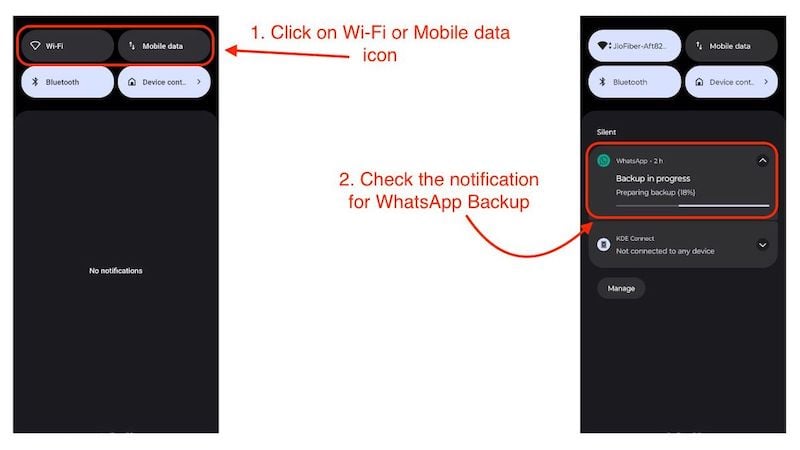
This might fix the “WhatsApp backup stuck” issue, but note that you must have an internet plan on your Wi-Fi or SIM card to access the internet and that additional charges may apply depending on the size of your WhatsApp backup.
Check if backup on cellular is Enabled
If you use mobile data to backup WhatsApp, you must activate the “Back up using cellular” option in the WhatsApp settings. You can then backup your WhatsApp data via mobile data, but we recommend that you backup your WhatsApp chats via Wi-Fi, as using mobile data may incur higher costs depending on your cellular provider’s plan. So if you want to backup your WhatsApp chats and data via mobile data, you should follow the steps below:
- Open WhatsApp and click on your profile in the top right corner.
- Swipe down and click on Chats.
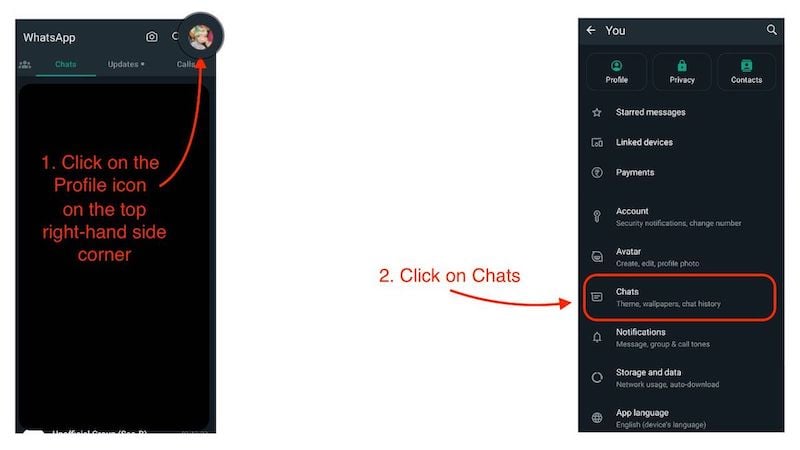
- On the next page, click on Chat Backup.
- Now, enable Back up using cellular by clicking on the button in the front.

If you are trying to back up your WhatsApp chats with mobile data and have not enabled this option, this could be the reason why the WhatsApp backup being stuck in progress. If you have enabled this option, the issue should be resolved.
Do not include Videos on WhatsApp Backup
Large video files could be the reason why the WhatsApp backup is stuck. Smartphone cameras are becoming more and more powerful, increasing the size of images and videos. And many people tend to share videos on WhatsApp with their family and friends. Large videos could be the reason why WhatsApp backup won’t continue because videos are usually much larger than photos or GIFs. Therefore, it is obvious that WhatsApp takes too much time to backup.
A better alternative for backing up videos is Google Photos or services like Google Drive or Dropbox, as WhatsApp tends to compress videos, which reduces the quality of the videos, while these apps or services can easily backup your videos. However, they only have a limited amount of storage space reserved for backing up your data. If you are looking for a solution to back up your photos and videos, here are some services that will backup your data for free. If you are convinced and want to stop backing up your videos on WhatsApp, then follow these simple steps:
- Open WhatsApp, and click on your profile in the top right corner.
- Swipe down and click on Chats.
- On the next page, click on Chat Backup.
- At the very bottom of the page, you will see the option “Include videos.”
- Disable this option by clicking the toggle in the front.

If you disable this option, WhatsApp will no longer back up videos that are included in your chats. This could also solve the “WhatsApp backup stuck in progress” problem. However, if this doesn’t fix the issue, move ahead to the next troubleshooting step.
Update WhatsApp to the latest version
Meta’s team is working hard to fix bugs, such as the WhatsApp backup stuck in progress, and to introduce new features, such as WhatsApp channels and communities. So, it’s a good idea to update the WhatsApp app installed on your device. Updating the app can fix minor bugs and also introduce new and helpful features.
- Once the app is updated, open the WhatsApp application.
- Click on your profile in the top right-hand corner.
- Swipe down and click on Chats.
- On the next page, click on Chat Backup.
- Tap the Backup button here to manually back up your WhatsApp chats.

If you are still facing the issue, move to the next troubleshooting step.
Clear WhatsApp Cache data
WhatsApp cache data can be the main cause of the WhatsApp backup being stuck. If a lot of cache data accumulates over time, WhatsApp may have this type of error and suffer from problems such as ” WhatsApp backup stuck.” To clear WhatsApp cache, you need to follow these simple steps:
- Tap and hold the WhatsApp icon.
- Now click on the small i button to open the App info page.
- Now click on Storage and Cache.
- Tap the Clear cache button here.
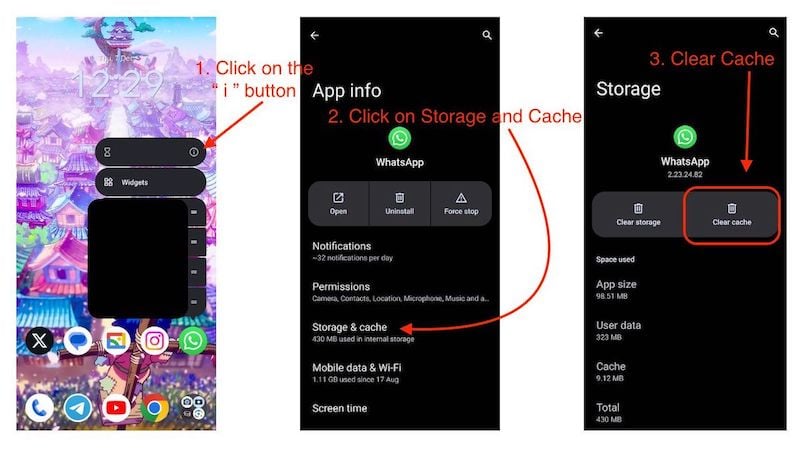
- Now, restart your device.
This should solve the “WhatsApp backup stuck in progress” problem, as the cache data could be the cause of the problem. As the cache accumulates over time, it also affects the startup time of the apps, so it’s a good idea to clear the cache data manually after some time.
Force Stop WhatsApp
Forcing an app to stop works like an internal reset switch for the app, where various things like bugs and errors can be fixed, but all your data and content are safe. This could also fix the issue of WhatsApp being stuck in progress, as it could fix the bug for you. After force quitting WhatsApp, you may not receive any more messages until you open WhatsApp again. This can be a good idea to fix errors you are facing in WhatsApp. Learn how to force-stop WhatsApp here:
- Tap and hold the WhatsApp icon.
- Now click on the small i button to open the App info page
- Now, click on the Force Stop button.
- Then click OK on the next prompt.

Once WhatsApp has been force-stopped, you will need to restart your device, open WhatsApp, and manually back up your data again. This should fix the problem, and you should be able to back up your data again automatically and without errors.
Delete old WhatsApp backup from Google Drive
Sometimes, old WhatsApp backups can cause problems with new WhatsApp backups, so it’s better to delete them. If you’re worried about what will happen to your data, the old data will be permanently removed, and you’ll have to back it up again manually. After that, however, all data will be backed up automatically. If you want to know how Whatsapp data backup works on Android, we recommend you to read this FAQ section of WhatsApp.
Now let’s take a look at how you can delete old Whatsapp backups from Google Drive:
- Open the Google Drive app on your Android device.
- Click on the hamburger menu in the top left-hand side corner.
- Then click on Backups.
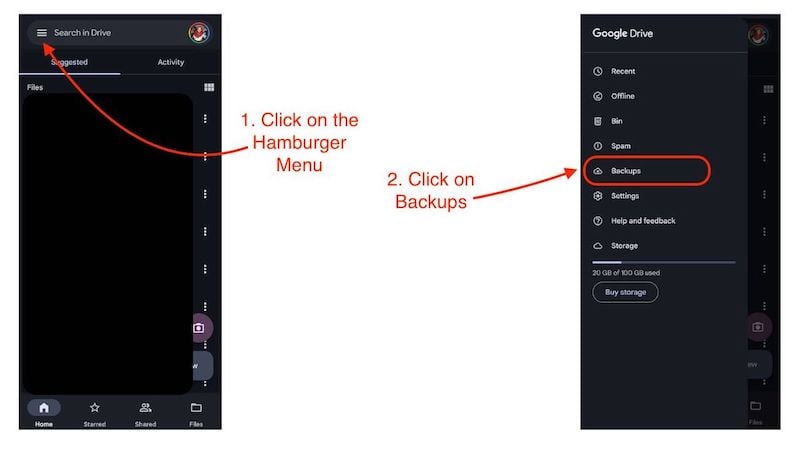
- Here, you will see your WhatsApp backup, with the date of the last backup.
- Click on the 3 dots.
- Now click on the Delete backup button.
- You will be asked if you want to delete the backup for your number and click on Delete.

This will delete the old backup. Now it’s time to create a new WhatsApp backup,
- Open WhatsApp, and click on your profile in the top right-hand corner.
- Swipe down and click on Chats.
- On the next page, click on Chat Backup.
- Now, click the Backup button to back up your WhatsApp data again.
This should solve the problem of the WhatsApp backup being stuck in progress. If you follow this step, don’t forget to check which Google account you are using to create the WhatsApp backup. Make sure you are using the Gmail ID that you used to delete the previous backup.
Use a different Google Account to back up WhatsApp
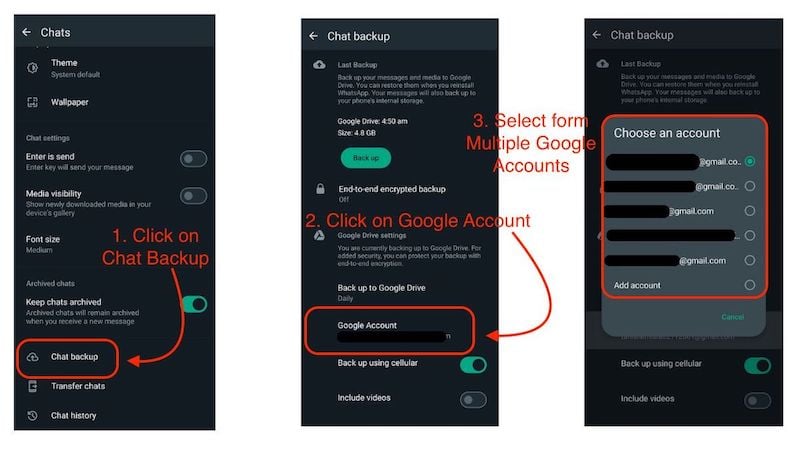
If you have carefully followed all the steps above, and you still have the “WhatsApp backup stuck” issue, the best way to resolve this is to use another Google account. To backup your WhatsApp data to another Google account, follow these simple steps:
- Open WhatsApp, and click on your profile in the top right-hand corner.
- Swipe down and click on Chats.
- On the next page, click on Chat Backup.
- Now click on Google Account, and select any Google account where you want to save your WhatsApp backup.
Fixing WhatsApp Backup Stuck in Progress Issue
WhatsApp backup stuck in progress is a serious problem that can lead to data loss if not fixed in time. Once you face this issue, your WhatsApp will stop backing up automatically, but there’s no need to worry. If you follow the above steps from the blog, this issue will be fixed for you. More importantly, fix the issue as soon as possible before it affects your chats and conversations with your loved ones. Also, let us know which of the above steps solved the problem for you.
FAQs about Troubleshooting ‘WhatsApp Backup Stuck’ Issue on Android
1. Could WhatsApp backup stuck in progress be caused by insufficient drive storage?
WhatsApp backup stuck in progress can be caused by insufficient storage in your Google Account. Starting December 2023, Google has started counting WhatsApp backup data against your free Google Drive storage limit. If that’s the case, you can check our guide on 3 Ways to Backup WhatsApp Messages Without Using Google Drive.
2. Why is the WhatsApp backup stuck?
There can be several reasons for the error where you receive the notification “Backup in progress” or “Preparing Backup,” but no data is backed up to Google Drive. You can also find this out by taking a look at the last backup in the chat backup settings. This is what we call WhatsApp backup stuck in progress. This usually happens due to the accumulation of cache in WhatsApp, but if you follow the steps in the blog above carefully, you can easily fix this error.
3. How can I recover WhatsApp chat without backup?
You will need to manually create a backup of all your WhatsApp chats by going to the WhatsApp directory on your phone and creating a backup from there. Although you only need to do this once, you can also restore the data normally by pasting it into the same directory. The best thing about this type of backup is that you won’t get problems like “WhatsApp backup stuck”.
4. How long does WhatsApp backup take?
WhatsApp backup can be completed in a few seconds or sometimes even minutes, as the entire backup process depends on the amount of chat data to be uploaded to the server and your internet connection. However, if you use a Wi-Fi connection and back up your data daily, the backup will only take a few seconds.
5. Can anyone read my backed-up WhatsApp data?
No one can read your WhatsApp data, not even WhatsApp or Google, but that depends on a single step: WhatsApp gives you the option to encrypt chat backups by default, and you need to turn that on for better privacy protection. To create an end-to-end encrypted backup, you just need to follow these simple steps:
- Open WhatsApp, and click on your profile in the top right-hand corner.
- Swipe down and click on Chats.
- On the next page, click on Chat Backup.
- Then click on End-to-end encrypted backup to enable it.


