

Quick Answer
After testing every option, the best ways to hide YouTube Shorts are filtering search results to show only videos, using “Show fewer Shorts,” setting a Shorts time limit, browser extensions or scripts on web, YouTube Revanced on Android, and pausing YouTube history.
YouTube is finally letting me hide YouTube Shorts on the app. Before you get too excited, currently, they are only letting me hide shorts from search results, and in the future, they may allow me to hide them everywhere, as per rumours. While the official ways to hide YouTube Shorts are limited, there are plenty of third-party methods that can help you get rid of YouTube Shorts completely.
However, once again, these third-party methods also have limitations, but they are a gold mine if you really want to get rid of the YouTube shorts anyway.
So, for the past two weeks, before YouTube announced these changes, I have been trying different methods to disable YouTube Shorts inside the YouTube app and also on the web. After testing several methods, here are the 5 Best methods that worked for me. In this guide, you will learn about those methods, their limitations, and a step-by-step guide on how to use them.
Table of Contents
How to Hide YouTube Shorts on the App and Web (What Worked for Me)
Update: YouTube now officially lets you set a zero time limit for Shorts. This feature is currently rolling out and is available under time management.
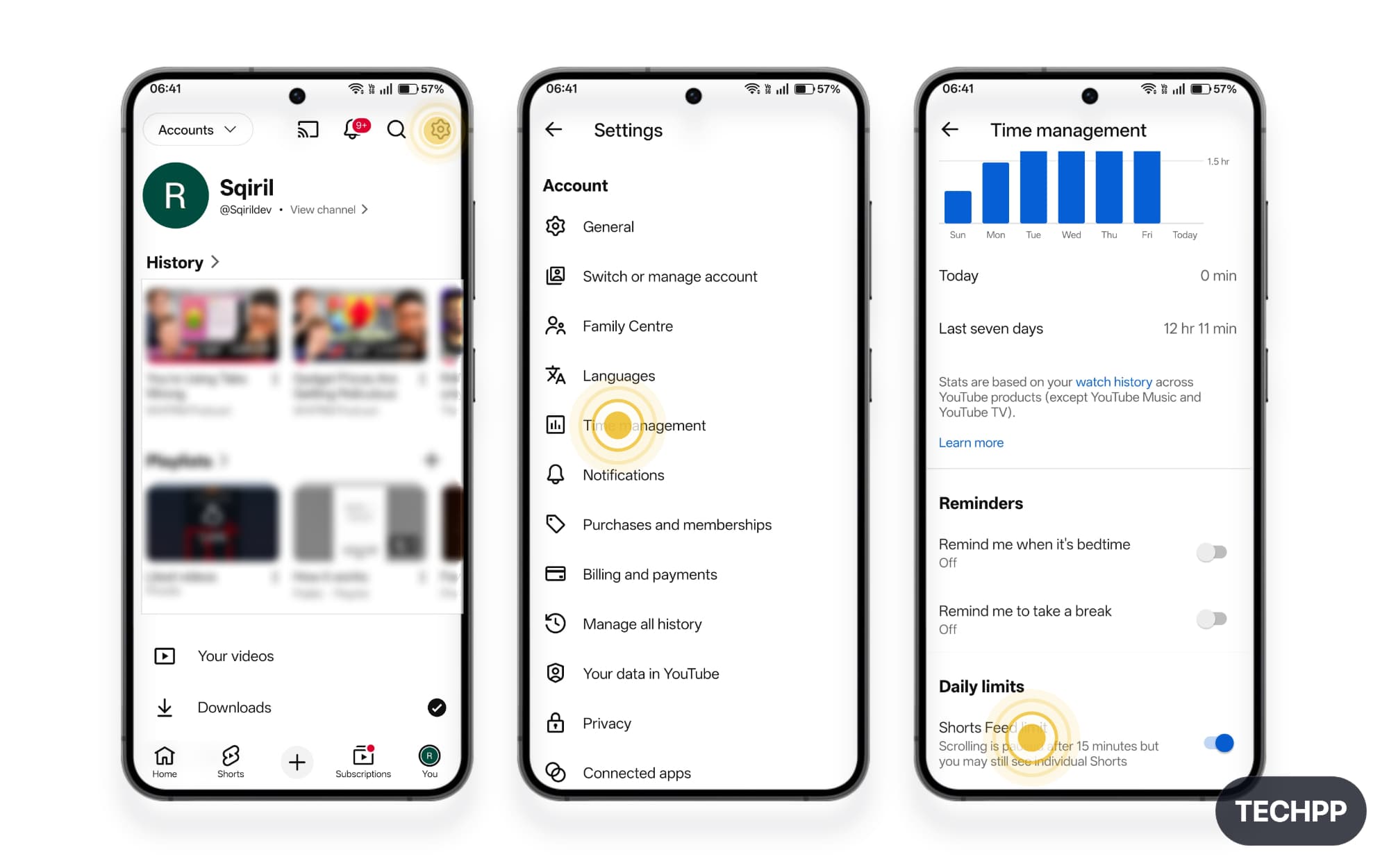
To enable it, follow these steps:
- Open YouTube and go to Settings.
- Select Time Management.
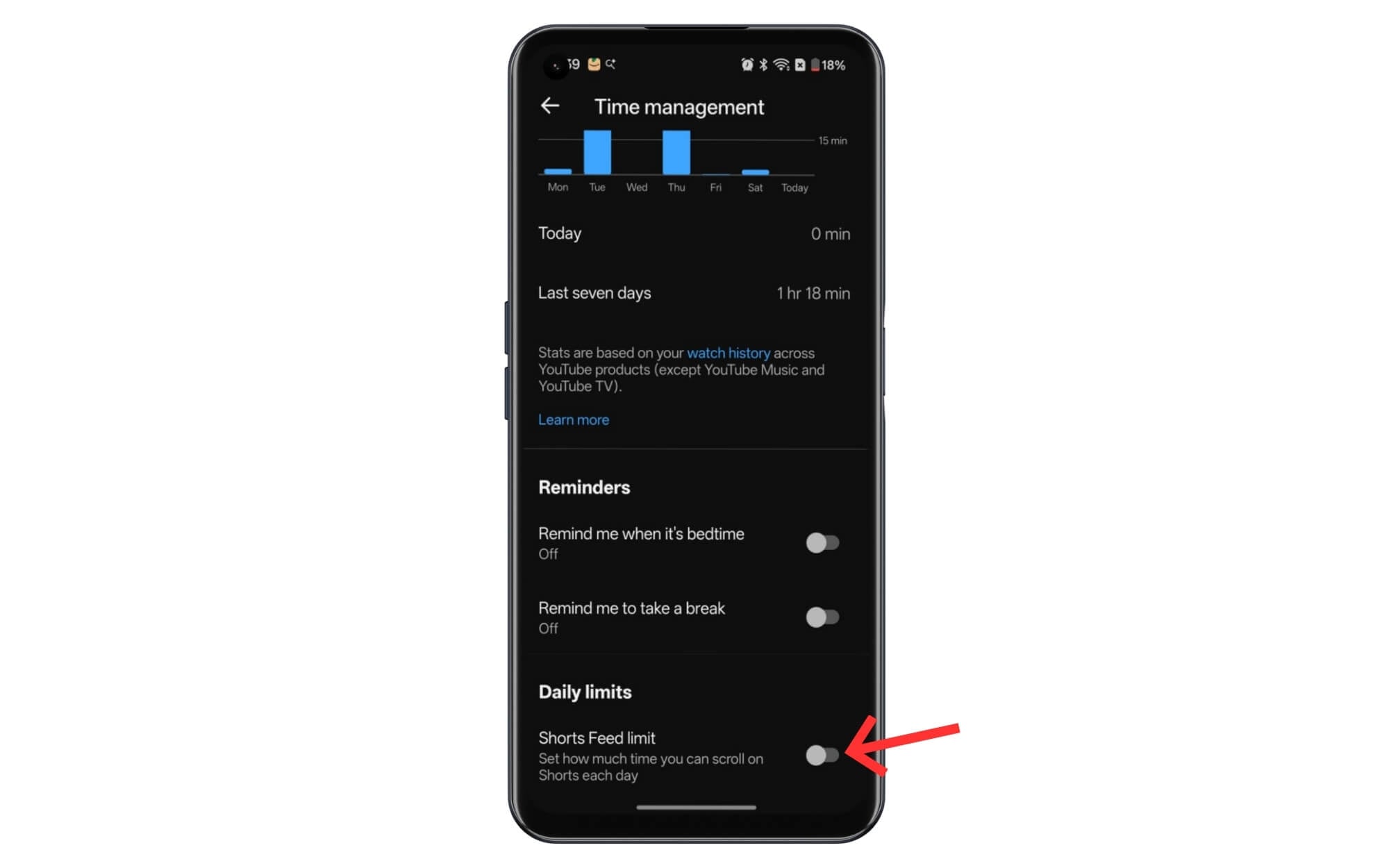
- Scroll down and tap on Daily limits.
- Set the time limit to 0 minutes.
Setting the limit to zero means you spare no time watching YouTube Shorts, which fundamentally hides them completely from the YouTube app. The feature is currently rolling out; if you don’t see it yet, wait a little while, and it should appear.
Method | Pros | Limitations |
|---|---|---|
1. Hide Shorts in search results (Videos filter) | * Works on Android, iPhone, and desktop. * No extra app needed. * Hides Shorts instantly for that search. | * You must do it for every search. *Shorts still show in Home and other tabs. * It does not block Shorts everywhere. |
2. Use YouTube ReVanced to remove Shorts | * Can hide Shorts from Home, search, subscriptions, and history. * Also removes ads. * Gives the cleanest Shorts-free experience on Android. | *Not official and not on Play Store. * Risk of fake downloads and malware. * YouTube can block it anytime. * Updates can break it. |
3. “Show fewer Shorts” option | * Official and quick. * Works on mobile and desktop. * Reduces Shorts a lot on Home. | * Not permanent. * Shorts can come back. * It reduces Shorts but does not remove them fully. |
4. Set a Shorts feed time limit | * Official setting. * Shorts feed stops after you hit the limit for the day. * Good if you want control instead of blocking. | * Minimum limit is 15 minutes. * You still need to watch Shorts to reach the limit. * Shorts can still appear in search and browsing. * Limit resets every 24 hours. |
5. Extensions or scripts on web (Tampermonkey / extensions) | * Can hide Shorts across the YouTube website. * Works well on desktop. * Local scripts can be more private than random extensions. | * Some extensions can be risky or buggy. * YouTube changes can break scripts. * Setup is more technical. * Mobile support depends on the browser. |
6. Install an old YouTube version | * Can remove Shorts if the version is old enough. * No mod tools needed. * Works if you want a simple YouTube app. | * Old apps can be insecure. * Many features may * YouTube can force updates or block old versions. * Shorts will return if auto-update turns on. |
7. Turn off YouTube History | * Reduces Shorts recommendations over time. * Makes YouTube feel less pushy. * Can make the feed cleaner. | * Does not fully hide Shorts. * You lose personalized recommendations. * Shorts can still appear if you search or open them directly. |
Disable YouTube Shorts in Search Results
Works on all devices, including Android, iPhone, and Web
YouTube has recently announced the ability to hide YouTube Shorts from the search results. No, this isn’t native settings that hides the YouTube shorts automatically, you need to manually select long videos from the filter to hide shorts results, and the worst part is you need to do it manually for every search you make on YouTube, and the best part is it’s not as bad as I thought.
Most of the search results for YouTube search are also filled with shorts, and almost every top video is a short, and sometimes they keep coming. And this is a great setting to make them disappear at once. Here is how
Step 1: Open the YouTube app on your Android or iPhone
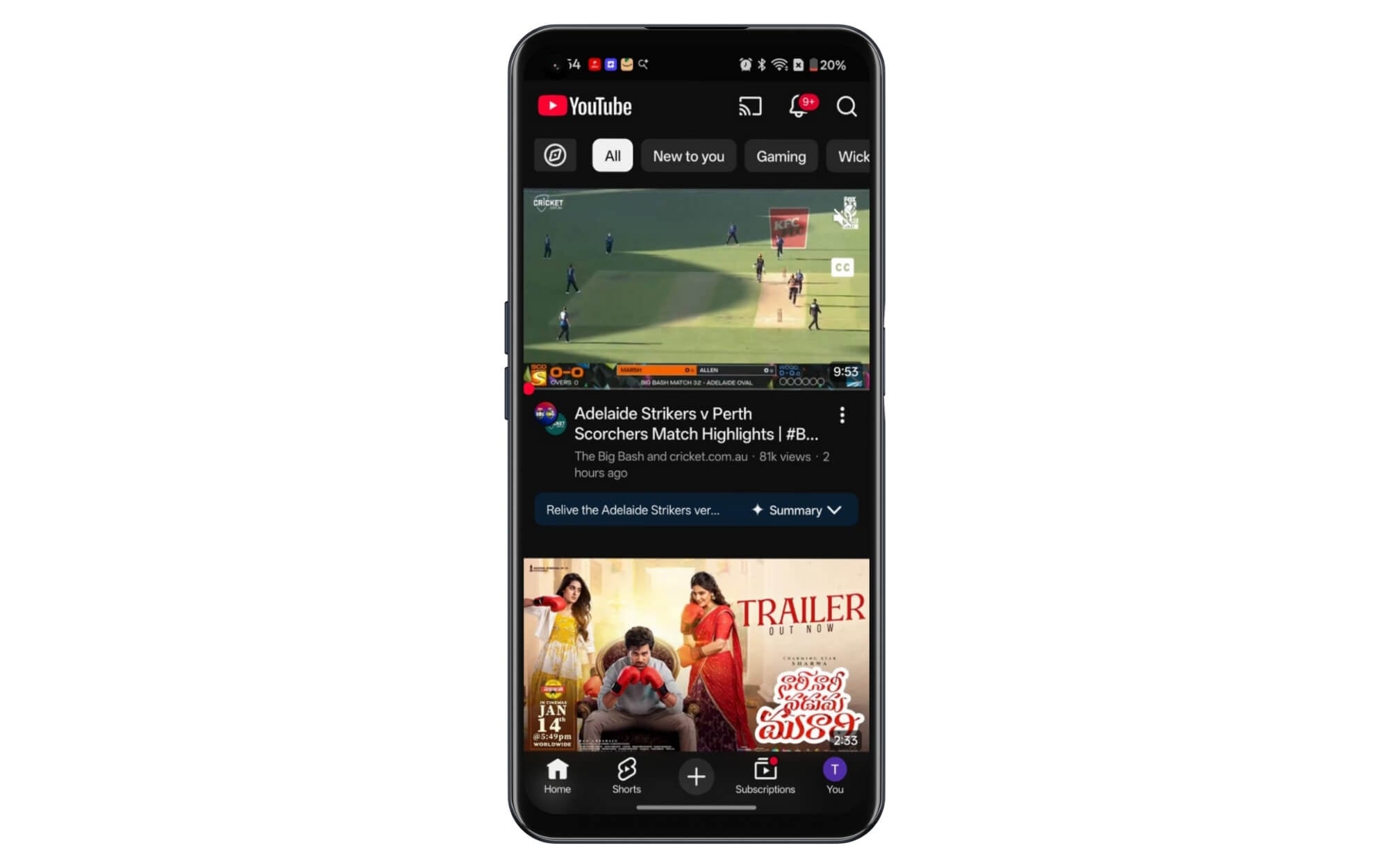
Step 2: In the search bar, search for any term, for instance, techpp
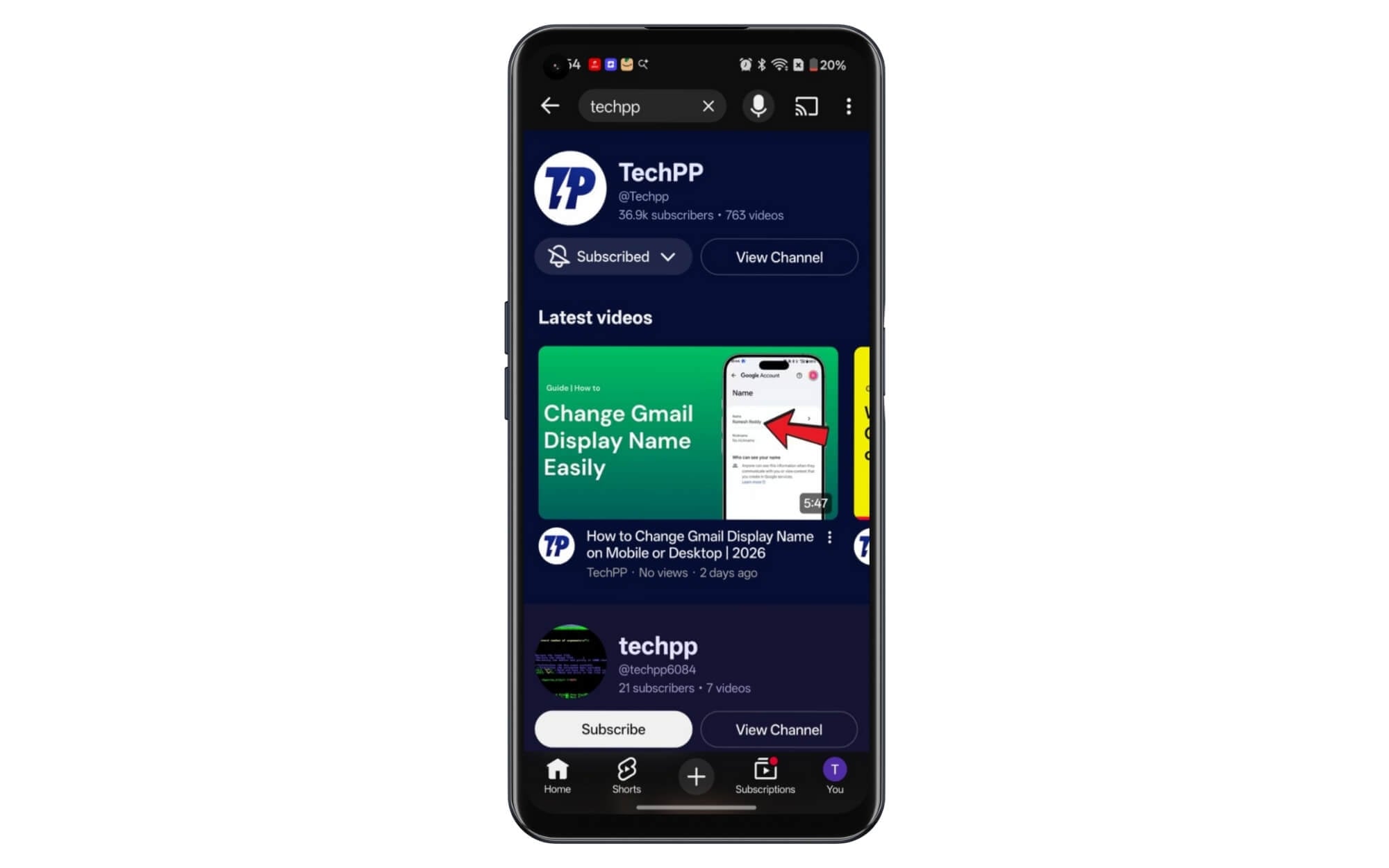
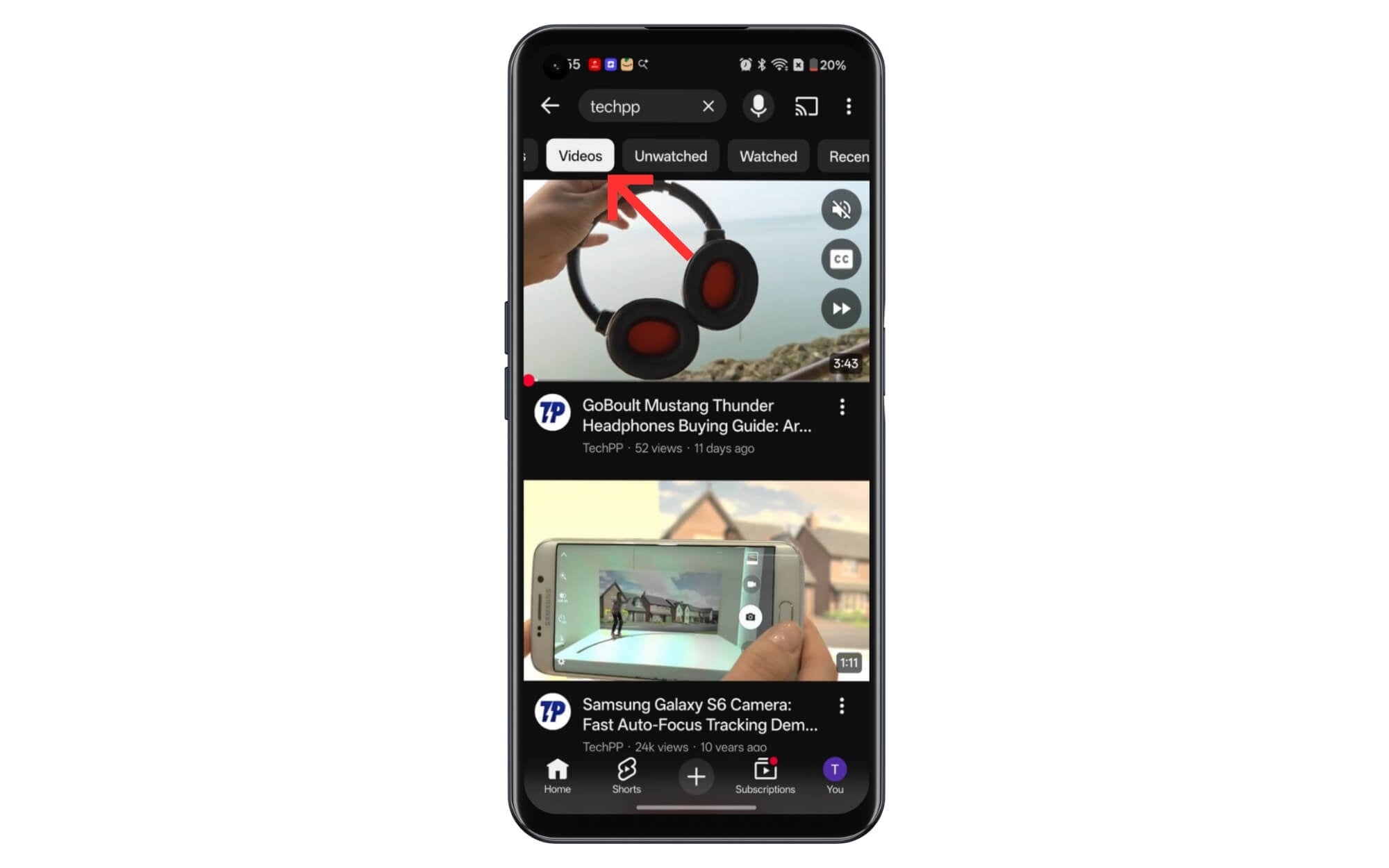
Step 3: Scroll down if you are mobile, to see filters, and from there select Videos. This hides YouTube shorts automatically and only shows your long videos.
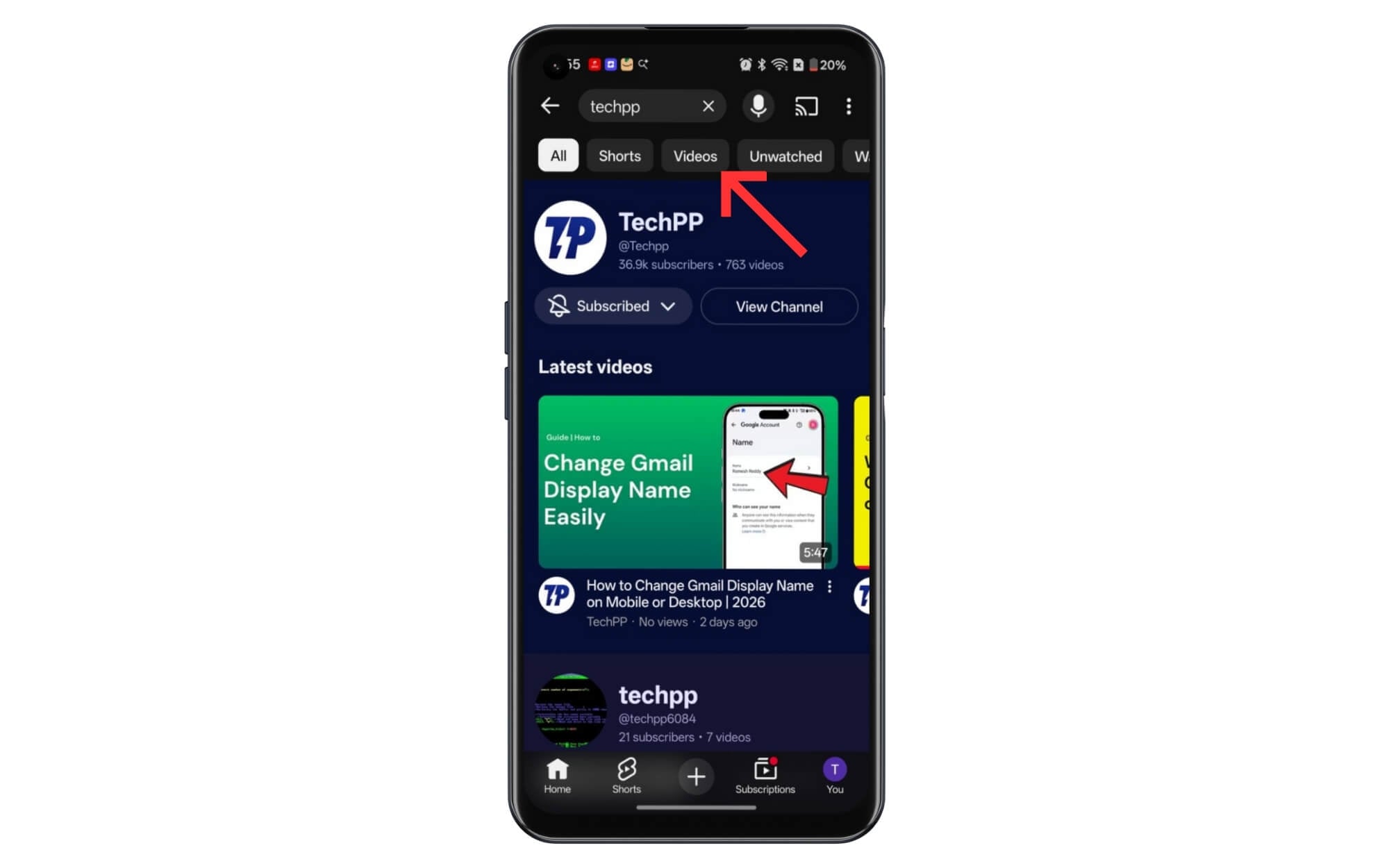
Step 4: You can follow a similar process on a desktop to get rid of YouTube Shorts.
Use the Revanced App to Get Rid of YouTube Shorts Completely
Works on Android, and this is not an official method
YouTube Revanced is a third-party YouTube mod app that removes all the pain points YouTube has, from getting rid of ads to downloading YouTube videos and even removing YouTube shorts completely from the app.
The only downside is, YouTube Revanced is a third-party app, and it is not available on the Google Play Store. Moreover, YouTube is also making strict restrictions to block these apps.
However, at the time of writing this article on January 20260, the app still works without any issues. And a big caution, since it’s a third-party app, ensure you download it from a reputable source, and once downloaded, scan the application using any free online video scanner tools and install the app.
How to disable YouTube Shorts in the YouTube Revanced app
Download the YouTube Revanced apps from these download links. These are direct download links. Ensure you download the app from these links and avoid downloading from third-party websites, since most of them have spammy apps. I even tried, and only had a fake YouTube Revanced app. So be careful and download links from these links.
Step 1: Download the YouTube Revanced app using this link and install it on your smartphone: Link
Step 2: Now download and install the Micro-G services app, which is required if you want to sign in with your Google account. Link
Step 3: Next, download the official YouTube app from this link: You can download it for free from the APK app store. Once downloaded, don’t install this YouTube app. Download from APK pure
Step 4: Open the YouTube Revanced app and click on the Patcher.
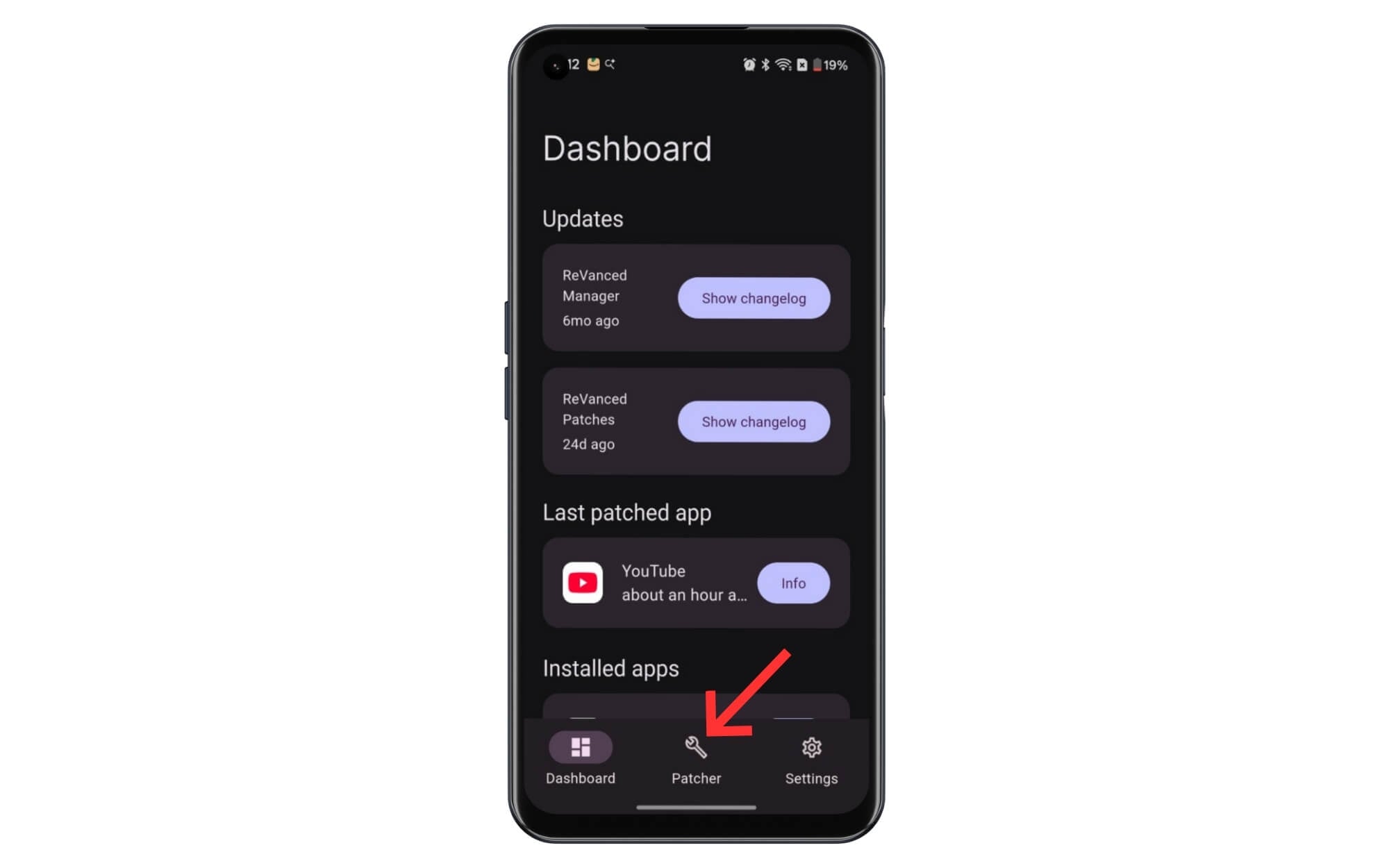
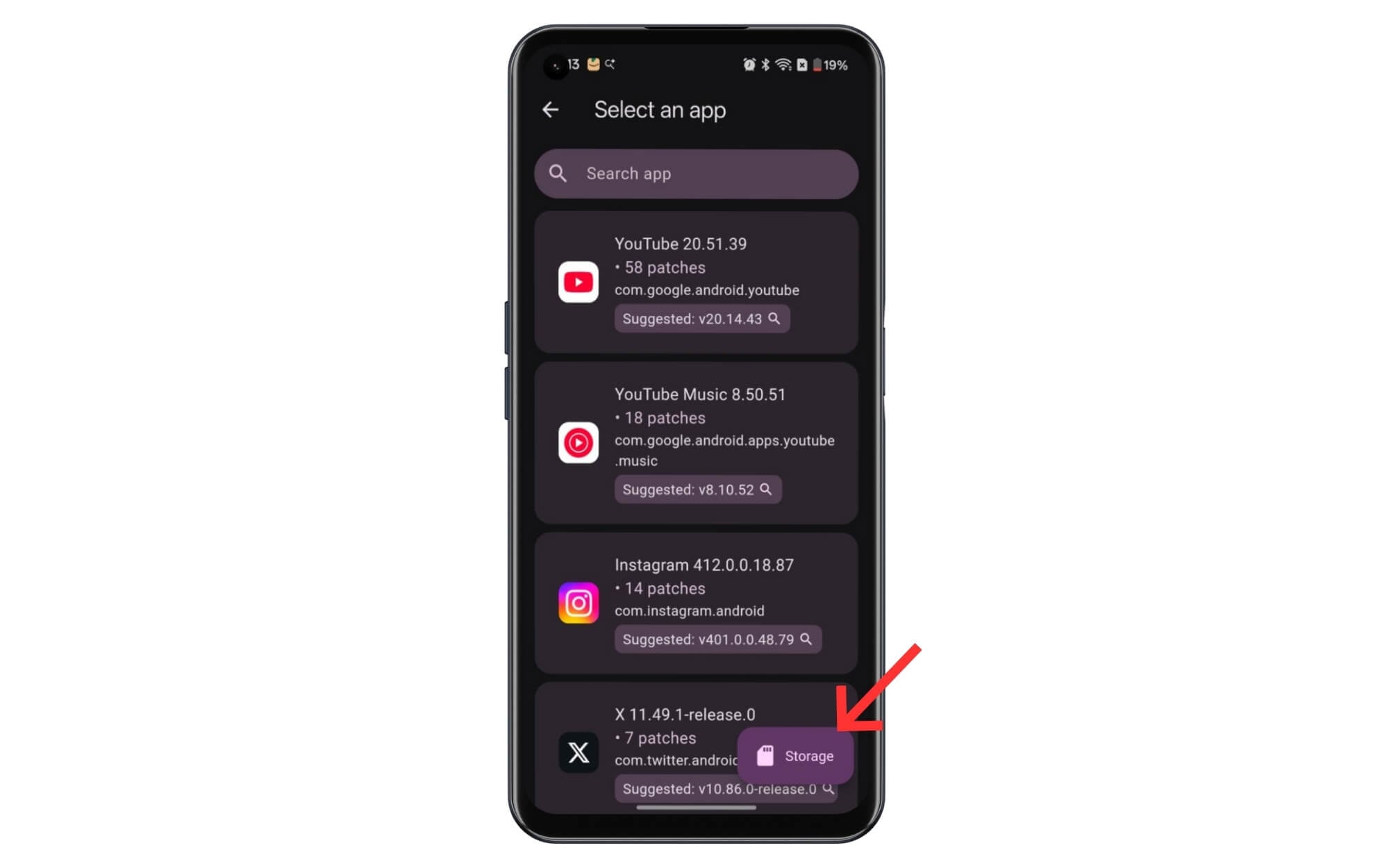
Step 5: Now tap on the storage button and then select the downloaded YouTube app.
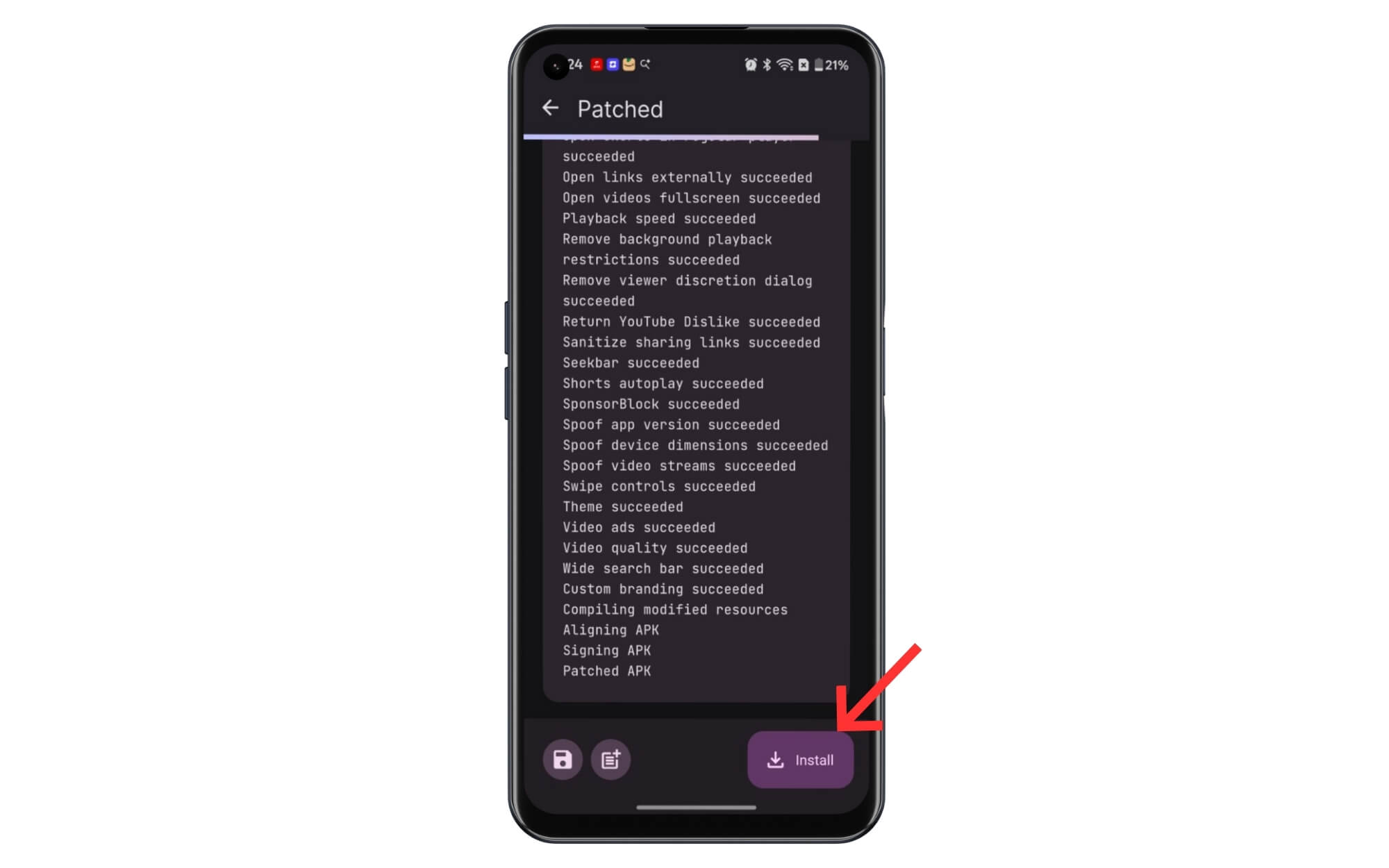
Step 6: Now, click on the Patch now, wait for it to patch, and click on the install button once the patch is finished.
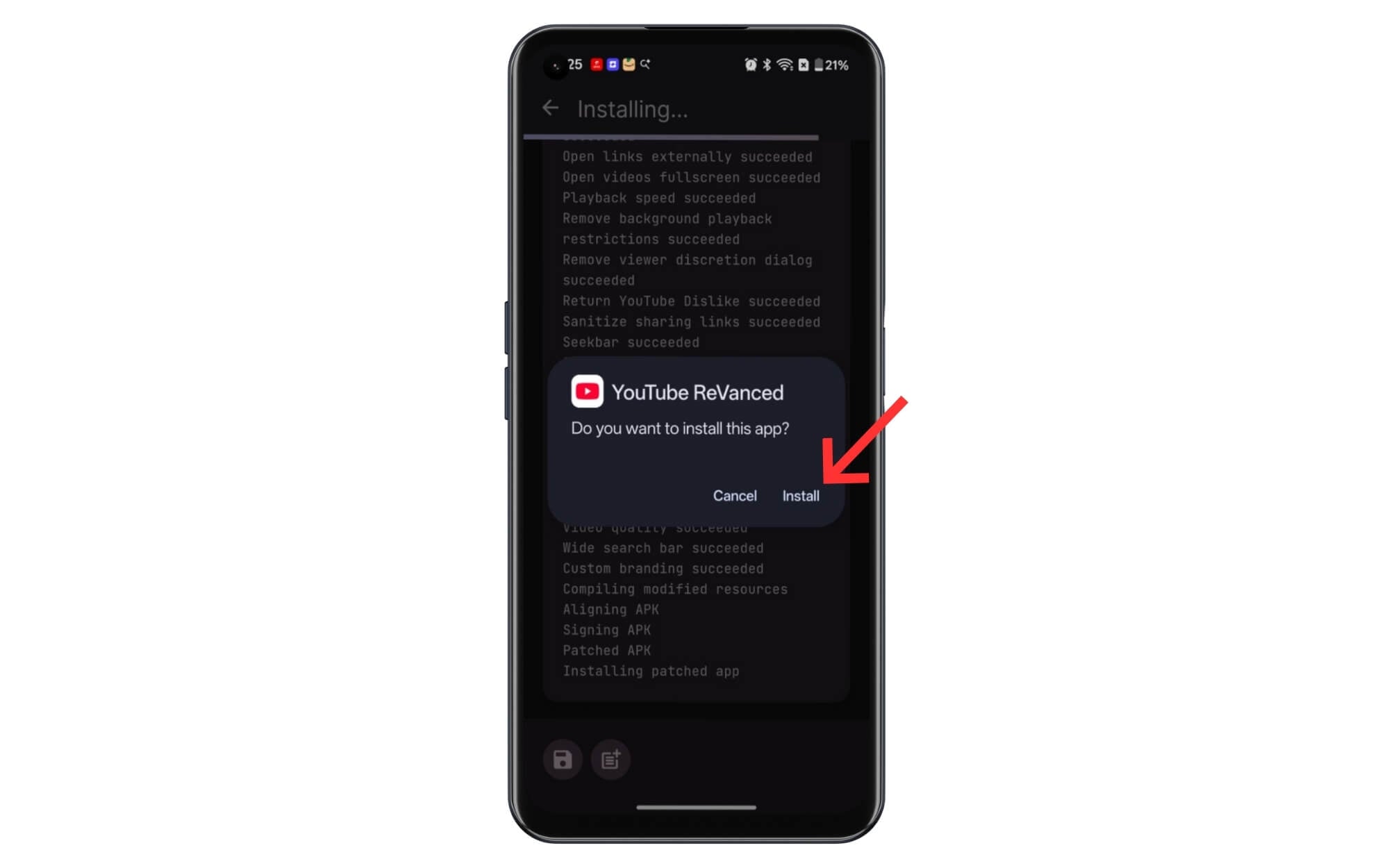
Step 7: Now, install the YouTube Revanced app on your device.
Next, follow the next steps to disable your YouTube Shorts in the Revanced app.
How to disable shorts in the YouTube Revanced app:
Step 1: Ensure the YouTube Revanced app is installed on your device. You can find it with the name “YouTube Revanced”.
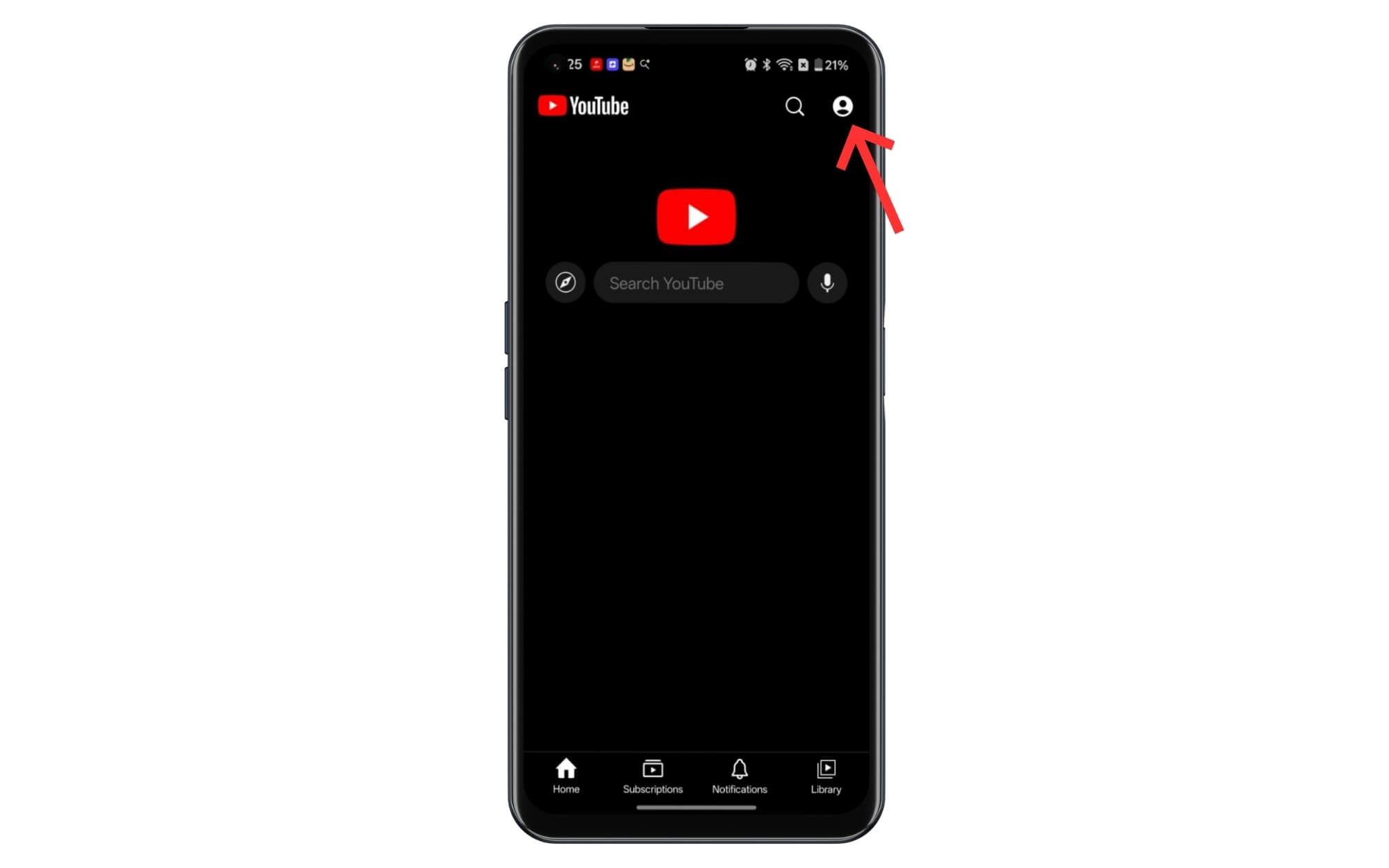
Step 2: Open the Revanced app on your Android phone, and click on your profile picture in the top right corner.
Step 3: Tap on Settings
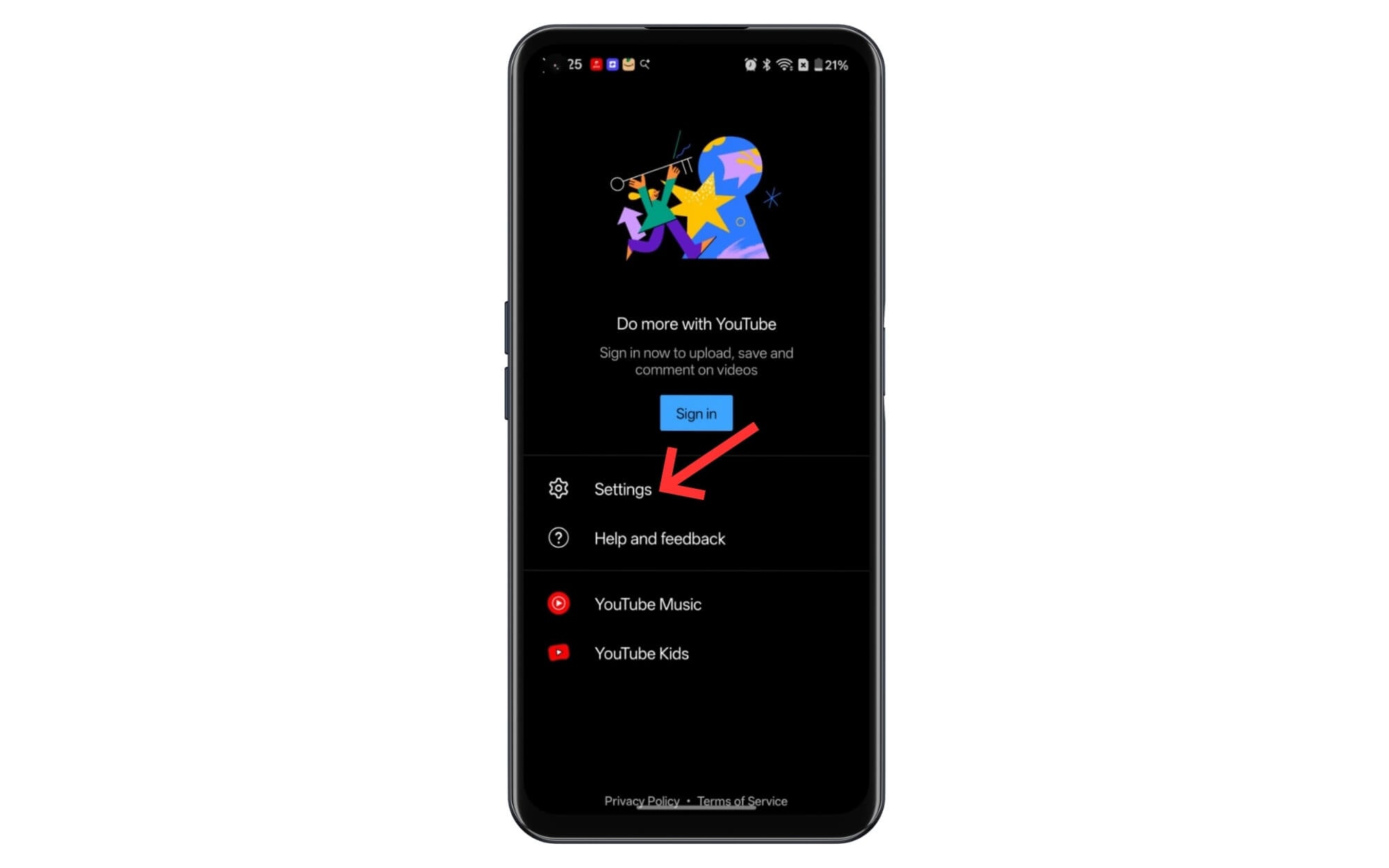
Step 4: Now, click on the Revanced Settings
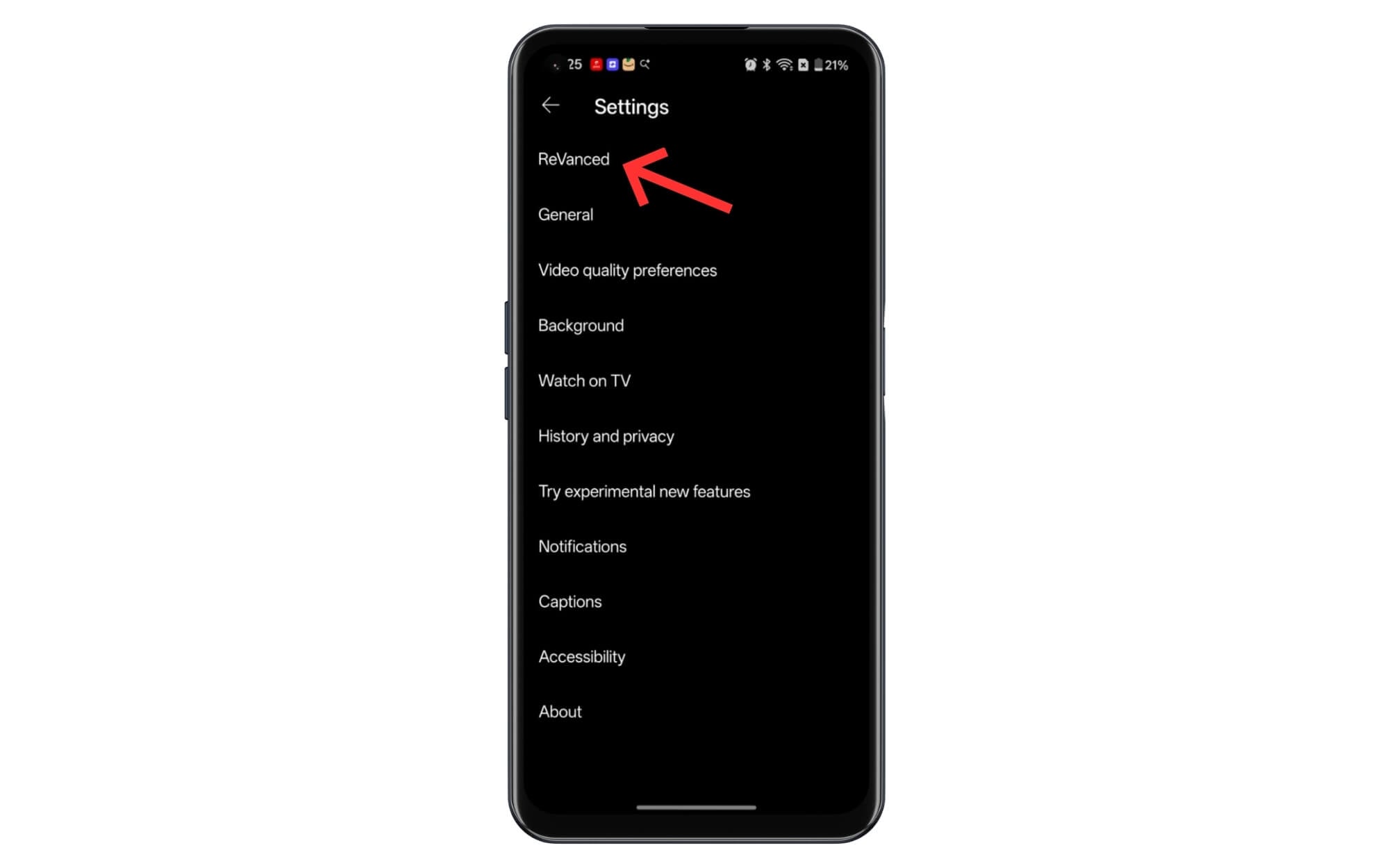
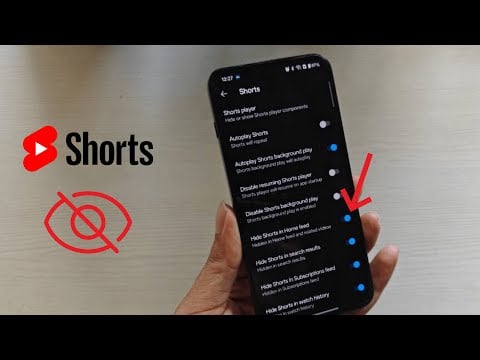
Step 5: Scroll down and tap on Shorts
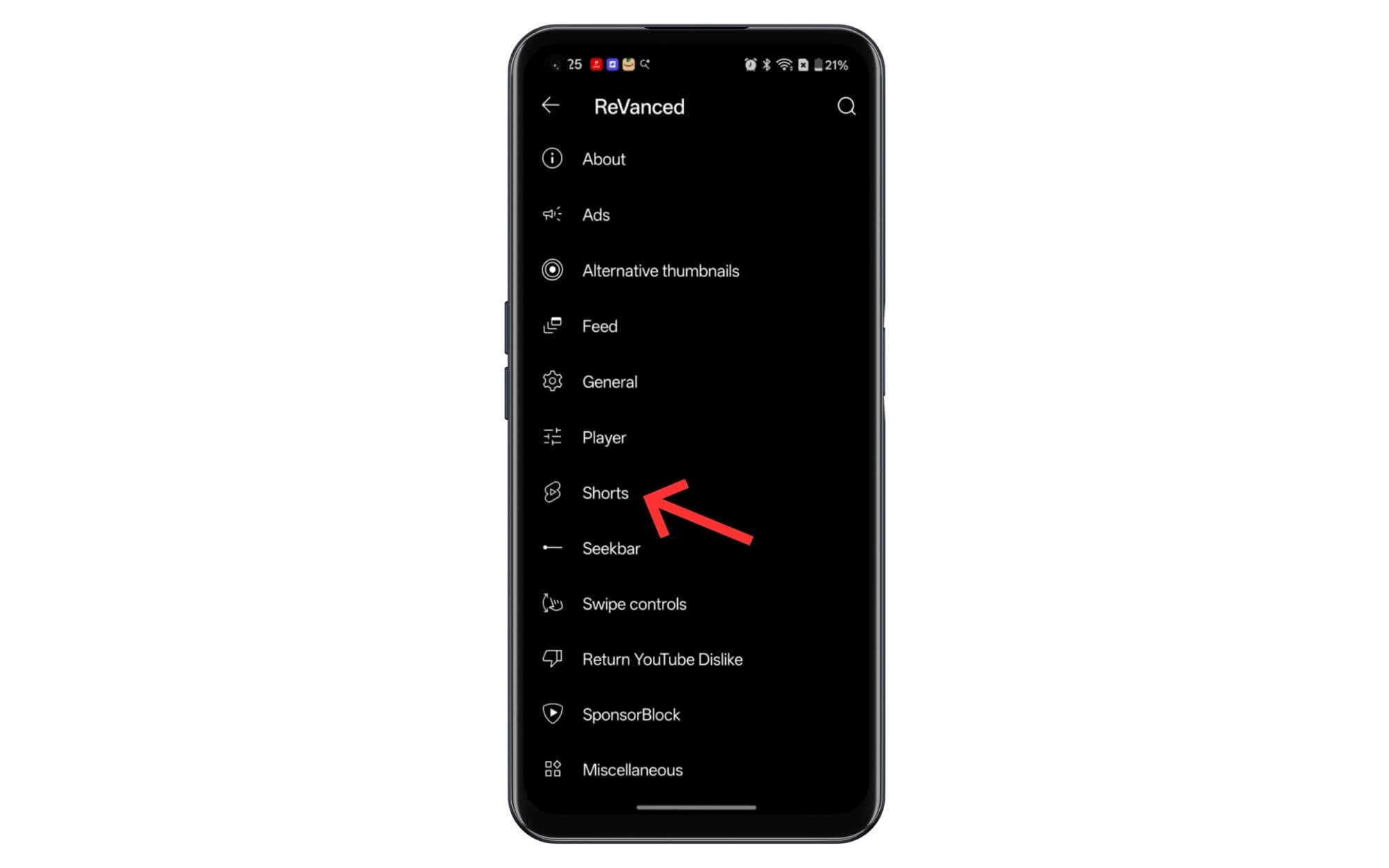
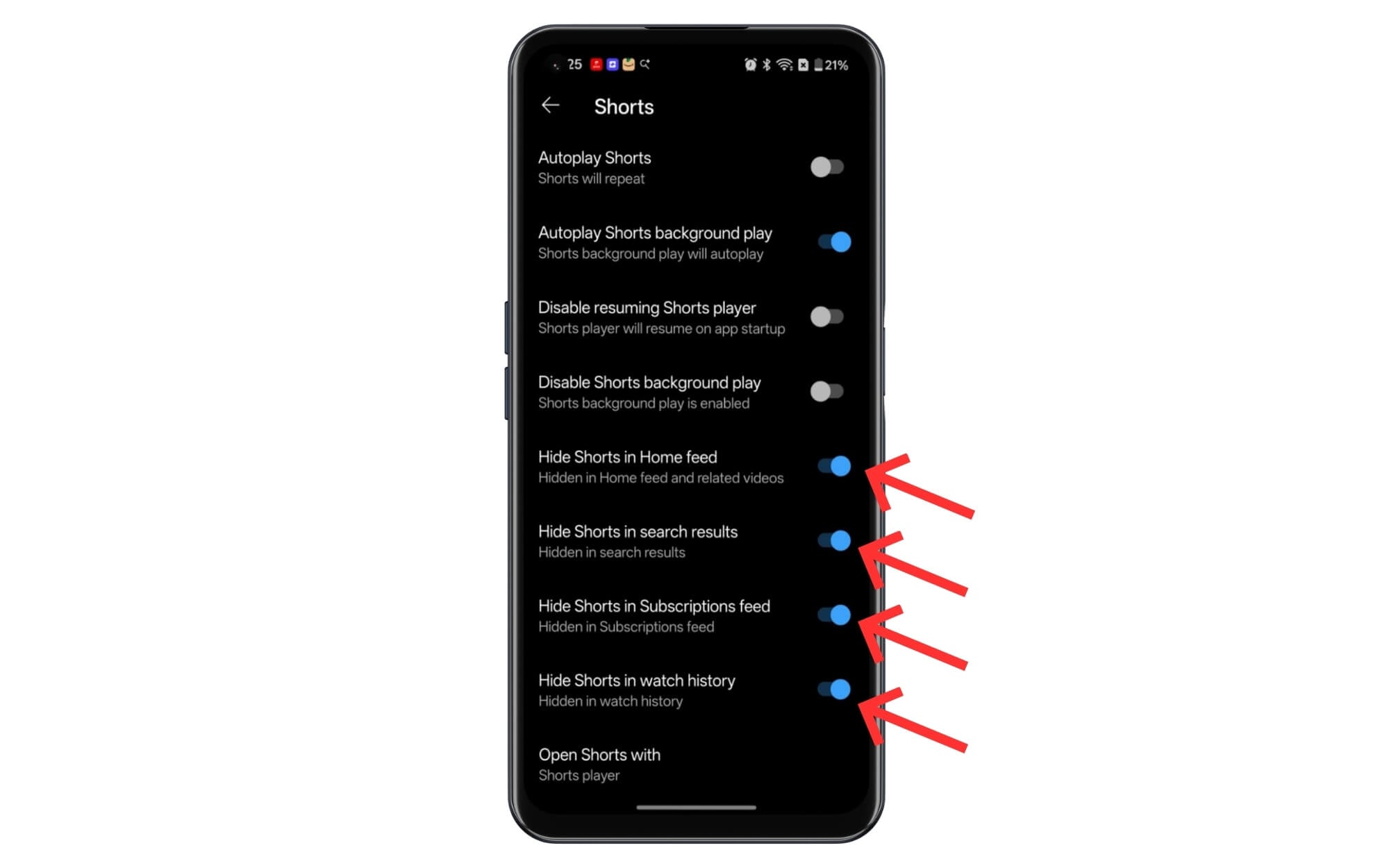
Step 6: From here, enable the following options: Hide shorts in home feed, Hide Shorts in search results, Hide Shorts in Subscription feed, Hide Shorts in watch history. That’s it, YouTube shorts will be hidden.
Show Fewer Shorts Settings
It works on Android, iPhone, and desktop.
Another method that worked for me is a new setting that shows fewer shorts, hiding 90 percent of the short videos from home and search results. Here is how:
Step 1: On the YouTube app on your mobile.
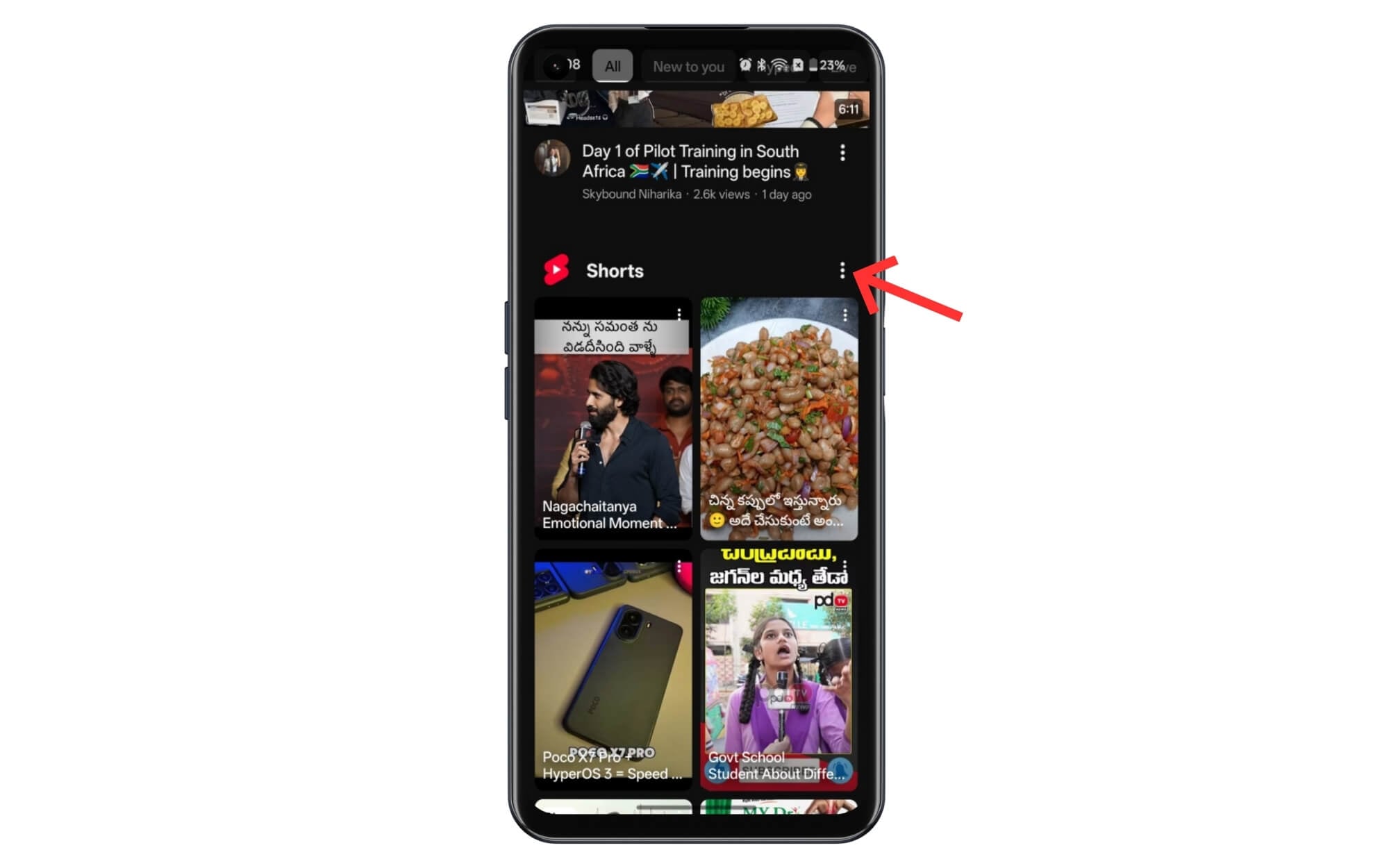
Step 2: Find the shorts section and tap on the three-dot menu in the top right corner, and tap on show fewer shorts and that’s it.
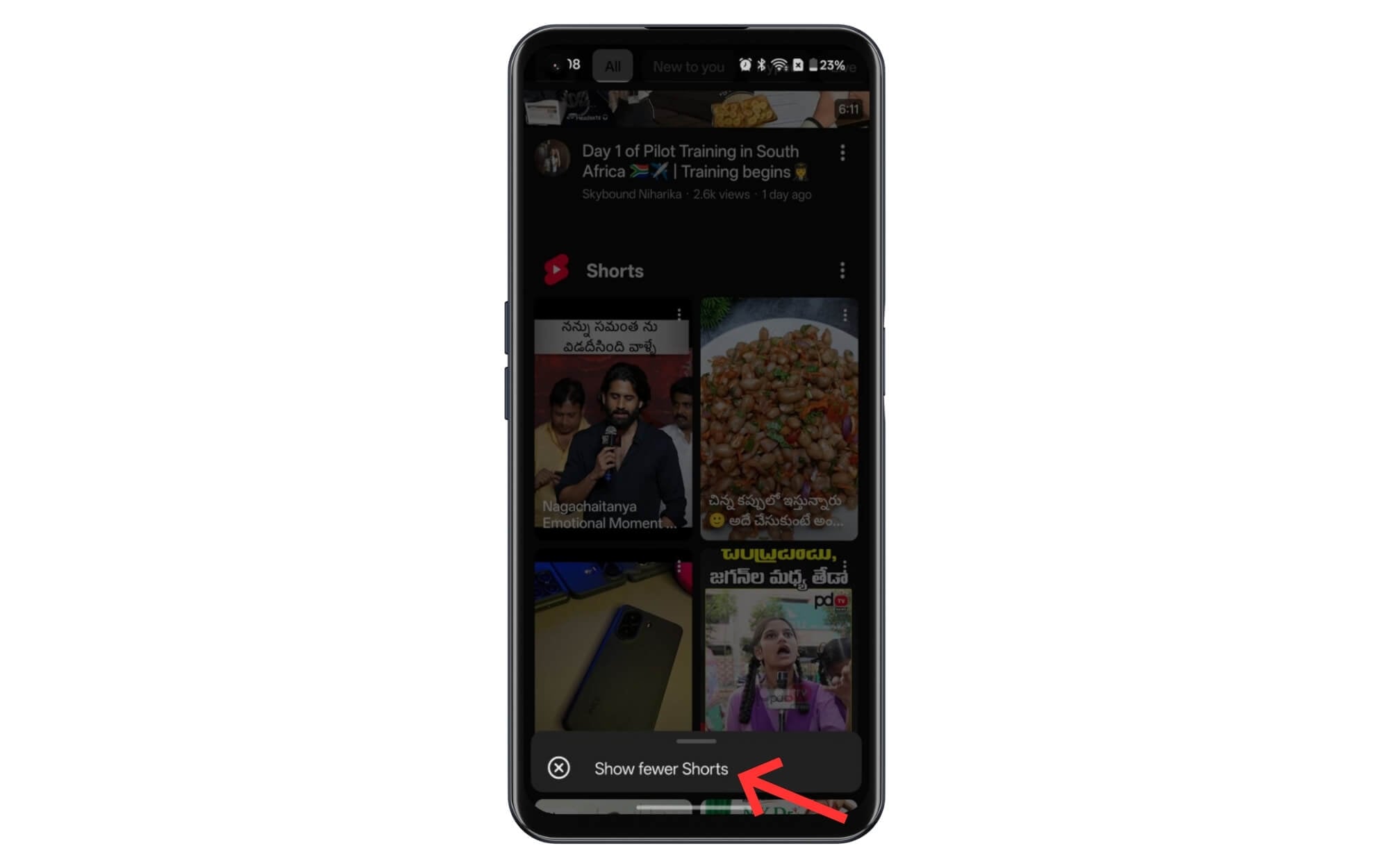
Step 3: Once you’ve been given feedback, YouTube shows you fewer shorts on the home screen, and in my case, it even got completely rid of ads. Follow the similar process on the desktop too.
Set a Time Limit for YouTube Shorts
Works on Android, iPhone, and on the web.
Another easy setting that worked for me to get rid of shorts is by setting the daily shorts view limit.
YouTube has introduced a new shorts feed limit that hides shorts from the home screen after you reach the time limit. The lower time limit you can set is 15 minutes, which means you need to watch the short for at least 15 minutes every time to stop seeing shorts.
However, the downside is that you can still see individual short videos if you explicitly search for them and also encounter them while browsing videos, and the limit resets every time you close the app.
Here is how to set limits for short videos on mobile
Step 1: Open the YouTube app on your smartphone.
Step 2: Click on the profile picture in the bottom right corner of the screen.
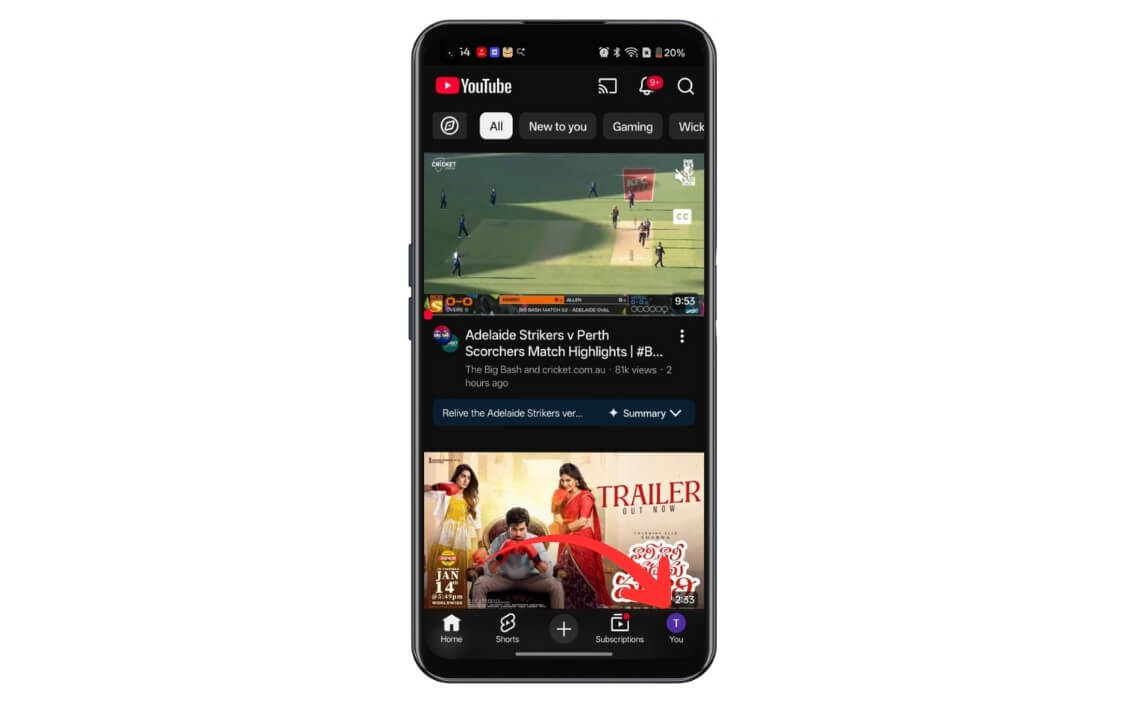
Step 3: Click on the Settings at the top
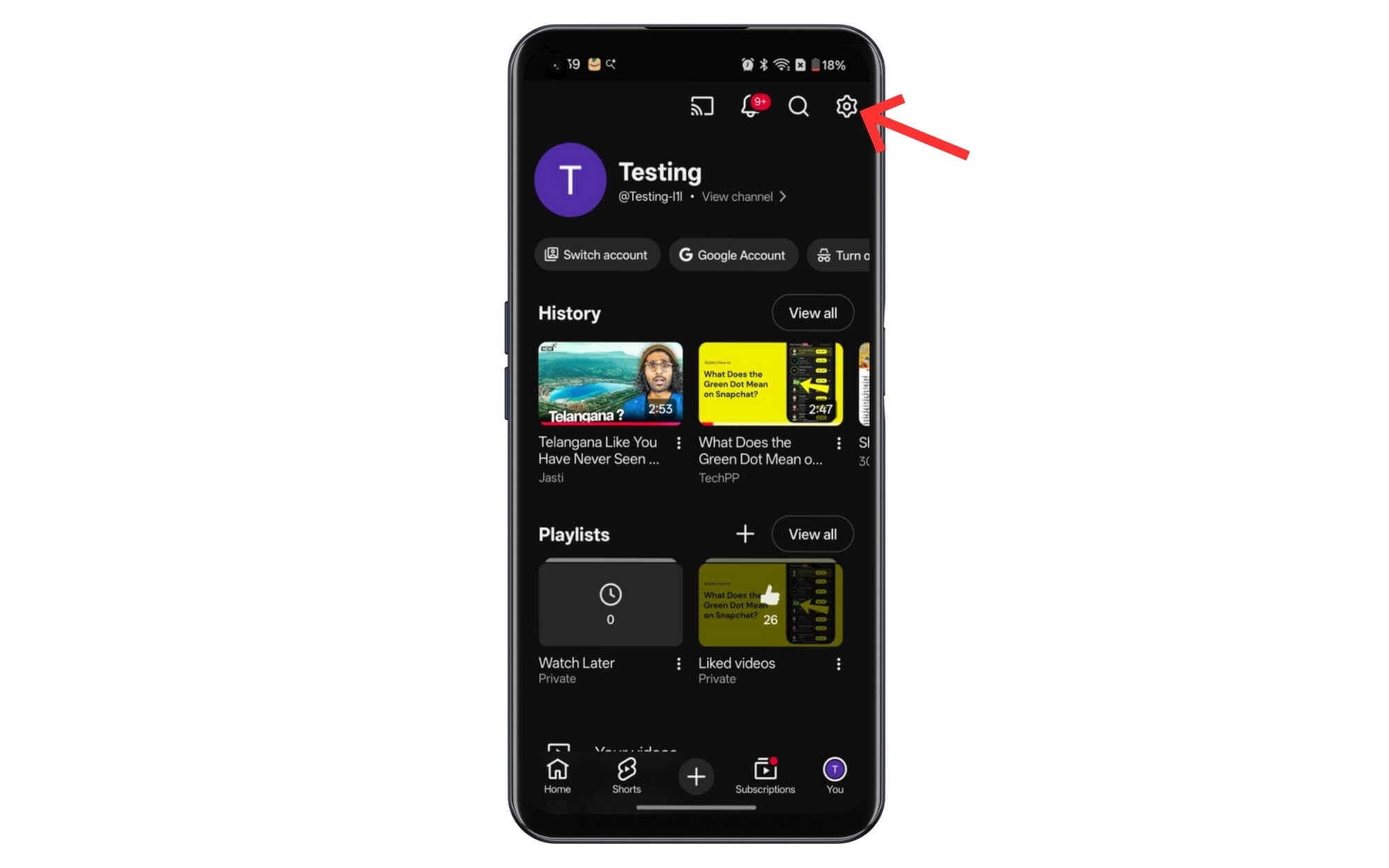
Step 4: Click on the Time Management option.
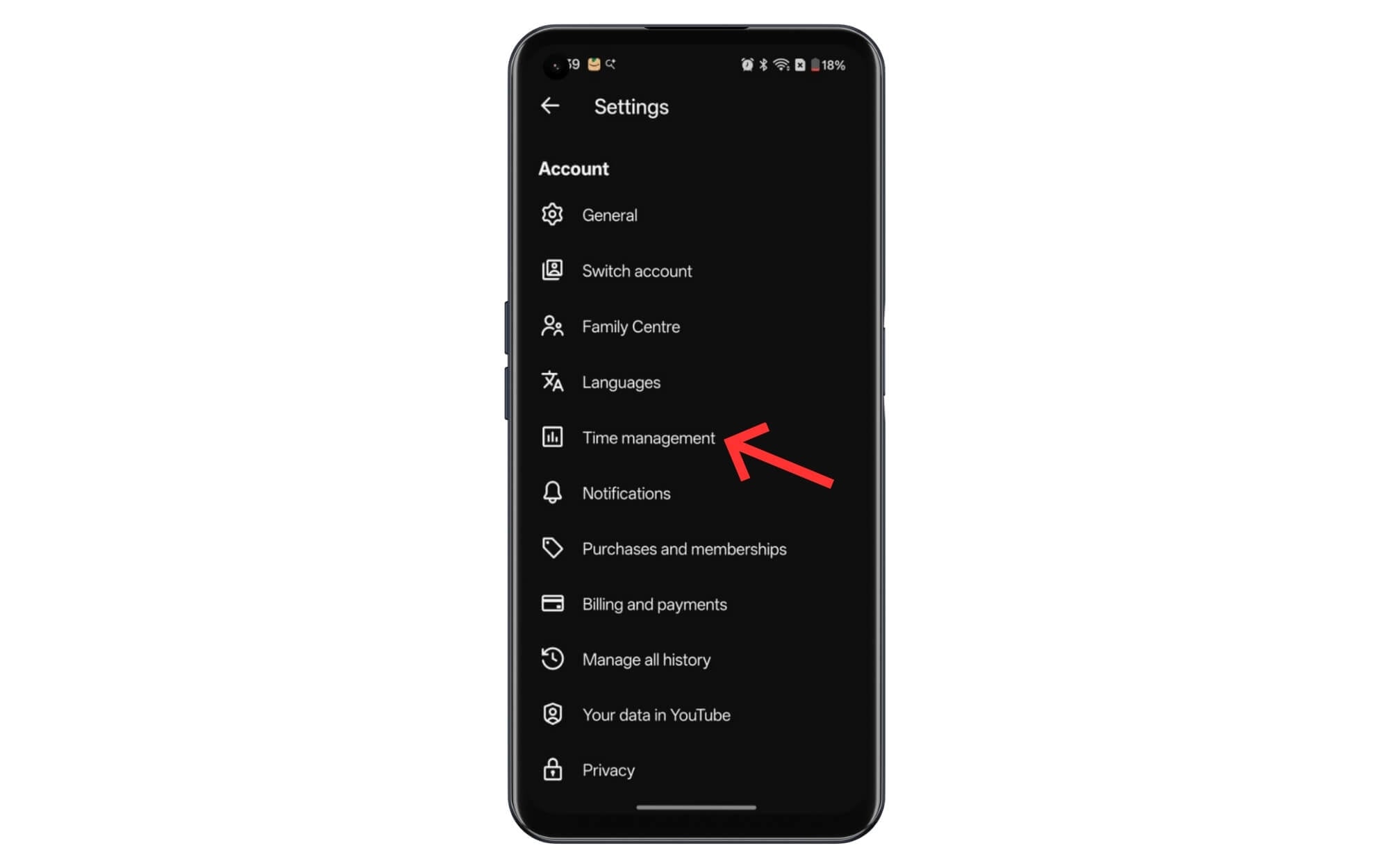
Step 5: Scroll down and under daily limits, enable Shorts Feed Limit.
Use Extension to Hide YouTube Shorts on the Web
Works on Android, iOS, and on the web
Using third-party extensions like enhancer for YouTube and shorts blocker, and clean YouTube, you can get rid of YouTube shorts on desktop. Fortunately, these extensions also work on mobile using the Quweta browser. Here is how to hide YouTube Shorts using Extensions on mobile and desktop
There are plenty of extensions that claim to hide YouTube shorts; however, few of them have been caught sending users data to external servers, and a few others have also reported bugs.
However, if you want a truly secure and private way to hide YouTube shorts without being tracked, you can use a local script that hides YouTube shorts on your browser. Here is how to install these scripts and get rid of YouTube.
We have a guide on how to use custom scripts in Google Chrome using TamperMonkey.
Script to hide YouTube shorts:
// ==UserScript==
// @name Hide YouTube Shorts
// @namespace http://tampermonkey.net/
// @version 2.0
// @description Hide YouTube Shorts
// @author You
// @match https://www.youtube.com/*
// @grant none
// ==/UserScript==
(function() {
‘use strict’;
function hideShorts() {
const styles = `
ytd-reel-shelf-renderer,
ytd-rich-shelf-renderer[is-shorts],
ytd-guide-entry-renderer:has(path[d*=”M10 14.65v-5.3L15 12l-5 2.65zm7.77-4.33″]),
ytd-mini-guide-entry-renderer:has(path[d*=”M10 14.65v-5.3L15 12l-5 2.65zm7.77-4.33″]),
a[href^=”/shorts/”],
ytd-rich-item-renderer:has(a[href^=”/shorts/”]),
ytd-grid-video-renderer:has(a[href^=”/shorts/”]),
ytd-video-renderer:has(a[href^=”/shorts/”]) {
display: none !important;
}
`;
let styleSheet = document.getElementById(‘hide-shorts-style’);
if (!styleSheet) {
styleSheet = document.createElement(‘style’);
styleSheet.id = ‘hide-shorts-style’;
styleSheet.textContent = styles;
document.head.appendChild(styleSheet);
}
}
hideShorts();
new MutationObserver(() => hideShorts()).observe(document.documentElement, {
childList: true,
subtree: true
});
})();
However, if you don’t want to use this complex method to get rid of YouTube Shorts and want a simple extension that removes YouTube Shorts, you can install our free YouTube Shorts remover extension. It works offline and is completely safe to use. We still recommend using any free online business security tools and scanning our file before installing it on your device. Once installed, you can simply enable the extension and get rid of it completely. Since YouTube might change its rules, if the extension stops working, you can download the uploaded file using the link below.
Here is how to use the extension
Step 1: Download our YouTube Shorts Extension. Youtube-shorts-hider
Step 2: Once downloaded, open Google Chrome and tap on the extension icons or visit this link.
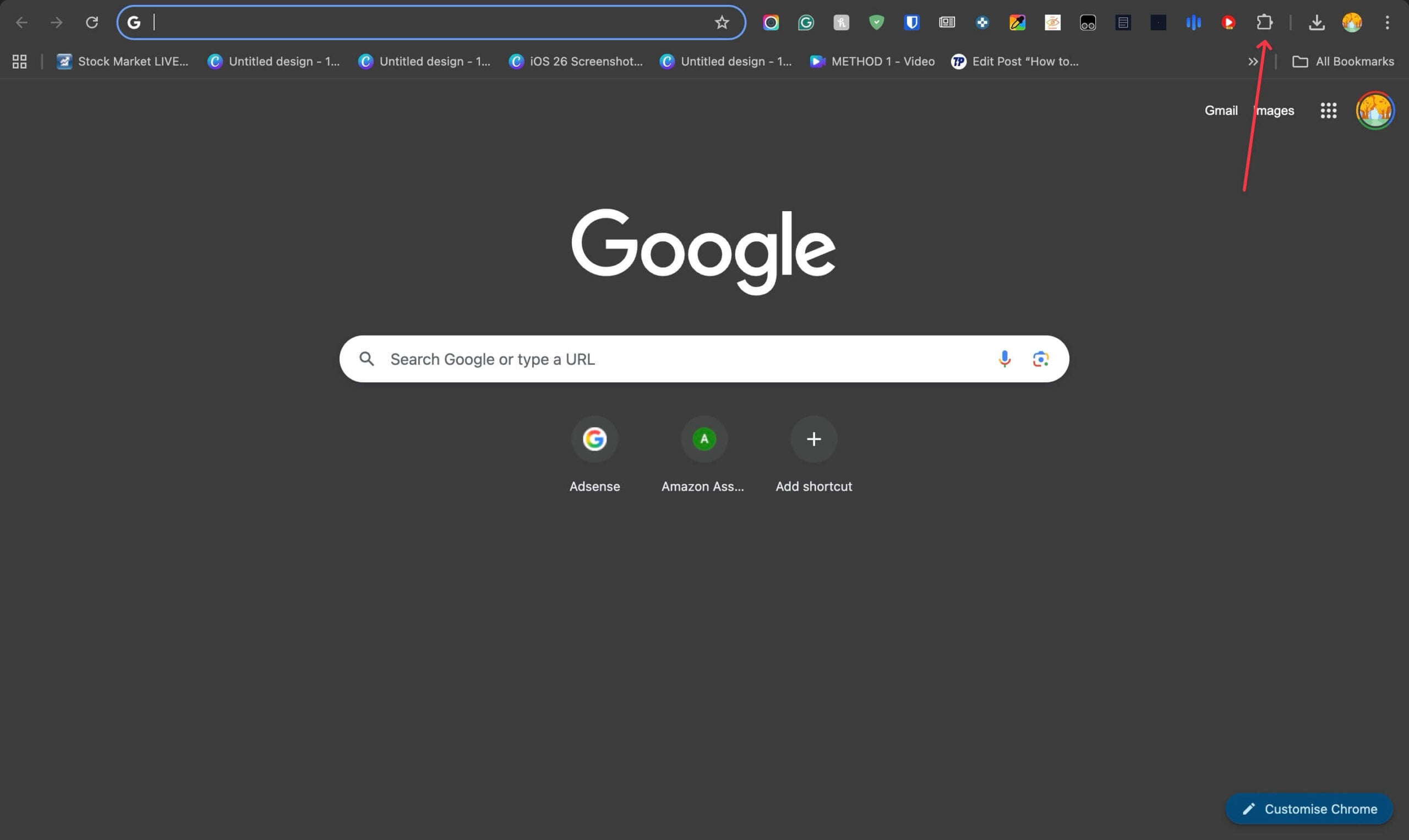
Step 3: Tap on the load unpacked extension.
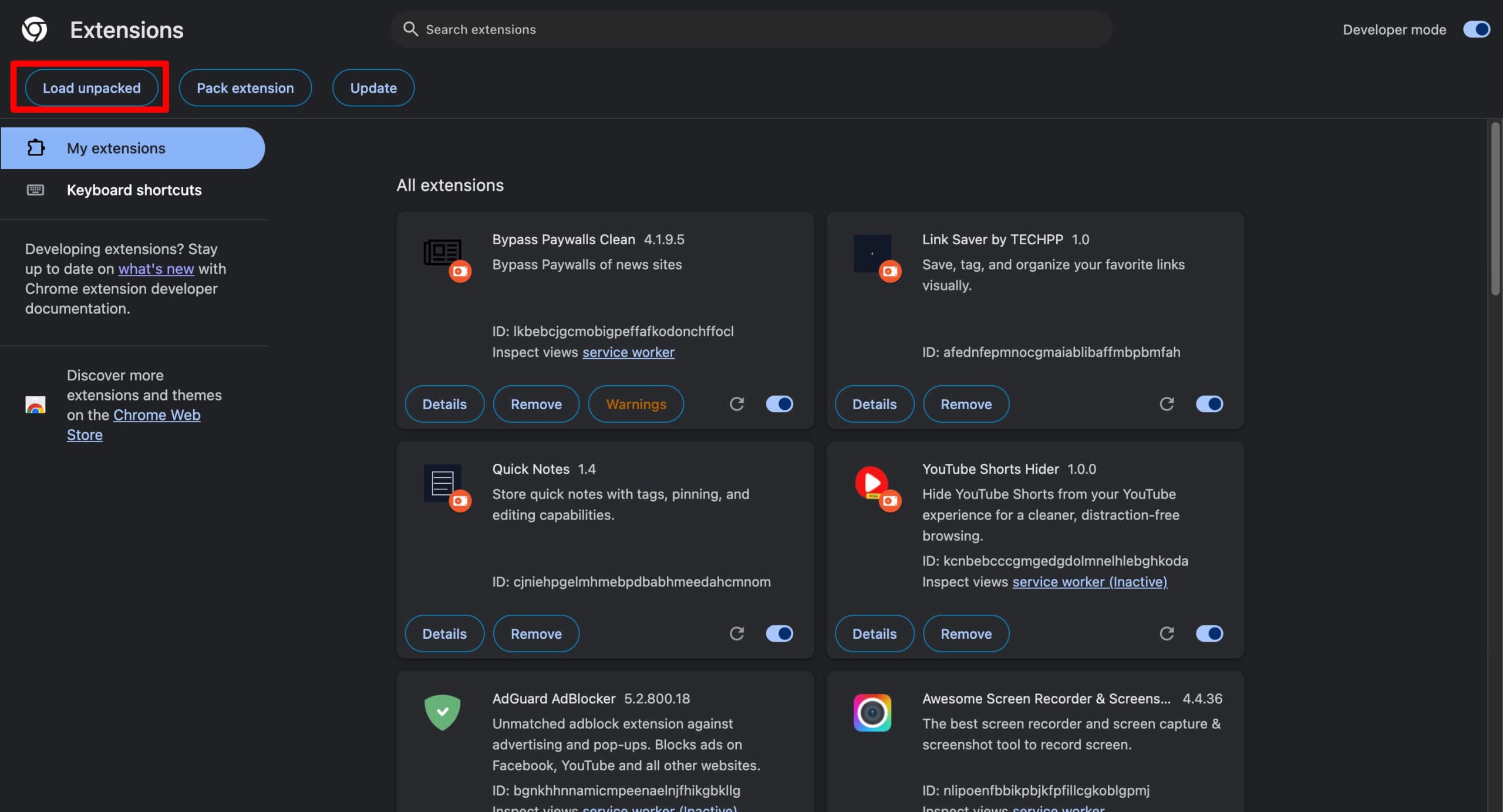
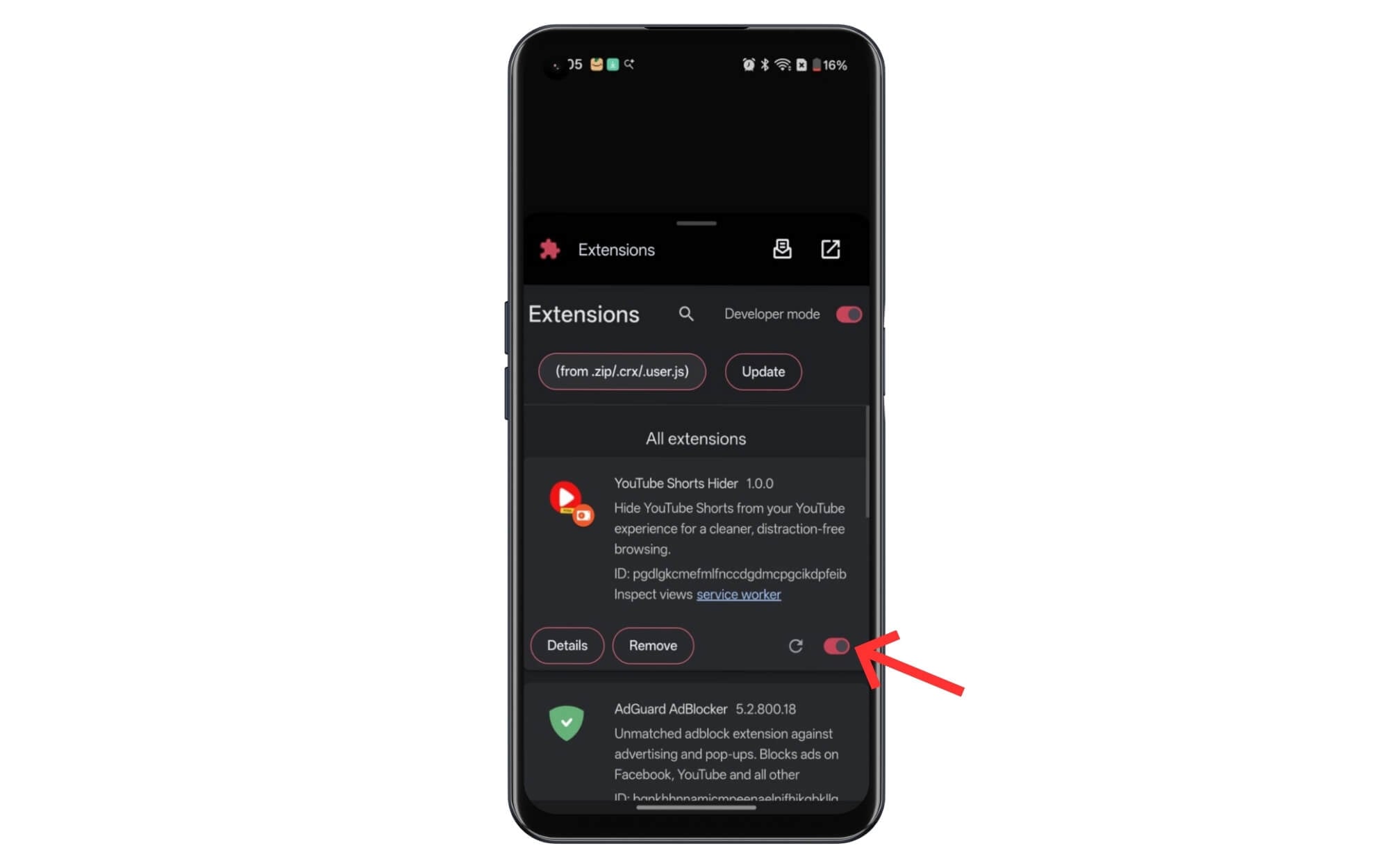
Step 4: Add the extension and enable it.
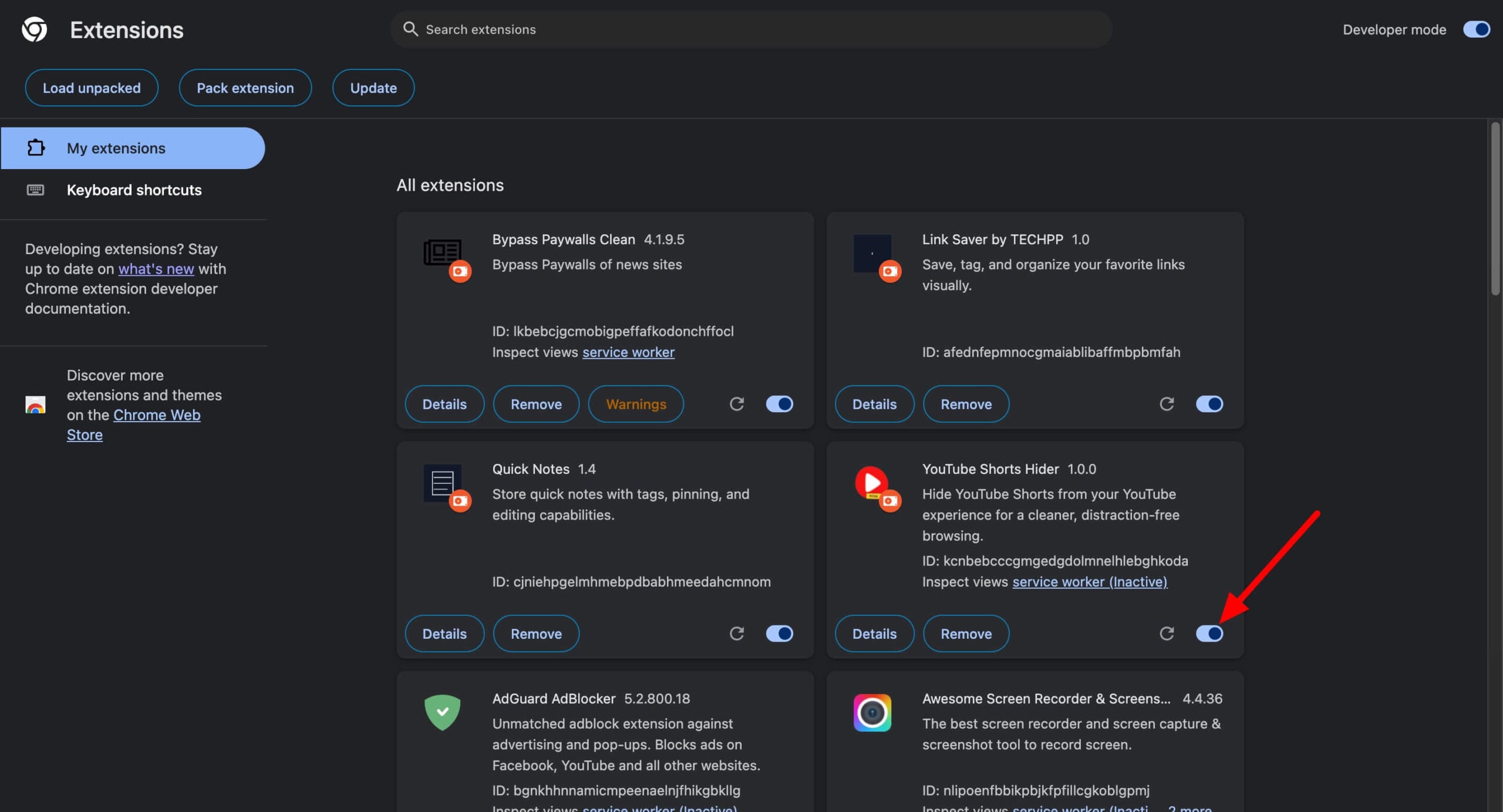
Step 5: Now, open the YouTube app and tap on the extension and enable or disable the YouTube Shorts options. You can toggle the Hide Shorts option. The active status represents, YouTube Shorts are currently hidden.
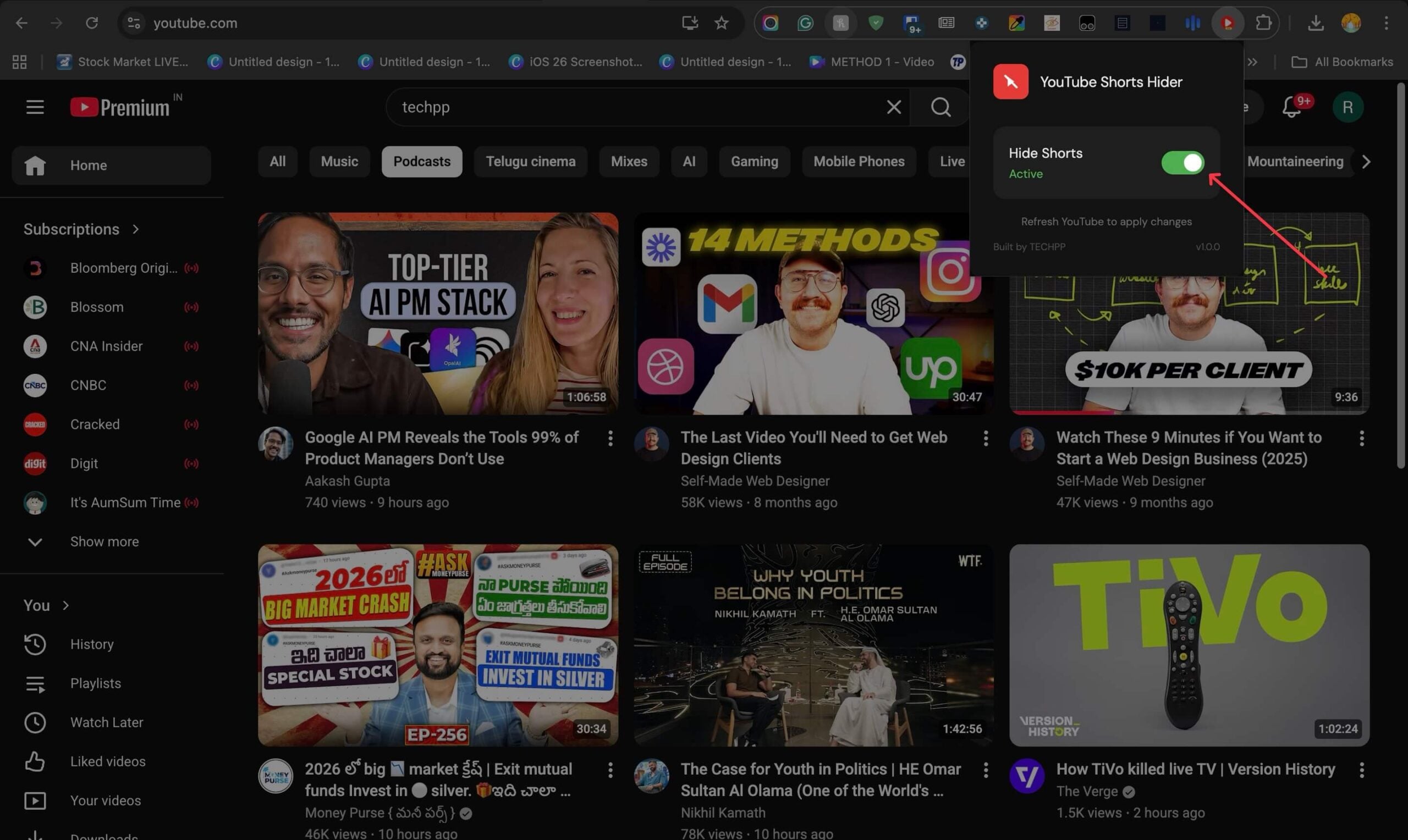
Step 6: It will remove all YouTube Shorts.
On mobile:
Step 1: Install the Quetta browser , Link to Download
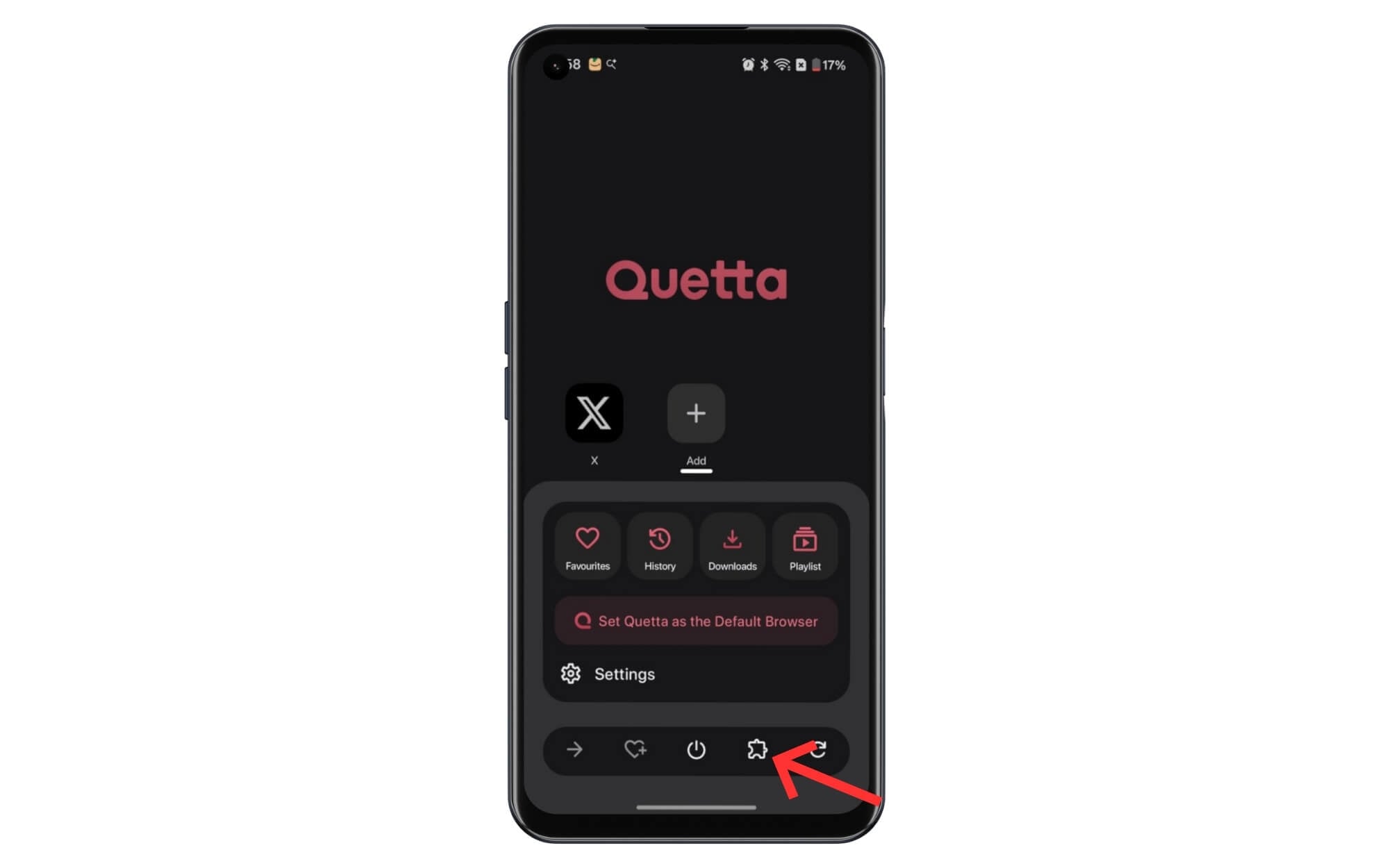
Step 2: Click on the three-dot menu and tap on the extension icon.
Step 3: Now, tap on Manage extensions and scroll down and tap on Developer options.
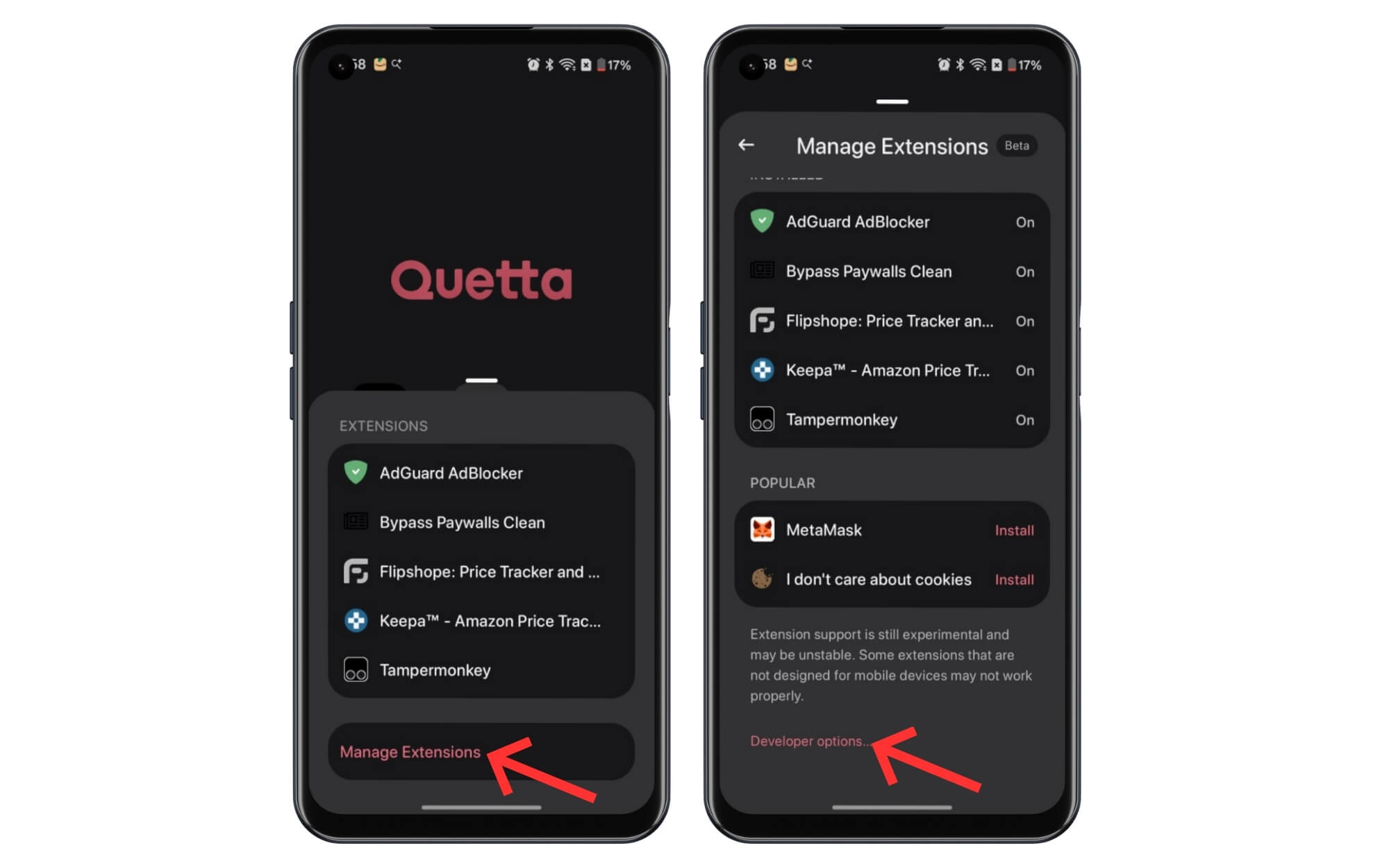
Step 4: Tap on from .zip and select the downloaded file you downloaded from the internet, and that’s it
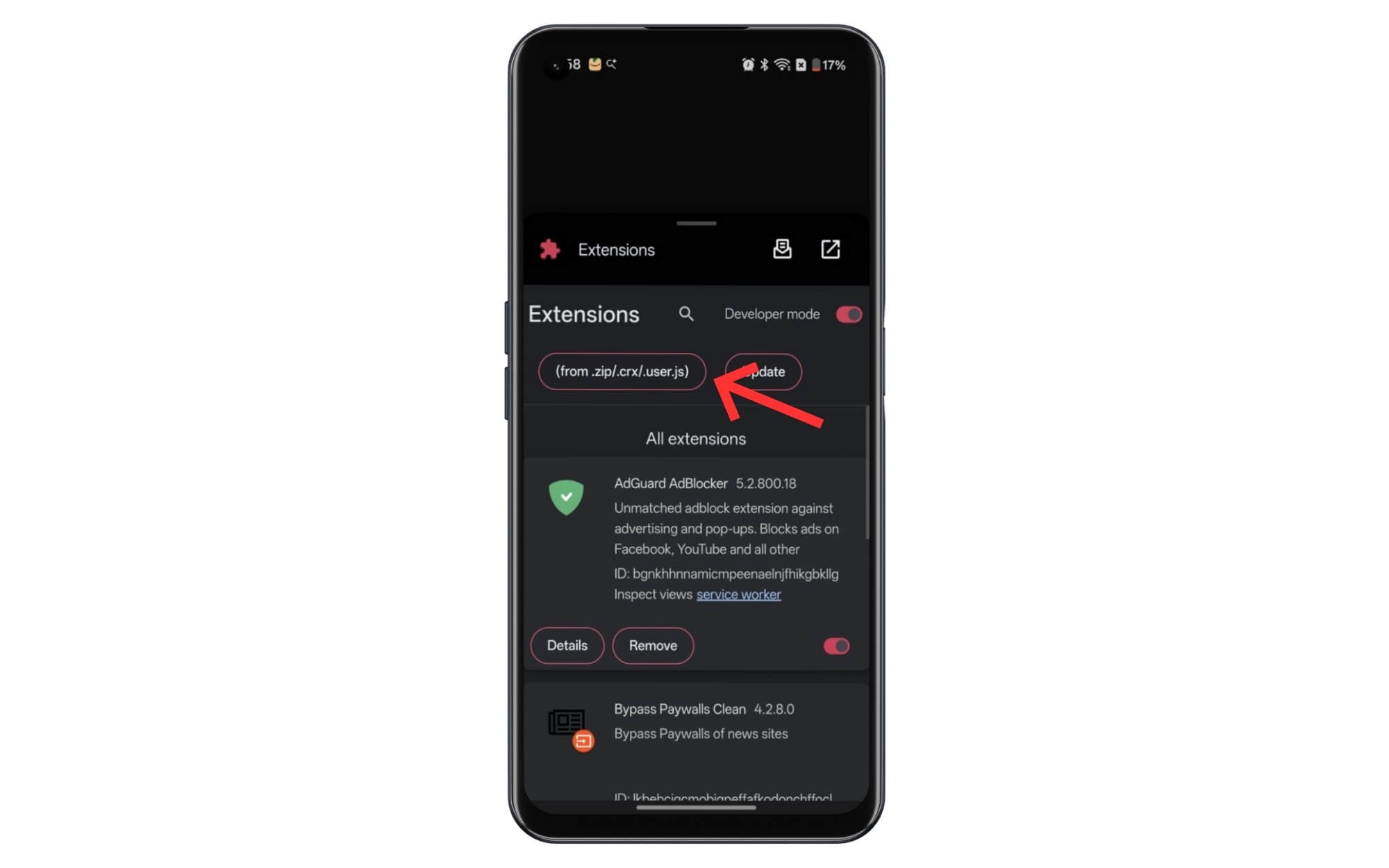
Step 5: Now, you can use the YouTube app on your mobile and disable the YouTube Shorts app.
Install the Old Version of YouTube
YouTube introduced shorts in 2020, and when the app version is available, if you don’t want to install third-party apps and use extensions, you can get rid of them by installing the old version of YouTube that doesn’t have them.
I have included the direct link to download the app. However, before that, you need to uninstall the updates to the YouTube app and remove auto updates to prevent the app from auto-updating to the latest version. Here is how to do it.
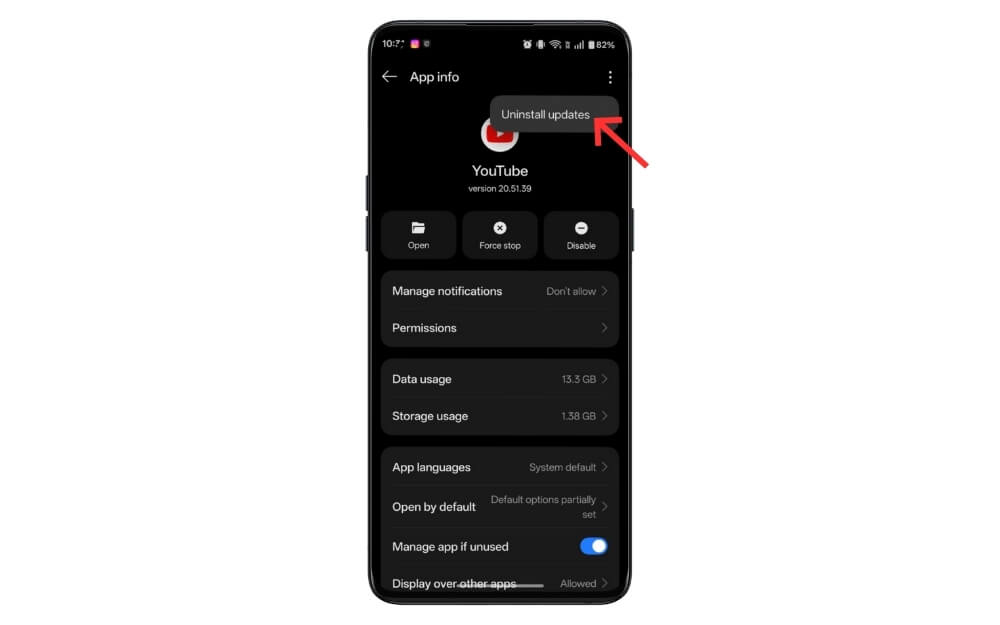
- Long-press on the YouTube app and click on the app info.
- Click on the three-dot menu in the top right corner of the screen and tap on uninstall updates.
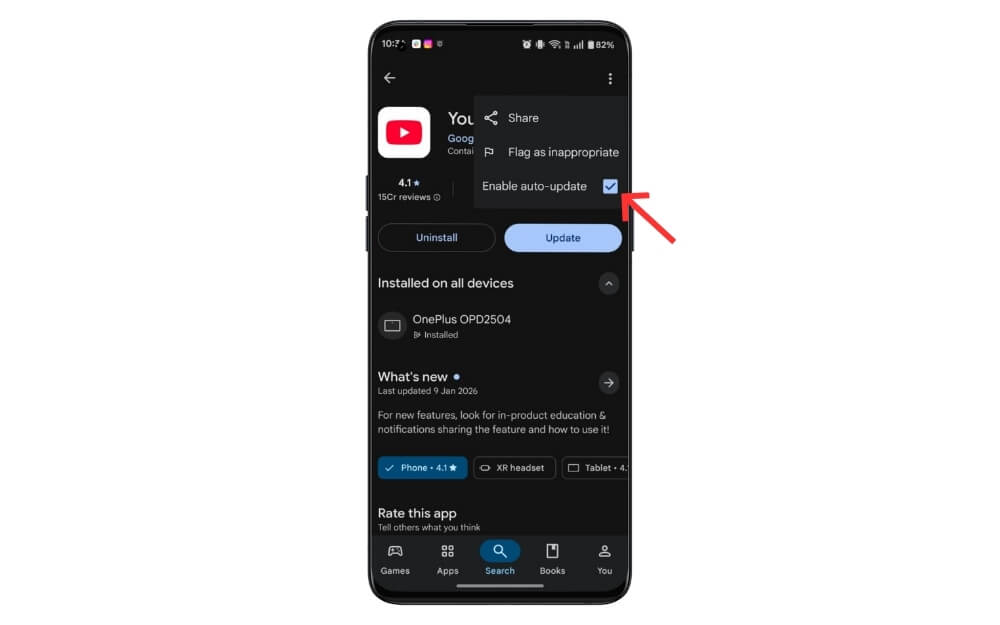
- Now, open the Google Play Store app and search for the YouTube app.
- From here, tap on the three-dot menu and uncheck the option that says Enable auto-update.
Turn off YouTube History
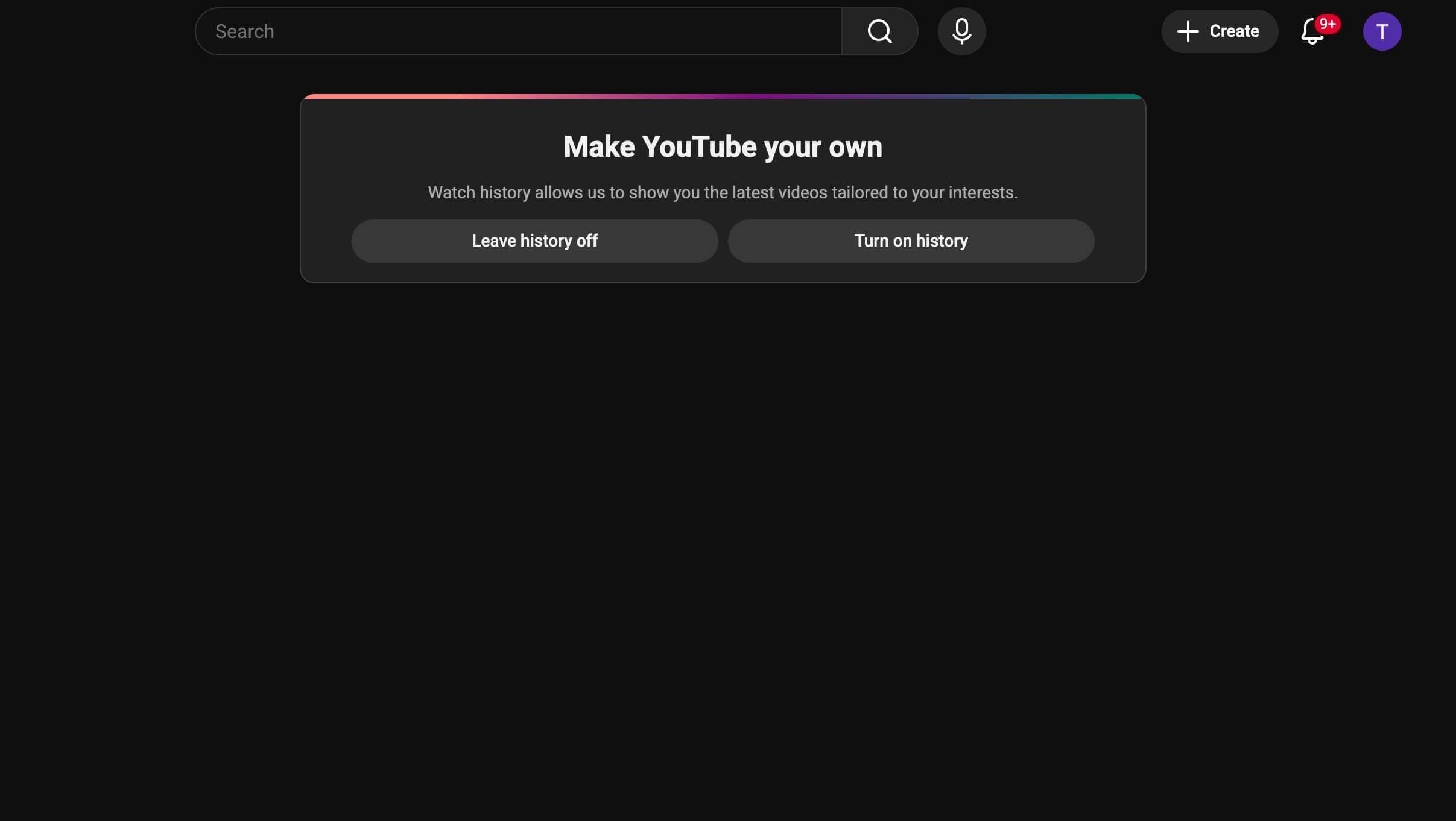
Turning off YouTube History removes unwanted suggestions from YouTube, including short videos. When you open the app, you see a simple search bar asking you to search for what you are looking for.
Step 1: Go to account.google.com
Step 2: Scroll down and tap on the Data and Privacy
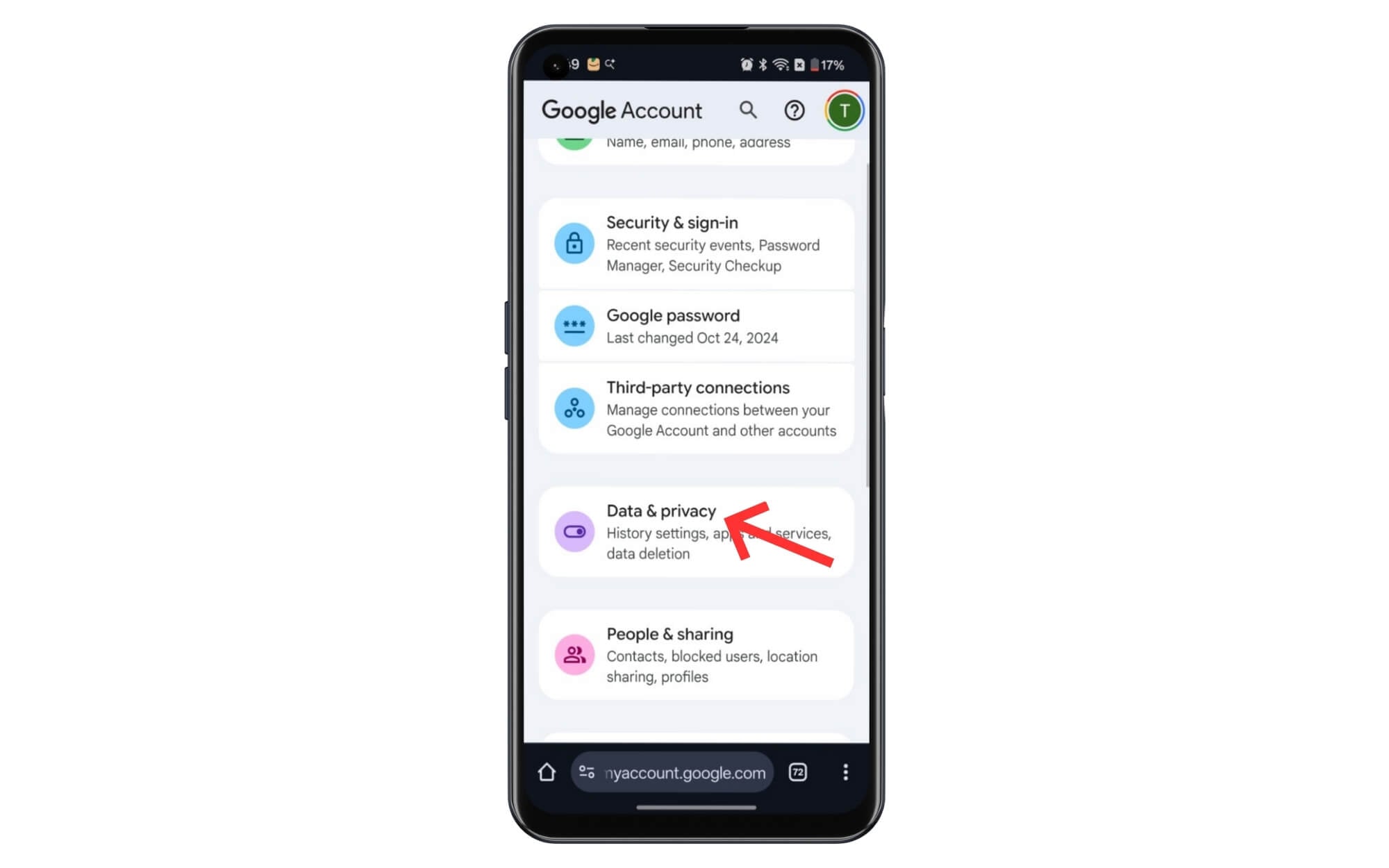
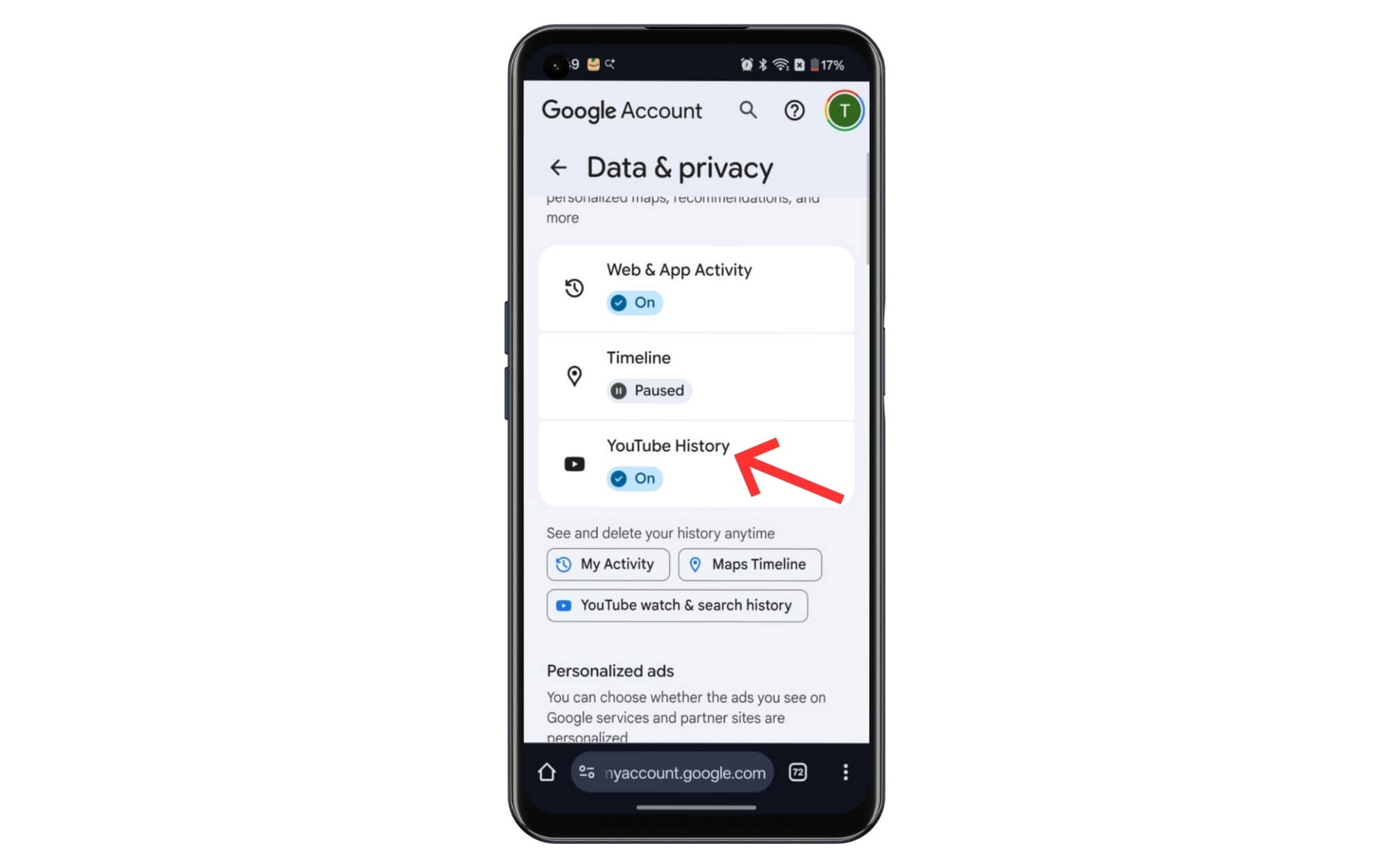
Step 3: Now scroll down again and tap on the YouTube history
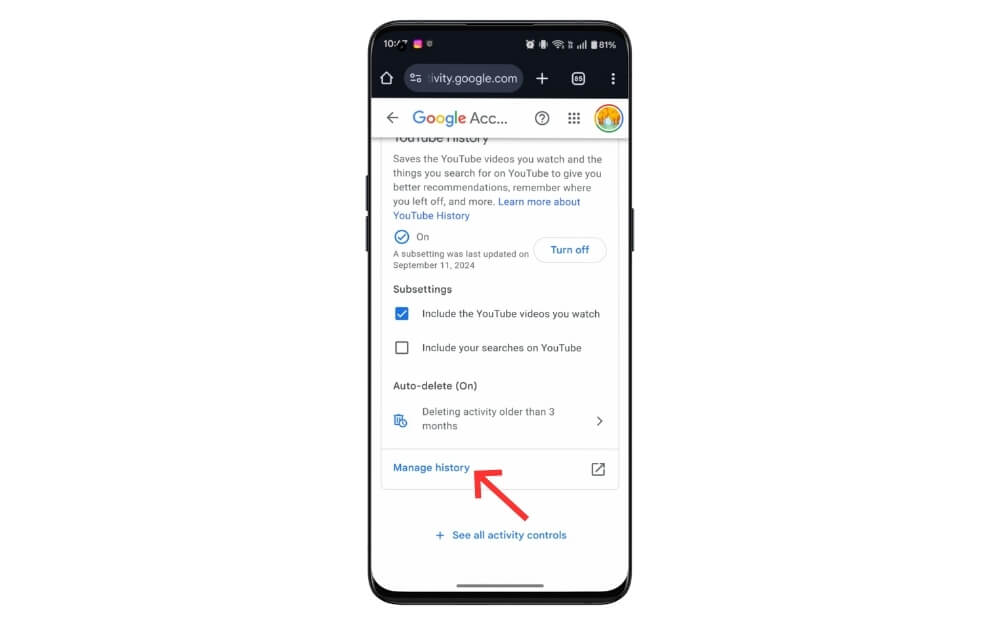
Step 4: Now tap on the turn off to pause your watch search history. Here you can also disable YouTube search history, and that’s it.
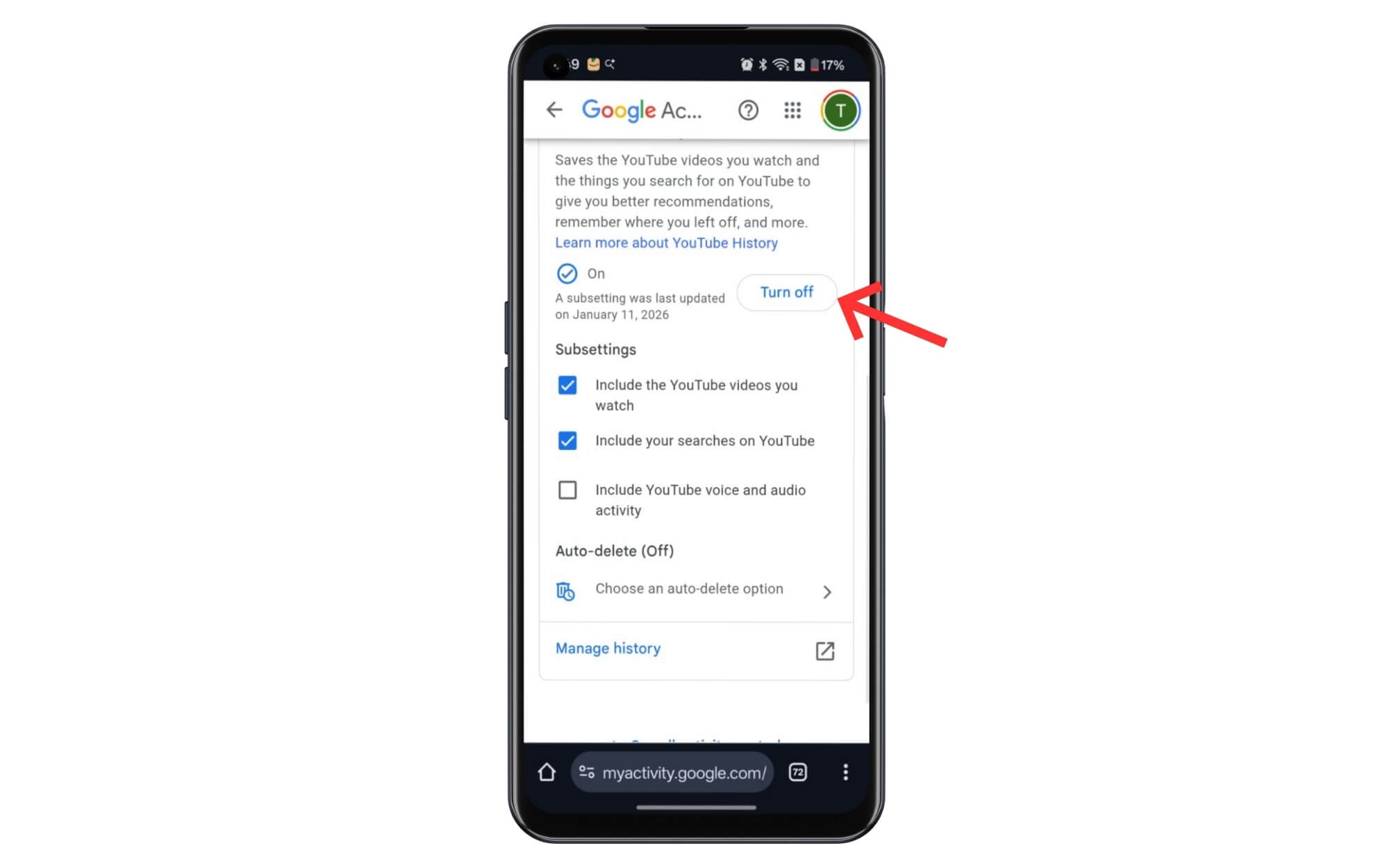
Step 4: From here, tap on the manage history option
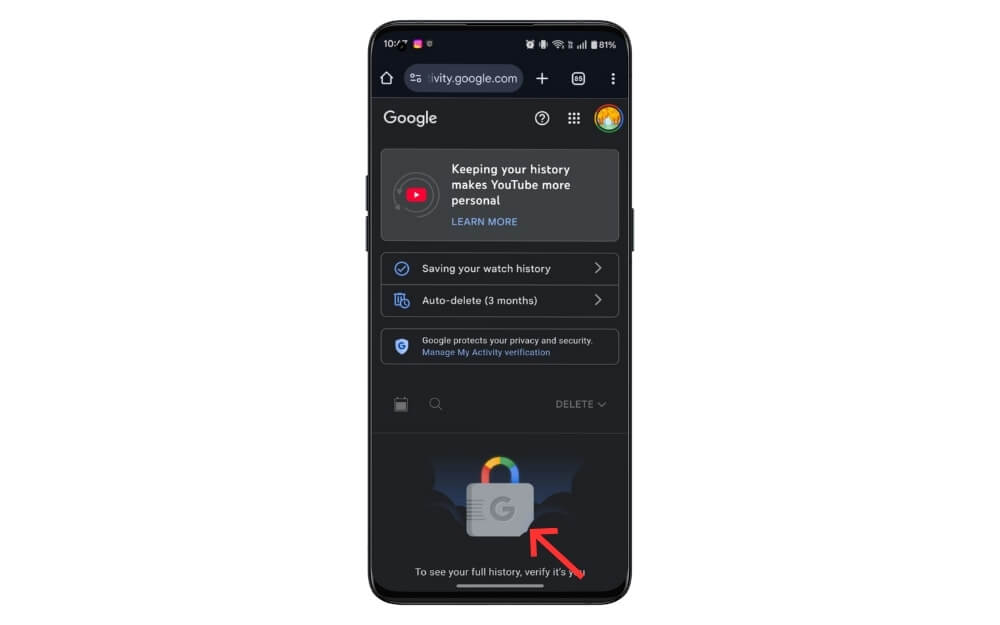
Step 5: Scroll down and tap on the verify and Google account password to complete verification.
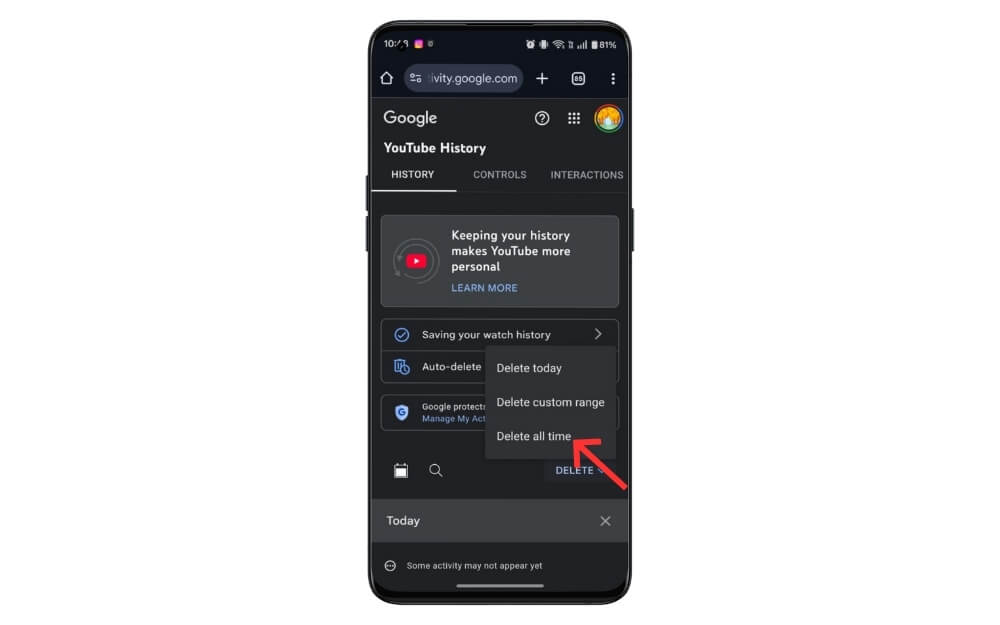
Step 6: Once verified, tap on the Delete option and select Delete all the time. That’s it.
So, those are the different methods you can use to get rid of the YouTube Shorts on the YouTube app. The recently announced long video filter can help you hide YouTube shorts from search results; fortunately, the other methods shared in this post are equally good.
Get Rid of YouTube Shorts
The safest ways to block YouTube without installing any extension or third-party apps and YouTube clients are by setting the YouTube Shorts limit, pausing the YouTube search history, and using the long videos filter. I hope you find this guide useful. If you have any suggestions, let us know in the comments below.

