

Quick Answer
Windows Sandbox is a built-in Windows 10 and 11 feature that lets you safely install and test unknown apps in a fully isolated, disposable environment. It runs a lightweight copy of Windows, deletes everything after you close it, and protects your real PC from malware or suspicious software.
You might have come across several instances where you liked a software online but just couldn’t trust what the website has to say. Maybe it is a free utility that promises to fix your PC, or simply an email attachment that you are just not completely sure about opening. In today’s digital age, downloading the wrong file can result in stolen passwords, compromised bank details, or your personal data being completely transferred by malware.
Yes, there are several antivirus and antimalware tools available that promise to verify the integrity of the file, but you can’t trust them with all your heart. Thankfully, there is a tool called Windows Sandbox that, in my opinion, is one of the underrated features built right into Windows 10 and Windows 11. In this guide, we will discuss how you can use Windows Sandbox to test and install unknown applications.
Table of Contents
Why should you worry about unknown applications?
Your computer is probably the most important piece of gadget that you own. You might have all your important documents, personal files, personal media, etc. Downloading any untested or unknown application just because it looked fancy and promised a lot of stuff is like inviting a total stranger into your house and letting them explore it. While most of the time, such software either perform their task well or is straight up crap.
One of the ways, which power users mostly prefer, is to test the app’s safety in Virtual Machines (VMs). A VM is essentially a computer running inside a computer, but that is a bit tedious to set up. You have to allocate hard drive space, dedicate a part of your RAM, install a new operating system from scratch, and maintain it with the latest updates.
Since this was too complicated and Microsoft probably realized it, they introduced a simpler and user-friendly version called Windows Sandbox, about which we will discuss in the next section.
What is Windows Sandbox?
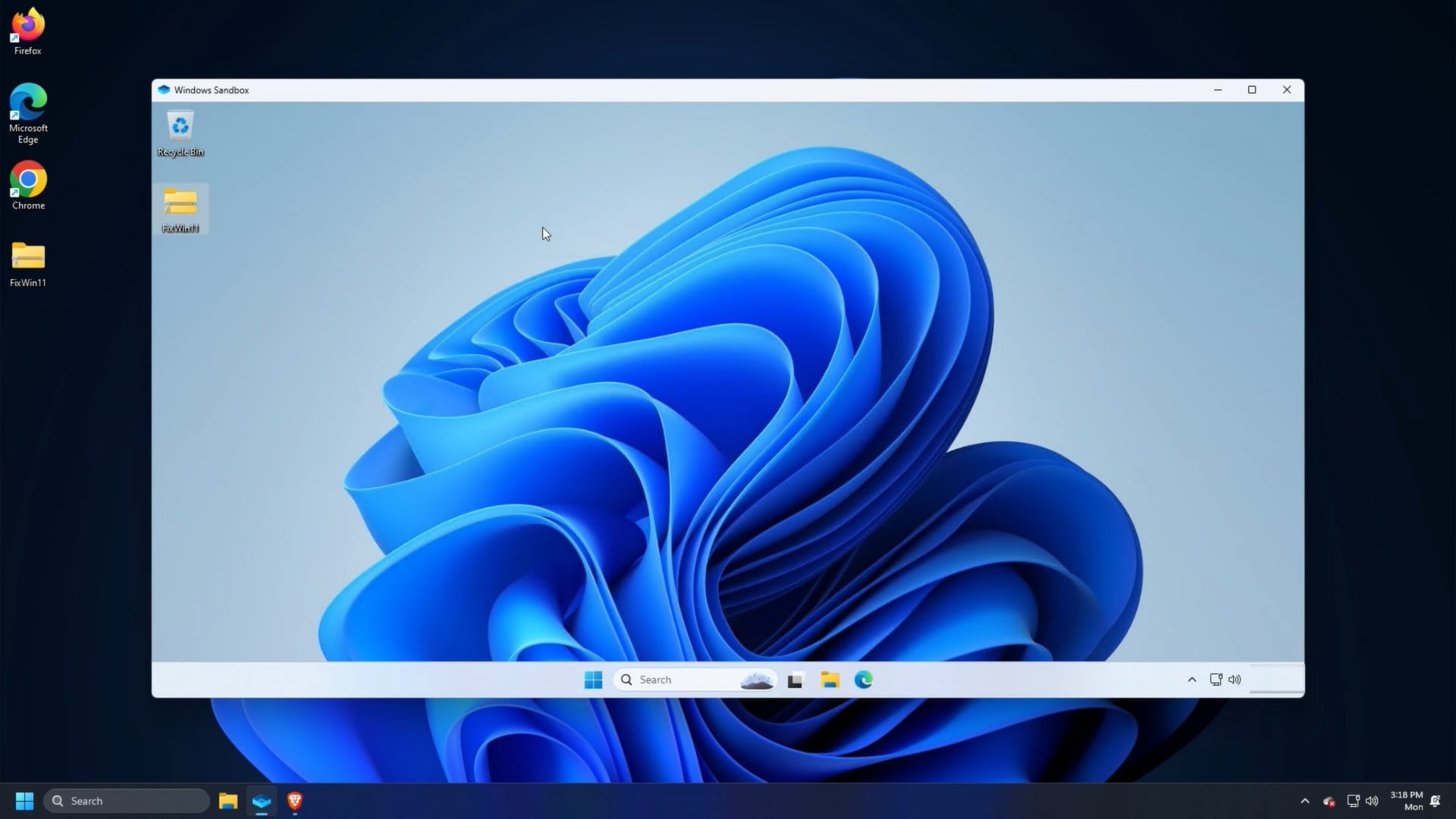
Windows Sandbox is basically a lightweight and completely isolated version of your current Windows operating system. It looks and feels exactly like a regular Windows desktop, which isn’t linked to your original Windows OS. There are a few reasons that make Windows Sandbox quite special:
- It is disposable: The moment you close the Windows Sandbox window, everything inside it gets permanently deleted, no trace whatsoever. The apps that you installed? Gone. The files you downloaded? Deleted. The shady website that you visited? Wiped from history. It is kind of an incognito mode of your Windows OS, which clears itself up after you exit it.
- A blank canvas every time: Another good thing is that you get a blank canvas when you launch Windows Sandbox; you get a brand new and clean installation of Windows to play around with, no baggage from your previous sessions.
- It is secure: Windows Sandbox makes use of hardware virtualization. This means it creates a digital wall between Sandbox and your original operating system. If a piece of malware destroys the Sandbox, your actual PC remains unaffected.
- Simply efficient: Unlike Virtual Machines that require you to allocate them your computer resources, Sandbox is incredibly lightweight. It takes only about 100MB of storage and sets up in seconds.
What do you require to run Windows Sandbox?
Before we check out the steps to know how to install and safely run apps on Windows 10 or 11 PC using Windows Sandbox, you should know if your computer is capable of using it or not.
- Currently, only Professional, Enterprise, and Education editions of Windows 10 and 11 are eligible for Windows Sandbox. This means if you are running the Home edition of Windows OS, then you won’t be able to use Sandbox.
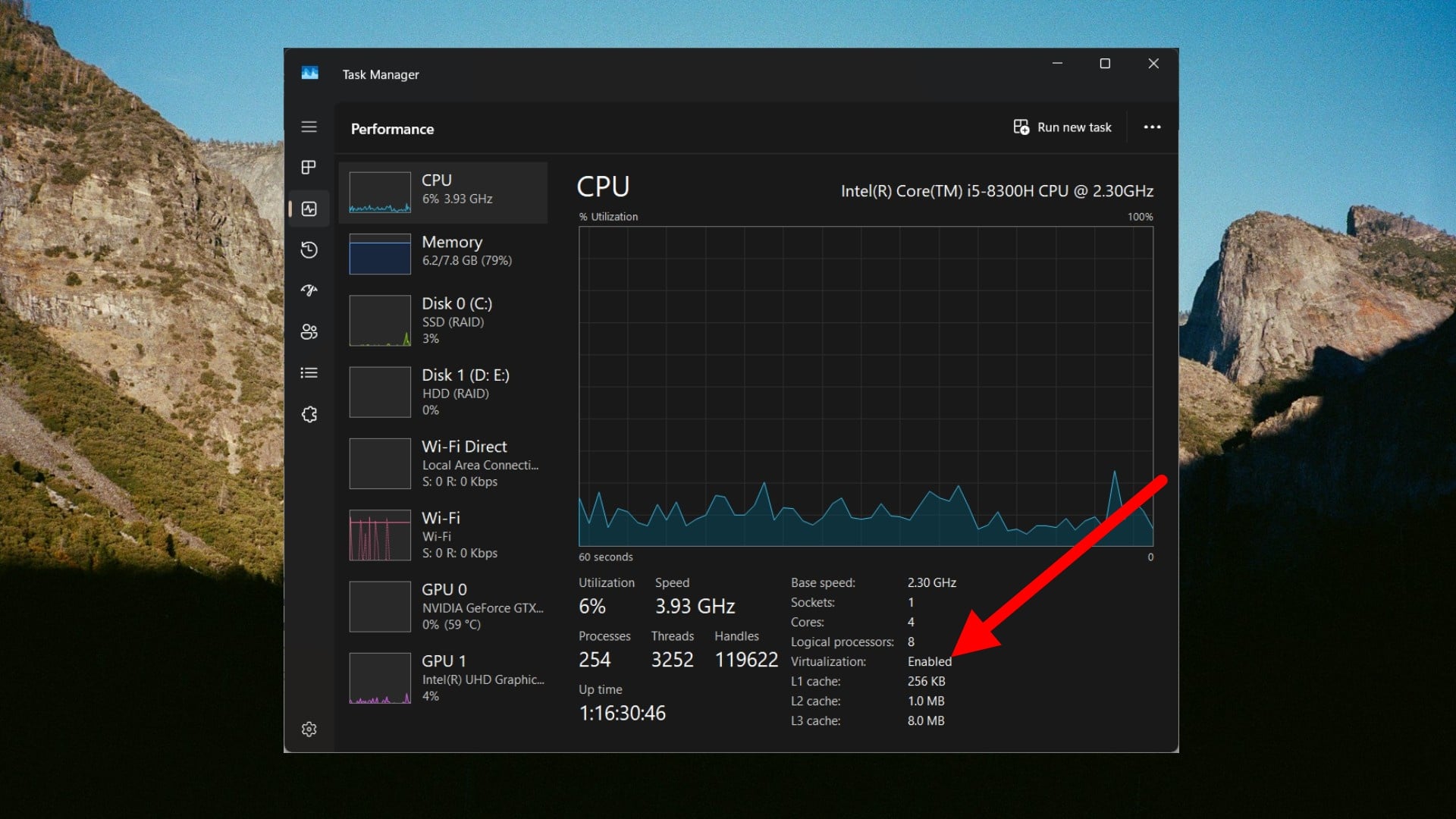
- Your computer processor needs to support virtualization, and it should be turned on. You can check it by following the steps below:
- Press Ctrl + Shift + Esc to launch the Task Manager.
- Switch to the Performance tab from the left pane, which will look like a heartbeat monitor graph.

- Look at the bottom right of the CPU section. You should see Virtualization: Enabled.
How to enable Windows Sandbox in Windows 11 and 10?
To enable Windows Sandbox on your PC, you need to follow the simple steps below:
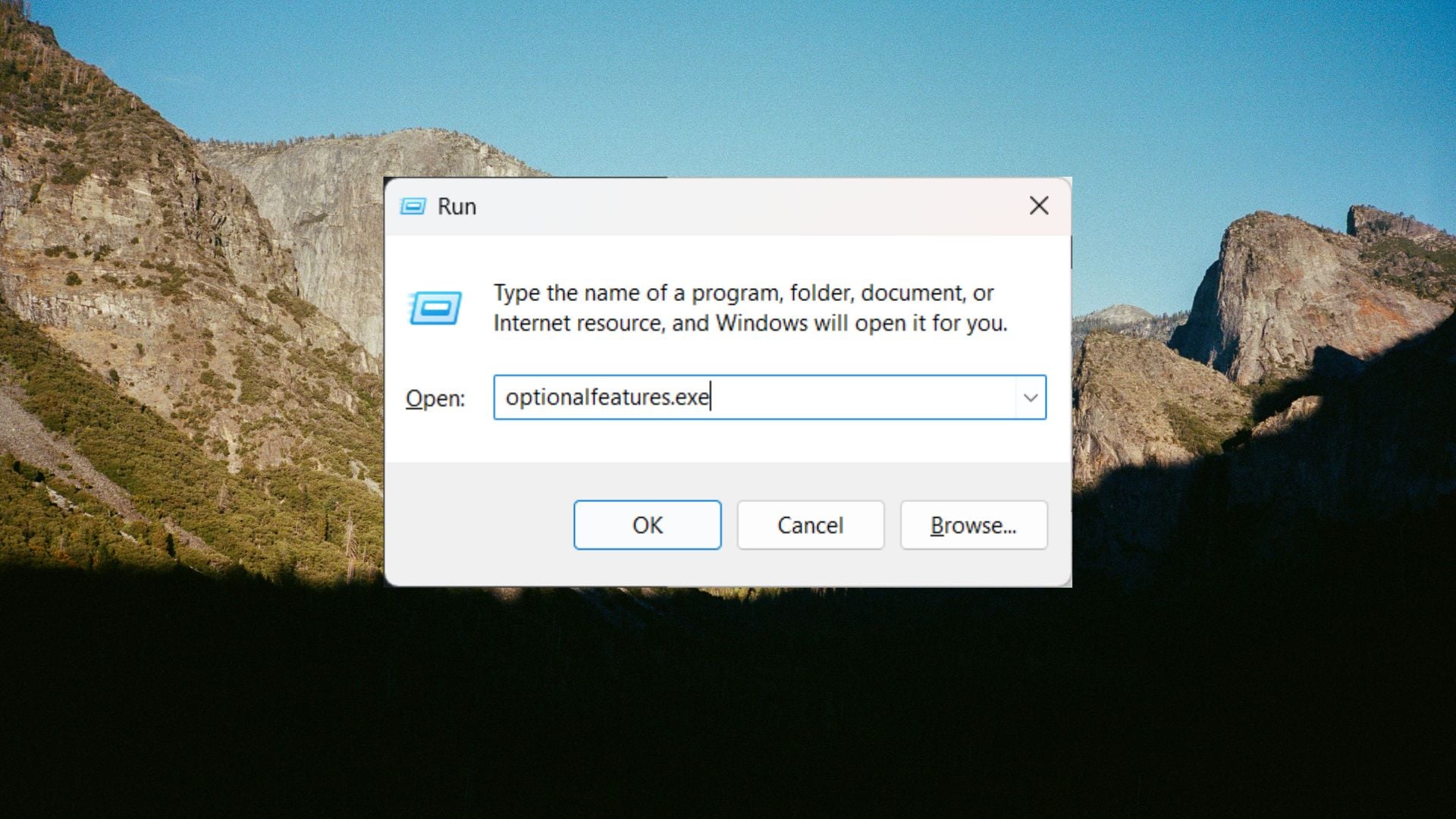
- Press Win + R keys to open the Run dialogue and type optionalfeatures.exe and press Enter.
- Scroll and tick the box next to Windows Sandbox, Virtual Machine Platform, and Windows Hypervisor Platform.
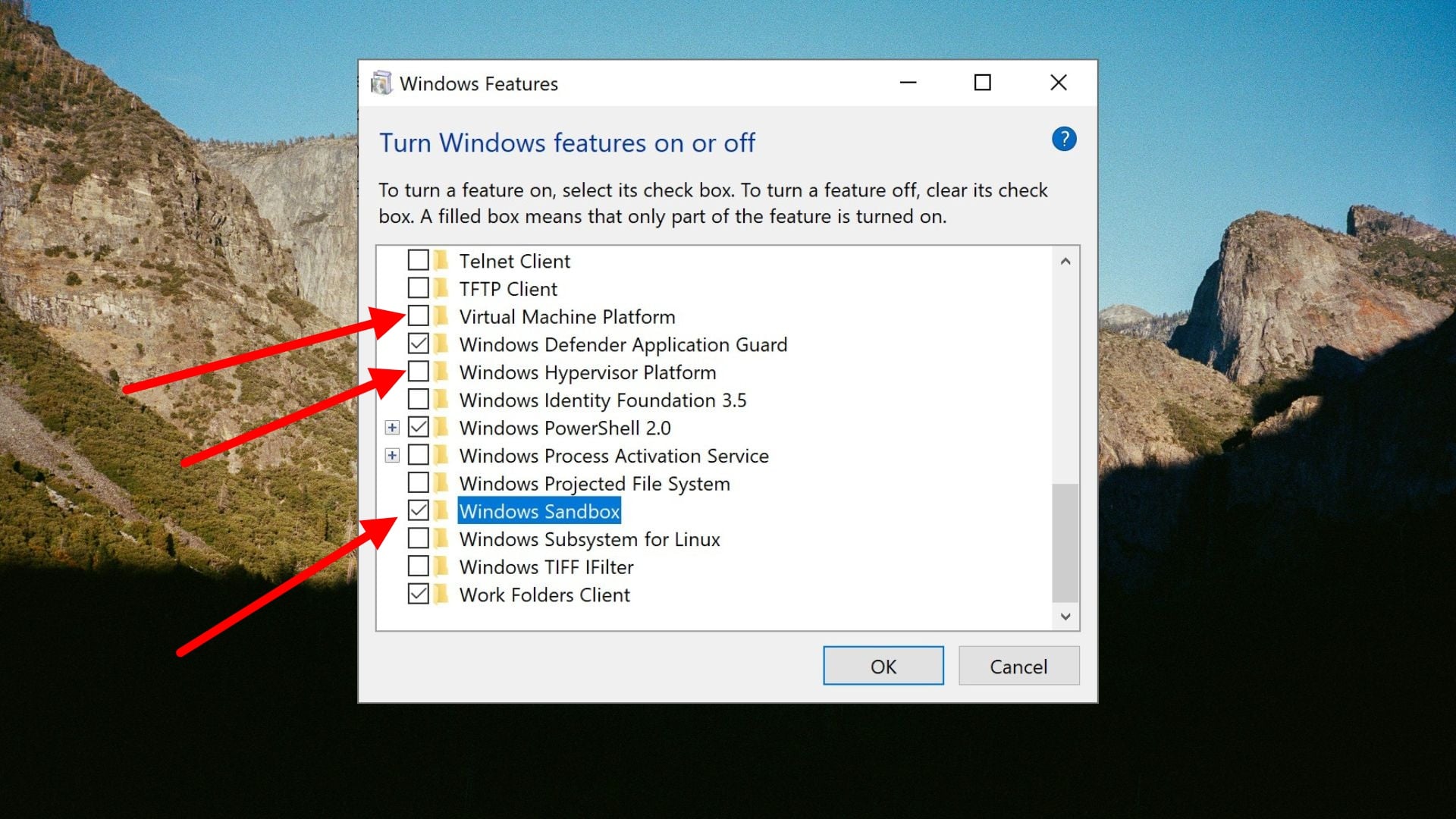
- Press the OK button to restart your PC.
- After the restart is complete, open the Start Menu and search for Windows Sandbox to run it.
How to test applications using Sandbox?
Now comes the most important part of testing software using the Sandbox. Let’s say you downloaded a tool called mystery.exe on your real computer and want to test it. Firstly, you don’t have to redownload it using Sandbox. Windows Sandbox lets you copy and paste software between your real PC and the Sandbox environment. Here’s what you need to do:
- First, open the Sandbox on your PC.
- Copy the software mystery.exe file from your real PC and paste it into the Sandbox’s empty desktop space.
- The file will be instantly transferred.
- Double-click on the file inside the sandbox and install it just like you normally would.
Now, you can play around with the software. Tweak its settings, check its authenticity by using other apps, push it to its limits, and see if it tries to install any add-ons or not. Use it for a while and check if it throws an error or not. A good thing after the latest Windows 11 update is that Sandbox can survive a restart.
Meaning, if a software asks you to restart your PC to complete the installation, you can simply restart Windows from the Sandbox environment. When it boots back up, the software will be there for you to test. All you should refrain from is closing the main window from the outside.
What if you don’t have Windows 11 Pro versions?
If you are running Windows 11 Home Edition, then you won’t be able to use Sandbox. While several guides ask you to run a script to get Sandbox, you will most probably use those methods. But do not worry, as there are several excellent options available similar to Sandbox for Windows 11 Home Edition PCs. Some of them are recommended below:
1. Use VirtualBox (The DIY Sandbox)
You can download a free tool called Oracle VirtualBox. It allows you to create your very own virtual machines in which you can install and test software for its legitimacy. Though it requires a bit more time to set up, you will need to download a Windows ISO and install it manually. You also won’t get the feature where the Sandbox automatically clears everything up once you close it. However, there is a Snapshot feature that takes a snapshot of your VM, tests your sketchy app, and simply reverts to your clean VM.
2. VirusTotal
VirusTotal is not a virtual machine tool, but it is an all-in-one virus checker. This ties dozens of different antivirus services together in one convenient package. All you need to do is attach the program that you want to test and let the program be scanned. After a moment, you will see the results, based on which you can decide if you want the services or not.
Being a bit skeptical is good
The internet is full of good tools and applications that make your tasks easier. However, you should be a bit skeptical when choosing tools as they will get installed on your PC, and could access all of your personal files without you knowing about it. Windows Sandbox gives you a stress-free environment where you can test software for its genuineness.

