

Have you ever wondered how easy it would be if every time you upgraded to a new operating system, changed your computer, or reinstalled the old operating system, you could type a command, and all the utilities and applications you regularly use would be installed, updated and even removed if you didn’t want them? And that’s exactly what package managers are for! It’s a command line-based program that allows you to install, remove, and update all your programs with simple commands.

Table of Contents
Why use a Windows Package Manager
Installing, updating, and removing applications or utilities can also be done manually. Why would anyone even consider using a package manager? This is a valid question that needs to be answered.
We use package managers because they make the whole process quick and easy. While you can install, update, and even remove your programs manually, imagine having to do that with every app on your PC or Mac. Package managers, as the name suggests, make it easy to manage all packages, dependencies, projects, and apps. Users save more time, and the complexity of juggling different installation programs disappears completely.
In this blog, we will introduce some of the best package managers for Windows with their pros and cons. Most of these package managers are also compatible with Mac OS and Linux, but we will point out when something can only be used on Windows, so if you’re interested in learning more about the best package managers for Windows and want to install them on your PC, you’ve come to the right place.
Let’s start with the package manager specifically tailored for Windows 10/11.
Winget Package Manager
Winget is probably one of the best package managers for Windows. It was developed by Microsoft and also offers some great features. It comes pre-installed with all builds of Windows 10 and Windows 11 and is very easy to use. Winget is a free and open-source command line program with a range of services and features that allow users to install, remove, and update packages and applications.
Installation Process
Winget should be pre-installed on all versions of Windows 10/11, but you will need to sign in with your Microsoft account and go to the Microsoft Store to activate Winget. Also note that you must be using Windows 10 Build 16299 (Windows 10 1709).
To launch Winget for the first time:
- Launch Powershell and run it as Administrator.

- Then type Winget and press Enter.
- You will be able to see all Winget commands.

This is how you know that Winget is installed on your Windows PC/laptop. If you want to know more about the installation process, you can read the Microsoft Winget Installation docs.
Let’s talk about the pros and cons of one of the best package managers for Windows. Winget has many advantages and also some disadvantages, so let’s talk about them.
Winget Advantages:
- Winget is specially tailored to Windows. It’s the first-party package manager for Windows, so the experience is pretty solid right from the start.
- Searching, installing, updating, and even removing packages is as simple as a single command on the command line.
- Sandboxing in Windows is very easy.
- Administration prompts are not visible. Since everything is done from the command line, you don’t have to grant administrative privileges repeatedly.
- Scripting can be done with a single command.
Winget Disadvantages:
- Winget is only available on Windows, so there is no cross-platform compatibility.
- Winget is not as feature-rich as other package managers on this list.
- Dealing with multiple versions of the same package can sometimes be a bit tricky.
Winget is probably the best package manager you can use if you don’t want to install a third-party program. It’s much easier to use compared to other package managers and might be your best choice if you’re a die-hard Windows user and want to stick with Microsoft’s solution for package management.
Now, let’s move on to what is probably one of the most popular package managers for Windows.
Chocolatey Package Manager
The Chocolatey Package Manager is probably one of the most popular package managers for Windows. Just like Winget, it is also used for managing packages, it became popular on Windows because of its ability to manage complex packages and complex Windows environments. It is very effective and offers software compatibility and transparency at the organizational level, making it the first choice for developers and advanced users.
Installation Process
We will go through the Windows installation process of Chocolatey one by one. It can also be installed on Mac OS and Linux, but we will only go through the Windows installation for this blog. Follow these steps to install Chocolatey on your Windows PC and laptop:
- Launch Power Shell with administrative privileges.
- Then, set the Execution Policy as All-Signed or Bypass -Scope Process by pasting the following command from below:Set-ExecutionPolicy Bypass -Scope Process -Force; [System.Net.ServicePointManager]::SecurityProtocol = [System.Net.ServicePointManager]::SecurityProtocol -bor 3072; iex ((New-Object System.Net.WebClient).DownloadString(‘https://community.chocolatey.org/install.ps1’))
- The execution of this command will take a few seconds.

- Type choco or choco -? now, to get started.
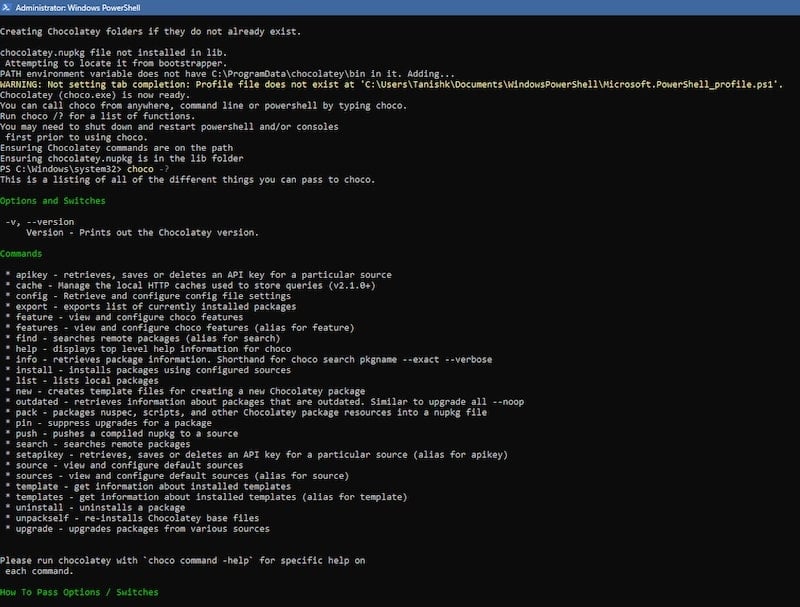
After following the installation process, you can simply use Chocolatey. If, for some reason, you face any issues, just follow these steps from the Chocolatey Website.
Let’s talk about the pros and cons of the Chocolatey package manager. The pros and cons of Chocolatey give us an idea of why Chocolatey is one of the best package managers for Windows.
Chocolatey Advantages:
- It can be used on anything from Windows 7 to Windows 11.
- It can be easily deployed on Azure, AWS, or any other cloud service provider.
- Remote deployment for developers is very easy through chocolatey commands.
- Windows software is much more than just installing and removing packages, and Chocolatey does it all with the right security results.
- Deployment across multiple systems is very easy with Chocolatey, as all packages are managed independently.
- It works completely online and is secure as it does not require network access by default.
- Power Shell scripting is much easier with Chocolatey.
- Scaling large projects and deploying them on a large scale is very easy.
Chocolatey Disadvantages:
- The many features and functions can be a bit difficult to understand.
- Installation can be complex compared to Winget.
Chocolatey is one of the most advanced package managers for Windows and can be useful for many developers and organizations looking to scale their projects. It offers an all-in-one solution for the package management needs of advanced and regular users.
Scoop Package Manager
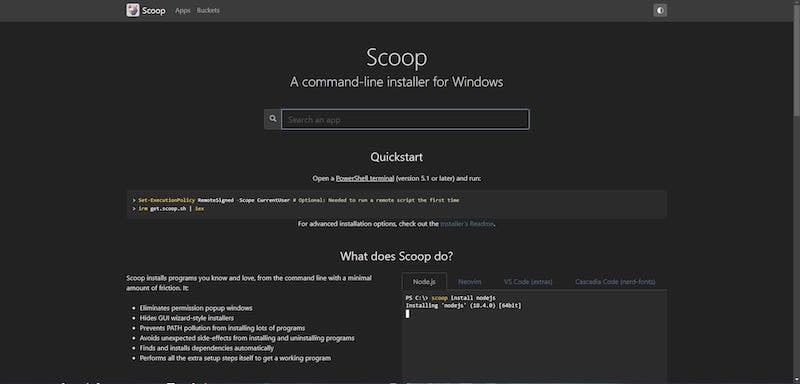
Scoop is the missing package manager that Windows has needed for years. Scoop is one of the simplest and most underrated package managers for Windows that most people don’t know about. It’s perfect for people who want to get their hands dirty with package managers for the first time but don’t like the default one that Microsoft provides with Windows.
Installation Process
Scoop has the same installation process as Chocolatey. The only difference is the command to install Scoop. Let’s install it on our Windows PCs and laptops by following these simple steps:
- Set the Execution Policy to Remote Signed or All Signed by entering the following command:Set-ExecutionPolicy RemoteSigned -Scope CurrentUser

- Then, enter the next command.irm get.scoop.sh | iex
- This command may take a few seconds when you install Scoop for the first time.

If you need help with the advanced installation options, visit ScoopInstaller Github to learn more about the installation process.
Let’s take a look at where Scoop’s strengths and weaknesses lie so we can get an idea of Scoop’s capabilities.
Scoop Advantages:
- The program is well-documented and easy to understand for beginners. So, if they have problems, they can easily fix them by reading the documentation.
- It is completely open source.
- The best thing about this utility is that it is designed in such a way that it is very easy to understand how to use this utility through the command interface.
- Also, the most important aspect of a package manager utility, package management, is very well solved as it takes a very different approach: Instead of installing all apps outside the home directory, they are isolated in ~\scoop.
- All installed apps are also uninstalled cleanly.
- It finds and installs all the dependencies automatically.
- Prevents the PATH from being polluted by the installation of a large number of programs.
Scoop Disadvantages:
- Simplicity can also be a drawback, as advanced users can’t do much more than manage packages.
- Scoop takes a more restrictive approach to managing permissions for apps and utilities.
- There is no multiplatform support, so there is no availability for Mac OS.
Scoop is a simple-to-use command line utility for Windows. Although it takes a somewhat simple and limited approach, it’s probably one of the best package managers for Windows users who want to save time without getting into the added complexity of package management. And we love its simple but effective approach and think you should give it a try.
If you’re one of those who have gotten this far, here’s another package manager for you. While all package managers for Windows are command-line based and work like a CMD utility, we also have a package manager that has a proper GUI and works similarly to the others and is also quite popular.
Ninite
Ninite is an easy-to-use, GUI-based web tool that comes with a variety of packages. This tool is specifically designed for people who don’t want to deal with the complexity of the command line and just want a GUI-based solution to install and update all their packages at once. It’s easy to understand, and there’s even a Pro version that lets you manage apps on multiple machines.
Installation Process
Unlike other utilities in this list, Ninite takes a different approach. Instead of being installed in your system to manage packages, you can do everything through the website. Let’s take a look at how it works:
- Just visit the Ninite website, Ninite.com.

- Here, you will see several apps and utilities sorted and ready to download and install.
- Here, you need to check the boxes next to the apps you want to install on your computer.

- Then click on Get Your Ninite.
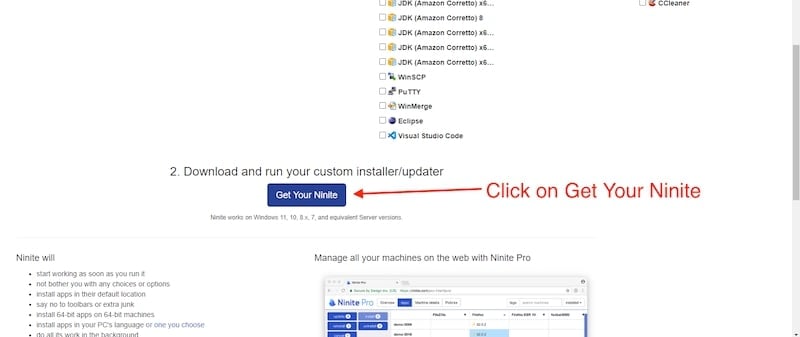
- This will create a custom installer for all apps, and you will receive an .exe file.
- With just one click on the .exe file, you can install and update all the apps (that you have ticked to install).
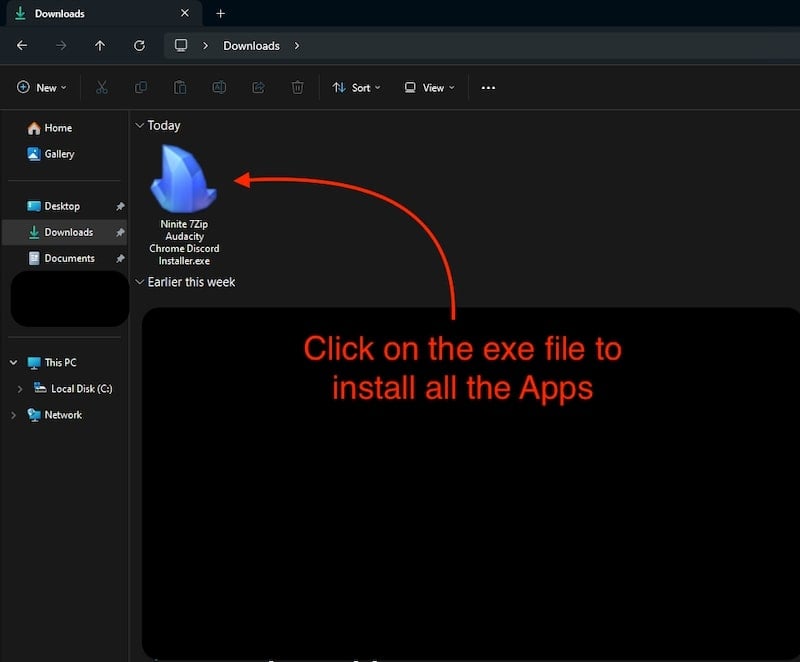
While Ninite is only a web-based tool, the Pro version is available as an app for Windows that offers many functions and features, such as an automatic update policy and caching functions for downloading multiple apps, but for this blog, we’ll stick with Ninite because it does most of the job and works the way it should.
Ninite Advantages:
- It is very easy to understand and use.
- You don’t need to use a command line interface because it has a proper graphical user interface, which is its biggest plus point.
- It simply works in the background and skips all reboot requests from installers.
- Saves a lot of time.
- It is very secure as it verifies all digital signatures and hashes before executing anything.
- Install/update only the apps that are not on the latest version and skip all the latest apps.
Ninite Disadvantages:
- It’s not as feature-rich as other package managers on this list and only does what it’s supposed to do in the first place.
- There is no option to uninstall apps as there is no user interface for uninstalling apps.
- The library for apps and utilities is smaller than other package managers.
- There are few developer-focused utilities.
- Ninte only works with Windows and is not cross-platform compatible.
Ninite is a great site, especially for people who don’t want to dive into the world of command line interface and still want to save time and resources when managing multiple apps. It’s intuitive, easy to use, and most importantly, it does what it’s made for, nothing more and nothing less. It is one of the best package managers for Windows. Many people use it every day when setting up their PCs and laptops, and you should give it a try, too.
Try out all Package Managers for Windows
Having come this far, you’ve probably gotten a good overview of all the package managers for Windows mentioned in this blog. All the package managers for Windows mentioned above have their strengths and weaknesses and are put together to meet the needs of different users. Some are third-party, others focus on additional features that are helpful for advanced users, while some are easy and intuitive to use and handle package management very well – nothing more and nothing less.
We recommend that you try out all package managers for Windows and then decide on something that seems to be made for you. Getting package management software may not look like your need at first, but once you start using it, you’ll understand how much time and resources these utilities can save you. Also, let us know which package manager you chose and why.
FAQs about Best Package Managers for Windows
1. Are there any default package managers for Windows?
Yes, Microsoft has released its package management tool for Windows called Winget. If you’re looking for a decent package management solution and don’t need a lot of advanced features, Winget is probably one of the best package managers for Windows. It’s easy to use and does its job very well: it manages dependencies, applications, and packages on your Windows PC or laptop very well.
2. Which is better, Winget or Chocolatey?
In the race for the best package manager for Windows, we have 2 great options: Chocolatey and Winget. Both are great package managers, but their use might depend on your workflow. If you’re an advanced user looking for a package manager that can do more than just install packages, then Chocolatey is the right choice for you. Otherwise, Winget is probably the best package manager for you as it manages packages very well and comes pre-installed with Windows.
3. Is Winget safe to use?
Winget is Microsoft’s way of managing packages, dependencies, apps, and services on your Windows PC or laptop. It’s the safest option when we talk about package managers for Windows. It’s pre-installed, so beginners won’t have any problems with installation, and all the commands in the command line are very well laid out, with one of the best documentation for troubleshooting.
4. Why have we not mentioned popular package managers like Homebrew and Nix?
This blog is dedicated to package managers for Windows. While anyone can use Homebrew and Nix on Windows 10/11, they don’t work by simply installing them; you have to use WSL (Windows Subsystem for Linux), which makes the whole installation process very complex. All package managers in our list, on the other hand, work without any additional effort.
5. How do I upgrade Chocolatey with Chocolatey?
Upgrading Chocolatey with Chocolatey can be done with a simple command choco upgrade chocolatey-agent. This will update the Chocolatey package manager for you, but it may take some time.

