

In Summary
- The Windows 11 24H2 update is rolling out new AI-powered features for Copilot+ PCs.
- The update also adds file explorer enhancements, new useful settings features, the ability to create 7z and TAR files, and customization options for the quick settings and start menu, among other things.
- You can download the latest Windows 11 24H2 on your device and get access to the latest features.
The much-awaited Windows 24H2 update is out to everyone starting today. The update brings useful AI features and improvements to the Windows 11 experience with File Explorer enhancements, Quick Settings updates, and more. The primary focus of this new update is mostly AI features targeted especially for Copilot Plus devices. It also brings useful features and improvements to the existing devices running on Windows 11. Here is the breakdown of all the features of the Windows 11 24H2 update and how to download the latest update and get it on your device.

Table of Contents
What’s new in Windows 11 24H2 Update?
Copilot+ and AI-Powered Features

What’s New:
- Local AI Processing: Copilot+ now runs directly on supported devices.
- Recall: The flagship AI feature, Recall, is returning later this year. It will be available for the Microsoft Insider starting this October and will be available later this year.
- Auto Super Resolution: The AI now improves the graphics visuals in your games without using extra GPU power, similar to Nvidia’s DLSS tech.
- CoCreator in Paint: Now, you can generate images in Paint by using text prompts similar to Photoshop.
- More Windows Studio Effects: The studio effects now support real-time lighting fixes and filters during video calls, auto framing, eye contact, background blur, and more.
- AI-Powered Live Captions with Translation: Windows Live Translation supports captions in over 44 languages.
Microsoft continues to add new AI features, and with the latest 24H2 update, it brings support for on-device AI on supported devices. Microsoft says these AI features are faster, more efficient, and more private. To run these features, the device should have updated hardware with a new NPU of 40 TOPS and meet the minimum requirements of Microsft Copilot PCs. Currently, devices running on Qualcomm Snapdragon X-Elite, AMD Ryzen AI 300 processors, or Intel Lunar Lake x86, which is expected to support these features later this year.
The existing Copilot app also gets a complete revamp with additional voice and vision support, along with a redesigned UI. It is available for all users starting today on Android, the web, and the Windows app. Microsoft is also bringing back the ‘Recall’ feature, although this will only be available for insiders, with a rollout expected later this year.

The new Windows 11 update brings Auto Super Resolution to gaming, which automatically enhances game visuals without using extra power. This is similar to NVIDIA DLSS but is now integrated within Windows functionality. Another useful addition is more studio effects, and on-device real-time translation now supports over 44 languages. In addition, the paint apps on Windows get a huge upgrade. Now, you can replace or erase elements, like generate fill and erase features in Photoshop. Also, the search has been imported, and Microsoft introduced a new click-to-do option, which suggests relevant actions based on what’s on your screen.
Start Menu Enhancements

What’s New:
- Phone Link Integration: For Phone Link users, a new side panel shows their phone’s battery, notifications, recent photos, and more.
- Grouped Recently Installed Apps: Apps that were recently installed will now be grouped, and you can quickly drag and drop them.
If you are a Windows Phone Link user, the new Start menu will have a dedicated sidebar that shows your connected device info, including your mobile’s battery, notifications, recent messages, and more. If you have pinned apps, you will see frequently used apps at the top. You can also easily drag and drop apps and shortcuts from the start menu.
File Explorer Improvements
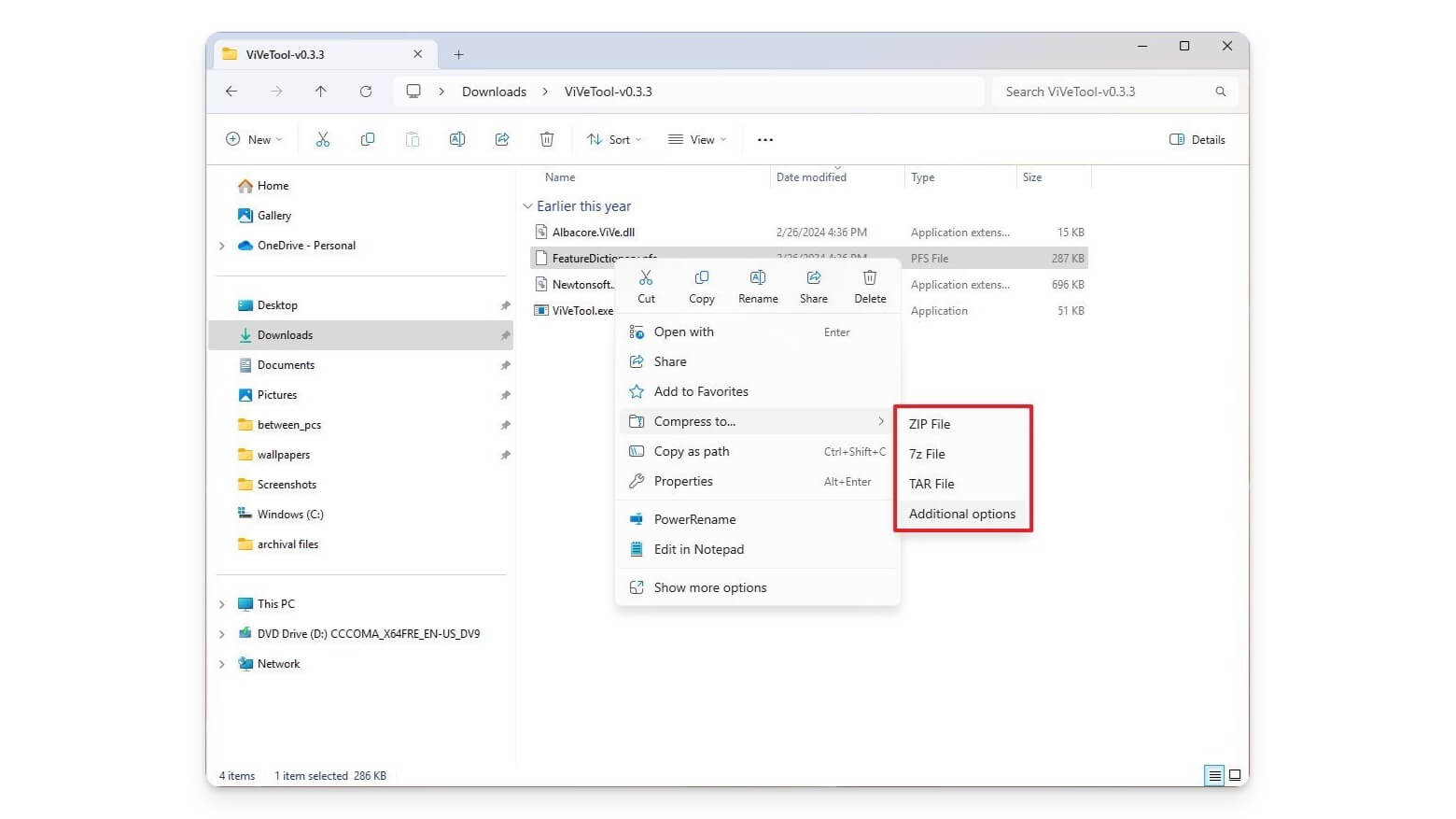
What’s New:
- Merged Sections: Recent, Favorites, and Shared files are now organized into tabs.
- Labeled Context Menu: Actions, like copy, paste, and rename, get labels.
- Create 7z and TAR Files: You can create compressed files in 7z and TAR formats in addition to opening them.
- Duplicate Tabs: You can duplicate tabs in File Explorer for easier multitasking.
Windows 11 File Explorer has new handy features. First, recent, favorites, and shared files are now organized into a single tabbed interface. You can easily toggle between them without navigating to different sections. It also introduces support for the ability to create 7z and TAR files natively on Windows without relying on third-party websites. This extends the ability to open 7z and TAR formats, which were announced in previous versions.
The context menu also gets a slight update. Now, instead of just icons for quick actions like copy, paste, and rename, it will have labels under each icon to help users quickly identify each option. This doesn’t clutter the experience much, as you can see from the interface. Finally, the most requested duplicate tab feature is here. Now, you can open the same folder in a duplicate tab for easy multitasking, which was previously limited to manually opening a new tab and navigating to the same folder again.
Quick Settings Updates

What’s New:
- Customizable Actions: Easily Drag and drop your preferred quick actions within the Quick Settings menu.
- Energy Saver Mode: Limit power consumption on desktops without batteries.
- Power Settings: You can now control what happens when you close your laptop lid or press the power button directly from the Settings app.
The Quick Settings also get useful enhancements in the latest Windows 24H2 update. Now, you can drag and drop actions within the Quick Settings menu. You can rearrange your most-used actions or hide the toggles you don’t need. The Energy Saver mode now supports power-saving features for desktops as well as laptops. It helps reduce power by limiting background usage, app performance, and resource usage to save energy.
Additionally, you can now easily control what happens when you close your laptop lid or press the power button directly from the settings app without navigating to the Control Panel.
Mouse and Display Improvements
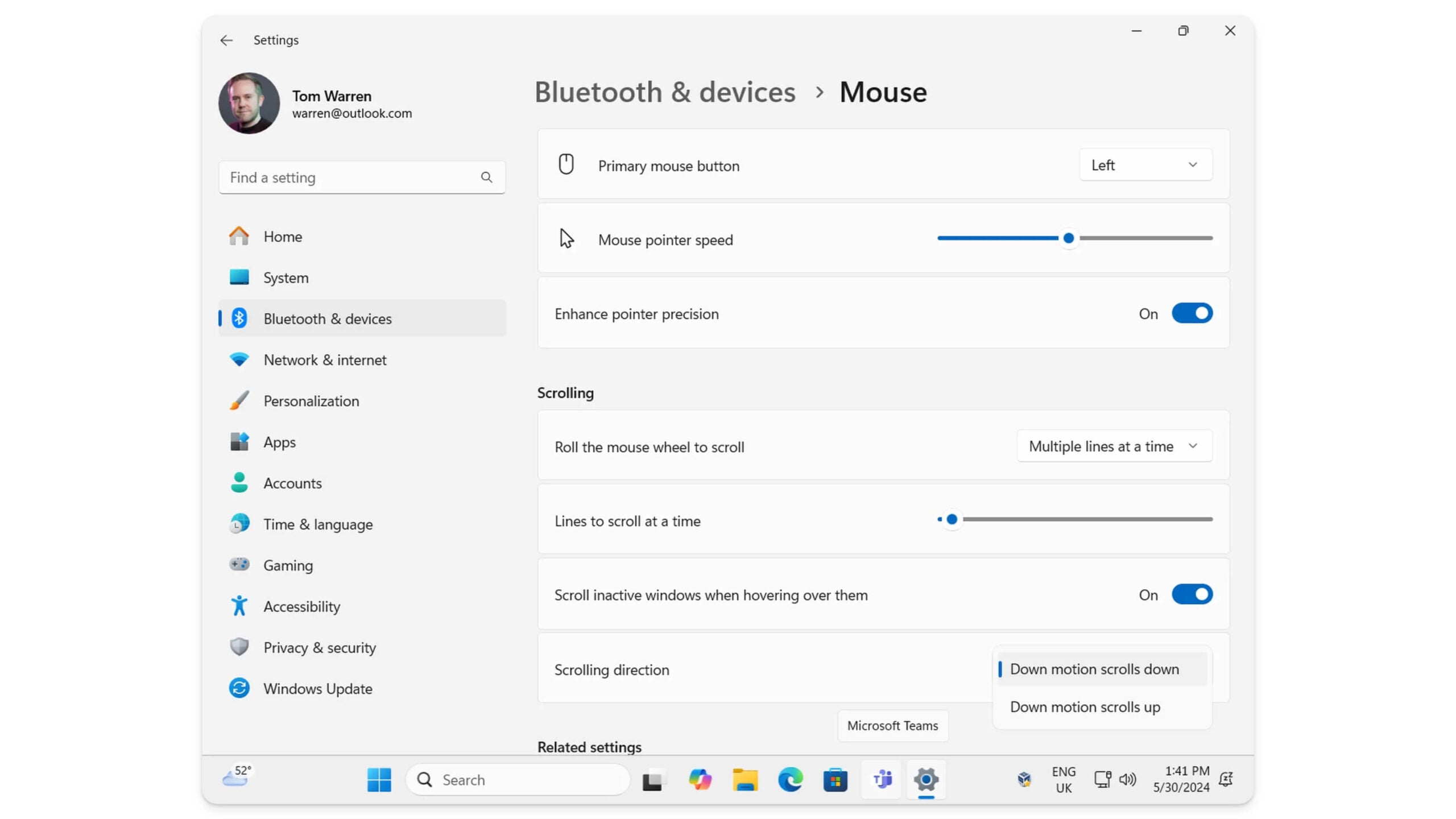
What’s New:
- Reverse Mouse Scroll: Enable reverse scrolling direction for your mouse right from the settings.
- HDR Background Support: Set HDR wallpapers on supported desktops.
- Toggle Monitor Color Profiles: Switch your monitor’s color profiles from the Settings menu.
Another useful feature in the latest update is that you can easily control the settings to reverse the scrolling direction of your mouse directly from the Settings app instead of navigating to older methods or using third-party solutions. Another nifty feature is that if your display supports HDR, you can now directly set an HDR wallpaper as your desktop background. The update also adds the ability to monitor and manage color profiles directly from the Settings menu.
Sudo Command for Windows

What’s New:
- Command Line Elevation: Terminals can use the ‘SUDO’ command to gain admin rights without navigating through admiration settings.
The latest Windows 11 24H2 update adds Command Line Elevation via the sudo command, which is most common in Unix-based systems. Instead of opening a new Command Prompt or PowerShell window as an administrator in the command line interface, simply type “sudo” before a command in a regular terminal window to get admin rights.
More Windows 11 24H2 Update Features
Those are the five major updates coming to the Windows 24H2 update. The update also introduces a new all-in-one Microsoft Teams app that now supports both professional and personal accounts in a single app without requiring you to install two separate apps. It also adds a new Sharing option that lets you directly share files to your connected devices, similar to quick sharing options found on mobiles.
Additionally, Outlook has seen a significant improvement, which I have been waiting for. The 24H2 update removes the old Mail and Calendar apps and replaces them with a new Outlook app. The interface is now very similar to the Outlook web interface, with a cleaner, more modern design. It also supports advanced features like managing and scheduling emails directly from the app without switching to the desktop version, along with support for multiple email accounts and a better-integrated experience.
The update adds support for Wi-Fi 7 and Bluetooth LE Audio, the major features coming to the Windows 24H2 update. Watch the video for a more detailed guide on the latest features.

Windows 11 24H2 Update Requirements
If your device meets the Windows 11 requirements, you will get all these latest features with the new Windows 11 24H2 Update. However, to get AI features, your device should meet the Microsoft Copilot Plus requirements, which currently require a dedicated NPU with a minimum of 40 TOPS. Some compatible processors in the market currently include Qualcomm Snapdragon, AMD Ryzen 300 series processors, and the latest Intel Lunar Lake, with support coming later this year.
If your device meets the base Windows 11 requirements, You can update to the latest Windows 11 update and get access to the new energy-saving features, quick File Explorer, Quick Panel settings, and the new sudo command. Here is a detailed breakdown of features and device support.
Feature | Requirements | Device Support |
|---|---|---|
AI-Powered Features (Copilot+) | Needs a Neural Processing Unit (NPU) like Qualcomm Snapdragon, AMD Ryzen AI, etc. | Only for Copilot+ PCs (with NPU) |
Wi-Fi 7 and Bluetooth LE Audio | Requires Wi-Fi 7 and Bluetooth LE Audio supported devices | Only for Wi-Fi 7/LE Audio compatible PCs |
HDR Background Support | Requires an HDR-capable monitor | Only for devices with HDR monitors |
Energy Saver Mode | No special hardware needed, works on both laptops and desktops | Available to all devices |
Sudo Command for Windows | No special hardware required | Available to all devices |
File Manager Updates | Available on all devices running Windows 11 | Available to all devices |
Quick Settings Customization | No special hardware required | Available to all devices |
Start Menu Enhancements | Works on all devices; extra features for users with Phone Link enabled | Available to all devices; enhanced for Phone Link users |
Outlook (Replaces Mail & Calendar) | No special hardware required | Available to all devices |
Unified Teams App | No special hardware required | Available to all devices |
Windows 11 24H2 Update Release Date
Microsoft has started rolling out the Windows 11 24H2 update in phases. It is expected to reach all devices by the end of this year. Unlike previous service updates, Windows now replaces your complete OS with a new version instead of just applying updates to the existing one.
If you want early access to the update, you can join the Windows Insider Program and access it via the Release Preview Channel or download the Windows 24H2 ISO file and install it on your device. We have a detailed guide on how to download and install ISO files on your device.
Download Windows 11 24H2 ISO Files
Download Windows 11 24H2 (English)
Download Windows 11 24H2 (German)
Download Windows 11 24H2 (Spanish)
Download Windows 11 24H2 ISO (Italian)
After installing the update, some users have reported issues like the fingerprint sensor not working, compatibility issues, the Safe Browser application failing to open, and more. You can view all the issues from public forums and take a look before updating.

