

Apple has replaced the mute switch with an action button in the latest iPhone 15 series. The action button is not new to smartphones. Many Android smartphones have had them in the past, but the iPhone gets all the attention and hype.

You can use the action button to mute the iPhone or assign other functions to it, such as opening the camera, turning on the torch, and six other features. The best part is that you can customize it with Apple’s most popular shortcuts, making it the best use of the action button.
If you’re using the iPhone 15 series, this guide will tell you how to use and customize the iPhone’s action button and what shortcuts you might like. When you’re ready, let’s get started.
Table of Contents
How to Use and Set the Action Button on the iPhone
The action button is a new addition to iPhone hardware and is available on the Pro iPhone 15 series. Apple provides separate settings to set and customize the action button.

- Open the Settings on your iPhone and look for the Action button.
- Tap it, and that’s it. You are now in the settings for the action button. Apple made a separate animation to customize the action button settings. But by default, you can set the action button to silent mode, set focus mode, open camera, turn on/off the torch, open voice memo, open magnifier, perform certain shortcuts, and accessibility.

- To create a shortcut, click “Go to shortcut” and tap “Create a shortcut”. You can create any shortcut and map it to the action key here.
Top 5 iPhone Action Button Customizations That We Like
People love to map Apple action button to custom shortcuts. You’ll find them everywhere, including X (formerly Twitter), Instagram, YouTube, Reddit, and more. Here are some of our favorite Apple action button shortcuts.
Create a Mega Menu of Options Using the Action Button
This one is from the YouTuber, Stephen. You can map an action button to create a shortcut pop-up menu where you can tap on any option and perform a specific function. 
- Open the Shortcuts app on your iPhone.
- Click the plus button at the top to add shortcuts. You can rename your shortcut however you want, just to set it as default.
- Now click on the + Add Action button. Click on the search bar at the top, search for Menu and then click Choose from Menu.
- Now replace prompt with Action text or any other name you want to use.
- Now add the actions you want to list in the menu. Options include an open camera, an open notes app, a mute toggle, and more. By default, you can add two shortcuts in the app; you can add more by clicking the plus icon.
- Now you’ll want to set actions for the options in the menu. Click the search bar at the bottom and search for the action you want to use for the menu option.
- There are hundreds of actions you can choose from. For example, I will set a search for techpp.com when I tap on the Open Techpp option in the menu. You can set any action you want.
- You can also set options for opening apps, toggling settings, and more.
- To see the menu shortcut for the action button, go to the action button settings on your iPhone, go to the Shortcuts tab, click the Add Action Button menu, and select the shortcut you just created.
- To use it for a longer time, press the action button and a new menu will open, giving you the option you set. Click on the menu and select the desired action.
- You can also set advanced actions based on your iPhone’s current system settings. For example, if DND mode is enabled on your iPhone, selecting an action should perform various actions based on the DND mode settings on your iPhone.
Replace Siri With ChatGPT or Google Assistant
Siri is good, but ChatGPT and Google Assistant are great. Thanks to the new action key customization, you can use the action key to use Google Assistant and ChatGPT. Install ChatGPT or the Google Assistant app from the app store on your iPhone to set it up.
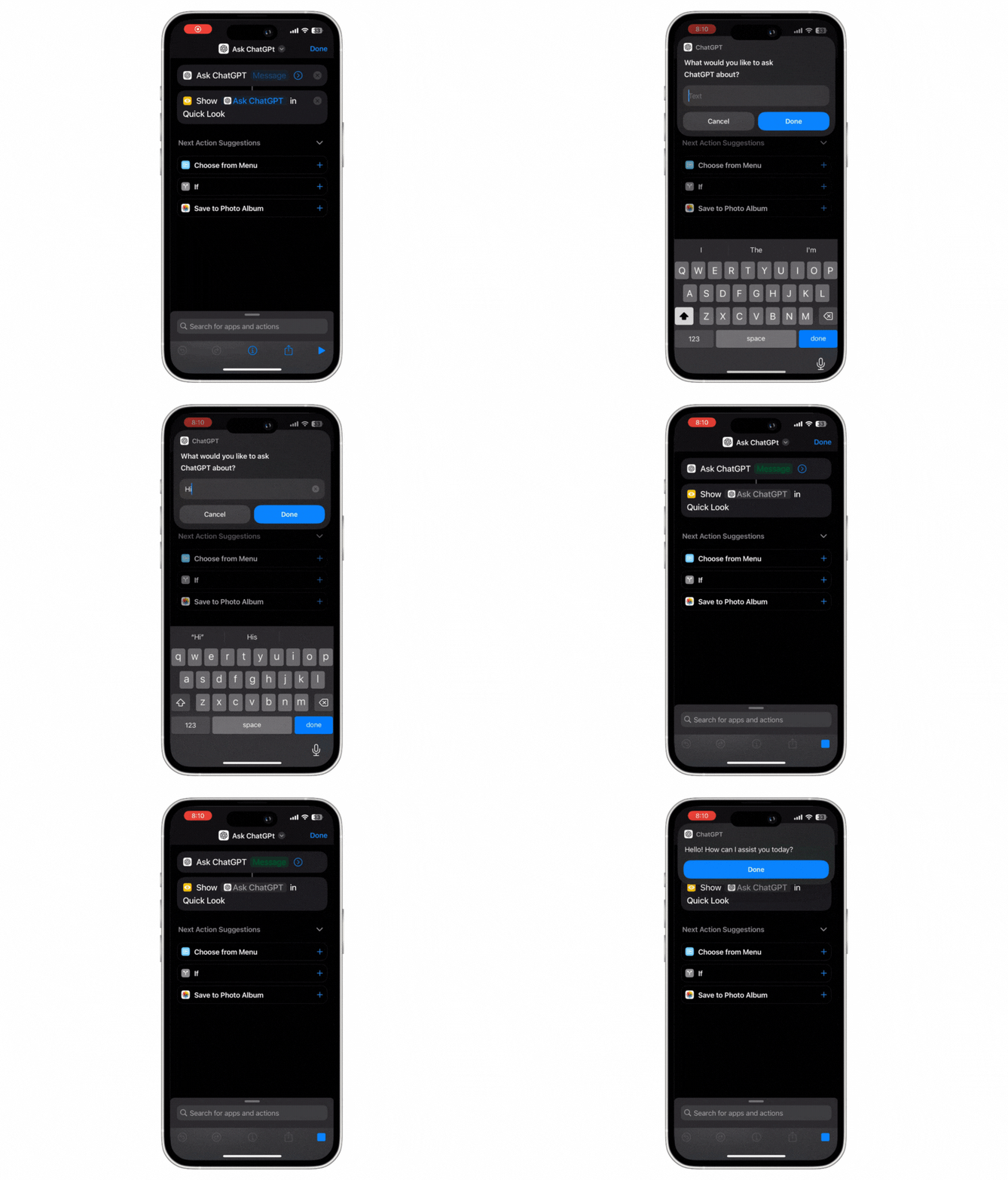
- Open the Shortcuts app on your iPhone and click the Plus icon in the upper right corner of the screen.
- Rename it to AskChatGPT or whatever you want to call it.
- Click +Add action and search for the Ask ChatGPT shortcut. Then click on the search bar, search for Preview and select Quick Look.
- You can do the same for Google Assistant. Install the Google Assistant app on your iPhone and add the new action “Ask Google Assistant”. Then click on the search bar, search for “Preview” and select “Quick Look”.
Create Quick Notes With the Action Button
The Notes app lets you easily and quickly jot down ideas, create a new note, and save it for later. You can set the action button to quickly take notes on your iPhone. To do this:

- Open Shortcuts and add new shortcuts and rename them to Quick Notes.
- Click on the +Add Action button, search for Create Note and add the Create Note action.
- Now click on the text, select “Ask each time” and select the folder if you want to save the notes in a specific folder.
- That’s it. Now assign the shortcut to the action button on the iPhone.
- Press and hold the action button to test; new notes will appear. Add the notes and click “Done” to save the messages.
Related Read: Use Action Button as a Shortcut for DND Mode on iPhone
Control Your Smart Home Devices Using the Action Button
The action button lets you set smart home devices to turn on lights or open blinds when you press the action button. This feature is especially handy when you don’t have the energy to give a command after a busy day. You can press the action button on your iPhone.

- Click the +Add Action button and search for Get the State of my Home. Make sure you have added smart devices to the Home Kit app.
- To get the current state of window blinds, add Shades to the Accessory State and enter the current position.
- Now set Shades and add an if condition. Set the situation if the current position is less than 1 (which means that the current state of the blinds is closed) and click Add Set Shades to open.
- Now map the action to the action button on your iPhone. You can also add multiple devices to the shortcuts and control everything at once.
Set Ultra-Low Power Mode With Just a Simple Click
You can map the action button to turn on ultra-low power mode on the iPhone. Hundreds of shortcuts are already available to set ultra-low power mode on iPhone. Now, with the action button, You can turn it on in a single press. Here is how to fix it. Using the steps below, You can use existing shortcuts or create a new one.

- Open the Shortcuts app on your iPhone and click on the Plus icon
- Now click on the +Add Action and select Choose from the menu to enter the text you want to add
- Add on and off-menu options
- Now set the actions for the on and off functions. Here you can select the action when the ultra low power mode is turned on. You can turn off the Wi-Fi, set the brightness to low, turn off Bluetooth, turn on airplane mode, and so on. You can select the action and drag and drop it to the menu options.
- Similarly, you can set the alternative function when the power saving mode is off. You can set the if parts for better use of the functions. For example, if Airplane Mode is enabled, you can turn it off and keep the rest of the features like Wi-Fi, Bluetooth and more. If you want, you can also turn them on manually when you need them.
Get Things Done With Just Simple Click
Apple’s action button is handy, making it easy to perform quick actions. You can map the Apple action button to seven different functions by default. You can customize the action button beyond default functions with the shortcut customizations. You can also use these shortcuts on older iPhones, but you need to manually run these shortcuts or set a specific action like When specific system settings are changed and more.
If you own an iPhone 15 Pro or 15 Pro Max, you can use the action button to perform shortcuts with a single press. You can also create your own shortcuts and map them to the action button on your iPhone. I hope you find this guide helpful. If you find a useful shortcut, feel free to share it in the comments below.
FAQs about iPhone Action Button Shortcuts
1. Can I assign multiple functions to a single button?
No, you cannot assign multiple functions to a single key. Currently, the Apple action button only supports a single press and not a double or triple click. If you want to assign multiple functions to the action button, you can use the shortcuts to create a mega menu. We showed you above how to create a mega menu using the shortcuts.
2. How do I delete button customizations?
You can access the action button settings on your iPhone and assign them to different actions. To do this, open the settings on your iPhone > click on the Action tab and select the action you want to assign to the action button. If you don’t want any action, set it to “no effort”. Open the Shortcuts app on your iPhone if you created a custom action. You’ll find all the shortcuts you created on the home screen. Long press on the shortcut you want to delete and click on delete shortcut to delete it. Go back to the action button settings and don’t assign any action to it.
3. How can I stay updated with new customization features?
Currently, you can assign seven different actions to the Apple action button: Silent Mode, Focus, Camera, Flashlight, Voice Memo, Magnifier, Shortcut, and Accessibility. You can also set hundreds of other functions with the shortcuts. In the future, Apple may support more features. Until then, you can use Shortcuts to stay up to date and try out new customization features.
4. What are some recommended third-party apps for button customization?
Open the Shortcuts app on your iPhone and click the plus to add a new shortcut. Click on the “Add Action” button and go to the “Apps” tab. Here you’ll see the list of apps that offer different shortcuts. You can view more customizations based on the apps installed on your iPhone. The most popular ones include taking notes with the Notes app shortcuts, opening certain web pages with the Google Chrome browser or any other browser you use, sending an email, asking questions on ChatGPT, and more.
5. Does customizing the Action button require any additional software or apps?
No, Action Button customization is a built-in feature of iPhone 15 Pro and iPhone 15 Pro Max and doesn’t require any additional software.

