

Reminders help you organize your day better and keep track of important events of the day. The Apple Watch is ideal for reminders. You can easily set reminders for important tasks like drinking water, getting up regularly and eye health, and it’s also great for boosting productivity with features like setting up Pomodoro timers and more. In this guide, you’ll learn about ten different types of Apple Watch reminders and how to set them up on your Apple Watch.

Table of Contents
10 Best Reminders You Can Set on Your Apple Watch
- Drink Water Reminders: Stay hydrated by setting reminders to drink water. You can use third-party apps to receive these alerts and track your water intake.
- Eye Health Reminders: Protect your eyes by setting reminders to take breaks from the screen. Use the Apple Watch Timer or Pomodoro apps to remind you.
- Standing Reminders: Stay active by using the Apple Watch’s built-in standing reminders. This reminder feature encourages you to move if you’ve been sitting for too long.
- Medication Reminders: Never miss your medication again with medication reminders. Use the Health app on your iPhone to set specific times for different medications.
- Mindfulness Reminders: Reduce stress with mindfulness reminders. Set up alerts for breathing exercises or moments of relaxation.
- Pomodoro Timer: Boost productivity with the Pomodoro technique. Use apps or the Apple Watch timer for focused work sessions followed by short breaks.
- Task Reminders: Stay on top of your tasks. Use the Reminders app or other to-do list apps to get alerts for important tasks right on your wrist.
- Motivational Reminders: Get inspired throughout the day with motivational reminders. Set up your favorite quotes using the Reminders app.
- Calendar Reminders: Keep up with your schedule. Sync your calendar with your Apple Watch to get alerts for upcoming meetings and events.
- Location-Based Reminders: Receive task alerts based on your location. With the Reminders app, you can set reminders for specific locations, such as grocery shopping.
Set Drink Water Reminders
In our busy lives, it’s easy to forget to drink water and stay hydrated. This may seem insignificant, but not drinking enough water can lead to many health problems. When we don’t drink enough water, we can feel tired, get headaches and find it harder to concentrate. Aside from the health benefits, studies have shown that drinking water can increase productivity by 14%. According to the survey, drinking water can increase your productivity by up to 14% and keep you focused on the task at hand.

The Apple Watch doesn’t have a built-in drink reminder. There are many third-party hydration apps that remind you to drink water. You can install any app (we recommend Drink Water and Water Tracker Waterllama) and let it remind you. These drinking water apps can even track how much water you drink and sync with the Apple Health app to manage everything in one place.
How to get drink water reminders on Apple Watch

- Install the drink water reminder app on your Apple Watch. You can use any app that meets your requirements. In this case, I am using Water Tracker Waterllama.
- Install the app on your iPhone and go through the initial setup process. Allow the app to send notifications.
- Click on the menu in the top right corner of the screen and select the daily water goal. Choose at least 2000 ml to drink.
- Click on the Smart Reminders and select the time to get water reminders.
- That’s it. Once the setup process is complete, you will receive water reminders on your iPhone and Apple Watch. You can drink water and tap the watch to record the data. You can follow the same steps for any other drink reminder app.
Eye Health Reminders

While water reminders help you stay hydrated, Eye health reminders protect your eyes from strain. Most of us work in front of a computer, which puts us at high risk for eyestrain. You can minimize this risk by using blue light filters or turning on dark mode, but it’s also important to take breaks. With the Apple Watch, you can set break reminders. These reminders remind you to take a break from the screen, look away or do eye exercises.
You can follow the 20-20-20 rule (look at something 20 meters away for 20 seconds every 20 minutes) and do blinking exercises or simple eye movements during the break. Taking regular breaks helps to reduce the risk of eye strain and fatigue. You can use the Pomorodo Timer to set reminders for every 25 minutes, or you can use the timer on your Apple Watch. Method 6 for setting the Pomorodo Timer to set reminders with the timer on your Apple Watch is below.
How to set the timer on Apple Watch

- Open the timer app on your Apple Watch
- Click on the plus and add 20 min timer. Start the timer.
- That’s it. You will receive a notification after 20 minutes. You can restart the timer and you will be notified after 20 minutes.
Standing Reminders

Most of us sit in front of a computer for long periods of time. This is unhealthy and can lead to a number of health problems, such as an increased risk of heart disease, diabetes and even certain types of cancer. To avoid this, you can use your Apple Watch to get Standing reminders.
The Apple Watch has a built-in standing reminder. The watch reminds you to stand up if you have been sitting for too long. You can set it up via the Apple Watch or the Watch OS app to remind you. You can also set yourself daily standing goals and track your progress.
How to set Standing reminders on Apple Watch

- Open the Apple Watch App on Your iPhone and Go to the My Watch Tab
- In the My Watch section, scroll down and tap on Activity.
- Inside the Activity settings, look for an option that says Stand Reminders.
- Turn on the Stand Reminders. That’s it! Your Apple Watch will remind you to get up and move if you sit for too long.
Medication Reminders

Another very useful reminder you can add is the medication reminder on your Apple Watch. The Apple Watch reminds you to take your pills. These reminders can be set for specific daily times. And if you take multiple medications, the Apple Watch can manage multiple reminders. You can set different medications on the Apple Watch, from capsules to creams, frequency and time. As well as taking medication, you can also set reminders for things like checking your blood pressure and blood sugar levels or doing certain exercises for physiotherapy.
How to add medication reminders on Apple Watch

- Open the Health App on your iPhone. Go to the Browse tab and select Medications.
- Click on Add Medication. You can either type in the name of your medication or use your camera to scan the medication’s label.
- Choose the dosage (like 10, 20, or 40 mg for Omeprazole). Then, specify how often you take it (like every day) and at what time (for example, 2:55 PM).
- Choose the type of medication (like pill, syrup, etc. ) and its color. You can also add any notes if needed.
- Once you have entered all the details, your medication will be added to the list and you will receive a reminder to take it at the specified time.
Set Mindfulness Reminders

Mindfulness reminders on Apple Watch can help you reduce stress, increase your focus and clarity, and improve your overall mood. By setting these reminders, you can take a few minutes each day to breathe, relax and center yourself. The Apple Watch will remind you to take a moment to journal how you’re feeling or start a breathing exercise.
How to set up Mindful reminders on your Apple Watch

- Open the Apple Watch App on Your iPhone and Tap on the My Watch Tab: You’ll see the ‘My Watch’ tab at the bottom left corner of your screen.
- Scroll down and tap on the Mindfulness option.
- In the Mindfulness section, look for Add Reminder under the Mindfulness Reminders section.
- Set up your reminder exactly how you want it. Choose the time you would like to be reminded. Then, tap Repeat to select which days you want to receive the reminder.
- Once you’ve set the time and days, you’re done. Your Apple Watch will remind you to practice mindfulness at the times you choose.
Pomorodo Timer

The Pomodoro timer is a fantastic productivity tool to help you focus on work by taking short breaks. There are plenty of apps and standalone Pomodoro timers available, but I find the Pomodoro timer on the Apple Watch to be the most effective. You can select the Pormorodo Timer app on your Apple Watch and the watch will remind you when it’s time to take a break or get back to work without much distraction. You can control everything from the watch. You can pause, take a break, resume work and much more without having to open your smartphone. If you don’t want to install third-party apps, you can set a custom 25 timer on the Apple Watch and take a break.
How to set Pomorodo timer on Apple Watch

- Install the Flow app on your Apple Watch.
- Open the flow app and click on the start timer. You can edit the 25 min timer. A Pomodoro timer typically needs 25 minutes of focused work time. So, set the timer for 25 minutes.
- Start the timer. Your Apple Watch will count down the time.
- Now you can concentrate on your work until the timer runs out. The watch will remind you to take a break. This is usually about 5 minutes.
- Repeat the Process: Set another 25-minute timer for your next focused work session after your break. You can repeat this cycle throughout your workday.
How to set 25 min timer on Apple Watch
- Open the Timer app on your Apple Watch
- Click on the plus and add a 20-minute timer. Start the timer.
- That’s it. You’ll receive a notification after 25 minutes. You can restart the timer and you’ll be notified after 25 minutes.
Task Reminders

Task reminders on your Apple Watch are super helpful to get notified about important tasks you have planned for the day. The biggest advantage of task reminders on your Apple Watch is that you might miss a notification if you’re not using your smartphone. But on the Apple Watch, you can’t miss a notification because it stays on your wrist all day. Only a few apps allow you to set reminders without using your smartphone. You can mark the task as done, add new reminders, receive notifications for new reminders and much more directly from your wrist.
How to set Task Reminders on Apple Watch
You can use the Reminders app on your Apple Watch or iPhone to set reminders. The Apple Reminders app is the powerful tool. You can also use to-do list apps to set reminders on your Apple Watch. Apple’s reminder apps are already pre-installed. If you want to use third-party apps, install them on your iPhone or Apple Watch and create your account.

- Open the Reminders app on your iPhone or Apple Watch
- Add reminder. If you are setting reminders on your iPhone, you can add date, time, priority, and tags to the reminder. You can set rebate reminders or add reminders at one point in time.
- If you are using an Apple Watch, add the reminder. Click on the reminder, set a timer, and add notifications to the reminder.
- That’s it. The Apple Watch will remind you of the important events of the day. You can also set recurring reminders to organize your day effectively.
Motivational Reminders
Discipline is the ultimate key to success, but motivation can also drive you and give you a reason to work hard. With Apple Watch, you can set motivational reminders throughout the day. You can choose any quotes or affirmations and have them appear on your watch throughout the day. These reminders can give you a quick boost of positivity and inspiration.
How to set Motivational reminders on Apple Watch
I tried more than five apps, but none of them had the function to remind me. I finally settled on reminders with the Reminder app on my iPhone. You can create or add your favorite readers and get notified about them. Find out how to add motivational reminders to your Apple Watch here.
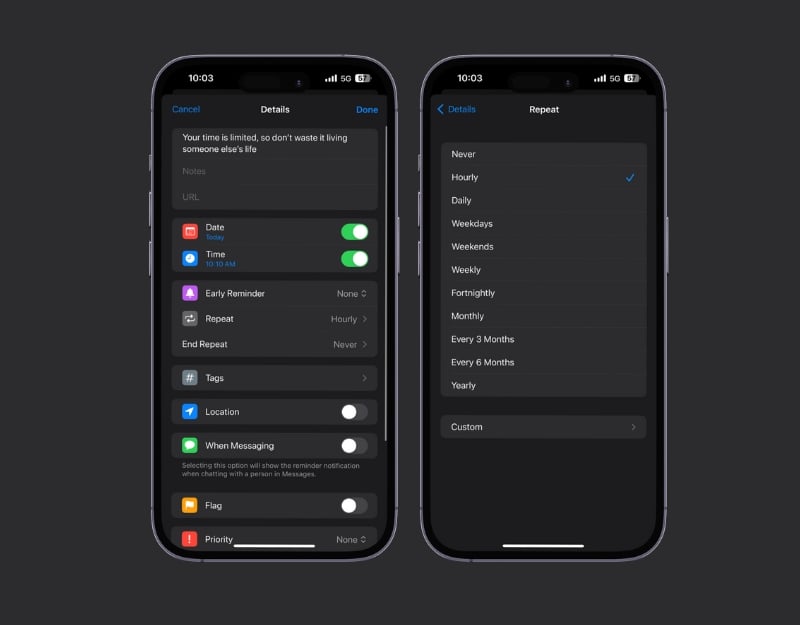
- Collect motivations that inspire you.
- Open the reminder app on your iPhone add the motivations as a reminder and set the time when you want to be reminded.
- If you want to repeat the reminder, You can set it to repeat it Daily, Hourly, and more. You can add unlimited reminders. You can find the best motivational reminders from sites like Brainquotes, USA Today, and more. You can also install motivational reminder apps add quotes to your reminder app and get notifications on your Apple Watch.
Calendar Reminders

To-do list reminders can help you remember specific things, but Calendar reminders can be broader and help you remember essential and upcoming events. In the recent version of WatchOS, you can view your calendar reminders in the widget stack on your Apple Watch. Calendar reminders on the Apple Watch are automatic; they sync with your calendar and alert you about upcoming meetings, appointments, or important dates. You can also add secondary reminders and set an alert for a few minutes or hours before the event.
How to set calendar reminders on your Apple Watch

- Open the Calendar app on your iPhone and click on the plus icon to add a new event.
- In the event click on the alert and select the time you want to be reminded. Thats it. You will get a notification on your Apple Watch at the exact time you have set it.
- Most calendar events or automatic and you will get a notification on your Apple Watch about the event.
Location-Based Reminders

Location-based reminders help you to receive alerts based on your location. For example, your Apple Watch can remind you to buy groceries when you pass the supermarket or to drop off a package near the post office. This is particularly practical for tasks that are tied to a specific location. The watch uses GPS to send reminders. You can set location-based reminders in the Reminders app on your iPhone and then receive alerts on your Apple Watch.
How to set Location reminders on Apple Watch

- Open the Reminders app on your iPhone or Apple Watch
- Go to the list view screen once in the app Tap on the New reminder button and add a reminder.
- Next, tap on the details option and Turn on the toggle next to the location.
- Tap the custom button, then search and enter the location you want the reminder for.
- Tap on the back button at the top left corner of the screen and tap on the add at the top right corner of the screen.
Effective use of Apple Watch for daily reminders
These are the reminders you can set on your Apple Watch. With these reminders, you can easily remind yourself to drink water, take breaks for your eyes and get up if you’ve been sitting for too long. These reminders can also help you remember to take your medication, relax a little, work efficiently, take breaks, keep track of your daily tasks and more. Make sure notifications are enabled on your Apple Watch. If you’re having trouble setting up these reminders, comment below and we’ll be happy to help.
FAQs about Apple Watch Reminders
1. Can I set reminders on my Apple Watch without my iPhone?
Yes, you can set reminders directly on your Apple Watch. Open the ‘Reminders’ app on your watch, tap ‘Add new reminder’ and enter the details. This is handy if your iPhone is not nearby.
2. How do I manage or delete reminders on my Apple Watch?
To manage or delete reminders, open the Reminders app on your watch. Swipe left on a reminder to delete it or tap it to edit the details. It’s a simple process to organize your tasks.
3. Are there any special reminders that the Apple Watch tracks automatically?
Yes, the Apple Watch automatically records reminders to get up. It prompts you to get up if you have been sitting for too long. This feature helps keep you physically active throughout the day.
4. Can I set location-based reminders on the Apple Watch?
Yes, you can use the Reminders app on your iPhone to set location-based reminders that are synchronized with your Apple Watch. These reminders will alert you to tasks when you reach a certain location, such as getting milk when you’re near a grocery store.
5. How do I ensure I don’t miss any reminders on my Apple Watch?
To make sure you don’t miss any reminders, check whether the notifications on your Apple Watch are activated. You can do this in the Watch app on your iPhone. How to turn on notifications on your Apple Watch. Open the Watch app on your iPhone>Tap on the My Watch tab>Select Notifications> Choose an app and select Custom then Notifications Turned On.

