

Quick Answer
You can enjoy the seven new Galaxy Watch8 watch faces (like Sporty Classic, Heritage Classic, and Dynamic Digits) on older Galaxy Watch models (Watch4 and above) without waiting for One UI 8 Watch. Just install the Watch8 face APKs via the Geminiman Wear OS app using wireless debugging, and apply them directly on your watch.
Samsung has recently launched the new generation of smartwatches, the Galaxy Watch8 series. The series includes the Galaxy Watch8, Galaxy Watch8 Classic. There is a 2025 version of the Galaxy Watch Ultra that doesn’t introduce many new features compared to last year’s model. The Galaxy Watch8 Classic brings back the iconic rotating bezel. Both Galaxy Watch8 and Watch8 Classic get a new squircle design, the same as last year’s Galaxy Watch Ultra 2024.

The entire lineup comes with One UI 8 Watch, which is feature-loaded and also gets new watch faces. There are a total of seven new watch faces that the One UI 8 Watch introduces. The best part is that you can get those new Galaxy Watch8 series watch faces on your older Galaxy watches in just a few steps. In this guide, we will walk you through the steps so that you can enjoy the new watch faces on your old Galaxy Watch without needing the One UI 8 Watch update.
New One UI 8 watch faces
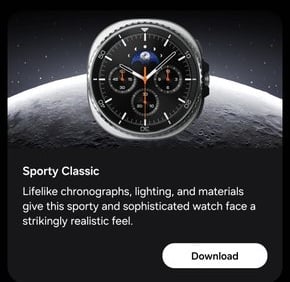
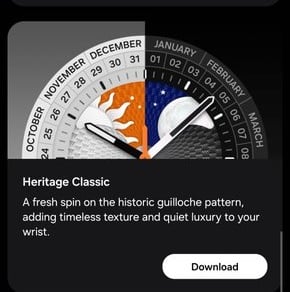
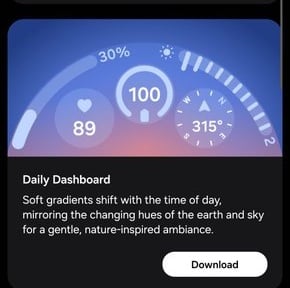
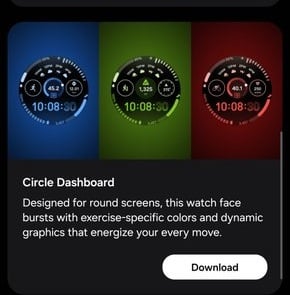
The new Galaxy Watch8 series gets plenty of new watch faces, seven in total. Here is the name of each watch face:
- Sporty Classic
- Heritage Classic
- Daily Dashboard
- Circle Dashboard
- Minimal Analog
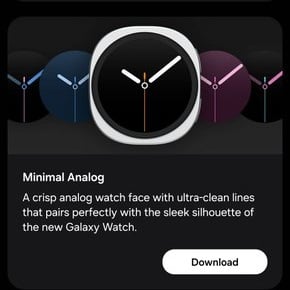
- Minimal Digital

- Dynamic Digits

Pre-requisites
Getting the new watch faces isn’t as easy as changing them through the Galaxy Wearable app. You have to have a few things firsthand before you can enjoy the new watch faces. Here’s what you will need:
How to get One UI 8 Watch faces on older Galaxy watches
Here are the steps that you need to follow to get the One UI 8 Watch faces on your older Galaxy watches. Do note that you can get these watch faces on any Samsung Galaxy Watch running Wear OS. This means that this will work on Galaxy Watch4 and above. Here’s what you need to do:
- Open the Settings menu on your Galaxy Watch.
- Navigate down and select About Watch.
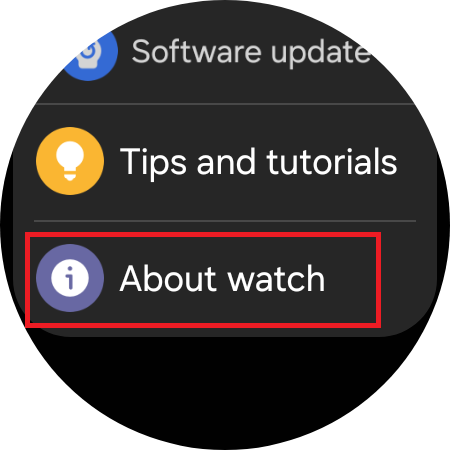
- Scroll down and tap on Software information.
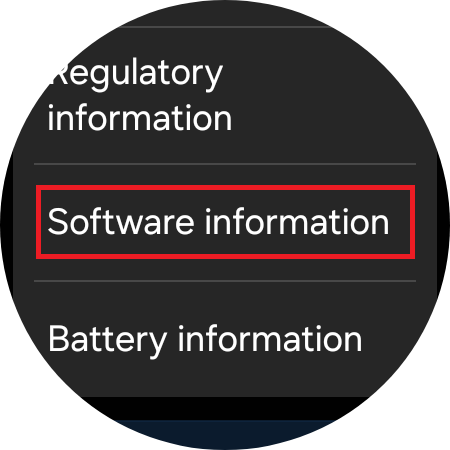
- Tap on Software version multiple times to turn on Developer options on your Galaxy Watch.
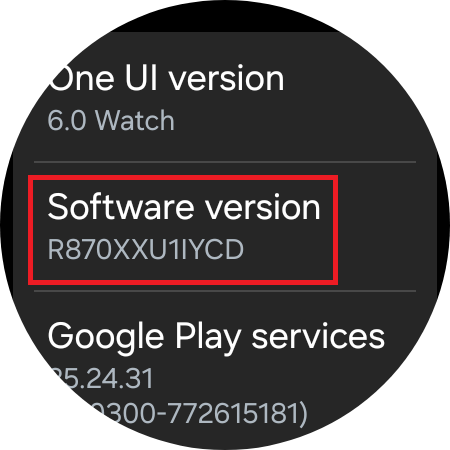
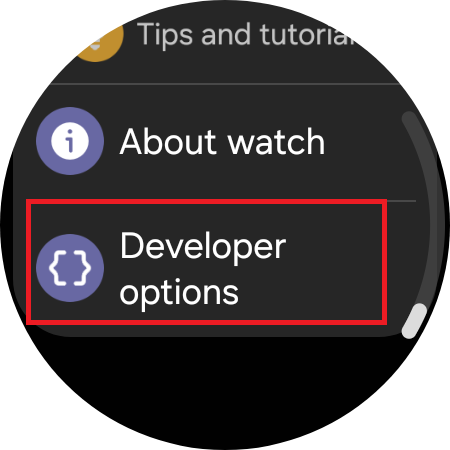
- Go back to the Settings page, and you will see a new Developer options available right at the bottom of the list of options.
- Make sure that your Galaxy Watch is connected to your phone via Bluetooth and is connected to a Wi-Fi network.
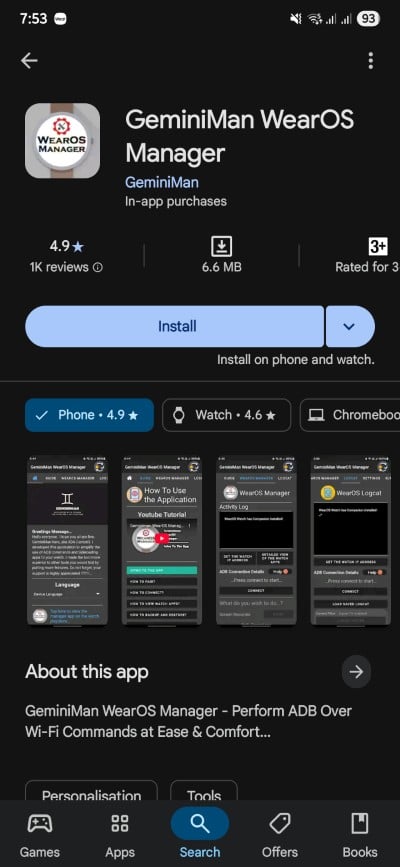
- Take your Galaxy phone, and head over to the Play Store and download the Geminiman Wear OS App.
- On your Galaxy Watch, head over to the Settings menu and open the Developer options.
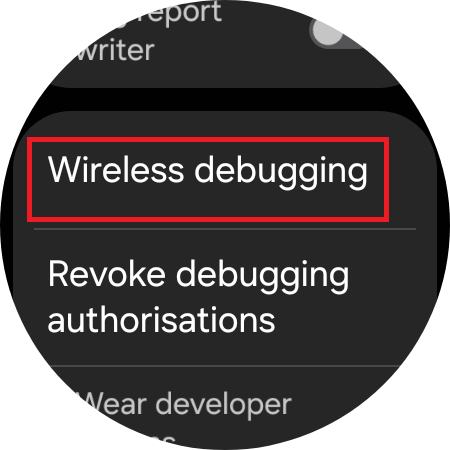
- Scroll down and select Wireless debugging and toggle it on.
- In the prompt message that appears, check the box for Always allow on this network and tap Allow.

- Inside the Wireless debugging menu, scroll down and tap on Pair new device. You will see a Wi-Fi pairing code and an IP address & Port.
- Open the Geminiman app on your smartphone.
- Switch to the WEAROS MANAGER tab. You will be shown three warning messages, on which you need to either press Do not show again or OK.

- Press Connect.
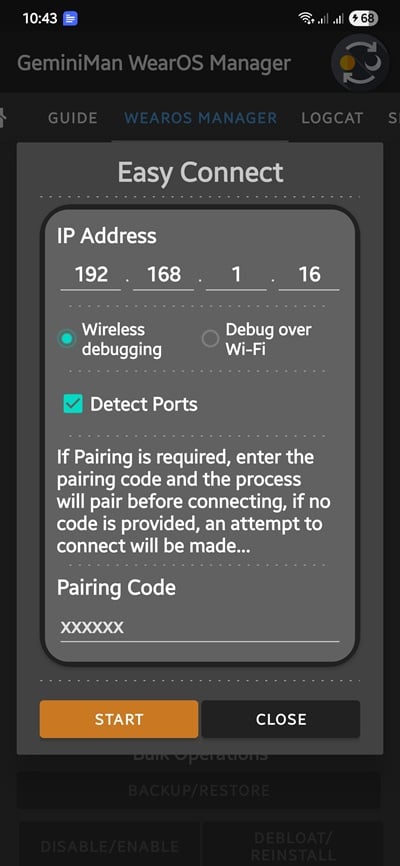
- Now, you need to enter the Wi-Fi Pairing code and IP address & Port displayed on your Galaxy Watch (step 11), into the Easy Connect menu of the Geminiman app on your smartphone.
- In the Confirmation pop-up, tap OK.
- Scroll down, and under Applications, tap on Install APK File. Make sure to download the Galaxy Watch8 face APK files from the above link.
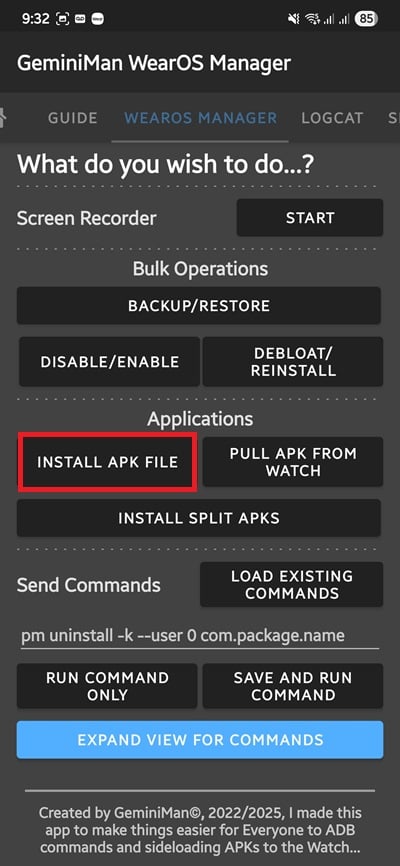
- Head over to the location of the watch face APK on your smartphone, select it, and tap Done.
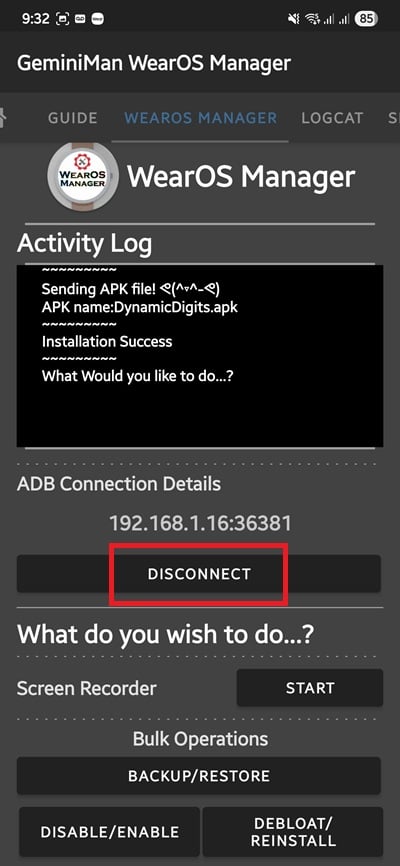
- The watch face will start installing on your Galaxy Watch. It may take some time. Please wait for the process to complete.
- After the installation is successful, disconnect the watch from the Geminiman app.
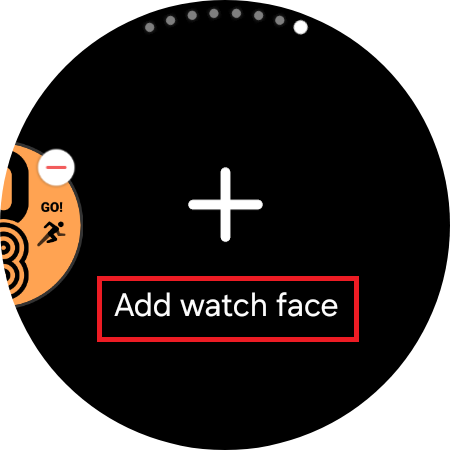
- On your Galaxy Watch’s home screen, tap and hold until you see the option to change the watch face.
- Go to the far right and select Add Watch Face.
- Scroll down to the bottom and select the downloaded watch face, apply it, and enjoy.
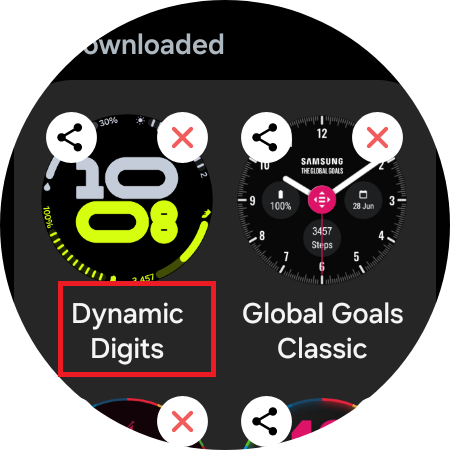
You can perform the same steps for other watch faces, or you can install all the watch faces at once and then enjoy them on your Galaxy Watch.
Old watch, new watch face
It should be noted that the Samsung Galaxy Watch4, the first Wear OS watch from Samsung, after the company departed from using Tizen OS, was all set to retire (stop receiving software updates) in August. However, to its users’ surprise, Samsung confirmed that the One UI 8 Watch will be pushed for the Galaxy Watch4, making its 4th major software update. So, while your older Galaxy smartwatches will receive the new One UI 8 Watch update along with all of its features, including watch faces, you can install them and enjoy them until the official updates reach your smartwatch.
Let us know in the comments below if you had any confusion following the above steps, or if you were not able to get the new watch faces on your watch.

