

Watching videos on YouTube is most people’s favorite pastime. You can watch them on your laptop, mobile phone, tablet, TV and almost anything with a screen. Some so-called smartwatches from China do offer you the ability to play YouTube videos, but on premium and current smartwatches such as the Samsung Galaxy Watch 4, Watch 5, or Galaxy Watch 6 series, YouTube video playback is not advertised, nor Google or Samsung preload the YouTube app on these smartwatches.

But we at TechPP have found a few ways you can download and install YouTube on a Samsung Galaxy Watch to play videos directly from your wrist. In this guide, we’ll give you all the details you need to play YouTube videos on your Samsung Galaxy Watch. So, let’s get started right away.
Table of Contents
What are the prerequisites to play YouTube videos on a Samsung Galaxy Watch?
Before you start taking steps to install the YouTube app on your Samsung Galaxy Watch, you should take a look at the prerequisites.
- This will work on the Samsung Galaxy Watch 4, Galaxy Watch 5, and the Galaxy Watch 6 running Wear OS.
- Older Samsung Galaxy Watches with Tizen OS can also play YouTube videos, which we covered at the very end.
- Your phone and watch should be connected to each other and connected to the internet.
- Make sure you have signed in with a Google account on your Galaxy Watch and your smartphone.
Now that we’ve covered these requirements let’s move on to the steps you need to follow to watch YouTube on a Samsung Galaxy Watch.
How to watch YouTube on a Samsung Galaxy Watch?
There are three ways to watch YouTube videos on a Samsung Galaxy Watch. We’ll go through each method one by one, and in the end, we’ll be able to enjoy YouTube videos directly on our Galaxy Watch.
Use the Samsung Internet browser
With Samsung’s proprietary mobile browser, the Samsung Internet Browser, you can watch YouTube videos on your Samsung Galaxy Watch. However, as the Samsung Internet Browser isn’t pre-installed on the Galaxy Watch, you’ll need to download it from the Google Play Store. To do this, follow the steps below:
- Open the Google Play Store on your Galaxy Watch.

- Search for Samsung Internet and tap Install.
- Alternatively, you can launch the Galaxy Wearable app on your smartphone and click on Store.

- Search for Samsung Internet and hit the Install button to get it on your Galaxy Watch.
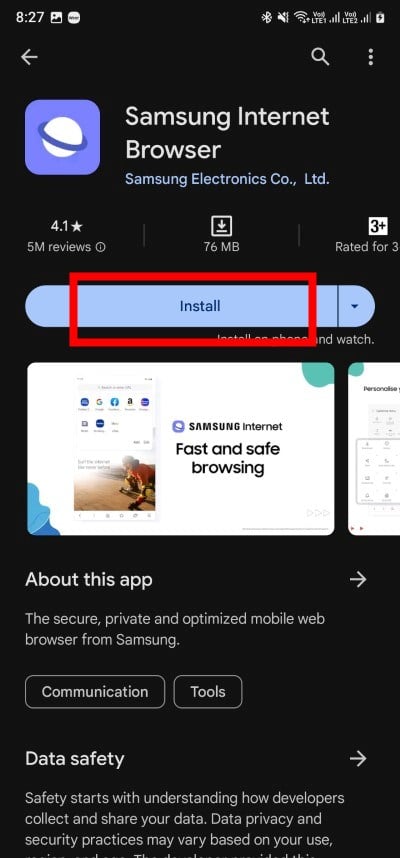
- After installing the app, open the Samsung Internet browser on your watch.
- The first button or bookmark that you will see inside the Samsung Internet browser would be YouTube. Tap on it.

- That’s it! You can search for any YouTube video, just like you do on your smartphone or desktop, and enjoy your content.

One problem that you will face watching YouTube videos on your watch is that the circular display crops out the search, sign-in, and other buttons on either edge of the page. To fix this, swipe up from the bottom and toggle on the Zoom mode. Once this is enabled, you can use the bezel to zoom in and out of the page.
If you don’t have headphones connected to your watch, the sound will come through your watch’s speakers, which is perfectly adequate.
Related Read: How to Automate YouTube Shorts with AI Tools
Sideload the YouTube APK to your Galaxy Watch
You can always rely on third-party tools to get the apps that are missing on your Galaxy Watch. Follow the steps below to sideload the YouTube app to your Galaxy Watch.
- Download the YouTube APK from the APK Mirror website.
- Install the GeminiMan WearOS Manager app from the Google Play Store on your smartphone and your Galaxy Watch. Ensure that both devices are connected to the same Wi-Fi network for the installation to take place on both simultaneously.

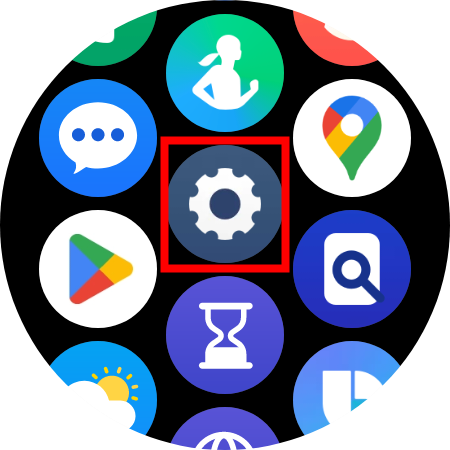
- On your Galaxy Watch, open the app drawer and tap on Settings.
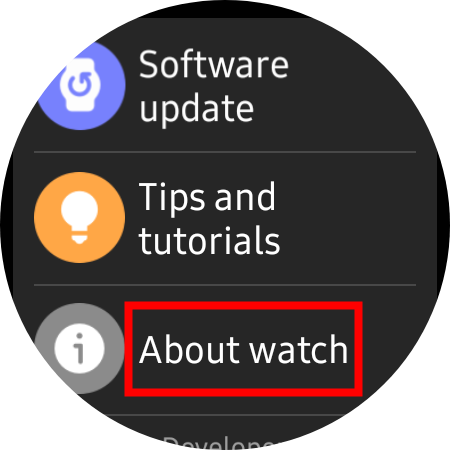
- Scroll down and select About Watch.
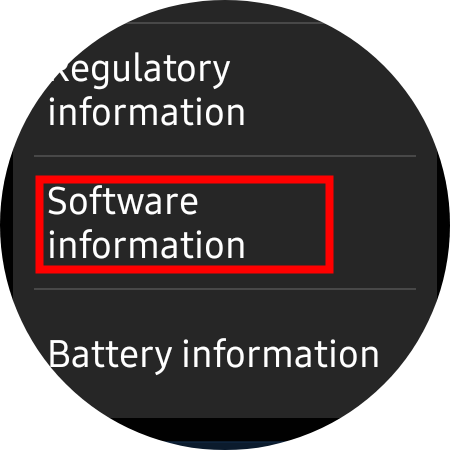
- Tap on Software Information, and then tap on Software version seven times till you see the Developer mode turned on prompt.
- Go back to the Settings screen, scroll down, and tap on Developer Options.
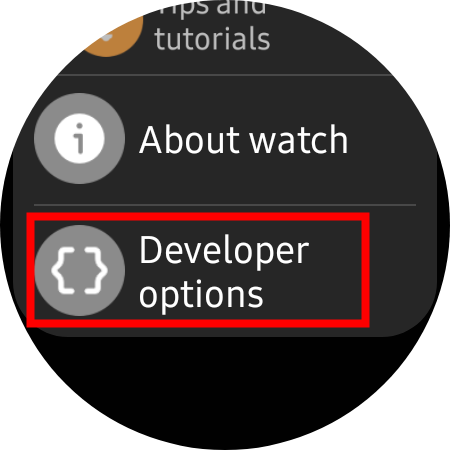
- Enable ADB Debugging toggle.

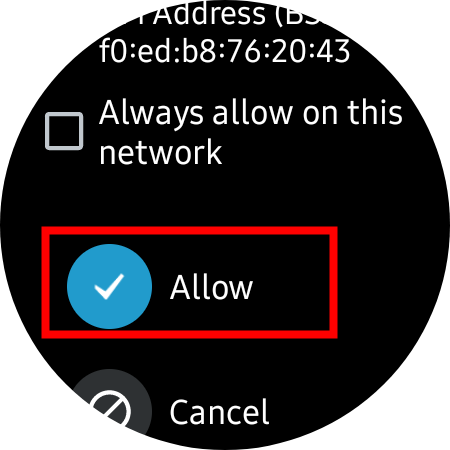
- Confirm the ADB Debugging toggle. Scroll down and tap on Wireless Debugging. Turn on the Wireless Debugging toggle and tap Allow in the prompt that appears.
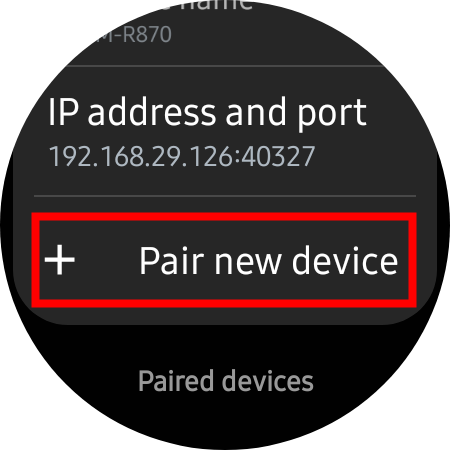
- You will see a prompt to Pair a new device. Tap on it and note down the IP address and port, and the Wi-Fi pairing code.
- Launch the GeminiMan WearOS app on your phone and switch over to the WearOS Manager tab.

- Choose Connect, enter the IP Port and Pairing Code that you noted down in step 10 in your phone, and tap PAIR THE DEVICE.
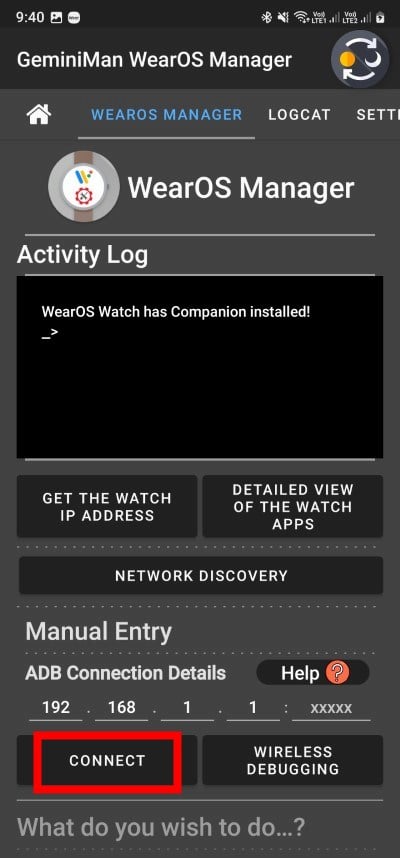

- Check the ADB Connection details box has the same IP address as your Galaxy Watch for a successful connection.
- Fill in the port number if it is empty, tap Connect, and then Proceed to confirm.
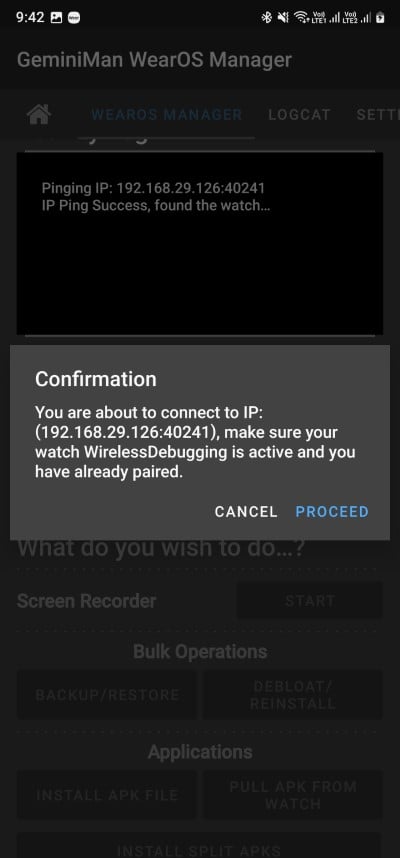
- After the watch is connected, tap on Install APK File and select the YouTube APK file.

- Wait for the installation to complete.
- Open the app drawer on your Galaxy Watch, tap on the YouTube app, and enjoy videos.
With this method, you have to follow each step exactly because if you skip one of them, you won’t be able to watch YouTube on your Galaxy Watch. The benefit of this method is that you will automatically be logged in with your Google account if you are logged in with this account on your Galaxy Watch. You also get the option to cast videos to your supported devices, such as Android TV.
If you have a YouTube Premium subscription, you can also use the background playback feature. This used to be possible with the help of Easy Fire Tools, but with the One UI 5 update, Samsung has discontinued support for this app.
Another app that you can sideload and watch YouTube on a Galaxy Watch is NewPipe. It gives you access to some extra features such as gesture controls, the ability to change the pitch and tempo of the video, and best of all, you don’t have to deal with ads. You can follow the same process as explained above and install the NewPipe app on your watch to view YouTube videos.
How to watch YouTube videos on older Galaxy Watches
Not only newer Galaxy watches, but older Samsung Galaxy watches can also give you the same features as playing YouTube videos. You can either use the Samsung Internet browser method as shown above; the best thing is that the Samsung Internet browser comes preinstalled with older Galaxy watches.
On the other hand, you can download apps such as TubePlayer and PlayTube from the Galaxy Store. Do note that these apps are occasionally removed from the store, so try searching for different alternatives.
Related Read: 4 Best Ways to Download YouTube Videos on Android
Watch YouTube from your wrist!
With the methods mentioned above, you can watch YouTube videos directly from your wrist. This may not be the most convenient way to watch YouTube videos, but it can come in handy if you want to watch something for reference and don’t have your smartphone with you. Note, however, that watching YouTube videos on your Galaxy Watch will drain your battery.
FAQs about watching YouTube videos on a Samsung Galaxy Watch
1. Do I need earphones to listen to audio from YouTube videos on my Galaxy Watch?
With other methods, with the exception of the NewPipe app, you do not need headphones to play YouTube videos on your Galaxy Watch. With other methods, you can use the watch’s speakers to hear the sound of the YouTube app. With NewPipe, you need to connect headphones to your Galaxy Watch to hear the audio.
2. Do I need to use my Google account to use the YouTube app on my Galaxy Watch?
If you want to watch your favorite content that you have saved in your Google Account, you can sign in with your Google Account. However, if you’re comfortable with searching and watching, you don’t need a Google Account to watch YouTube content on your Galaxy Watch.
3. How can I listen to music using the YouTube Music app?
For Wear OS devices, there is a dedicated YouTube Music app that allows you to stream music from YouTube on your wrist. The app was released a few years ago and works on devices with Wear OS 3 and higher.

