

Voice assistants are a great addition to the smartphone. They make it easy to perform tasks hands-free with simple voice commands. They can speed up tasks like sending messages, setting reminders or searching the internet without you having to use your phone. You can also control smart home devices such as lights, thermostats or security systems with your voice and quickly answer your questions with simple voice commands.

You can also use Siri with your AirPods. With Siri on your AirPods, you can quickly increase the volume, ask Siri to call someone, play, pause or skip songs with voice commands. In this guide, you’ll learn 10 Siri commands that you can use with the Aipods. When you’re ready, let’s get started. Before that, you’ll learn how to enable Siri on iPhone and how to activate Siri on your Airpods.
Table of Contents
How To Enable Siri on Your iPhone
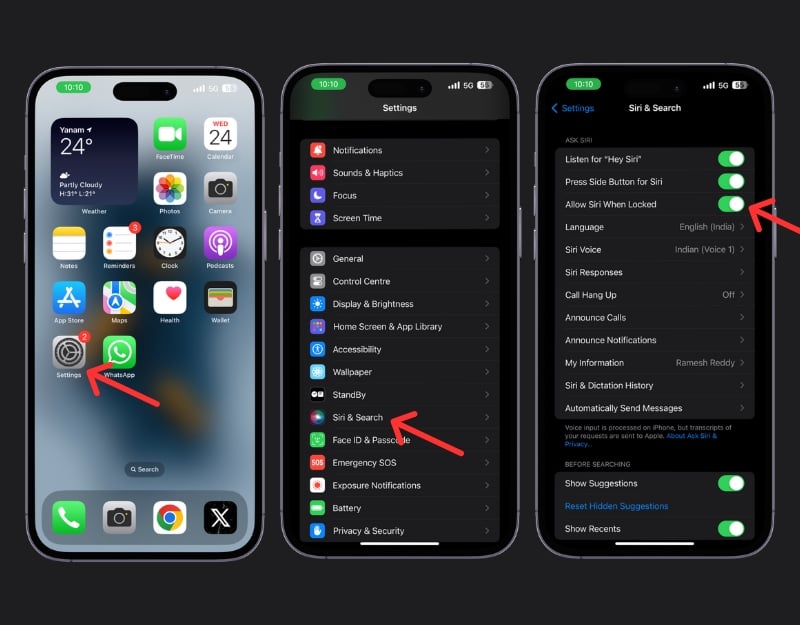
- Open Settings on your iPhone
- Scroll down and look for Siri & Search. Tap on it.
- Turn on Listen for ‘Hey Siri and Press the Side Button for Siri.
- You might need to set up your voice if you choose to Listen for ‘Hey Siri. Follow the on-screen instructions to teach Siri your voice and turn on the option Allow Siri When Locked option. If you want to use Siri without unlocking your phone,
How to Activate Siri on AirPods
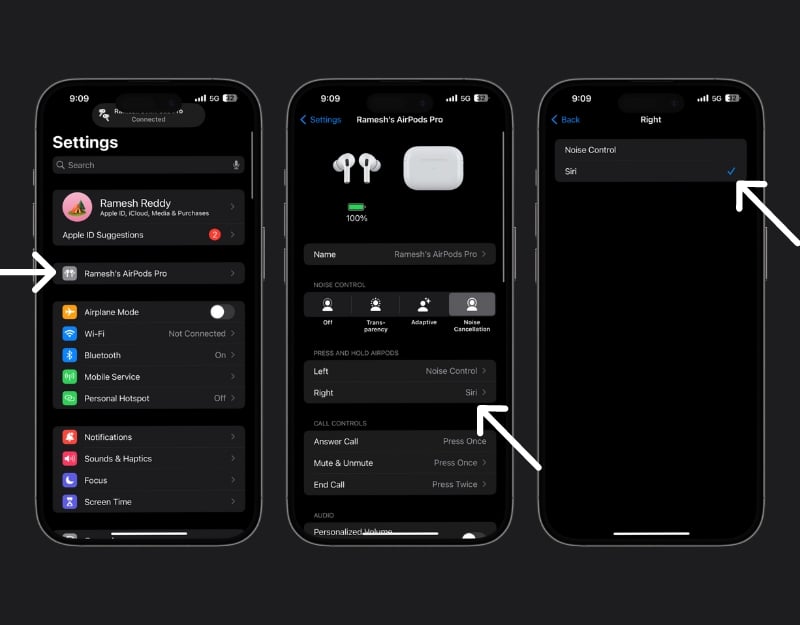
- Connect Airpods to your iPhone.
- Go to Settings and click on the AirPods.
- Under the press and Hold section, choose the left or right Airpod to activate Siri. Tap on the select Siri.
- Press and hold the button to activate Siri.

10 Siri Commands That Can Be Used With AirPods
- Hey Siri, pause: This command pauses the music or podcasts on your AirPods. It’s useful when you’re busy and can’t use your hands. You don’t need an iPhone for this.
- Hey Siri, turn up the volume: You can use this command to increase the volume of your AirPods. This is ideal for quick adjustments and also works without an iPhone.
- Hey Siri, skip this song: Use this command to skip to the next song on your AirPods. Perfect if you want to easily skip a song without needing your iPhone.
- Hey Siri, call [contact name]: Start a call to a person in your contacts. This function is handy for making hands-free calls, but requires your iPhone.
- Hey Siri, send a message to [contact name]: Send a text message using your voice. This command is handy for texting without picking up your phone.
- Hey Siri, how’s the battery on my AirPods?: Quickly find out how much battery is left in your AirPods.
- Set Reminders: Stay organized with reminders. You can set reminders by asking Siri to set a reminder for a specific time.
- Answering Calls: Use this command to reject or accept calls.
- Ask for Directions: Ask for directions with your voice.
- Control Smart Home Devices: Use Siri to control your home appliances, but you’ll need an iPhone connected to your home network.
- Check the Weather: Get the latest weather information. For this command you need an iPhone to get the information.
Hey Siri, pause.

The command ‘Hey Siri, pause‘ helps to pause the music hands-free. This simple voice command pauses your music, podcast or audiobook immediately. This is handy if you’re jogging or cooking and your hands are busy with something. This command immediately pauses the current playback on your iPhone.
Hey Siri, turn up the volume

With ‘Hey Siri, turn up the volume‘ you can increase the volume of your AirPods Pro. You can also set the volume to a specific number by saying “Hey Siri” and setting the volume to 50% and so on. Similarly, you can lower the volume by telling Hey Siri to lower the volume and more.
Hey, Siri, skip this song.

With “Hey, Siri, skip this song” command, you can skip the current song and hide the music you don’t like. You can simply say the command and Siri will skip the song title. You can also use the command Hey Siri, play the previous song to play the last song on your AirPods.
Hey, Siri, call Trump.
![Hey Siri, call [contact name]](https://techpp.com/wp-content/uploads/2024/01/Hey-Siri-call-contact-name.jpg)
‘Hey Siri, call [contact name]’ command lets you call the specific contact on your iPhone hands-free. Make sure you specify the contact name to help Siri find the contact name.
Hey Siri, send a message to [contact name].
![Hey Siri, send a message to [contact name].](https://techpp.com/wp-content/uploads/2024/01/Hey-Siri-send-a-message-to-contact-name.jpg)
Similarly, you can also send a text message with the command Hey Siri, send a message to [contact name]. You can specify the message you want to send and the contact you want Siri to send the message to.
Hey Siri, how’s the battery on my AirPods?

You can use the ‘Hey Siri, how’s the battery on my AirPods?’ to instantly know the battery is on your AirPods Pro. It is simple and easy. You can activate Siri on your Aiprods and ask about the battery life. Siri responds current battery life number on your AirPods Pro. You can also ask Siri to find the battery life of your AirPods case, but it is a hit-and-miss. It worked for me for the first time and showed an error after. You can simply command, ‘Hey Siri, how’s the battery on my AirPods Case?’ to get the battery life percentage.
Set Reminders
You can use the ‘Hey Siri, remind me to [task] at [time/date]’ command to set reminders on the go. The reminders are automatically added to your apps on your iPhone or another Apple device that your Aipords are connected to. You can edit or manage the reminders in your reminder apps. You can also set timers, set reminders to take medication and use other reminders to organize your day.
Answering Calls

If you receive a call when your iPhone is not immediately available, you can say, ‘Hey Siri, answer the call’ or ‘Hey Siri, decline the call’ on your AirPods to decline or answer the call.
Ask for Directions
You can ask Siri to guide you if you’re stuck on the road. You can ask Siri for directions by saying, ‘Hey Siri, give me directions to [location].‘ This is useful for hands-free navigation.
Control Smart Home Devices

One of the best applications of the voice assistant is controlling your household appliances. With Aiprods, you can control your appliances at home with ‘Hey Siri, turn off the lights‘ or any other smart device command. If your home appliances are powered by Matter, you can control them with Siri, even if they are from different brands or use different ecosystems.
Check the Weather

You can ask Siri to get instant weather reports. Just ask, ‘Hey Siri, what’s the weather like?‘ to stay up to date on weather conditions. Siri will respond with the current weather at your location or the location you’ve set in your iPhone weather app. You can also ask Siri to tell you the weather conditions for a specific city or state. You can simply ask ‘Hey Siri, what’s the weather in Texas‘.
Siri Commands You Can’t-Miss
These are the Siri commands you can use with Apple AirPods. You can also create custom Siri shortcuts and use them on your AirPods. To do this, open the Shortcuts app on your iPhone. Tap the ‘+’ icon. Here, you can set the custom shortcuts. Once you have selected your actions, you can give your shortcut a name. To use the shortcut, you can activate Siri: Say ” Hey Siri” followed by the name of your shortcut.
FAQs about Siri Commands for AirPods
1. Do I need an iPhone to use Siri commands with my AirPods?
Not all Siri commands require an iPhone. Commands like ‘Hey Siri’, pause, ‘Hey Siri, turn up the volume,’ and ‘Hey Siri, skip this song’ can be used directly with your AirPods Pro. However, for some commands such as ‘Hey Siri, call [contact name],’ ‘Hey Siri, send a message to [contact name],’ or ‘Hey Siri, give me directions to [location],’ require an iPhone.
2. How can I check the battery life of my AirPods using Siri?
Simply ask, “Hey Siri, how’s the battery on my AirPods?” This command will prompt Siri to tell you the current battery level of your AirPods. This feature is handy and doesn’t need an iPhone to function.
3. Can I set reminders using Siri on my AirPods?
Yes, you can set reminders by saying, “Hey Siri, remind me to [task] at [time/date].” These reminders are automatically added to the Reminders app on your iPhone or any Apple device your AirPods are connected to.
4. Can smart home devices be controlled using Siri on AirPods?
You can control smart home devices by saying, “Hey Siri, turn off the lights.” This is particularly useful if your devices are compatible with Apple’s HomeKit or Matter. However, this functionality requires an iPhone connected to your home network.
5. Can Siri provide weather updates through AirPods?
You can ask Siri, “What’s the weather like?” to get weather updates for your current location or a specified place. This command requires an iPhone, which uses weather information from the iPhone weather app.

