

In today’s fast-paced digital world, electronic mail or email has become an essential part of our daily lives. Whether you’re sending messages for work or for personal communication, you may accidentally send an email to the wrong person or make an embarrassing typo.

It’s fast, reliable and accessible from anywhere with an internet connection, making it an indispensable tool for businesses and individuals alike. With the ability to send and receive messages instantly, email has revolutionized the way we communicate and made our lives easier and more connected than ever before.
Luckily, both Outlook and Gmail offer a helpful feature that allows you to unsend an email and avoid awkward situations. In this article, we’ll walk you through the steps to unsend email in Outlook and Gmail. Whether you’re using a web browser or an app, we’ve got you covered.
Table of Contents
How to Unsend Email in Outlook
Unsend Email in Outlook from the Web (Browser)
Enabling Undo Send:
- Open outlook.com in one of the supported browsers such as Microsoft Edge, Google Chrome, Safari, Firefox, Brave, etc.
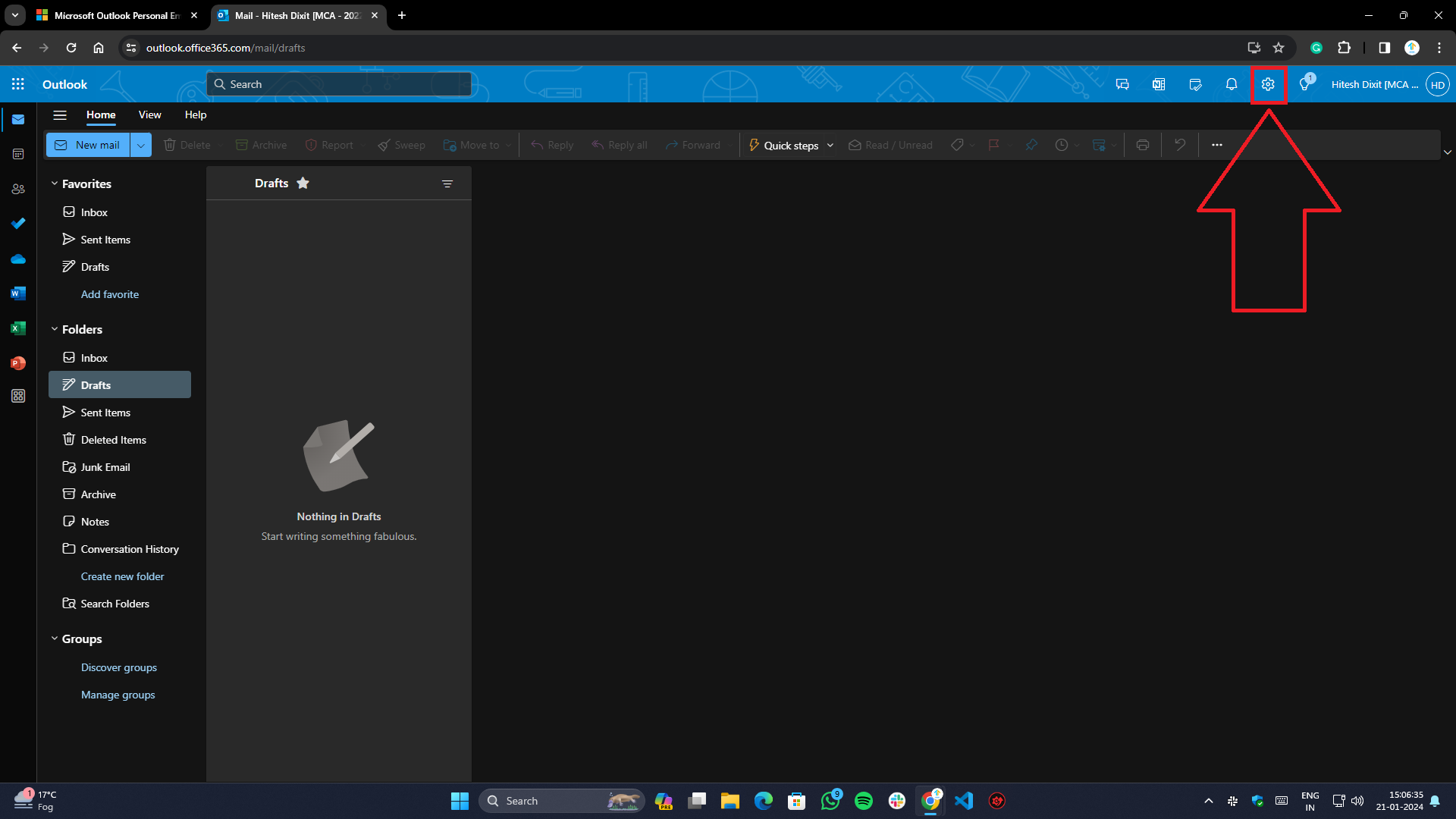
- Click on the gear (Settings) button present at the top right of the ribbon bar.

- Go to the Mail tab on the settings page and select Compose and Reply from the subtab.
- Under the Compose and Reply tab, find Undo Send and adjust the cancellation period according to your preference (max up to 10 seconds).
- Once done, click the Save button at the bottom of the page to save your changes.
Unsending Emails in Outlook:

- If you have followed the steps above, you will see an Undo button at the bottom of the screen for every email you send.
- Click Undo within the set cancellation period to retract the email successfully.
Using the Built-In App on Windows 10/11
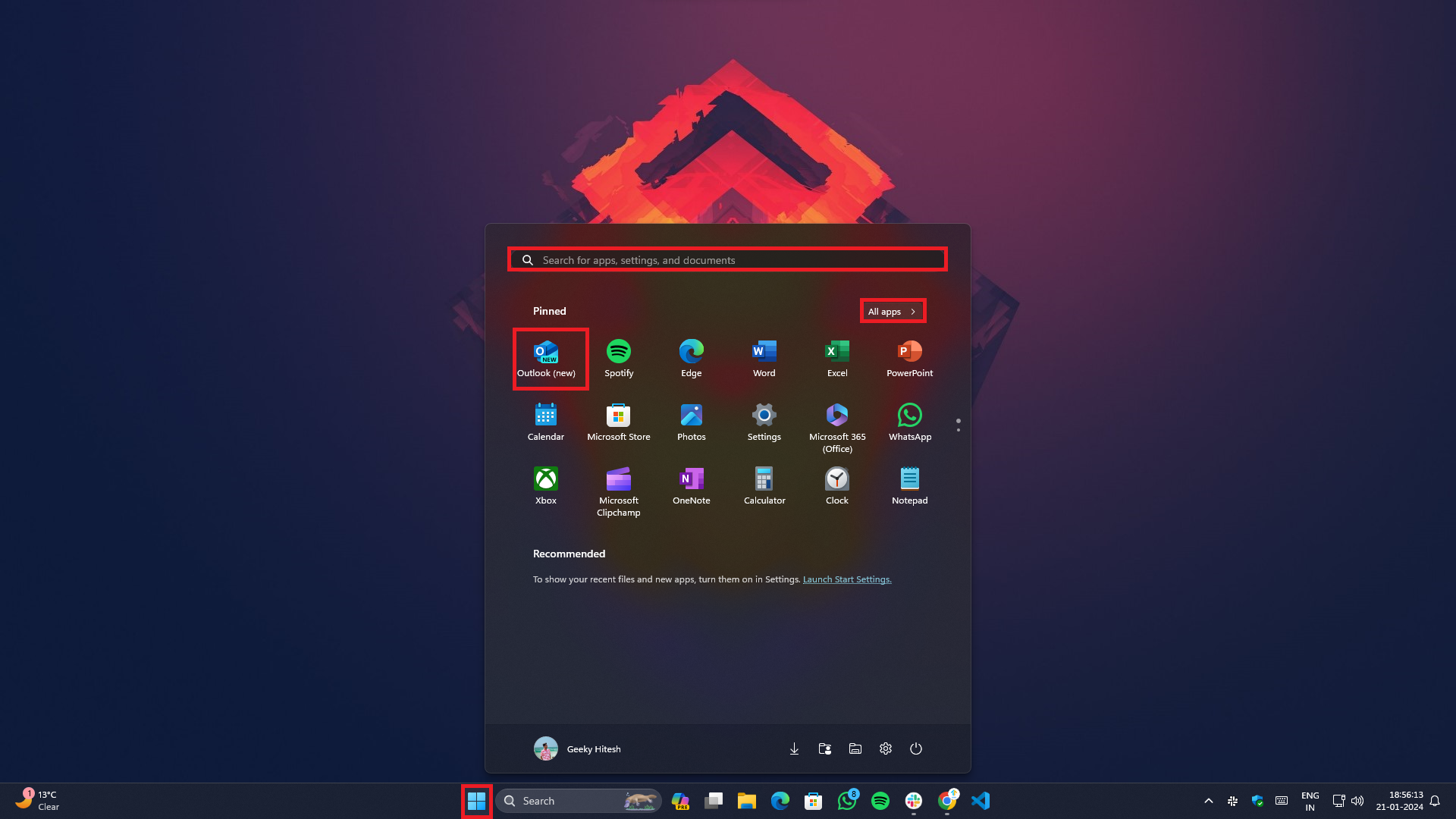
- Launch the Outlook app using the Start button on Windows 10/11, or alternatively, you can use the Search using the Win+Q keyboard combination and type Outlook into the field.
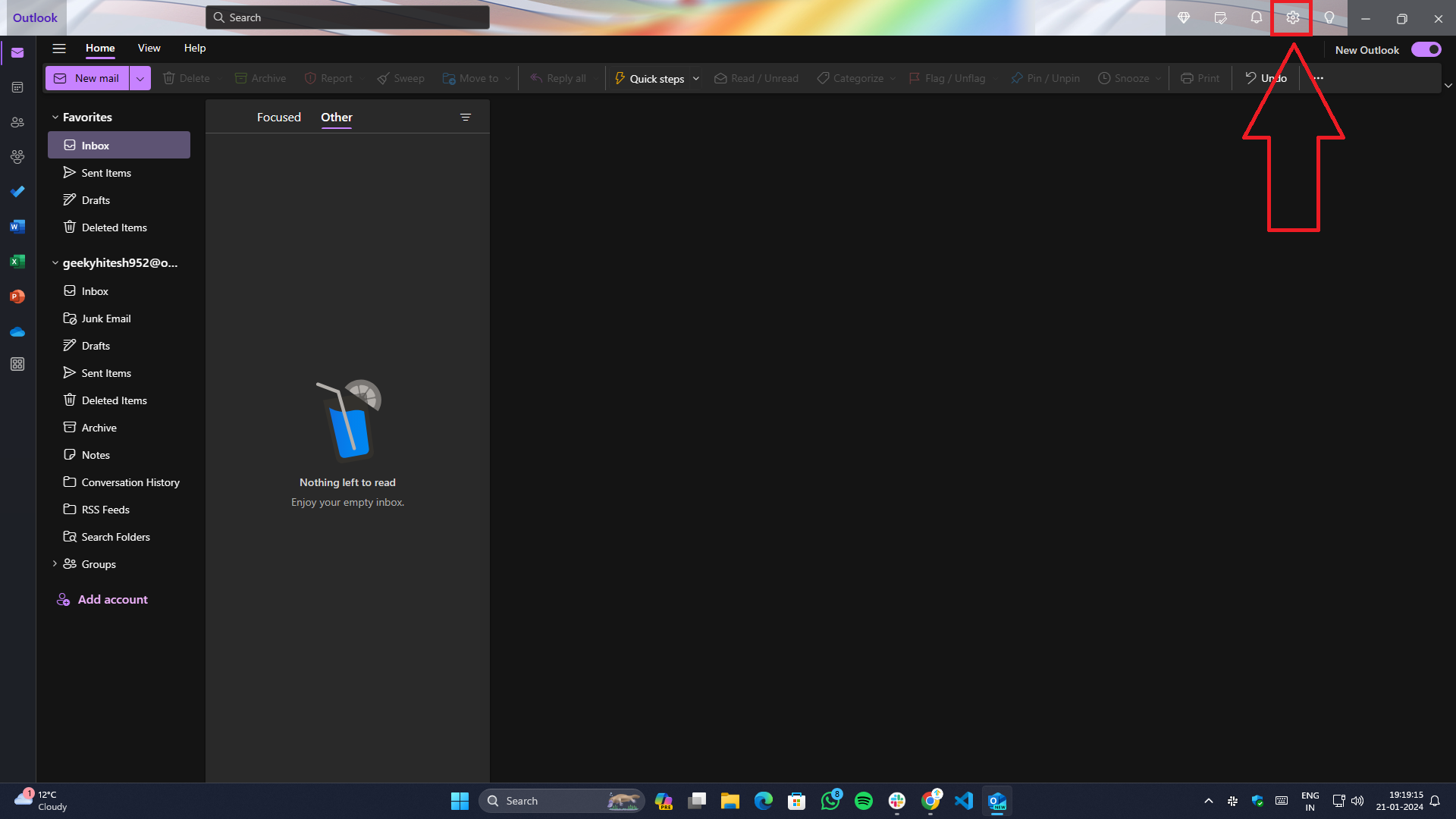
- Click on the Settings icon present in the top right corner of the screen.

- Go to Mail>Compose & Reply from the hamburger menu at the left.
- There, you will find the Undo Send section, from which you can adjust the time for sending the mail, within which you will get the ability to unsend/retract the email.
- Once you have made the changes, click on the Save button to apply them.
And voila, you’re done. Now you’ll see an undo prompt at the bottom whenever you send emails to someone.
Unsend Email in Outlook Using the Mac App
- Launch the Outlook app on Mac using the Launchpad or the Spotlight search by pressing the Command + Space shortcut key.
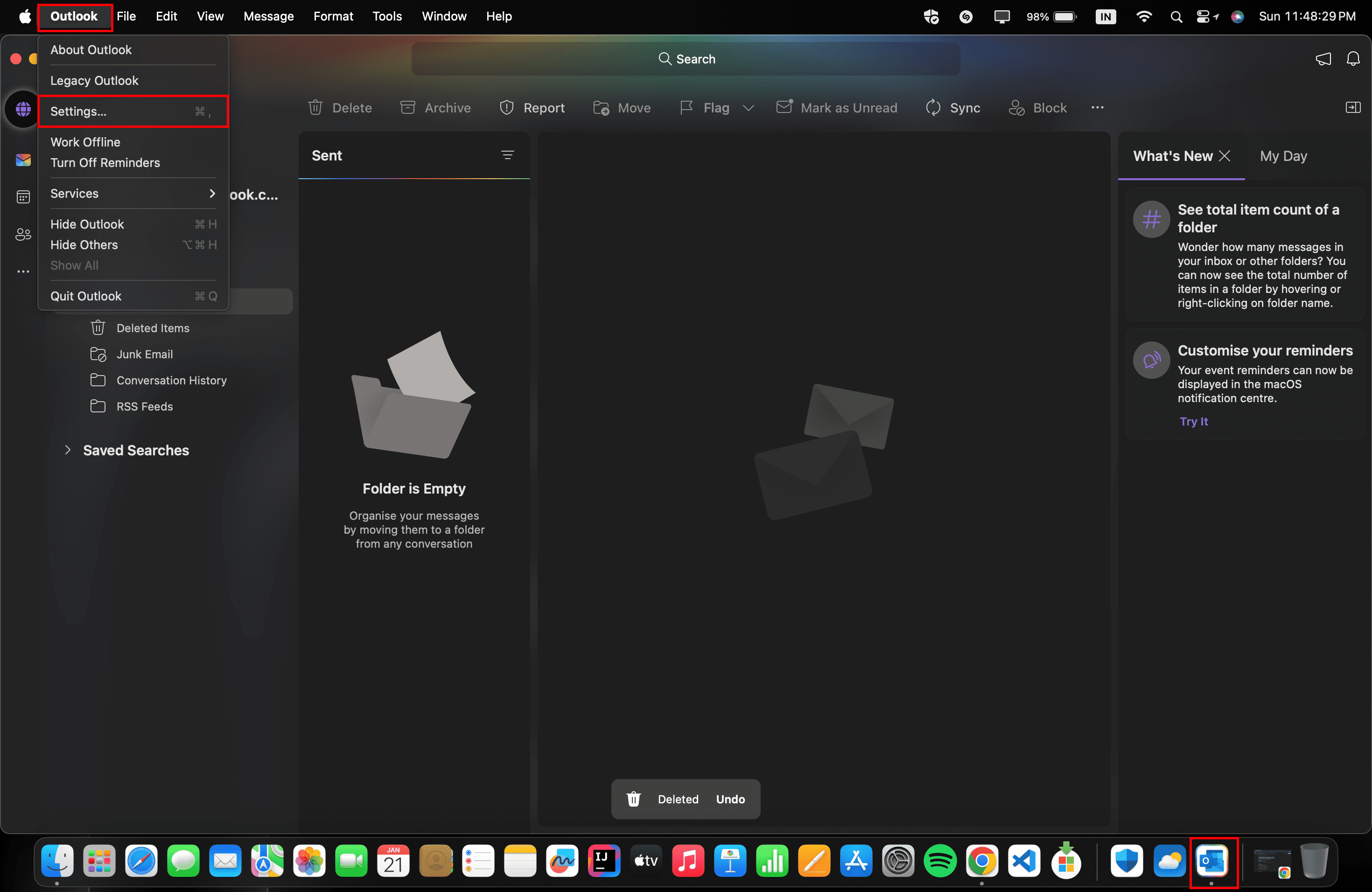
- To access settings, click on Outlook from the top menu and select Settings or use the keyboard combination ⌘+ , within the app.
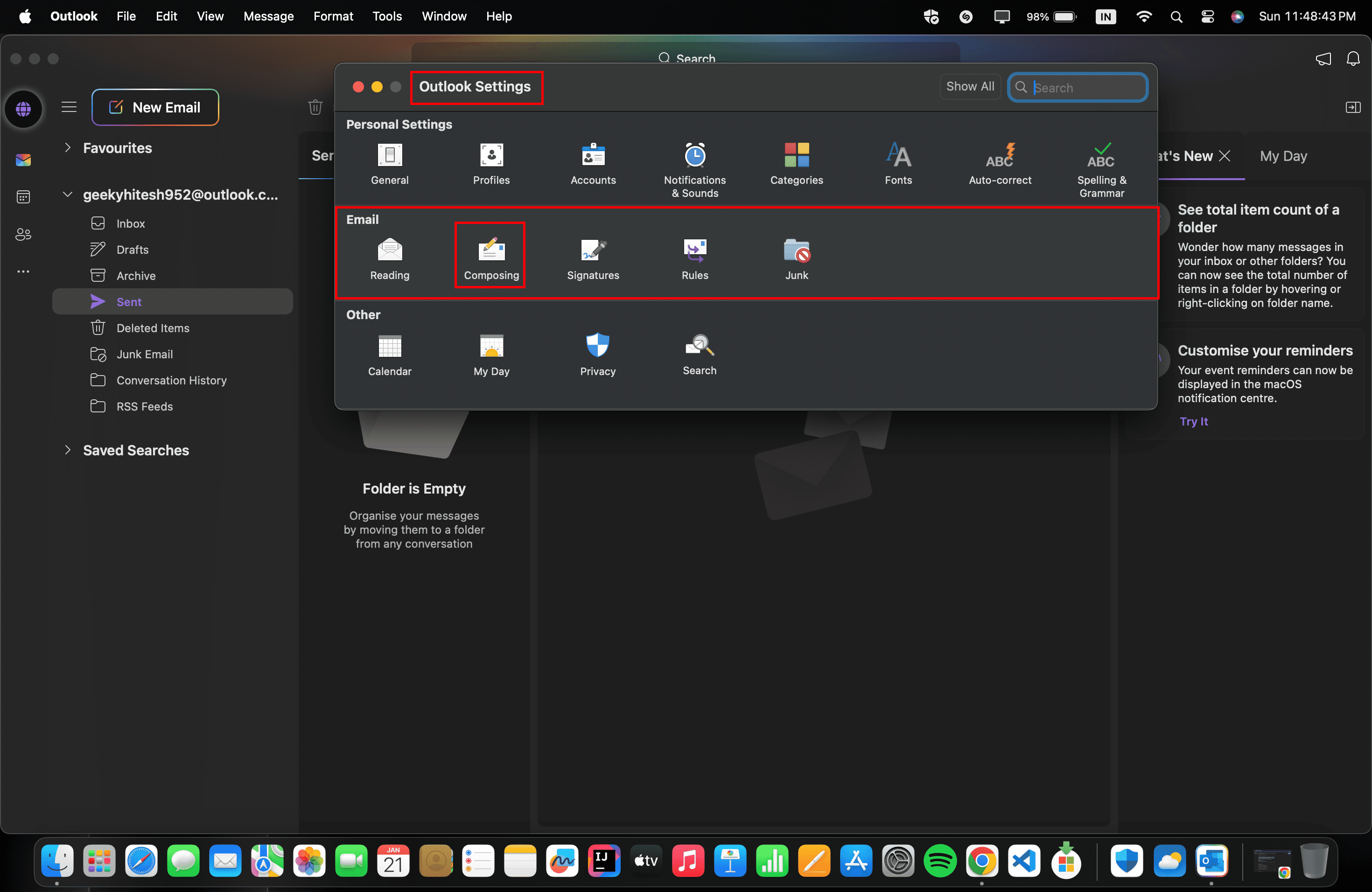
- From the settings popup, under Email, click on the Composing option.

- Under Undo Send, select the duration for “wait to send messages for” up to a maximum of 20 seconds.
- Once done, close a popup.

The next time you write an email, an undo button will appear. If you click on it, the email will be saved as a draft and not sent.
Undo Send Email on Android, iOS, and iPad OS App
- Open the Outlook app from the home screen or via the app drawer (on Android) and through App Library (on iOS/iPadOS).
- Compose your email and send it.
- After sending the email, keep an eye out for an Undo option that typically appears on the screen.
How to Unsend Email in Gmail
Unsend Email in Gmail Using the Web Browser
- Open Gmail on any of the supported browsers.

- Open the Gmail settings by clicking on the gear icon in the top right corner of the page next to the profile picture.
- Go to See all settings.

- Scroll down, navigate to Undo Send, and choose your cancellation period (max up to 30 seconds).

- Once done, click the Save Changes button at the bottom of the page.

- If you have followed the steps above, an Undo button will appear at the bottom of the screen when sending new emails.
- You can retract an email during the cancellation period by clicking the Undo button. The email will be saved in the drafts folder and will not be sent or deleted.
Through the Gmail App on Android, iOS and iPadOS
- Launch the Gmail app on your phone or tablet.
- Click on the Compose button to write a new mail.
- After sending the email, an Undo button will appear for 5 seconds.
- The email will be withdrawn and saved as a draft when you tap on it.
Note:Similar to Outlook, there are no settings on either Android or iOS to manage the duration or make your own time settings.
On Android, however, there is an additional option to request confirmation before sending an email. Here you can find out how to activate it
- Open the Gmail app.

- Click on the three horizontal lines or the hamburger icon in the top-left corner of the screen.

- To access the Settings, scroll down a bit until you see them.

- Tap on Settings>General Settings.

- Under Action confirmations, you will get the option to Confirm before sending. To enable an option, tap on the checkbox next to it.
- Each time you try to send an email, you will be prompted to confirm before continuing with the sending process.
Conclusion

To summarize, the ability to unsend an email can be a lifesaver in many situations when you’ve made a mistake or sent a message to the wrong recipient. With these simple steps, you can enable the Undo Send feature in both Outlook and Gmail and take back control of your inbox. Whether you’re using a browser or a mobile app, the process is straightforward and easy to follow. By using these features, you can ensure that your emails are error-free and avoid embarrassing situations. Don’t forget to share this article with your friends, family and colleagues so they too can become more productive with these helpful features.

