

Quick Answer
To create email groups in Gmail, go to Google Contacts, create a new label, and add contacts to it. When composing an email, type the label name in the “To” field to send the email to the entire group.
If your job involves sending emails all in and out, you might have been using the longer route to send emails. Otherwise, you may often find yourself sending emails to multiple recipients, say to your colleagues, friends, family, or even clients, all at once.

In that case, let us introduce you to groups, an efficient way to simultaneously send an email to multiple recipients. This elaborate guide outlines the best ways to create email groups in Gmail. Let’s get started!
What Are Email Groups in Gmail
If you are still scratching your head, go by the word’s literal meaning. An email group in Gmail functions similarly to an iMessage or WhatsApp group, where you can add members and converse collectively. All you need is their Gmail ID, or you can share the group joining link if you don’t have their email.
Gmail’s solution involves adding members beforehand, allowing you to email each of them together. Creating an email group is as easy as it gets, and you can even turn it into a public channel if needed, which is precisely what many apps and websites use to make you subscribe to their newsletter or promotional emails.
Create Email Groups in Gmail
With that out of the way, let’s check out how you can create email groups in Gmail. Since the procedure involves websites, we recommend using a PC or laptop for added convenience.
Create an Email Label in Google Contacts
- Visit your Gmail account from here.
- Click on the nine dots icon (𓃑) from the top-right corner beside your profile icon.
- Select Contacts from the dropdown menu. You will be redirected to the Google Contacts page, where you can view the contacts saved on your phone.

- Click on the plus icon (+) beside Labels from the left pane to create a new label and give it an appropriate name. The label should appear in the left pane now. We have named the label “Test” in our case.

- Now, you must label the required contacts to add them to your group. You can either use the search box at the top or select the checkbox that appears when you hover over a contact. Remember, if you don’t have the Gmail addresses linked to the contacts you have added to the label, you won’t be able to email them. They will, however, remain a part of the label/group.

- Once you have added the required contacts, revert to your Gmail account and compose a new email.
- Start typing the label’s name in the To section, and you will see it appear as you type. Select it. In case it doesn’t appear, refresh the page and try again.

- You can edit whom the mail will be sent to by removing members if you want. Then, proceed as you normally would by selecting CC or BCC, giving an appropriate subject, and writing the body of the email.
If you wish to add or remove members to a group, you can do so from the Google Contacts page under the respective label.
Also See: How to Sort Gmail by Size
Create an Email Group in Google Groups
Another approach to creating email groups in Gmail is through Google Groups. However, we wouldn’t recommend using this method on a personal level since it involves creating a new group email ID, which you might not prefer. This method is better suited for organizations and teams. Here is how you can do it –
- Visit Google Groups from here.
- Select Create Group from the top-left corner.
- Enter an appropriate group name. You will also need to provide a group email ID. If the email ID has already been taken, consider choosing a different one. You can also choose to provide a group description if needed. Proceed by clicking on Next.
- Now, you must set the group permissions by choosing an appropriate option from the dropdown menus. These parameters decide whether you want to keep the group private or open it for public access. You can further alter your selection using the sliders below. Click on Next to proceed.
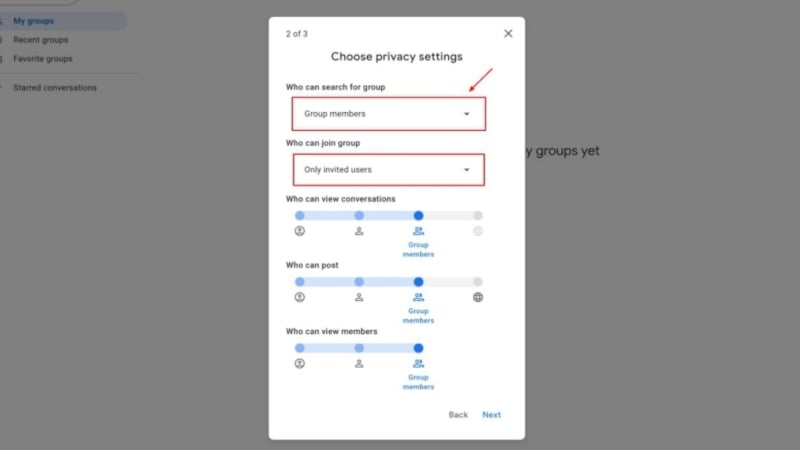
- You can add the required group members directly by typing their email IDs. You can also include an invitation message within there.

- Alternatively, if you wish to send them an invitation link instead, select the toggle beside Send invites to join group. This will also enable you to set the group managers and a welcome message.

- Select Create group.
Send Group Emails Efficiently
Email groups are the best way to send emails to multiple recipients at once. All it takes is creating a group once, and you are good to go. If you are more into creating a personal group comprising your friends or family, going down the Google Contacts route could be your best bet. Organizations would instead benefit more if they opt for a dedicated group Gmail ID, which makes handling a team far more effortless.

