

Many people have a knack for properly setting up their desktop home screens. And by a proper setup, we don’t mean simply arranging the icons, but changing the icons, having a wallpaper based on their mood, or setting up complimenting the theme on their PCs. Having a static wallpaper is not that big of a deal, and now that has become quite boring. If you want to elevate your homescreen experience, then you should check out this tutorial, as we are going to explain to you how you can set video wallpaper on Windows 11. Video wallpapers will run like a normal video, but instead of them being running on top of your homescreen, they will run in the background.

We will be making use of You can set your vacation video as your Windows 11 wallpaper when you are tirelessly working on a project to give your mind a refresh or set a live stream of your gaming session as your wallpaper to boast about your achievement to your friends straight from your homescreen. Whatever the use case may be, video wallpapers are great for making your desktop homescreen setup more interesting. Let’s take a look at how you can do it.
Table of Contents
What is Lively Wallpaper?

Microsoft doesn’t officially let you set a video wallpaper for your desktop. However, thanks to the availability of multiple third-party apps, you can accomplish that task without scratching your head. To set video wallpaper on Windows 11, we will be making use of a third-party app called Lively Wallpaper.
Lively Wallpaper is an open-source application available on the Microsoft Store that performs one simple task, i.e., allows the user to set videos, webpages, or GIFs as desktop wallpapers and screensavers. The good thing about this app is that it offers a decent selection of many live wallpapers to choose from and is set as video wallpaper on Windows 11. If you are not into the offered selection of wallpapers, then you can always add custom ones to the library.
AI is everywhere these days, and this app also offers an AI feature that helps you convert a static image into a dynamic wallpaper. This AI feature adds depth effects as you move the cursor over your desktop. Setting up video wallpapers using Lively Wallpaper doesn’t hog your system resources, and the support of Chromium Embedded Framework (CEF) lets you set any web page as your wallpaper.
How to set video wallpaper on Windows 11?
Let us go through the steps to understand how to use Lively Wallpaper to set video wallpaper on Windows 11. Note that the Lively Wallpaper app is around 830MB, so it may take some time to download and install on your PC.
- Download the Lively Wallpaper app from the Microsoft Store by pressing the Get button.

- Launch the app after it is installed on your PC.
- Click on the Plus icon at the top.

- You get multiple options to choose from in the Add Wallpaper section:
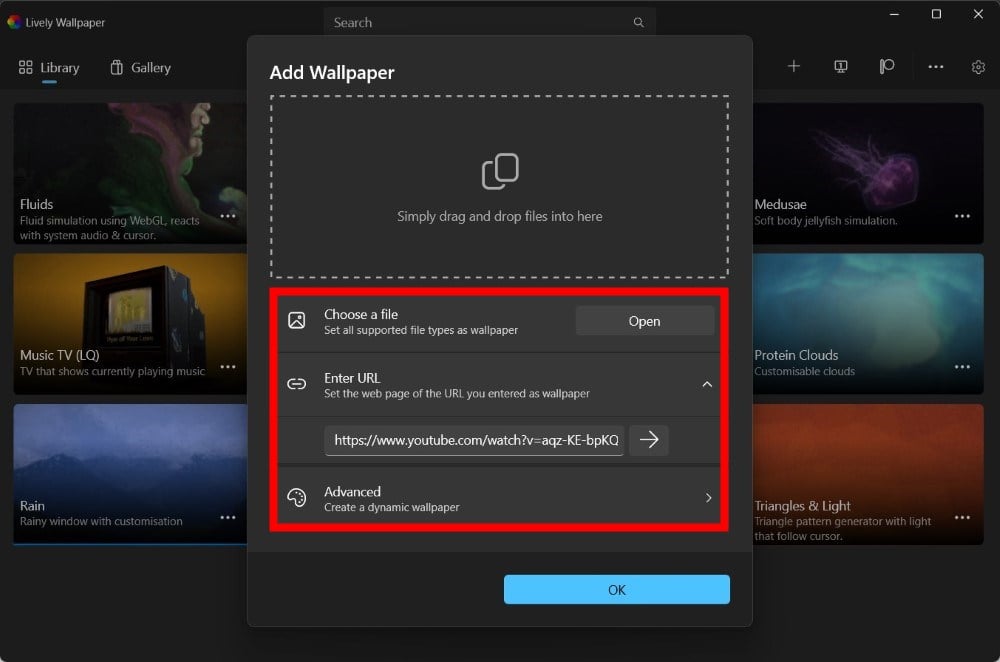
- You can choose a local file and set it as a video wallpaper.
- You can enter the URL of a YouTube video and set it as a video wallpaper.
- Also, you can create a dynamic wallpaper from scratch and add depth effects.
- In our case, we will be using a local file. So, click on the Open button.

- Press OK in the next window that pops up.
- Lively Wallpaper will take some time to process the video as a wallpaper.
- Once the video is loaded, you can click on the 3-dot menu icon next to the wallpaper and choose Set as wallpaper.


A good feature for many that the Lively Wallpaper app offers is that it also plays the sound you have to the video. Honestly, it depends from person to person and whether they want to hear the sound of the video background or not. However, the sound is muted as soon as you open another program. There are many other features of the Lively Wallpaper app that you can learn about in the next section.
How to convert a static image to a dynamic one using Lively Wallpaper?
Apart from the option to set any video as the wallpaper on Windows 11, Lively Wallpaper also comes with an AI feature that converts your static image, adds a depth effect to it, and makes it dynamic. Follow the steps below to understand how to do it:
- Open the Lively Wallpaper app.
- Click on Library, then click on the Plus button.
- Choose Advanced.

- Click on Depth Wallpaper.

- Select the image to add depth effects and make it a dynamic one with AI.
- Click Open and then the Continue button.
After these steps, you can set the image as your wallpaper and you will see the depth effect applied to it when you move the mouse cursor on your desktop. If you are an iPhone user, then we have a created list of some of the best depth effect wallpapers that you can use. Similar to this, you can also use PUSH Video Wallpaper software to set GIFs, YouTube clips, or videos as your wallpaper.
Give life to your desktop wallpaper
Setting a video wallpaper may add a new feel to your desktop homescreen experience. With your favorite video as your wallpaper, you can easily showcase your achievements in a game, show your best memory from a recent trip, or keep your favorite song as your wallpaper. If you have set video wallpaper on Windows 11 but used a different application for it, then please comment down below for our readers to know.
FAQs about video wallpapers
1. Will video wallpaper drain my laptop’s battery?
As claimed by the apps used in this guide, video wallpapers set through them won’t drain your laptop’s battery. Based on the nature of video wallpapers, they require CPU and GPU for rendering purposes, so they drain the battery. However, in our usage, video wallpaper set through Lively Wallpaper did not have much impact on the battery.
2. My video wallpapers look blurry. What should I do?
If the video wallpaper that you have set looks blurry, then chances are that you haven’t selected a high-resolution video to create a video wallpaper. Moreover, you might be using a trial version or free version of the video wallpaper app, which restricts you from setting a certain resolution of the video as wallpaper.
3. Can I set the same video as wallpaper across multiple screens?
There are multiple software that can help you set the same video as wallpaper across multiple screens. The Lively Wallpaper app also lets you do that, and that is free of charge. The steps are simple, and you get the option to span the video wallpaper across your different monitors or even duplicate the same wallpapers.

