In Summary
- An online video converter tool is a great option for casual users who convert videos occasionally.
- However, for more professional users who often convert videos regularly, including large files, online video converter tools may not suit them because of file upload size limits, slow conversion speed, and privacy concerns for uploading sensitive videos.
- A dedicated video converter software can come in handy. HitPaw is one such tool that doesn’t have any limitations and lets you convert video files into 1000+ different formats locally on your device.
Most of us rely on free online video converter tools to convert videos into different formats. However, videos are often large, and many online converters limit file upload sizes. And require an internet connection to upload and download files. Moreover, few of them store your video, which can be a privacy nightmare if you are converting a sensitive video and relying on the trust of third-party tools.
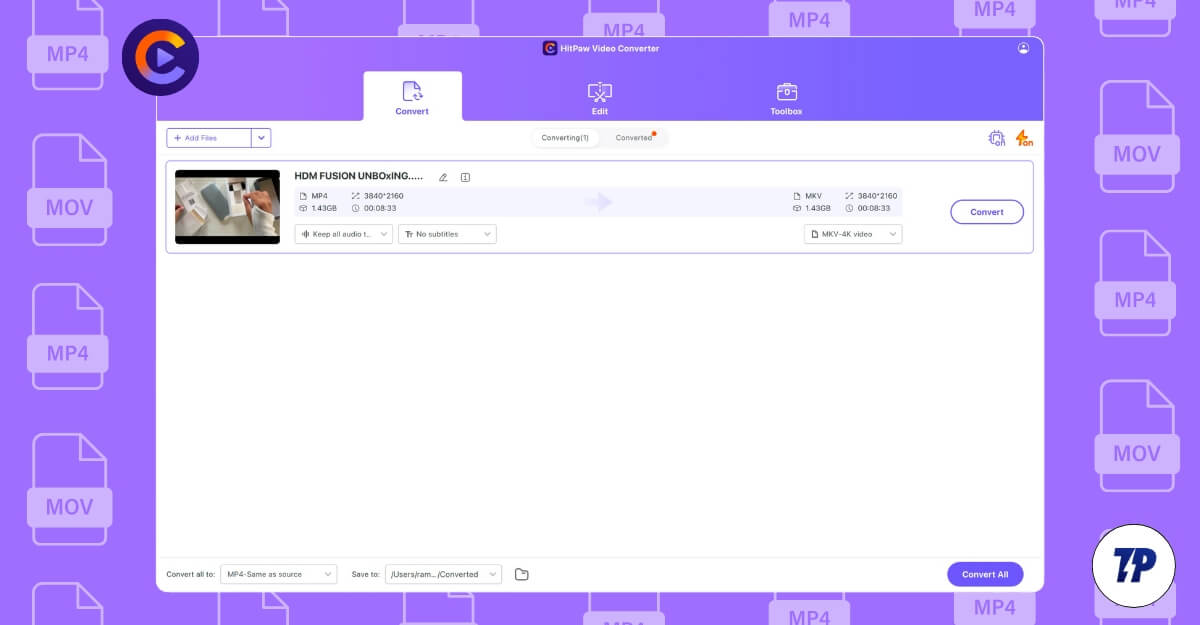
While I am not completely against these online video converter tools, I use them often for limited file conversions, and these are great options for casual users.
However, suppose you want a complete video conversion management tool, and you often convert video files and upload large sets of files and prefer faster conversion and more privacy. In that case, online video converter tools might not be the best fit for you. You can use dedicated video converter software that doesn’t have file upload limitations, is generally faster than online tools, and lets you convert different formats easily locally while enhancing your privacy.
After testing several of them, I found HitPaw Video Converter to be the best for those who want a complete premium video converter tool, with wide format support, easy-to-use features, and the ability to convert video files faster than any other online tool locally on your device.
While there are some downsides, like it is a premium tool and requires a subscription to use, it still stands out by offering high-speed conversion with GPU acceleration, downloading videos directly from various platforms, and ease of use even for beginners who are not familiar with conversion tools. All these features might make HitPaw your next companion when it comes to converting your videos. However, let’s dive deep into why you shouldn’t consider this tool.
Table of Contents
Supported 1000+ video conversion Formats
One of the biggest reasons why HitPaw might be the best option is because of its extensive format support. HitPaw supports 1000+ video conversion formats, including common ones like MP4 and MKV, as well as legacy formats such as WMV, MPEG-1, MPEG-2, VOB, and more.
Whether you are importing a video file in a different format, HitPaw supports import and export quality up to 8K without altering the quality of the video. Since it all happens locally on your device without an internet connection, both the upload and download speeds are fast. For instance, I uploaded an MP4 file with a 4 GB video file to the HitPaw video converter, and it took just under 10 seconds to upload the file.

Not only can you use it for video conversions, but you can also extract audio from the video and convert the audio into different formats. Mac supports a wide variety of formats, including MP3, AAC, and more. It also includes lossless formats like FLAC and more. In addition, if you are using an older version of video formats, it also supports legacy audio formats, including support for WMA, WAV, AAC, AMR, and more.
To convert video, you can select the format, including social media or device formats, depending on which devices you will use this video for. These include iPhones, MacBooks, laptops, and plenty of other options. Since these are all preset options, you don’t need to edit each parameter, like video resolution and more, manually. All these files are automatically set, helping you to instantly convert a video file to any desired format on the go. Once the video is converted, you can download it directly from the software or convert it into a wide variety of formats.

In addition to this, you can also edit and change the preset video converter parameters. If you want to convert an MP4 file to MKV format, you can select the file and edit the resolution as well as sub-edit each parameter. For example, suppose you want to convert an MP4 file to MKV with 2K resolution. In that case, you can further customize this resolution by changing the encoder, frame rate, resolution, and even the audio encoders.
Furthermore, you can enhance the video quality within the same resolution using the high-quality options or reduce it to low quality by using the same options. Overall, you have complete advanced control over file conversions on your device.
In addition to this, it also supports batch processing. You can convert multiple files into multiple formats at once, which is not usually found on most online tools.
Blazingly Fast and Runs Locally on Your Device
Unlike online video converter tools, which require an internet connection to upload, process, and download the file, they often limit the maximum upload file size. HitPaw video converter runs locally on your device.
Since it runs locally and has no file size limits, it completely depends on your device’s resources to process and convert videos. Because of all this, HitPaw video conversion is faster than any other online tool. Even for the videos I tested with 8K quality, from uploading to processing and downloading, HitPaw has beaten all other online tools and video conversion tools I have tested.

The reason for the faster conversion time is GPU acceleration. GPU acceleration is the process where HitPaw uses your GPU to convert your files locally. Since the GPU is good at resource-intensive tasks like video coding, decoding, rendering, and compression, It offloads these tasks from the CPU to the GPU, helping convert video files faster. HitPaw supports most GPU acceleration technologies, including support for NVIDIA CUDA, AMD Accelerated Parallel Processing, Intel Quick Sync Video, and more.
Additionally, since we are talking about Mac, it also supports GPU acceleration on Macs, even with the Apple Silicon processor by default. I am using a MacBook Air with an M1 processor. By default, it automatically enables hardware acceleration, which makes a noticeable difference compared to using software without hardware acceleration on a Mac.
Despite its high-speed conversion, it also supports lossless conversion, which significantly maintains the original video and audio quality, no matter which format the file is converted to. For example, in both 4K and 8K definition videos, the files are processed faster, including during batch processing. You can convert multiple files in parallel without worrying about speed.
If you frequently convert multiple videos and are looking for an option that is faster locally, this might be the go-to tool for you. Since it is software that runs locally and utilizes GPU hardware, You can instantly convert videos into other formats without worrying about speed, quality, or compatibility with various devices. Overall, regarding speed, I am truly impressed with the performance of this Mac video conversion tool.
Easy-to-use interface, Even for Beginners
Unlike online tools, most people assume that dedicated software with extensive features might be complex to use for beginners. However, HitPaw is different from them and offers a very minimal interface. Despite having lots of features, the user interface of HitPaw is beginner-friendly. No matter if you are not an expert or someone habituated to the simple interface of online video converter tools, navigating through HitPaw will not be an issue for you.

The primary functions of the software are divided into three tabs: Convert, Edit, and Toolbox. You can convert all your files in the Convert tab, including batch processing. You can add and start converting your files easily. The Convert tab is further divided into two sections: Converting and Converted files, allowing you to easily differentiate between files in the conversion process and files that have already been converted.
The next tab is the Edit option, which comes with the basic video edition options, including Cut, Crop, Rotate, Image Filter, AI Face Blur, Volume and speed controllers, and Auto Frame. These are all part of the video converter. If you’re subscribed, you can access all these features for free. Using these tools, you can select the converted file and make minor edits to your videos.

Finally, we have the Toolbox, which includes additional useful features. If you want a complete video solution, this tab might come in handy. For instance, there is an image converter, video and image compressor, screen recorder, noise remover, background remover, the ability to convert video to GIF, 2D to 3D video conversion, and even a legacy DVD burner if you need one. These categories are further subdivided into different sections, including Recently Used, Video, Audio, and Photo, to help you filter your options.
Another helpful feature is the ability to adjust the save location easily. This setting is generally found in the settings menu on other platforms. Still, here it is conveniently available on the main screen itself, making it easy to edit and store files without having to navigate to the settings menu all the time.
With all these comprehensive features and an easy-to-navigate interface, HitPaw remains simple and easy to use.
Useful Extra Tools That Can Come in Handy
There can be an instance where you might need to cut, crop, adjust volume, add a watermark, or reframe a video. Thankfully, along with video conversion and downloads, the HitPaw video converter tool also offers basic video editing tools that allow you to edit videos without requiring separate software for each task.
You can cut, crop, apply filters, add face blur, add watermarks, adjust volume, change the speed, and use the auto-reframe feature (added recently), all in one place without needing separate software for these functions. Moreover, all these features can work offline, including the AI-powered tools, which do not require an internet connection.

In addition to this, there is a Toolbox section that comes with a handful of useful video features. For instance, there is an image converter and an image extracted that lets you extract images from videos. You can instantly convert them into different formats.
There is also a video and image compressor, allowing you to compress converted videos and images without leaving the software. It also includes a background remover, the ability to convert videos to GIFs, video to 3D video conversion, audio extraction, and background noise removal from the audio.
Additionally, there is a tool to edit images and a vocal remover that directly removes vocals from a video. Finally, it includes a speech-to-text converter if you want to convert an audio file into text and more.
All these tools, combined with your Mac video converter, make it a complete solution for someone looking for a comprehensive and advanced tool for all video-related tasks. Whether you want to convert videos, there are plenty of format supports and the flexibility to edit each format, making the software extremely handy. In addition to this, you can edit videos and use different tools to meet your specific needs.
The wide variety of format support and flexibility to edit each format and blazing, fast conversion, speed and helpful, and might be a reason to purchase along with the more privacy, which all that to run locally on your device, including video conversions, which brings more privacy and data remains on your device and not shared online. There are a few reasons that you should consider before buying a HitPaw video converter.
Flexible Subscriptions
HitPaw is paid software, so all features require a premium subscription. While it offers a free limited trial, you have to opt for the premium subscription to access all those features. HitPaw offers two different pricing plans for regular users.
It comes with a standard plan, which can be subscribed to monthly, annually, or via a one-time purchase for lifetime access. The monthly subscription costs around $20 per month, while the annual subscription costs around $40 per month, and the one-time purchase is about $80 for lifetime access. The standard plan includes all the basic features, including video and audio conversion without any limits, as well as basic editing and downloading.

The basic editing video editing tools include streaming, cropping, adding watermarks, applying filters, and adjusting playback speed, while all the AI features are limited to the pro plan. It also includes image compression that leads to complex images image format compression and watermark features with watermark images with your brand logo.
Next, it also comes with the pro plan with a monthly subscription costing around $29.95 per month, an annual subscription above $54.95 per year, and a lifetime perpetual license of about a hundred dollars for lifetime access if you opt for this plan.

Along with the standard features, including basic editing and features, it also gives access to the more advanced AI tools, including one more video enhancer, AI video reframing, video, and all other items. If you are someone who runs a business, there is a custom pricing plan for large organizations, but one thing that you should remember is that each plan is tied to only a single Mac, and you cannot use the same software on multiple devices.
Overall, HitPaw is the best option if you are looking for a video conversion tool with multiple useful tools and fast speeds. Here is the table comparing HitPaw with other popular video convertor tools to help you determine which one is best for you.
Feature | HitPaw Video Converter | Wondershare UniConverter | Movavi Video Converter | Any Video Converter |
|---|---|---|---|---|
Free Version | Yes (Limited) | Yes (Limited) | No | Yes (Limited) |
Supported Formats | 1,000+ | 1,000+ | 180+ | 100+ |
GPU Acceleration | Yes | Yes | Yes | Yes |
Batch Conversion | Yes | Yes | Yes | Yes |
Editing Features | Basic | Advanced | Basic | Basic |
Ease of use | Easy | Moderate | Easy | Easy |
Advanced tools | AI tools, noise removal and more | Screen recording, AI tools | Limited | Limited |
Available on | Mac, Windows | Mac, Windows | Mac, Windows | Mac, Windows |
Customer Support | 24/7 support | Priority support | Standard support | Standard support |
Price (Annual) | $19 (standard)/month, $59.95 (pro plan)/Year | $59.95/year | $54.95/year | $49.95/year |
Is HitPaw Video Converter Worth It?
Overall, with support of over 1000+ video conversion formats, GPU-accelerated high-speed conversions are useful tools. An easy-to-use interface and privacy-focused offline functionality make HitPaw a great option. HitPaw can be a worthy investment for you if you often work with Video File Conversions. HitPaw is available for both Windows and Mac. You can try a free trial with limited features before opting for a subscription. If you want to convert videos occasionally, HitPaw also offers a free online video converter.
HitPaw Video Converter for Mac