

Amazon Alexa is one of the best voice assistants, apart from Google Assistant. Amazon Alexa is a smart home platform as well as a personal voice assistant that powers all Amazon smart home devices. Alexa is known to be troublesome sometimes when it doesn’t register your prompts. This could be because Alexa is tired of hearing the same name when you trigger it and give your commands. Jokes aside, it could be problematic if you have someone in your family with the same name.

Well, Amazon has a solution for this that lets you change Alexa’s name. The reason could be the one mentioned above, or you just don’t want to say Alexa anymore. Whatever your reason, you can change Alexa’s name. Moreover, Amazon lets you change Alexa’s voice as well. You can choose between female or male voices and also choose from different accents. In this guide, we will give you all the details that you need to change Alexa’s name and voice. Let’s get right into it.
Table of Contents
How to change Alexa’s name (wake word)?
There are two ways in which you can easily change your Amazon Alexa assistant’s voice in any of your Amazon smart home products that support voice assistants. While the first is pretty easy, the second one requires you to follow a few steps. Let’s take a look at each one of the methods, one by one.
Change Alexa’s name using your voice
You can use your voice to change Alexa’s name easily. Here are the steps that you need to follow:
- Say “Alexa, can you change your name” or “Alexa, can you change your wake word?“
- Alexa will respond, “I can help you change the wake word for this device. Should we do that now?” You need to respond, “Yes“.
- Alexa will say, “OK, you can choose from Amazon, Computer, Echo, or Ziggy. Which one these do you like?“
- Simply say the name that you wish to change Alexa’s name to. For example, to set Alexa’s name to Ziggy say, “Ziggy“.
- Alexa will confirm the name change by saying “OK, you can call me (name) on this device in a few seconds.”
That’s it! After a few seconds, you can use the new name that you have chosen to wake up Amazon Alexa. There is another alternate way, where there is a simple command “Alexa, change your wake word to (name)” and Alexa will change its name.
Change Alexa’s name using the app
The Amazon Alexa app lets you tweak the voice assistant and the connected speakers, and it also lets you change Alexa’s name. Follow the steps below to do that:
- Launch the Amazon Alexa app on your Android or iOS device.
- Choose the Devices tab.

- Tap on the Device Type drop-down menu.
- Choose Echo and Alexa and then tap Apply.
- Select the device you want to change the name of.
- Tap the Settings gear icon.
- Tap on Wake Word.

- Select your new name among Amazon, Echo, Computer, or Ziggy.
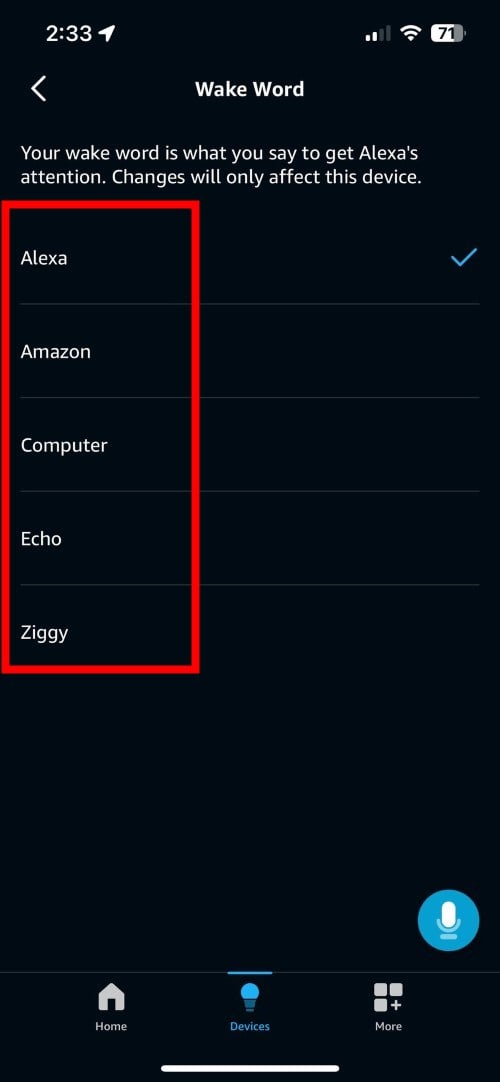
One thing you should remember is that you can change Alexa’s name on a speaker-by-speaker basis. This means that you won’t be able to change Alexa’s name on one device and expect it to be changed for all of your devices. You need to follow the same process for all of your smart speakers, which can be time-consuming. But this also gives your family members the flexibility to change Alexa’s name as per their choice and preferences.
How to change Alexa’s voice?
Aside from changing Alexa’s name, you can also change Alexa’s voice to give the voice assistant a complete makeover. You can choose among various languages and dialects, as per your choice. Moreover, based on feature availability, you can also change the voice from female to male as well. There are two ways to do it.
Change Alexa’s voice using the app
- Launch the Alexa app on your Android or iOS device.
- Tap on Devices.
- Choose the device that you want to change the voice for.
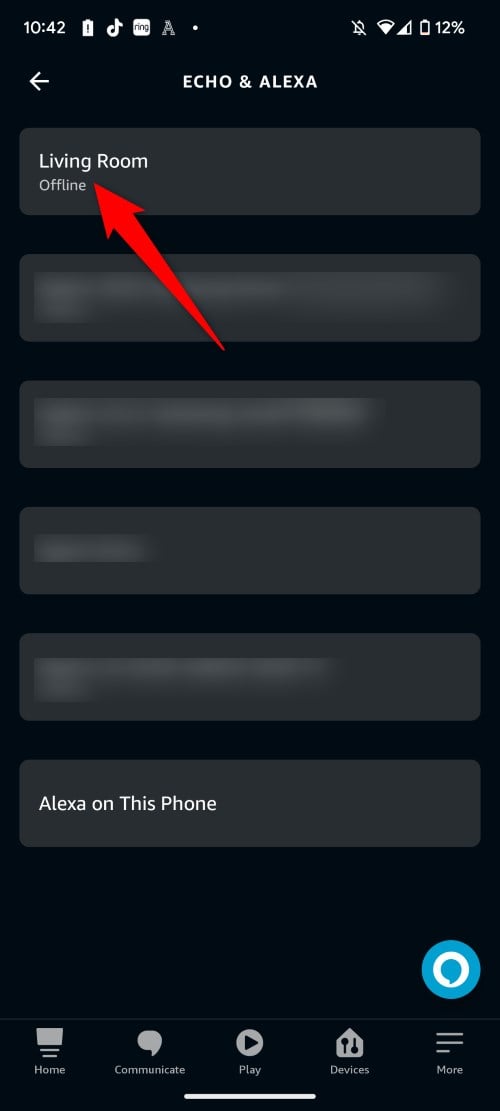
- Tap on the Settings wheel icon.
- Tap on Alexa’s voice option.

- You will see different voice options available including American 1 or 2, Australian 1 or 2, British 1 or 2, Canadian, and Indian 1 or 2.

- Moreover, you will also see a slider saying Speaking rate that will help you adjust the speed at which Alexa speaks.
Change Alexa’s voice using Amazon Echo
You can also straight away ask your Amazon Echo or supported smart speaker and command it to change the voice. Here are the steps that you need to follow:
- Turn on your Amazon Echo.
- Say “Alexa change your voice.”
- Since this can be done on a speaker-by-speaker basis, Alexa will ask you to specify the device in case there are multiple Echo devices.
- Choose the device you want to change the voice for.
- Here, instead of you picking the voice from the list, Alexa will choose a random voice and ask you for approval. You can agree or ask Alexa to change to another voice.
- When the voice is successfully changed, you will hear Alexa with the new voice. If it is not successful, then Alexa will reply, “Sorry (your device’s name) doesn’t support that.”
As soon as you change Alexa’s voice, the accent also changes. Changing Alexa’s voice using the smart speaker can be a bit time-consuming, as here you cannot specifically choose the voice. Amazon released a set of celebrity voices but phased them out towards the end of 2023. The celebrity voices included Samuel Jackson, Melissa McCarthy, and Shaquille O’Neal. These don’t work anymore, sadly.
How to use Alexa’s multilingual mode?
Alexa also offers you the option to set it to a multilingual mode allowing you to speak to your Echo device in two languages. This is a great option for households that speak more than one language. Here’s how you can enable the multilingual mode on Alexa:
- Launch the Alexa app on your smartphone.
- Choose Echo and Alexa.
- Select the device that you wish to change to multilingual mode.
- Tap Settings.
- Scroll down and find Language.
- Under Other Languages, you will find multiple bilingual modes.
- Choose the combination that you want to set and tap Sync.
Personalize your Amazon smart speaker the way you want
You may be tired of using the name Alexa or hearing its default voice. Changing Alexa’s name and voice will give a fresh feel to using the smart speakers. Moreover, some may not be able to understand the accent of a different language. In such cases, changing to an understandable accent makes sense. These changes are meant to improve the overall usage experience. We have a guide that explains the 9 other things that you can do with your Amazon Echo apart from listening to music.
FAQs about Amazon Alexa
1. Can I change Alexa’s name to Jarvis?
No. Amazon doesn’t officially support changing Alexa’s name to Jarvis. This is to give it a personal identity, and there are only a few limited options available for you to choose from. Echo and Ziggy are the two shortest wake words or names that you can use with two syllables. The Computer Wake Word is a tribute to the Star Trek series.
2. Can I change Alexa’s name back to its original name?
Yes. You can change Alexa’s name multiple times from the list of options that are available and give it a new feel. However, if you are all set to go back to Alexa, then you can follow the same steps and revert it to Alexa.
3. Can I change Alexa’s name and voice on all speakers at once?
Sadly, you cannot change Alexa’s name and voice on all speakers at once. Changing the name and voice is on a speaker-by-speaker basis, and you need to select the device on which you would like to change the name and voice, and the changes will be reflected on that specific speaker only.

