

Quick Answer
Name Recognition in iOS 26 lets your iPhone listen for your name even when you are wearing earphones. When someone calls you, your iPhone shows a notification so you stay aware while listening to music or watching videos, and it also works with Apple Watch.
Smartphones have evolved to become more than just a communication device. They are our main source of entertainment, be it listening to your favorite music, streaming movies or watching web series, consuming content on YouTube, or just playing games, that, mind you, are close to console-level. But most of us like privacy while using our smartphones, and when in entertainment mode, we usually pair our phones with headphones or earphones. Not only does this provide privacy, but it also prevents disturbing anyone around us, while we continue to enjoy.
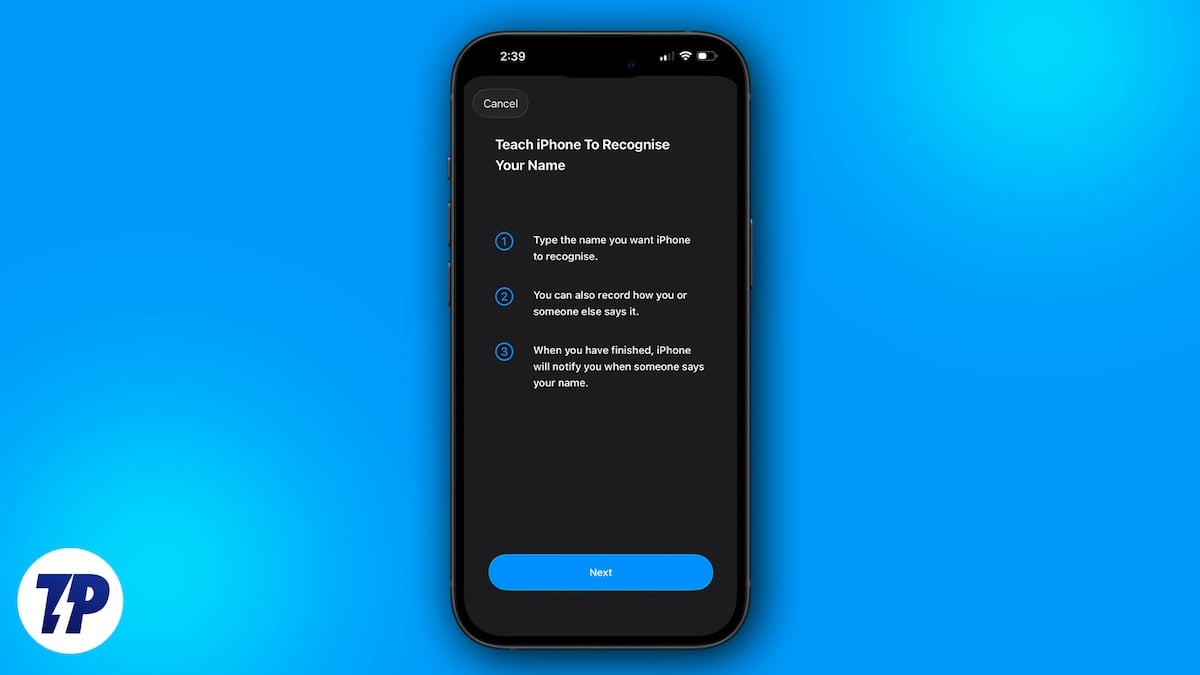
But what if someone needs you and calls your name for help, and you can’t hear it because you are listening to music or watching a movie while wearing your earphones? Not every earphone supports the feature that lets ambient noise in, even if you are listening to music. Thankfully, there is an iPhone feature called Name Recognition that gives you the power to listen to what’s going on in your room with your earphones on. Here’s how to use it.
What is a Name Recognition feature?

While Apple Intelligence still remains way behind compared to Samsung’s Galaxy AI and other counterparts, the Cupertino-based company has been sprinkling some useful stuff occasionally. With iOS 26, Apple introduced a new accessibility feature called Name Recognition.
In simple words, the Name Recognition feature in iOS 26 lets your iPhone keep its ears open and detect when someone says your name. It shows you a notification on the iPhone’s screen whenever someone calls your name. This way, no matter how loud you are listening to music (which you should never do) or watching a movie, you are alerted that someone might need your help and is calling you.
This is the reason why, even though it is an accessibility feature meant for people who are deaf or have trouble hearing, it can be used by anyone. You can use the Name Recognition feature to stay aware of your surroundings and respond promptly when anyone calls you if you are in a noisy space. You can make the whole experience way better if you pair and combine an Apple Watch with your iPhone. Furthermore, you will receive a notification when someone calls you on your Apple Watch, and you can respond to the call, negating the need to view your phone.
How to enable and use Name Recognition feature?
The most important thing that you need to use the Name Recognition feature, apart from having an iPhone, is that it should be running iOS 26 or later. To check if that is the case, you need to head over to Settings > General > Software. If your iPhone is outdated, install the latest update (if your phone supports iOS 26). Once that is done and dusted, follow the steps below:
- Launch Settings.
- Head over to Accessibility.
- Tap on Sound & Name Recognition under the Hearing section.
- Tap on Name Recognition option.
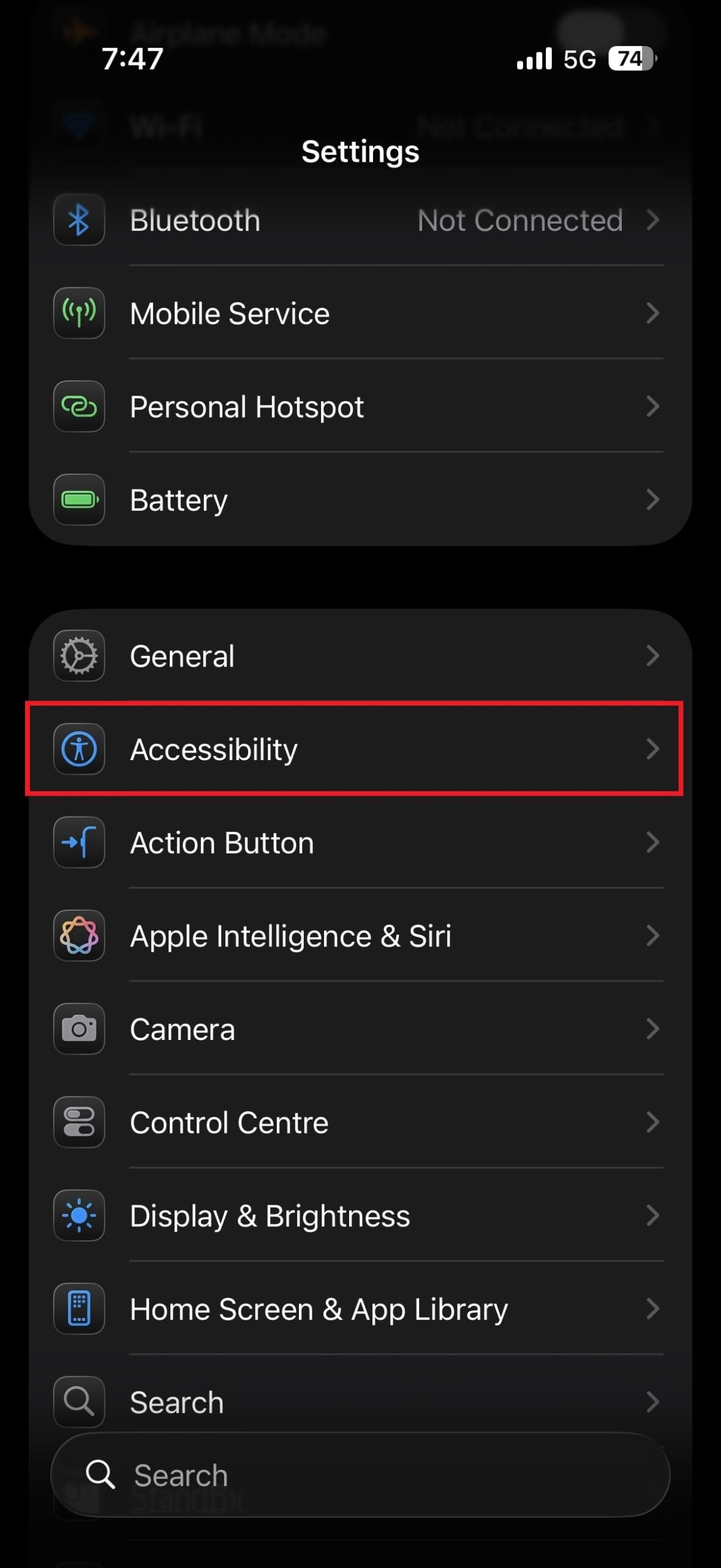
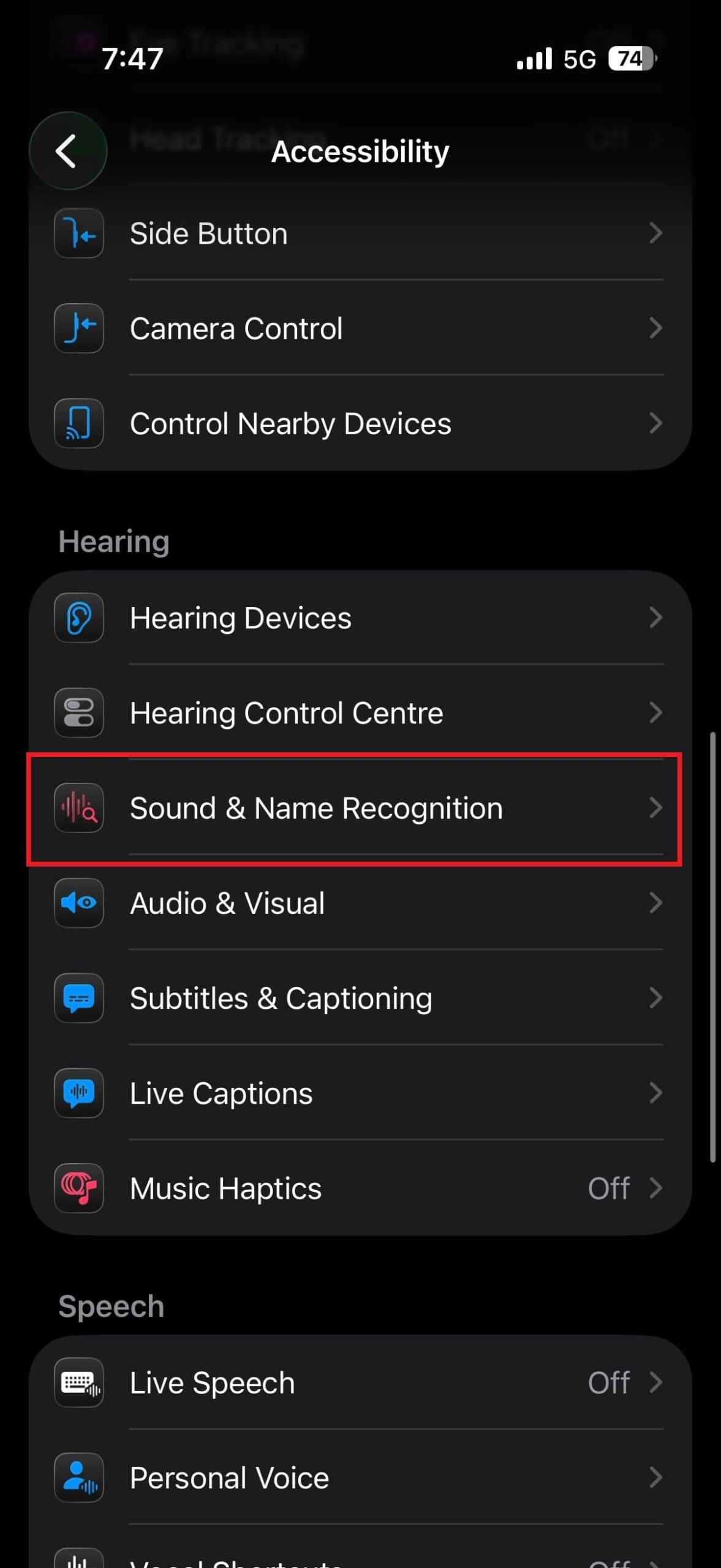
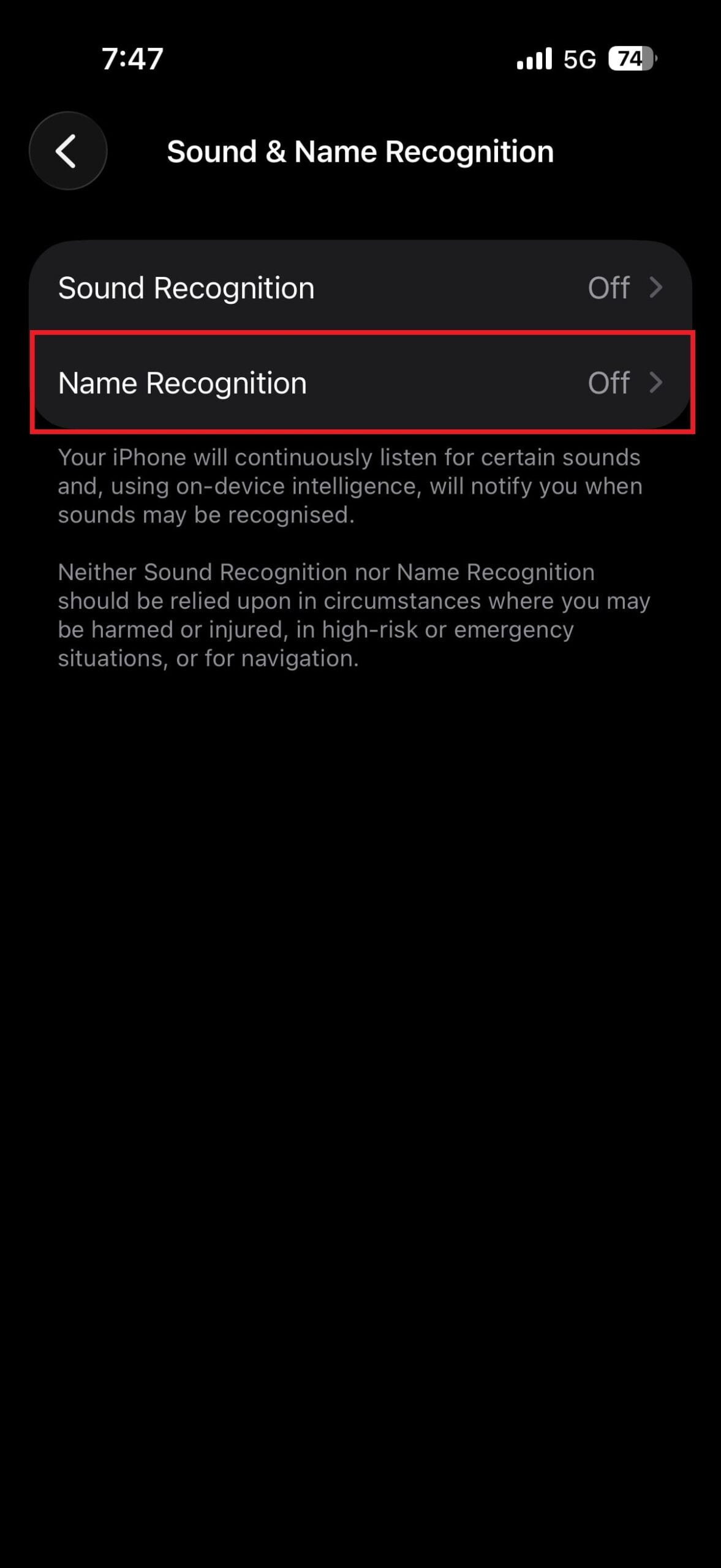
- Choose Set up Name Recognition.
- You will be shown a pop-up screen describing the feature. Tap on Next.
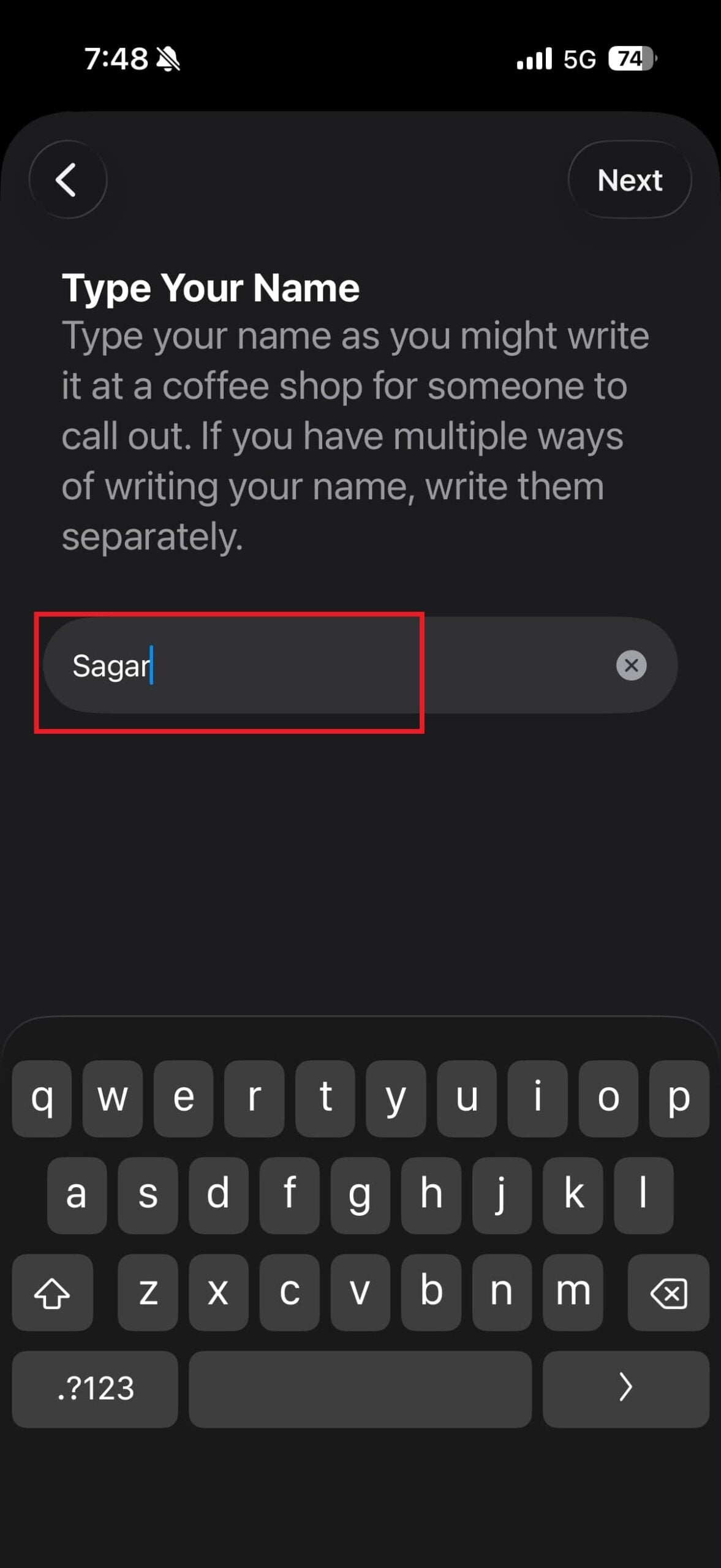
- Type your name. Do note that if there are different ways to write your name, then you need to write them separately. This is good for those who are Asian. Make sure that you have input all of your aliases (3 names and 3 nicknames) so that you don’t miss out on someone calling you.


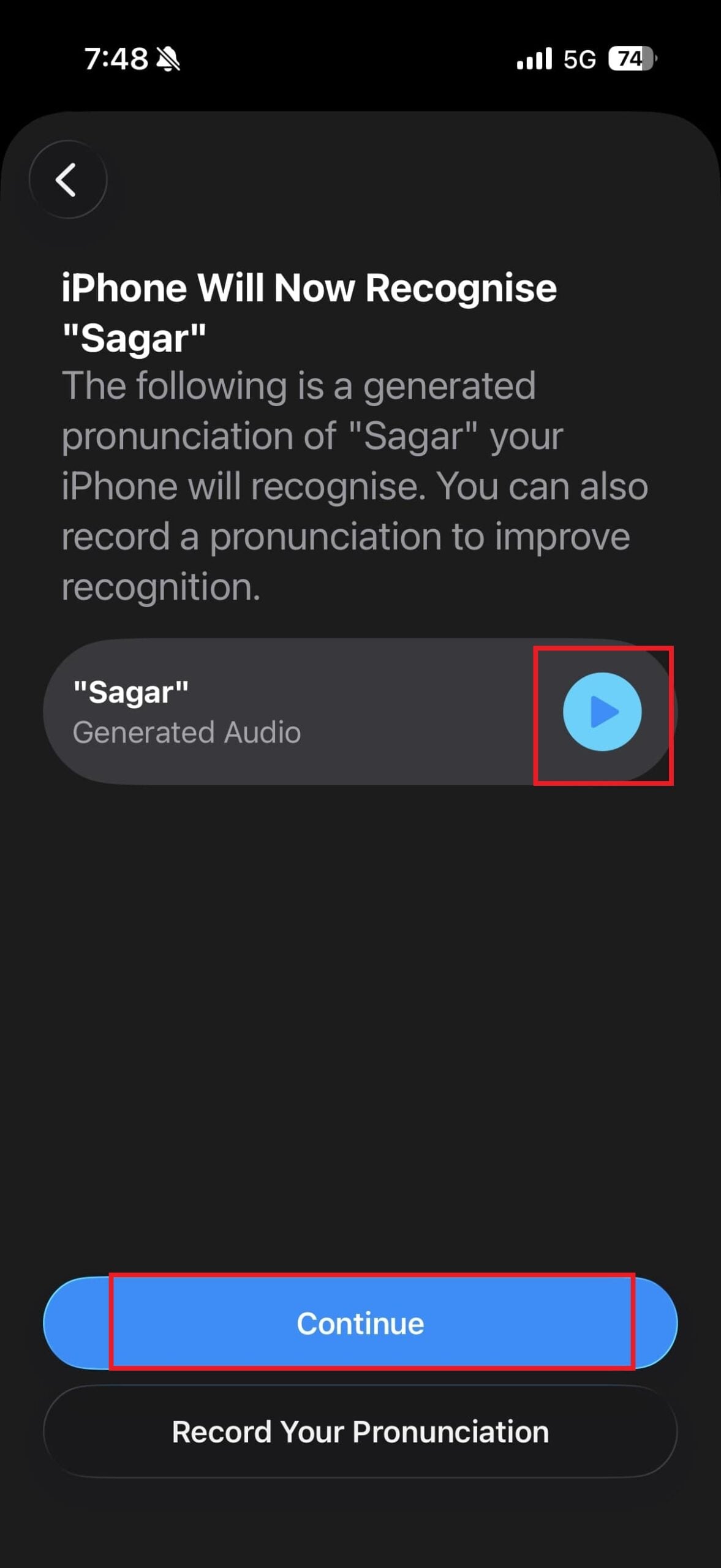
- On the next screen, iPhone will generate the pronunciation of all the names that you have entered. You can hear it by tapping the Play button. I’ve noticed that English names are pronounced correctly than Asian names. So, you may want to recheck whether Apple has generated the correct name or not.
- If satisfied, then press the Continue button.
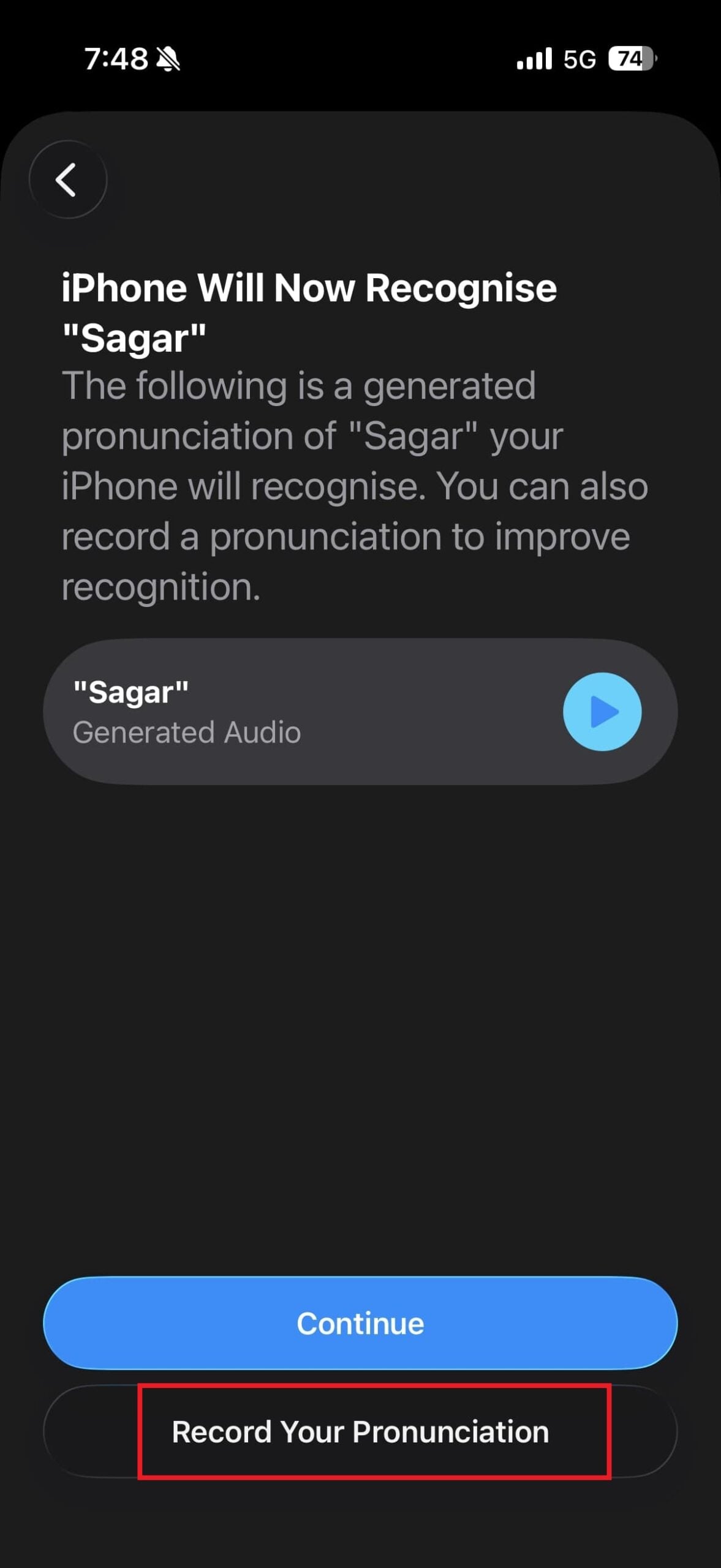
- There is an option that lets you record your pronunciation yourself. You need to press the Record your pronunciation button. You will have to say your name three times for the device to capture it.

- That’s it!
With your earphones plugged in, now you can enjoy your music and also stay attentive to your environment. Whenever someone calls your name, you will get a notification on your phone or your Apple Watch. As far as permissions are concerned, the Name Recognition feature accesses the microphone. So make note of that, as that will drain your phone’s battery a bit faster.
Set a different notification sound
Since you might be using a bunch of other social media apps, you receive a lot of notifications. So, how would you recognize if someone calls you? It is suggested that you set a different notification sound than Rebound for other apps. This is because the Rebound is the default notification sound for the Name Recognition feature. In this way, whenever your phone pings the Rebound notification sound, you will instantly recognize that someone is calling your name.
Notably, this is not the only accessibility feature that is meant to make using an iPhone easier. There are several accessibility features that you can turn on and use to get the best out of your iPhone.

