

Search is a basic feature for any app or website that allows you to find the information you need. In ChatGPT, the search function allows you to search for specific conversations. However, the ChatGPT search feature is only available on mobile, and for some reason, the web version has been left behind, making it difficult to find old conversations.

If you want to search for a specific conversation on ChatGPT-Web, you have to go through your list of conversations manually. What’s even worse is that the titles of chatGPT conversations are automatically generated, making it even harder to find them.
In this guide, you’ll learn how to search your previous conversations using the native search function in the app and how to add the search function to ChatGPT on the web using the three best third-party extensions.
Table of Contents
How to search ChatGPT conversations on mobile
The mobile version of ChatGPT has a native search function that is very easy to use. To access it, open the ChatGPT app on your phone (which works for Android and iPhone). Click on the horizontal menu in the top left corner of the screen and then on the search bar in the sidebar. Here, you can search for and find your old conversations.

How to find and search conversations on ChatGPT desktop
Unlike the mobile version, the web version of ChatGPT does not have its own search function. However, you can search for old conversations using third-party extensions. After testing various extensions, we found ChatGPT History search, Echoes, and Superpower GPT to be the three best extensions that offer advanced search capabilities and other useful features, such as adding search filters, adding conversations to favorites, and more.
ChatGPT History search (Simple)
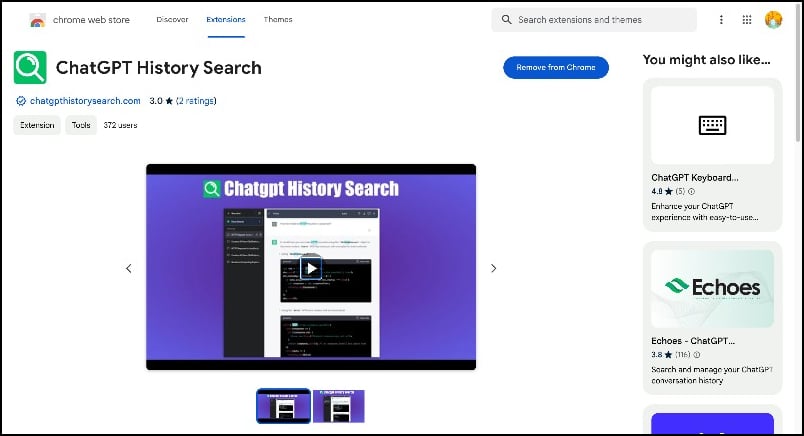
ChatGPT History Search is a simple and minimalistic way to add a search function to ChatGPT. The extension integrates a new search function into the sidebar above your previous conversations. When you tap on it, a floating window opens where you can switch between searching chats and searching for content within the chat. The setting may be a little confusing: the double chat icon searches the chats, and the single chat icon searches the content within the chat. It doesn’t have any fancy features but is simple and easy to use, making it our favorite.
How to use ChatGPT history search extension
- Step 1: Add the ChatGPT History Search extension to Google Chrome from the website.
- Step 2: Open openai.chat.com, and you will see a new search icon at the top.
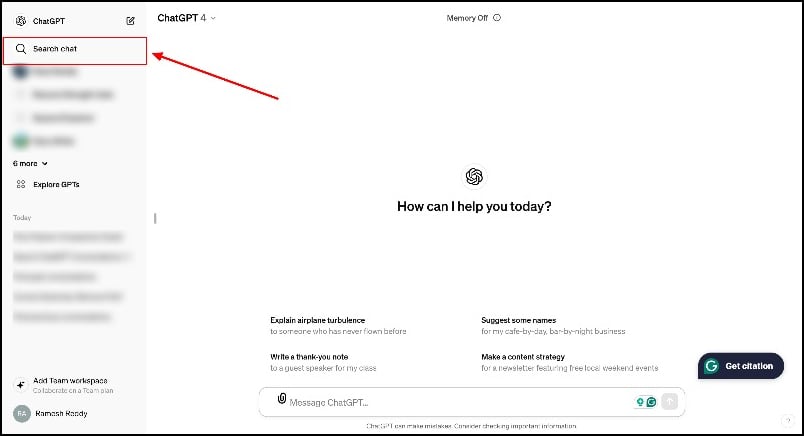
- Step 3: Click on the search icon; a new floating bar will appear, and you can toggle between searching for chats and searching within the chat using the messages icon. Start your search from there.

Echoes (For pro search users)
Echoes is a straightforward Google Chrome extension that allows you to search your ChatGPT conversations easily. It includes advanced search features that allow you to find specific details in the titles and content of your chats using a keyword. The extension highlights conversations in real-time as you search. You can also add search filters to refine your search results and find conversations by time. You can also edit and delete conversations directly in the extension, add conversations to your favorites, and much more.
How to use echoes to search and find conversations
- Step 1: Go to the Google Chrome Web Store and add the Echoes extension for Google Chrome.

- Step 2: Pin the extension to the toolbar at the top.

- Step 3: Open chat.openai.com and click on the extension. Allow the extension to access your ChatGPT conversations.
- Step 4: Wait for the extension to load and sync your conversations. Depending on the number of previous conversations, this might take a couple of minutes to several minutes.

- Step 5: After a successful sync, click on the search bar and search for your previous conversations. You can add conversations to your favorites, delete conversations, and more.
Superpower ChatGPT (for power users)
Superpower ChatGPT is an excellent choice for power users who use ChatGPT extensively. It offers advanced features in addition to the search functions. Similar to the ChatGPT search history, the search bar is embedded in the sidebar on the left side above your conversations, making it easily accessible and searchable. You can also create folders to organize and search chatbot chats more efficiently.
However, the biggest drawback of this extension is that it contains unwanted features that make the extension cumbersome and negatively impact its performance. In some cases, the extension can crash completely, resulting in error messages and problems loading the page, which can make it frustrating to use.
How to use Superpower ChatGPT to search
- Step 1: Add the Superpower ChatGPT extension to Google Chrome.

- Step 2: You will be redirected to the ChatGPT with new features added to the ChatGPT interface.
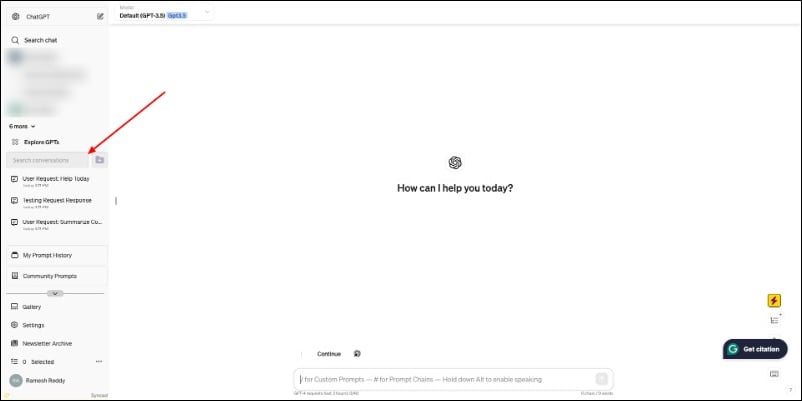
- Step 3: Click on search to find your old conversations. You can also add conversations to your favorites, folders, and more.

Find Your Old Chats in ChatGPT
Although the ChatGPT is a groundbreaking announcement from OpenAI, the chatbot still lacks the features needed for a better user experience. For example, it lacks basic features like searching, pinning conversations, and organizing previous conversations. You exclude the search function on the web, which is why many people wonder where and how they can find the conversations in ChatGPT. I hope you find this guide helpful. You can disable or uninstall the extension if you want to remove the search function.
FAQs on ChatGPT conversation search
1. What methods can be used to search through ChatGPT conversations?
You can use the native search function in the ChatGPT app to search for any conversation. On the web, you can use third-party extensions to search through your ChatGPT conversations.
2. What tools are available for organizing and searching ChatGPT history?
At the moment, ChatGPT is quite limited in terms of feature availability. You can use third-party tools like Superpower GPT to organize your chats and search history.
3. How do privacy and security considerations impact searching chat histories?
You can use the search filter to narrow down your search, but no extension allows you to add search filters or hide certain conversations during the search. However, if you want to prevent certain conversations from appearing in the search results, you can archive them. To archive, select the chat, click on the three-dot menu and then on “Archive chat”. “This will hide the chat, and it will no longer appear in the search results.
4. Can searches be personalized to understand context and nuances in conversations?
Yes, both ChatGPT’s native search function and the extension search on the web offer personalized and contextual search functions by reading the content in the conversations. However, you need to enter specific keywords, and the results may also depend on the type of content you are typing.

