

Quick Answer
Your best bet to attaining a private AI experience is to run an AI chatbot locally on your device. Many apps offer this functionality, but PocketPal AI stands out for supporting a wide range of open-source models, offering tunable inference, and being community-driven and completely free to use, among other reasons. You can use PocketPal AI on your Android and iPhone.
From giants like ChatGPT and Gemini to underrated gems like Perplexity and Grok, you have a rich selection of AI chatbots to choose from based on your requirements. However, these chatbots process your queries on their servers. As a result, they can be a privacy nightmare, especially if you share personal details or documents in your queries.
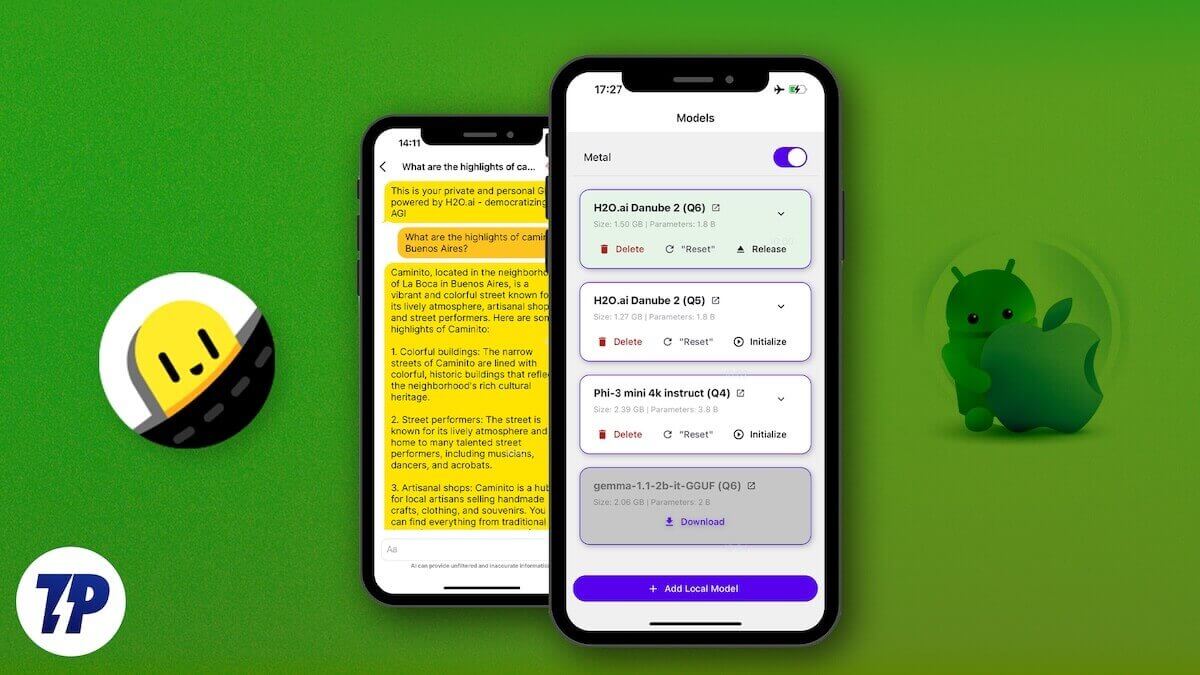
For a private AI experience, using a chatbot locally on your device is your best bet. While there are several ways to do this on a computer, you have limited options on a smartphone. Among the ones available, PocketPal AI is the easiest to use. Here’s why, and everything you need to know about using PocketPal AI to run AI models locally on your smartphone.
What Is PocketPal AI?
PocketPal AI is a free and open-source app that allows you to run small language models (SLMs) locally on your smartphone, without an internet connection. Since it processes your queries locally, your conversations and data never leave your phone.
You can choose from a huge collection of open-source models, including Phi, Gemma, and Qwen, as well as those available on platforms like Hugging Face, and can switch between them as needed. The app even lets you access gated models on Hugging Face. All you need to do is set up your authentication token within settings.
Another highlight of PocketPal AI is pals. You can think of them as personalized AI assistants with different personalities and settings that you can set up to tackle specific tasks.
PocketPal AI is available on both Android and iPhone.
Related: How to Install and Run AI Models Locally on Your iPhone
How Does PocketPal AI Stand Out From Other Apps
PocketPal AI isn’t the only app offering the ability to run SLMs on smartphones. There are a few other good apps that also provide this functionality. However, there are a few things that make it stand out from others.
- A huge library of models: You can use a wide variety of open-source models in PocketPal AI. This means your options aren’t limited to the ones curated by the app; you can download and use models available on sources like Hugging Face as well.
- Tunable inference settings: The app gives you the option to customize various parameters for your downloaded models. This includes things like system prompt, temperature, beginning-of-sequence (BOS) tokens, and chat templates.
- AI personas: PocketPal AI lets you create pals. Pals are two kinds: assistant pals (for general assistant tasks) and role play pals (for role playing scenarios). For example, you can set up a study pal when you’re researching or working on projects, so the model is context-aware and can respond accordingly. Similarly, you can create an admin pal for times when you want to help with drafting emails or summarizing reports.
- Being completely free to use: Many apps offering similar functionality follow a freemium model, wherein they keep certain features behind a paywall. In contrast, PocketPal AI is completely free to use, so you can access the entire feature set and use any compatible language model without any limitations.
- Community aspect: PocketPal AI allows users to run benchmarks on their phones and share the results in the community. That way, other users can get an idea of which model is better suited for their device and pick one accordingly.
How to Set Up and Use PocketPal AI
PocketPal AI has a pretty straightforward setup.
First, download the app to your Android or iPhone from the respective app store using the links below.
Launch the app and grant it the requested permissions.
Next, you need to download the model you plan on using in the app. But before you do that, switch to a stable Wi-Fi connection, as language models are typically large, and you may exhaust your daily data limit if you download them on mobile data.
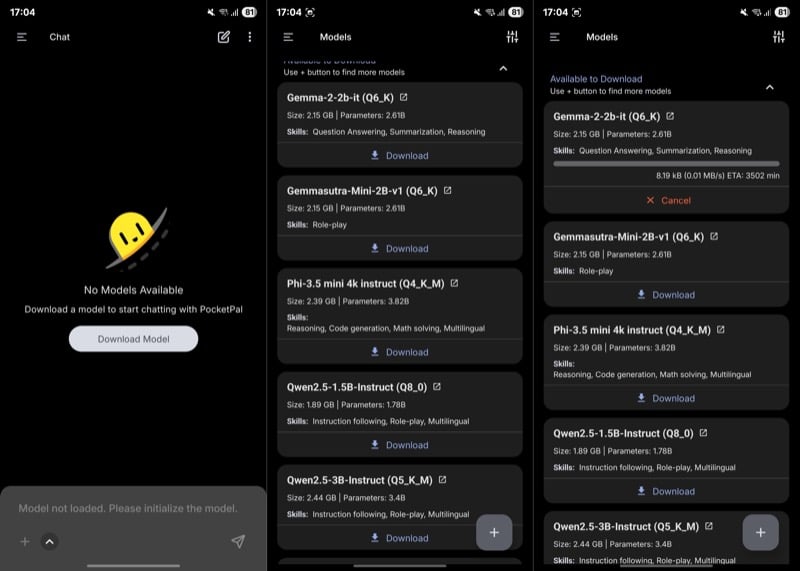
Once done, tap the Download Model button on the home screen. On the following screen, expand the Available to Download section, if it isn’t already, and you’ll see a list of compatible models. Each model mentions details like its size, the parameters it uses, and its skills, i.e., what it excels at. Tap on a model to learn more about it. Once you’ve found the model you wish to use, hit Download to begin downloading it to your device.
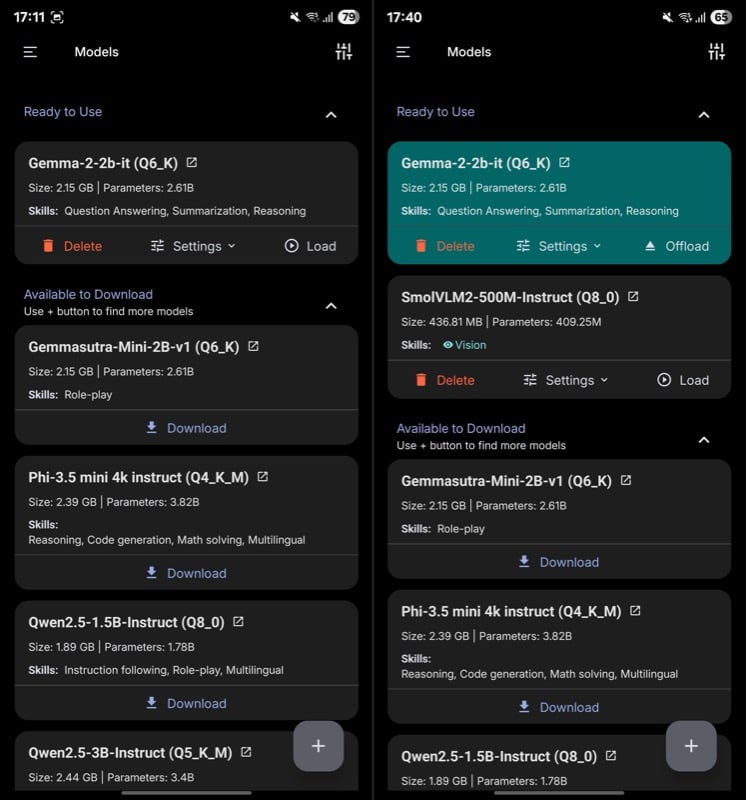
After the download is complete, tap the Load button on the model’s card to load it into memory. You’ll now see a chat-like interface on the screen.
Start typing your query into the text field below and, depending on the model you’re using, you’ll see a response on the screen. You can ask the model follow-up questions or start a new conversation by tapping the new conversation button at the top.
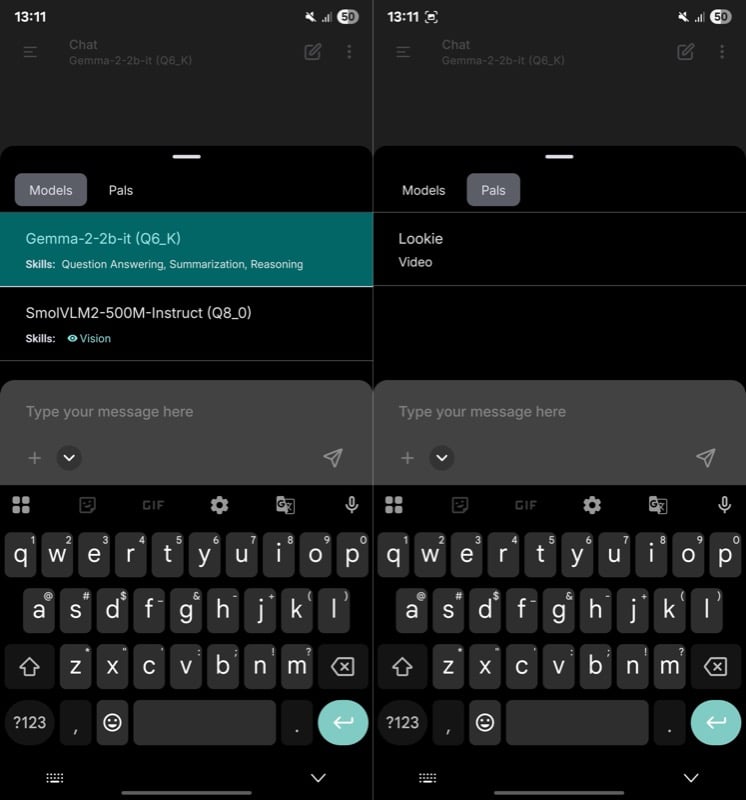
Additionally, you can enable pals. Tap the upward-pointing arrow to the left of the text field, go to the Pals tab, and tap on the available pal. For example, Gemma offers the Lookie pal, which lets you analyze videos on your device locally.
You can further export this session by tapping the three-dot menu in the top-right corner and selecting Export/Import > Export all sessions. Likewise, you can import a session to revisit it and continue where you left off.
With certain models, such as SmolVLM2-500M-Instruct, you can also analyze images and learn more about their content. Just tap the + button to the left of the text field and select Camera or Gallery, depending on whether you want to take a picture and analyze it or analyze one you’ve already taken. The model will then return a response.
What It’s Like Using PocketPal AI on a Smartphone
PocketPal AI is a nifty app. It’s pretty lightweight, with a minimal interface, and easy to use. Plus, there are several configuration options—both for apps and models—that you can tweak to personalize your experience.
Coming to performance, PocketPal AI should run efficiently on most modern smartphones (with 8GB RAM or more) and process your requests quickly. A large part of the response time is also dependent on the model you’re using, but unless you’re using one of the older or lower-tier phones, there shouldn’t be a noticeable lag, or in the worst case, an app crash.
I’ve been using PocketPal AI with several models, such as Gemma-2-2b-it, SmolVLM2-500M-Instruct, Phi-3.5 mini 4k instruct, and Llama-3.2-3B-Instruct, on my Galaxy S23 Ultra and OnePlus 13, and the experience has generally been smooth. At no point did the app crash on me, though it did stop responding to my query midway a couple of times. Similarly, responses to certain reasoning queries took a little longer. However, I wouldn’t stress much about these issues, as they aren’t directly related to the app.
That said, I’d like to mention that choosing the right language model is the key to getting reasonable responses to your queries. For example, SmolVLM2-500M-Instruct failed to list different mechanical keyboard switches and couldn’t tell me which is best for gaming. In contrast, it was an easy job for Gemma-2-2b-it because it’s trained on diverse datasets, features larger parameter sizes, and uses advanced architecture, which makes it better suited for such tasks.
You Don’t Need to Rely on PocketPal AI Alone
PocketPal AI’s offline-first approach provides a private AI experience on your smartphone, enabling you to query things you typically wouldn’t with a traditional AI chatbot. However, you can’t fully commit to it, as it has several limitations.
To begin with, PocketPal AI offers access to only small-sized models. Being smaller, these models have fewer parameters. As such, they’re devoid of nuanced language comprehension and, therefore, have a narrow scope of use.
Another drawback of being offline is that you can’t get real-time information, such as the latest news, stock market updates, or live scores. Because of this, you can’t use PocketPal AI for queries on topics that require up-to-the-minute data.
Similarly, although smaller models are decent with generation, they lack the creative breadth you get with large language models (LLMs) due to limited parameters. This means you may not be able to generate desired outputs with nuanced vocabulary and language.
Hence, it’s best to find a middle ground: use PocketPal AI for trivial or private queries and switch to LLMs for complex or creative tasks, such as those involving deep analysis, advanced problem-solving, fact-checking, or media generation.

