

Quick Answer
Discover 100+ best Chrome flags right now, categorized for performance, privacy, downloads, tabs, and features. This guide explains each flag clearly and shows how to enable them to boost speed, enhance security, and unlock hidden Chrome capabilities.
Chrome has over 300 experimental features hidden behind a single URL, and most users have never touched them. These are Google Chrome flags, and enabling the right ones can make your browser noticeably faster, more private, and packed with features your friends don’t have yet.
But there’s a catch: flags use cryptic technical names, they’re buried under chrome://flags/, and enabling the wrong one can break your browsing experience.
This guide cuts through all of that. I’ve personally tested and organized the best Chrome flags into clear categories like performance, privacy, downloads, tabs, AI, and more, so you can find exactly what you need, understand what it does, and enable it safely without guessing. These hidden experimental browser features are available on Chrome stable, Chrome Beta, and Chrome Canary, so you don’t need a developer build to try them.
Table of Contents
100+ Best Chrome Flags
My Top Picks:
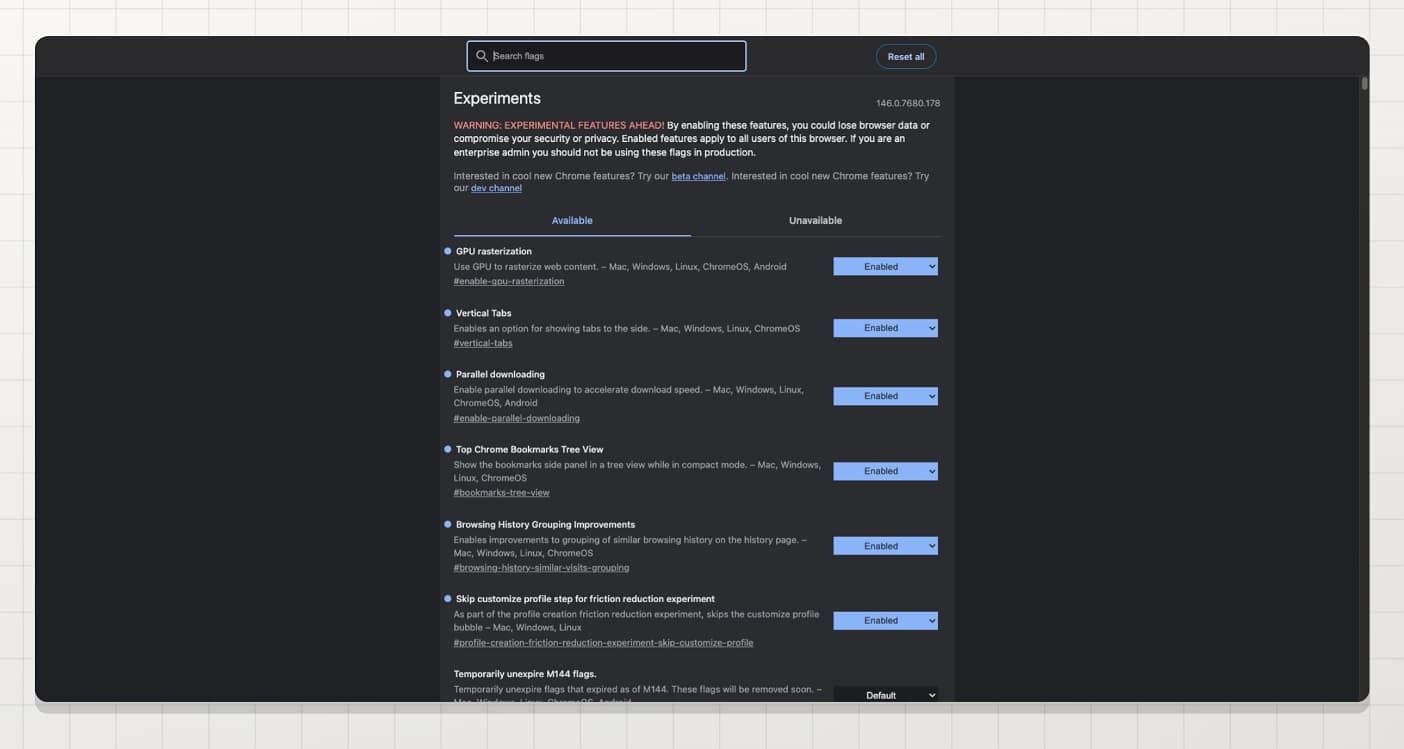
This post consists of all the best Chrome flags that are currently in testing. However, here are my top picks that are very useful and that I personally enabled on my browser.
- Vertical Tabs [New] : This Google Chrome flag brings vertical tabs to the Google Chrome browser. Simply enable the extension and enable vertical tabs from the Google Chrome settings.
- GPU rasterization: This flag allows your Chrome browser to use GPU resources to render web pages. Since the GPU is better at handling media content on web pages and faster compared to the CPU, it can render heavy websites better and faster overall, increasing your Google Chrome performance.
- Browsing History Grouping Improvements: automatically categorizes browser history into groups with similar visits for easy access, instead of showing them in a chronological list.
- Parallel downloading: This flag splits a file into multiple sub-files and downloads them simultaneously, which enhances the download speeds. This is very useful for downloading large files.
- One-Time Permission for Camera/Mic: Grant camera and mic permission for any websites for one-time access. These permissions automatically reset if you complete the session.
- Tab audio muting UI control: Lets you mute a tab directly from the tab strip. You can mute audio for individual tabs on Google Chrome with this useful Chrome flag. When the site starts playing audio, the sound icon on the individual tab becomes a media control. You can tap on it to mute the sound.
- Auto Picture-in-Picture: Automatically enable Picture-in-Picture mode for any video playing on any website. When you switch tabs, the video automatically plays in PIP mode.
- Bookmarks Tree View: Excellent option if you have multiple bookmarks. It automatically converts all your bookmarks into a tree folder, so it’s easy to navigate.
- Skip Customize Profile Step: Remove the annoying “Customize Your Profile Name” screen during new profile setup.
Best Chrome Flags to Improve Performance and Speed:
Although Google Chrome is a market leader, its performance issues remain even today. Google has introduced several features to improve Chrome’s performance, such as the memory saver feature and sleep tabs. However, if you use multiple tabs, Google Chrome can consume significant data and is overall heavy. There are plenty of Google Chrome flags that can help you improve your browser’s performance, from smooth scrolling and faster page loads to better GPU utilization for gaming and media-heavy websites. Here are the most popular ones:
- Zero-copy rasterizer: this Chrome flag lets Google Chrome directly handle web page rendering to the GPU instead of copying it to one place and handing it over all at once. Removing the middle step significantly enhances your browser performance.
- Experimental QUIC Protocol: QUIC, short for Quick UDP Internet Connections, is a protocol developed by Google. It is significantly faster than older TCP methods by combining transport and encryption. Because of this, it makes fewer requests and is also faster than older TCP, which overall makes the websites load faster.
- Accelerated 2D canvas:. If you use websites that require canvas, such as whiteboard tools, online editing, or browser-based gaming, this is one of the best Chrome flags for gaming performance you can enable. Similar to GPU rasterization, it offloads all this work to the GPU.
- Block Root Window Accessible Name Change Event: This is a very niche use case, but it can be useful whenever you are using Google Chrome on Mac with accessibility tools. This Google Chrome flag blocks unnecessary event triggers to accessibility tools.
- Hardware-accelerated video decode: This Chrome flag enables Chrome to use hardware acceleration to decode videos. Similar to GPU acceleration, it offloads all the video decoding work to the GPU and frees up CPU resources, which can enhance the performance.
- Hardware-accelerated video encode: While the hardware-accelerated video decode flag enhances the video viewing experience, if you often attend meetings and record your screen, then your videos need to be encoded. Again, it can use dedicated hardware to do that, freeing up CPU resources.
- Disable Partial Swap: This Google Chrome flag disables partial swap on Google Chrome. Partial swap is a performance improvement feature on Google Chrome, which is enabled by default. It reduces the memory usage by rendering only the required parts of the screen instead of re-rendering everything. However, this feature has caused flickering graphic issues and rendering bugs on certain GPUs. Google Chrome introduced this flag to fix those issues, including the blue screen. If you face screen flickering or blue screen issues on Google Chrome, you can enable this Chrome flag to fix those issues. The best part is it doesn’t disable hardware acceleration entirely, so some of the load is shifted to the GPU for better performance.. You can re-enable it anytime you want for the best memory optimization.
Flags to Make Websites Smoother:
Enhance your browser experience with these Chrome flags that enable a smoother browsing experience:
- Enable CADisplayLink in the browser process: If you are on a Mac, this Chrome flag lets Chrome render the web page contents to match the display refresh rate, bringing an overall smooth experience.
- Smooth Scrolling: This Chrome flag improves the scroll animation in your browser, making page scrolling feel fluid instead of choppy. It is one of the most recommended Chrome flags for everyday users and works on both desktop and Android. If your Chrome browser feels laggy while scrolling through long articles or social feeds, this flag is the first one you should enable.
Flags to Improve Chrome Downloads:
If you often download files using your Google Chrome browser, use these Google Chrome flags to increase download speeds:
- TLS 1.3 Early Data: While this flag is not intended to increase your download speeds. But it can make download requests faster, especially if you are downloading multiple files from a specific site.
- Lazy Image Loading: This Chrome flag defers the loading of images that are below the visible screen area until you scroll down to them. Since Chrome skips loading off-screen images until they are needed, pages load faster initially and use less bandwidth. This is very useful on slow connections or when you have multiple tabs open.
Flags for Tabs and Tab Organization:
Although Google Chrome has plenty of features to help you manage tabs, these Chrome flags offer additional and advanced capabilities for better tab management.
- Add new tabs to the active tab group: Tab groups in Google Chrome are a very useful feature that lets you organize all related tabs into one group folder. However, if you open another group, it opens outside the group folder; this Chrome flag fixes that. When you enable this feature, the new tab will be automatically opened in the active folder.
- Tab Groups Focusing: This Chrome flag lets you view only one tab group in the top bar, reducing the clutter. If you have multiple tab groups, the active tab will be shown, and the others will be hidden.
- Create New Tab Group App Menu Top Level: Adds the Create a new tab group option in the Chrome menu. You can create a new tab group directly from the Google Chrome main menu.
- NTP Tab Groups Module: Shows a tab groups section on the New Tab Page. This Chrome flag makes it easy to view, manage, and add new tabs to the same group.
Best Flags for Privacy and Security:
Privacy and security should be your top priority if you are using a browser. Here are the best Chrome Flags to further enhance your privacy and security on Google Chrome.
- Notification One-Tap Unsubscribe: Easily unsubscribe from push notifications from any site using a direct unsubscribe button. When you enable this flag, it automatically adds a notification and subscribe button to all sites.
- Safety Hub Unused Permission Revocation: Revoke permissions like mic, camera, and location from the sites you haven’t visited in a while.
- Bundled Security Settings: Simplifies the Google Chrome Settings Page.
- WebRTC Local IP Hiding: Hide your local IP address in WebRTC. It prevents websites from seeing your local network information.
- Bind Cookies to Port: A cookie only works on the same port that created it. This is an excellent option to block trackers from sites using your data on other sites.
- Extensions Menu Access Control: Control extension access. Google Chrome extensions are the best way to add additional functionalities, but they can also pose security risks since these extensions can read all the webpage content and see which sites you have visited, and even gain access to form input data you submit. Using Google Chrome gives more security options for extensions, including the ability to control and allow extensions only on specific sites, activate an extension only when you click on it, and block it from running in the background.
- Origin-Keyed Processes by Default: This Chrome flag prevents websites from sharing the same processes. It is very useful if you want to restrict websites more aggressively.
- Test Third-Party Cookie Phaseout: This restricts the website from accessing third-party cookies. Most websites still depend on third-party cookies to show you ads and tracking links. With this flag enabled, it prevents websites from accessing those third-party cookies and restricts cookie access.
- HTTPS-First Dialog UI: Shows a dialog notification for insecure website connections. Google Chrome browser shows a big warning page for insecure connections; however, for non-HTTPS (non-secure) connections, it only notifies in the URL bar. This Chrome flag brings a dedicated dialog box that easily lets you view when you visit a website that is using an HTTP connection.
- Your Saved Info Settings Page: It brings a unified interface to see all your saved info in Google Chrome. It replaces the default autofill and password settings pages.
- Permissions Gesture Gated Prompts: reduces websites from asking for permission requests, such as camera, microphone, and notifications.
Best Chrome Flags for Features & Customization:
Unlock Additional Features in Google Chrome Using These Chrome Flags. From automatically forcing your Chrome browser’s dark mode on unsupported websites to viewing link previews and loading websites faster, these are the best Chrome flags to add more features to Chrome.
- Auto Dark Mode for Web Contents: Force dark mode on any website. Even if the site doesn’t support dark mode natively, using this Chrome flag automatically forces dark mode on any webpage.
- Tab Hover Card Images: Show a live web page preview when you hover over a tab so that you can easily see a page’s preview without switching to the tab.
- Link Preview: Shows a preview of the link in a separate window on webpages. So, before needing to visit the website, you can preview what the link is about directly from the same webpage.
- Show Autofill Predictions: Pre-populates form fields with autofill data as placeholder text. These predictions come from your Chrome profile’s saved data. It automatically suggests content based on what data you have stored.
- Back-Forward Cache: Stores a cache of websites so it is faster to navigate. It stores all your previously visited webpages in a cache so that when you go back, those websites load instantly without reloading from scratch.
- Scroll Prediction: Predicts scroll behavior and lets you scroll websites more smoothly.
- Fill passwords on account selection: One of the most annoying features of the Google Chrome autofill interface is that it sometimes automatically fills in things you don’t want. However, you can prevent this using a specific Chrome flag: it only fills passwords from your account when it is specifically selected.
- Reading Mode with Images: The reading mode is great, but sometimes it can strip the visuals (including the images on your webpage). You can enable this flag so it can intelligently include relevant images.
- Prerendering: Preloads webpages, which reduces webpage load speed.
- Audio Ducking: Google Chrome automatically lowers the audio on other tabs when the active tab is playing audio.
- Responsive Iframes: still, most websites use iframes to display data. However, most of them are static. With this Chrome flag enabled, it can turn iframes into responsive iframes that automatically adapt size based on their content and screen size.
- Privacy Policy Insights: view the website’s privacy practices directly from the info pop-up. You can simply tap on the lock button on the address bar to see it.
- Touch UI Layout: It brings a touch-optimized layout to Google Chrome. If you are using 2-in-1 devices, like a laptop with a touch display or a Windows laptop, and you want to switch from the desktop cursor to the touch layout, this Google Chrome flag automatically optimizes the interface for touch. The default Google Chrome desktop interface is optimized for mouse clicks with a smaller interface, which makes it harder to interact with via touch. When you enable this Chrome flag, it optimizes the entire UI for the touch layout, increasing its size and making it much easier to use.
For PDF Enhancements:
Enhance PDF with these easy-to-Use Chrome Flags.
- PDF Ink Signatures: Annotate PDFs directly inside Google Chrome without using third-party tools.
- Save PDF to Drive: Automatically save PDFs to Drive with a single click. When you enable this Chrome flag, it adds an “Add to Google Drive” button, which you can use to save PDFs directly to your Google Drive.
Best AI Flags:
Google recently enabled Gemini Nano on Google Chrome, which solves many AI limitations. Here are a few Chrome flags that enable you to run these AI features locally on your device, enhancing reading mode and more in the future.
- Gemini Nano On-Device AI: Run Google Chrome AI Features Locally on Your Device. However, it requires minimum hardware requirements, including at least 2GB of free disk space and 4GB of GPU memory to run these models locally on your Chromebook.
- Reading Mode Omnibox Chip: Adds a Global Reading Mode button in the address bar to quickly enable Reading Mode on any page.
Best Chrome Flags for Android
Most Chrome flags work across all platforms, but there are several flags that are specifically designed for Android or that make a bigger difference on mobile. If you use Google Chrome on your Android phone or tablet, these are the best Chrome flags for Android to enable right now.
- Smooth Scrolling: This flag makes scrolling feel significantly smoother on Android by improving the scroll animation rate. If your Chrome browser feels choppy while scrolling through websites or social feeds, enabling this flag makes a noticeable difference right away
- Tab Scrolling: On Android, Chrome can get cluttered when you have too many tabs open. This Chrome flag enables a scrollable tab strip so you can swipe through your open tabs more easily instead of jumping to the full tab switcher every time.
- Touch UI Layout: Optimizes the Chrome user interface for touchscreen devices. If you use Chrome on an Android tablet or a touchscreen Chromebook, this flag makes the interface more touch-friendly with larger tap targets and a better layout overall.
- Live Captions: Automatically generates real-time captions for any audio or video playing in your Chrome browser. Since these captions are generated on-device, no audio data is sent to external servers, making it both a useful accessibility tool and a privacy-friendly option for Android users.
- Context Menu Search with Google Lens: When you long-press on any image in Chrome on Android, this flag adds a “Search with Google Lens” option directly in the context menu. It is very useful for identifying products, landmarks, or any visual content without leaving your browser.
- Continuous Search Navigation: Keeps your search results accessible while you browse. When you tap a search result and then go back, Chrome loads the next result faster instead of reloading the entire search page. This makes navigating through search results a lot more efficient on Android.
- Reader Mode Trigger for Articles: Automatically detects article pages in Chrome on Android and shows a prompt to enable reading mode. Since the reading mode strips ads and distractions, it is one of the best Chrome flags for Android if you read a lot of content on your phone.
How to Enable Google Chrome Flags
Step 1: Visit Google Chrome flags on your Chrome browser using this URL: chrome://flags/. You can also learn more about Chrome flags from Google’s official help page.
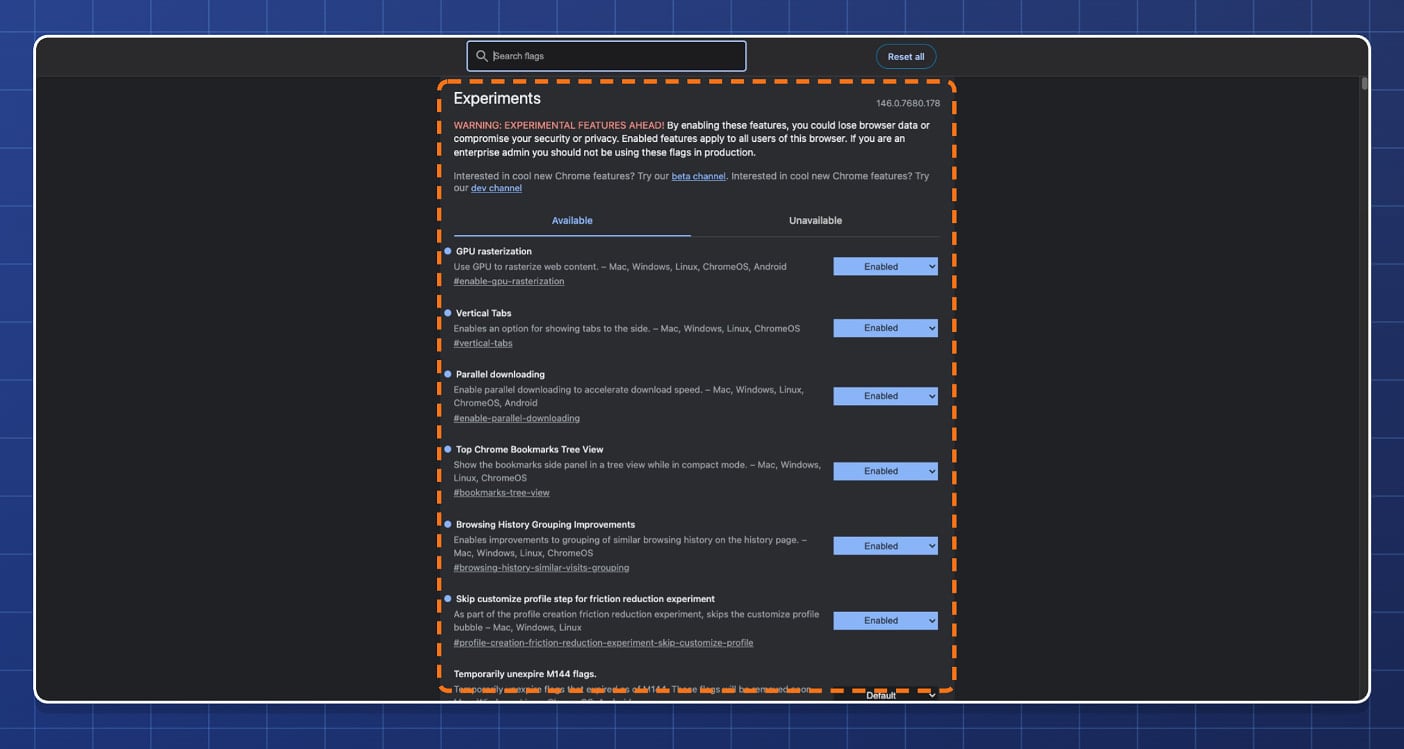
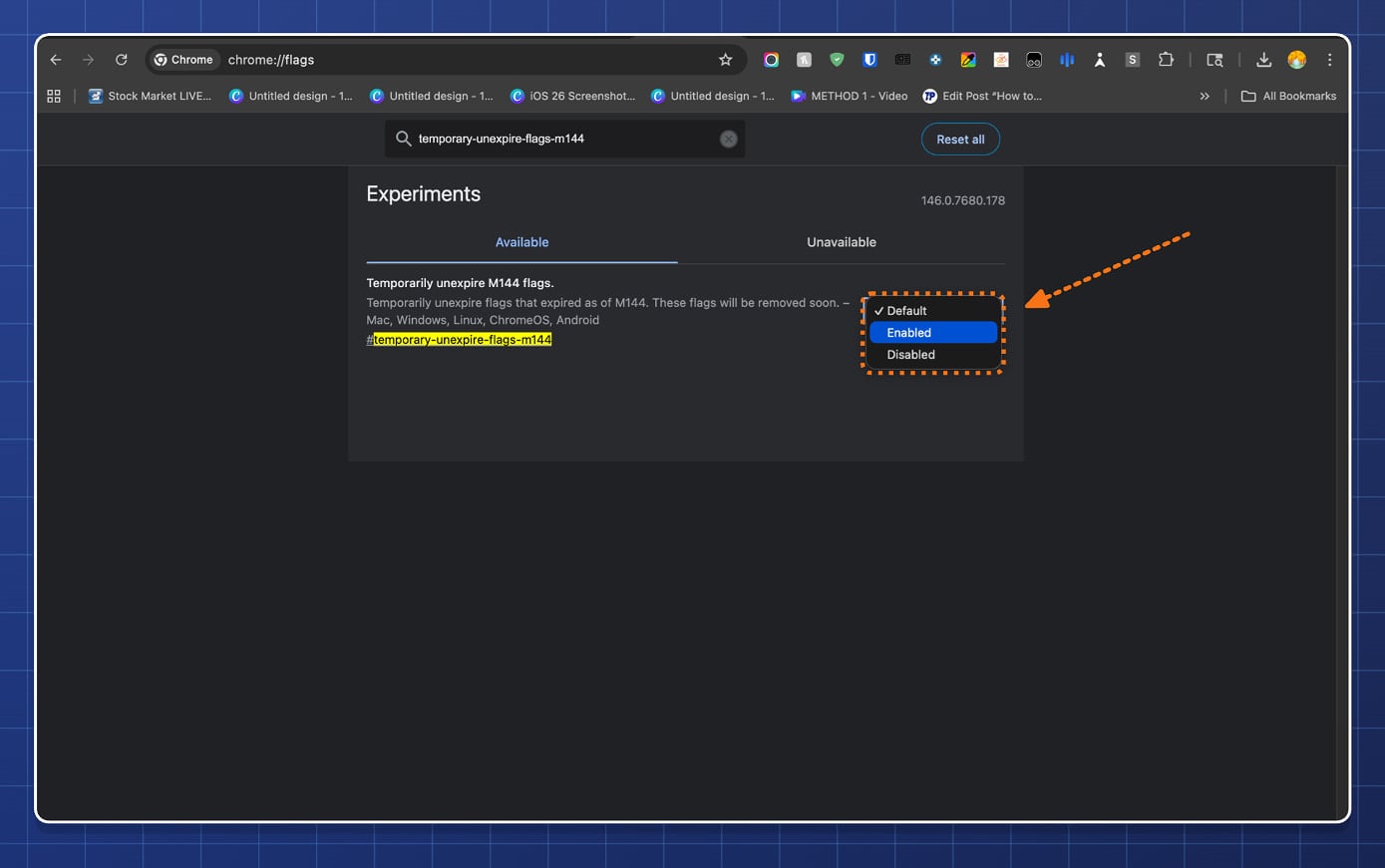
Step 2: Now search for the required Chrome flags. You can also tap the link above to view the Google Chrome flag.
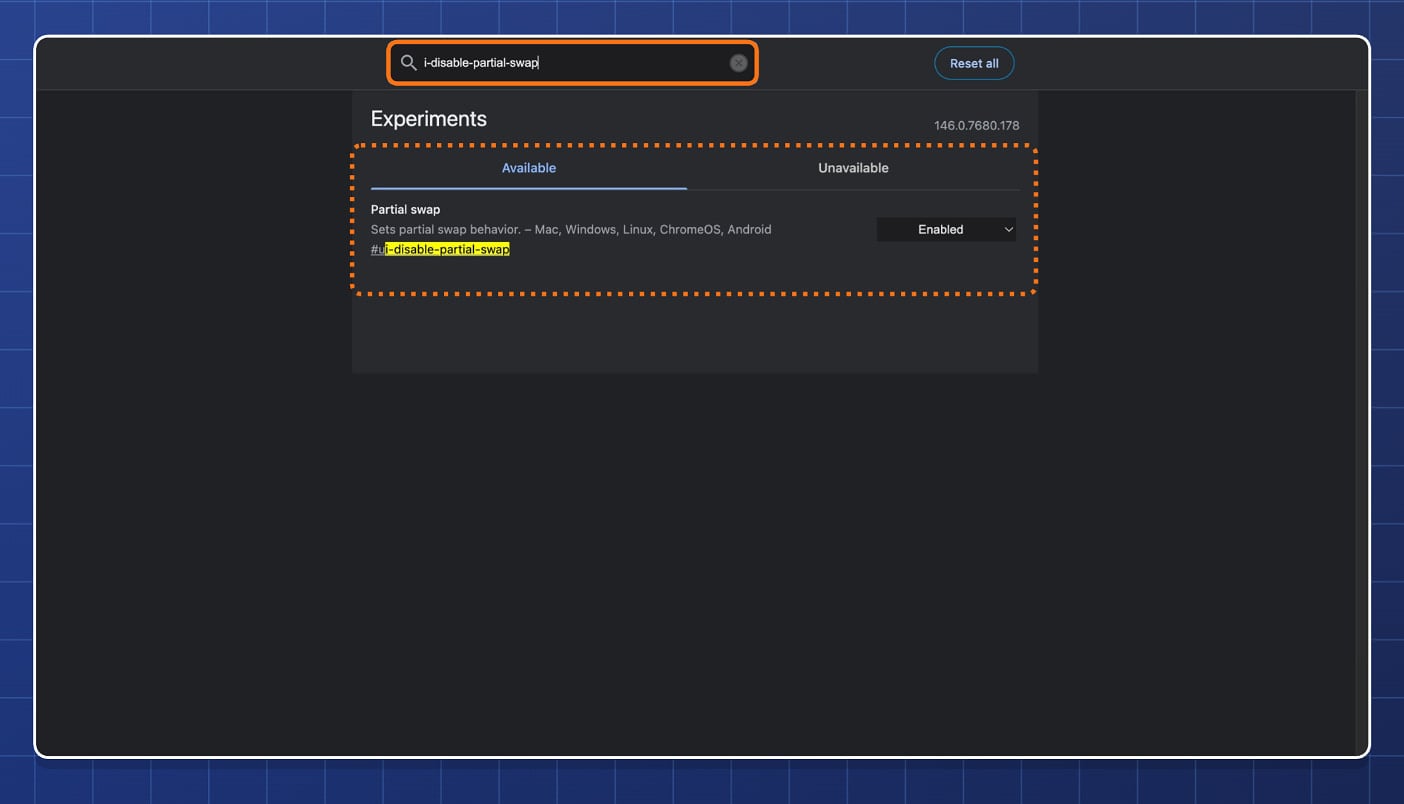
Step 3: Now tap on the Default button and select Enable.
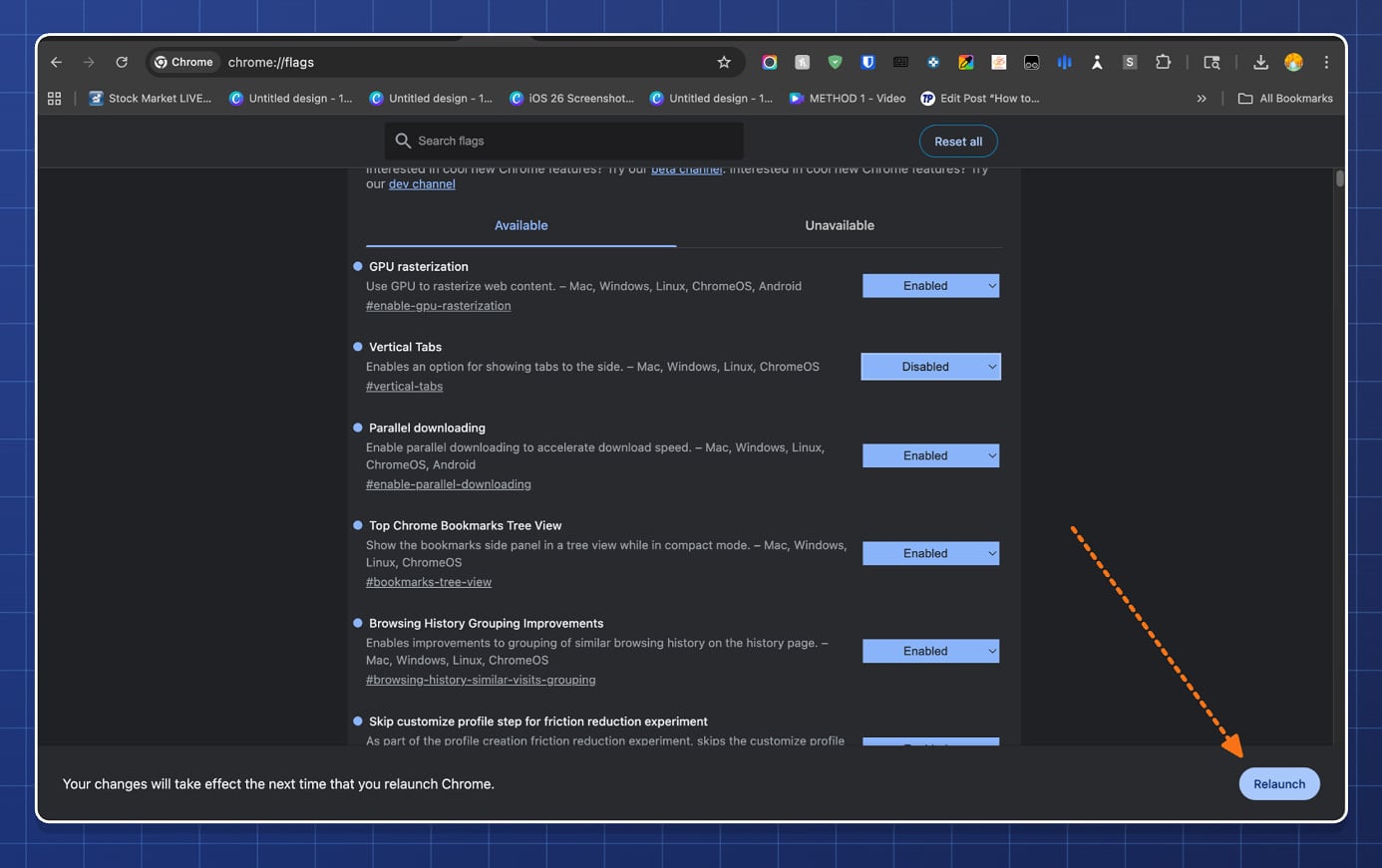
Step 4: You will now see a Relaunch prompt. Tap on it to Relaunch Google Chrome.
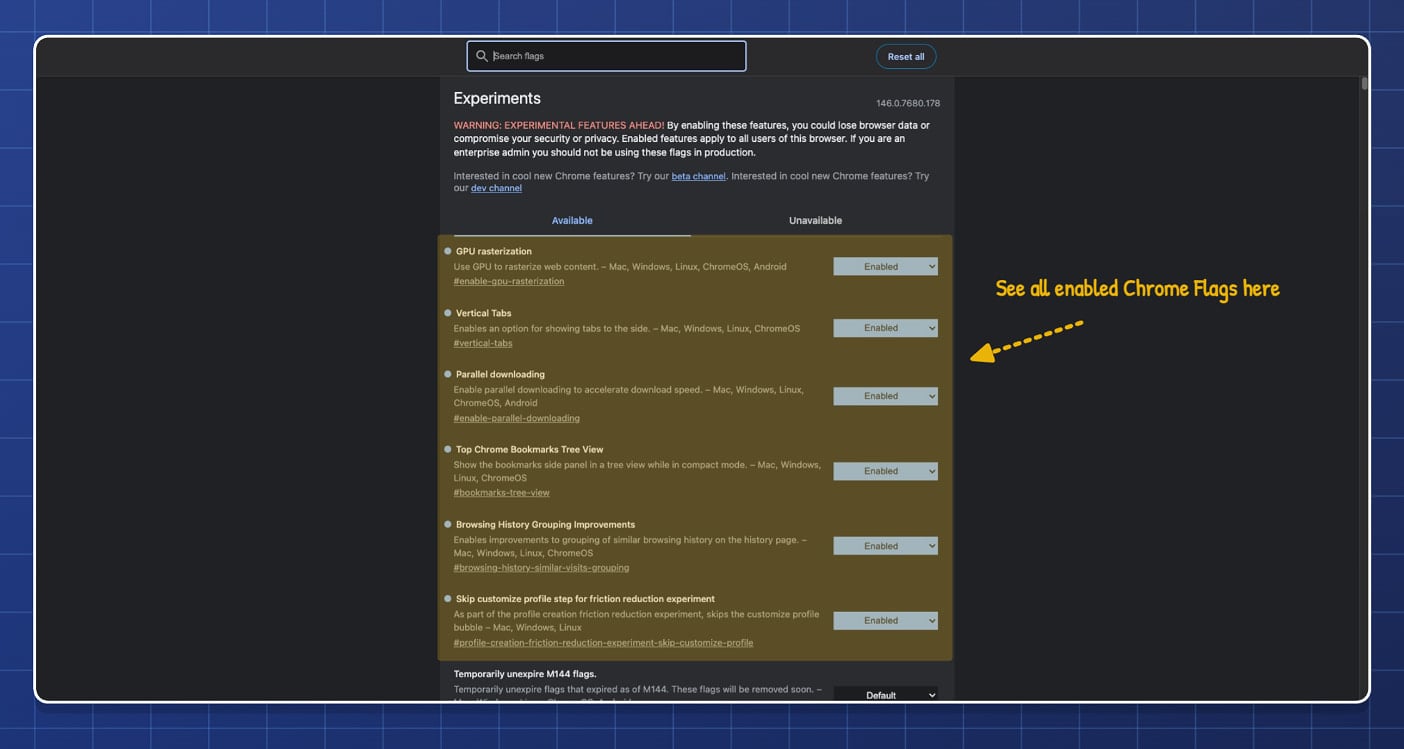
Step 5: That’s it, your Chrome flag will be enabled by now. You can see a list of enabled flags on top of the home screen.
Ultimate Guide to the Best Chrome Flags
Those are the best Google Chrome flags you can enable on your browser, and they are best described in a guide on how to enable Google Chrome flags.
Google Chrome is the leader in the browser category, holding more than 70 percent of the total browser market share (see the status from Statista). Because of this huge market share and being a market leader, it is understandable that it’s a lot less experimental compared to other browsers in the market and even the new AI browser category.
Fortunately, you are not just limited to the default Google Chrome features. With Google Chrome extensions, you can add additional features to your browser. And with experimental features like Google Chrome Flags, you can test upcoming features early and get access to the latest features on Google Chrome.
Google tests hundreds of browser features every single day. Not every one of them will make their way into the Google Chrome browser’s main feature list. Fortunately, these experimental features are not limited to developers using Chrome Canary or beta users. Most Chrome flags work on the standard stable version of Chrome, and you can directly install and use them on your main Google Chrome browser.
Just visit the Chrome Flags site and enable them. For example, Google recently started testing the vertical tabs feature. Vertical tabs are game-changing for most users, as they have been proven to be the best way to display open tabs. Many browsers even see this as their best feature. However, it took a while for Google Chrome to adopt this change, and it is still currently in testing.
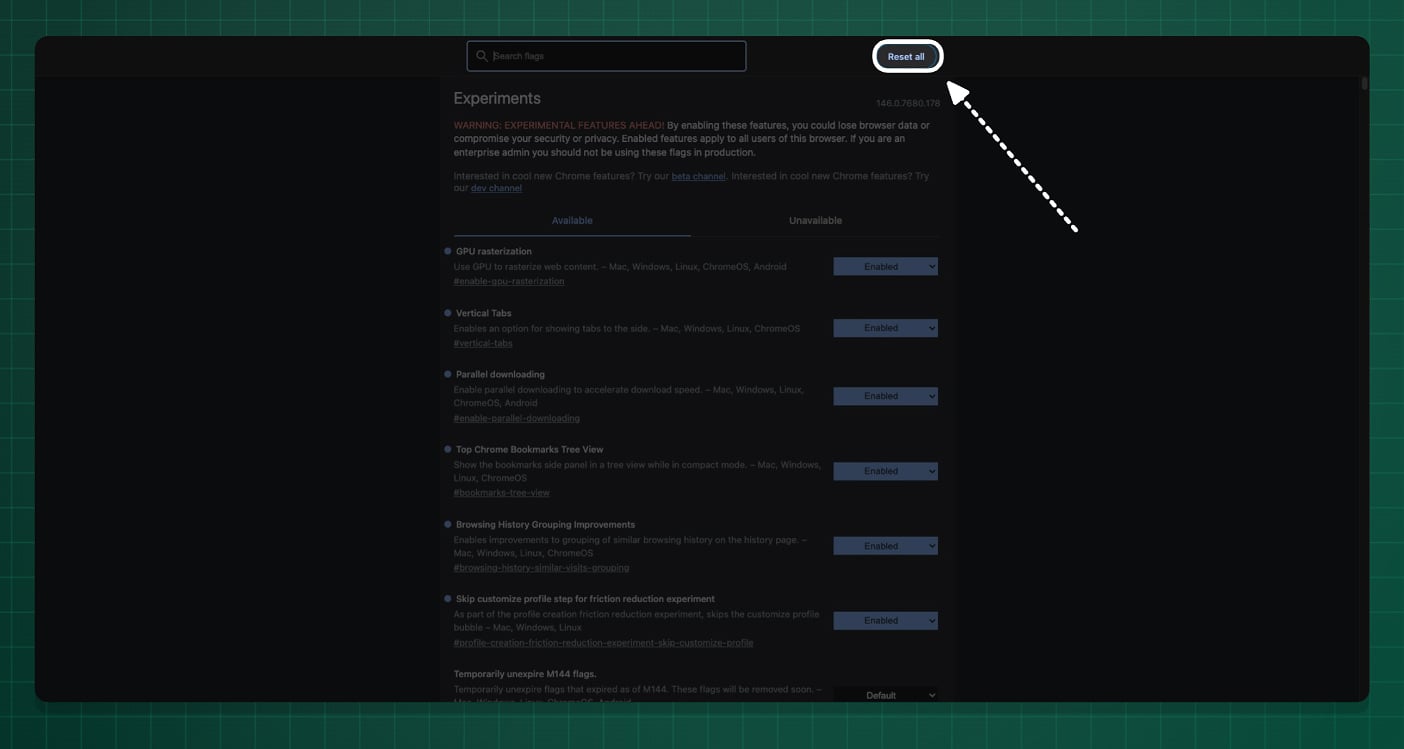
With Google Chrome Flags, you can enable and start using this feature inside Google Chrome already. Likewise, there are hundreds of Google Chrome flags that can be useful for everyday users. If you are facing any issues, you can reset all Google Chrome flags by tapping the “Reset all” button on the home page.
That covers all the best Chrome flags worth enabling right now. Since Google regularly promotes experimental flags to stable Chrome features and also removes older ones, it is a good idea to check back on this guide whenever Chrome gets a major update. I keep this list updated with every new Chrome release.
If you found a flag that made a difference in your browsing experience, or if you know of a useful flag that is not on this list, drop it in the comments below.
FAQs on Google Chrome Flags
1. Which Chrome flags are actually safe to enable on a daily-use browser without risking crashes or broken websites?
The Chrome flags on my top list are the best flags you can enable on your browser without risking stability. I personally use them and haven’t had any issues.
2. What should I do if a Chrome flag makes my browser slower, unstable, or causes pages to stop loading properly?
If these Chrome flags make your Chrome feel slower and buggier, you can always reset them. You can go to Google Chrome flags and tap on the “Reset all” button on the page header.
3. How can I tell whether a Chrome flag is still working in my version of Chrome or has already been removed or changed?
If the Google Chrome flag is removed, it will automatically be disabled in Google Chrome. However, if the feature is available directly inside Chrome, you don’t need to enable that flag and can use it directly in Google Chrome.
4. How often do Chrome flags change, and how often should I recheck which ones are still available?
Google adds hundreds of Google Chrome flags regularly. You can review them once in a while if you are actively using those features. Sometimes these experimental features are made available for everyone in the stable update.
5. Is it better to enable only one or two Chrome flags first, or can I safely turn on many of them at once?
You can enable multiple Google Chrome flags at once without any limitation. However, please keep in mind that since these are experimental features, they may have issues when you use them.

