

YouTube Music is an audio streaming service from Google. YouTube is for videos; YouTube Music is for audio. While a mobile app is available for Android and iOS, there is no dedicated YouTube Music desktop app for Windows or Mac. This makes listening to music a bit of a hassle, as you have to use a web browser, visit YouTube Music, and then play your favorite tracks. It would be much easier if Google could provide its users with a dedicated YouTube Music app for the desktop.

At TechPP, we don’t want you to have to wait any longer for the official YouTube Music app to come out. In this guide, we’ll show you several ways to listen to your favorite tracks with the YouTube Music app for Windows and Mac. Let’s get started right away.
How can I get the YouTube Music app for PC
Let’s discuss the different ways you can get the YouTube Music desktop app on your PC. Some of the methods work for both Windows and Mac.
Download the open-source YouTube Music app
One of the first things we would advise you to do is to install a standalone YouTube Music desktop app. Since there is no official app for desktop, you can install the open-source app from GitHub, which allows you to use all the features of YouTube Music on your desktop.

The app is easy to download and install and offers so many features that you will still be using it even if the official YouTube app is already on the market. This unofficial YouTube Music desktop app comes with several plugins, including some:
- Ad Blocker
- Album Actions
- Album Color Theme
- Ambient Mode
- Audio Compressor
- Blur Navigation Bar
- Bypass Age Restrictions
- Captions Selector
- Compact Sidebar
- Crossfade
- Disable Autoplay
- Discord Rich Presence
- Downloader
- Exponential Volume
For a complete list of solutions, you can visit the GitHub features page for this standalone YouTube Music desktop app. The app is available for both Windows and Mac.
Here’s how you can install it:
- Visit this GitHub link and download the correct file for Windows or Mac. In our case, we will download the YouTube-Music-v3.3.5.exe file for Windows PC.
- Launch the program.
- You will be shown a Windows protected PC prompt.
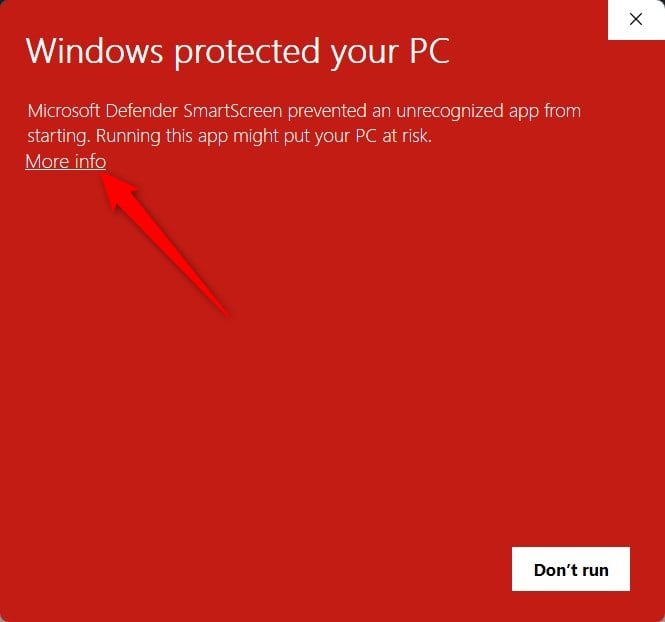
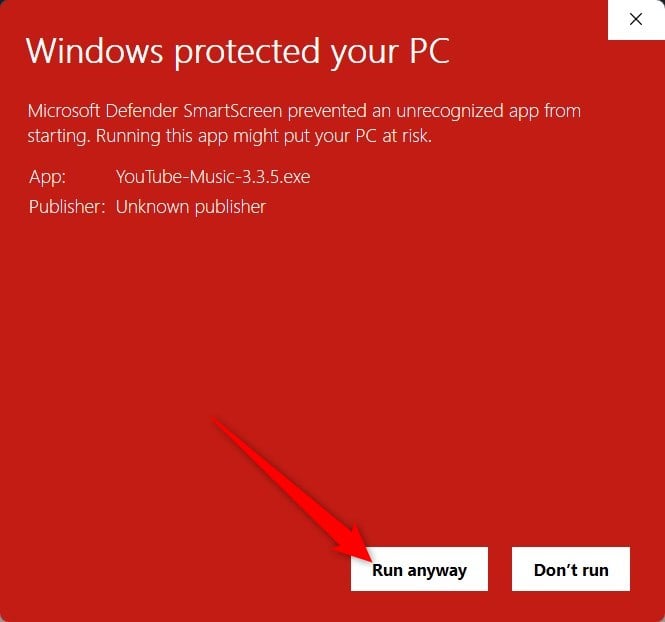
- Here, you need to click More info and then choose Run anyway.
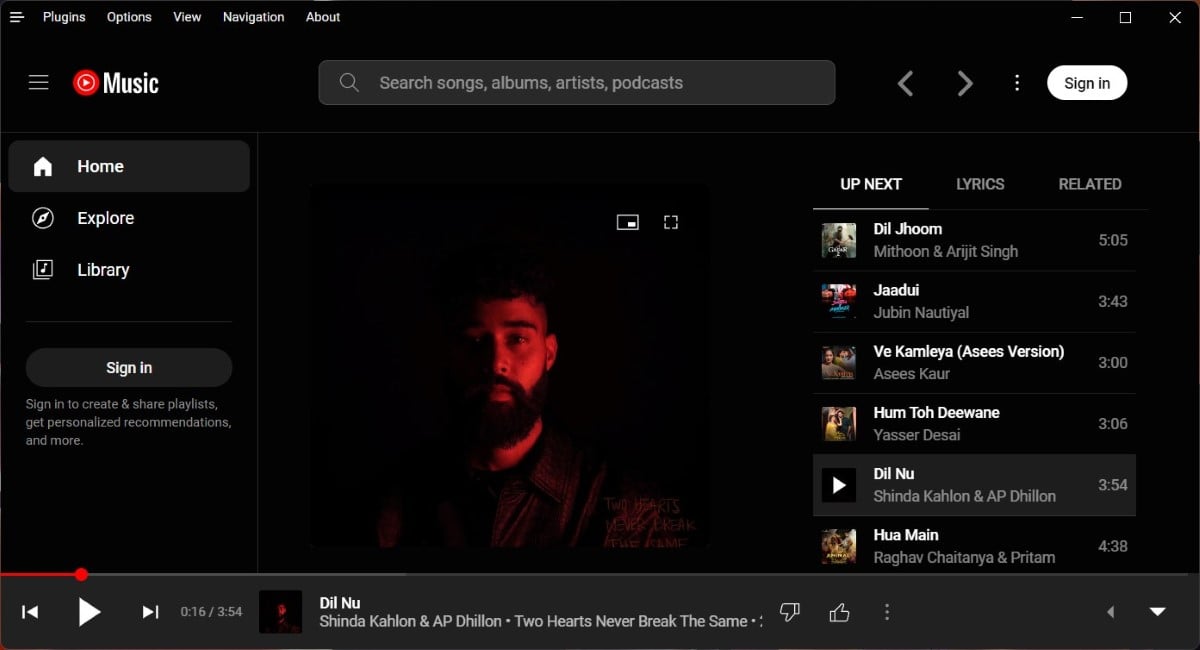
- YouTube Music will start up and you can start listening to your favorite music without any interruption of ads.
Download and install the web app
With Google Chrome or Microsoft Edge browsers, you can install PWA (Progressive Web Apps), which behave like native apps and take you directly to YouTube Music when you open them. However, you still have to log in as it is a website link. Here you can find out how to install YouTube Music with PWA:
1. Google Chrome
- Open Google Chrome and visit the YouTube Music website.
- On the address bar to the right, you will see an Install button showing up.

- Click on the install button and choose the Install option.

2. Microsoft Edge
- Open the Edge browser and visit the YouTube Music link.
- Click on the Installation box icon on the address bar.

- Click Install to get the YouTube Music PWA app.
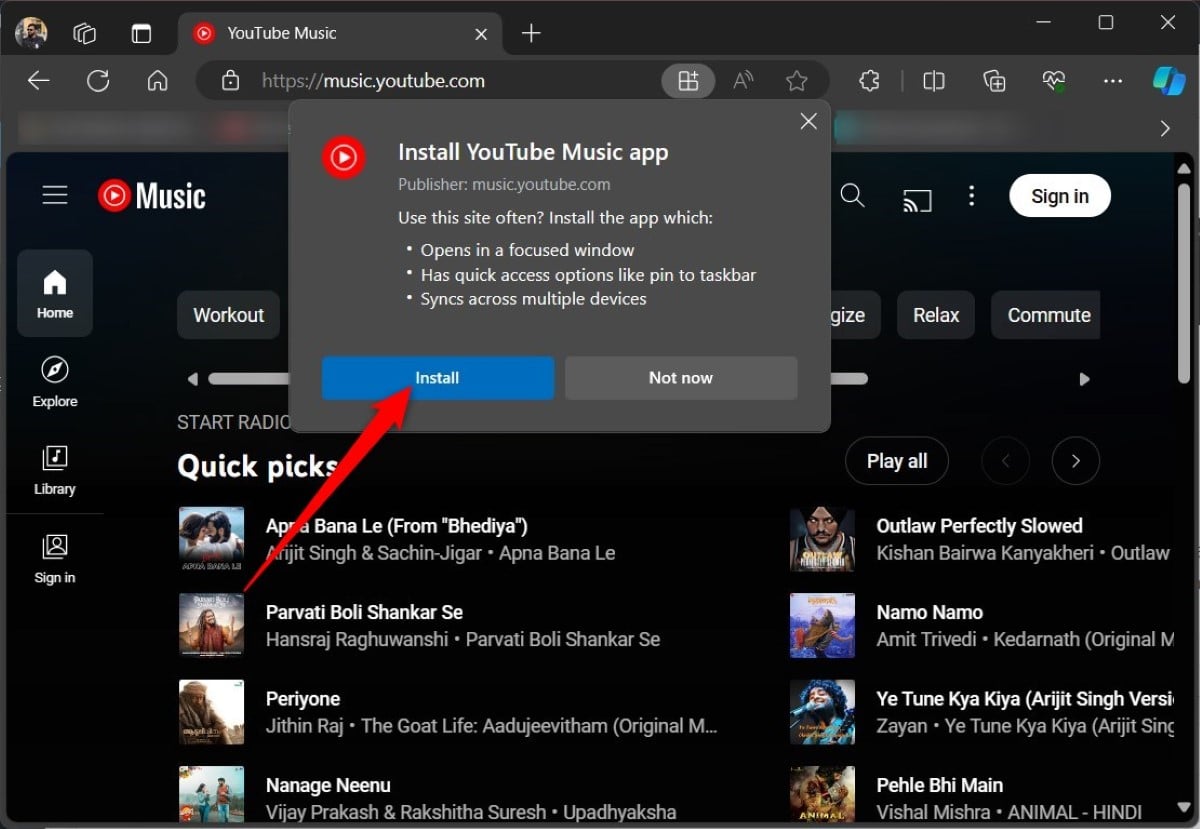
The PWA is quickly installed and displayed separately. The best thing about the PWA is that you can access it from your desktop next time without using the browser. Keep in mind, however, that uninstalling the browser will also uninstall the web app from your PC.
Use an Android emulator
Another way to run YouTube Music on your desktop is to use an Android emulator. An emulator is a program that allows you to run one operating system over another operating system. With the Android emulator, you can run Android apps on your PC. While there are several Android emulators, such as BlueStacks, LDPlayer, etc., in this guide, we will use LDPlayer to launch YouTube Music.
- Visit this link, download and install LDPlayer on your PC.
- Launch LDPlayer.
- Choose LD Store.

- In the search bar, type YouTube Music and search for the app on the Google Play Store.
- Install YouTube Music.
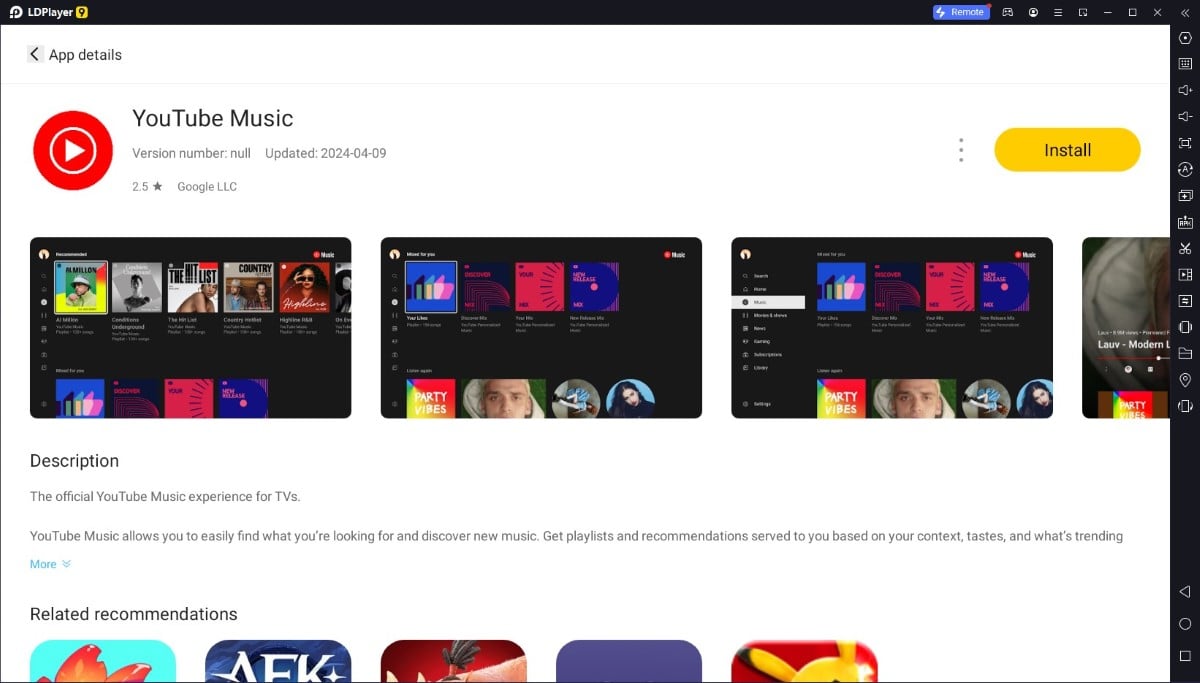
- The Android emulator will download and install the YouTube Music Android app on your PC.
After the installation is complete, launch YouTube Music, sign in to your Google Account, and enjoy your favorite tracks. Note that this method has the disadvantage that you always have to open the Android emulator first in order to use the YouTube Music app on your PC. But at least it’s better than not having an app at all. Also, your PC should have enough resources for the Android emulator to run smoothly.
If you’re wondering how to run Android apps like YouTube Music on your Mac PC, we have a guide that explains how you can use the Android emulator and run apps on Mac.
Install YouTube Music desktop app and enjoy
Yes, there are other streaming platforms, like Spotify etc., that you can use directly through their desktop apps. However, with YouTube Music, you have access to a huge library that is even bigger than some of the leading music streaming platforms. YouTube Music may not be available in your country. Therefore, the process described above may not work if YouTube Music isn’t available in your region. If you’re having problems with YouTube Music or it’s not working properly, you can use the solutions mentioned in our guide to fix it.

