

Quick Answer
WhatsApp doesn’t natively support multiple accounts on a desktop app like Android. However, there are some workarounds you can use. Use WhatsApp’s native app + WhatsApp Web. You can create browser profiles and use two WhatsApp accounts without logging out. You can also use incognito mode to run the same WhatsApp account in the same browser. Finally, if you want multiple accounts, use different browsers or the SessionBox extension on Chrome and Multi-Account Container for Firefox.
With over 5 billion downloads on the Google Play Store, WhatsApp is among the most popular messaging apps. Many people use the Meta-owned app as their primary online communication method because it is feature-rich and easy to use. Most of us know that only one WhatsApp account can be used on mobile devices unless you open a second account with WhatsApp Business. Meanwhile, there are workarounds to run multiple smartphone WhatsApp accounts, including clone apps.

With the advent of WhatsApp linking, users can now link their WhatsApp accounts to their PCs, which is very useful for most people. However, the web app only allows you to use one account on a desktop, which is not ideal for those with multiple WhatsApp accounts. Fortunately, as with smartphones, there are some workarounds for using multiple WhatsApp accounts on desktops, which we will discuss in this article.
Table of Contents
How do you log in to WhatsApp on a Desktop?
Before we get into the different methods you can use to have multiple WhatsApp accounts on the desktop, let’s talk about how to sign into WhatsApp on a PC.
1. Visit web.whatsapp.com on your PC to get the QR code you need to scan to connect to your WhatsApp.

2. Go to your WhatsApp on your phone and click on the icon with three dots.
3. Select the Linked device and tap on LINK A DEVICE.

4. Follow the on-screen prompts to display the QR code scanner and point it to the QR code on the WhatsApp web page.
It’ll take a few seconds for your WhatsApp to connect to your PC, and that’s all.
How to Use Multiple WhatsApp Accounts on a Desktop
If you are someone who uses multiple WhatsApp accounts and needs to connect the account to your PC at once, here are several methods to do so:
S.no | Method | Benefits |
|---|---|---|
1 | WhatsApp Native App + WhatsApp Web | Use two accounts at once—one on the desktop app, one on the web. |
2 | Create Browser Profiles | Keeps accounts separate without needing to log out and back in. |
3 | Use Incognito Mode | Quick and simple—open two accounts in the same browser. |
4 | Use Different Browsers | Easy to manage—use different browsers for different accounts. |
5 | SessionBox Extension | Manage multiple accounts in one browser with separate sessions. |
6 | Multi-Account Container for Firefox | Best for Firefox users to manage multiple accounts efficiently. |
Method 1: WhatsApp Native App + WhatsApp Web
One of the easiest ways to use multiple accounts on WhatsApp is by using the WhatsApp native app + WhatsApp web on your PC. The native version of the WhatsApp app is available on both Windows and PC. You can sign in and set up your account and another account on WhatsApp Web. You can also use the same account on the WhatsApp and web apps.
- Install the native WhatsApp app on your PC. Download for Windows | Mac.
- After installing it on your mobile, go to Settings>Link a new device and scan the QR code. Your Whatsapp account will be added to your smartphone.
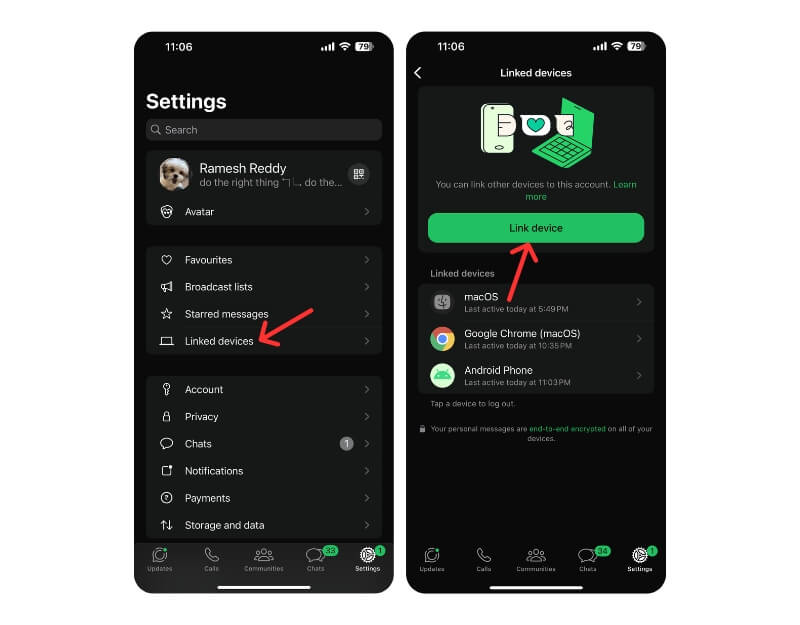
- Alternatively, Visit web.whatsapp.com and scan the QR code using the same process to use the same account on your mobile. If you want to use a different account, log in to your other account on your mobile and then scan the QR code.

Method 2: Use Multiple WhatsApp Accounts on the Same Browser
If you want to open multiple WhatsApp accounts on your PC with the same browser, you can use one of the following methods.
i. Create a new browser profile
Browsers like Chrome, Firefox, Edge, and many others have a feature that allows you to create multiple profiles. This creates a separate location for each activity you perform within the browser and avoids confusion. Therefore, connecting several WhatsApp accounts to the browser is possible since each profile you create works more or less like a new browser without any associated data.
For a given browser profile, the WhatsApp account you connect to is saved, and you have to log out of that account to use another WhatsApp account, which might not be practical for someone who uses multiple WhatsApp accounts. Fortunately, using different browser profiles lets you connect your other WhatsApp accounts to the browser and thus use multiple WhatsApp accounts on the desktop. Here is how to create a new profile in browsers:
For Chrome:
1. Click the profile icon (usually your picture if you set one for the Google account associated with your default profile) in the top-right corner of the Chrome homepage.
2. Navigate to the Add menu and select it.

3. Another Chrome window will open where you should click Continue without an account.
4. Create a name for the profile and choose whether you want to create a desktop shortcut for it.
5. Now, tap Done.
6. You can now use the previous steps to connect your other WhatsApp account(s) with the new Chrome profile(s).
Related Read: Activate WhatsApp Companion Mode: Here’s What You Need to Know
For Firefox:
1. In Firefox, type about:profiles and press Enter.
2. Click on Create a New Profile.

3. Follow the on-screen instructions, name the profile, and tap Finish.
4. To switch to the created profile, navigate to it on the About Profiles page and select Launch profile in new browser.
For Edge:
1. Click the profile icon at the top-right corner of the Edge homepage and select Add profile.

2. Select Add and tap Start without your data in the resulting window.
3. Now, hit Confirm and start using the profile.
ii. Incognito Mode
It is impossible to use multiple WhatsApp accounts in one browser profile because your browser data is stored. This means your browser will only recognize the logged-in WhatsApp account, and you must log out before connecting to a new account. However, with the help of incognito mode, you can use another WhatsApp account in your browser. Here is how to open the incognito mode in your browser:
Click the three-dot icon on the Chrome homepage and select New Incognito Window.
For Firefox, click the three-line icon and select New Private Window.
For Edge, click the three-dot icon and select the New InPrivate window.
Method 3: Use Another Browser
Another way to open multiple WhatsApp accounts is to use different browsers on your computer. It’s quite simple: you need to download and log in to a new browser to use more than one WhatsApp account on your PC. The more browsers you can download to your computer, the more WhatsApp accounts you can use.
Related Read: 5 Ways to Set Up and Use Multiple WhatsApp Accounts
Method 4: Use the SessionBox Extension
SessionBox is a Chrome extension that allows users to log in to multiple accounts on a single website using their browser. Although primarily designed for browsers, SessionBox works like a smartphone app cloner. Using Chrome or Microsoft Edge, you can use this extension to use multiple WhatsApp accounts on the desktop. Here is how to use SessionBox to use multiple WhatsApp accounts on the desktop:
1. Go to the SessionBox page on the Chrome Web Store and Add it to your extensions.

2. After adding the extension, pin it to your browser’s toolbar. You’ll get a tab showing the SessionBox demo; just close it.

3. Open WhatsApp Web in the browser; log out if you were logged into an account before. Click on the SessionBox extension to replicate the WhatsApp Web tab on the WhatsApp Web homepage.
4. Follow the on-screen prompts and tap Sign in as guest.

5. On the SessionBox window, click the circled plus icon(New stored session) at the front of the WhatsApp Web link to create the session.

6. Name the session and press OK.

7. Now scan the WhatsApp web barcode for each session (tabs) you’ve opened, starting from the original one.
You can open as many WhatsApp Web pages as possible using this extension. Also, as long as they are created as stored sessions, you can access them by clicking the SessionBox extension icon on your browser’s toolbar.
Method 5: Multi-Account Container for Firefox
We have a workaround for Firefox users who want to use multiple WhatsApp accounts on their desktops. Thanks to an add-on called Multi-Account Container, you can set up multiple accounts in Firefox without having to log out of one, which works more like browser profiles. You can learn how to set it up and use multiple WhatsApp accounts with it below:
1. Add Multi-Account Containers to Firefox.
2. Go to the WhatsApp Web homepage and click the Multi-Account Containers extension icon on your Firefox toolbar.
3. Follow all the on-screen prompts to get started with the extension.
4. After setting up everything, click Reopen This Site in…

5. Select one of the Add-on profiles.

6. Link your WhatsApp accounts on each WhatsApp Web tab opened with the extension and start using multiple accounts simultaneously.
Final Words: The WhatsApp desktop app has multiple accounts
Method | Setup Time | Resource Usage | Security Level | Persistence |
|---|---|---|---|---|
Native + Web | 5 min | Low | High | Yes |
Browser Profile | 10 min | Medium | Medium | Yes |
Incognito | 2 min | Low | High | No |
SessionBox | 15 min | Hihj | Medium | Yes |
FAQs on Using Multiple WhatsApp Accounts on Web

Can I have two WhatsApp accounts on the same phone?
WhatsApp doesn't support using multiple accounts on the same phone. However, there are some methods you can use to run more than one account on your phone, and one of them is by using cloning apps like Dual Space and Parallel Space. These applications are available on both the Play Store and the App Store.
How many WhatsApp accounts can I use on my laptop?
Although WhatsApp doesn't allow for the use of more than one WhatsApp account, you can still use multiple accounts on your laptop. Based on the different methods we've covered in the article, you can use as many WhatsApp accounts as possible, with the limitation being your computer resources required to run as many instances of WhatsApp.
Can I use WhatsApp on Firefox browser?
If you want to use WhatsApp on your computer, you can do it through any browser. So, yes, you can use WhatsApp on the Firefox browser.
How can I turn WhatsApp on the desktop to dark mode?
To turn WhatsApp in the desktop to dark mode, follow these steps:
1. Open WhatsApp on your PC and click on the three-dot icon at the top of your account chats.
2. Select Settings and tap on Theme.
3. Hit Dark under the Choose Theme page and select OK.
Can I have 2 WhatsApp accounts on my desktop?
You can have as many WhatsApp accounts/sessions as you want on your PC or Mac. There are multiple ways available to achieve this, which bypass WhatsApp's restriction on using only one account at a time. The simplest way is to use different browsers for different WhatsApp accounts. You can also use browser extensions like SessionBox to run multiple WhatsApp accounts on desktop within the same browser.
How do I add another account to WhatsApp Desktop?
The simplest way to add another account to WhatsApp on a Desktop is to open a new incognito tab and go to web.whatsapp.com. You can also try logging in from another browser. The alternate way is to use a Chrome extension like Sessionbox to use multiple WhatsApp Web accounts in a single browser.
Further Readings:
- WhatsApp Media Not Downloading? Here’s How to Fix It
- 5 WhatsApp Web Tricks You Need to Know
- How to Enable End-to-End Encrypted Backups on WhatsApp
- How to Download and Save Chrome Extension as CRX

