

Quick Answer
- As painful as it might look, updating or reinstalling Bluetooth drivers is the most recommended way to fix the frequent disconnection issue.
- Look for Bluetooth Power Management settings under Device Manager.
- Use Microsoft’s Bluetooth Troubleshooter tool.
I recently built a gaming PC that worked very well at first. I installed all the drivers and used the machine as intended, but after a while, I ran into a little bug that started to get very annoying. Most of my workflow consists of writing long and detailed articles here, and I also use the PC for entertainment, such as watching YouTube and playing games. I do all this with a wireless mechanical keyboard, Bluetooth earbuds, and a wireless controller that works with Bluetooth.

I keep struggling with Bluetooth disconnections with my PC, and going by forums on the web, it seems to be a very common problem with Windows devices (laptops or PCs). In this blog, I will share all the methods to fix random Bluetooth disconnections in Windows 10/11. I will start with the most basic methods and then move on to advanced solutions to fix the issue. All methods should work on both Windows PCs and laptops; if there’s a method that only works with the latter, I’ll mention it. But before we start, we need to understand what could be the reason for the problem.
Table of Contents
Possible reasons behind Random Bluetooth Disconnection
The problem can have various causes, e.g., faulty Windows updates, multiple devices operating at the same frequency, lack of proper driver installation, faulty drivers at work, faulty Bluetooth and Wi-Fi modules in the PC, loose antennas, a poor connection with the motherboard, and much more. Initially, it might be difficult to identify the main reason for random Bluetooth disconnections. It could also be that your Bluetooth device that keeps interrupting the connection is the cause.
Therefore, check that all the devices you connect via Bluetooth are working properly. You can check all your headphones, keyboard, mouse, and controller by connecting them to another device via Bluetooth. If they work properly and you don’t notice any random Bluetooth disconnections when you connect them to another device, then we can move on to the solutions to fix the problem.
Restart your PC or Laptop
Let’s start with the easiest and first step to solve the problem: restarting your Windows PC or laptop. Most people tend to jump to more advanced solutions and skip this step, but a simple reboot can also fix many problems at the operating system and kernel level.
Restarting should take a few seconds to a minute, depending on your hardware. Once your computer has restarted, try to connect your Bluetooth device and check whether the issue is resolved.
Disable Flight Mode in Windows
The first time you enable Airplane mode, Windows automatically disables your Wi-Fi and Bluetooth, which can cause Bluetooth to disconnect from all your devices randomly, but this only happens the very first time. After that, Windows remembers your settings and doesn’t make any more changes. So it’s better to enable Bluetooth and Wi-Fi and manually connect to your router for internet and Bluetooth devices before disabling airplane mode. How to deactivate flight mode:
- Press Win Key + A key to toggle the action center.
- Here, click on the Flight mode icon to disable Flight mode.

When flight mode is deactivated, try to connect all Bluetooth devices and use them. If the problem persists and you are still experiencing random Bluetooth disconnections, you should take the next step to fix the problem.
Check for Windows Updates
Check whether there are Windows updates. Often, there are problems with a particular Windows build, and as soon as these are detected, Microsoft quickly sends updates to fix the problems.
Here is how to check if there is an update on your Windows PC and laptop:
- Tap the Windows key and type “updates” in the search bar.
- Click on the first result “Check for updates“.

- This will take you to the Windows Update settings menu.
- Here, Click on the Check for updates Button.

Windows will start to check for updates if there are any. Update your Windows PC or laptop and check if the problem persists and you are still getting random Bluetooth disconnections. If so, the next step should solve the problem.
Update the Bluetooth Drivers OR Re-Install them
Not having proper Bluetooth drivers could be the main reason for a random Bluetooth disconnection, but this is nothing to worry about as you can always update old drivers in Windows. Find out how to update drivers in Windows 10/11 here.
- Press the Windows Key and search for “Device Manager“.
- Now, click on the following result to open the Device Manager.

- Here, expand the Bluetooth option and right-click on the Bluetooth driver.
- Now, click on the Update driver option.

- You will see an “Update Driver” window popup, here, click on “Search automatically for drivers“.

Windows will automatically search for drivers, and if they are outdated or not installed correctly, Windows will automatically install them for you.
If you receive the message “The best drivers for your device are already installed,” this may also mean that the previously installed driver is now corrupted. In this case, you must uninstall the driver and reinstall it again. A faulty Bluetooth driver could also be the reason for the random Bluetooth disconnection. It is, therefore, better to do this now.
- Close the above window stating, “The best drivers for your device are already installed,” by clicking the close button on the bottom right-hand corner.
- Now, again right right-click on the Bluetooth driver.
- Click on the Uninstall device option.

- Now click on the Uninstall button to uninstall the driver.

- Once the driver has been uninstalled, restart your computer.
Windows will automatically download and install the driver during the restart. Once your computer has restarted, reconnect your Bluetooth devices and check if the random Bluetooth disconnection issue occurs again. If so, it is better to follow the next step.
Fix the Bluetooth Power Management Settings
Bluetooth Power Management could be the main reason for the random disconnection of the Bluetooth connection: Windows controls and regulates Bluetooth power usage. On Windows laptops, Windows may automatically turn off the Bluetooth connection to save power or battery. We can check whether this is the case or not by following the steps below:
- Press the Windows Key and search for “Device Manager“.
- Now, click on the following result to open the Device Manager.
- Here, expand the Bluetooth option and right-click on the Bluetooth driver.
- Now, click on the “Properties” option.

- Now, click on the Power Management tab.

- Here, untick the “Allow the computer to turn off this device to save power”.

- Then, click on OK and restart the computer.
Check if the random Bluetooth disconnection issue is resolved by reconnecting your Bluetooth devices. In most cases, following the steps above should solve the problem, but if it doesn’t in your case, the next step will help.
Use the Bluetooth Troubleshooter
If the above steps have not solved the problem, Bluetooth troubleshooting will help you. The random Bluetooth disconnection must be caused by an internal error that Windows automatically fixes for you. You can find out more about it at answers.microsoft.com
Here is how to use Bluetooth troubleshooting to fix random Bluetooth disconnections:
- Press the Windows Key on your keyboard and search for “Troubleshoot settings”.

- Click the following result to open it. This should open the Troubleshoot settings in Windows.
- Here, click on the Other trouble-shooters option.

- Now, click on the Run button in front of the Bluetooth option.
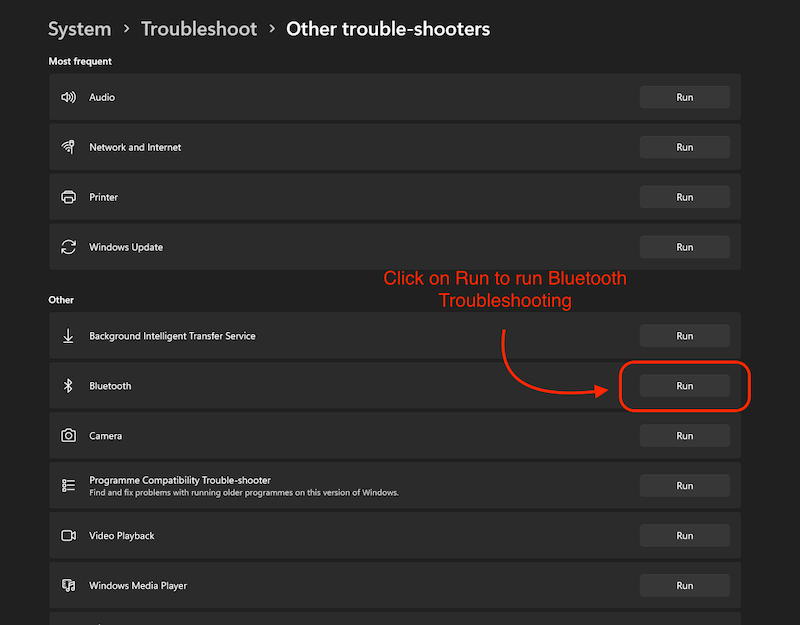
Windows will try to troubleshoot your problem and should prompt you to run automated diagnostics to resolve the random Bluetooth disconnection issue.
Restart the Bluetooth Service
If you restart the Bluetooth service, the problem of random Bluetooth disconnection in Windows should be solved. This Windows service should start automatically when your computer boots up, but if there is an internal problem with the operating system, it may not work. Therefore, it is a good idea to restart the service manually and set it to “Automatic”:
- Press the Win key+R key on your keyboard to open Run.
- Here, in the search bar, type services.msc and click on the OK button.

- Scroll down in the Services window to find the Bluetooth Support Service.
- Right-click on the Bluetooth Support Service, and click on the Properties option.

- Here, select the startup type as Automatic, and click on Apply to save changes.

Restart the PC and try to connect the Bluetooth devices again. This should solve the problem of random Bluetooth disconnections.
Some more solutions to fix Random Bluetooth disconnection
After following the steps above, the random Bluetooth disconnection issue should be resolved. However, if you’re still having Bluetooth connection issues on your Windows PC or laptop, you can also try some more advanced solutions, such as booting into safe mode and checking if there are any problems there. If you have a PC, it’s always a good idea to reinstall the small Bluetooth and Wi-Fi adapter on your motherboard. If you are using an external receiver or those Wi-fi and Bluetooth PCIe cards, you should check that they are inserted correctly.
Wrapping Up

If you have followed all the steps correctly, the random Bluetooth disconnection issue should hopefully be resolved. However, if you’re still having problems, it’s always a good idea to install a fresh copy of Windows because if it’s a software issue, reinstalling the operating system should fix the problem.
FAQs

Why do my Bluetooth earbuds keep disconnecting from Windows 11?
The random disconnection of Bluetooth from devices in Windows 11 can have various causes, e.g. that you do not have suitable Bluetooth drivers, that the flight mode is activated or in some cases even a defective Bluetooth card in your PC or laptop that can cause this problem. We recommend that you follow all the steps mentioned in the blog to fix the random Bluetooth disconnection of devices in Windows 11.
What disrupts Bluetooth connection in Windows 11?
Bluetooth can be disrupted by many things, such as signals from multiple devices, poor product design where the Bluetooth chip cannot transmit the signals properly, or if your PC or laptop is not properly connected to your Bluetooth device.
Why does Bluetooth keep disconnecting in Windows 11?
From a bad Bluetooth driver to a missing Bluetooth driver, there can be many reasons for a random Bluetooth disconnection. But there is no need to worry, because we have described all the ways to solve this problem in this article.

