

Quick Answer
This beginner guide explains what every Google Gemini icon means on Android, iPhone, and the web. It covers key symbols like profile, voice input, Gemini Live, model selector, tools, attachments, and sidebar, helping users understand features, switch models, manage chats, and use AI tools confidently.
Google Gemini started as Bard and faced some setbacks initially; however, over time, it has caught up with other models and now leads with more than 800 million users worldwide. Since it’s from Google, Gemini AI comes pre-loaded on most Android phones.
However, since AI apps are new, not many people are aware of how they work and how to use them. While Google has managed to keep the app’s interface minimal, it still has many icons and options, which many people find confusing.
Not anymore. In this comprehensive guide, we will explain what each icon means in the Google Gemini app on Android, iPhone, and the web. Whether you are a beginner or already a Gemini user, you can view this guide as a reference to know what each icon on the Google Gemini app means. Let’s get started.
Google Gemini App Symbols Guide: Android, iPhone, and Desktop
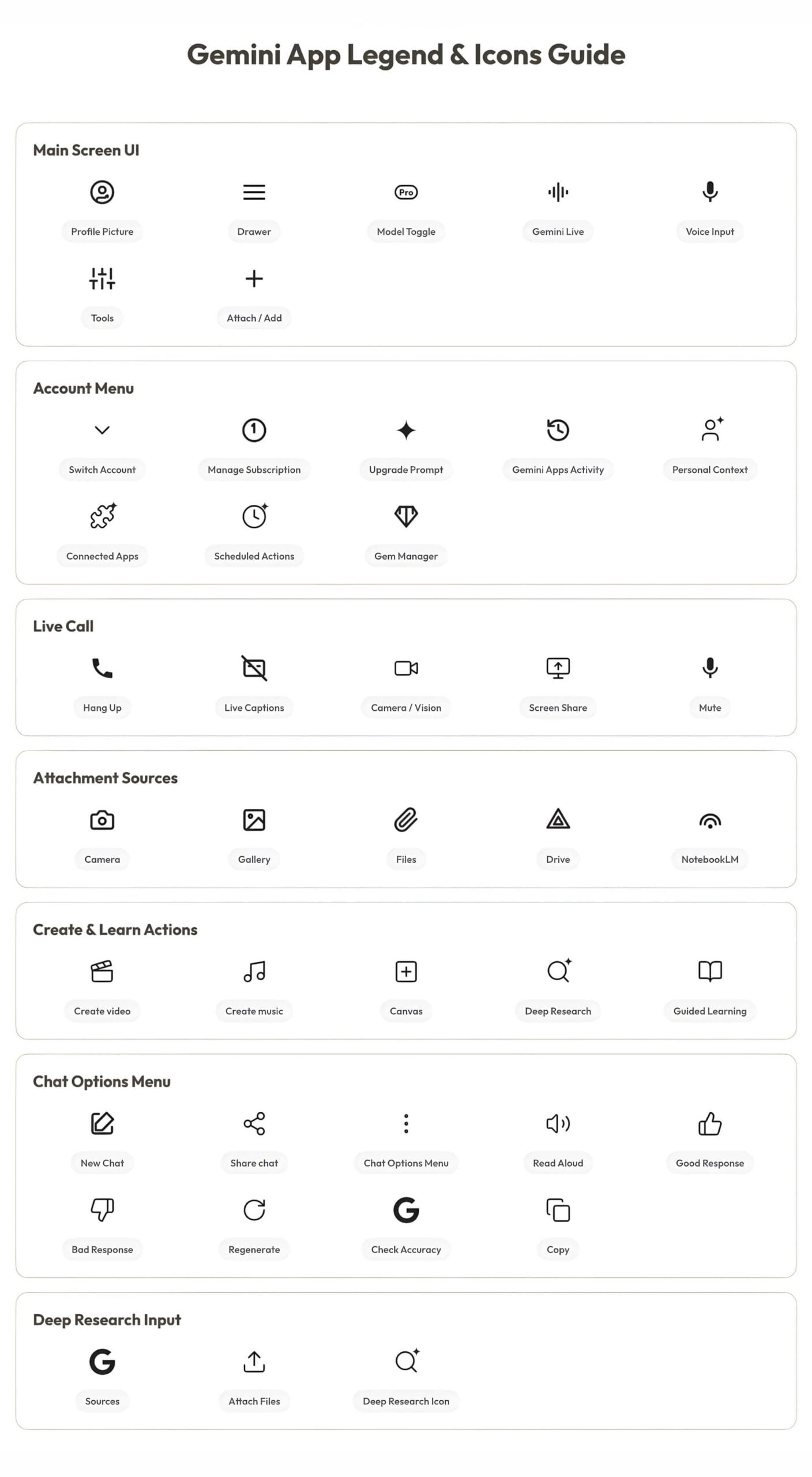
Mobile – Android and iPhone
The Google Gemini app has a similar interface on both Android and iPhone. However, on iPhone, a few features, such as temporary chats, are missing at the time of writing this article.
However, thanks to Google, it maintained a consistent interface on both platforms, making it easy for users. Here is what each icon means in the Google Gemini mobile apps.
1. Home Page
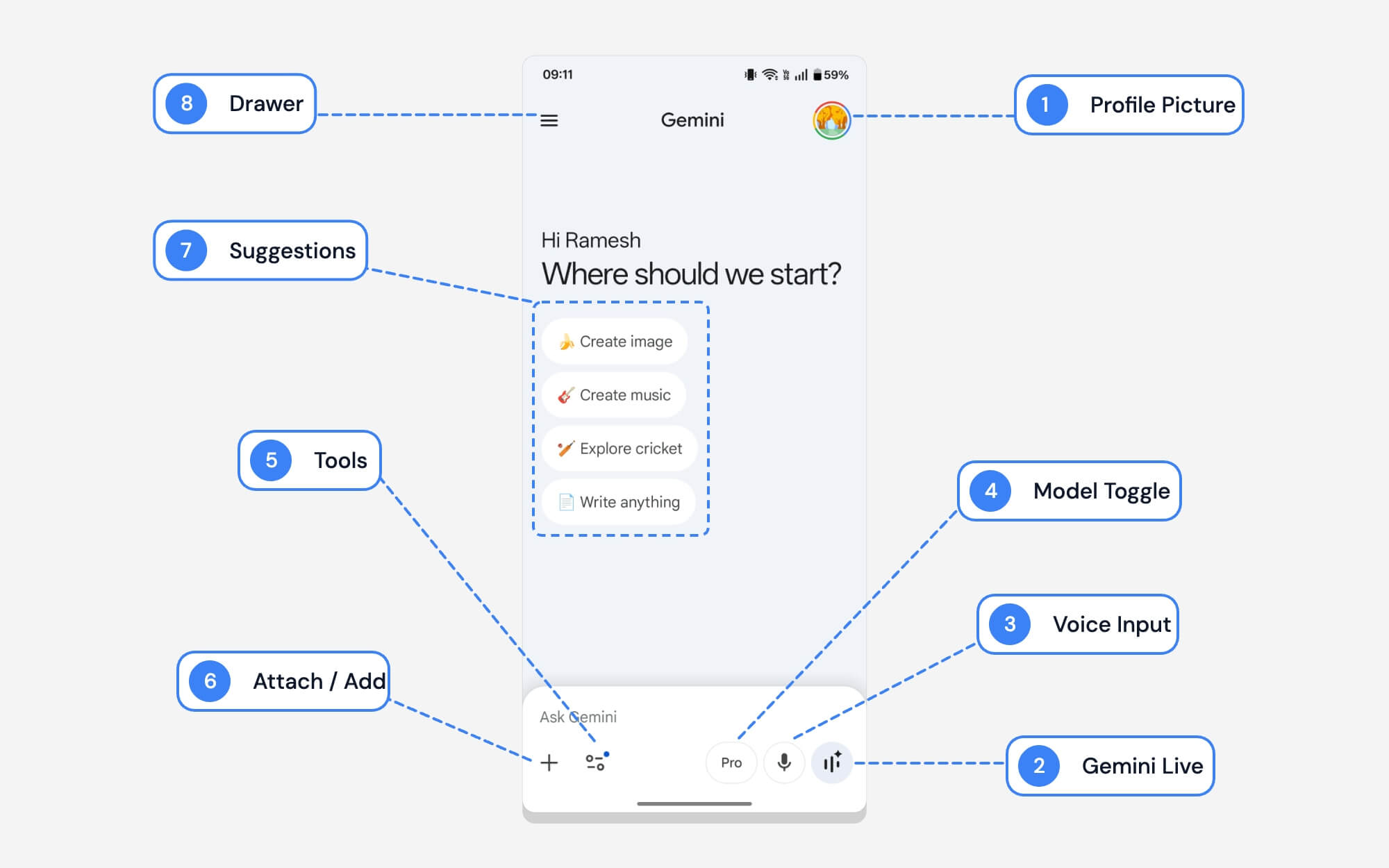
The home page is the most visited page. Google ensured it stayed minimal; however, if you are still confused, here is what each icon and symbol on the home page means.
| # | Name | What It Does |
| 1 | Profile Picture | The icon lets you access your Google account. You can tap to switch accounts or change settings |
| 2 | Gemini Live | Access Google Gemini Live. It lets you point out any real-world objects and ask questions, then get answers. |
| 3 | Voice Input | Voice input is different from Gemini Live. Instead of manually typing the prompt, you can just dictate what you want, and it converts your voice to text in real time. |
| 4 | Model Toggle | You can switch between different Google Gemini models, including Fast, Thinking, and Pro. |
| 5 | Tools | You can access extra features like Deep Research, Canvas, and Workspace, create images and videos, and much more |
| 6 | Attach / Add | Upload files, images, or PDFs with your message. |
| 7 | Quick Suggestions | These are shortcut prompts to get started with Gemini; they change based on the trends. |
| 8 | Drawer/Sidebar | Opens sidebar to view your Google Gemini chat history and settings. |
2. Profile options
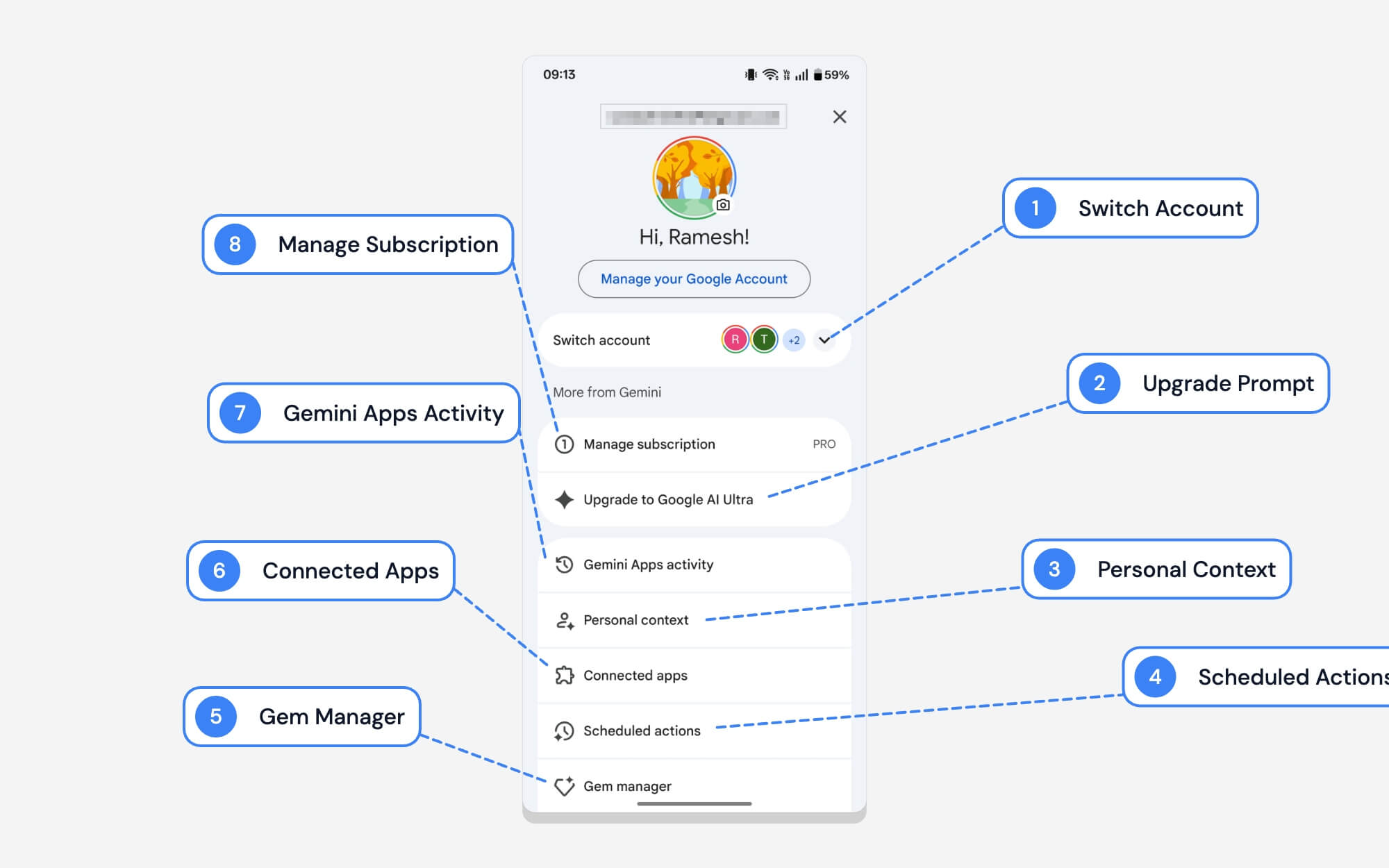
Google keeps the profile content UI very similar on all of its apps, including the Gemini app. Like other apps, you can tap the profile picture to switch between accounts.
The useful swipe-down gesture to switch profiles also works here. However, the Gemini settings also include many Google Gemini app settings. Here is what each option means in the Google Gemini settings page.
| # | Name | What It Does |
| 1 | Switch Account | You can switch to a different Google account. |
| 2 | Upgrade to Google AI Ultra | It is just a marketing option to prompt you to upgrade to the higher plan. |
| 3 | Personal Context | Allows Gemini to remember details about you to give better answers over time. You can disable it if you want. |
| 4 | Scheduled Actions | View and manage all your scheduled actions here. You can ask Gemini to schedule actions directly. |
| 5 | Gem Manager | A gem is essentially a skill specifically trained to perform specific tasks. You can create your own skill with specific instructions or use pre-built skills from Google. Currently includes a storybook, coding partner, learning coach, and more. |
| 6 | Connected Apps | You can connect your Gemini app to external apps such as Gmail, YouTube, WhatsApp, and more. You can just prompt in the Google app, automatically connect to the external app, and perform actions. You can view all your accepted apps and manage connections from here. |
| 7 | Gemini Apps Activity | You can view all your Gemini activity history from here. You can turn off or delete your previous activity from here. |
| 8 | Manage Subscription | If you subscribe to Google Gemini Premium, you can control and access your subscription from here. |
3. Gemini Live
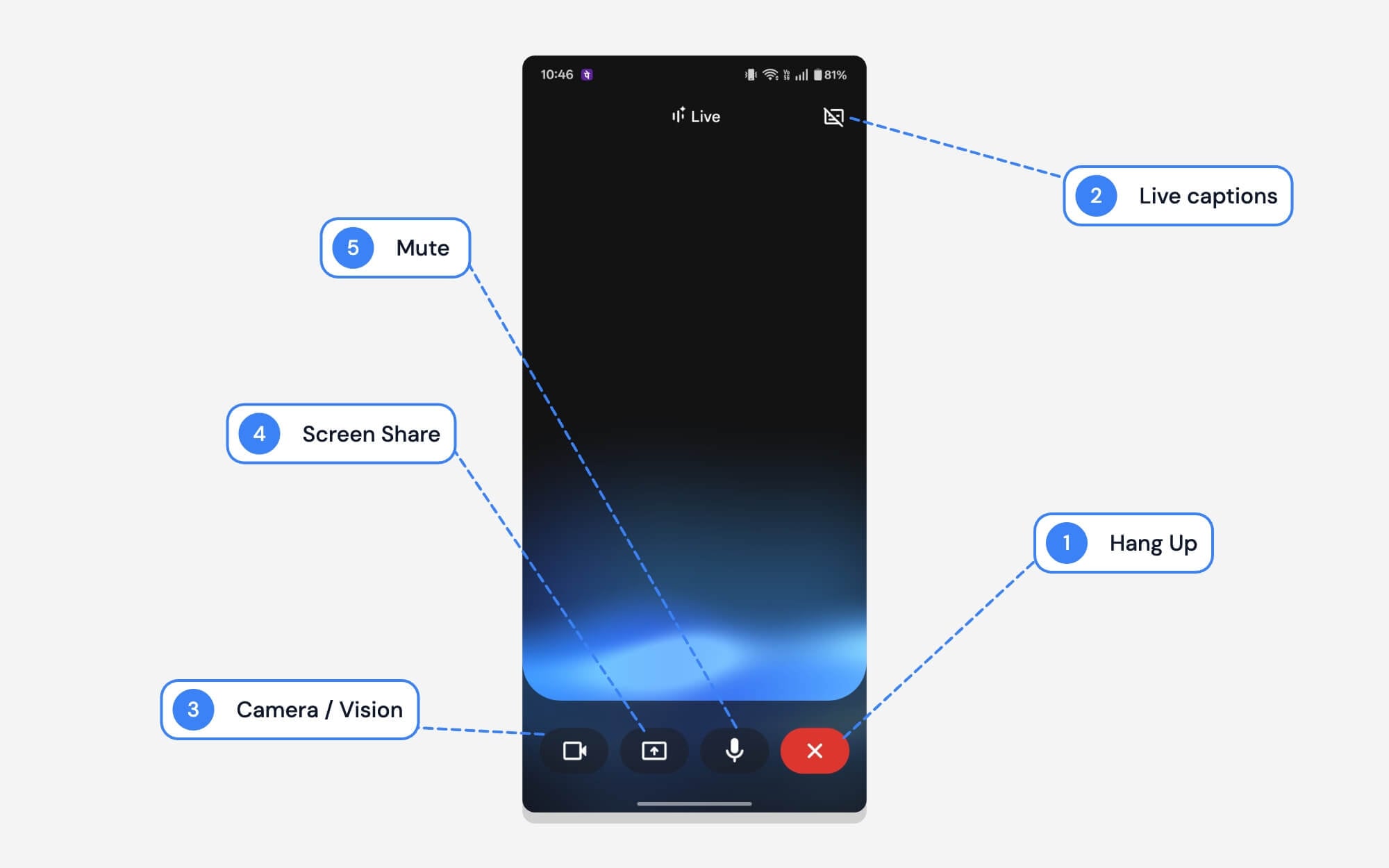
Gemini Live is an interactive mode that lets you have real-time conversations inside the Gemini app. You can just toggle it on by tapping on the Gemini Live icon on the home screen.
It takes you to a dedicated interface where you can speak to the AI and receive real-time responses. You can also share your screen, use the camera to show the real world, and much more. It is very helpful for real-world tasks and for more conversational interaction. It is also great for solving real-world problems.
| # | Name | What It Does |
| 1 | Hang Up | End the current Gemini Live session. Your conversation will be saved. You can find it in chat history. |
| 2 | Live Captions | Shows real-time text of your conversation with the Gemini. |
| 3 | Camera / Vision | Shows Gemini the real world. You can directly ask questions by showing your surroundings to Gemini. |
| 4 | Screen Share | You can share your screen and ask questions. |
| 5 | Mute | You can turn the microphone on or off, so Gemini stops listening to you. |
4. Model Toggle
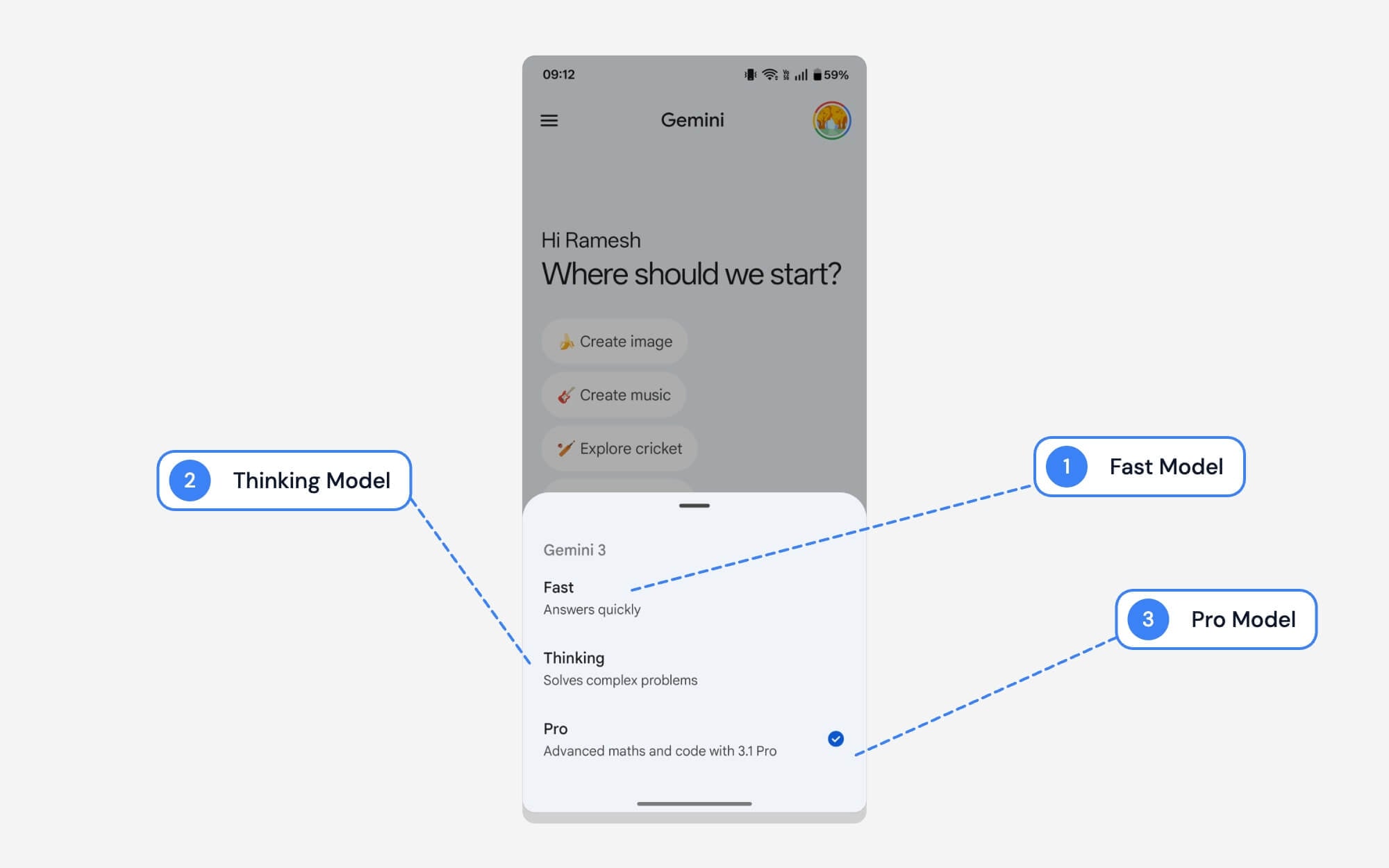
Like other chatbots, Gemini also offers a wide range of model selectors. You can switch to any model depending on your needs. Here is what each model means.
| # | Name | What It Does |
| 1 | Fast | As the name suggests, it is the best model you want quick responses. Best model to answer basic questions with reasoning capabilities |
| 2 | Thinking | Best model if you want accuracy and can handle more complex questions. Unlike fast models, it takes time to think and answer your questions |
| 3 | Pro | Pro is the best option if you want to solve complex questions and code. It uses the latest Gemini models. Similar to thinking, Pro takes time to answer your questions. |
5. Attach Menu
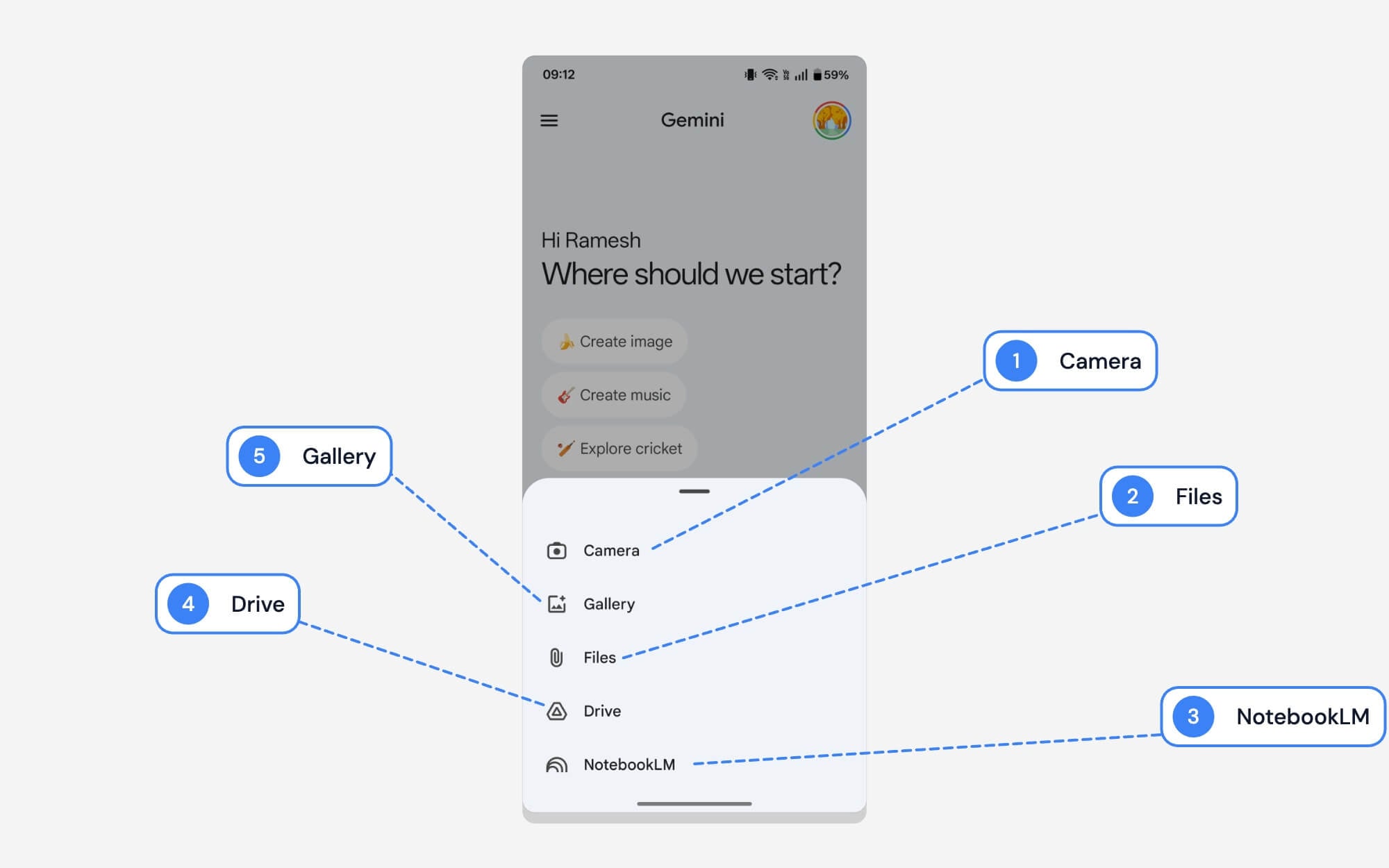
Today’s AI models support multiple input types; along with a text prompt, you can attach images, source files, and NotebookLM, much more. Here is what each input type means in the Google Gemini attach interface
| # | Name | What It Does |
| 1 | Camera | You can instantly take a picture and attach it to your prompt. |
| 2 | Gallery | Using Gallery, you can select multiple images. |
| 3 | NotebookLM | You can directly connect to your Google NotebookLM chats without leaving Gemini. If you are unaware, Google NotebookLM is a separate project from Google that lets you connect your own local sources and use AI to analyze them. |
| 4 | Files | You can select and attach local files on your device. You can upload documents, PDFs, or other local files |
| 5 | Drive | You can connect your Google Drive and select files from it. |
6. Gemini Tools Menu

This is the Google Gemini tool menu that appears when you tap on the tools icon (looks like a Filter). It gives access to tools in the Gemini app, such as generating images and videos, creating music, entering canvas mode, deep research, guided learning, and much more. Here is what each option means.
| # | Name | What It Does |
| 1 | Create image | You can generate AI images from your text description. It uses the latest Text-to-image models from Gemini. |
| 2 | Create video | You can generate videos from text. It uses the latest Google Veo text-to-video model. |
| 3 | Create music | Google has recently added the ability to generate music inside the app. |
| 4 | Canvas | Canvas provides a visual mode that lets you preview your output without opening a new page. Best for writing and coding. On the desktop, it creates a split view: on the right, you can access Google Chat, and on the left, you can preview changes in real time. |
| 5 | Deep Research | It lets you access Google’s extensive research, making it the best option if you want highly detailed reports on specific topics. |
| 6 | Guided Learning | Essentially, it is a learning mode that guides you through a step-by-step process rather than answering your questions in a single shot. Basically, a tutor who guides you. Best for learning. |
7. Gemini Sidebar

Like other apps, Google Gemini’s sidebar lets you view all your conversations and past history. Here is what each icon and option means.
| # | Name | What It Does |
| 1 | Search Bar | Using the search, you can quickly find your past conversations. |
| 2 | Temporary Chat | Temporary chat is a private chat similar to incognito mode on the browser. Temporary chats are not saved and disappear right after you close the chat window. |
| 3 | New Chat | In the new chat, tap the pencil icon to create a new chat. |
| 4 | My Stuff | My stuff gives access to all your documents and Media generated inside the Google Gemini app. |
| 5 | Gems | You can view and access Google gems from here. Your frequently accessed gems appear here |
| 6 | Recent Chats | You can view all your recent chat history. You can tap on any conversation to pick it up. |
8. Chat Interface
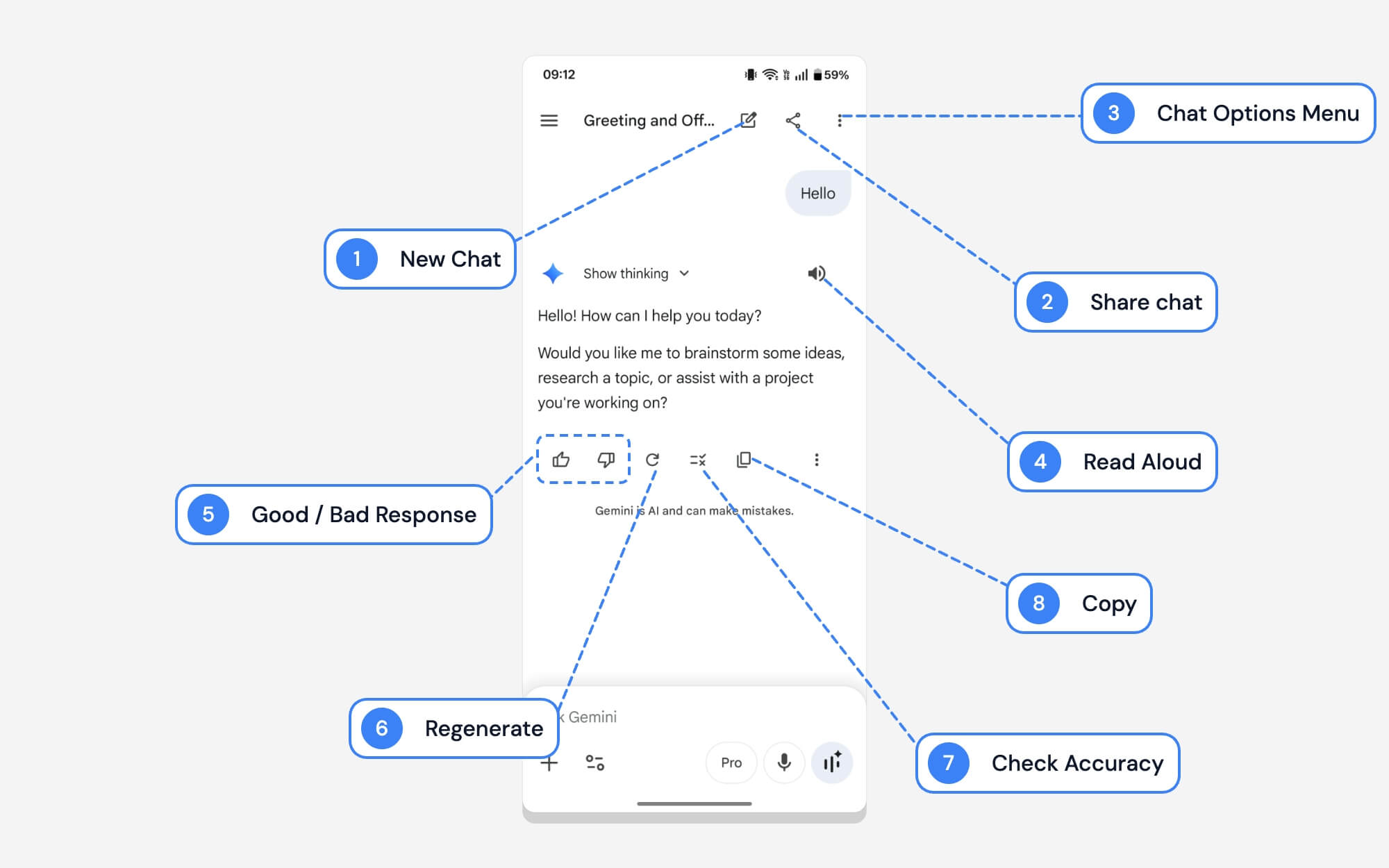
The chat interface is very straightforward; however, it also includes various symbols that some people may find confusing. Here is what each symbol means.
| # | Name | What It Does |
| 1 | New Chat | You can start a new conversation anytime directly from other chats. |
| 2 | Share Chat | You can share your chat with others. Google also allows you to share it as a public link, similar to how Google Drive links are shared. Currently, there is no option to share using a private link |
| 3 | Chat Options Menu | It opens a menu where you can rename the current chat, pin it to the top of your list, or delete it |
| 4 | Read Aloud | Read your chats aloud using voice output. |
| 5 | Good / Bad Response | You can give Google feedback on whether the answer was helpful. You can complete one of these options. |
| 6 | Regenerate | You can generate a new response if you don’t like the current one. |
| 7 | Search Google | Gemini can sometimes produce inaccurate results. To verify accuracy, you can use this; it searches Google for more accurate information. |
| 8 | Copy | You can copy the input and output inside Google Gemini chats. |
9. Google Gemini Deep Research Interface Icons
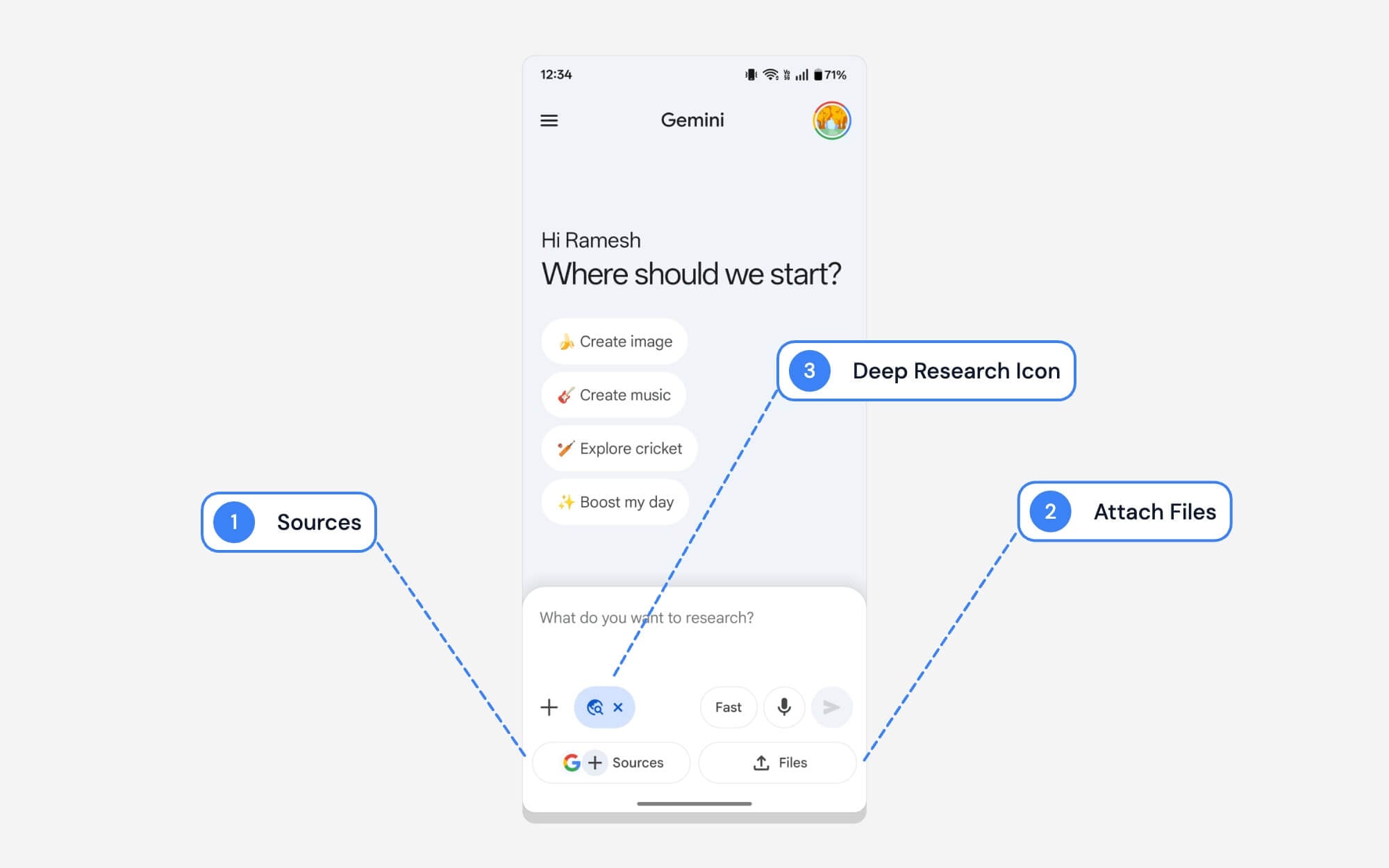
Using tools for different tasks is very straightforward in the Gemini app; however, in Deep Research, Google also lets you upload your own sources and files. Here is what each option means when you are using deep research in the Gemini app.
| # | Name | What It Does |
| 1 | Sources | You can let it search from specific sources instead of everything. |
| 2 | Attach Files | You can upload your own files if you want to share your local information for deep research |
| 3 | Deep Research Icon | It indicates that Google’s deep research tools are currently being used. |
Desktop
Gemini comes with a very similar interface on the desktop; however, the UI and features are adjusted for the large screen. If you are using Gemini for the first time, don’t worry, you can refer to this guide to know exactly what each and every icon means on the Gemini web interface, too.
1. Home page
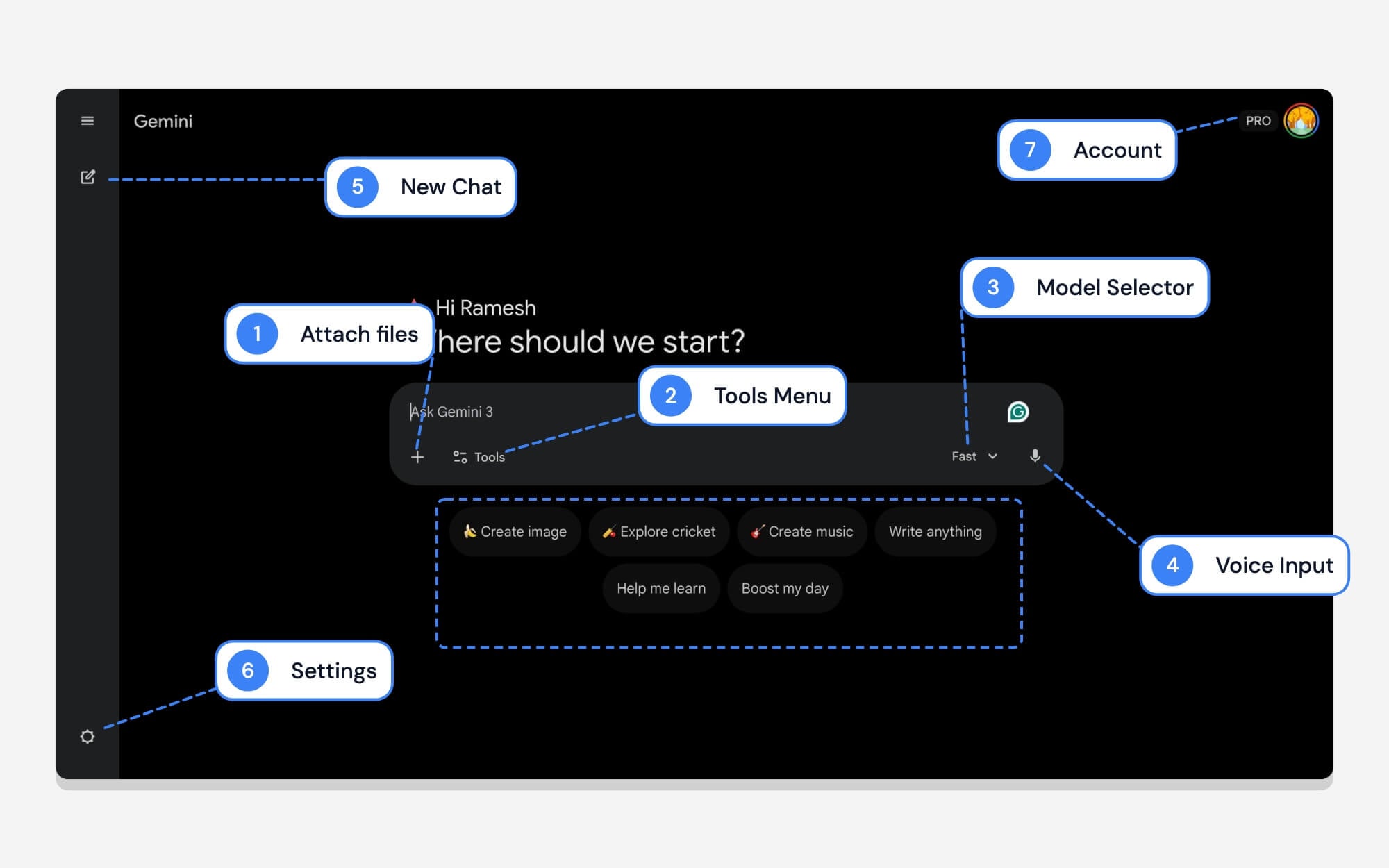
If you are using Gemini, the home page is the first thing you see on every visit. Here is what each icon and option means in the Gemini home page.
| # | Name | What It Does |
| 1 | Add / Attach (+) | You can upload files, images, PDFs, or connect to Google Drive and NotebookLM |
| 2 | Tools Menu | You can access Gemini features like Deep Research, Canvas, Workspace tools, and more for specific tasks. |
| 3 | Model Selector | Quickly switch between different modes; currently, Google comes with Gemini Fast, Thinking, or Pro models. |
| 4 | Voice Input | You can speak, and your voice will be automatically transcribed in real time. |
| 5 | Quick Suggestions | You can get started with these quick suggestions. |
| 6 | Settings | It opens the Google Gemini web settings. |
| 7 | Profile and Pro Badge | Profile pic found on May Google services; you can use it to sign in to different accounts and access different settings. |
2. Side bar
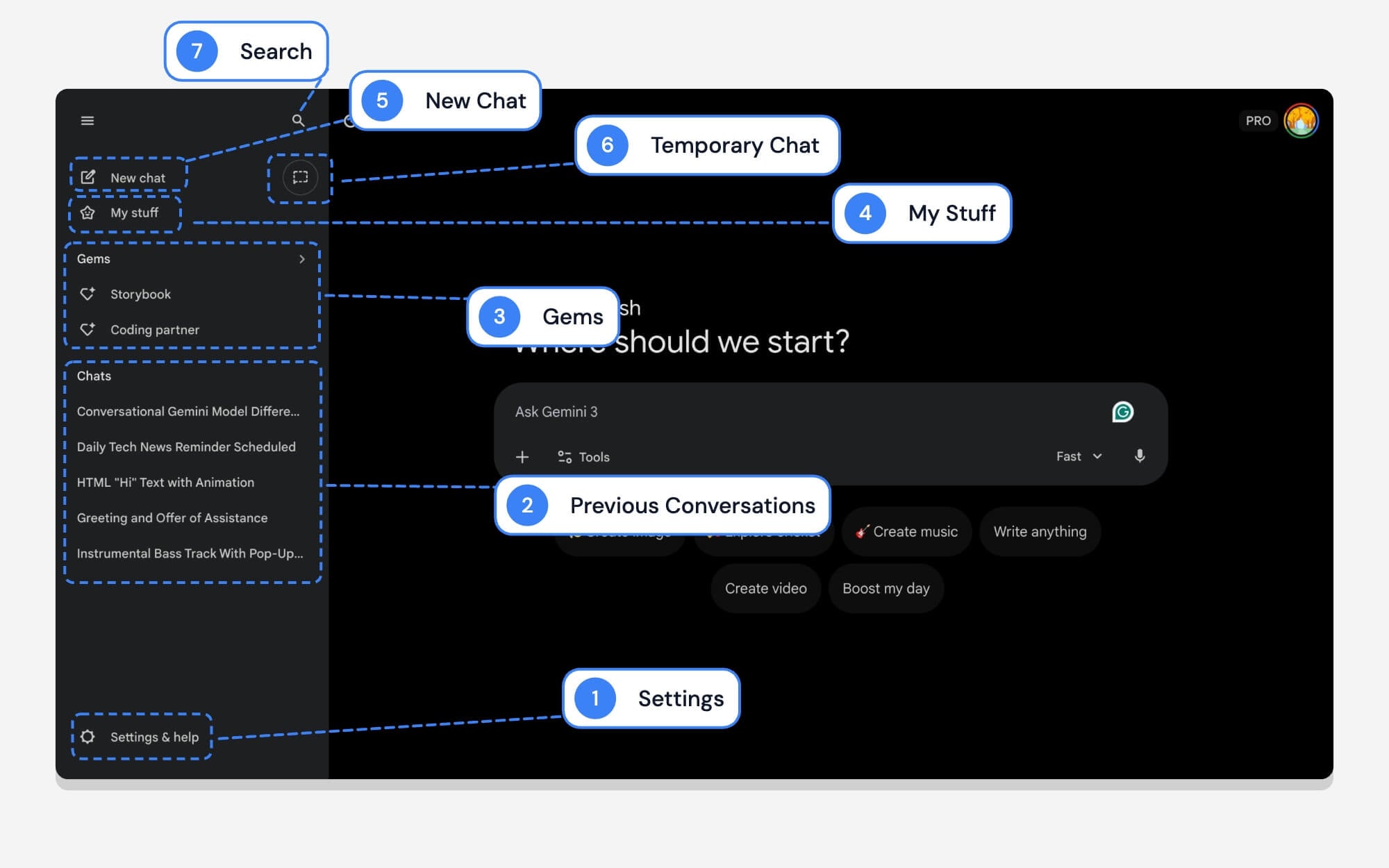
Like on mobile, you can access your information in the Google Gemini app, including past conversations, frequently used Gems, settings, and more. Here is what each option means in the Google Gemini web sidebar.
| # | Name | What It Does |
| 1 | Settings | It opens Google Gemini settings on the desktop. |
| 2 | Previous Conversations | You can view all your past conversations here. |
| 3 | Gems | You can get access to frequently used Google Gemini Gems here. |
| 4 | My Stuff | You can access all your files generated by Gemini, including media, files, and more. |
| 5 | New Chat | You can start a new chat directly from the sidebar |
| 6 | Temporary Chat | You can start a private chat that won’t be saved to your history or used to train Google’s models. |
| 7 | Search | You can see the search to find past Google Gemini conversations. |
3. Gemini Settings menu
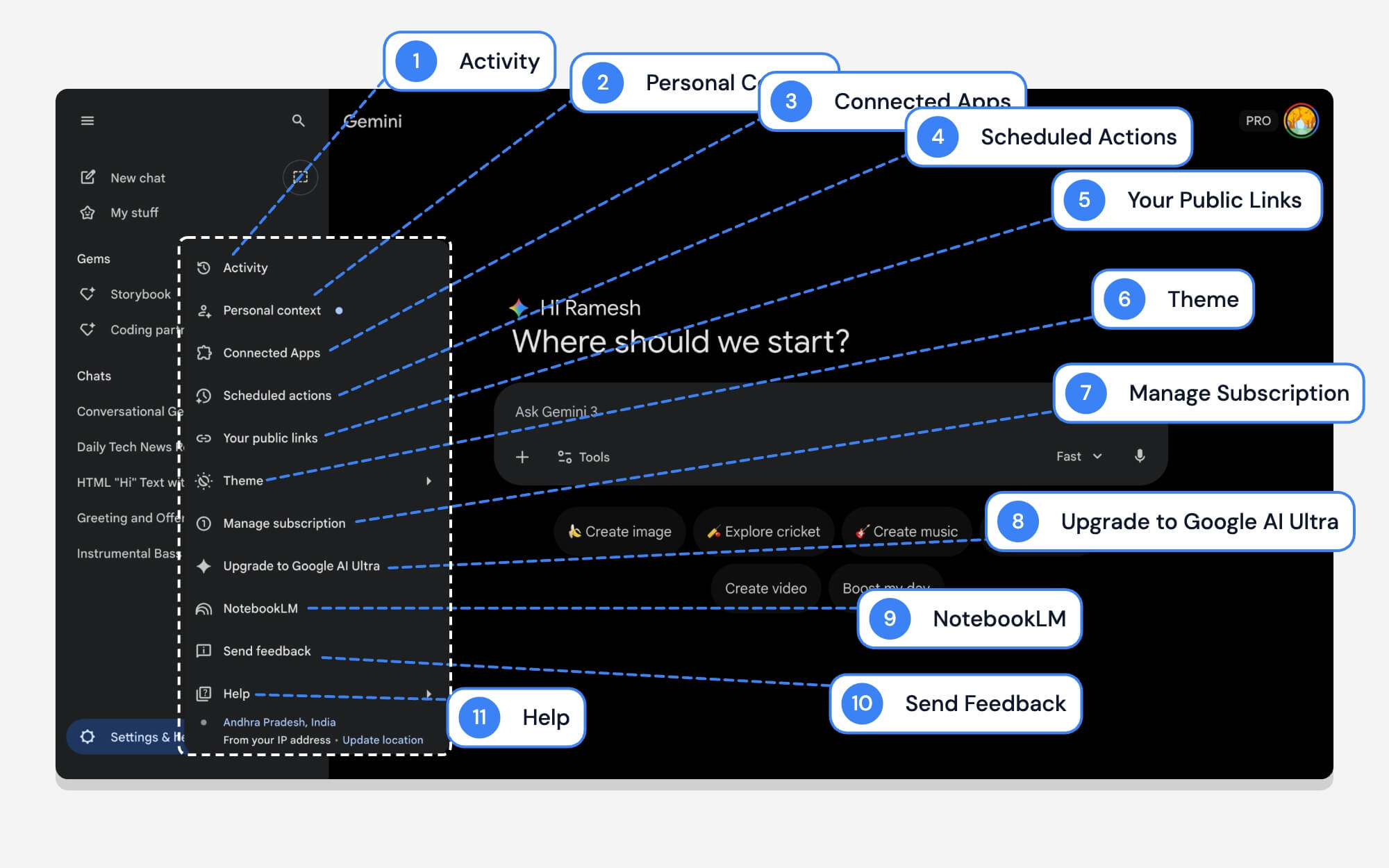
As with mobile, the settings menu in the Google Gemini desktop app also offers plenty of options. Here is what each option means.
| # | Name | What It Does |
| 1 | Activity | It opens your Gemini history where you can view, manage, or delete your past prompts and conversations. |
| 2 | Personal Context | It allows Gemini to remember facts about you. You can also control these settings. |
| 3 | Connected Apps | You can connect Google Gemini to other apps such as YouTube, WhatsApp, and much more. You can use Google Gemini to perform actions on these apps. |
| 4 | Scheduled Actions | You can set up automated, recurring tasks for Gemini. |
| 5 | Your Public Links | Shows a list of all the chats you have previously shared using a public link, so you can manage or delete them |
| 6 | Theme | You can switch between dark and light themes or use the system default. |
| 7 | Manage Subscription | Opens a page where you can view your current Gemini plan or adjust your billing settings. |
| 8 | Upgrade to Google AI Ultra | Quick option to upgrade to a better plan. You can skip this one. |
| 9 | NotebookLM | It connects to your Google NotebookLM and provides access to conversations from the NotebookLM |
| 10 | Send Feedback | You can offer feedback to the Google Gemini team. |
| 11 | Help | Get helpful guides on Google Gemini. |
4. Gemini chat interface
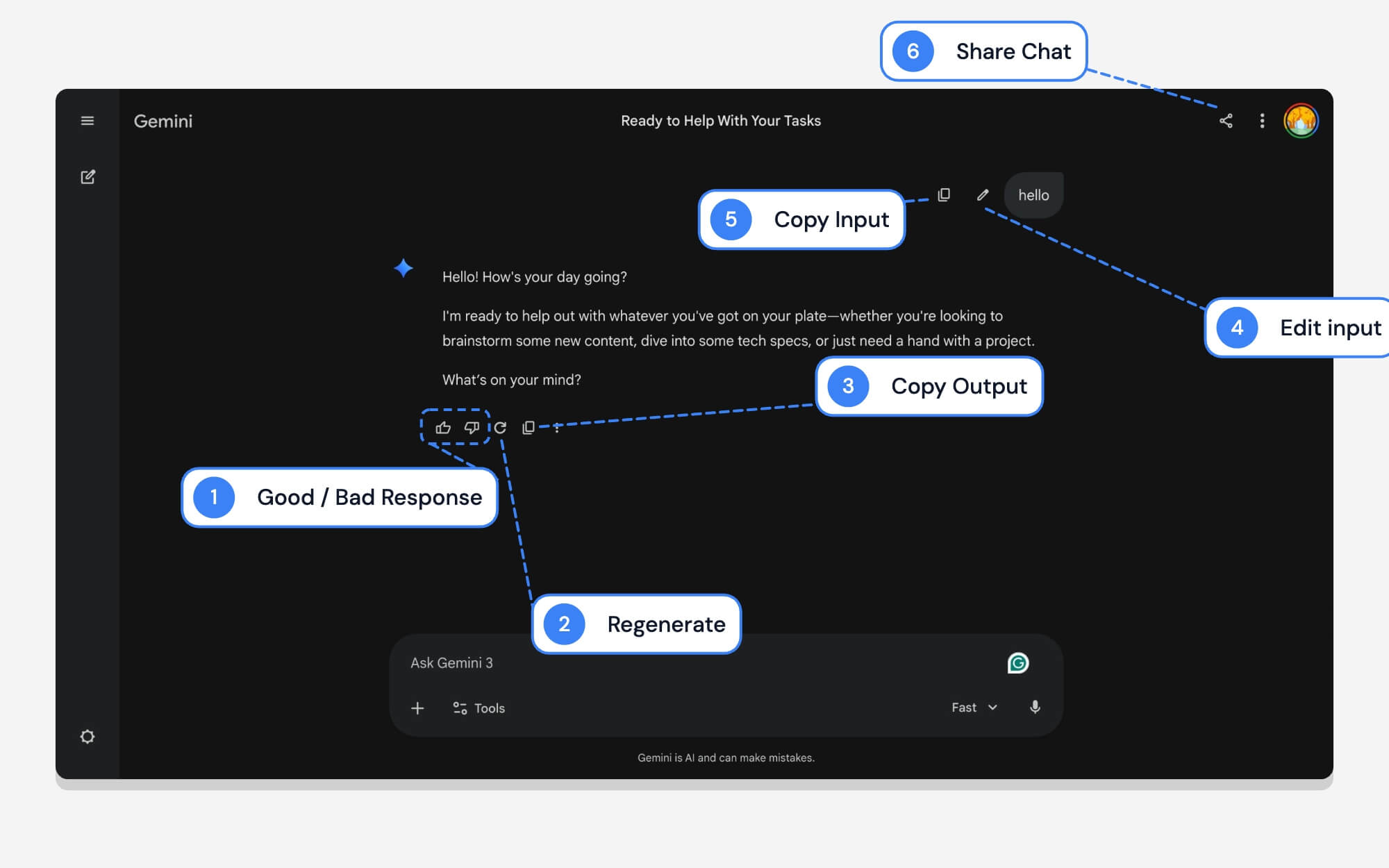
Here is what the chat interface on the Google Gemini web interface looks like. Similar to mobile, it also includes an option to regenerate, copy, and provide feedback on the models. Here is what each icon means. At the time of writing this article, the Google search feature is missing from the web interface.
| # | Name | What It Does |
| 1 | Good / Bad Response | Offer feedback to Google Gemini responses. |
| 2 | Regenerate | Generate a new output if you don’t like the current one. |
| 3 | Copy Output | Copy output from Google Gemini chat responses. |
| 4 | Edit Input | You can tap on this to edit your input; it generates a completely new response based on the new prompt. |
| 5 | Copy Input | You can copy your prompt input. |
| 6 | Share Chat | You can share your Gemini conversation with others. When you tap on the share button, it generates a link so you can share your current conversation publicly with other people |
5. Gemini desktop tools interface
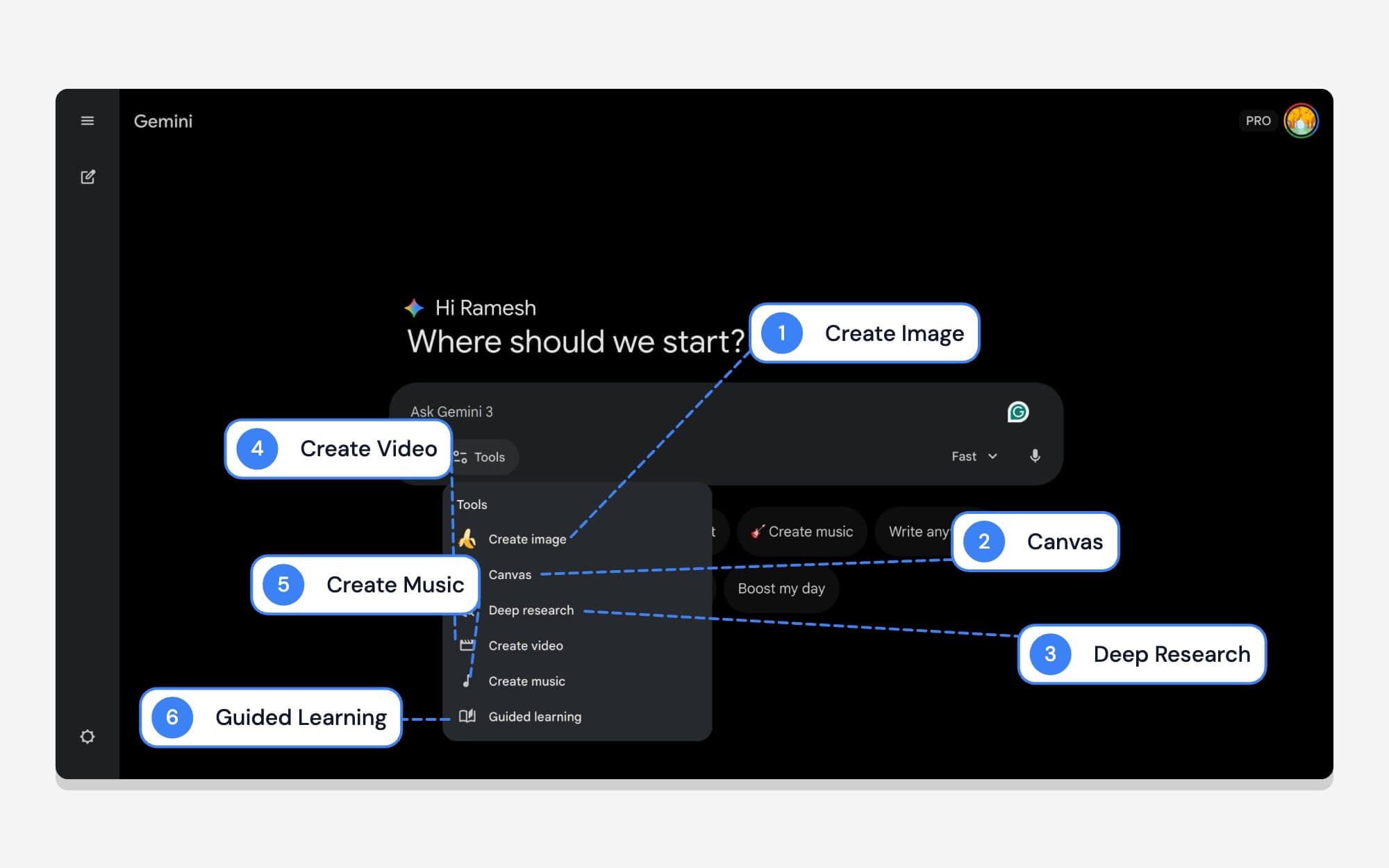
Google offers similar tools on desktop, too. Here is what each tool means on the desktop.
| # | Name | What It Does |
| 1 | Create Image | You can generate an image from text. |
| 2 | Canvas | Opens a dedicated, side-by-side workspace where you can have a conversation with Gemini and preview changes in teh real-time. Works best on desktop. |
| 3 | Deep Research | Best for detailed reports. Deep research involves searching the internet and is best for research or detailed reports. |
| 4 | Create Video | You can generate short AI video clips from text prompts. |
| 5 | Create Music | A recent addition that lets you generate original audio tracks or songs from a text description. |
| 6 | Guided Learning | Best for learning concepts, instead of providing a full answer at once, it guides you step by step for better learning. Great opportunity for students. |
6. Gemini Model Interface
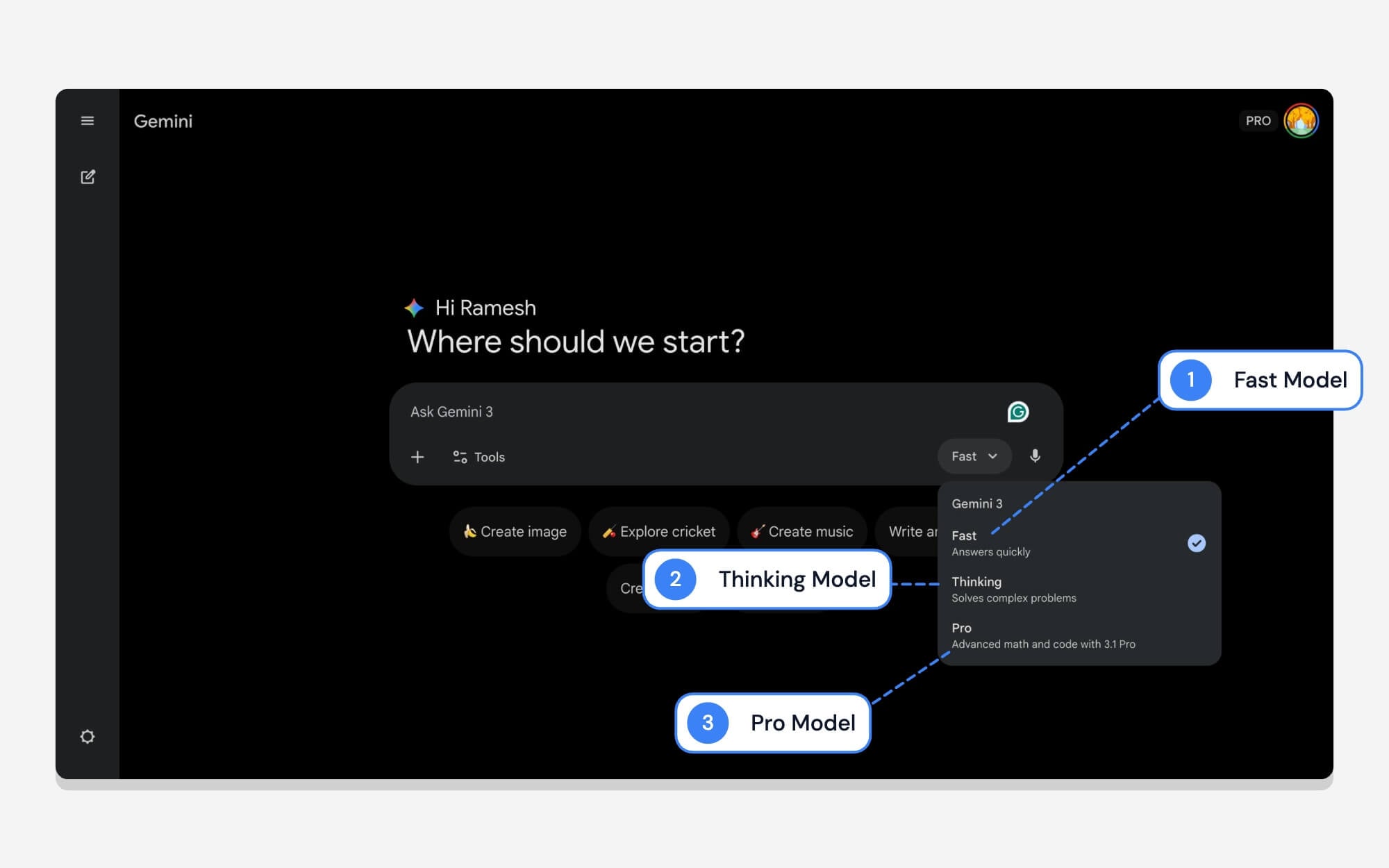
You can easily switch between models in the Google Gemini desktop. Here is what each model means.
| # | Name | What It Does |
| 1 | Fast | As the name suggests, it is the best model if you want quick responses. |
| 2 | Thinking | Best model if you want accuracy and can handle more complex questions. |
| 3 | Pro | Pro is the best option if you want to solve complex questions and code. |
7. Deep Research Interface

Deep research on the desktop also comes with the ability to upload your own sources and files from local storage. The interface is very similar to that of a mobile, but on a larger screen. If you are wondering what each option means, here is everything that you need to know.
| # | Name | What It Does |
| 1 | Sources | It lets you select specific sources for your Google deep research. |
| 2 | Upload Files | You can upload specific PDFs, documents, or spreadsheets directly into the prompt so Gemini can include that exact data in its final research report. |
| 3 | Deep Research Selected | Indicates that Google’s deep research is currently selected. |
Complete Guide to Google Gemini App Icons and Symbols
Those are the symbols and icons, and the option means in the Google Gemini app. Since AI apps are new, the most commonly used icons and options within them are not yet widely known.
We hope you found this guide helpful. This guide offers comprehensive details on what each symbol means; however, if you find a new icon and are confused, you can comment below, and we are happy to guide you. We will also update this post whenever Google makes changes to its interface. Bookmark this page for future reference.

